Disable the headphone jack by muting or disabling the audio port in your device settings or physically blocking it.
I’ve worked on audio hardware and mass deployments for years, and I’ll walk you through practical, safe ways to learn how to disable headphone jack across phones, laptops, and desktops. This guide covers quick software fixes, hardware options, enterprise controls, and troubleshooting so you can pick the right method for your needs and avoid common mistakes.

Why you might want to disable headphone jack
People disable the headphone jack for privacy, safety, or to enforce device policies. Schools, workplaces, and parents often want to stop audio output via the jack. Personal users may want to prevent damage or fix a stuck detection switch.
Disabling the headphone jack can also help when the port is faulty and causing noise or disconnects. Knowing how to disable headphone jack gives you options to control sound routing without expensive repairs.
Overview of methods to disable headphone jack
There are two main paths to disable the headphone jack: software and hardware. Software methods change settings on the operating system or use management tools. Hardware methods physically block, modify, or remove the jack.
Each approach has trade-offs. Software is reversible and safe. Hardware can be permanent or risky if done poorly. I’ll explain both and when to use each one.

Software methods (easy and reversible)
Software methods are the safest first step when you want to disable headphone jack. They let you mute, reroute, or turn off the audio port without opening the device.
- Change audio device settings to disable the jack or set internal speakers as default.
- Uninstall or disable the audio driver so the OS stops recognizing the jack.
- Use mobile accessibility or sound settings to force audio over Bluetooth instead.
- Deploy mobile device management (MDM) or group policies to lock audio settings across many devices.
Windows: disable headphone jack via settings and drivers
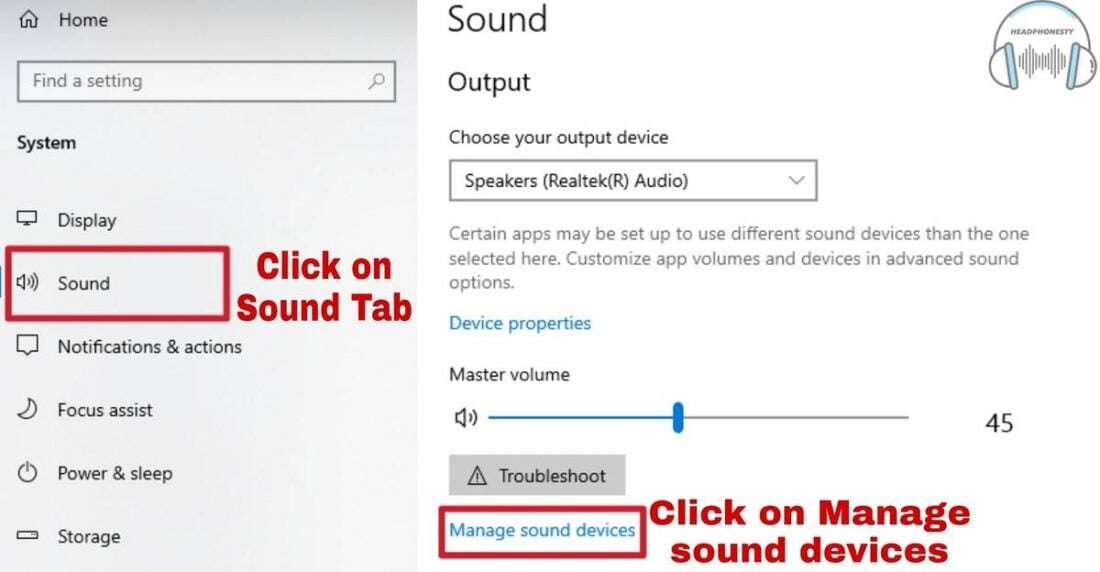
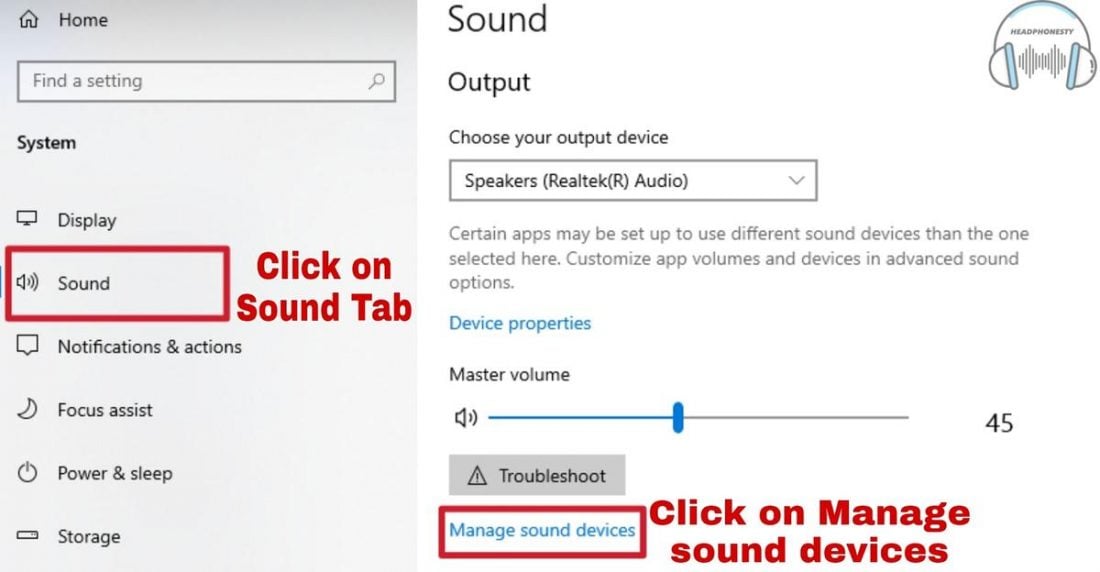
- Open Sound Settings and choose your default output device. Select speakers instead of the headphone device to route audio away from the jack.
- In Device Manager, expand Sound, video and game controllers, right-click the audio device, and choose Disable device to stop jack detection.
- Use manufacturer audio control apps to disable jack detection or set port behavior.
- As an advanced step, use registry keys or Group Policy to prevent users from changing audio settings in managed environments.

macOS: mute or disable audio ports
- Open System Preferences > Sound and set Internal Speakers as the output device if available.
- Use Audio MIDI Setup to change routing and disable unused ports.
- For persistent control, create a small script to set audio output at login or use MDM profiles to enforce audio settings.
Android: software and app-based options
- In Settings > Sound, switch output to Bluetooth or speaker if available.
- Some OEMs let you disable the headphone jack in developer or sound settings.
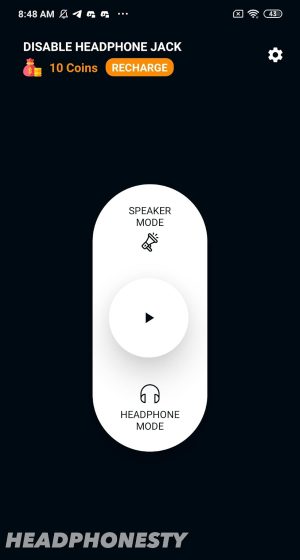
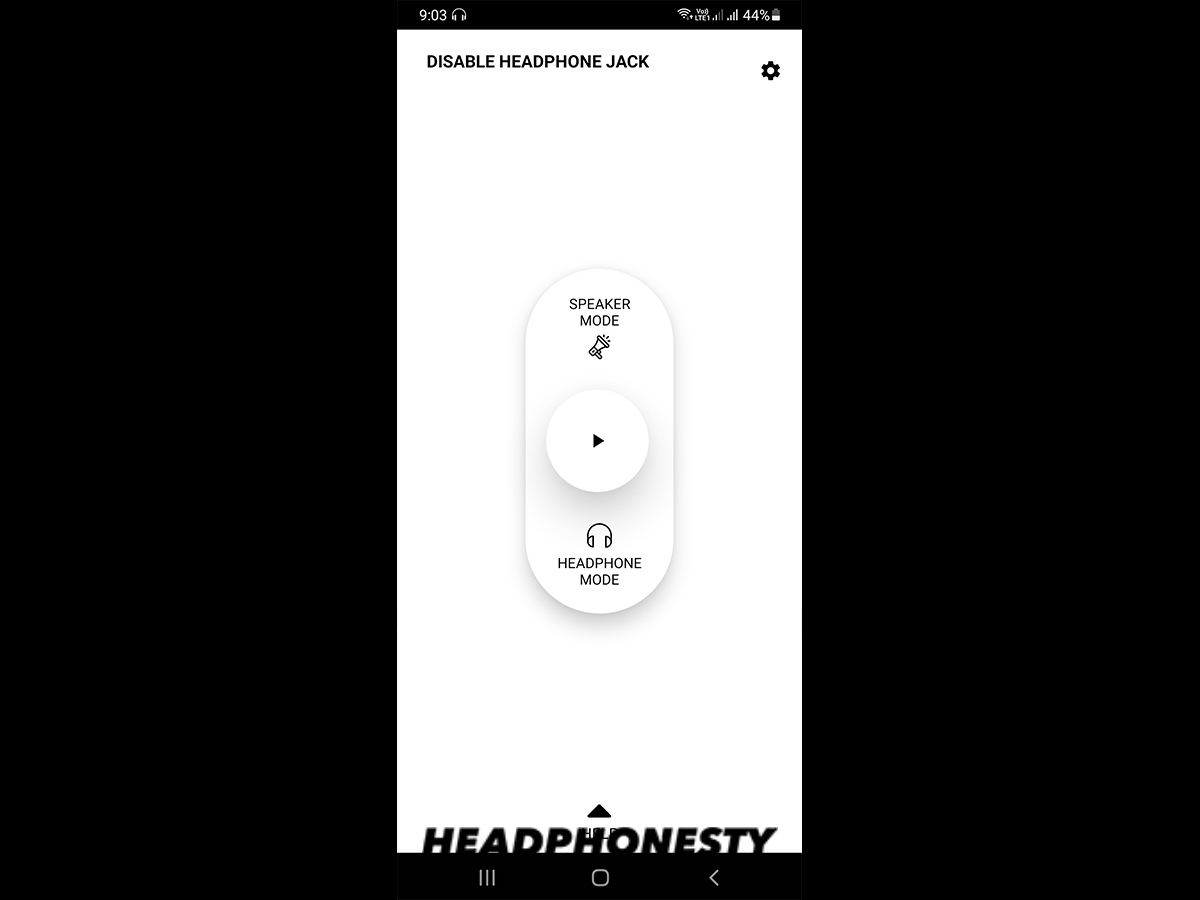
- Use third-party apps that override audio output, or use automation apps to route audio to a chosen device.

iOS: points to consider
iOS is restrictive. You cannot directly disable the headphone jack via settings on older devices with jacks. For devices with adapters or Lightning ports, route audio to Bluetooth or use Guided Access/MDM to limit apps' audio output.
Linux and advanced OS control
- Use ALSA or PulseAudio to set the default sink and mute the jack port.
- Edit system configuration so the jack is ignored on boot.
- These methods are powerful and reversible, but require command-line work.

Hardware methods (permanent or semi-permanent)
Hardware options work when software fails or you need a physical block. They vary from safe reversible fixes to permanent changes.
- Insert a tamper-proof plug to block the jack without damage.
- Disable the jack by removing the internal connector or desoldering the port (only for experienced technicians).
- Use a simple tape or foam plug for short-term blocking.
- Replace the jack or port assembly if it’s faulty and causing issues.
Hardware tends to be more permanent. If you remove parts, always document changes and keep backups.
Enterprise and parental controls
If you manage many devices, use centralized tools to control the headphone jack. These scale better than manual fixes.
- Use MDM solutions to enforce audio output rules across mobile fleets.
- Configure Group Policy on Windows domains to restrict sound-device settings.
- Use kiosk mode or single-app mode on tablets to prevent users from changing audio routing.
These methods let you implement the how to disable headphone jack requirement across many units with auditability and rollback.
Step-by-step: practical quick guides
Below are short step-by-step guides you can follow now. Use the one that matches your device.
Windows quick steps
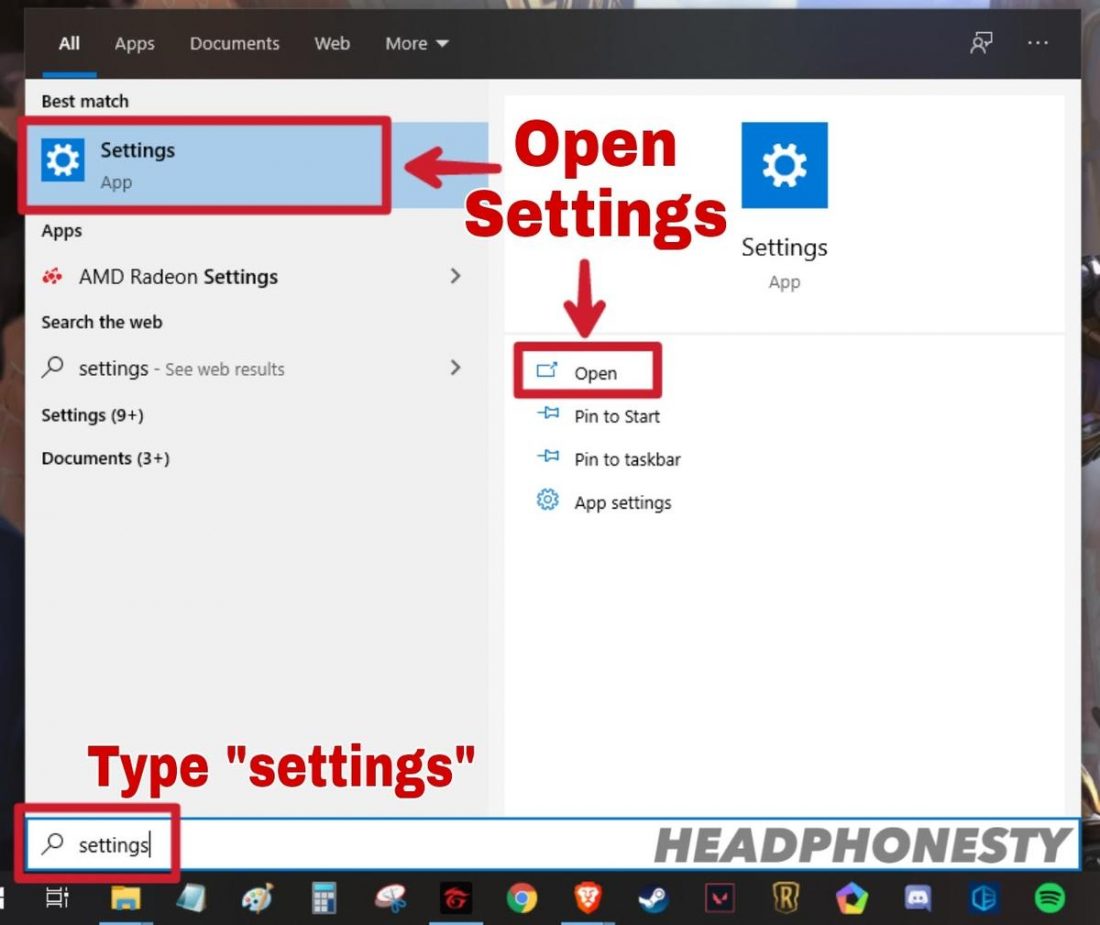
- Right-click the speaker icon and open Sound Settings.
- Under Output, choose Speakers (not Headphones).
- Open Device Manager, find the audio device, and disable it if needed.
macOS quick steps
- Open System Preferences > Sound.
- Set Output to Internal Speakers.
- If the port still takes precedence, open Audio MIDI Setup and reconfigure output.
Android quick steps
- Go to Settings > Sound.
- Turn off any headphone-specific routing or select speaker/Bluetooth.
- Install a routing app to force output if settings are limited.
Hardware short fix
- Power off the device.
- Insert a soft tamper-proof plug or foam adapter into the jack.
- Test audio to confirm the port is blocked.
Safety, limitations, and reversibility
Safety matters when you change hardware or low-level settings. Software changes are low risk and reversible. Hardware changes can break the device if done incorrectly.
- Avoid soldering unless you are trained.
- Keep original parts in case you need to reverse the change.
- Document any permanent changes for future owners or technicians.
Knowing the limits helps you pick the right how to disable headphone jack approach for your skill level.
Troubleshooting common issues
If audio still appears from the jack after you try to disable it, try these checks.
- Verify the default audio device in settings.
- Reboot after driver or setting changes.
- Check for a stuck detection switch or dirt in the jack that fools the device.
- Roll back driver updates if sound stopped working after an update.
These steps usually fix the common cases where the jack remains active.
Personal experience and practical tips
I once managed 200 lab laptops where students used headphones to bypass classroom rules. I used Group Policy to set default speakers and blocked driver installs. That solved the problem without opening a single machine.
From hands-on work, here are practical tips I use every time:
- Test a reversible software fix first.
- Use tamper-proof plugs before any hardware change.
- Keep a spare device for trial-and-error if you’re learning.
These steps saved time and avoided costly mistakes in real deployments.
PAA-style questions inside the article
Q: Can I disable the headphone jack without rooting or jailbreaking?
A: Yes. Most software settings and OS controls let you reroute or disable the jack without rooting or jailbreaking. Use system sound settings or MDM tools for managed devices.
Q: Is it safe to remove the headphone jack physically?
A: Removing the jack is risky and can void warranties. Only attempt physical removal if you have repair experience and you accept the risk.
Q: Will disabling the headphone jack stop Bluetooth audio?
A: No. Disabling the physical jack does not usually affect Bluetooth. You can still use wireless audio if the device supports it.
Frequently Asked Questions of how to disable headphone jack
How do I disable the headphone jack on a Windows laptop?
Use Sound Settings to set speakers as default and disable the audio device in Device Manager. For managed environments, use Group Policy or MDM to enforce audio settings.
Can I block the headphone jack on my phone temporarily?
Yes. Use a soft foam plug or tape the port to block the physical connector temporarily. Software routing to speaker or Bluetooth is another temporary solution.
Will disabling the jack fix audio crackling or noise?
Not always. If noise comes from the jack, disabling it can route audio to another device and help, but a full repair may be needed for hardware faults.
Is disabling the jack reversible?
Software changes are reversible; hardware changes may be permanent. Keep parts and documentation if you plan to reverse hardware modifications.
Can parental controls disable the headphone jack?
Parental controls commonly limit apps and audio settings, and MDM-like solutions can enforce output routing, which effectively disables headphone jack use.
Does disabling the jack affect microphone input?
It depends. Some jacks are combo ports for mic and headphones; disabling the port may stop both. Check your device routing before disabling.
Conclusion
You now have a clear, practical roadmap for how to disable headphone jack across devices. Start with software fixes, try reversible hardware blocks if needed, and use enterprise tools for large fleets. Be cautious with permanent hardware work and document any changes.
Take action today: test a software solution on one device, keep notes, and scale the best method to other devices. If you found this guide helpful, subscribe or leave a comment with your device model and I’ll suggest the most reliable steps for your setup.

Everett Ashford is a tech reviewer at mytechgrid.com specializing in SSDs, cameras, TVs, earbuds, headphones, and other consumer electronics. He provides honest, data-driven reviews based on hands-on testing and real-world performance analysis. Everett simplifies complex tech details to help readers make smart, confident buying decisions.