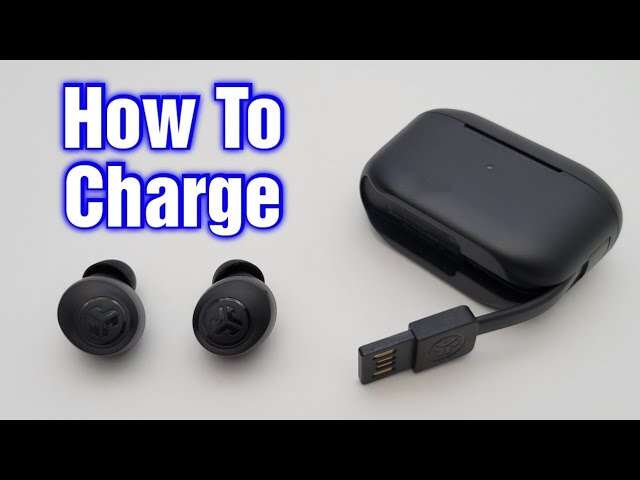
To pair Vivitar earbuds, turn on Bluetooth, open the case, select the earbuds, and confirm the connection.
Learning how to pair Vivitar earbuds is usually simple, but the exact steps can vary by model. Most Vivitar wireless earbuds use the same basic Bluetooth process: charge them, place them in pairing mode, then choose them from your phone’s Bluetooth menu. This guide explains each step, plus fixes for connection problems, reset methods, computer pairing, and tips for a more stable link.
Before You Pair Vivitar Earbuds
Before learning how to pair Vivitar earbuds, check a few basic things. Small setup issues can make the earbuds seem faulty when the real problem is low battery power or an old Bluetooth connection.
Use this quick checklist:
• Charge the earbuds and charging case for at least 15 to 30 minutes.
• Remove any clear plastic film from the charging contacts.
• Keep the earbuds close to your phone or tablet.
• Turn off Bluetooth on nearby devices that used the earbuds before.
• Make sure your phone is not connected to another pair of earbuds.
• Keep the phone and earbuds within about 3 feet during the first pairing attempt.
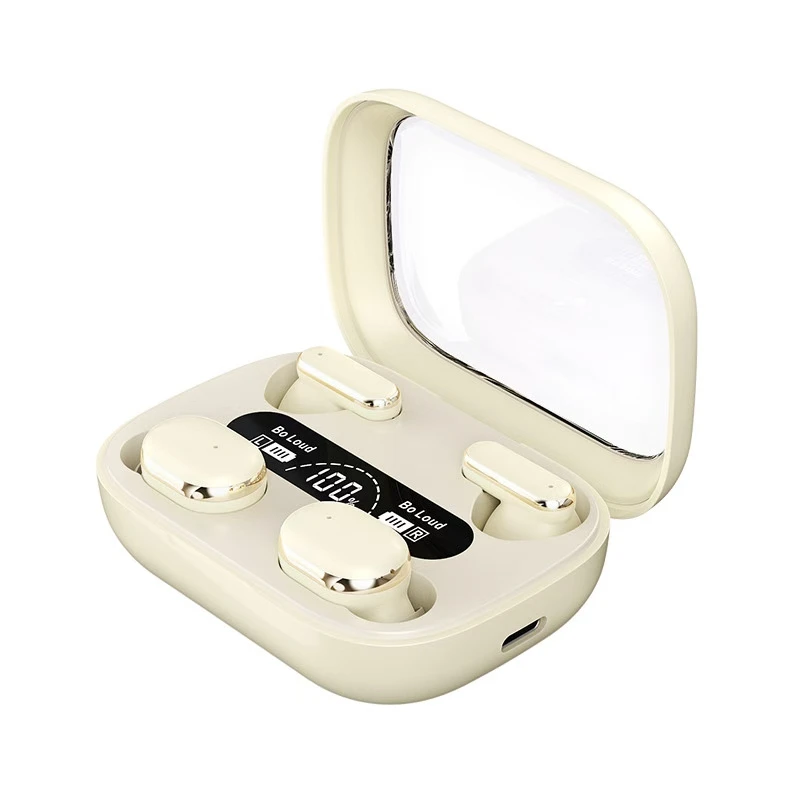
Most Vivitar earbuds enter pairing mode when you remove them from the case. Some models turn on when you press and hold the touch controls or power buttons. Since Vivitar sells several earbud designs, the button layout and LED pattern may differ.
Bluetooth pairing works like introducing two devices. Your phone searches for a nearby signal, while the earbuds announce that they are ready to connect. If either device is busy or too far away, the introduction may fail.

How to Pair Vivitar Earbuds With an iPhone
The steps below work for most Vivitar Bluetooth earbuds and current iPhone models. Keep the earbuds near the iPhone during setup.
-
Place both Vivitar earbuds in the charging case.
-
Open the case lid.
-
Remove both earbuds. If they do not turn on, press and hold each button or touch panel for a few seconds.
-
Wait for the LED light to flash. A flashing blue, red, or white light often means the earbuds are ready to pair.
-
Open the Settings app on your iPhone.
-
Tap Bluetooth.
-
Turn Bluetooth on if it is off.
-
Look under Other Devices.
-
Tap the Vivitar earbud name. It may appear as “Vivitar,” “Vivitar Earbuds,” or a model number.
-
Wait for the status to change to Connected.
After you complete these steps, audio should play through the earbuds. You may also see a battery level beside the earbud name on some iPhone versions.
If you do not see the Vivitar name, return both earbuds to the case. Close the lid for about 10 seconds, open it again, and repeat the process. This often restarts pairing mode without requiring a full reset.
How to Pair Vivitar Earbuds With an Android Phone
Android menus can look different across Samsung, Google Pixel, Motorola, and other phones. However, the Bluetooth steps remain nearly the same.
-
Put the Vivitar earbuds in the case.
-
Open the lid and remove both earbuds.
-
Watch for a flashing LED light.
-
Open Settings on your Android phone.
-
Tap Connected devices, Connections, or Bluetooth.
-
Choose Pair new device if that option appears.
-
Select the Vivitar earbuds from the list.
-
Tap Pair or Connect when prompted.
-
Wait until the earbuds show as Connected.
Some Android phones scan for Bluetooth devices automatically. On others, you must tap Scan or Add device. If the earbuds appear more than once, choose the name that appears after you remove them from the case.
When learning how to pair Vivitar earbuds with Android, do not tap a similar device by mistake. Nearby speakers, cars, watches, and other headphones may appear in the same list. Check the name carefully before confirming.

How to Pair Vivitar Earbuds With a Windows PC
Vivitar earbuds can also connect to a Windows laptop or desktop. This is useful for online meetings, music, videos, and gaming, although Bluetooth audio may have a slight delay in some games.
-
Remove the earbuds from the charging case.
-
Make sure the LED light shows pairing mode.
-
On Windows, open Settings.
-
Select Bluetooth & devices.
-
Turn Bluetooth on.
-
Click Add device.
-
Choose Bluetooth.
-
Select the Vivitar earbuds from the list.
-
Click Done after the connection is complete.
If your Windows computer has an older menu, open Settings, choose Devices, select Bluetooth & other devices, and click Add Bluetooth or other device.
After pairing, click the speaker icon in the Windows taskbar. Select the Vivitar earbuds as the sound output device. If you are using the earbuds for calls, also check the input and output settings in your meeting app.
How to Pair Vivitar Earbuds With a Mac
A Mac can pair with Vivitar earbuds through System Settings or System Preferences, depending on the macOS version.
-
Remove both earbuds from their case.
-
Confirm that they are flashing or announcing pairing mode.
-
Click the Apple menu.
-
Open System Settings.
-
Select Bluetooth.
-
Find the Vivitar earbuds under Nearby Devices.
-
Click Connect.
-
Open the sound controls and select the earbuds if audio does not switch automatically.
Older Mac computers may use System Preferences instead of System Settings. The Bluetooth menu still works in the same basic way.
If the earbuds connect but sound comes from the Mac speakers, click Control Center in the menu bar. Select Sound, then choose the Vivitar earbuds. This is a common step people miss after learning how to pair Vivitar earbuds with a computer.
How to Put Vivitar Earbuds Into Pairing Mode
Pairing mode allows a phone or computer to discover the earbuds. Without it, the earbuds may remain connected to an old device or stay in standby mode.
Try these methods in order:
• Open the charging case and remove both earbuds.
• Press and hold the power or touch controls for three to five seconds.
• Return the earbuds to the case, close the lid, and open it again.
• Turn Bluetooth off on the last device that used the earbuds.
• Press and hold both earbuds at the same time if the model has separate controls.
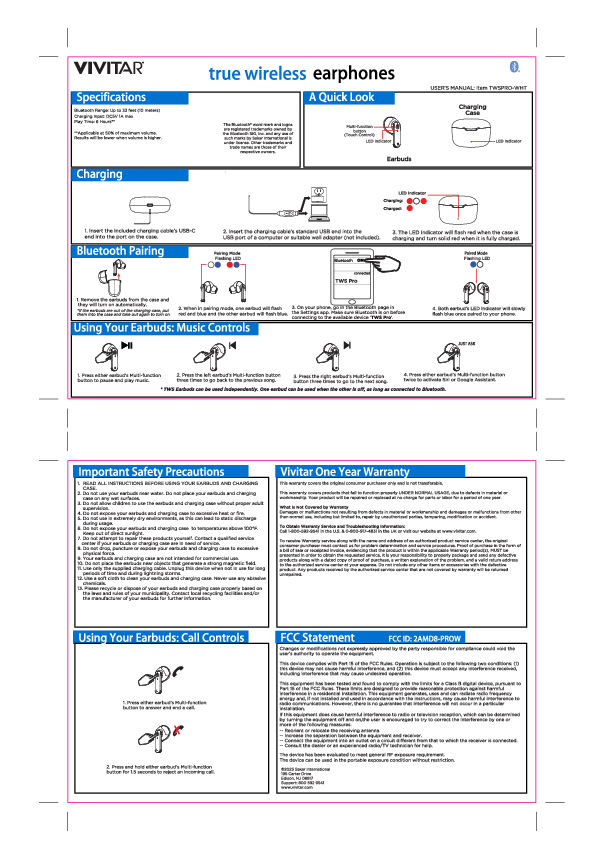
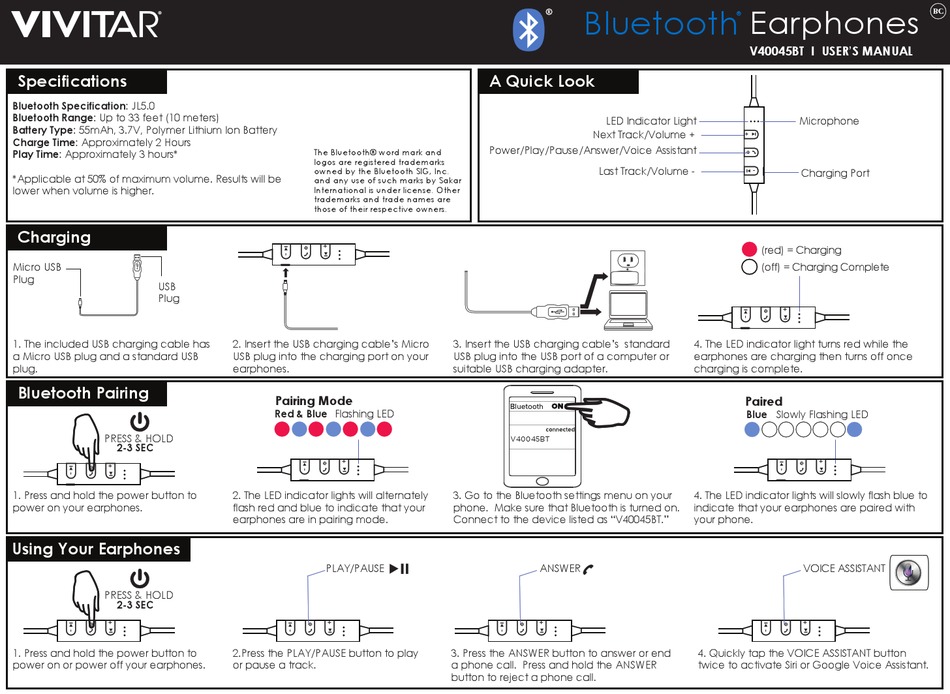
The LED may flash blue, red and blue, or white. Some Vivitar models use voice prompts instead of a clear light signal. Your model’s user manual is the best source for exact LED meanings.
A flashing light does not always mean the earbuds are ready for a new device. It can also show that the earbuds are searching for each other. If your phone cannot find them, use the reset steps below.
How to Pair Vivitar Earbuds Again After a Previous Connection
Vivitar earbuds normally remember the last phone or computer they used. This feature is convenient, but it can block a new connection when you switch devices.
First, turn off Bluetooth on the old device. Then place the earbuds in pairing mode and search from the new device. If the old device is nearby with Bluetooth enabled, the earbuds may reconnect to it before the new phone can find them.
You can also remove the saved connection:
• On iPhone, open Settings, tap Bluetooth, tap the information icon beside the Vivitar name, and choose Forget This Device.
• On Android, open Bluetooth settings, tap the gear icon beside the Vivitar name, and choose Forget or Unpair.
• On Windows, open Bluetooth & devices, select the earbuds, and click Remove device.
• On Mac, open Bluetooth settings, click the information button beside the earbuds, and choose Forget This Device.
After removing the old connection, restart Bluetooth and repeat how to pair Vivitar earbuds from the beginning. This clean connection often solves random disconnects and one-earbud problems.
How to Reset Vivitar Earbuds
A reset clears stored pairing information and restores the earbuds to a fresh setup state. It is useful when the earbuds do not appear, connect to only one side, or keep connecting to the wrong device.
The reset method depends on the Vivitar model. A common method is:
-
Forget or remove the earbuds from every phone and computer.
-
Turn off Bluetooth on nearby devices.
-
Place both earbuds in the charging case.
-
Remove them and press both controls for about 10 to 15 seconds.
-
Return them to the case.
-
Close the lid for several seconds.
-
Open the case and remove both earbuds again.
-
Search for the Vivitar name on your phone.
Some models require you to tap each earbud several times, while others use a long press. Do not force the buttons or use sharp tools. If the common reset does not work, check the instructions for your exact Vivitar model.
Resetting does not repair a damaged battery, broken charging contact, or water damage. It only clears the wireless setup. This is an important limitation when troubleshooting how to pair Vivitar earbuds.
Fixes When Vivitar Earbuds Will Not Pair
When pairing fails, work from the simplest fix to the more advanced one. Most problems come from power, distance, or a saved Bluetooth connection.
Try these solutions:
• Charge the earbuds and case. A weak battery may prevent pairing mode.
• Clean the metal charging contacts with a dry cotton swab.
• Restart your phone, tablet, or computer.
• Turn Bluetooth off, wait 10 seconds, and turn it back on.
• Forget the Vivitar earbuds from the device’s Bluetooth menu.
• Move away from crowded wireless areas, such as busy offices or airports.
• Keep the earbuds within a few feet of the device.
• Reset the earbuds and try again.
• Test the earbuds with a second phone.
Testing with another device helps identify the source. If the earbuds pair with another phone, your original phone may have a Bluetooth setting problem. If they fail everywhere, the earbuds may need a reset, charge, or replacement.
Bluetooth uses short-range radio signals. Walls, metal objects, Wi-Fi equipment, and many nearby wireless devices can affect performance. The Bluetooth SIG notes that range and reliability depend on the device design and surrounding environment, so advertised range is not always the same as real-world range.
Fixes for One Vivitar Earbud Not Working
Sometimes the left and right earbuds lose their connection with each other. Your phone may then show one earbud, or sound may come from only one side.
Use this process:
-
Forget the Vivitar earbuds from your phone.
-
Turn off Bluetooth.
-
Place both earbuds in the case.
-
Confirm that both earbuds are charging.
-
Remove both earbuds at the same time.
-
Wait several seconds for them to sync with each other.
-
Turn Bluetooth back on.
-
Pair the earbuds again.
If one earbud has no light, clean its charging contacts and make sure it sits correctly in the case. A tiny piece of dust can stop it from charging. If one side remains dead after a full charge and reset, the issue may be hardware related.
During troubleshooting, I have found that people often remove only the working earbud. Both earbuds usually need to be reset together, much like restarting two linked computers instead of just one.
How to Improve Vivitar Earbud Connection Quality
Knowing how to pair Vivitar earbuds is only the first step. Good setup habits can help the connection stay stable.
Follow these practical tips:
• Keep your phone on the same side of your body as the main earbud.
• Avoid placing the phone in a bag surrounded by metal items.
• Keep the case and earbuds dry.
• Install phone updates when available.
• Do not pair the earbuds with many devices at the same time.
• Keep the charging contacts clean.
• Store the earbuds in the case when you are not using them.
• Avoid extreme heat and cold.
Most Vivitar earbuds use standard Bluetooth audio profiles. They are designed for music, calls, and video, but performance can vary by model and phone. Older models may not support newer Bluetooth features, and some may not offer a companion app or firmware updates.
For calls, keep the microphone side clear of hair, clothing, and wind. If music sounds fine but calls are poor, the problem may involve microphone placement or the phone’s call-audio settings rather than pairing.
Common Pairing Mistakes to Avoid
A few habits can make how to pair Vivitar earbuds harder than it needs to be.
• Searching before the earbuds enter pairing mode: Your phone cannot find earbuds that are still asleep or connected elsewhere.
• Pairing one earbud first: Some models need both earbuds removed together.
• Ignoring the charging case: The case may need power to activate or reset the earbuds.
• Leaving the old device nearby: The earbuds may reconnect to it automatically.
• Accepting the wrong Bluetooth name: Nearby devices can look similar.
• Resetting too soon: First check battery level, distance, and saved connections.
• Using wet earbuds: Moisture can affect charging and may damage the controls.
One mistake I often see is pressing the touch panel repeatedly without waiting. This can pause music, activate a voice assistant, or power the earbud off. A steady three-to-five-second press is usually better than many quick taps, unless your model’s manual says otherwise.
Understanding Vivitar Earbud LED Lights
LED signals help you understand what the earbuds are doing, but their meanings can differ by model. Treat the following as general guidance rather than a universal code.
• Flashing blue or white: The earbuds may be ready to pair.
• Red light: The battery may be low or the earbuds may be charging.
• No light: The earbuds may be off, fully charged, or not making contact with the case.
• Alternating colors: The earbuds may be entering pairing mode.
• One light active: One earbud may not be charging or syncing.
The user manual for your exact model is the most reliable guide. Vivitar has released many earbud designs, so LED colors are not perfectly consistent across the product range.
If the earbuds announce “connected” but you hear no sound, check the output device on your phone or computer. Pairing and audio routing are related but separate steps.
How to Check Whether Vivitar Earbuds Are Connected
After learning how to pair Vivitar earbuds, confirm the connection before playing audio.
On an iPhone, open Settings and tap Bluetooth. The earbuds should show Connected. On Android, open Bluetooth or Connected devices and look for the same status.
On Windows, click the sound icon and choose the Vivitar earbuds. On Mac, open the sound controls and select them as the output device.
Play a short song or video to test both sides. Then make a brief call to check the microphone. Testing music and calls separately can reveal whether the issue involves Bluetooth, sound output, or the microphone.
Frequently Asked Questions About How to Pair Vivitar Earbuds
Why are my Vivitar earbuds not showing up on Bluetooth?
They may not be in pairing mode, may have a low battery, or may still be connected to another device. Charge them, turn off Bluetooth on the old device, reset the earbuds if needed, and search again.
How do I put Vivitar earbuds in pairing mode?
Remove both earbuds from the case and wait for a flashing LED or voice prompt. If they do not enter pairing mode, press and hold the controls for three to five seconds or follow the instructions for your exact model.
Can I pair Vivitar earbuds with an iPhone?
Yes. Open iPhone Settings, tap Bluetooth, turn Bluetooth on, and select the Vivitar earbuds under Other Devices. Keep the earbuds close to the iPhone during the first connection.
Can I pair Vivitar earbuds with a laptop?
Yes. Windows and Mac computers can connect to most Vivitar earbuds through Bluetooth. Put the earbuds in pairing mode, open the computer’s Bluetooth settings, and select the Vivitar name.
How do I reset Vivitar earbuds?
Forget the earbuds from your phone or computer, place both earbuds in the case, and use the model’s reset method. Many models reset when you press and hold both earbud controls, but the exact time and button sequence can vary.
Why does only one Vivitar earbud work?
The earbuds may have lost their connection with each other, or one side may not be charging. Forget the Bluetooth connection, reset both earbuds together, clean the charging contacts, and pair them again.
Do Vivitar earbuds connect automatically?
They often reconnect automatically to the last device they used when removed from the case. Automatic connection may fail if Bluetooth is off, the device is too far away, or another device takes priority.
Conclusion
Learning how to pair Vivitar earbuds usually takes only a few minutes. Charge the earbuds, place both units in pairing mode, select the Vivitar name in your device’s Bluetooth settings, and test the sound. If pairing fails, forget the old connection, restart Bluetooth, check the charging contacts, and reset both earbuds together.
Start with the simple steps before assuming the earbuds are damaged. With the right setup, your Vivitar earbuds should be ready for music, calls, videos, and everyday use. Save this guide for future troubleshooting, and share your model or pairing experience in the comments.

Everett Ashford is a tech reviewer at mytechgrid.com specializing in SSDs, cameras, TVs, earbuds, headphones, and other consumer electronics. He provides honest, data-driven reviews based on hands-on testing and real-world performance analysis. Everett simplifies complex tech details to help readers make smart, confident buying decisions.