
Raise iPhone earbud volume by checking safety limits, audio settings, Bluetooth controls, earbud fit, and hardware condition.
If your earbuds sound quiet, the iPhone may be limiting output, reducing audio with a setting, or failing to create a good seal in your ears. I have found that a few small changes often make a bigger difference than simply pressing the volume-up button. This guide explains how to make earbuds louder on iPhone safely, including fixes for AirPods, Beats, wired earbuds, and most Bluetooth models.

Check the iPhone’s volume controls first
Start with the simple fix. Connect your earbuds, play music or a podcast, and press the Volume Up button on the side of your iPhone. The volume slider should appear on the screen.


You can also open Control Center by swiping down from the top-right corner. Drag the volume slider upward while your earbuds are playing sound. The iPhone remembers separate volume levels for its built-in speaker and connected headphones, so changing the speaker volume alone may not help.
If the slider is already near the top but the sound is still weak, check these points:
• Confirm that the earbuds are connected to the correct iPhone.
• Make sure the audio is not playing through the iPhone speaker.
• Disconnect other Bluetooth devices that may have taken control of playback.
• Test another app, such as Apple Music, YouTube, or a podcast app.


• Restart the app and reconnect the earbuds.
This basic check solves many cases of low volume. It also helps you learn whether the issue affects the iPhone or only one app.

Turn off the headphone volume limit
The iPhone includes a safety feature called Reduce Loud Audio. When it is active, iOS lowers sounds above a set decibel level. This can make earbuds seem quiet even when the volume slider is at maximum.
To review this setting:
- Open Settings.
- Tap Sounds & Haptics.
- Tap Headphone Safety.
- Check Reduce Loud Audio.
- Turn it off, or choose a higher limit if the option is available.
On some iPhone models and iOS versions, the menu may look slightly different. The setting may also be affected by local regulations or regional defaults.
Apple added this feature to help reduce long-term hearing damage. Turning it off can make earbuds louder on iPhone, but it also removes an important safeguard. A safer choice is to raise the limit only as much as needed and take regular listening breaks.
The World Health Organization recommends keeping personal listening levels moderate and limiting long exposure to loud sound. If your ears ring after listening, the volume is too high, even if the music sounds better.
Check Headphone Accommodations
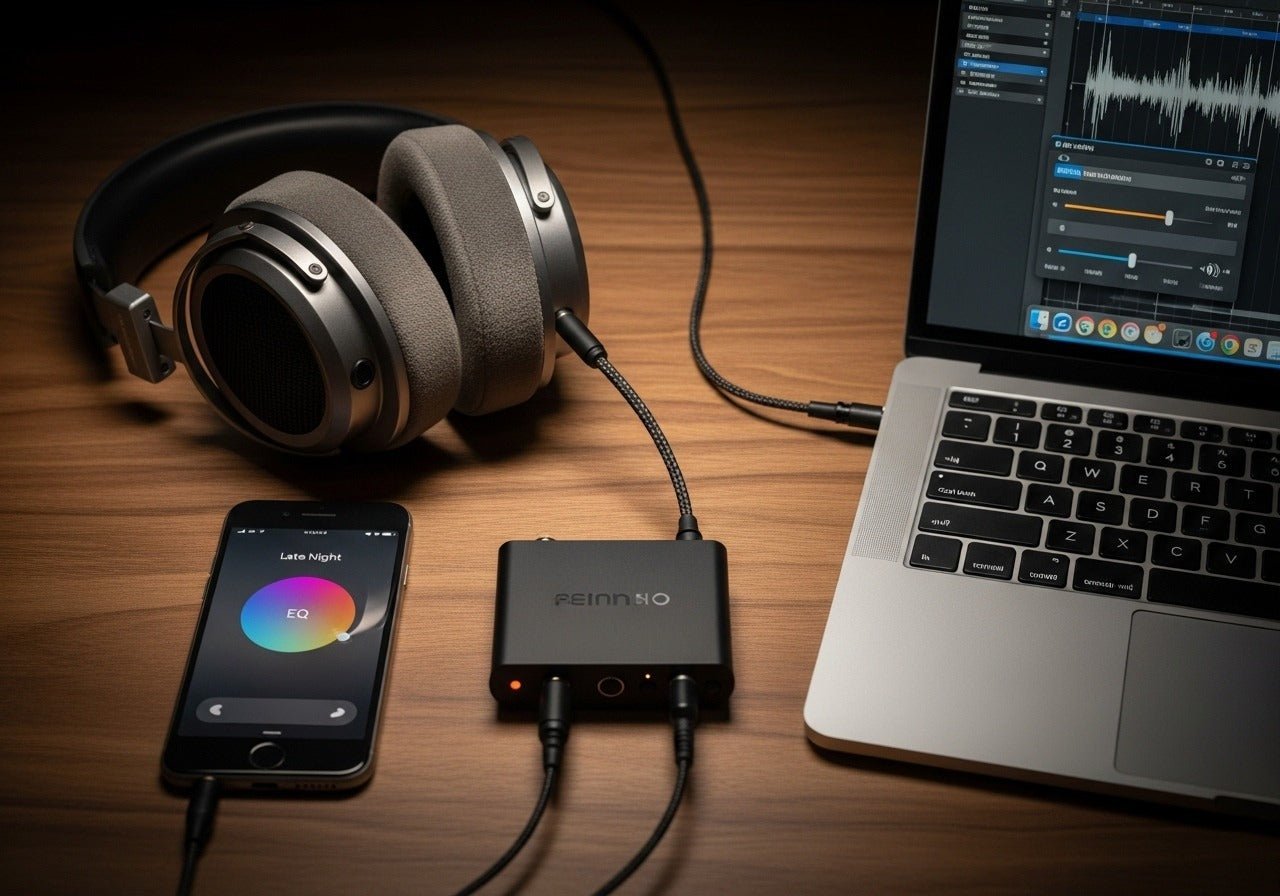
Headphone Accommodations can change how your iPhone processes sound. This feature is designed to make certain frequencies clearer for people with hearing differences. However, an unsuitable setting can make music sound softer, thin, or unbalanced.
Go to:
- Settings
- Accessibility
- Audio & Visual
- Headphone Accommodations
If the feature is on, try switching it off for a quick comparison. If you want to keep it on, tap Custom Audio Setup and follow the hearing test. You can also select a balanced tone or adjust soft sounds.
This feature works best with supported Apple and Beats headphones. It may not improve every third-party earbud. The goal is not always a higher maximum volume. Sometimes clearer speech and stronger mids make audio feel louder without increasing the actual sound pressure.
That distinction matters. Perceived loudness is like brightness on a screen. A sharper, clearer image can seem brighter even when the brightness setting stays the same.


Change the iPhone audio balance
A shifted audio balance can make one or both earbuds seem quiet. This often happens after accessibility settings have been changed by accident.
To check the balance:
- Open Settings.
- Tap Accessibility.
- Tap Audio & Visual.
- Find the Balance slider.
- Move it to the center.
You can also test Mono Audio in the same menu. Mono Audio sends the same sound to both earbuds. It is useful when one earbud works poorly, but it may reduce the sense of stereo space.
If one earbud is much quieter than the other, do not assume the iPhone is the cause. Earwax, dust, a blocked speaker mesh, a damaged cable, or a weak earbud battery can create the same symptom.
Use the right EQ setting
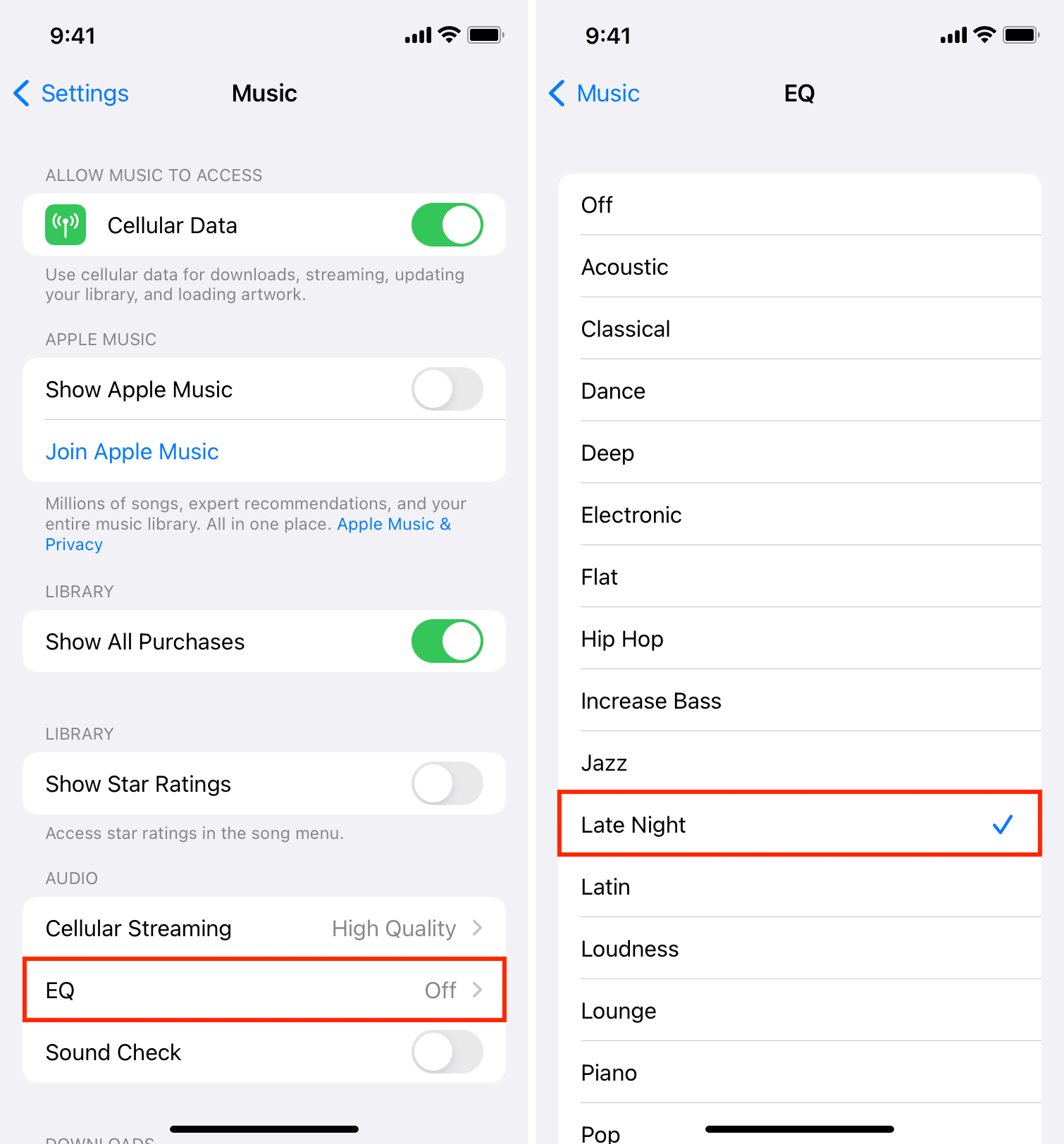
An equalizer, or EQ, changes the level of bass, mids, and treble. It does not always increase the maximum output, but it can make music sound fuller and louder.
For Apple Music:
- Open Settings.
- Scroll down and tap Apps.
- Tap Music.
- Tap EQ.
- Test Late Night, Small Speakers, or another suitable preset.
On older iOS versions, you may find Music directly in the Settings app. Menu names can change after software updates.
Late Night can make quiet parts of a song easier to hear by reducing the gap between loud and soft sounds. This is useful at a low listening level, but it can also make music sound compressed. For natural music, try EQ Off first. For podcasts, speech boost options in the audio app may work better.
Many apps have their own audio settings. Spotify, YouTube Music, and podcast apps may include volume normalization, an equalizer, or a loudness setting. Test these options one at a time so you know which change helped.

Disable volume normalization when needed
Volume normalization makes different songs or episodes play at similar levels. This is convenient, but it can make some tracks seem quieter.
In Spotify, look for the Volume Normalization option in Settings. The exact menu can change, but it is usually found under playback or audio quality settings. Try turning it off and compare the same song.
Apple Music also includes Sound Check. You can find it under Settings, then Apps, Music, and Sound Check on newer iOS versions. Turn it off for testing if songs sound unusually quiet.
Normalization is not always bad. It prevents sudden jumps between tracks and may reduce the temptation to raise the volume. If you disable it, remember to lower the volume before switching to a louder recording.


Improve the earbud fit and seal
Earbud fit is one of the most overlooked answers to how to make earbuds louder on iPhone. In-ear models depend on a seal inside the ear canal. Without that seal, bass leaks out and outside noise covers the music.
Try these practical changes:
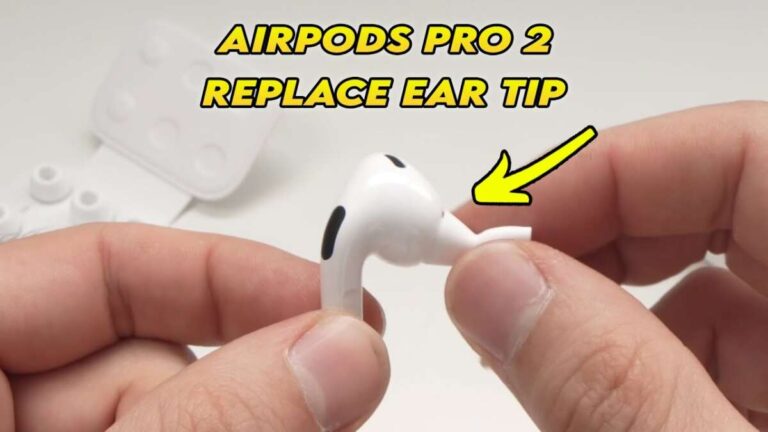
• Test every included ear tip size.
• Use one size larger if the earbuds feel loose.
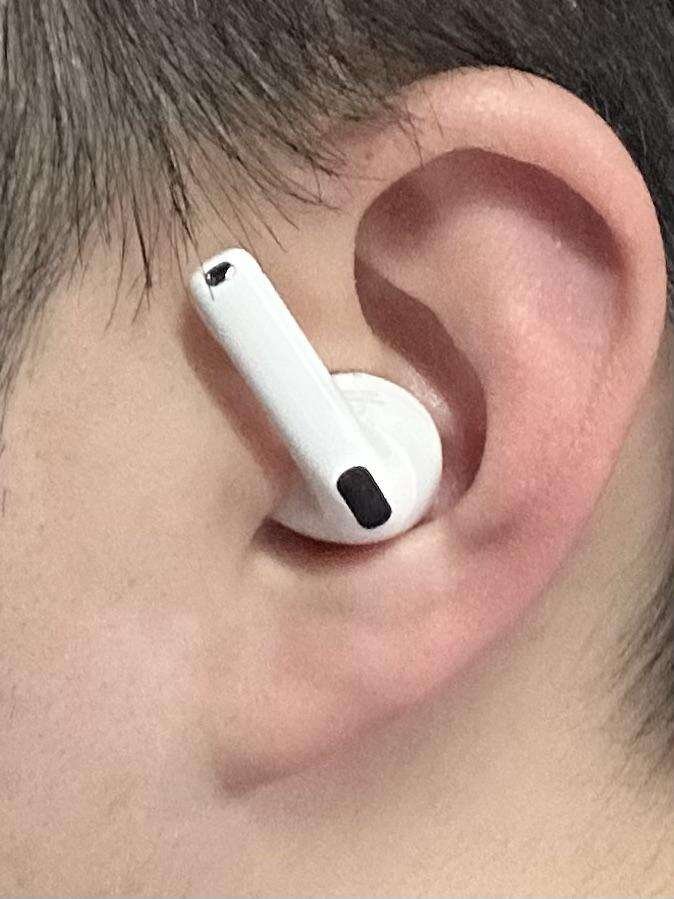
• Twist the earbuds gently into place rather than pushing them too far.
• Clean the ear tips and speaker mesh.
• Replace worn or cracked silicone tips.
• Check whether both earbuds sit at the same depth.
A proper fit should feel secure but not painful. When the seal is right, low notes become stronger and voices become easier to hear. You may then be able to lower the iPhone volume.
This is one of the most useful lessons from testing earbuds in daily settings. People often raise the volume on a train or plane because outside noise is leaking in. A better seal can improve clarity without adding more stress to your ears.

Clean your earbuds safely
Dust and earwax can block the small speaker openings. Even a thin layer can reduce treble and make earbuds sound dull.
Use a dry, soft brush or a clean microfiber cloth. Hold the earbud with the speaker mesh facing downward so loose debris does not fall deeper inside. For removable silicone tips, take them off, rinse them with clean water, and let them dry fully before putting them back.
Avoid these mistakes:


• Do not push pins or needles into the speaker mesh.
• Do not pour liquid into the earbud.
• Do not use compressed air at close range.
• Do not use alcohol on surfaces unless the manufacturer permits it.
• Do not charge earbuds while they are damp.
If the mesh is deeply blocked, professional cleaning may be safer. Some earbuds also have water resistance, but water resistance does not mean they are safe to soak.
Forget and reconnect Bluetooth earbuds
A Bluetooth connection can become unstable after an iOS update, a firmware change, or pairing with several devices. Reconnecting often fixes low volume, one-sided sound, or volume controls that do not respond correctly.
Try this process:
- Open Settings.
- Tap Bluetooth.
- Tap the information button beside your earbuds.
- Choose Forget This Device.
- Put the earbuds in their case.
- Restart the iPhone.
- Pair the earbuds again.
For AirPods, keep both earbuds in the case, open the lid, and follow the pairing instructions. For other models, use the manufacturer’s pairing mode.
Also check the earbud maker’s app for firmware updates. A firmware update may fix volume behavior, connection bugs, or poor channel balance. Keep the earbuds charged before updating.
Check the earbud’s own volume setting
Some Bluetooth earbuds have a separate internal volume level. The iPhone may show full volume while the earbuds themselves remain set low.
Open the companion app for your earbuds and look for:
• Device volume
• Touch control settings
• Hearing protection
• Safe volume
• Equalizer
• Maximum volume
Not every model has a separate setting. Some earbuds sync their volume with iOS, while others keep an independent level. If your earbuds support touch or button controls, press the volume-up control on the earbuds several times while audio plays.
Be careful with third-party volume booster apps. iOS limits how apps can control system audio, so many “volume booster” apps only change EQ or add compression. They cannot safely bypass every hardware or operating system limit.
Test wired earbuds and adapters
If you use wired earbuds with an iPhone, the Lightning or USB-C adapter may be the issue. A low-quality or damaged adapter can cause weak sound, crackling, or one-sided playback.
Check the following:
• Remove and reconnect the adapter firmly.
• Inspect the port for lint or debris.
• Try a different certified adapter.
• Test the earbuds with another device.
• Test another pair of wired earbuds with the same adapter.
Use a soft, dry brush to clean the iPhone port. Do not scrape inside the port with metal objects. If the adapter becomes hot, disconnects often, or produces distorted sound, replace it.
USB-C iPhones may support different audio accessories than older Lightning models. Compatibility can vary, so an adapter that works with one iPhone may not work properly with another.
Update iOS and restart the iPhone
Software bugs can affect Bluetooth volume, audio routing, and headphone safety settings. Restarting the iPhone is simple, but it can clear temporary audio problems.
To check for an update:
- Open Settings.
- Tap General.
- Tap Software Update.
- Install an available update if your iPhone is compatible.
After updating, reconnect the earbuds and test them again. You may need to review the Headphone Safety, EQ, and Accessibility settings because software updates can change menu locations or restore certain defaults.
If low volume affects every pair of earbuds, reset network settings as a later step. Go to Settings, General, Transfer or Reset iPhone, Reset, and Reset Network Settings. This removes saved Wi-Fi networks and Bluetooth pairings, so use it only after easier fixes.
Find out whether the problem is the iPhone or earbuds
A quick comparison can save time. Test the same earbuds with another phone, then test another pair of earbuds with your iPhone.
Use this guide:
• One pair is quiet on every device: the earbuds may be damaged or blocked.
• Every pair is quiet on your iPhone: check iOS settings, the port, or the phone itself.
• Only one app is quiet: review that app’s volume and normalization settings.
• One earbud is quiet: clean it, check balance, and inspect its battery.
• Volume changes by itself: investigate Bluetooth controls, automatic safety settings, or a failing accessory.
If the earbuds sound distorted at high volume, stop increasing the level. Distortion can point to a damaged driver, poor connection, or an audio source that is clipping.
Use safe listening habits
Learning how to make earbuds louder on iPhone should not mean listening at maximum volume all day. Loud sound can harm the tiny hair cells in the inner ear, and that damage may be permanent.
Use these safer habits:
• Keep the volume as low as needed for clear speech or music.
• Take a quiet break every hour.
• Use noise-canceling earbuds in loud places.
• Choose well-fitting ear tips.
• Watch for ringing, muffled hearing, or ear pain.
• Avoid sleeping with loud earbuds playing.
Active noise cancellation can help because it reduces outside noise without requiring more music volume. It does not make the speaker physically stronger, but it can make quiet details easier to hear.
If you often need maximum volume, or if one ear suddenly sounds quieter, speak with a hearing professional. Earwax buildup, infection, or hearing loss can affect perceived loudness. Earbuds should not be used to cover up a possible health issue.
How to make earbuds louder on iPhone: a quick troubleshooting order
Use this order when you want the fastest path to a solution:
- Raise the volume while audio is playing.
- Check Headphone Safety and Reduce Loud Audio.
- Center the Audio & Visual balance slider.
- Turn off Headphone Accommodations for a test.
- Check the app’s EQ and normalization settings.
- Improve the earbud seal and clean the speaker mesh.
- Forget and reconnect the Bluetooth device.
- Check the earbud’s companion app.
- Test another pair of earbuds.
- Update iOS or inspect the adapter and charging case.
This order starts with safe software checks and ends with hardware diagnosis. It also prevents a common mistake: changing five settings at once and then not knowing which one fixed the problem.
Frequently asked questions about how to make earbuds louder on iPhone
Why are my earbuds quiet even when my iPhone volume is full?
The Reduce Loud Audio setting may be limiting headphone output. A poor ear tip seal, blocked speaker mesh, app normalization, or a low internal earbud volume can also make sound seem quiet.
How do I make AirPods louder on an iPhone?
Check Settings, Sounds & Haptics, and Headphone Safety first. Then clean the AirPods, test the ear tip fit, check Headphone Accommodations, and reconnect them through Bluetooth.
Does iPhone have a volume booster?
The iPhone does not provide an unlimited volume booster. EQ settings and audio processing can make sound seem louder, but iOS and the earbuds still control the safe maximum output.
Why is one earbud quieter than the other?
The quiet earbud may have blocked mesh, a poor fit, a low battery, or a damaged speaker. Check the Audio & Visual balance slider and test the earbuds with another device before replacing them.
Is it safe to turn off Reduce Loud Audio?
Turning it off may increase available volume, but it can also raise the risk of hearing damage. Use the lowest level that gives clear sound and take regular breaks.
Can noise cancellation make earbuds louder?
Noise cancellation does not increase the earbud’s maximum power. It reduces background noise, which can make music and speech easier to hear at a lower volume.
Conclusion
The best way to make earbuds louder on iPhone is to check Headphone Safety, review audio settings, improve the earbud seal, clean the speaker mesh, and reconnect Bluetooth. If those steps fail, test another pair of earbuds or inspect the adapter and iPhone port.
Start with the safe fixes before raising the volume to its limit. A better fit and less background noise often deliver clearer sound without added risk. Try the steps above, keep your listening level comfortable, and share your experience or questions in the comments.

Everett Ashford is a tech reviewer at mytechgrid.com specializing in SSDs, cameras, TVs, earbuds, headphones, and other consumer electronics. He provides honest, data-driven reviews based on hands-on testing and real-world performance analysis. Everett simplifies complex tech details to help readers make smart, confident buying decisions.

4 Comments