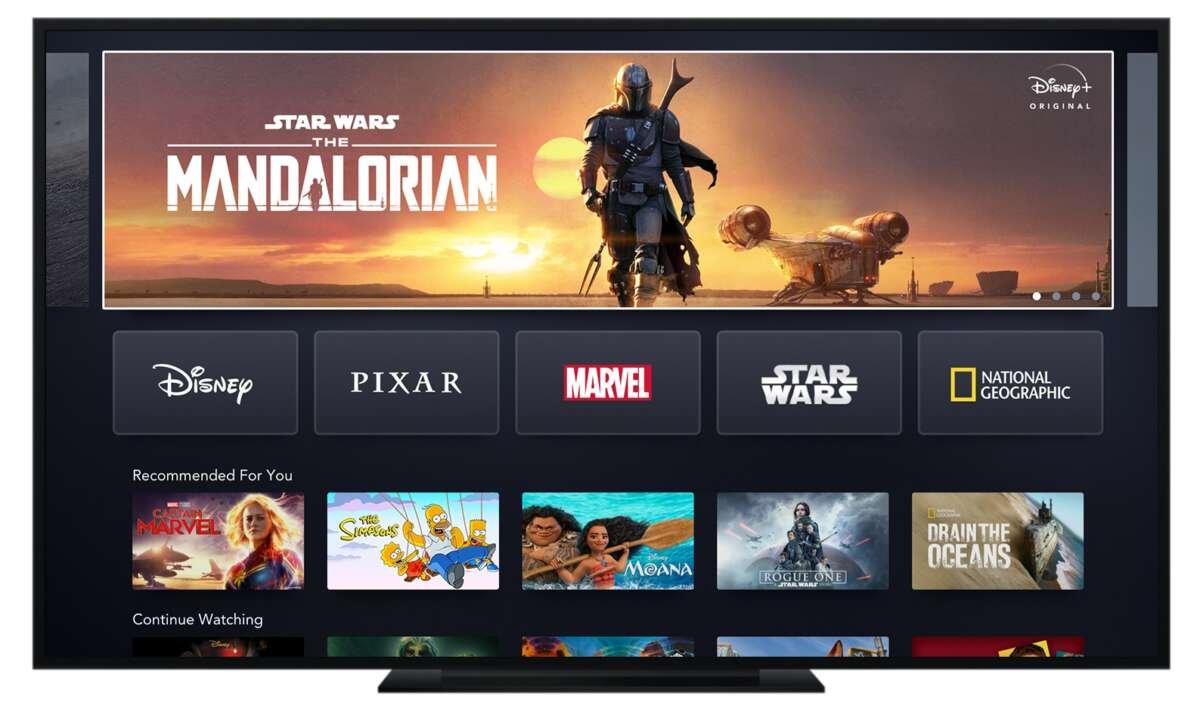
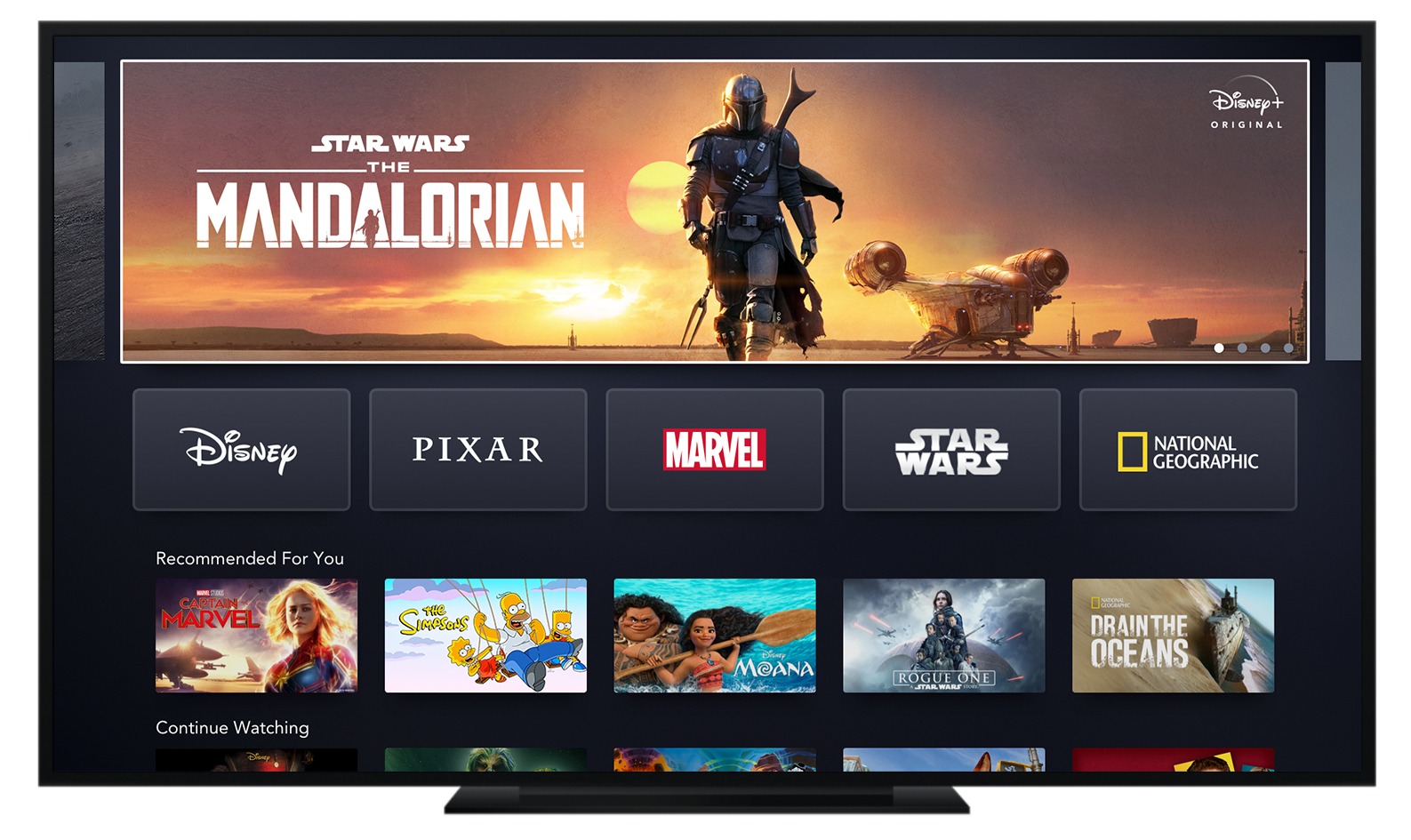
To cancel Disney Plus on TV, open your account settings or use the service that bills you.
Canceling Disney Plus on a television can feel confusing because the app may not show a clear cancel button. The right steps depend on how you started your subscription. This guide explains how to cancel Disney Plus on TV, Roku, Fire TV, Apple TV, smart TVs, and other devices without losing track of your billing date.

Can you cancel Disney Plus directly on a TV?
Usually, you cannot cancel a Disney Plus subscription from the Disney Plus app on a smart TV. The TV app is made for watching content, while account and billing tools often sit on the Disney Plus website or the platform that processed your payment.
To cancel Disney Plus on TV, first find out who bills you:
• Disney Plus may bill you directly through its website.
• Apple may manage your subscription if you signed up through an iPhone, iPad, or Apple TV.
• Google Play may handle billing if you subscribed through an Android device.
• Roku may bill you if you joined through Roku.
• Amazon may manage the payment if you subscribed through Fire TV or Amazon.
• A cable, internet, or mobile provider may include Disney Plus in a package.
This billing source is the key. Think of it as finding the cashier before asking for a refund. Disney Plus can explain your plan, but only the company that charges you can usually cancel it.
How to cancel Disney Plus on TV through the Disney Plus website
If Disney Plus bills you directly, use a web browser on your TV, phone, computer, or tablet. A computer or phone is often faster, but a smart TV browser can work if it supports the Disney Plus website.
Follow these steps:
-
Open the web browser on your smart TV.
-
Visit the official Disney Plus website.
-
Select Log In.
-
Enter the email address and password linked to your Disney Plus account.
-
Open your profile menu.
-
Select Account.
-
Find the Subscription section.
-
Choose your Disney Plus plan.
-
Select Cancel Subscription.
-
Follow the on-screen prompts.
-
Confirm the cancellation when Disney Plus asks.
-
Save the confirmation email or take a screenshot.
After you cancel Disney Plus on TV, you can normally keep watching until the end of your current billing period. Cancellation usually stops the next charge. It does not always end access at once.
The exact labels may change. You might see options such as Continue to Cancel, Complete Cancellation, or Cancel Anyway. Read each screen carefully so you do not pause the plan instead of canceling it.
How to cancel Disney Plus on Roku TV
Roku users may have two different billing setups. You may have subscribed through Roku, or you may have signed up directly on the Disney Plus website and only watch through a Roku device.
Cancel Disney Plus through the Roku TV
Use your Roku remote:
-
Press the Home button.
-
Highlight the Disney Plus channel.
-
Press the Star button on your remote.
-
Select Manage Subscription.
-
Choose Cancel Subscription.
-
Confirm the cancellation.
You can also cancel through your Roku account online. Sign in to your Roku account, open the list of subscriptions, select Disney Plus, and choose the cancellation option.
If Manage Subscription does not appear, Roku may not bill you. In that case, use the Disney Plus website or check another payment provider.
Check for a Roku billing date
Roku subscriptions may renew through your Roku account rather than your Disney Plus account. This means the Disney Plus website might show limited billing details. Check your Roku account if you want to confirm the renewal date or cancellation status.
When helping someone cancel Disney Plus on TV, I often see this mistake: they remove the Disney Plus channel but leave the subscription active. Removing an app is like taking a magazine off your table. It does not stop the delivery. Always cancel the subscription itself.
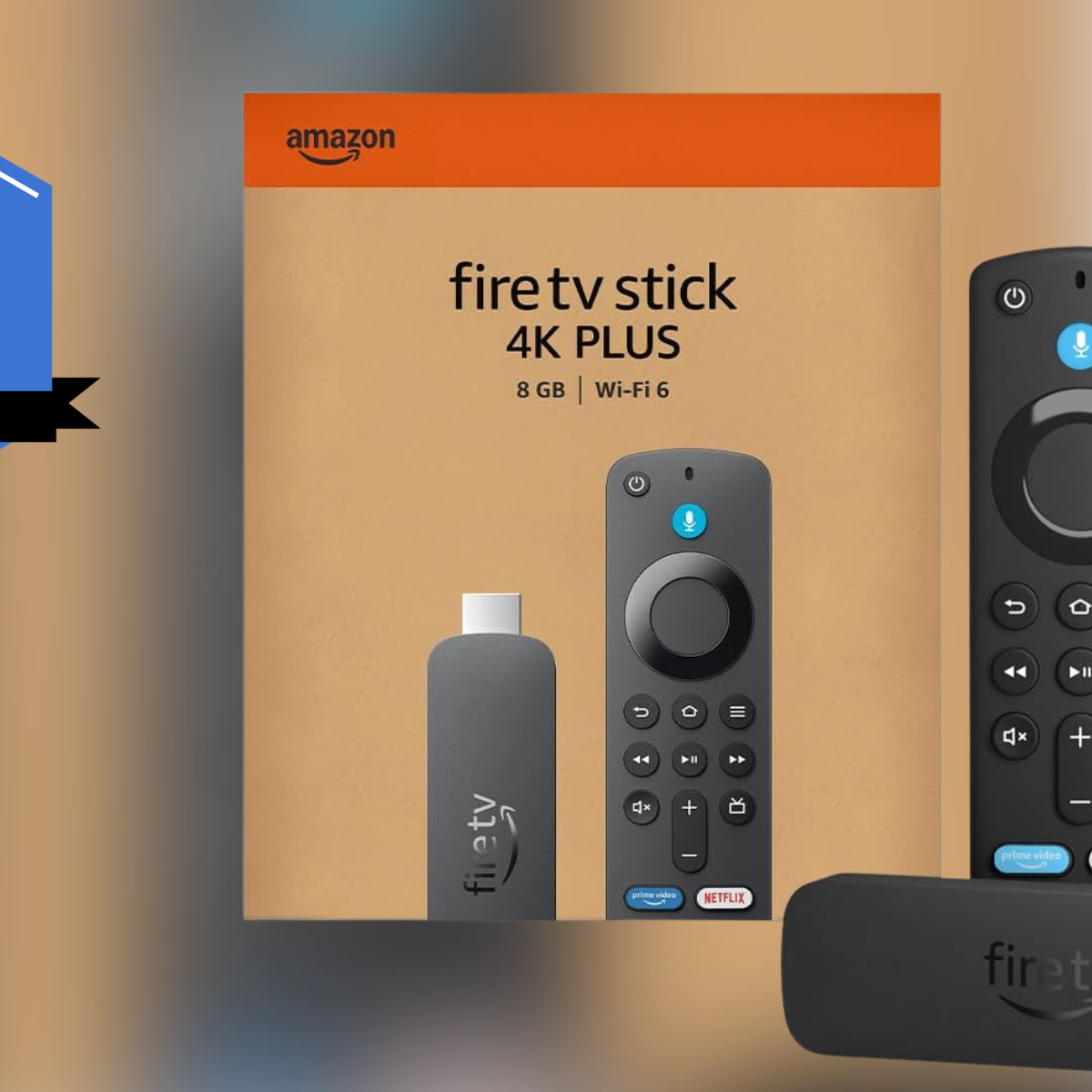
How to cancel Disney Plus on Amazon Fire TV
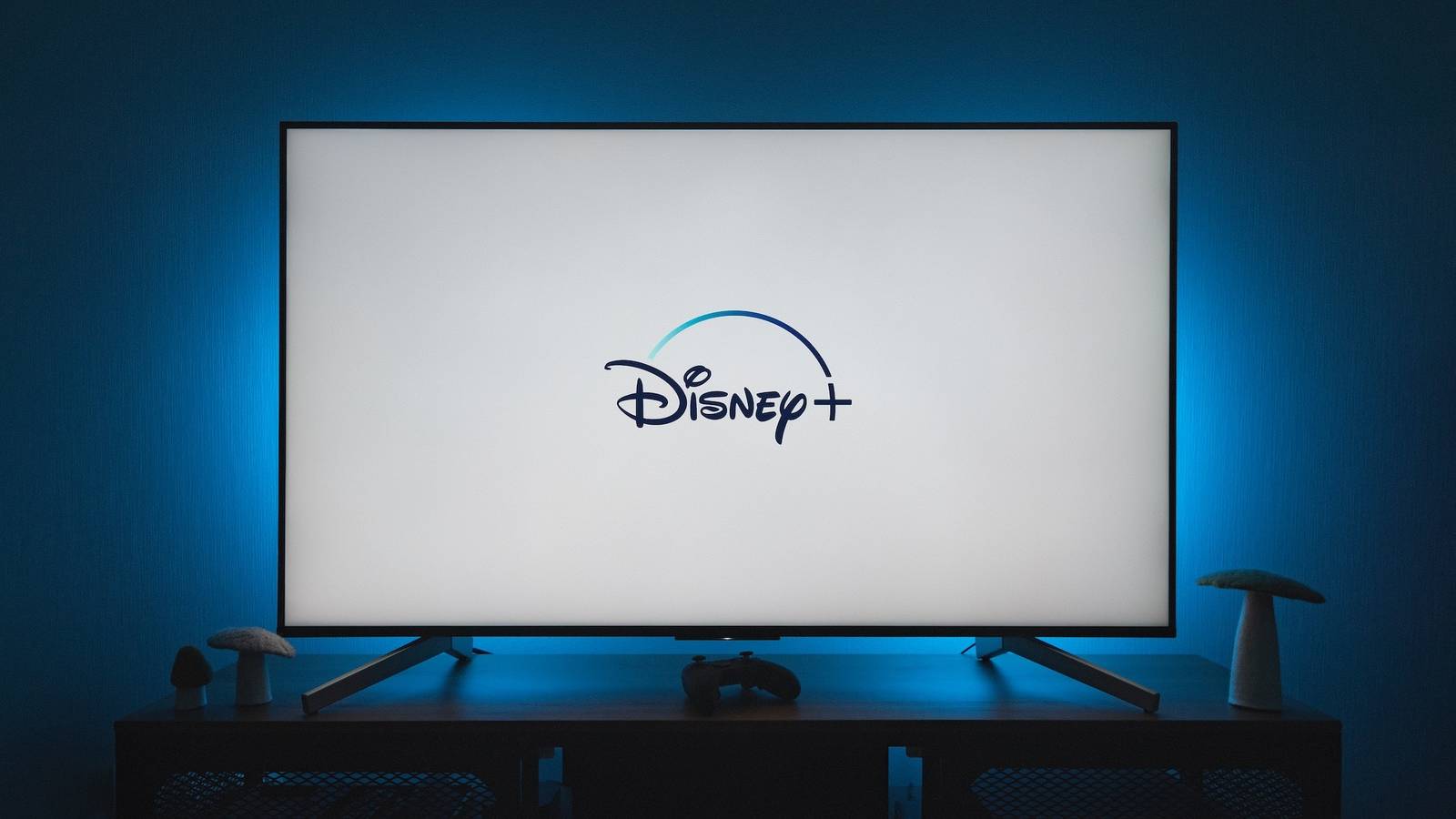
Fire TV devices can display Disney Plus, but Amazon may not always be the billing provider. Check how you joined before canceling.
If Amazon bills your plan, use these steps:
-
Open a browser on your Fire TV or another device.
-
Sign in to your Amazon account.
-
Open Account and Lists.
-
Select Memberships and Subscriptions.
-
Find Disney Plus.
-
Select Manage Subscription.
-
Choose the option to end or cancel the subscription.
-
Confirm your choice.
You may also see the subscription under Apps and More or Your Android Apps, depending on the Amazon account page design.
If Disney Plus is not listed in your Amazon subscriptions, visit the Disney Plus website. You may have subscribed directly or through another provider.
A Fire TV device does not automatically mean Amazon bills your Disney Plus plan. The device is only the screen or streaming tool. The payment source depends on where you entered your billing details.

How to cancel Disney Plus on Apple TV
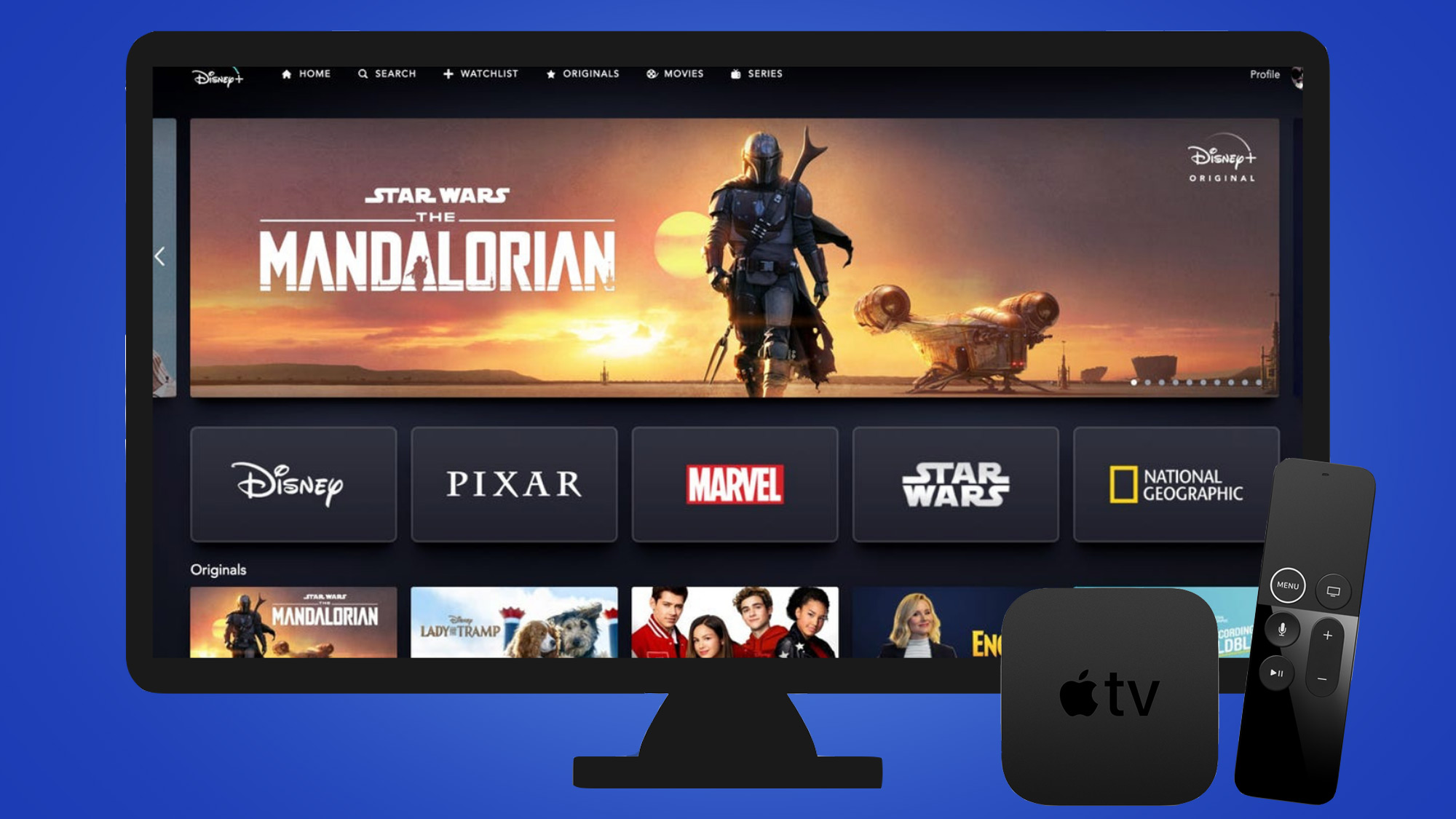
If you subscribed through Apple, cancel Disney Plus in your Apple account settings. You may not be able to complete the process inside the Disney Plus app on Apple TV.
On Apple TV:
-
Open Settings.
-
Select Users and Accounts.
-
Choose your account.
-
Select Subscriptions.
-
Find Disney Plus.
-
Select Cancel Subscription.
-
Confirm the cancellation.
You can also use an iPhone or iPad:
-
Open Settings.
-
Tap your name.
-
Select Subscriptions.
-
Tap Disney Plus.
-
Choose Cancel Subscription.
-
Confirm the request.
If you do not see a Cancel Subscription button, the plan may already be canceled. Look for an expiration date or a message that says the subscription will end.
Apple subscriptions normally remain available until the paid period ends. Deleting the Disney Plus app from Apple TV does not cancel the Apple subscription.

How to cancel Disney Plus on Google Play
Google Play may manage your Disney Plus billing if you signed up through an Android phone, Android TV, or Google account.
To cancel Disney Plus through Google Play:
-
Open the Google Play Store.
-
Select your profile picture.
-
Choose Payments and subscriptions.
-
Select Subscriptions.
-
Tap Disney Plus.
-
Choose Cancel subscription.
-
Select a reason if requested.
-
Confirm the cancellation.
On some Android TV devices, open the Google Play Store and check the account menu. If the subscription is not visible, use the Google Play website with the Google account you used during signup.
Do not confuse canceling with uninstalling. Uninstalling Disney Plus removes the app from the device, but the recurring payment can continue.
How to cancel Disney Plus through a cable, internet, or mobile provider
Some companies offer Disney Plus as part of a bundle. Examples may include mobile plans, internet packages, cable services, and promotional offers.
If your plan comes from a provider, Disney Plus may not show a normal cancellation button. Contact the provider or open its account dashboard.
Try these steps:
-
Sign in to your provider account.
-
Open Services, Add-ons, Benefits, or Subscriptions.
-
Find Disney Plus.
-
Select Manage or Remove.
-
Follow the cancellation instructions.
-
Ask whether removing Disney Plus changes your package price.
Some bundles include Disney Plus at no extra cost. Canceling the streaming service may not reduce your monthly bill. Other plans may increase in price after you remove the benefit.
Ask the provider three questions:
• What date will Disney Plus stop?
• Will I receive a refund or account credit?
• Will my monthly package price change?
Write down the representative’s name and confirmation number. This small step can save time if the charge appears again.

How to check who bills your Disney Plus account
If you are unsure how you subscribed, start with the Disney Plus account page. Look for the subscription name, payment details, or billing partner.
You can also search your email for terms such as:
• Disney Plus receipt
• Subscription renewal
• Apple receipt
• Google Play subscription
• Roku payment
• Amazon digital order
• Your cable or mobile provider’s name
Check your bank or credit card statement too. The company name beside the recurring charge often reveals the billing source.
Another useful clue is the account page. If Disney Plus tells you to manage your plan through Apple, Google, Roku, Amazon, or another provider, follow that provider’s cancellation process.
This step matters because canceling the wrong account will not stop the charge. Many households have more than one email address, and one person may have subscribed while another person watches on the TV.
What happens after you cancel Disney Plus?
Canceling Disney Plus usually stops future renewals rather than ending your access immediately. In most cases, you can watch until the end of the current paid period.
After canceling, check these details:
• Your cancellation date
• Your access end date
• Your next billing date
• Your confirmation email
• Any bundle or promotional changes
Disney Plus generally does not provide a partial refund for unused days in a billing cycle, though policies can vary by billing partner, region, plan, and special offer. Contact the company that charged you if you believe a refund is appropriate.
If the service still works after cancellation, do not assume the cancellation failed. Continued access may simply mean your paid period has not ended.
If you are charged again, check whether:
• You canceled a different Disney Plus account.
• A second subscription uses another email address.
• Apple, Google, Roku, Amazon, or a provider still manages the plan.
• The cancellation was not completed on the final confirmation screen.
• A bundle renewed through a separate account.
Keep your cancellation confirmation until the next normal billing date passes.
Common mistakes when canceling Disney Plus on TV
The cancellation process is simple once you find the billing source. These mistakes cause most problems:
Removing the app instead of canceling
Deleting Disney Plus from your TV only removes access from that device. It does not stop recurring billing.
Signing in with the wrong email
A family may use several email addresses. Check the email on your receipt, not only the email saved on the TV.
Canceling after the renewal
If the plan already renewed, cancellation may stop the next renewal but not reverse the latest charge. Contact the billing provider quickly if you need help.
Forgetting a bundle
A mobile or internet plan may include Disney Plus. The provider’s cancellation rules may differ from Disney Plus’s rules.
Missing the final confirmation
Some cancellation pages show several screens. Continue until you see a final confirmation or receive an email.
Expecting an instant refund
Stopping future payments and receiving a refund are separate issues. The billing provider decides whether a refund applies.
I recommend taking a screenshot of the final cancellation screen. It takes only a few seconds and gives you a clear record if a billing dispute occurs later.
Can you pause Disney Plus instead of canceling?
Some users may see a pause option instead of full cancellation. A pause can be useful if you plan to return soon, but it does not always appear for every plan, country, promotion, or billing partner.
Before choosing pause, check:
• How long the pause lasts
• Whether payment restarts automatically
• Whether downloaded content remains available
• Whether the option works with your billing provider
If you want to stop all future charges, choose cancellation rather than pause. If you only need a short break, pausing may save you the effort of signing up again.
Frequently Asked Questions About How to Cancel Disney Plus on TV
Can I cancel Disney Plus directly from my smart TV?
Usually, the Disney Plus app does not include a direct cancellation button. Open the Disney Plus website in a browser or cancel through the company that manages your subscription.
Does deleting Disney Plus from my TV cancel the subscription?
No. Deleting the app only removes it from your device. You must cancel the recurring subscription through Disney Plus, Apple, Google Play, Roku, Amazon, or another billing provider.
Can I keep watching Disney Plus after canceling?
Yes, most subscribers can watch until the end of the current paid billing period. The exact access date should appear in your account or cancellation confirmation.
How do I cancel Disney Plus if I forgot my password?
Use the password reset option on the Disney Plus sign-in page. If another company bills you, reset the password for that provider’s account or contact its support team.
What if Disney Plus keeps charging me after I cancel?
Check your cancellation email, billing source, and other Disney Plus accounts. If the charge continues, contact the company listed on your bank statement and provide your cancellation confirmation.
Can I get a refund after canceling Disney Plus?
A refund is not always automatic. Contact the company that charged you, because refund rules depend on the billing provider, payment method, location, and plan terms.
Conclusion
The best way to cancel Disney Plus on TV is to identify the company that bills you, then complete the cancellation through its account settings. Use the Disney Plus website for direct subscriptions, or use Apple, Google Play, Roku, Amazon, or your package provider when one of them manages payment.
Remember to confirm the end date, save proof of cancellation, and keep watching until your paid access expires if you wish. Take a moment to check your account today, and share this guide with anyone who is trying to cancel Disney Plus without an unwanted renewal.

Everett Ashford is a tech reviewer at mytechgrid.com specializing in SSDs, cameras, TVs, earbuds, headphones, and other consumer electronics. He provides honest, data-driven reviews based on hands-on testing and real-world performance analysis. Everett simplifies complex tech details to help readers make smart, confident buying decisions.