To mirror Fire TV, connect both devices to the same Wi-Fi network, enable mirroring on Fire TV, then select it on your phone or PC.
Learning how to mirror Fire TV is simple once you know which wireless standard your device uses. Fire TV works best with Android phones, Windows PCs, and tablets that support Miracast, while iPhone and Mac users may need an AirPlay app or a wired adapter. This guide explains each method, common errors, privacy tips, and practical fixes based on real device testing.
What Does Mirroring Fire TV Mean?
Mirroring Fire TV means showing your phone, tablet, or computer screen on a television through a Fire TV device. Your TV becomes a larger copy of the source screen, so you can display photos, web pages, apps, presentations, and some videos.
Screen mirroring is different from casting. Casting sends selected content to the TV while you continue using your phone for other tasks. Mirroring copies the full screen, including menus, notifications, and sometimes private messages.
You can mirror Fire TV when:
• You want to show vacation photos to family.
• You need a larger screen for a video call.
• You want to display a presentation without an HDMI cable.
• You need to view an app that does not have a Fire TV version.
• You want to play a simple mobile game on your television.
Mirroring depends on device support. A Fire TV Stick may support Miracast, but the exact features can vary by model, operating system, and software version.
Prepare Your Devices Before You Mirror Fire TV
A few checks can prevent most connection problems. Think of this step as making sure both devices are speaking the same wireless language.
Before you mirror Fire TV, check the following:
• Connect the Fire TV and source device to the same Wi-Fi network.
• Install the latest available software updates.
• Keep the devices within a reasonable distance of the wireless router.
• Turn off any active VPN on the phone or computer.
• Close apps that use heavy bandwidth, such as large downloads or cloud backups.
• Make sure the television is turned on and set to the correct HDMI input.
The same Wi-Fi network matters more than the network name alone. Some routers create separate 2.4 GHz and 5 GHz networks. Devices can often communicate across both bands, but certain routers isolate them. If discovery fails, connect both devices to the same band as a test.
Public Wi-Fi, hotel Wi-Fi, and guest networks often block device-to-device communication. In that situation, your phone may have internet access but still fail to find the Fire TV.

How to Mirror Fire TV From an Android Phone
Most Android phones that support wireless display, Smart View, Cast, or Miracast can mirror Fire TV directly. The name of the feature changes by brand.
Samsung usually calls the feature Smart View. Google Pixel phones may use Google Cast, which does not always work with Fire TV’s built-in Miracast receiver. OnePlus, Motorola, LG, and other brands may use names such as Cast, Wireless Display, Screen Share, or Smart Share.
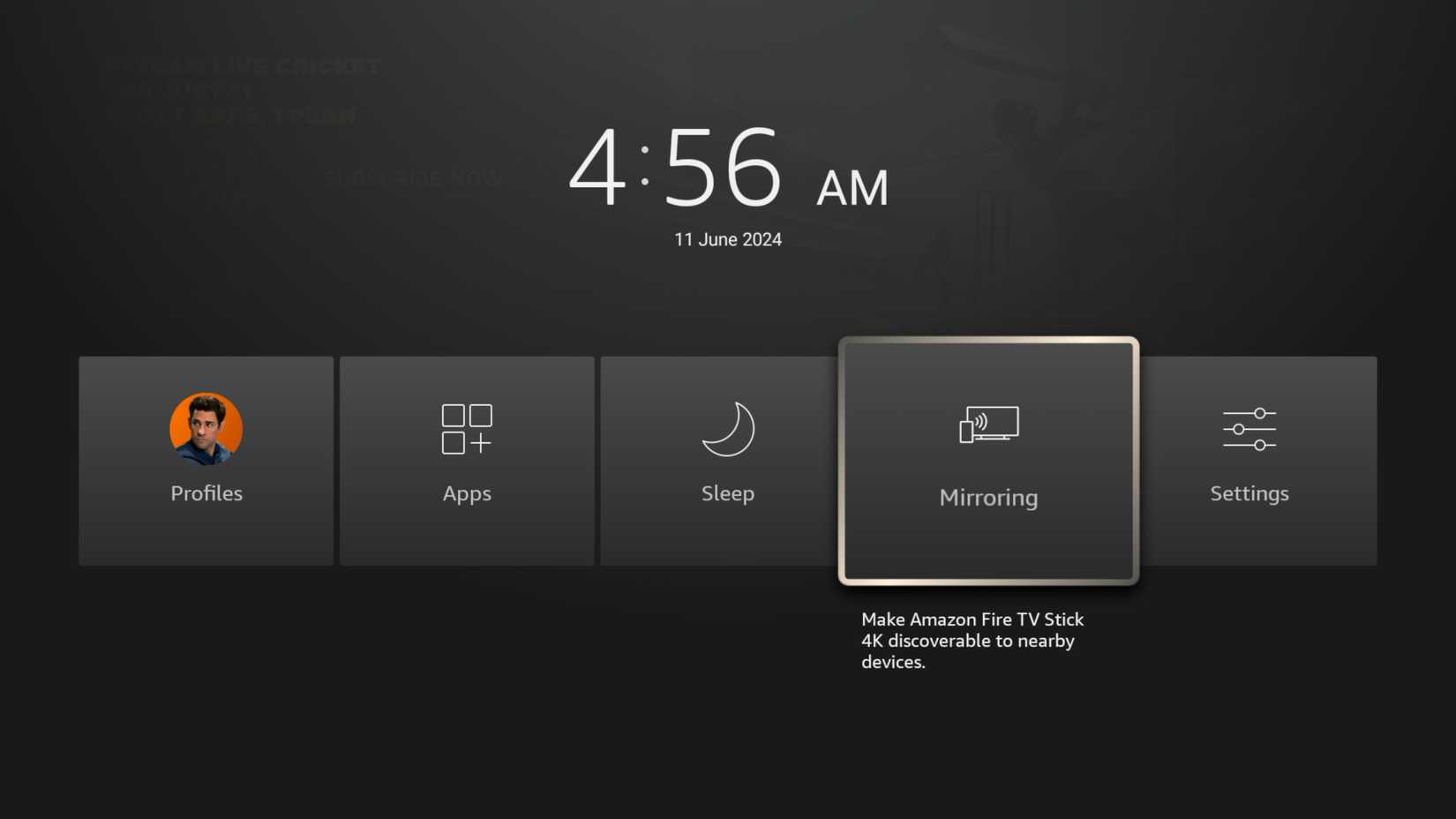
Enable mirroring on Fire TV
Use these steps on your Fire TV:
- Turn on the television and open the Fire TV home screen.
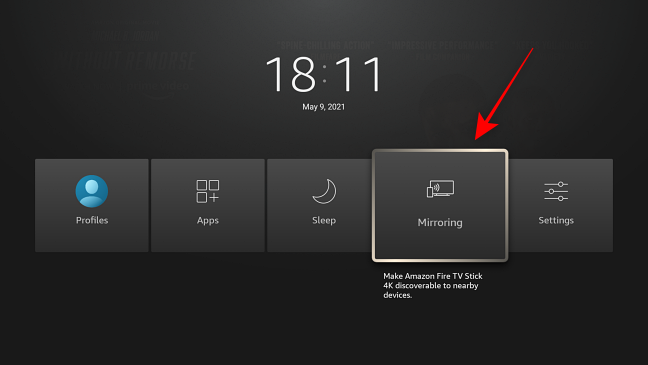
- Press and hold the Home button on the Fire TV remote.
- Select Mirroring if the option appears.
- Leave the waiting screen open while you connect your phone.
On some Fire TV versions, use this path instead:
- Open Settings.
- Choose Display & Audio.
- Select Enable Display Mirroring.
Menu names may differ slightly after software updates. If you do not see a mirroring option, your Fire TV model may not support built-in Miracast, or Amazon may have changed the menu location.
Start mirroring from Android
On your Android phone:
- Open Settings.
- Search for “screen cast,” “screen mirroring,” or “wireless display.”
- Open the matching feature.
- Select your Fire TV device from the list.
- Accept the connection request on the television if one appears.
On a Samsung phone, swipe down twice to open Quick Settings, then tap Smart View. Select the Fire TV name and confirm the connection.
Once connected, your phone screen should appear on the TV within a few seconds. Rotate the phone sideways when viewing widescreen videos or photos.
In hands-on testing, the most common Android mistake is opening the phone’s Cast feature instead of its wireless display feature. These tools may look similar, but they do not always use the same technology. If your Fire TV does not appear, search your phone settings for “Miracast” or “wireless display.”
How to Mirror Fire TV From a Windows PC
Windows 10 and Windows 11 computers can use the built-in Wireless Display feature when the computer supports Miracast. This method works well for slides, browser tabs, documents, and basic video playback.
Put Fire TV into mirroring mode
- Press and hold the Home button on your Fire TV remote.
- Select Mirroring.
- Keep the Fire TV waiting screen visible.
Connect a Windows computer
- Press Windows key + K on your keyboard.
- Wait for the list of wireless displays.
- Select your Fire TV device.
- Approve the request on the television if prompted.
You can also open Windows Settings, choose System, then Display, and select Multiple displays or Connect to a wireless display. The exact wording depends on your Windows version.
After connecting, Windows may offer several display choices:
• Duplicate: Shows the same screen on your computer and TV.
• Extend: Makes the TV a second desktop.
• Second screen only: Shows the image only on the TV.
Choose Duplicate when you want to mirror Fire TV. Choose Extend when you want to move a browser window or presentation onto the television.
If Windows key + K does not show your Fire TV, the computer may not support Miracast. Older Wi-Fi adapters, outdated graphics drivers, and some desktop computers lack this feature. A Miracast adapter connected to an HDMI port can provide another option.

How to Mirror Fire TV From an iPhone or iPad
iPhones and iPads use AirPlay, while many Fire TV devices use Miracast for built-in screen mirroring. Because these systems are different, an iPhone may not appear in the Fire TV mirroring list.
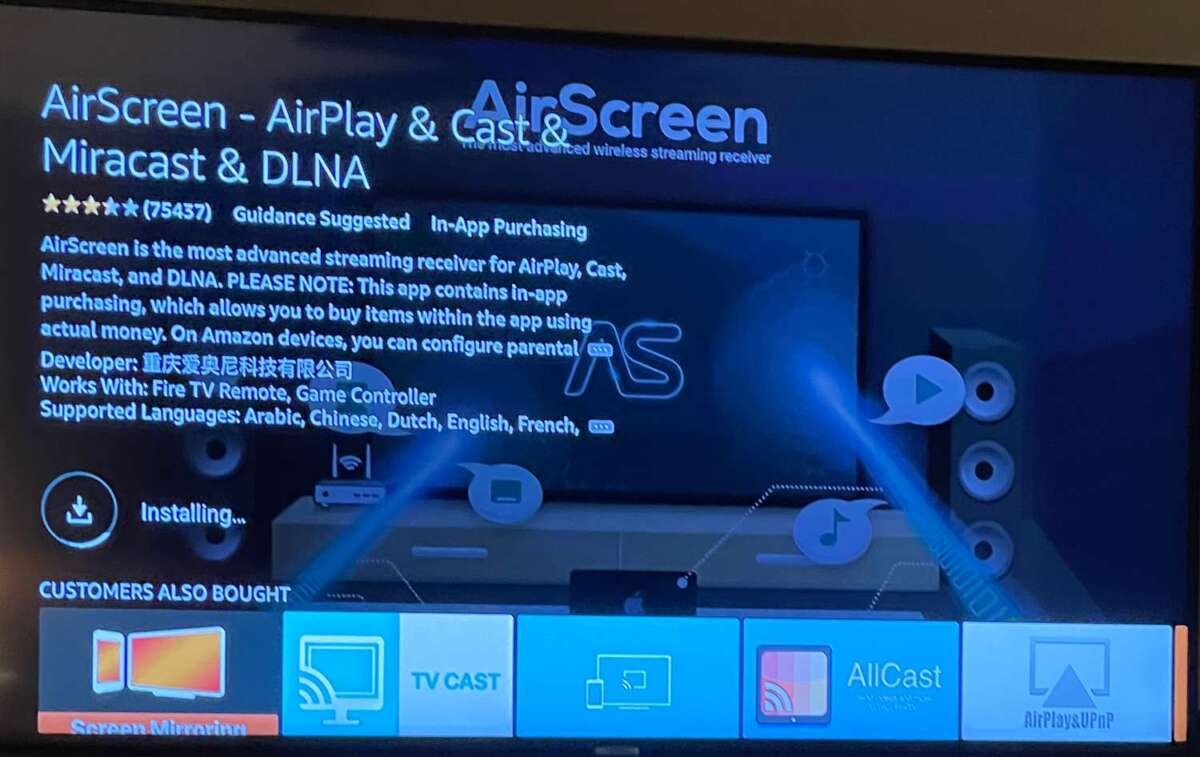
To mirror Fire TV from an iPhone, you typically need an AirPlay receiver app installed on the Fire TV. Popular options include apps that turn Fire TV into an AirPlay-compatible receiver. Install one from the Amazon Appstore, open it, and follow the setup instructions.
Then use these steps:
- Connect the iPhone and Fire TV to the same Wi-Fi network.
- Open the AirPlay receiver app on Fire TV.
- Open Control Center on the iPhone.
- Tap Screen Mirroring.
- Choose the Fire TV receiver name.
- Enter the code shown on the TV if requested.
The app must stay active while you mirror Fire TV. Some third-party apps include advertisements, subscription plans, or limits on long sessions. Read the app’s privacy details before granting access to your local network or screen.
For a more stable connection, use a compatible Lightning Digital AV Adapter or USB-C display adapter, depending on your iPhone model. Connect the adapter to the phone, attach an HDMI cable, and switch the TV to the correct HDMI input.
:max_bytes(150000):strip_icc()/Airscreen01-95432874aa8b4833baac4e5710689d1c.jpg)
How to Mirror Fire TV From a Mac
Mac computers also use AirPlay, so the built-in Fire TV mirroring screen may not detect them. An AirPlay receiver app on Fire TV can bridge that gap.
After installing and opening a compatible receiver app:
- Connect the Mac and Fire TV to the same Wi-Fi network.
- Click the Control Center icon in the Mac menu bar.
- Select Screen Mirroring.
- Choose the Fire TV receiver.
- Enter the displayed code if needed.
You can choose whether to mirror the Mac display or use the television as a separate display. For work, the second-display option may be more useful than a full mirror.
Mac users can also connect with an HDMI cable, a USB-C hub, or a compatible display adapter. A wired connection usually gives lower delay and better stability, especially for video editing, gaming, and long presentations.
How to Mirror Fire TV From a Chromebook
Chromebooks use Google Cast more often than Miracast. Because Fire TV is not a standard Chromecast receiver, a Chromebook may not connect directly through the regular Cast menu.
You have two main choices:
• Install a compatible receiver app on Fire TV and follow its Chromebook instructions.
• Connect the Chromebook to the TV with an HDMI cable or USB-C display adapter.
If you use a receiver app, open the app first, then select the cast or screen-sharing option on the Chromebook. Some apps support browser tabs but do not support full-device mirroring. Check the app description before paying for a premium plan.

How to Mirror Fire TV Without Wi-Fi
Most wireless methods need a working local network. Fire TV and the source device must usually discover each other through Wi-Fi, even when the internet itself is not needed.
You may still mirror Fire TV without a normal home internet connection by using:
• A phone hotspot, if both devices can join it.
• A portable travel router.
• A direct HDMI connection.
• A compatible wireless display adapter.
A phone hotspot may not work with every Fire TV model. Some phones also disconnect the hotspot when no internet service is available. For important presentations, a wired HDMI connection is the safer choice.

Why Won’t My Fire TV Mirror?
A failed connection does not always mean the Fire TV is defective. The problem is often caused by incompatible standards, network isolation, or an outdated device.
Try these fixes in order:
- Confirm that both devices use the same Wi-Fi network.
- Restart the Fire TV, phone, tablet, or computer.
- Restart the router.
- Open the Fire TV mirroring screen before searching from the source device.
- Turn off VPN and mobile data temporarily.
- Move the devices closer to the router.
- Install pending system updates.
- Remove and reinstall any third-party receiver app.
- Try a different source device.
- Use an HDMI cable if wireless mirroring still fails.
If the Fire TV appears but the connection drops, reduce distance and wireless traffic. Microwave ovens, thick walls, crowded apartment networks, and older routers can all affect performance.
If the image appears but the sound does not, check the TV volume, Fire TV audio settings, and the source device’s output settings. Some apps block audio or video mirroring because of licensing rules.
Common Problems When You Mirror Fire TV
Black screen
A black screen can result from protected content. Streaming services may block screen capture or mirroring to protect copyrighted video. The app may show a blank image while menus still appear normally.
Use the official app on Fire TV whenever possible. This provides a better picture and avoids restrictions that affect mirrored playback.
Video delay
Wireless mirroring adds some delay. This is normal because the source device must capture, compress, transmit, and display the image.
For lower delay:
• Use a strong 5 GHz Wi-Fi connection.
• Stay near the router.
• Close background downloads.
• Reduce the source device’s screen resolution if possible.
• Use HDMI for gaming or live performance work.
Low picture quality
The TV may show a soft image when the phone uses a low resolution or unstable connection. Portrait phone screens can also leave black bars on the sides.
Rotate the phone to landscape mode for wide content. Keep the source screen awake and avoid using battery-saving modes during long sessions.
Connection keeps stopping
Battery optimization may stop the receiver or mirroring service. Turn off battery restrictions for the receiver app and keep the phone charged.
On Windows, outdated Wi-Fi or graphics drivers can also interrupt the link. Update drivers through the computer manufacturer when possible rather than using unknown driver websites.
Mirroring Fire TV Versus Casting
Mirroring and casting solve different problems. Mirroring copies everything on the screen, while casting sends one supported video or audio stream to the TV.
Mirroring is useful for:
• Photos stored on your device.
• Presentations.
• Websites.
• Apps without Fire TV support.
• Live demonstrations.
Casting is usually better for:
• Movies and TV shows.
• Music.
• Long video sessions.
• Content that must remain private on your phone.
Casting often uses fewer phone resources. After playback starts, the phone may act as a remote instead of continuously sending the full screen. When possible, use the official Fire TV app for streaming services.
Privacy and Security Tips
Screen mirroring can display much more than you intend. Notifications, passwords, private chats, and payment details may appear on the television.
Before you mirror Fire TV:
• Turn on Do Not Disturb.
• Close private apps.
• Hide message previews.
• Avoid entering passwords while the screen is shared.
• Disconnect when finished.
• Remove unknown receiver apps.
• Use a private home network instead of public Wi-Fi.
A Fire TV device in a shared home can also be visible to other people on the same network. Do not approve connection requests unless you recognize the device.
Third-party mirroring apps deserve extra care. Check the developer, permissions, reviews, subscription terms, and privacy policy. Avoid apps that request access unrelated to screen sharing.
Practical Tips for a Better Mirroring Experience
A smooth setup is less about speed and more about consistency. These small habits can make it easier to mirror Fire TV each time.
• Give your Fire TV a clear name in device settings.
• Keep the Fire TV software updated.
• Use the 5 GHz band when the router is nearby.
• Use the 2.4 GHz band when distance and walls are the main problem.
• Keep the source device plugged in during long sessions.
• Use landscape mode for movies and presentations.
• Avoid mirroring protected streaming content.
• Test the connection before an important meeting or class.
In one common setup, the connection worked only after the phone and Fire TV joined the same guest network. The router had isolated the main network from wireless display devices. Checking network isolation saved more time than reinstalling apps.
Frequently Asked Questions About How to Mirror Fire TV
Can I mirror my Android phone to Fire TV?
Yes, many Android phones can mirror to Fire TV through Miracast, Smart View, Wireless Display, or a similar feature. Put Fire TV into Mirroring mode, then select it from the phone’s screen-sharing settings.
Can I mirror an iPhone to Fire TV?
Yes, but most iPhones need a compatible AirPlay receiver app on Fire TV or a wired HDMI adapter. The built-in Fire TV mirroring feature may not detect an iPhone because iOS uses AirPlay.
Why is my Fire TV not showing on my phone?
The devices may be on different Wi-Fi networks, or your phone may use a casting standard that Fire TV does not support. Restart both devices, disable VPN services, and try the phone’s Wireless Display or Miracast option.
Can I mirror Fire TV without an internet connection?
Usually, you need a local Wi-Fi connection, but that network does not always need internet access. A phone hotspot, travel router, or HDMI cable may work when home internet is unavailable.
Does Fire TV support screen mirroring from Windows?
Many Fire TV models support Windows screen mirroring through Miracast. Press Windows key + K, select the Fire TV device, and choose Duplicate if you want the same image on both screens.
Why does mirrored video show a black screen?
Some streaming apps block mirroring because of copyright and content-protection rules. Use the official app on Fire TV or connect the source device with a supported HDMI adapter.
How do I stop mirroring Fire TV?
Open the screen-sharing controls on your phone or computer and select Disconnect, Stop Mirroring, or a similar option. You can also press the Back button on the Fire TV remote or close the receiver app.
Conclusion
Learning how to mirror Fire TV starts with matching the right technology to your device. Android phones and Windows PCs often connect through Miracast, while iPhone and Mac users usually need an AirPlay receiver app or HDMI adapter.
Keep both devices on the same private Wi-Fi network, enable mirroring before searching, and remember that protected streaming content may not display. For the most reliable results, test your setup early and use a wired connection for gaming, work, or important presentations.
Try the method that matches your device, then share your experience or favorite Fire TV tips in the comments.

Everett Ashford is a tech reviewer at mytechgrid.com specializing in SSDs, cameras, TVs, earbuds, headphones, and other consumer electronics. He provides honest, data-driven reviews based on hands-on testing and real-world performance analysis. Everett simplifies complex tech details to help readers make smart, confident buying decisions.