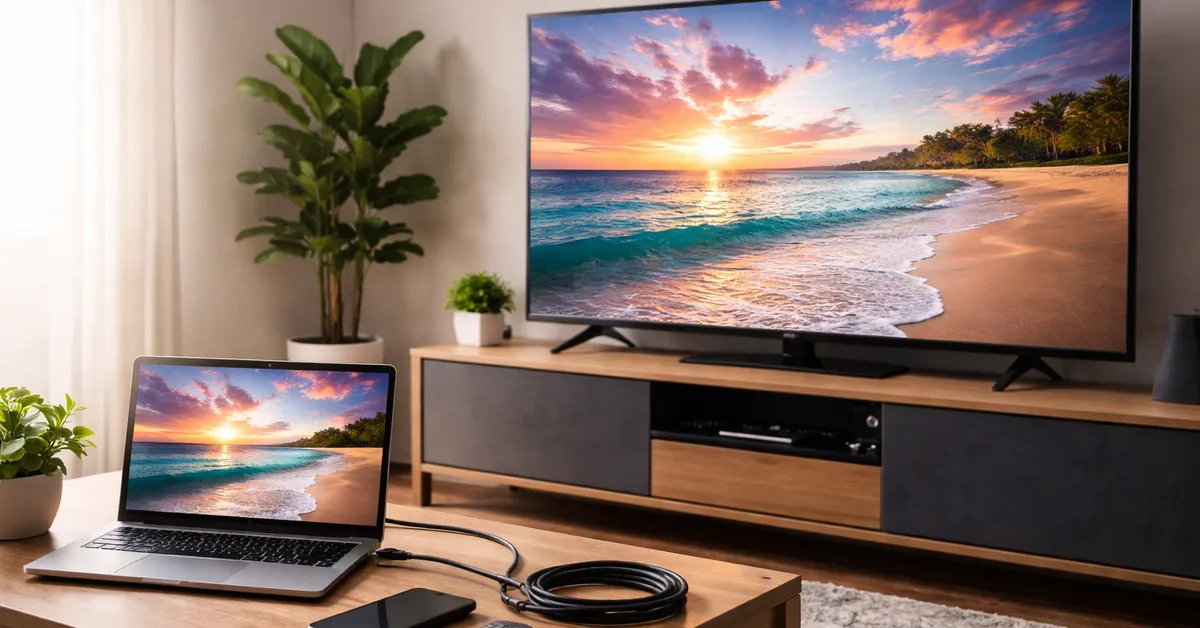
You can wirelessly connect a laptop to a TV with Miracast, AirPlay, Chromecast, or a compatible TV app.
Learning how can i wirelessly connect laptop to tv is easier when you first identify your laptop, TV, and network type. The best method depends on whether you use Windows or macOS, whether your TV supports screen mirroring, and whether you want to mirror the whole screen or stream one video. This guide explains each reliable option, common problems, and simple fixes.
What you need before connecting your laptop to a TV
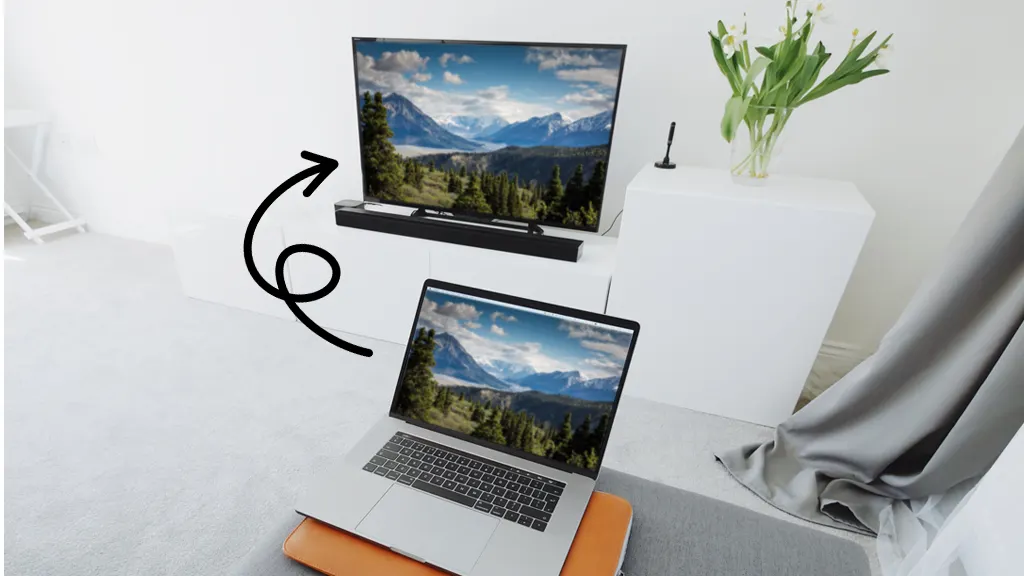
Before you try to connect, check that both devices support the same wireless technology. A newer smart TV may support several options, while an older TV may need a streaming device such as Chromecast, Roku, or Apple TV.
You will usually need:
- A Windows 10 or Windows 11 laptop, or a MacBook
- A smart TV, streaming stick, or streaming box
- A stable Wi-Fi network
- The latest system updates for your laptop and TV
- The same Wi-Fi network for both devices in most cases
Wi-Fi speed also matters. A weak signal can cause delay, blurry video, or frequent disconnections. For smooth streaming, place the laptop and TV near the wireless router, or use a 5 GHz Wi-Fi network when available.
The TV and laptop should also be on the same home network name. Guest Wi-Fi networks can block device discovery, even when both devices appear to have internet access.
How can I wirelessly connect laptop to TV on Windows?
Windows laptops usually connect to a TV through Miracast. Miracast creates a direct wireless display link, so you can mirror your laptop screen without an HDMI cable.
Many Windows 10 and Windows 11 laptops support Miracast. Your TV may call the feature Screen Mirroring, Wireless Display, Smart View, Screen Share, or Wi-Fi Display.
Connect a Windows laptop with Miracast
Follow these steps:
- Turn on the TV and open its screen mirroring or wireless display mode.
- On the laptop, press Windows + K.
- Wait for the TV name to appear in the list.
- Select the TV.
- Accept the connection request on the TV if one appears.
- Press Windows + P to choose a display mode.
Windows gives you four main display choices:
- PC screen only: The TV stays off.
- Duplicate: The TV shows the same image as the laptop.
- Extend: The TV becomes a second screen.
- Second screen only: The laptop screen turns off while the TV remains active.
For movies, Duplicate is often the simplest choice. For work or presentations, Extend gives you more space. You can move a browser window, slideshow, or video player onto the TV while keeping your laptop screen free.
If Windows + K does not find the TV
The laptop or TV may not support Miracast. A missing wireless display driver can also cause the problem.
Try these steps:
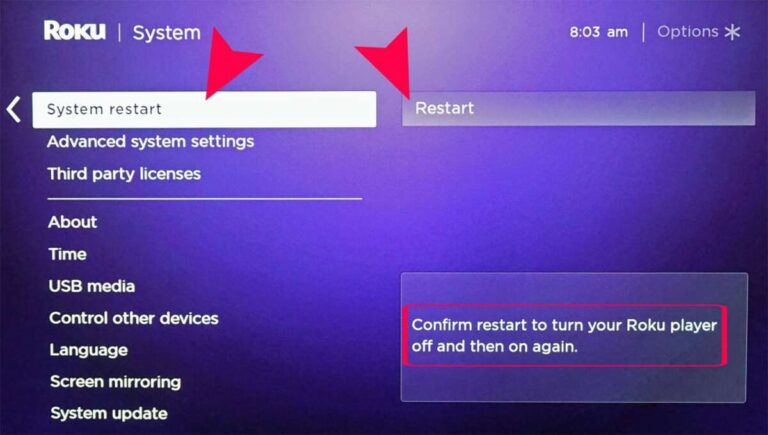
- Restart both devices.
- Turn Wi-Fi off and on again.
- Install Windows updates.
- Update the wireless and graphics drivers.
- Confirm that the TV’s screen mirroring mode is active.
- Turn off any VPN temporarily.
- Connect both devices to the same Wi-Fi network.
- Check whether the TV requires a companion app.
Microsoft’s wireless display system depends on compatible Wi-Fi hardware and graphics drivers. Some older laptops can connect to Wi-Fi but still lack Miracast support.

How can I wirelessly connect laptop to TV with Chromecast?
Chromecast works well when you want to stream a browser tab, a video, or your entire desktop. Many smart TVs now include Google Cast, so you may not need a separate Chromecast device.
This method works best with Google Chrome. The laptop and TV must usually be connected to the same Wi-Fi network.
Cast a Chrome tab to your TV
- Open Google Chrome on your laptop.
- Select the three-dot menu in the upper-right corner.
- Choose Cast, save, and share.
- Select Cast.
- Choose the TV or Chromecast device.
- Select the tab you want to share.
Tab casting is useful for websites, online lessons, photo albums, and browser-based videos. It uses your laptop to load the content, so the laptop should remain awake while you watch.
Cast your entire desktop
To mirror more than one browser tab:
- Open Chrome.
- Select the three-dot menu.
- Choose Cast, save, and share.
- Select Cast.
- Open the Sources menu.
- Choose Cast desktop.
- Select your TV.
Desktop casting can show apps, documents, and presentations. However, it may create more delay than Miracast. It can also use more battery and system power.
For supported streaming services, select the Cast icon inside the video player instead of casting the entire desktop. Direct casting often gives better picture quality and lets the TV stream the video itself.

How can I wirelessly connect laptop to TV from a MacBook?
MacBooks use AirPlay for wireless screen mirroring. The TV must support AirPlay, or you need an Apple TV connected to the television.
AirPlay is common on newer smart TVs from major brands. Look for an AirPlay setting in the TV’s network or connection menu.
Mirror a MacBook with AirPlay
- Connect the MacBook and TV to the same Wi-Fi network.
- Open Control Center on the Mac.
- Select Screen Mirroring.
- Choose the TV or Apple TV.
- Enter the code shown on the TV if asked.
- Select whether to mirror or use the TV as a separate display.
You can also open System Settings, choose Displays, and select the display options there. Depending on the macOS version, the wording may vary slightly.
AirPlay is a strong choice for photos, presentations, music, and supported video apps. It is usually simple to set up, but the experience depends on the TV’s AirPlay support and software version.
Use AirPlay for a video
When a video player includes an AirPlay icon:
- Start the video on your MacBook.
- Select the AirPlay icon.
- Choose the TV.
- Keep the MacBook connected to Wi-Fi.
The TV may play the video directly, which can reduce battery use on the MacBook. If the AirPlay icon does not appear, the app may not support AirPlay, or the devices may not be on the same network.

How can I wirelessly connect laptop to TV without a smart TV?
A non-smart TV can still receive a wireless laptop connection with an external streaming device. The device plugs into an HDMI port and adds wireless features to the TV.
Popular choices include:
- Chromecast for Google Cast
- Apple TV for AirPlay
- Roku devices for supported casting and screen mirroring
- Amazon Fire TV devices for selected casting features
- A wireless display adapter that supports Miracast
Connect the streaming device to the TV, switch the TV to the correct HDMI input, and complete the device setup. Install any required app, then use the matching casting or mirroring feature on your laptop.
Check the TV’s HDMI version and available power ports. Some streaming devices need a wall adapter instead of drawing power from the TV’s USB port.
An external device is often more reliable than an older TV’s built-in software. It also gives you access to streaming apps, firmware updates, and newer wireless standards.

How can I wirelessly connect laptop to TV for gaming?
Wireless screen mirroring can work for casual games, but it is not always ideal for fast games. Every wireless connection adds some delay between your action and the image on the TV.
For turn-based games, strategy games, and local party games, the delay may not matter. Racing games, fighting games, and competitive shooters usually need a faster connection.
To reduce lag:
- Use a 5 GHz or 6 GHz Wi-Fi network.
- Keep the laptop and TV close to the router.
- Pause downloads and cloud backups.
- Close extra browser tabs and apps.
- Use Game Mode on the TV.
- Reduce the TV’s motion processing effects.
- Lower the streaming resolution if the image stutters.
- Connect the laptop to the router with Ethernet when possible.
If gaming performance is your main goal, a long HDMI cable or a dedicated wireless HDMI system may work better. Wireless HDMI products can be expensive, and their range and image quality vary by model.

How can I wirelessly connect laptop to TV for presentations?
Wireless display connections are convenient for meetings and classrooms because they remove the need to carry a cable. Before presenting, test the connection with the exact laptop and TV you will use.
A practical setup looks like this:
- Connect the laptop and TV before opening the presentation.
- Set the TV to the correct input or mirroring mode.
- Choose Duplicate or Second screen only.
- Set the TV to the correct resolution.
- Turn off notifications.
- Disable sleep mode for the meeting.
- Open the presentation in full-screen mode.
- Keep a backup cable nearby.
For business use, a wired backup is still wise. Wireless connections can fail because of network congestion, blocked device discovery, or a TV software update.
If you use Extend mode, move the presentation window to the TV before sharing your screen. Practice this step first. It prevents the common mistake of showing only the desktop background while the slides remain on the laptop.
How can I wirelessly connect laptop to TV when the picture is delayed?
A delayed picture usually comes from network traffic, weak Wi-Fi, device processing, or the casting method itself. Screen mirroring sends a live copy of your display, so it needs steady data flow from the laptop to the TV.
Try the following fixes:
- Move the router closer to both devices.
- Use the 5 GHz Wi-Fi band.
- Stop large downloads and video calls.
- Restart the router, laptop, and TV.
- Reduce the display resolution.
- Use direct casting inside the video app.
- Turn off battery saver on the laptop.
- Close high-use programs.
- Update the TV and laptop software.
In many home setups, direct casting performs better than full-screen mirroring. With direct casting, the TV receives the video stream instead of receiving every laptop screen change.
A useful test is to cast a short video from a supported app. If the video plays smoothly but desktop mirroring lags, the network is probably fine. The delay may be caused by the mirroring protocol or the laptop’s graphics performance.
Common problems and practical fixes
Wireless TV connections can fail for simple reasons. The most common issue is that the laptop and TV are connected to different Wi-Fi networks.
Use this troubleshooting checklist:
- Confirm both devices use the same Wi-Fi name.
- Avoid guest networks.
- Turn off VPN software during setup.
- Restart both devices.
- Check the TV’s input source.
- Turn on AirPlay, Cast, or Screen Mirroring in the TV settings.
- Remove and reconnect the wireless display.
- Update the laptop, TV, and streaming device.
- Check that the laptop’s Wi-Fi is enabled.
- Move devices away from thick walls and large metal objects.
Some routers separate devices for privacy. This setting may be called AP isolation, client isolation, or wireless isolation. When enabled, it can stop your laptop from finding the TV even though both devices have internet access.
Older TVs may also show a connection request that expires quickly. Keep the TV’s wireless display screen open while you press Windows + K or select AirPlay.
In troubleshooting work, one lesson appears again and again: change only one setting at a time. If you restart the router, update the TV, change the Wi-Fi band, and install a new app all at once, you will not know which step fixed the problem.
Wireless connection versus HDMI
Wireless connections offer comfort and flexibility. You can sit across the room, share photos quickly, or stream a presentation without handling cables.
They also have limits. Wireless video may show more delay, lower image quality, or occasional drops than HDMI. Protected content can create another problem because some services restrict screen mirroring through digital rights management.
Choose wireless when you want:
- Easy setup
- Casual streaming
- Photo sharing
- Presentations
- A clean entertainment area
- Flexible laptop placement
Choose HDMI when you want:
- The lowest delay
- Stable 4K video
- Competitive gaming
- Reliable work presentations
- A connection without Wi-Fi
- Fewer compatibility problems
A hybrid approach is often best. Use wireless casting for everyday viewing and keep an HDMI cable nearby for gaming, travel, or important meetings.
Security and privacy tips
Wireless casting can show everything on your laptop screen. Close private documents, messages, email tabs, and password pages before mirroring.
Follow these safety steps:
- Use a private, password-protected home network.
- Avoid casting from public Wi-Fi.
- Accept connection requests only from your own devices.
- Turn off screen mirroring when finished.
- Keep the TV and laptop software updated.
- Do not share your Wi-Fi password unnecessarily.
- Check the list of saved or paired devices.
Screen mirroring does not usually give the TV control of your laptop. Still, anything visible on the laptop may appear on the TV. Treat a wireless display like a large window into your screen.
This matters in hotels, offices, classrooms, and shared homes. Always check the device name before connecting, especially when several TVs or streaming devices are nearby.
Best method for each device combination
The right method depends on your equipment.
- Windows laptop and compatible smart TV: Use Miracast through Windows + K.
- Windows laptop and Chromecast: Use Google Chrome casting.
- MacBook and AirPlay-compatible TV: Use AirPlay through Control Center.
- MacBook and Apple TV: Use AirPlay.
- Any laptop and older TV: Add Chromecast, Apple TV, Roku, or a wireless display adapter.
- Laptop for competitive gaming: Prefer HDMI or a low-latency wireless system.
- Laptop for presentations: Use wireless mirroring with an HDMI backup.
- Laptop for streaming one video: Use the video app’s Cast or AirPlay button.
If you are unsure, start with the feature built into your laptop. Windows users should test Miracast first. Mac users should test AirPlay first. If the TV does not appear, check compatibility before buying a new device.
Frequently Asked Questions about how can i wirelessly connect laptop to TV
Can I connect my laptop to a TV without Wi-Fi?
Some Miracast connections can work through Wi-Fi Direct without a shared internet connection. However, both devices must support the feature, and streaming services may still need internet access.
Why is my TV not showing up on my laptop?
The devices may be on different networks, or wireless display mode may be disabled on the TV. Restart both devices, turn off any VPN, and check for software or driver updates.
Can I connect a Windows laptop to an Apple TV?
Yes. You can use an AirPlay-compatible app or supported software on Windows, although the setup may be less direct than connecting a MacBook. A Chromecast or Miracast device may provide a simpler option for Windows users.
Can I connect a MacBook to any smart TV?
No. The TV must support AirPlay, or you need an Apple TV or another compatible streaming device. Both devices usually need to use the same Wi-Fi network.
Why does wireless screen mirroring keep disconnecting?
A weak Wi-Fi signal, router congestion, outdated software, or power-saving settings can cause repeated disconnections. Move the devices closer to the router, update them, and stop large downloads during mirroring.
Is wireless connection better than HDMI?
Wireless connection is easier and more flexible, but HDMI is usually more stable and has less delay. HDMI is the better choice for competitive gaming, high-quality video, and important presentations.
Can I use the TV as a second monitor wirelessly?
Yes. Windows supports the Extend display mode with compatible wireless displays, and macOS supports extended displays with compatible AirPlay devices. Performance depends on the wireless network and hardware.
Conclusion
You can wirelessly connect a laptop to a TV through Miracast, AirPlay, Chromecast, or an external streaming device. Windows users should start with Windows + K, while MacBook users should try Control Center and Screen Mirroring. For the smoothest results, use the same Wi-Fi network, update both devices, and keep an HDMI cable as a backup.
Try the method that matches your laptop and TV today. If you have a useful setup or a connection problem, share your experience in the comments and explore more device setup guides for practical solutions.

Everett Ashford is a tech reviewer at mytechgrid.com specializing in SSDs, cameras, TVs, earbuds, headphones, and other consumer electronics. He provides honest, data-driven reviews based on hands-on testing and real-world performance analysis. Everett simplifies complex tech details to help readers make smart, confident buying decisions.