How To Know If SSD Is Compatible With Motherboard: Quick Guide
Check the SSD interface, form factor, key type, motherboard manual, and physical space before you buy.
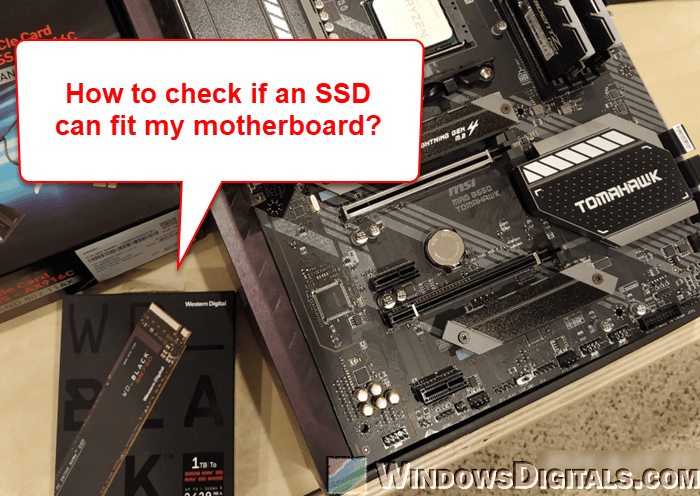
Choosing the right solid-state drive is easier when you treat compatibility like matching a plug to a socket. This guide explains how to know if SSD is compatible with motherboard, including SATA drives, M.2 SSDs, NVMe support, PCIe generations, BIOS limits, and common installation mistakes.
Understand the Main SSD Types
Before checking your motherboard, identify the type of SSD you want to install. Most consumer drives use one of three designs:
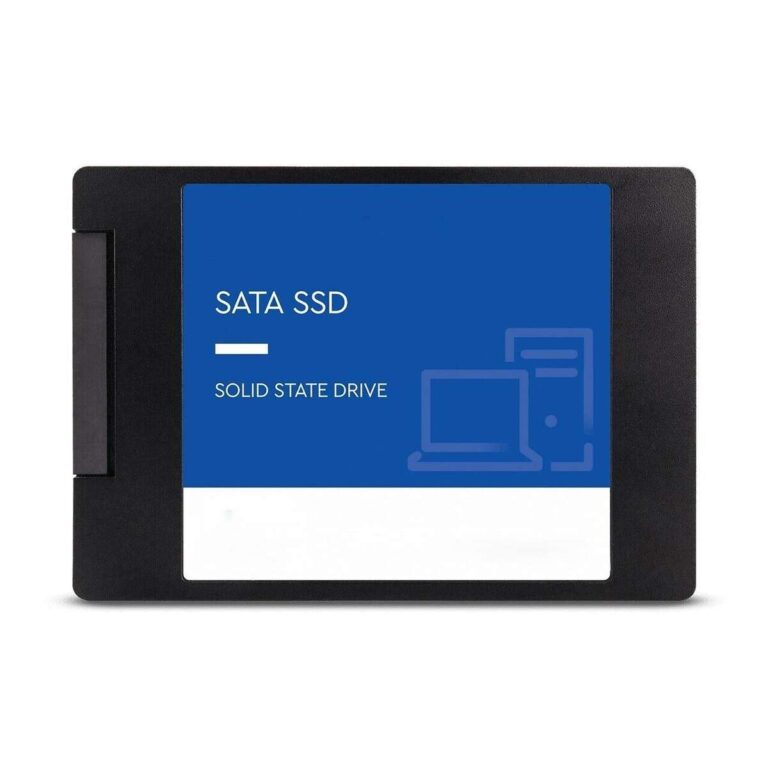
• 2.5-inch SATA SSD: This drive connects with a SATA data cable and a SATA power cable. It works in many older desktops and laptops.
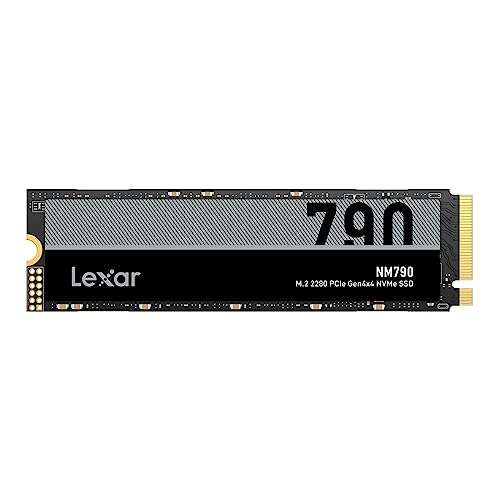
• M.2 SATA SSD: This small stick-shaped drive fits into an M.2 slot but still uses the SATA interface. It is not the same as an NVMe SSD.
• M.2 NVMe SSD: This drive also uses the M.2 shape, but it communicates through PCIe. It is usually much faster than SATA storage.
The key lesson is simple: M.2 describes the shape, not the speed or connection method. Two M.2 drives may look almost identical but use different protocols.
When learning how to know if SSD is compatible with motherboard, always compare the SSD interface with the interface supported by the motherboard. A SATA SSD needs SATA support, while an NVMe SSD needs an M.2 slot with PCIe and NVMe support.
Check the Motherboard Manual First
The motherboard manual is the most reliable place to check SSD compatibility. Find the storage section or the page that describes the M.2 slots and SATA ports.
Look for details such as:
• Supported SSD type, such as SATA, PCIe, or NVMe
• Supported PCIe generation, such as PCIe 3.0, PCIe 4.0, or PCIe 5.0
• Supported M.2 sizes, such as 2230, 2242, 2260, or 2280
• Whether the M.2 slot supports bootable storage
• Whether using an M.2 slot disables one or more SATA ports
• Maximum supported storage capacity, if the manufacturer lists one
Motherboard product pages often include this information, too. However, the manual is usually more detailed. It may show that the top M.2 slot supports PCIe NVMe drives, while a lower slot supports SATA M.2 drives only.
If you do not have the manual, search for the exact motherboard model followed by “manual” on the manufacturer’s official website. Do not rely only on the chipset name. Two boards using the same chipset can have different storage layouts.
This step is central to how to know if SSD is compatible with motherboard because it confirms what each slot can actually support.

Match the SSD Interface to the Motherboard
The interface is the electrical and communication connection between the SSD and the computer. It is one of the most important compatibility checks.
SATA compatibility
A 2.5-inch SATA SSD connects to a standard SATA port on the motherboard. You also need a SATA power connector from the power supply.
Most desktop motherboards have several SATA ports. A 2.5-inch SATA SSD is often the safest upgrade for an older computer because SATA ports have remained common for many years.
A SATA SSD can usually reach speeds near the SATA III limit of about 6 gigabits per second. That is still much faster and more responsive than a traditional hard drive.
M.2 SATA compatibility
An M.2 SATA SSD requires an M.2 slot that supports SATA drives. Some M.2 slots support both SATA and NVMe, but others support NVMe only.
Never assume that every M.2 slot accepts an M.2 SATA drive. Check the manual for terms such as “M.2 SATA,” “SATA mode,” or “SATA-based M.2.”
M.2 NVMe compatibility
An M.2 NVMe SSD requires an M.2 slot connected to PCIe lanes. The manual may describe the slot as “PCIe x4,” “NVMe,” or “PCIe storage.”
An NVMe drive placed in an M.2 SATA-only slot will not work. Likewise, an M.2 SATA drive may not work in an NVMe-only slot.
This interface check is the heart of how to know if SSD is compatible with motherboard. The drive and slot must speak the same language.

Confirm the M.2 Key and Socket Type
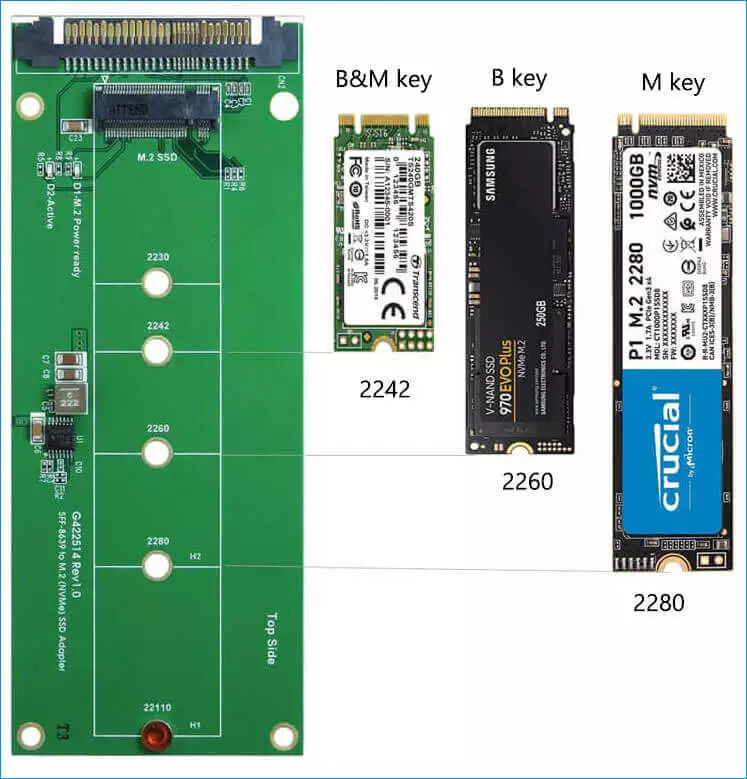
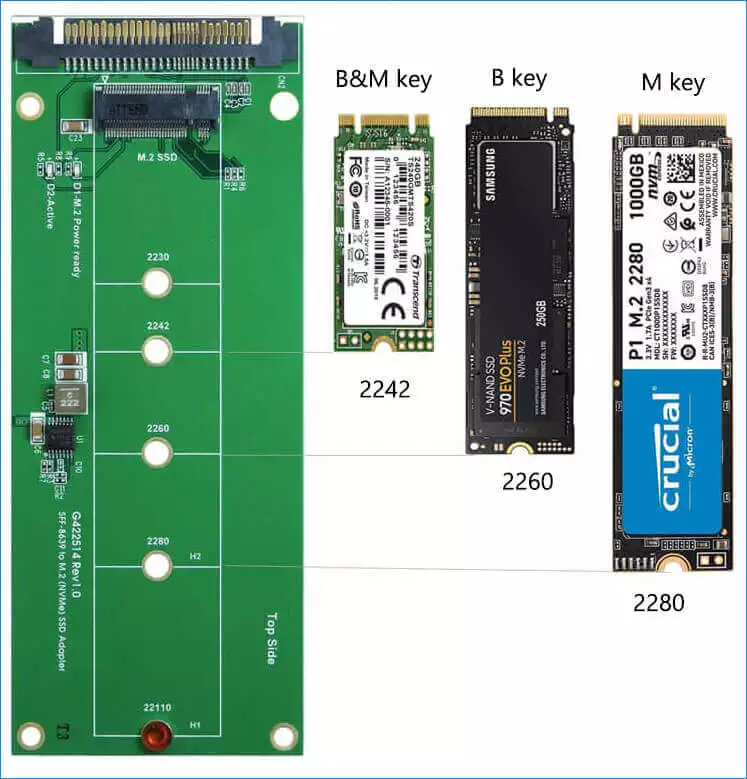
M.2 SSDs have notches called keys. These notches help show which connections the drive may support.
Common key types include:
• B key: Often linked with SATA or PCIe x2 devices
• M key: Common on PCIe NVMe drives
• B and M key: A drive with two notches may support wider compatibility, but the motherboard slot still controls what works
Most modern NVMe SSDs use an M key. Many M.2 SATA drives use a B or B+M key. The physical notch can help, but it is not a complete compatibility test.
A drive may fit into a slot and still fail to work because the slot does not support the drive’s protocol. Think of the key as a physical guide, not a full guarantee.
When checking how to know if SSD is compatible with motherboard, compare these three details:
-
The SSD key type
-
The motherboard socket key type
-
The protocol supported by the slot
All three should match.
Check the M.2 SSD Size
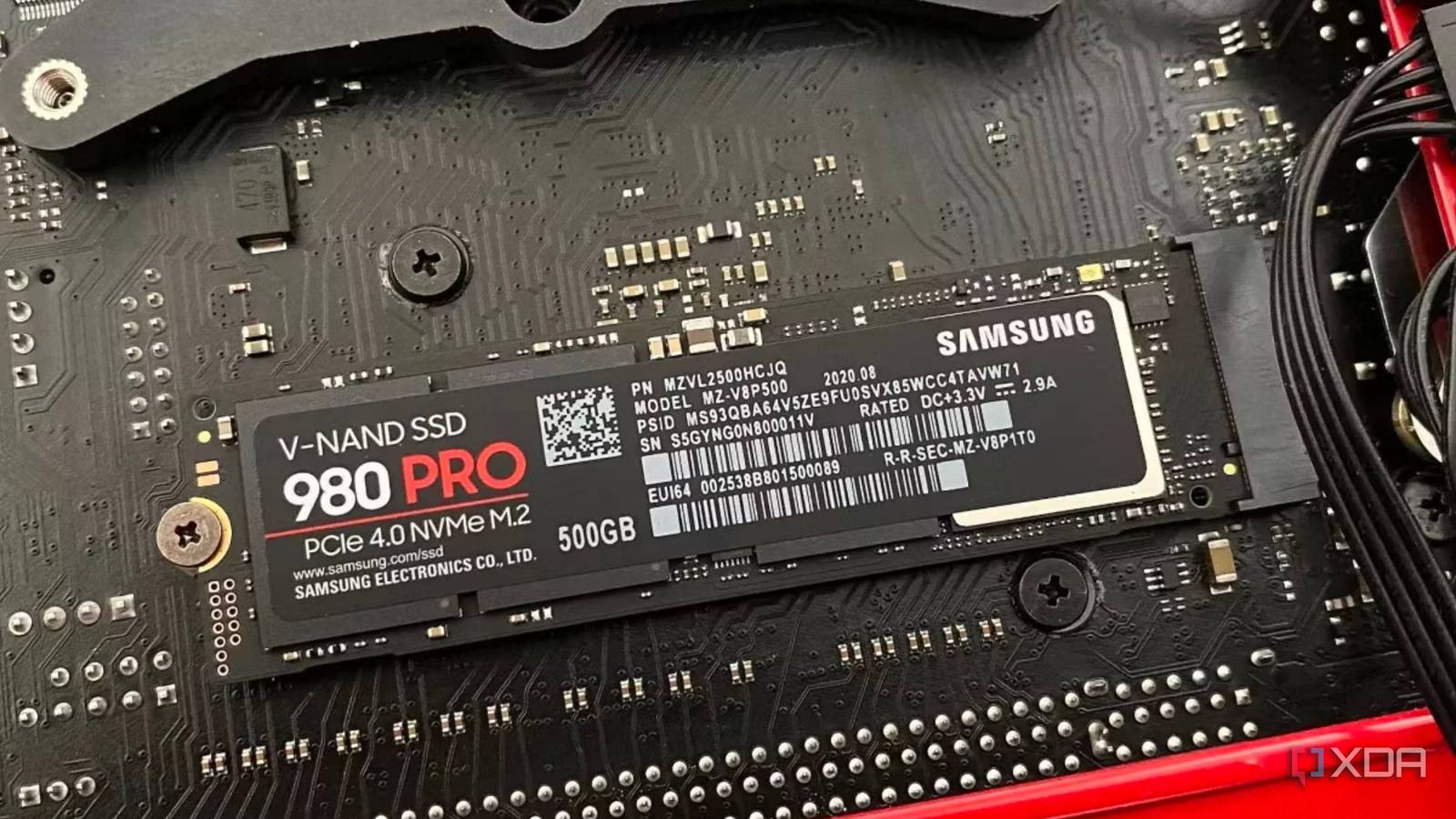
M.2 SSD sizes use four digits. The first two digits show the width, and the last two show the length.
For example:
• 2230: 22 millimeters wide and 30 millimeters long
• 2242: 22 millimeters wide and 42 millimeters long
• 2260: 22 millimeters wide and 60 millimeters long
• 2280: 22 millimeters wide and 80 millimeters long
The 2280 size is the most common for desktop and laptop NVMe SSDs. Still, your motherboard must have a mounting screw or standoff at the correct position.
If the board supports only 2242 or 2260 drives, a 2280 SSD may not have a place to attach securely. Do not leave an M.2 drive hanging from the connector. The retaining screw helps prevent stress and movement.
Laptop space also matters. A laptop may accept only a single-sided M.2 SSD because the second side has less clearance. A double-sided drive may fit the connector but press against the chassis or nearby parts.
Physical size is an essential part of how to know if SSD is compatible with motherboard, especially for laptops and compact computers.
Understand PCIe Generations and Speed
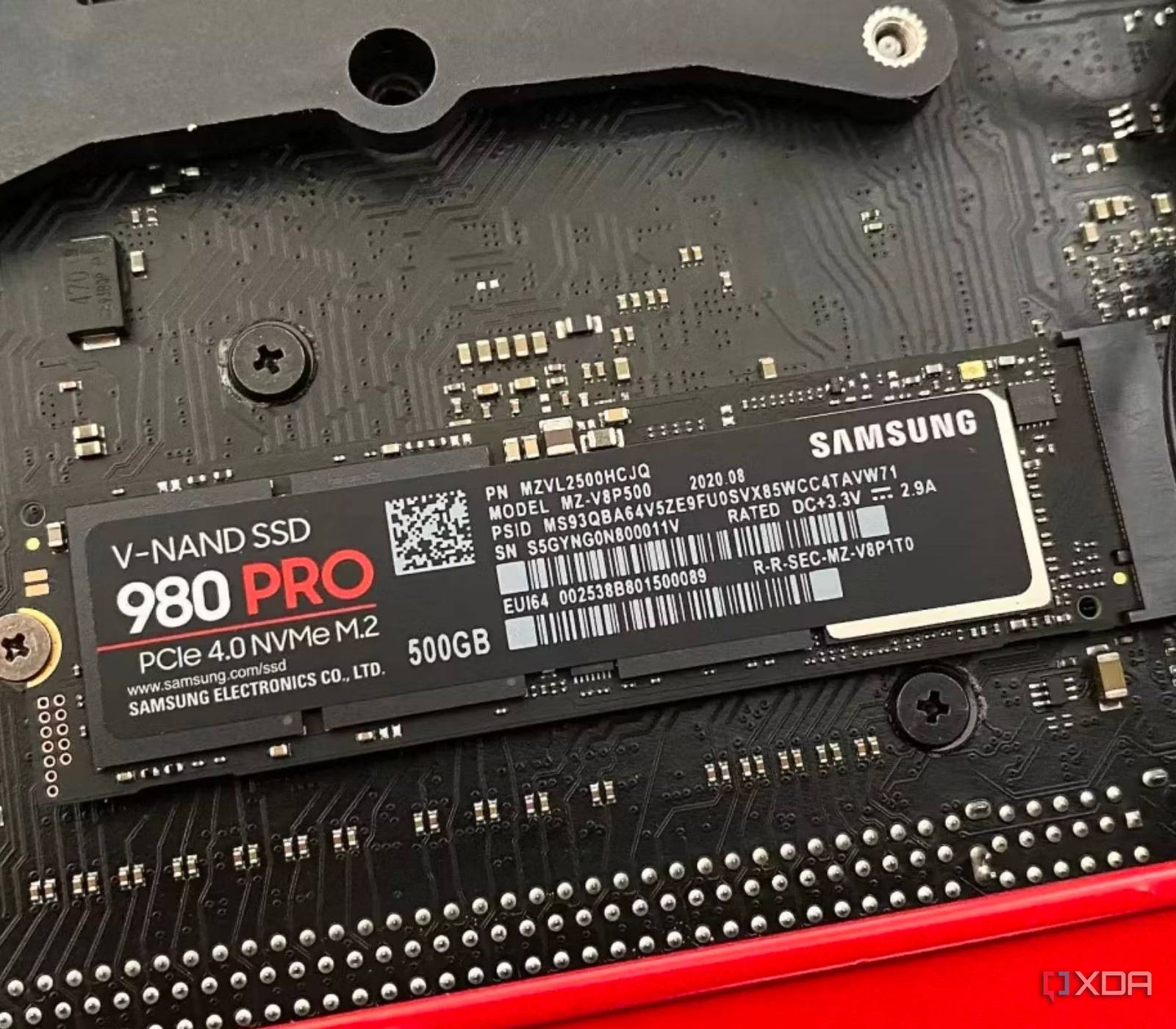
NVMe SSDs use PCIe lanes. Common generations include PCIe 3.0, PCIe 4.0, and PCIe 5.0.
Newer drives are usually backward compatible with older PCIe generations. For example, a PCIe 4.0 NVMe SSD can often work in a PCIe 3.0 slot. However, it will run at the older slot’s speed.
The reverse can also work. A PCIe 3.0 SSD can run in a PCIe 4.0 slot, but it will not become a PCIe 4.0 drive.
A simple example:
• A PCIe 4.0 SSD in a PCIe 3.0 slot works at PCIe 3.0 performance.
• A PCIe 3.0 SSD in a PCIe 4.0 slot works at PCIe 3.0 performance.
• A PCIe 5.0 SSD needs suitable PCIe 5.0 support to reach its rated speed.
This means a speed mismatch is not always a compatibility failure. It may only reduce performance. The motherboard, processor, BIOS, and SSD controller can all affect the final result.
When learning how to know if SSD is compatible with motherboard, focus first on whether the drive will work. Compare speed generations second.
Check CPU and Lane Support
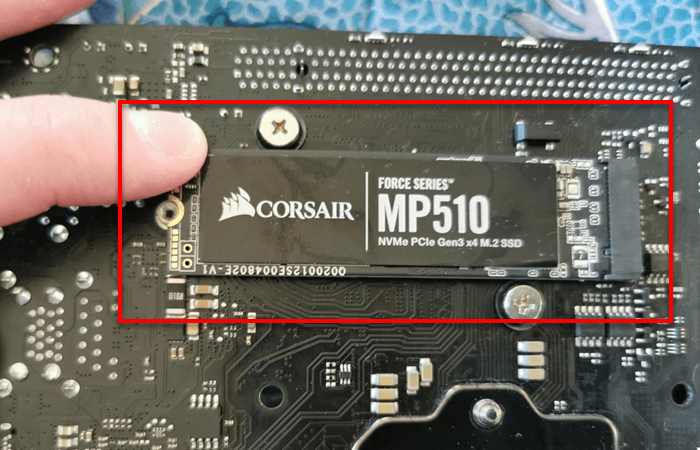
Some M.2 slots connect directly to the processor. Others connect through the motherboard chipset. This design can affect speed and availability.
On some platforms, the main M.2 slot supports PCIe 4.0 or PCIe 5.0 only when the installed processor supports it. A lower-end or older CPU may limit that slot to a slower mode.
The motherboard manual may include notes such as:
• The first M.2 slot requires a compatible processor.
• The second M.2 slot shares bandwidth with a PCIe expansion slot.
• Installing an SSD in a certain slot disables specific SATA ports.
• The slot supports PCIe x4 only with certain CPU generations.
These notes are easy to miss. They can explain why an SSD works but shows less speed than expected, or why another storage port disappears after installation.
This is another reason how to know if SSD is compatible with motherboard requires more than checking the connector. The CPU and board work together as a storage system.
Check BIOS and Operating System Support
A compatible SSD may still need a BIOS update. This is more common with newer NVMe drives and older motherboards.
Before updating the BIOS, read the manufacturer’s instructions carefully. A failed update can make a computer unusable. Use the correct file for the exact motherboard model.
Check these items:
• Does the current BIOS support NVMe booting?
• Is the SSD visible in the BIOS storage menu?
• Is the motherboard set to UEFI mode?
• Is the storage controller set to AHCI or RAID as required?
• Does the operating system support the selected boot mode?
Modern versions of Windows and Linux generally support NVMe drives well. Older operating systems may need updates or special drivers.
If the SSD appears in the BIOS but not in Windows, open Disk Management. A new drive may need to be initialized and formatted before it appears in File Explorer. Formatting removes existing data, so confirm that the drive is empty first.
BIOS support is a practical part of how to know if SSD is compatible with motherboard because hardware compatibility does not always guarantee boot support.

Watch for Shared SATA Ports
Many motherboards share bandwidth between M.2 slots and SATA ports. This is normal and is usually explained in the manual.
For example, installing an M.2 SATA drive may disable SATA port 2. In another design, installing any drive in the second M.2 slot may disable two SATA connectors.
This does not mean the SSD is defective. It means the motherboard has limited shared connections. Move the existing SATA cable to another active port if needed.
Before installing the new SSD, record where your current drives are connected. After installation, confirm that all expected drives still appear in the BIOS and operating system.
A careful port check can prevent a confusing troubleshooting session. It is one of the small details that separates a smooth upgrade from a frustrating one.

Check Power, Cooling, and Physical Clearance
SATA SSDs need a SATA data cable and a SATA power cable. M.2 SSDs usually receive power through the motherboard slot, so they do not need a separate power cable.
High-speed NVMe drives can produce noticeable heat during long file transfers. Some motherboards include M.2 heatsinks. If yours does, remove the protective film from the thermal pad before securing the cover.
Also inspect the space around the M.2 slot:
• Will a large graphics card cover the SSD?
• Is there a heatsink or screw in the way?
• Does the SSD have a built-in heatsink that is too tall?
• Is there enough room for a laptop’s drive thickness?
Do not force the drive into place. Insert it at a slight angle, lower it gently, and secure it with the correct screw.
A common installation mistake I have seen is leaving the plastic film on an M.2 heatsink pad. The SSD may still work, but heat transfer will be poor.
Use a Simple SSD Compatibility Checklist
Use this process before ordering an SSD:
-
Find the exact motherboard or laptop model.
-
Download the official manual.
-
List the available SATA ports and M.2 slots.
-
Confirm whether the target slot supports SATA, NVMe, or both.
-
Match the SSD key type with the slot.
-
Confirm the M.2 length, usually 2280.
-
Check PCIe generation and lane support.
-
Review shared-port and CPU limitations.
-
Check BIOS support for the SSD and boot mode.
-
Confirm that the case, laptop, or motherboard has enough physical clearance.
This checklist answers how to know if SSD is compatible with motherboard in a clear, repeatable way. It also reduces the risk of buying a drive that fits physically but does not function.
If you cannot find a clear answer, contact the motherboard manufacturer with the exact board revision and SSD model. The revision matters because manufacturers sometimes release several versions of one board.
Common Compatibility Mistakes to Avoid
Several mistakes appear again and again during SSD upgrades.
Assuming every M.2 drive is NVMe
M.2 is only a physical size standard. Always confirm the protocol.
Assuming every M.2 slot supports every M.2 SSD
Some slots support NVMe only. Others support SATA only. Some support both.
Buying based only on advertised speed
A PCIe 5.0 SSD may work in a PCIe 3.0 system, but it cannot reach PCIe 5.0 speeds there. A less expensive drive may provide the same real-world performance on an older board.
Ignoring laptop limits
Some laptops use a 2.5-inch SATA bay. Others use M.2 SATA or M.2 NVMe. Check the existing drive and the service manual before buying.
Forgetting the mounting screw
An M.2 SSD should be secured. The small screw or standoff may already be installed elsewhere on the motherboard.
Cloning without checking boot mode
A cloned drive may not boot if the old system used legacy BIOS mode and the new installation expects UEFI. Check the firmware settings before cloning.
The best approach to how to know if SSD is compatible with motherboard is to verify technical details instead of relying on appearance.
What to Do After Installing the SSD
After installation, check the drive in stages.
First, enter the BIOS or UEFI setup. Confirm that the SSD appears in the storage list. If it does not appear, power down and check the connection, slot type, and BIOS support.
Next, boot into the operating system. In Windows, open Disk Management. In Linux, use a trusted disk utility or a command such as lsblk to view detected drives.
If the drive is new, initialize it using the correct partition style. GPT is the usual choice for modern UEFI systems. Then create a partition and format it with the file system you need.
Finally, test the drive with a trusted health tool. Check its temperature, firmware version, total writes, and reported health. Benchmark results may vary, so treat them as useful clues rather than absolute promises.
These steps confirm not only that the SSD is compatible with motherboard, but also that it is installed and configured correctly.
Frequently Asked Questions
Can any SSD work with any motherboard?
No. A 2.5-inch SATA SSD needs a SATA port, while an M.2 NVMe SSD needs a compatible PCIe M.2 slot. Check the motherboard manual before buying.
How do I know if my motherboard supports NVMe?
Look in the manual or product specifications for an M.2 slot described as PCIe, NVMe, or PCIe x4. An M.2 slot labeled SATA only will not support an NVMe drive.
Will a PCIe 4.0 SSD work on a PCIe 3.0 motherboard?
Usually, yes. The SSD should operate at PCIe 3.0 speeds, so it will not reach its full PCIe 4.0 performance.
Is M.2 the same as NVMe?
No. M.2 describes the drive’s physical shape and connector. NVMe describes a storage protocol, while M.2 drives can use either NVMe or SATA.
Can an SSD be too large for a motherboard?
Some motherboards or older operating systems may have storage capacity limits. Modern boards usually support large drives, but check the manual and BIOS notes for exact limits.
Why does my SSD fit but not show up?
The slot may support a different interface, such as SATA instead of NVMe. Other causes include an outdated BIOS, disabled storage settings, shared ports, or a drive that needs initialization.
Do I need a heatsink for an NVMe SSD?
Not always. A heatsink can help during long, heavy workloads, especially with PCIe 4.0 and PCIe 5.0 drives. Normal light use may work well without one if airflow is good.
Conclusion
Knowing how to know if SSD is compatible with motherboard comes down to matching the interface, form factor, key type, size, PCIe support, BIOS features, and physical clearance. Do not judge compatibility by the M.2 shape alone.
Read the motherboard manual, check the exact slot specifications, and review shared-port limitations before you order. With those steps, you can choose an SSD with confidence and avoid the most common upgrade errors.
Use the checklist during your next storage upgrade, then share your motherboard and SSD models in the comments if you need help confirming the match.

Everett Ashford is a tech reviewer at mytechgrid.com specializing in SSDs, cameras, TVs, earbuds, headphones, and other consumer electronics. He provides honest, data-driven reviews based on hands-on testing and real-world performance analysis. Everett simplifies complex tech details to help readers make smart, confident buying decisions.