How To Update Ssd Firmware: Step-By-Step Guide
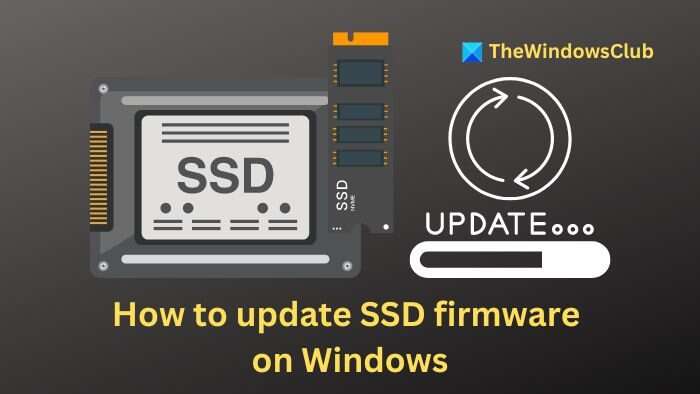
Update SSD firmware by downloading your drive maker’s updater and following the step guide.
I’ve updated dozens of drives for clients and for my own rigs, so I know what works and what can go wrong. This guide explains how to update SSD firmware clearly and safely, with step-by-step instructions, practical tips, and troubleshooting. Follow along and you’ll learn when an update helps, how to prepare, the exact steps for major brands, and how to recover if something fails.
What firmware is and why updating matters
Firmware is the small software inside an SSD that controls how the drive reads, writes, and manages data. It lives on the drive itself. Updating firmware can fix bugs, improve performance, and add compatibility with new systems.
Knowing how to update SSD firmware helps you keep your drive stable and fast. Not every update is needed. Sometimes an update only fixes a rare bug. Learn to judge risks and benefits before you act.
When you should update SSD firmware
Only update when there is a clear benefit. Typical reasons include:
- Fixing a known bug that affects data integrity or system stability.
- Improving performance, latency, or power use.
- Adding support for a new platform or controller behavior.
- Meeting security advisories from the manufacturer.
Avoid updating for vague "speed gains" or because a tool suggests it without details. If your drive is stable, a major update isn’t always worth the small risk. The phrase how to update SSD firmware matters when you need clear steps and a safe method.

Prepare before you update
Good prep cuts risk. Do these steps first:
- Back up all important files to a separate drive or cloud. Backups protect you if the update fails.
- Check drive health. Use SMART utilities to confirm no preexisting errors.
- Note your system state. Make a recovery drive or keep a full system image if possible.
- Read the firmware release notes. They tell you why the update exists and any special instructions.
- Ensure a stable power source. For laptops, plug in power. For desktops, avoid power interruptions.
A calm, prepared approach is the best way to learn how to update SSD firmware without drama.
General step-by-step: how to update SSD firmware safely
These steps give a clear path for most brands. The exact tool names differ, but the flow stays the same.
- Identify your SSD model and current firmware.
- Use system tools or the manufacturer's utility to list model and firmware version.
- Visit the manufacturer’s support or downloads page.
- Enter model info and look for firmware files or updater tools.
- Read the release notes and instructions fully.
- Check for any prerequisites, like minimum firmware version or OS requirements.
- Download the official firmware updater for your OS.
- Prefer the vendor’s updater over third-party tools.
- Close other apps and disable sleep/hibernation.
- Prevent interruptions during the update.
- Run the updater exactly as instructed.
- Some updaters run inside Windows. Others boot from USB or require a DOS environment.
- Wait patiently until the tool confirms completion.
- Do not power off or reboot mid-update unless instructed.
- Reboot and re-check firmware version and drive health.
- Confirm the firmware applied and run a SMART check.
Repeat these steps whenever you need to know how to update SSD firmware in the future.
Brand-specific notes and common tools
Manufacturers use different methods. Here are typical approaches for popular brands.
Samsung
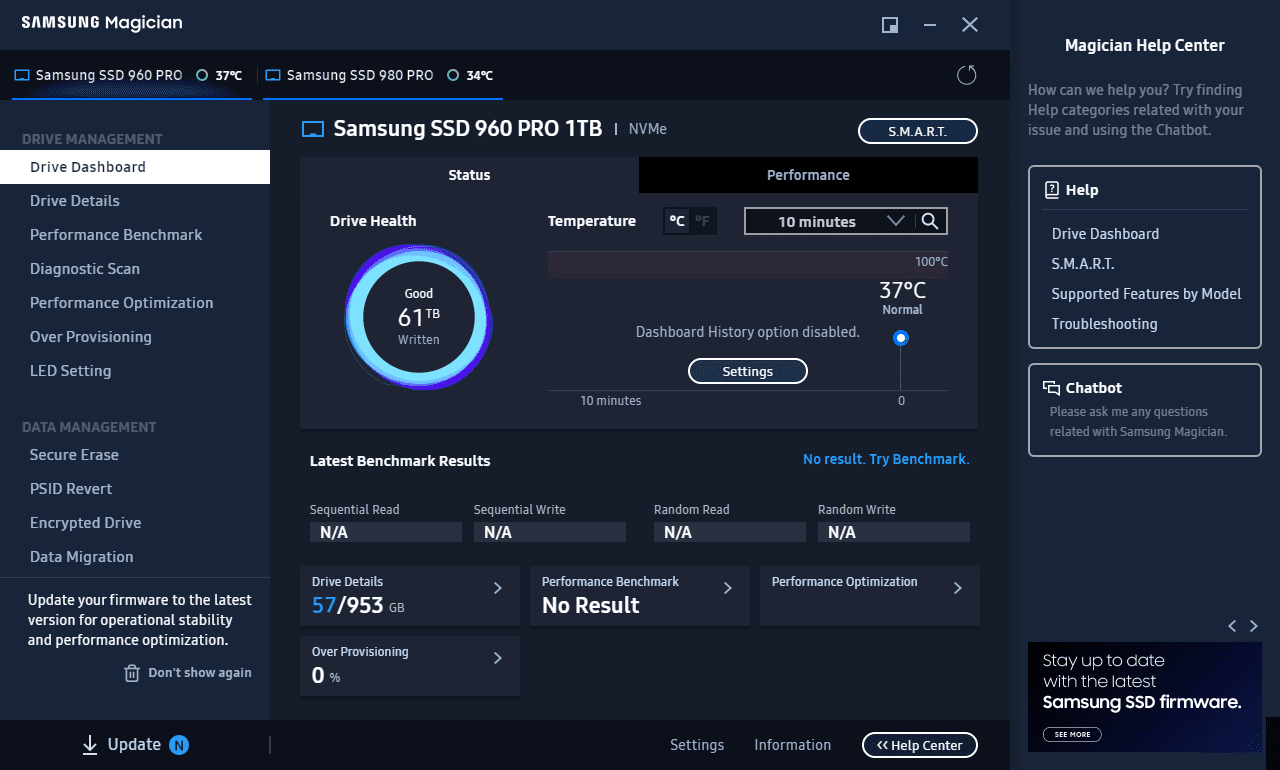
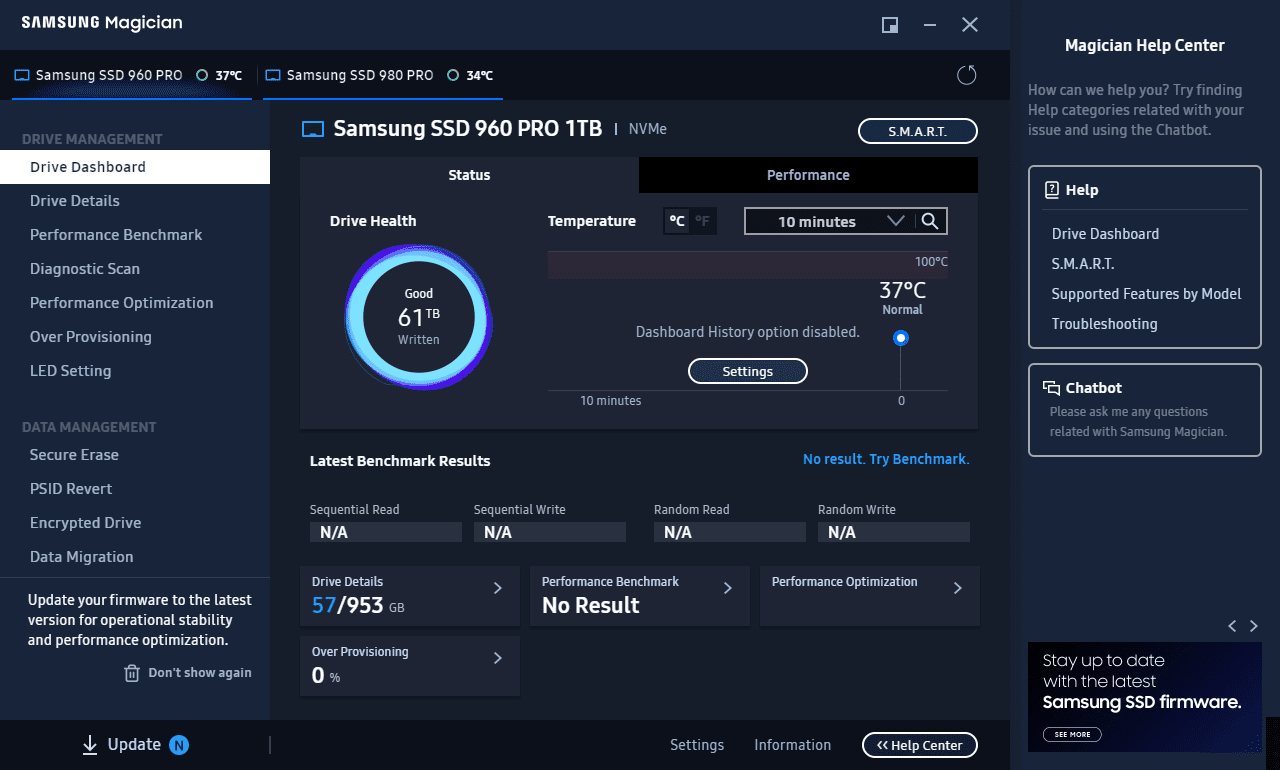
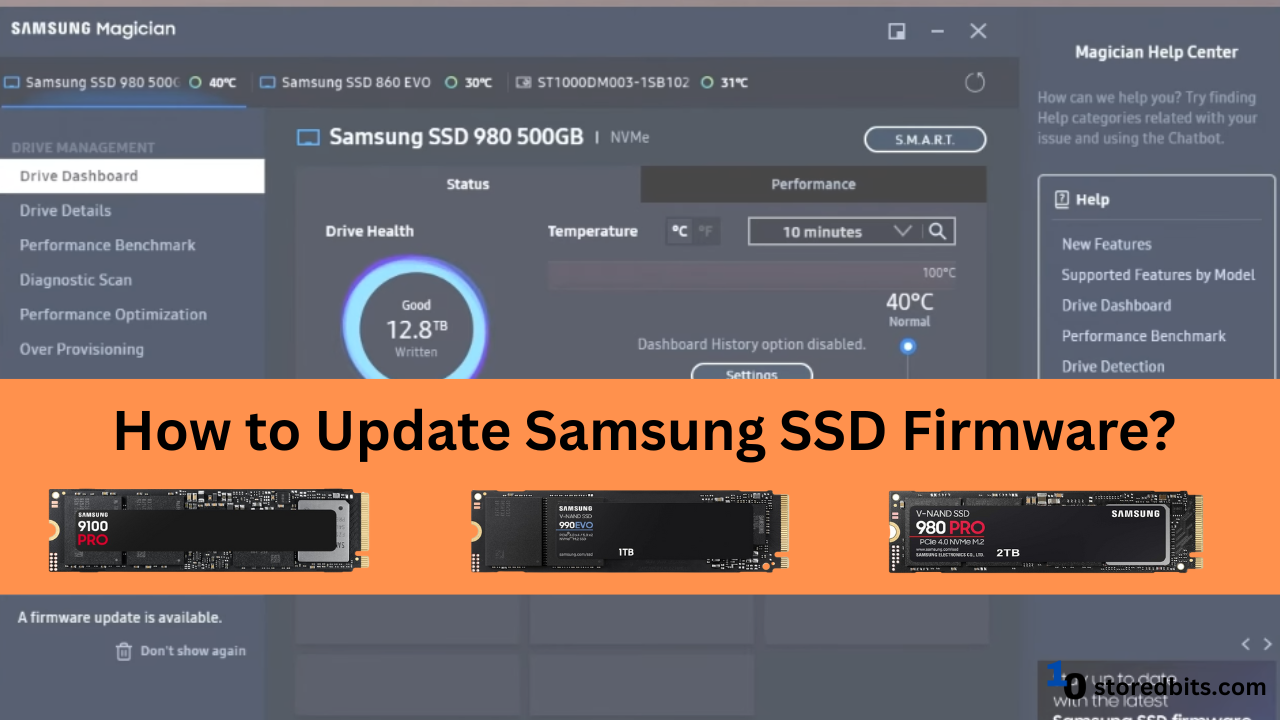
- Samsung Magician is the official Windows tool. It shows model and firmware and runs updates. Use the tool, not random third-party apps.
Crucial / Micron
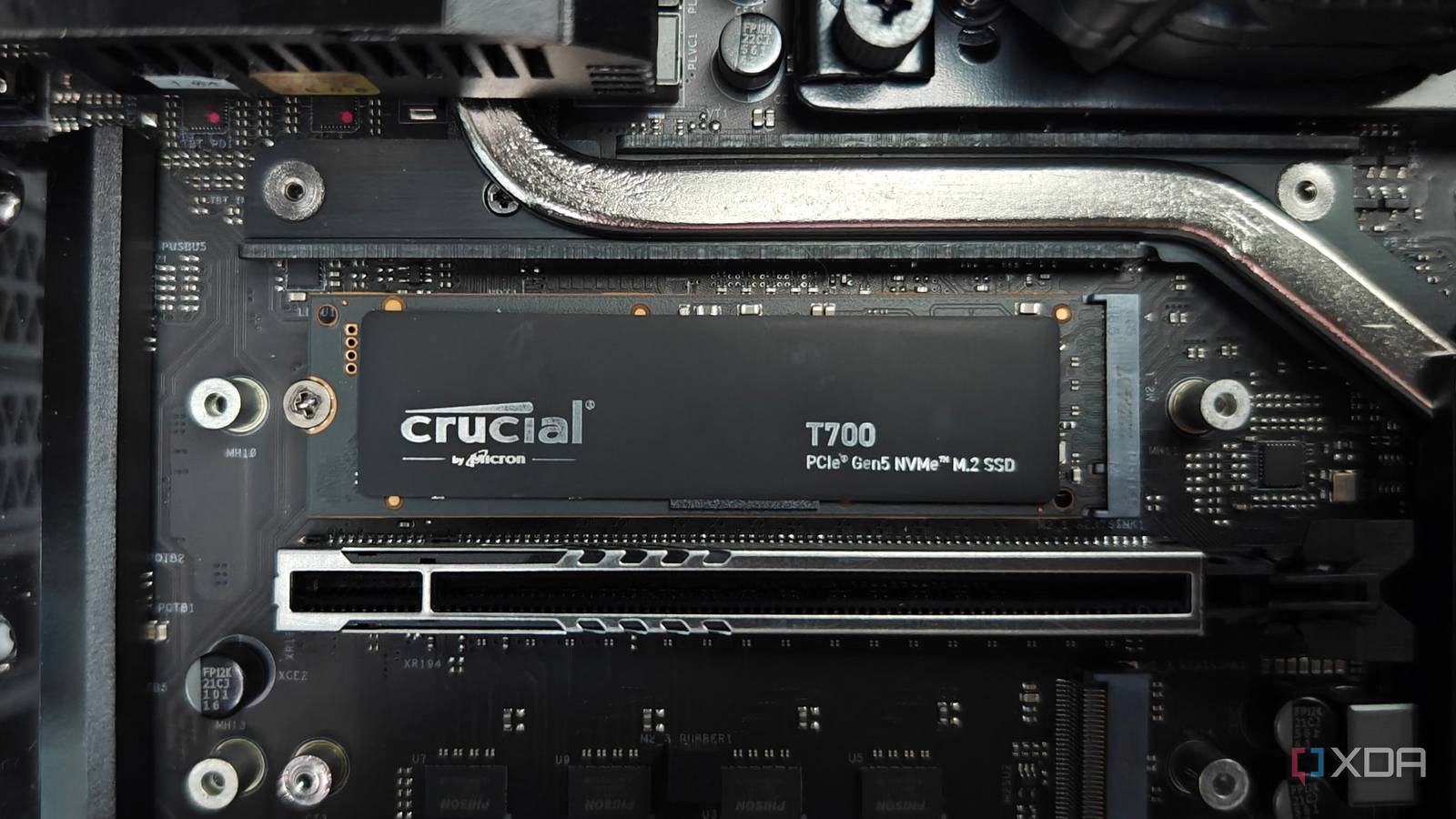
- Crucial offers a bootable ISO or an in-OS tool. Follow their instructions for bootable updates if required.
Western Digital / SanDisk
- WD Dashboard is the Windows utility. It offers firmware updates and health checks.
Intel
- Intel provides firmware tools and bootable images for enterprise and client drives. Read release notes closely.
Kingston
- Kingston supplies firmware updates via support pages and instructions. Some models need a DOS/USB updater.
Always use the maker’s tool when learning how to update SSD firmware. That reduces compatibility issues and avoids warranty problems.
Troubleshooting common issues
If the update fails or stalls, stay calm and follow steps:
- If the updater stalls but the PC is responsive, wait 10–20 minutes. Small drives may need time to finalize.
- If the PC locks or restarts unexpectedly, reboot and check drive state. Run SMART and the vendor tool to detect partial updates.
- If the drive disappears after an update, try different SATA/USB ports, cables, or a different machine. Some controllers need a firmware-aware host.
- If firmware bricked the drive, contact the manufacturer’s support immediately. They often have recovery procedures for bricked SSDs.
I once had an update stall because the laptop tried to sleep mid-flash. I learned to disable sleep every time. That simple fix avoided a bad recovery call.

Risks, limitations, and warranty notes
Updating firmware carries small but real risks. Understand them:
- A failed flash can render a drive unusable. This is rare but possible.
- Updates sometimes change drive behavior in subtle ways that affect old systems.
- Using unofficial tools can void warranties.
- Some older systems may not support the new firmware fully.
Always weigh risk versus reward. If the update fixes a bug that affects you, it’s worth the effort. If not, delay until a clear benefit appears.
Best practices and maintenance tips
Follow these tips every time you think about how to update SSD firmware:
- Keep regular backups. This is the single best protection.
- Check firmware notes quarterly or when you update your OS.
- Use the vendor’s official utilities and follow instructions to the letter.
- Maintain a recovery plan: system image or rescue media.
- Test your drive after updates with SMART and simple read/write checks.
These habits keep your drives healthy and reduce stress when updates appear.

My experience and lessons learned
In real projects I updated dozens of drives across many systems. I learned key lessons fast:
- Always back up first. Once, a misapplied update cost a client a day of downtime despite a backup that saved the data.
- Read release notes fully. I once missed a prerequisite and had to run two sequential updates instead of one.
- Use manufacturer forums and support when unsure. They often offer recovery steps not in the main docs.
If you follow the steps here, you avoid the common pitfalls I’ve seen.
Frequently Asked Questions of how to update ssd firmware
How often should I update SSD firmware?
Update only when a release fixes a bug you face or adds needed features. Routine updates aren’t required if your drive is stable and fast.
Can updating SSD firmware erase data?
Firmware updates usually do not erase data, but failures can lead to data loss. Always back up important files before updating.
Is it safe to update SSD firmware on a laptop?
Yes, if the laptop is plugged into power and sleep is disabled. A steady power supply and no interruptions make it safe.
What if the firmware update fails and the SSD is not recognized?
Try different ports, cables, or another computer. If that fails, contact the manufacturer for recovery or RMA options.
Can I use third-party tools to update SSD firmware?
Avoid third-party tools. Use the manufacturer’s official updater to reduce risk and protect warranty coverage.
Will updating SSD firmware improve speed?
Some updates can improve speed or latency, but many fixes focus on reliability or compatibility. Check the release notes for claimed improvements.
Conclusion
Knowing how to update SSD firmware gives you control over drive health and performance. Prepare well: back up, read notes, use official tools, and ensure a steady power source. When you follow the steps here, you cut risk and boost success. Take action now: check your drive’s current firmware, read the vendor notes, and back up before applying any update. If this guide helped, leave a comment or subscribe for more practical tech guides.

Everett Ashford is a tech reviewer at mytechgrid.com specializing in SSDs, cameras, TVs, earbuds, headphones, and other consumer electronics. He provides honest, data-driven reviews based on hands-on testing and real-world performance analysis. Everett simplifies complex tech details to help readers make smart, confident buying decisions.