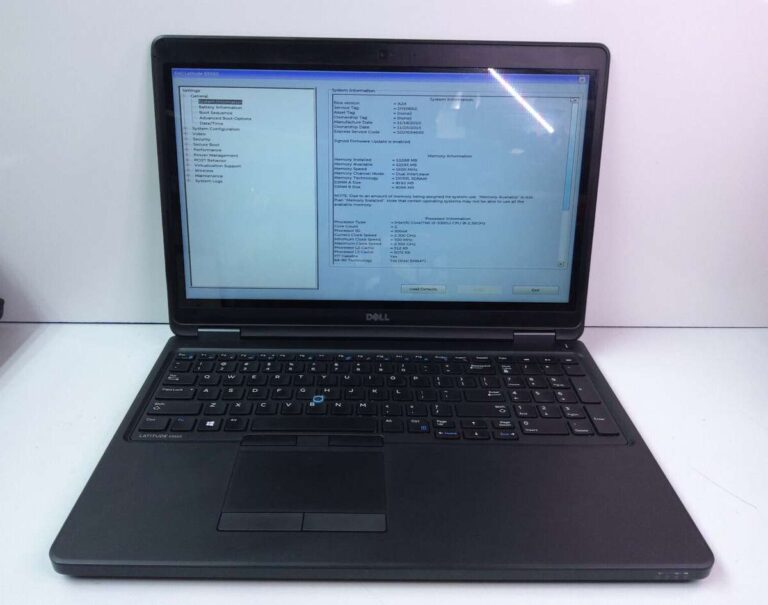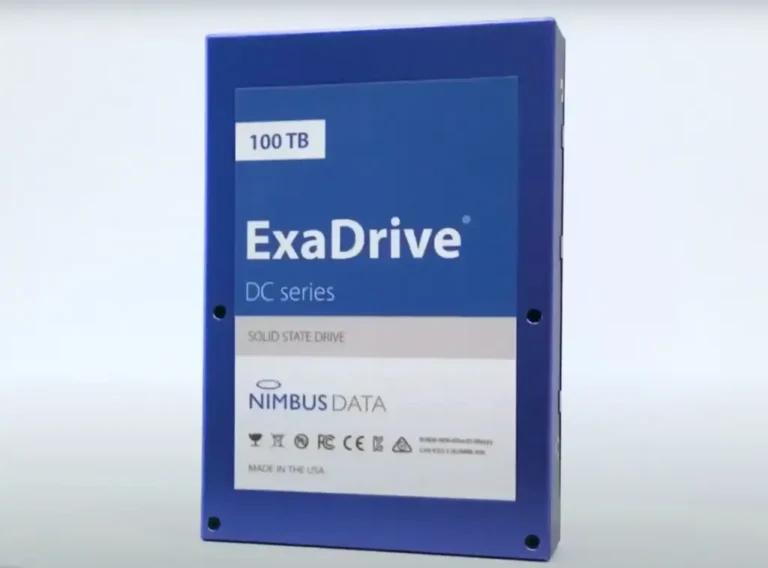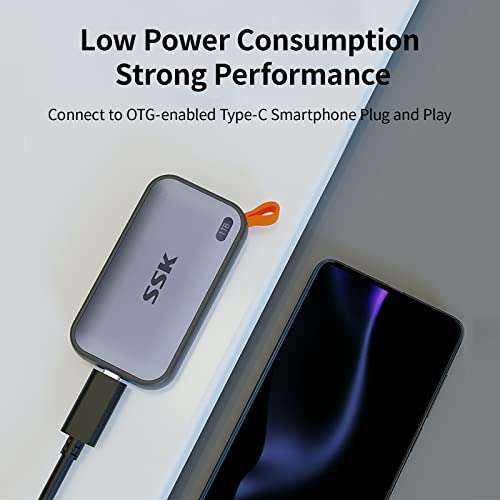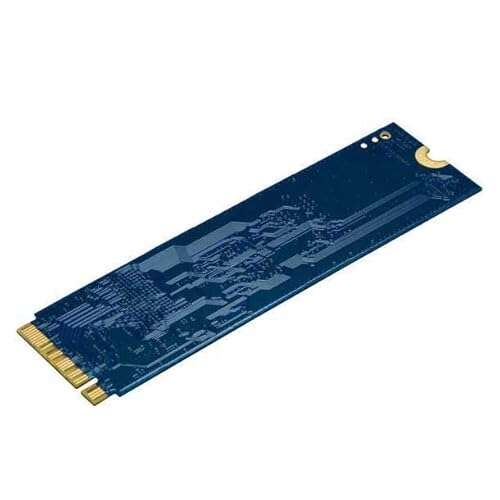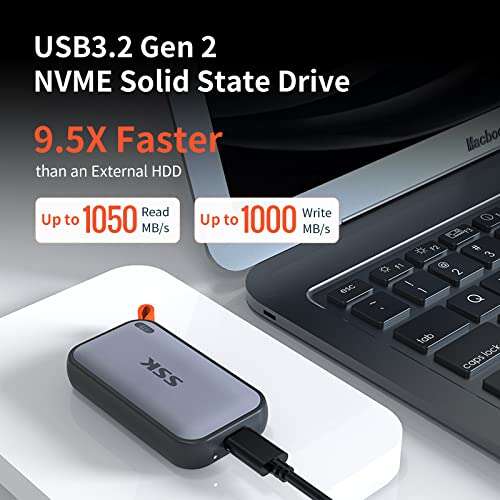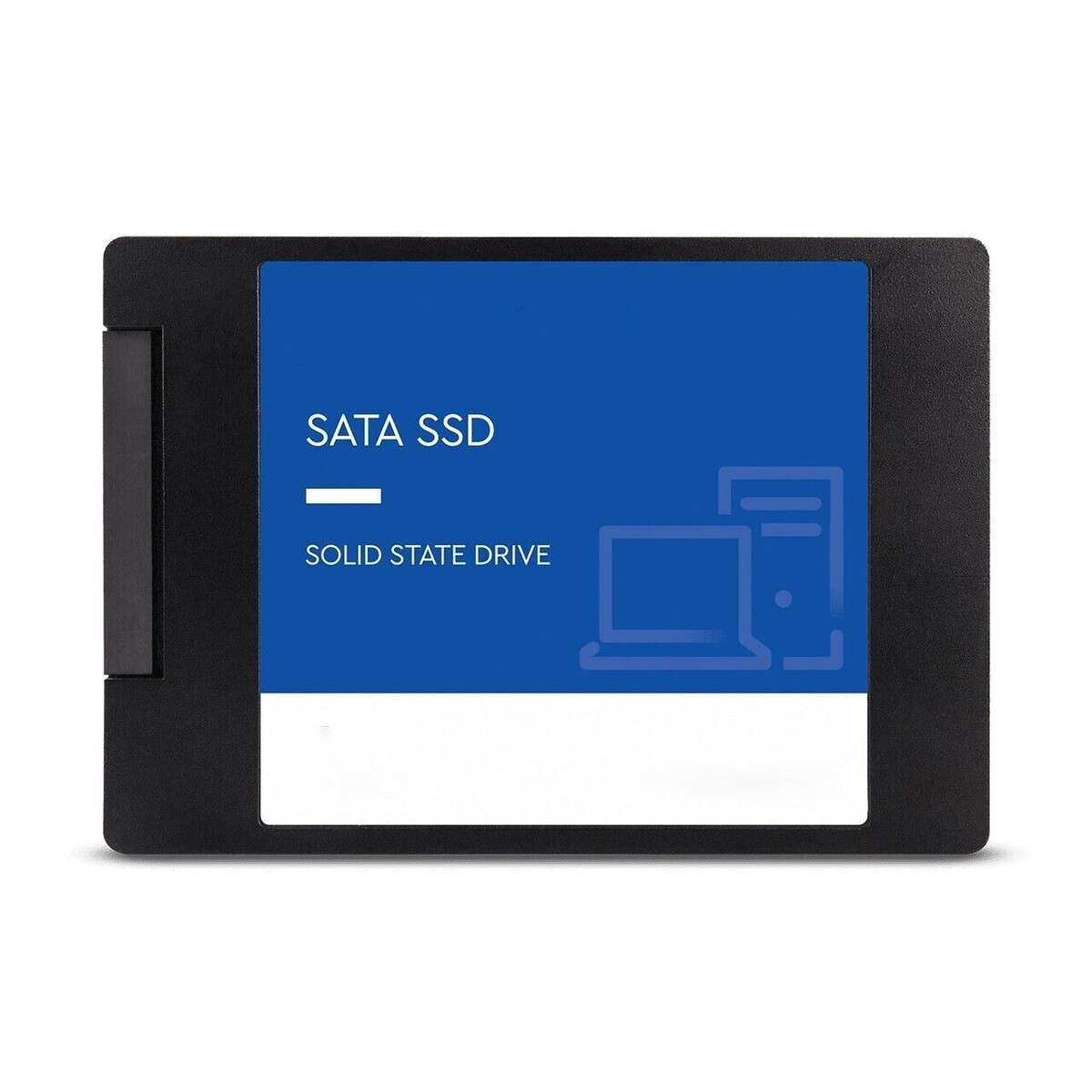
An SSD drive for a laptop is fast, quiet storage that uses flash memory instead of spinning disks.
If you are asking “what is SSD drive for laptop,” you are likely considering a faster computer, a storage upgrade, or a new laptop purchase. An SSD can make daily tasks feel smoother, reduce startup time, and improve file access. This guide explains how SSD storage works, which type you need, its benefits and limits, and how to choose one with confidence.

What Is an SSD Drive for a Laptop?
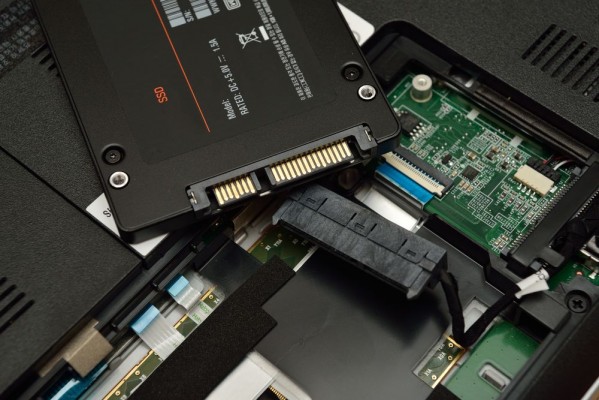
An SSD, or solid-state drive, is a storage device that saves your files, apps, operating system, and personal data. Unlike a traditional hard disk drive, an SSD has no spinning platters or moving read heads. It stores data on flash memory chips.
So, what is SSD drive for laptop use in simple terms? It is the laptop’s long-term storage system. It holds Windows or macOS even when the laptop is turned off, much like a filing cabinet that keeps your documents safe.
An SSD works with several key parts:
• Flash memory stores your data.
• A controller manages reading and writing.
• Firmware helps the drive organize data and correct errors.
• A connection, such as SATA or PCIe, links the drive to the laptop.
When you open a program, the laptop reads its files from the SSD and sends them to the processor and memory. Because the SSD finds data quickly, apps often open faster than they would from an older hard drive.
How Does an SSD Work?
An SSD stores data as electrical charges inside memory cells. These cells do not need power to keep your files after the laptop shuts down. This is why an SSD is called nonvolatile storage.
The controller divides data into small blocks. It also spreads writes across the drive to reduce wear. This process is called wear leveling.
Modern SSDs may use different types of NAND flash:
• SLC stores one bit per cell and offers excellent speed and durability, but it costs more.
• MLC stores two bits per cell and balances speed, cost, and endurance.
• TLC stores three bits per cell and is common in consumer laptops.
• QLC stores four bits per cell and offers more space at a lower price, but write speed and endurance may be lower.
Most laptop users do not need to study NAND technology in depth. The important point is that SSDs are built for fast electronic access, while hard drives depend on mechanical movement.
An SSD may also use a small amount of cache memory. This helps manage short bursts of activity, such as copying photos or installing software. Once the cache fills, write speed may drop, especially on some lower-cost drives.

SSD vs. HDD: What Is the Difference?
Understanding what is SSD drive for laptop becomes easier when you compare it with an HDD. Both devices store data, but they use very different designs.
| Feature | SSD | HDD |
|---|---|---|
| Storage method | Flash memory | Spinning magnetic platters |
| Speed | Very fast | Slower |
| Noise | Silent | May make clicks or spinning sounds |
| Durability | Better resistance to movement | More sensitive to shocks |
| Power use | Usually lower | Usually higher |
| Price per gigabyte | Often higher | Often lower |
| Heat | Usually produces less heat | Can produce more heat |
A hard drive is like a record player that must move to find a song. An SSD is more like a digital music library that can find the song almost at once.
For this reason, an SSD can improve:
• Laptop startup time
• Program launch speed
• File search and transfer response
• Game loading screens
• System updates
• Multitasking
An SSD does not always make the processor faster. It cannot turn an old dual-core laptop into a modern workstation. However, replacing a slow HDD can remove one of the biggest bottlenecks in an older computer.

What Are the Main Types of Laptop SSDs?
When people ask what is SSD drive for laptop, they may also mean which physical type or connection the drive uses. Laptop SSDs are not all the same.
2.5-inch SATA SSD
A 2.5-inch SATA SSD has a small rectangular shape. It uses the same basic SATA connection found in many laptop hard drives.
This type is common in older laptops. It is much faster than a hard drive, but its speed is limited by the SATA interface. Real-world performance is often enough for browsing, office work, school tasks, and everyday use.
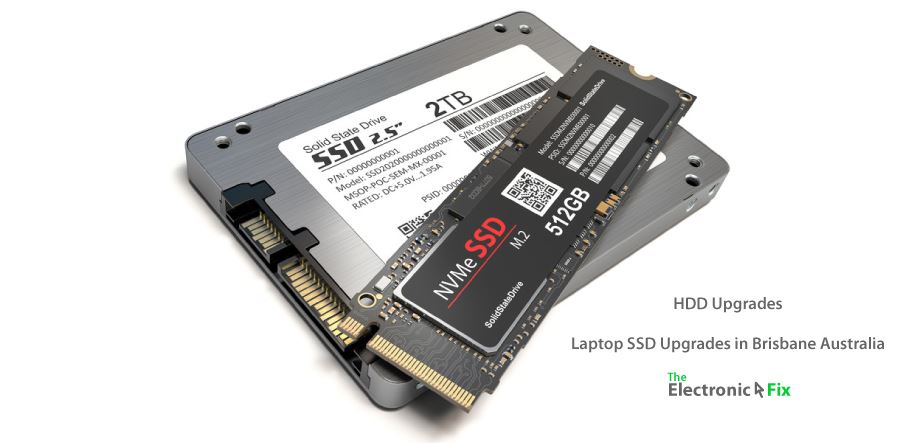
M.2 SATA SSD
An M.2 SATA SSD is a slim circuit board. It uses the M.2 shape but communicates through SATA technology.
It may look similar to an NVMe drive, but it is not the same. Before buying one, check the laptop manual and the drive slot. An M.2 slot may support SATA, NVMe, or both.
M.2 NVMe SSD
NVMe SSDs use the PCIe interface. NVMe stands for Non-Volatile Memory Express. It was designed for flash storage and usually provides much higher speed and lower delay than SATA.
NVMe is common in newer laptops. It is useful for large file transfers, video editing, software development, gaming, and other demanding tasks. For basic web browsing, the difference between SATA and NVMe may feel smaller than the difference between an SSD and an HDD.
PCIe generation
NVMe drives may use PCIe 3.0, PCIe 4.0, or newer standards. A newer drive can work in some older slots, but its speed may be limited by the laptop.
Buying the fastest SSD is not always the best choice. Compatibility, temperature, capacity, and price matter just as much.
What Are the Benefits of an SSD in a Laptop?
The biggest reason to understand what is SSD drive for laptop use is the clear improvement in everyday response.
Faster startup
A laptop with an SSD can often start Windows much faster than one with an old hard drive. The exact time depends on the processor, memory, startup apps, and operating system.
Quicker app loading
Programs such as browsers, photo editors, and office tools can open faster. Large apps may still take time, but the delay is usually shorter.
Better multitasking
An SSD helps the system read and write temporary files quickly. This can make switching between apps feel smoother, especially when the laptop has limited memory.
Improved durability
There are no spinning parts inside an SSD. That makes it less vulnerable to damage from normal movement, although it is not indestructible.
Lower noise
An SSD operates silently. This can make a noticeable difference if your laptop sits beside you during work, study, or travel.
Lower power use
Many SSDs use less power than mechanical hard drives. This may help battery life, although the total effect depends on the laptop and its other components.
Better gaming load times
An SSD can reduce game loading times and make large game worlds load more smoothly. It does not directly increase frame rate unless the old drive was causing severe loading problems.

Are There Any Disadvantages to SSD Storage?
An honest answer to what is SSD drive for laptop should include its limits. SSDs are excellent, but they are not perfect.
• Higher cost per gigabyte: Large SSDs can cost more than large hard drives.
• Limited write endurance: Flash memory can handle many writes, but it does wear over time.
• Data recovery difficulty: Recovering deleted files from a failed SSD can be harder than recovering data from some hard drives.
• Speed drops when nearly full: Many SSDs perform less consistently when they have very little free space.
• Heat in fast models: Some high-speed NVMe drives can become warm during long transfers.
• Upgrade limits: Some laptops have soldered storage or no accessible drive bay.
SSD endurance is measured in TBW, or terabytes written. This number estimates how much data can be written before the manufacturer’s endurance rating is reached. Normal home and office use often writes far less data than people expect.
Still, an SSD is not a substitute for a backup. Any storage device can fail because of age, electrical damage, defects, accidents, or software problems. Keep important files in at least two separate locations.

How Much SSD Storage Does a Laptop Need?
The right capacity depends on how you use the laptop and how much space your apps and files require.
256GB SSD
A 256GB SSD works for basic tasks, such as:
• Web browsing
• Online classes
• Office documents
• Light photo storage
The usable space will be lower after the operating system and recovery files are installed. A 256GB drive can feel cramped if you store many videos or modern games.
512GB SSD
A 512GB SSD is a strong choice for most people. It gives enough room for the operating system, work files, photos, apps, and several games.
For many users, this is the best balance between price and comfort.
1TB SSD
A 1TB SSD suits gamers, photographers, video editors, and people who keep large media libraries. It also gives you more free space, which can help maintain consistent performance.
2TB or larger
Choose 2TB or more if you work with 4K video, large design projects, virtual machines, or many games. External storage can also help reduce the need to buy a very large internal drive.
A simple rule is to avoid filling an SSD completely. Keeping about 10% to 20% free can give the operating system room for temporary files and maintenance tasks.
How Do You Choose an SSD for a Laptop?
Knowing what is SSD drive for laptop is only the first step. You must also choose a drive that matches your laptop.
Use this checklist before you buy:
-
Check the laptop manual or service guide.
-
Find out whether the laptop supports 2.5-inch SATA, M.2 SATA, M.2 NVMe, or another format.
-
Confirm the physical size and key type of an M.2 drive.
-
Check the maximum supported capacity if the manufacturer lists one.
-
Compare the SSD’s interface with the laptop’s interface.
-
Choose enough storage for your apps and files.
-
Review the warranty and endurance rating.
-
Buy from a trusted seller to reduce the risk of counterfeit products.
Do not assume that every M.2 SSD will work in every M.2 slot. The M.2 label describes the shape, not always the communication standard.
Also, be careful with advertised speed. A drive may claim very high sequential speeds, but everyday tasks often depend more on random access, system design, and processor performance.
How Do You Install an SSD in a Laptop?
The installation process varies by laptop, but the general steps are similar.
-
Back up your important files.
-
Shut down the laptop and unplug the charger.
-
Remove the bottom cover if the storage is upgradeable.
-
Disconnect the battery when the service guide recommends it.
-
Remove the current drive or open the empty M.2 slot.
-
Insert the new SSD at the correct angle.
-
Secure it with the proper screw or bracket.
-
Reconnect the battery and close the cover.
-
Install the operating system or clone the old drive.
-
Confirm that the laptop recognizes the SSD.
Static electricity can harm electronic parts. Work on a clean table, touch a grounded metal object, and avoid touching the connector pins.
If you are replacing the main system drive, cloning can save time. A cloning tool copies the operating system, programs, settings, and files to the new SSD. However, the new drive may need to be equal to or larger than the amount of data currently used.
A clean operating system installation can produce a fresh start, but it requires reinstalling apps and restoring files. If the laptop contains important data, professional help may be safer than rushing the process.
How Can You Maintain an SSD?
Good SSD care is simple. You do not need to run old-style disk defragmentation tools on a modern SSD.
Use these habits:
• Keep the operating system updated.
• Leave some free space on the drive.
• Enable the operating system’s TRIM feature.
• Shut down safely when possible.
• Avoid unknown firmware tools.
• Watch for unusual errors, crashes, or missing files.
• Maintain current backups.
TRIM helps the operating system tell the SSD which data blocks are no longer in use. This allows the drive to manage space more effectively.
You can check drive health with software supplied by the SSD maker or with trusted operating system tools. Health readings are useful, but they are estimates rather than guarantees. A drive can fail before a health warning appears, which is why backups remain essential.
Common SSD Mistakes to Avoid
Many laptop owners make the same mistakes when upgrading storage. These errors are easy to prevent.
• Buying the wrong interface: An NVMe drive may not work in an M.2 SATA-only slot.
• Ignoring physical clearance: Some laptops cannot fit thick drives or extra heat spreaders.
• Forgetting a backup: A cloning mistake can erase files.
• Filling the drive completely: A nearly full SSD may slow down and leave little working space.
• Choosing capacity based only on price: A cheap 256GB drive may become frustrating quickly.
• Expecting more battery life than the laptop can provide: The processor, display, battery age, and software also matter.
• Using an untrusted seller: Counterfeit drives may report false capacity or fail early.
One practical lesson from laptop upgrades is to check the service manual before ordering parts. A five-minute compatibility check can prevent a costly return and a great deal of frustration.
What Is SSD Drive for Laptop Gaming and Work?
For gaming, what is SSD drive for laptop performance? It is mainly a fast storage location for the operating system and games. It can shorten loading screens, improve game updates, and reduce delays when a game loads new areas.
An SSD does not replace a strong graphics card. Frame rate depends mainly on the graphics processor, central processor, game settings, and memory. Moving from an HDD to an SSD can still make the whole gaming experience feel more responsive.
For work, an SSD is useful for office apps, coding tools, creative software, and large documents. Video editors may benefit from a high-capacity NVMe drive, especially when working with large project files.
Students and home users usually do well with a reliable 512GB SSD. Professionals should consider capacity, endurance, warranty, and sustained performance rather than focusing only on the highest advertised speed.
Frequently Asked Questions About What Is SSD Drive for Laptop
What is SSD drive for laptop used for?
An SSD stores the laptop’s operating system, programs, documents, photos, videos, and other files. It also helps the laptop start and load apps faster than a traditional hard drive.
Is an SSD better than an HDD for a laptop?
For most laptop users, an SSD is better because it is faster, quieter, lighter, and more resistant to movement. An HDD may still offer lower-cost storage for large files and backups.
Does an SSD make a laptop faster?
Yes, an SSD can greatly improve startup time, app loading, file access, and general system response. It will not increase every type of performance, such as graphics frame rate or processor speed.
How long does a laptop SSD last?
An SSD can last for many years under normal use. Its lifespan depends on write activity, temperature, quality, and workload, so regular backups are still important.
Can I replace my laptop HDD with an SSD?
Often, yes, if the laptop has an accessible 2.5-inch drive bay or a compatible M.2 slot. Check the laptop’s manual before buying because some newer laptops have storage that cannot be removed.
Is a 256GB SSD enough for a laptop?
A 256GB SSD can be enough for web browsing, schoolwork, and basic office use. A 512GB SSD is usually more comfortable if you install many apps, store photos, or play games.
Do SSDs need defragmentation?
No. Modern operating systems use TRIM and other maintenance features for SSDs. Traditional defragmentation can create unnecessary writes and is not normally recommended.
Conclusion
An SSD is fast, silent, reliable laptop storage that uses flash memory instead of moving parts. Understanding what is SSD drive for laptop helps you choose the right capacity, interface, and form factor for your device.
For most users, a reliable 512GB SSD offers a practical balance of speed, space, and price. Check compatibility before buying, keep free space available, and back up important files.
If your laptop still uses a slow hard drive, an SSD may be one of the most noticeable upgrades you can make. Review your laptop manual, compare trusted models, and choose storage that fits both your needs and your budget.

Everett Ashford is a tech reviewer at mytechgrid.com specializing in SSDs, cameras, TVs, earbuds, headphones, and other consumer electronics. He provides honest, data-driven reviews based on hands-on testing and real-world performance analysis. Everett simplifies complex tech details to help readers make smart, confident buying decisions.