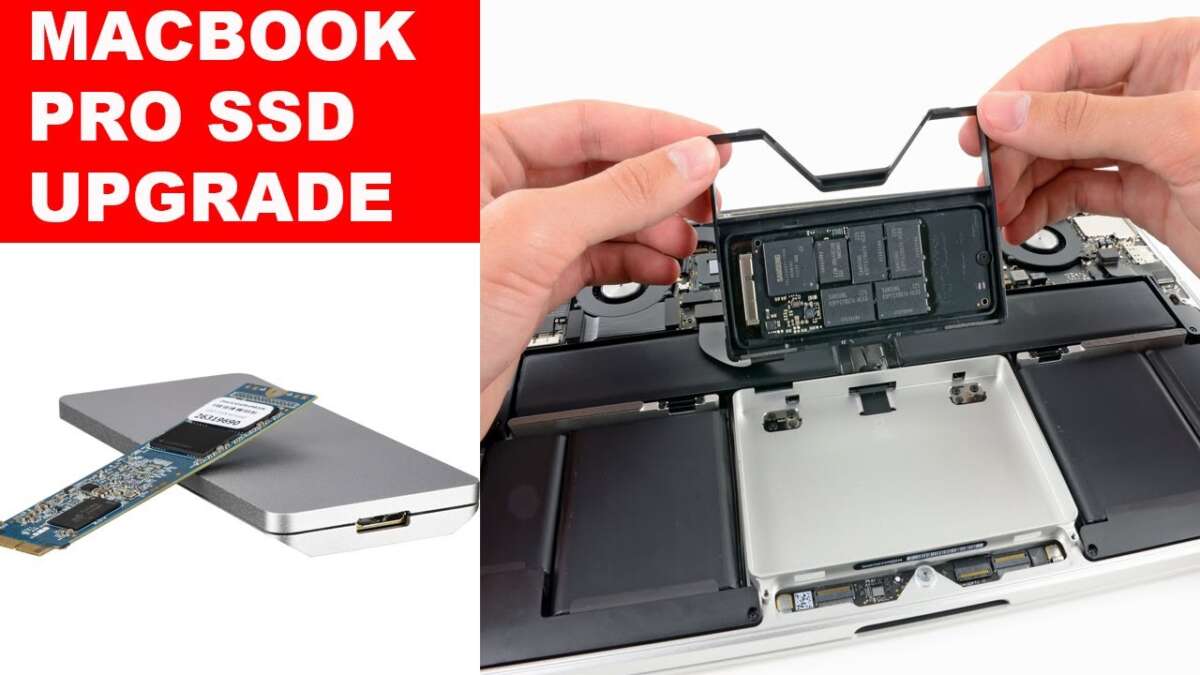
Yes, many older MacBook Pro models support SSD upgrades, but newer models use soldered storage that cannot be replaced.
Can you upgrade SSD on MacBook Pro? The answer depends on the model year, screen type, processor, and whether the drive is removable or soldered to the logic board. This guide explains how to check your MacBook Pro, which upgrades work, what they cost, and when an external SSD is the safer choice.
Can You Upgrade SSD on MacBook Pro?
You can upgrade the SSD on some MacBook Pro models, but not all of them. Apple changed the internal storage design several times, so two MacBook Pro laptops that look similar may have very different upgrade options.
Older MacBook Pro models often use a removable 2.5-inch SATA drive or a replaceable proprietary blade SSD. Newer Intel and Apple silicon models usually have storage chips soldered to the logic board.
The simplest rule is this:
• MacBook Pro models from 2009 to 2012 with a non-Retina display are often upgradeable.
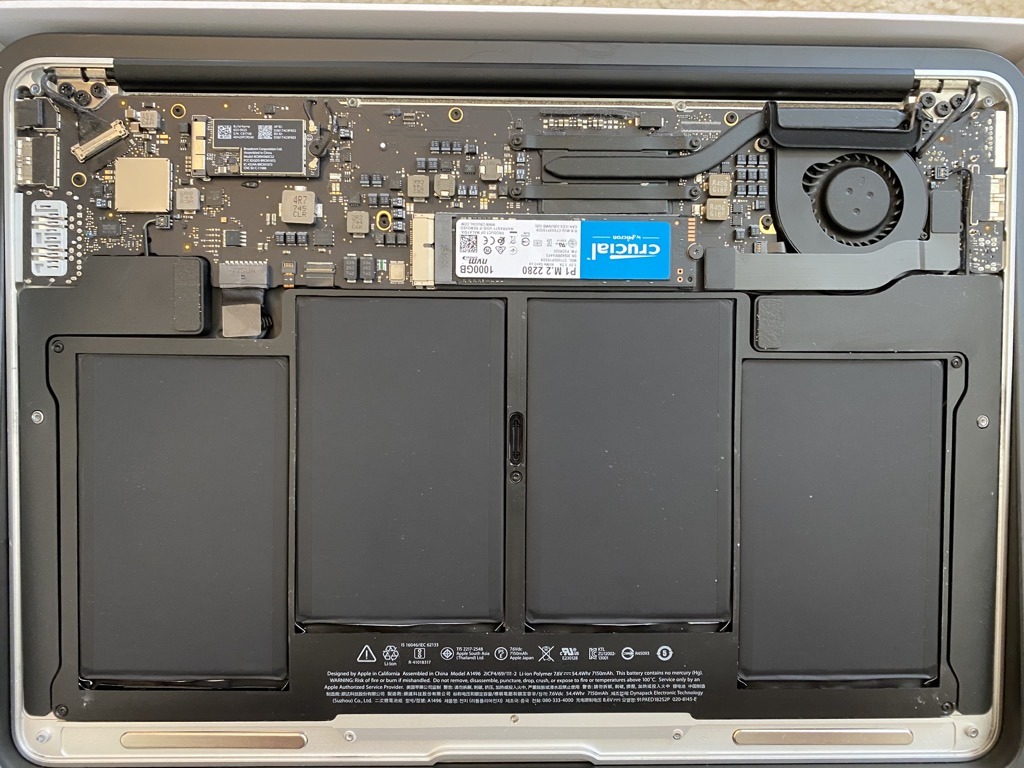
• Retina MacBook Pro models from 2012 to 2015 may accept a special replacement SSD.
• Most MacBook Pro models from 2016 onward do not support a normal internal SSD upgrade.
• Apple silicon models, including M1, M2, and M3 MacBook Pro laptops, have soldered storage.
This means the answer to “can you upgrade SSD on MacBook Pro” is model-specific, not universal.
Which MacBook Pro Models Support an SSD Upgrade?
The model year is the best starting point. You can find it by selecting Apple menu > About This Mac, or by checking the model identifier in System Information.
MacBook Pro models with strong upgrade support
The following models are usually the easiest to upgrade:
• MacBook Pro 13-inch and 15-inch, 2009 to 2012, non-Retina
• MacBook Pro 13-inch, Mid 2012, non-Retina
These laptops commonly use a standard 2.5-inch SATA drive. You can replace the original hard drive with a 2.5-inch SATA SSD.
This is often the most affordable upgrade. It can make an old MacBook Pro feel much faster because an SSD has no moving parts and offers far quicker access to files and apps.
Retina MacBook Pro models with limited upgrade support
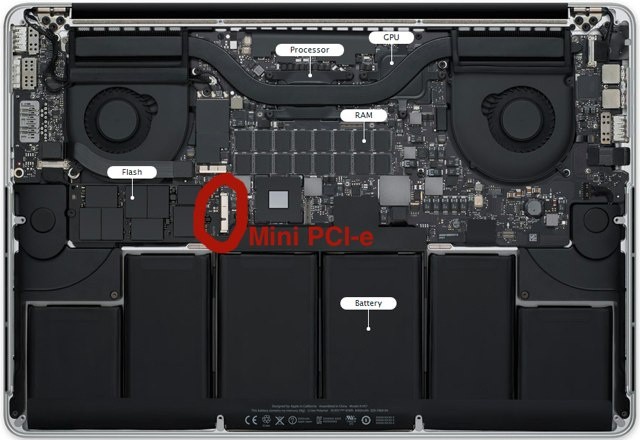
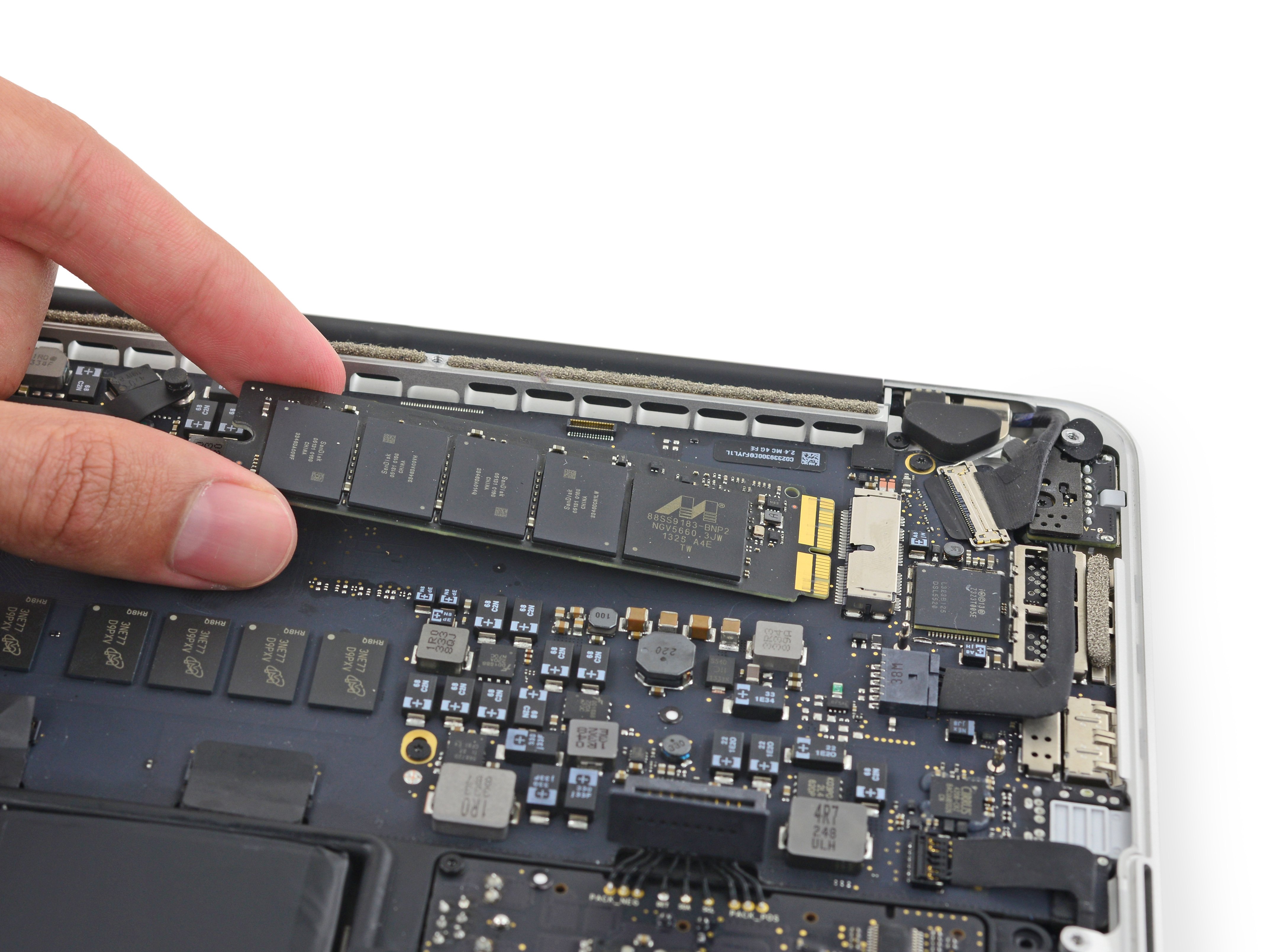
Some Retina MacBook Pro models from 2012 through 2015 use removable blade-style SSDs. These drives are not standard M.2 NVMe SSDs. They use Apple-specific connectors and may need an adapter or a drive made for that Mac.
Compatible models can include:
• MacBook Pro Retina 13-inch, Late 2012 through 2015
• MacBook Pro Retina 15-inch, Mid 2012 through 2015
Compatibility varies by year and connector. A drive designed for a 2015 model may not work in a 2013 model.
MacBook Pro models with soldered storage
Most MacBook Pro models from 2016 onward have storage chips soldered to the logic board. This includes many models with:
• Intel processors and a Touch Bar
• The Apple T2 security chip
• M1, M2, or M3 processors
On these laptops, the SSD is not a removable module. A normal repair shop cannot simply remove the old drive and install a larger one.
If you are asking “can you upgrade SSD on MacBook Pro” because your laptop is a 2018 Intel model or newer, the practical answer is usually no.
How to Check Whether Your MacBook Pro Has Upgradeable Storage
Before buying an SSD, identify the exact MacBook Pro model. “MacBook Pro 2015” is useful, but the screen size and release period can still affect compatibility.
Follow these steps:
-
Select the Apple menu in the top-left corner.
-
Choose About This Mac.
-
Note the model name, year, processor, and storage capacity.
-
Open System Information if you need the model identifier.
-
Search for a repair guide using the exact model identifier.
-
Check whether the internal drive is SATA, a removable Apple blade SSD, or soldered storage.
You can also inspect the Mac serial number through Apple’s support tools. However, a serial number lookup may show the original configuration without clearly explaining whether the storage can be replaced.
Do not rely only on the storage size shown in macOS. A 512GB MacBook Pro may contain a removable drive, while another 512GB model may have soldered flash memory.
In repair work, one of the most common mistakes is ordering an SSD based only on the MacBook Pro’s year. Always match the exact model and connector before opening the computer.

How to Upgrade a Non-Retina MacBook Pro SSD
Upgrading a non-Retina MacBook Pro is usually straightforward. The process involves removing the bottom cover, disconnecting the battery, removing the old drive, and installing the new 2.5-inch SATA SSD.
You will generally need:
• A compatible 2.5-inch SATA SSD
• A small Phillips screwdriver
• A Torx screwdriver for the drive mounting posts
• A USB enclosure or adapter for cloning data
• A bootable macOS installer or a backup
Before you begin, create a complete backup with Time Machine. You can also clone the old drive to the new SSD using trusted disk software.
A basic process looks like this:
-
Shut down the MacBook Pro.
-
Disconnect the charger and all accessories.
-
Remove the bottom case screws.
-
Disconnect the battery connector.
-
Remove the old hard drive or SSD.
-
Transfer any mounting posts to the new SSD.
-
Install the new drive.
-
Reconnect the battery and close the case.
-
Start macOS Recovery.
-
Format the drive as APFS or Mac OS Extended, depending on the macOS version.
-
Restore your backup or install macOS.
The physical work is not difficult, but small screws can be easy to lose. Keep them in a tray and take a photo before removing cables. A damaged battery connector or torn cable can cost more than the SSD upgrade itself.

How to Upgrade a Retina MacBook Pro SSD
A Retina MacBook Pro may use a removable blade SSD, but the upgrade is more specialized. The replacement drive must match the computer’s connector and firmware requirements.
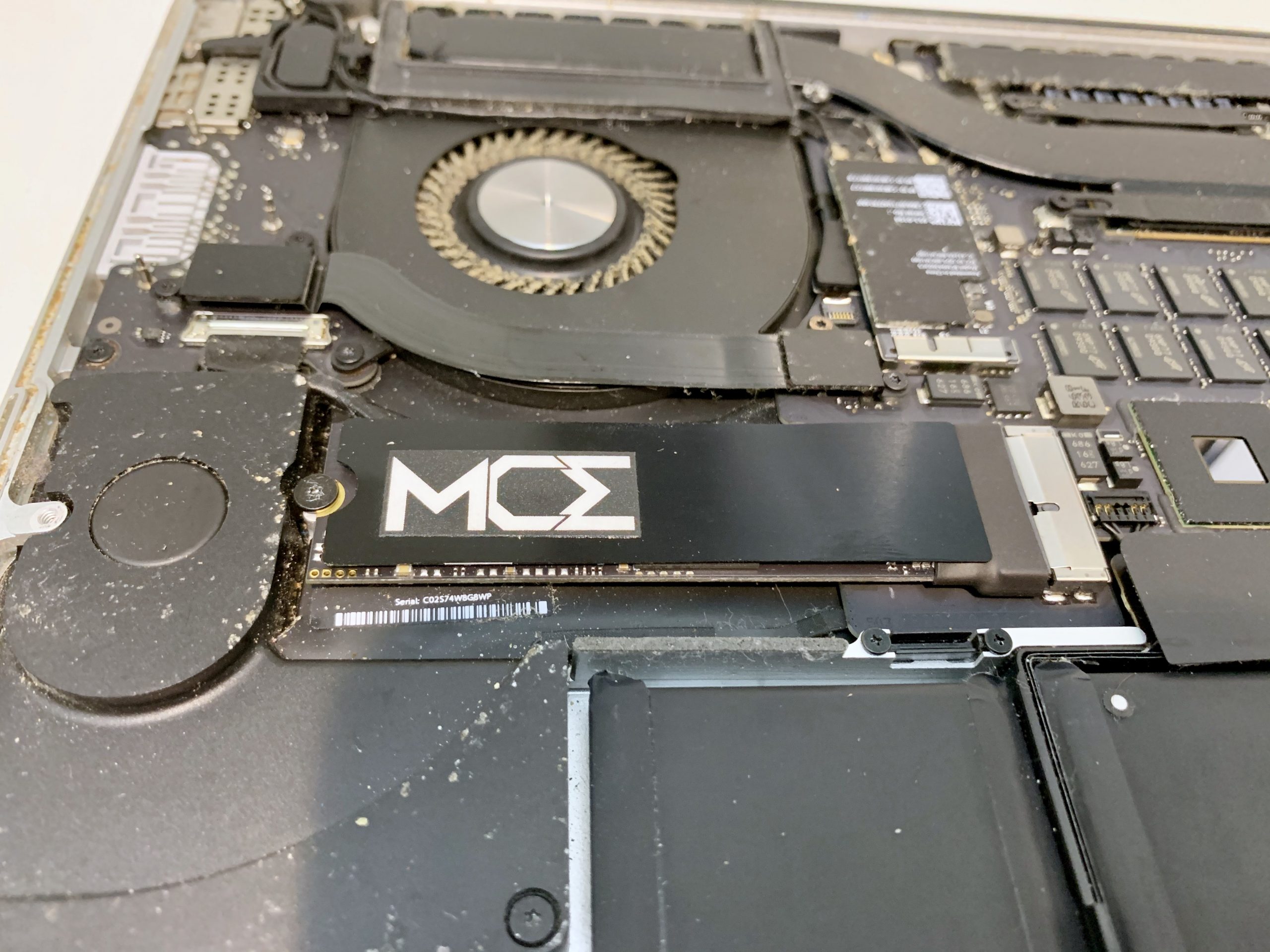
Some third-party SSDs are built for specific MacBook Pro generations. Others use an adapter with a compatible M.2 drive. While this can reduce the cost, compatibility is not always perfect.
Potential issues include:
• The Mac may not recognize the drive.
• macOS Recovery may fail to install.
• Sleep or hibernation may behave poorly.
• The SSD may run hot.
• Battery life may decrease.
• The drive may require a firmware update first.
For this reason, check reports from other users who upgraded the same model. A product listing that says “compatible with MacBook Pro” may cover only certain years.
If your MacBook Pro is still working, update macOS and create a bootable installer before replacing the drive. This gives you a backup plan if Internet Recovery does not work as expected.
Why Newer MacBook Pro Models Cannot Usually Be Upgraded
Apple moved toward soldered storage for several reasons. Soldered components can save space, reduce internal cables, and help Apple control the design of the logic board.
The trade-off is repairability. When storage is soldered, the flash chips are part of the logic board. Replacing them requires specialized microsoldering equipment, technical data, and sometimes board-level programming.
The T2 security chip also links storage functions to the Mac’s security system on many Intel models. Apple silicon Macs integrate even more functions into the system design.
This does not mean storage chips can never be repaired. Specialized data recovery labs may work on certain logic boards. However, that is not the same as a simple SSD upgrade. It is expensive, risky, and unsuitable for most users.
The practical lesson is simple: choose enough internal storage when buying a newer MacBook Pro. External storage can expand your workspace, but it cannot turn a 256GB internal drive into a larger boot drive with the same convenience.
Benefits of Upgrading the Internal SSD
If your MacBook Pro supports an internal SSD replacement, the upgrade can provide several benefits.
Faster startup and app loading
An SSD can reduce boot times and make apps open more quickly than an old hard disk drive. File searches, system updates, and large document transfers can also feel much smoother.
More storage space
A larger SSD gives you room for photos, videos, music projects, games, and professional software. This helps prevent macOS from slowing down when the internal drive is nearly full.
Better reliability
Traditional hard drives use spinning platters and moving heads. An SSD has no moving parts, so it is less sensitive to movement and physical shock.
An SSD is not indestructible. Flash memory can fail, and electronic damage can happen without warning. Keep at least one current backup even after the upgrade.
Longer useful life
A low-cost SSD can extend the life of an older MacBook Pro. Many users do not need a new computer when the real problem is a slow hard drive.
In my experience helping people choose upgrades, replacing a failing hard drive often gives a bigger improvement than adding more memory. It is like replacing a narrow road with a wide one: the processor can work, but the data reaches it faster.

Choosing the Right SSD for a MacBook Pro
The right SSD depends on the MacBook Pro model.
For a non-Retina MacBook Pro, look for a 2.5-inch SATA SSD with a 7mm height. Most reputable brands offer suitable options in capacities from 500GB to 4TB.
For a Retina MacBook Pro, choose a drive made specifically for the correct year and model. Do not assume that a standard M.2 drive will fit without an adapter.
Consider these factors:
• Capacity: 500GB is a useful minimum for general use, while 1TB or 2TB suits creative work.
• Endurance: A higher terabytes-written rating is helpful for video editing and large file transfers.
• Warranty: A longer warranty can indicate stronger manufacturer support.
• Power use: Lower power consumption can help battery life in older laptops.
• Heat: Some high-performance drives run hotter than older Apple storage.
• Brand support: Choose a maker with clear firmware tools and warranty terms.
Do not pay for extreme speed if the Mac’s interface cannot use it. A very fast modern NVMe drive may not perform at its advertised speed inside an older MacBook Pro.

Internal SSD Upgrade or External SSD?
If you cannot replace the internal drive, an external SSD is often the best solution. It connects through USB, USB-C, or Thunderbolt and can provide fast extra storage without opening the Mac.
An external SSD works well for:
• Photo and video libraries
• Music production files
• Games
• Backup copies
• Large downloads
• Virtual machines
• Project archives
Thunderbolt drives can be very fast, but they often cost more. USB-C SSDs offer a good balance for most users. Older MacBook Pro models with USB-A ports can use a USB-A enclosure.
You can also install supported apps or store a photo library on an external SSD. Some users run macOS from an external drive, although startup support depends on the Mac model, macOS version, security settings, and drive format.
The main weakness is portability. You must carry the drive and cable, and a loose cable can interrupt file transfers. Still, an external SSD is far safer than attempting to modify a soldered logic board.
SSD Upgrade Cost and Value
The cost depends on the MacBook Pro model and the storage capacity.
A basic internal SATA SSD upgrade for an older non-Retina MacBook Pro may cost relatively little. A specialized Retina-compatible blade SSD can cost more because it uses a less common design.
Your total budget may include:
• The SSD
• A USB enclosure or adapter
• Installation tools
• Data migration software
• Professional labor
• A backup drive
Professional installation is worth considering if you have never opened a laptop. The cost of one damaged cable, stripped screw, or broken connector can remove the savings from a do-it-yourself upgrade.
For a newer MacBook Pro with soldered storage, compare the cost of an external SSD with the cost of replacing the entire logic board. In most cases, an external drive is the more sensible option.
Common Mistakes to Avoid
Many SSD upgrade problems come from preparation errors rather than the installation itself.
Avoid these mistakes:
• Buying a drive without checking the exact Mac model
• Skipping a full backup
• Confusing an M.2 drive with an Apple blade SSD
• Forgetting to disconnect the battery
• Losing track of screw locations
• Installing an unsupported macOS version
• Using a low-quality adapter
• Assuming a new SSD will include macOS
• Removing the old drive before confirming the replacement works
One mistake I have seen often is treating cloning as a complete backup. A clone may not include every recovery feature, and it can copy existing file problems. Keep a separate Time Machine backup or another independent copy of important files.
Also, do not fill the new SSD completely. Keeping around 10% to 20% of the drive free can give macOS room for temporary files, updates, and maintenance tasks.
How to Prepare Before the Upgrade
Good preparation makes the process safer and faster.
Complete these steps before opening the MacBook Pro:
-
Back up personal files to a separate drive.
-
Confirm that the backup can be opened.
-
Record your Apple ID and important passwords.
-
Download the correct macOS installer if possible.
-
Check the new SSD for physical damage.
-
Confirm the return policy.
-
Read a model-specific repair guide.
-
Work on a clean, well-lit table.
-
Use an anti-static method.
-
Keep food and liquids away from the work area.
If the old drive is still working, connect the new SSD through an enclosure and test it first. This can reveal compatibility problems before you remove the original storage.
After installation, open Disk Utility and confirm the drive appears. Use APFS for modern macOS versions unless a specific system requirement calls for another format.
Frequently Asked Questions About Can You Upgrade SSD on MacBook Pro
Can you upgrade SSD on MacBook Pro after buying it?
Yes, if the MacBook Pro has a removable SATA drive or removable blade SSD. Most models from 2016 onward have soldered storage, so they usually cannot receive a normal internal SSD upgrade.
Can you upgrade SSD on MacBook Pro M1 or M2?
No, the internal storage on M1 and M2 MacBook Pro models is soldered to the logic board. You can expand available space with a fast external USB-C or Thunderbolt SSD.
Can you upgrade SSD on MacBook Pro 2015?
Some 2015 Retina MacBook Pro models support a replacement blade SSD. You must buy a drive that matches the exact model and connector, because standard laptop SATA and M.2 drives do not directly fit.
Can you upgrade SSD on MacBook Pro 2012?
A 2012 non-Retina MacBook Pro usually supports a standard 2.5-inch SATA SSD upgrade. A 2012 Retina model uses a different removable blade SSD, so compatibility depends on the exact version.
Is an external SSD as good as an internal SSD?
An external SSD can be very fast and is an excellent choice for files, backups, and media libraries. It is less convenient than internal storage because it needs a cable and may be easier to misplace.
How much SSD storage does a MacBook Pro need?
For basic work, 512GB is a practical starting point. Choose 1TB or more if you edit video, store large photo libraries, use virtual machines, or keep many professional apps installed.
Conclusion
Can you upgrade SSD on MacBook Pro? Older non-Retina models usually offer the easiest path, while some Retina models support specialized blade SSD upgrades. Most MacBook Pro models from 2016 onward, including Apple silicon versions, use soldered storage and cannot accept a standard internal SSD replacement.
Check the exact model before buying parts, create a complete backup, and use a model-specific repair guide. If the internal drive is not replaceable, a reliable external SSD can still add fast, useful storage without risking the logic board.
Identify your MacBook Pro model today, compare the upgrade cost with an external SSD, and choose the option that protects both your data and your budget.

Everett Ashford is a tech reviewer at mytechgrid.com specializing in SSDs, cameras, TVs, earbuds, headphones, and other consumer electronics. He provides honest, data-driven reviews based on hands-on testing and real-world performance analysis. Everett simplifies complex tech details to help readers make smart, confident buying decisions.