For shoppers in the United States, the main difference is simple: a desktop GPU usually delivers more speed, cooling capacity, and upgrade room, while a laptop GPU uses less power and fits inside a portable computer. Even when both GPUs share the same name, the laptop version may have lower power limits and lower performance.
A GPU, or graphics processing unit, renders images, video, games, and visual effects. It also helps with tasks such as video editing, 3D design, artificial intelligence, and some scientific workloads.
The right choice depends on what matters most to you: performance, portability, battery life, price, noise, or future upgrades.

Laptop GPU vs. Desktop GPU: Quick Comparison
A desktop GPU is a separate graphics card installed inside a desktop computer. A laptop GPU is built into the laptop and is often soldered to the motherboard.
| Feature | Laptop GPU | Desktop GPU |
|---|---|---|
| Main goal | Portable performance | Maximum performance |
| Power use | Lower | Higher |
| Cooling | Small fans and heat pipes | Larger heatsinks and fans |
| Performance | Good, but often limited by power and heat | Usually faster at the same product level |
| Upgradeability | Usually not upgradeable | Often replaceable |
| Battery impact | Can reduce battery life during demanding work | Uses wall power |
| Noise | Can become loud under load | Often quieter at the same performance level |
| Size | Built into a compact system | Requires a full graphics card and case space |
| Repair | More difficult and model-specific | Usually easier |
| External monitor support | Depends on the laptop ports | Depends on the graphics card ports |
The biggest mistake is assuming that a laptop GPU and a desktop GPU with the same name will perform the same. They may use similar technology, but the laptop version usually has less power and less cooling.
What Is a GPU?
A GPU is a processor designed to handle many calculations at the same time. This makes it well suited to drawing game scenes, editing video, rendering 3D images, and processing large blocks of data.
A GPU has several key parts:
- Graphics cores: Perform the calculations needed for rendering and other workloads.
- Video memory, or VRAM: Stores textures, frames, models, and other graphics data.
- Memory bus: Connects the GPU to its memory.
- Power system: Supplies electricity to the chip and memory.
- Cooling system: Moves heat away from the GPU.
A desktop graphics card usually includes all of these parts on one removable board. In a laptop, the GPU is normally part of the laptop’s internal design.
Some laptops use an integrated GPU. An integrated GPU shares system memory with the CPU and uses less power. Other laptops use a dedicated GPU with its own VRAM. Dedicated laptop GPUs are better for modern games, 3D work, and demanding creative tasks.

Why Is a Desktop GPU Usually Faster?
A desktop GPU can use more electrical power and a larger cooling system. More power lets the GPU maintain higher clock speeds or use more processing resources. Better cooling helps it keep that speed for longer periods.
A desktop graphics card may have:
- A large heatsink
- Multiple fans
- A wider circuit board
- More VRAM
- A stronger power supply
- More room for sustained workloads
A laptop must fit into a thin chassis. Its cooling system must share space with the CPU, battery, storage, memory, and other parts. This creates tighter limits.
This does not mean every desktop GPU is faster than every laptop GPU. A modern high-end laptop GPU can outperform an older or entry-level desktop card. The fair comparison is between the exact GPU model, power limit, cooling design, driver, and test conditions.
The role of power limits
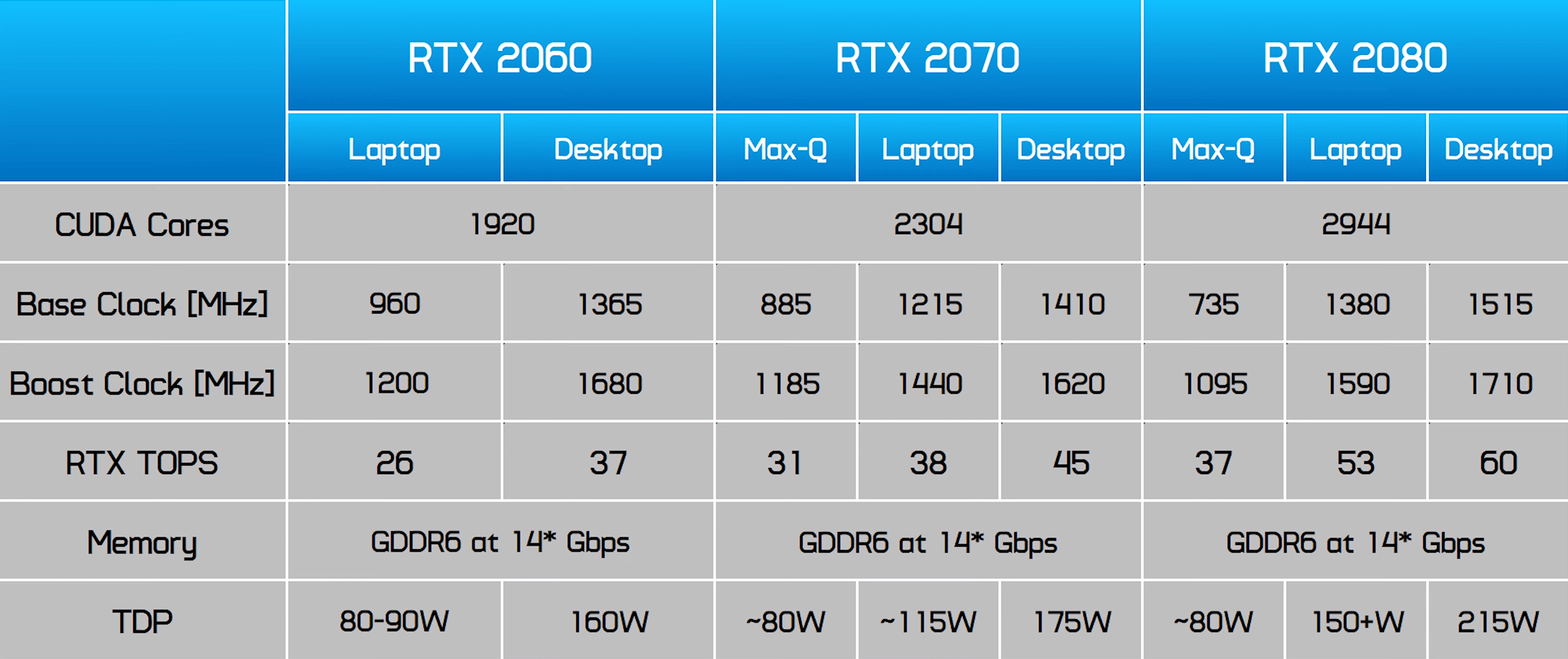
Laptop GPU specifications often include a configurable total graphics power range. The exact limit can vary by laptop maker. Two laptops with the same GPU name may produce different results because one allows more power or has better cooling.
For example, two laptops may use the same GPU family, but:
- One may run at a higher power limit.
- One may have a larger heat system.
- One may use a stronger CPU that avoids bottlenecks.
- One may send the display signal through a different graphics path.
- One may reduce speed when its temperature rises.
This is why independent tests of the full laptop are more useful than the GPU name alone.

Why Do Laptop and Desktop GPUs Have Similar Names?
GPU makers often use related names across desktop and laptop products. This helps buyers understand the product family, but the name does not guarantee identical performance.
A laptop GPU may differ in:
- Number of active processing units
- Clock speed
- Power limit
- VRAM capacity
- Memory speed
- Cooling requirements
- Feature support
- Performance under long workloads
NVIDIA, AMD, and Intel publish product specifications, but laptop performance still depends on the system design. Check the laptop maker’s detailed specifications for the exact GPU power range, memory, display connections, and cooling features.
Do not compare only labels such as “RTX,” “Radeon,” or “Arc.” Compare the full model and the laptop configuration.
A simple comparison example
Suppose a laptop and desktop both list a GPU from the same product family. The desktop version may:
- Use a higher power limit
- Have more cooling capacity
- Include more VRAM
- Sustain its boost speed longer
- Support a larger power supply
The laptop version may still be the better choice if you need to work in different locations. Performance is only one part of the decision.
Performance Differences in Games and Creative Work
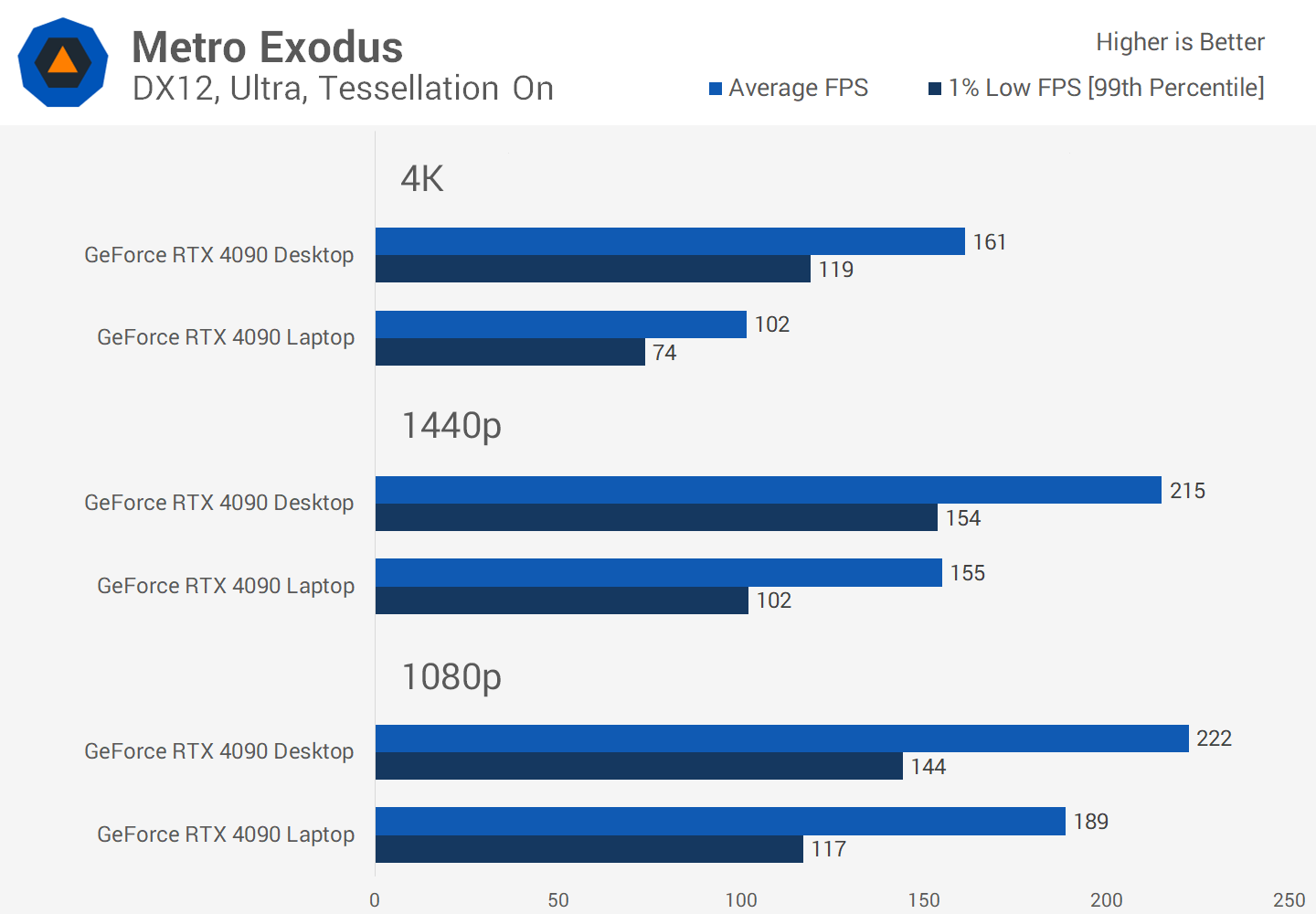
A desktop GPU usually wins in long, demanding tasks. This includes high-resolution gaming, 3D rendering, large video exports, and local AI workloads.
Gaming
Desktop GPUs often provide higher frame rates at the same resolution and graphics setting. They also offer more headroom for features such as:
- Ray tracing
- High-resolution textures
- Advanced lighting
- High refresh-rate gaming
- Multiple monitors
Laptop gaming performance can still be strong. A gaming laptop may handle modern games well at 1080p, 1440p, or higher. Results depend on the exact GPU, screen resolution, cooling, CPU, memory, and game settings.
A laptop may also use a built-in display connected through integrated graphics. Some models include a hardware switch or a special display connection that sends the signal directly from the dedicated GPU. This can affect performance and battery use.
Video editing
Both types of GPU can accelerate supported video tools. A desktop usually has an advantage during long exports because it can keep the GPU and CPU cool.
Check the software documentation before buying. Acceleration depends on the application, video format, effects, codec, driver, and project size. A stronger GPU does not always reduce export time if the workload depends more on the CPU or storage.
3D rendering
Desktop GPUs are often better for large scenes and long renders. More VRAM can also help with high-resolution textures and complex models.
If a project exceeds available VRAM, performance may drop sharply, or the application may fail. For this reason, VRAM capacity can matter as much as raw GPU speed.

Portability, Battery Life, and Noise
A laptop GPU is designed to work within a portable system. That makes it useful for students, field workers, travelers, and professionals who move between home, school, and office.
The trade-off is that demanding GPU work uses a great deal of energy. A laptop may:
- Drain its battery quickly
- Reduce performance when unplugged
- Increase fan noise
- Become warm during use
- Need a large power adapter
Many gaming and creator laptops perform best while connected to AC power. Battery mode may apply lower power limits to extend battery life and protect the battery.
A desktop has no built-in battery. It needs a wall outlet, monitor, keyboard, mouse, and other accessories. Once set up, however, it can deliver sustained performance without the same portable power limits.
The practical choice is clear:
- Choose a laptop GPU when you need to carry the computer.
- Choose a desktop GPU when the computer will stay in one place.
- Choose a laptop with integrated graphics when battery life and basic tasks matter more than 3D performance.
- Choose a dedicated GPU when you need gaming, editing, design, or GPU-based applications.
Upgradeability and Repair
Desktop GPUs are usually easier to replace. You can often install a newer graphics card if the case, power supply, motherboard slot, and cooling system support it.
Before upgrading a desktop GPU, check:
- Power supply capacity: The power supply must provide enough wattage and the correct connectors.
- Case clearance: The card must fit in length, height, and thickness.
- Motherboard slot: Most modern cards use a PCIe x16 slot.
- Cooling and airflow: The case must move enough air through the system.
- Monitor connection: Confirm that the new card has the ports you need.
Laptop GPUs are usually not replaceable. In most laptops, the GPU is soldered to the motherboard. Some older or specialized systems use modular graphics hardware, but this is not common.
Laptop upgrades are more often limited to memory and storage. Even those upgrades depend on the model. Check the manufacturer’s service manual before opening a laptop, because opening the case may affect warranty coverage or damage fragile parts.

VRAM: Why It Matters
VRAM is the dedicated memory used by a discrete GPU. It stores graphics data such as textures, frame buffers, and 3D models.
More VRAM can help with:
- Higher display resolutions
- Larger texture packs
- Ray tracing
- 3D scenes
- Video editing timelines
- Multiple displays
- Some AI applications
VRAM does not automatically make a GPU faster. A slower GPU with more memory may still perform worse than a faster GPU with less memory. The best choice depends on the workload.
Desktop graphics cards often offer more VRAM options. Laptop configurations are more restricted because of power, heat, and board space.
When comparing two systems, check:
- VRAM capacity
- Memory type
- Memory speed
- GPU processing resources
- Power limit
- Software requirements
Do not assume that system RAM can fully replace VRAM. Some integrated GPUs share system memory, but shared memory is not the same as dedicated high-speed graphics memory.

Cost: Which One Gives Better Value?
A desktop GPU can offer more performance for the same graphics budget, but the total computer cost is not always lower. A desktop setup may also require:
- A monitor
- A keyboard
- A mouse
- Speakers or a headset
- A webcam
- A suitable power supply
- A case with enough airflow
A laptop includes the screen, battery, keyboard, trackpad, webcam, and speakers. That convenience has value, even when the GPU is slower than a similarly named desktop model.
The best value depends on how you use the computer:
| Your priority | Usually the better fit |
|---|---|
| Maximum gaming performance | Desktop GPU |
| Easy upgrades | Desktop GPU |
| Work in several locations | Laptop GPU |
| Built-in screen and battery | Laptop GPU |
| Long rendering sessions | Desktop GPU |
| School, travel, and occasional gaming | Laptop GPU |
| Low upfront accessory cost | Laptop |
| Flexible long-term repair | Desktop |
Prices change often in the United States, so compare complete systems rather than comparing only the graphics card name.

How to Compare a Laptop GPU and Desktop GPU Correctly
Use this process before buying.
1. Identify the exact GPU
Write down the complete model name. Avoid comparisons based only on a brand family or series.
2. Check the power range
For a laptop, look for the manufacturer’s stated GPU power range or total graphics power. If the specification is missing, performance may be harder to predict.
3. Check VRAM
Confirm the dedicated memory amount. This matters for high-resolution gaming, creative work, and large 3D projects.
4. Review independent testing
Look for tests of the exact laptop model or desktop card. Useful tests report the settings, resolution, driver, temperatures, and power conditions.
5. Check the cooling design
Read reviews for sustained performance, fan noise, and temperature behavior. Short benchmark results may not show how the system behaves after many minutes of heavy use.
6. Consider the screen
A powerful laptop GPU is less useful if the laptop screen has a low resolution, low refresh rate, or poor color coverage for your work. A desktop gives you more freedom to select a separate monitor.
7. Confirm ports and features
Check HDMI, DisplayPort, USB-C display support, docking support, and the number of external screens. Port support can vary by laptop design.
8. Match the GPU to your software
Review the system requirements for your games, editing tools, CAD software, 3D program, or AI application. Some programs favor specific GPU features or drivers.

Common Mistakes to Avoid
Mistake 1: Comparing names only
A laptop and desktop GPU with similar names may have different power limits and performance. Always compare exact models.
Mistake 2: Ignoring the CPU
A weak CPU can limit some games and creative applications. A GPU upgrade cannot solve every performance problem.
Mistake 3: Ignoring cooling
A GPU may perform well in a short test but slow down during a long workload if heat builds up.
Mistake 4: Treating boost speed as a fixed speed
Modern GPUs can change speed based on temperature, power, and workload. A listed boost clock is not a promise that the GPU will hold that speed at all times.
Mistake 5: Forgetting the power supply
A desktop graphics card may need more power than the current power supply can provide. Check the card maker’s requirements before upgrading.
Mistake 6: Assuming a laptop can be upgraded
Most laptop GPUs are not user-replaceable. Confirm the upgrade path before buying.
Mistake 7: Using gaming results for every task
A game benchmark may not predict video export, 3D rendering, CAD, or AI performance. Use tests that match your real work.

Which Should You Choose?
Choose a desktop GPU if you want the highest performance, easier upgrades, more cooling capacity, or better results in long workloads. It is usually the stronger option for serious gaming, 3D rendering, and workstation use.
Choose a laptop GPU if you need a complete computer that you can carry. It is a practical fit for college, travel, office work, and gaming away from home. Accept that performance may vary between laptops with the same GPU name.
For most buyers, the best comparison is not “laptop GPU versus desktop GPU” in isolation. Compare the full systems, including the GPU, CPU, cooling, RAM, storage, display, power supply, warranty, and upgrade options.

Frequently Asked Questions
Is a laptop GPU weaker than a desktop GPU?
Often, yes, when comparing GPUs from the same product family. Laptop versions usually have lower power limits and less cooling. However, a newer high-end laptop GPU can beat an older or lower-tier desktop GPU.
Can I replace the GPU in a laptop?
Usually not. Most laptop GPUs are soldered to the motherboard. Some specialized laptops use modular graphics components, but this is uncommon. Check the exact model’s service documentation.
Does a desktop GPU use more electricity?
Usually, yes. A desktop GPU can draw more power because it has a larger cooling system and power supply. A laptop may also use significant power during gaming, but its total system power is limited by the portable design.
Is laptop gaming performance good enough?
It can be. A modern gaming laptop can provide strong performance, especially at 1080p or 1440p. Check tests for the exact laptop because power limits, cooling, and display settings can produce large differences.
Is more VRAM always better?
No. More VRAM helps when a game or application needs it, but it does not replace GPU processing power. Choose a balance of GPU speed, VRAM, cooling, and software support.
Do laptop and desktop GPUs use the same drivers?
They may use drivers from the same graphics company, but support can vary by model and laptop maker. Install the driver recommended for your exact hardware and operating system.
Conclusion
A desktop GPU is usually faster, cooler, easier to upgrade, and better for sustained workloads. A laptop GPU is smaller, more power-efficient, and built for mobility.
The GPU name alone does not tell the full story. Check the exact model, power limit, VRAM, cooling system, independent performance tests, and upgrade options. If you need maximum performance at a desk, choose a desktop. If you need graphics power that travels with you, choose a laptop.

Everett Ashford is a tech reviewer at mytechgrid.com specializing in SSDs, cameras, TVs, earbuds, headphones, and other consumer electronics. He provides honest, data-driven reviews based on hands-on testing and real-world performance analysis. Everett simplifies complex tech details to help readers make smart, confident buying decisions.