Introduction
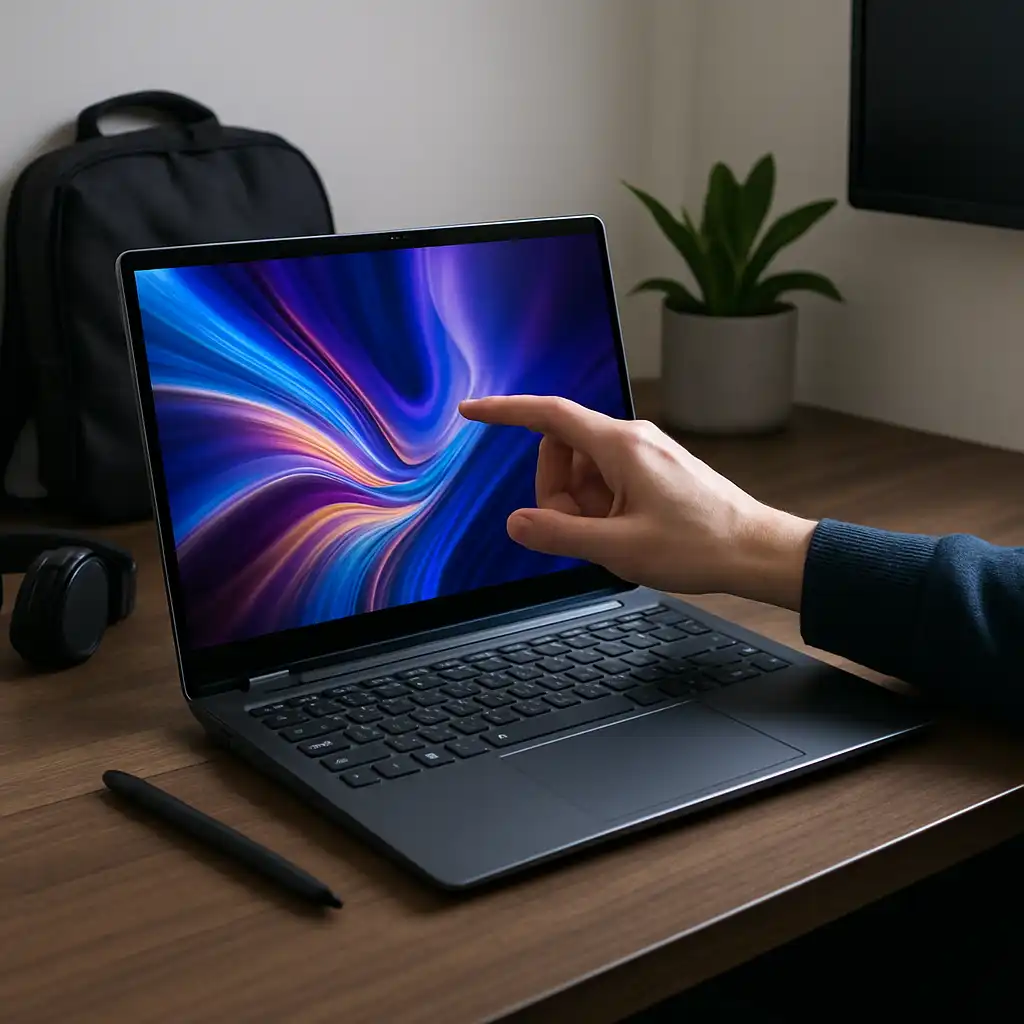
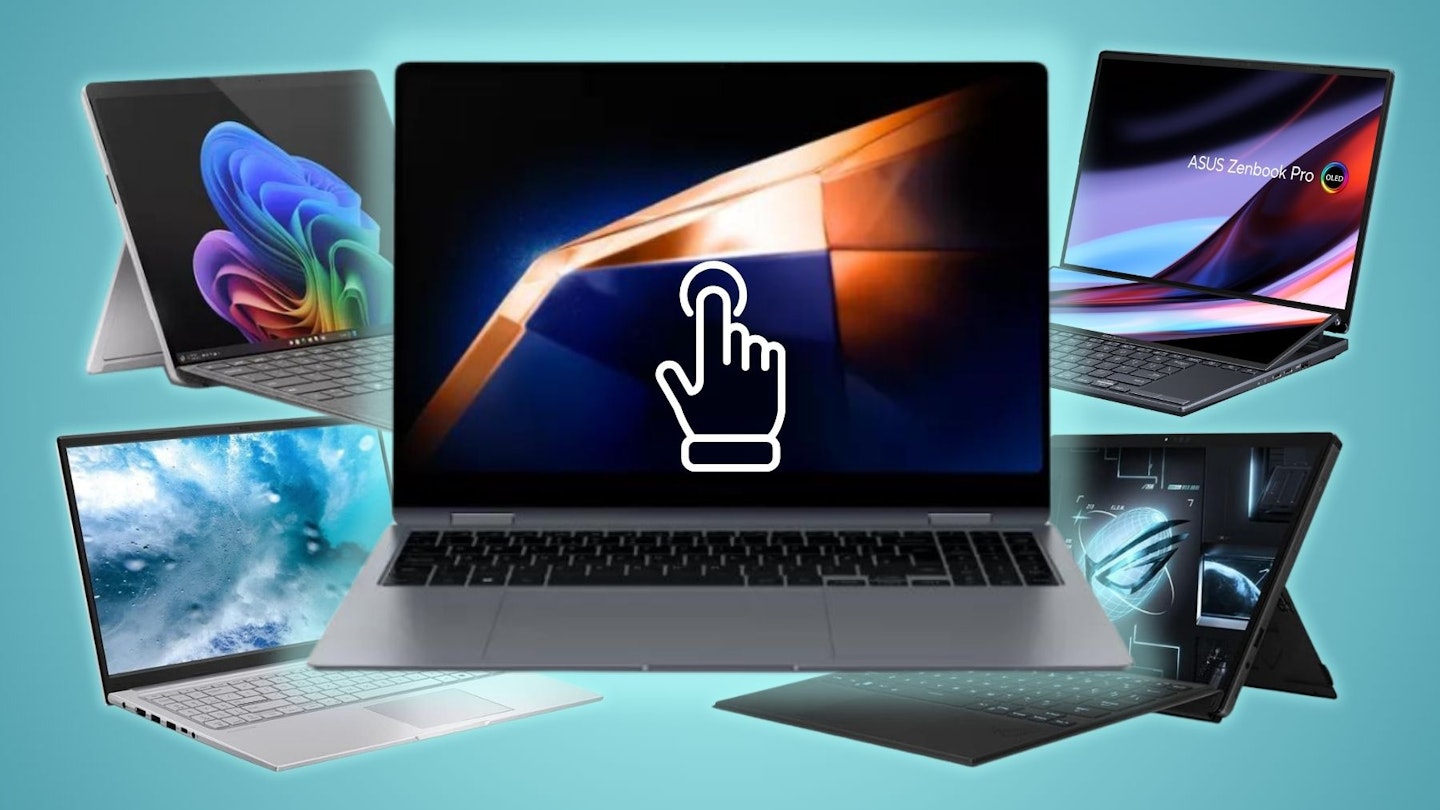
A touchscreen laptop lets you control apps, files, and media with your fingers or a compatible pen. For people in the United States who study, work, travel, or create content on a computer, this adds a fast way to interact with the screen without always reaching for a mouse or trackpad.
The main advantages of a touchscreen laptop are easier navigation, better support for drawing and handwritten notes, flexible use in tablet mode, and more natural interaction with maps, photos, presentations, and creative apps. However, touch models may cost more, show fingerprints, add weight, and use more power during touch-heavy tasks.
Quick Answer: Why Choose a Touchscreen Laptop?
A touchscreen laptop is useful when you want to:


- Tap buttons and scroll through pages directly.
- Use a 2-in-1 laptop as a tablet.
- Write notes with a digital pen.
- Draw, edit photos, or mark up documents.
- Show content to another person more easily.
- Use apps that work better with direct touch.
- Improve access for people who find a mouse or trackpad difficult to use.
Touch is an added input method. It does not replace the keyboard, trackpad, or mouse in every task. The best choice depends on how you work.
What Is a Touchscreen Laptop?
A touchscreen laptop has a display that detects contact from a finger or compatible stylus. Most modern models use a capacitive touch layer. This layer senses changes in an electrical field when your finger touches the glass.
The laptop then sends that input to the operating system. Windows and ChromeOS support common actions such as tapping, dragging, pinching to zoom, and swiping. Microsoft documents these gestures for Windows, while Google provides similar guidance for touchscreen Chromebooks.
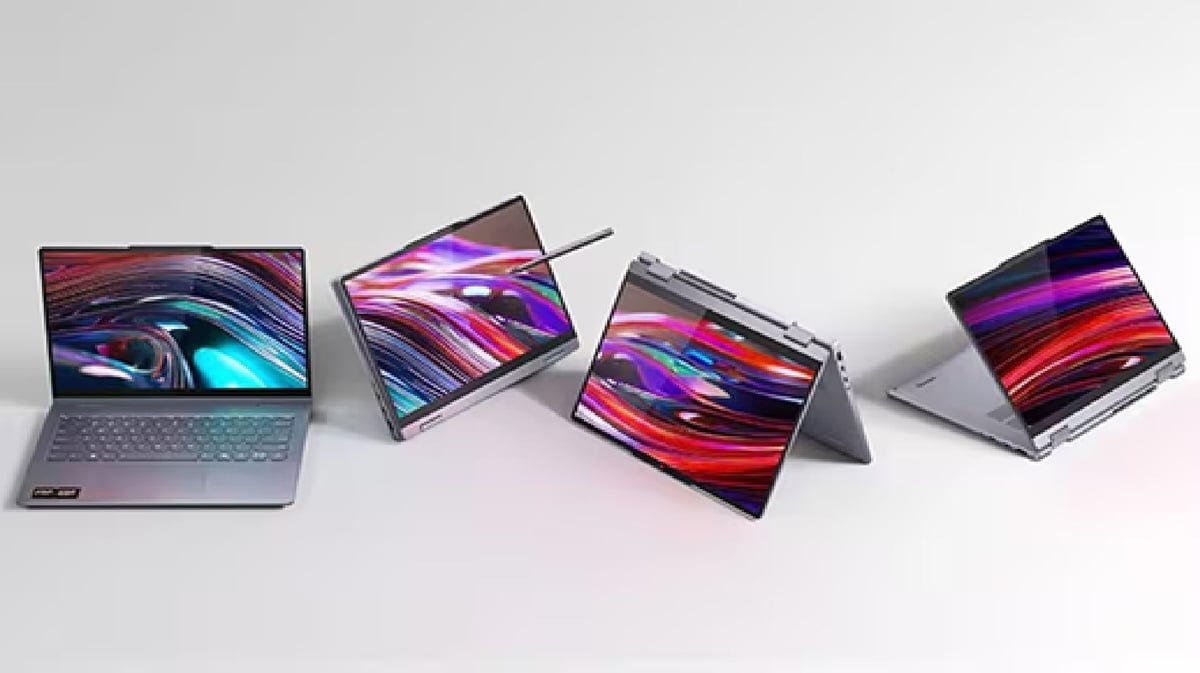
A touchscreen laptop may have one of two common designs:
| Design | How it works | Best for |
|---|---|---|
| Traditional clamshell | The screen stays in front of the keyboard | General work, school, browsing, and office tasks |
| 2-in-1 convertible | Hinges allow laptop, tent, stand, or tablet modes | Travel, drawing, note-taking, and media use |
| Detachable 2-in-1 | The screen separates from the keyboard | Tablet use, reading, and light mobile work |
A touchscreen does not automatically include a pressure-sensitive pen. Check the model specifications before buying if pen input matters to you.


1. Direct and Faster Interaction
The most obvious touchscreen laptop advantage is direct control. Instead of moving a pointer to a button, you can tap the button where it appears on the screen.
This can feel faster for simple tasks, such as:
- Opening an app.
- Scrolling through a webpage.
- Choosing a menu item.
- Moving between photos.
- Adjusting a slider.
- Zooming in on a map or image.
Touch is especially useful when the action already feels physical. For example, pinching a photo to zoom often feels more natural than finding a small zoom control.
Touch is not always faster. A mouse can be more precise for small targets, spreadsheets, photo editing, and long work sessions. Touch works best as a second input method rather than a complete replacement for a pointing device.
2. Better Support for Drawing and handwriting
a touchscreen can make a laptop more useful for sketches, diagrams, handwritten notes, and markups. With a compatible active pen, you may be able to write on the screen while the laptop ignores your palm.
This can help with:
- Class notes.
- Work meeting notes.
- PDF comments.
- Math problems.
- Storyboards.
- Digital art.
- Signatures and form markups.
- Quick diagrams and mind maps.
The experience depends on the pen and software. A basic touchscreen may detect only finger taps. An active stylus may add pressure sensitivity, tilt support, palm rejection, and shortcut buttons.
Before buying, check three details:
- Pen support: Confirm that the laptop works with the pen you plan to use.
- Pressure sensitivity: Look for this feature if you draw or paint.
- Pen storage: Some laptops have a garage or magnetic holder, while others require a separate case.
A touchscreen is not a professional drawing tablet by default. Artists should also consider screen size, color accuracy, pen response, surface texture, and app support.

3. More Flexible 2-in-1 Use
Many touchscreen laptops have hinges that rotate 360 degrees. These models can work in laptop, tablet, tent, and stand modes.
Each mode serves a different purpose:
- Laptop mode: Best for typing, coding, research, and office work.
- Tablet mode: Useful for reading, browsing, drawing, and casual games.
- Tent mode: Helpful in tight spaces or when showing a presentation.
- Stand mode: Useful for watching video or following a recipe.
This flexibility can reduce the need to carry both a laptop and a tablet. A student might type an essay in laptop mode, read a textbook in tablet mode, and use pen input for handwritten work.
There is a trade-off. A convertible laptop may be thicker or heavier than a standard laptop. Its hinge also adds a moving part. If you rarely use tablet mode, a regular laptop may provide better value.
4. Easier Note-Taking and Document Markup
Touchscreens can make digital notes feel closer to paper. You can highlight a PDF, circle a section of a document, or write a short comment without switching to a separate device.


This is useful for:
- Students reviewing class material.
- Workers checking contracts or reports.
- Teachers marking assignments.
- Real estate agents reviewing documents.
- Healthcare and field workers entering notes, where approved software and security controls are in place.
- Anyone who prefers handwriting to typing.
A pen also makes it easier to point at a specific part of a document during a meeting. In a small group, you can mark an item on screen and then save the result.
The quality of this workflow depends on the operating system and app. Verify that your preferred note or PDF app supports pen input before you buy.

5. Improved Photo, Map, and Media Interaction
Touch can make visual content easier to explore. You can swipe through photos, rotate images, zoom into maps, and move objects with a finger.
This may help when you:
- Sort photos.
- Review a design.
- Explore a map.
- Browse a digital magazine.
- Watch videos in stand mode.
- Show a portfolio to a client.
- View recipes or instructions while cooking.
Touch is also useful when the laptop sits farther away, such as on a kitchen counter or a conference table. You can tap the screen without moving a mouse across the surface.
Still, touch does not improve the underlying display. A touchscreen with poor color accuracy, low brightness, or limited viewing angles may be less suitable for photo or video work than a non-touch laptop with a better panel.
6. A More Natural Experience for Some Users
Touch input can be easier to understand than a mouse for some people. A tap resembles pressing a button. A swipe resembles moving a page. A pinch resembles enlarging a physical image.
This can benefit:
- New computer users.
- Children learning basic computer skills.
- Older adults who prefer direct controls.
- People with some motor or coordination limits.
- Users who find trackpads uncomfortable.
Touch is not automatically more accessible for everyone. Some users need keyboard navigation, voice control, screen magnification, switch devices, or other assistive technology. The right choice depends on the person and the software.
Windows includes accessibility tools such as Narrator, Magnifier, voice access, and touch-related settings. Microsoft’s accessibility guidance explains how these tools work and where their limits apply.

7. Easier Sharing in Meetings and Classrooms
A touchscreen laptop can make it simpler to share information with another person. You can turn the display toward someone and point directly to a chart, image, or form.
This can help during:


- Classroom demonstrations.
- Team meetings.
- Client presentations.
- Design reviews.
- In-person tutoring.
- Sales discussions.
- Collaborative planning.
A 2-in-1 can sit in stand or tent mode while several people view the screen. You can then annotate the display during the discussion.
Screen size matters here. A small laptop may be easy to carry but hard for a group to see. For frequent group work, consider display size, brightness, viewing angles, and the availability of an external monitor or projector.
8. Useful Support for Apps Designed for Touch
Some apps are built around touch gestures. These include drawing tools, music apps, educational software, casual games, whiteboard tools, and some photo editors.
Touch may also work well with:
- Pinch-to-zoom interfaces.
- Virtual piano keyboards.
- On-screen controls.
- Digital whiteboards.
- Handwriting recognition.
- Point-of-sale or field-service tools.
Check the app’s requirements before assuming touch will work well. A touchscreen can detect a tap, but the app may still have small controls designed mainly for a mouse and keyboard.
A touchscreen laptop is most useful when the software, operating system, and hardware support the same workflow.
9. A Laptop and Tablet in One Device
One of the biggest practical benefits is consolidation. A 2-in-1 laptop may cover tasks that would otherwise require two devices.
For example, one device could handle:
- Keyboard-based work.
- Video calls.
- Web research.
- Tablet reading.
- Handwritten notes.
- Streaming video.
- Light creative work.
This can reduce the number of chargers, bags, and files you carry. It may also make it easier to keep your work in one place.
The compromise is that a 2-in-1 may not match a dedicated tablet for weight, battery life, or comfort. It may also not match a traditional laptop for keyboard quality, cooling, or repairability. Choose the design based on the tasks you perform most often.
10. Better Use in Tight or Changing Spaces
Touch input can help when you do not have room for a mouse. This matters on an airplane tray, a small café table, a classroom desk, or a kitchen counter.
A touchscreen may let you:
- Scroll without placing a mouse beside the laptop.
- Tap controls while standing.
- Use the laptop in tablet mode.
- Adjust content when the keyboard is folded away.
- Browse while holding the device with both hands.
This advantage is strongest for short tasks. Touching the screen repeatedly while holding a heavy laptop can become tiring. For long sessions, place the laptop on a stable surface and use the keyboard or an external mouse as needed.


Touchscreen Laptop Advantages and Disadvantages
The table below compares the main benefits with the costs that may change your decision.
| Advantage | Practical value | Limitation |
|---|---|---|
| Direct touch control | Quick taps, swipes, and zooming | Less precise than a mouse for some tasks |
| Pen support | Handwriting, drawing, and markup | A compatible pen may cost extra |
| 2-in-1 flexibility | Laptop, tablet, tent, and stand modes | Often adds weight and hinge complexity |
| Easier sharing | Point to and mark content directly | Small screens may be difficult for groups |
| More input options | Use touch, keyboard, trackpad, mouse, or pen | More options do not guarantee better software support |
| Portable tablet use | Read and browse without the keyboard | Tablet mode may be uncomfortable on heavy devices |
| Visual interaction | Helpful for maps, photos, and media | Fingerprints and glare may be distracting |
The main lesson is simple: touch adds flexibility, but it does not improve every part of a laptop. A non-touch model with a stronger keyboard, lighter body, or longer battery life may be better for a person who mainly types.
Does a Touchscreen Laptop Use More Battery?
A touchscreen laptop may use more power than a similar non-touch model because it includes a touch digitizer and related hardware. The real difference varies by model, display type, brightness, processor, battery size, operating system, and workload.
Touch-heavy use can also change how you work. For example, high screen brightness, active pen use, video playback, and demanding creative apps may reduce battery life more than occasional taps.
Do not assume that every touchscreen laptop has poor battery life. Some models have efficient processors and large batteries. Compare independent battery tests for the exact model when battery life is a major concern. Manufacturer estimates are not always measured under the same conditions as real-world testing.
Are Touchscreen Laptops More Fragile?
A touchscreen laptop is not automatically fragile, but its display has extra components compared with a basic non-touch screen. A cracked panel can also be more expensive to replace because the touch layer may be integrated with the display.
To reduce risk:
- Carry the laptop in a padded sleeve.
- Avoid pressing hard on the display.
- Use a compatible pen rather than a sharp object.
- Keep food and liquids away from the keyboard and screen.
- Clean the display with a soft, dry microfiber cloth.
- Follow the manufacturer’s cleaning instructions.
- Do not close the lid with a pen or other object on the keyboard.
A screen protector may affect touch sensitivity, pen response, glare, or warranty terms. Check the laptop maker’s guidance before applying one.
Common Drawbacks of Touchscreen Laptops
Fingerprints and Smudges
Touchscreens collect fingerprints. Glossy screens can make smudges more visible, especially in bright rooms. Regular cleaning with the manufacturer-approved method can help.
Higher Purchase Price
Touch hardware and convertible hinges may raise the price. The difference is not the same across all brands or configurations. Compare similar processors, memory, storage, display quality, and warranty terms rather than comparing touch alone.
Added Weight
A 2-in-1 needs a hinge and screen structure that can handle multiple positions. Some models are easy to carry, while others feel heavy in tablet mode.
Glare
Many touch displays use glossy glass. Gloss can improve contrast indoors but may reflect windows and overhead lights. If you work outside or near bright windows, check the screen’s brightness and finish.
Less Comfortable Long-Term Touch Use
Reaching toward a vertical screen for hours can cause arm and shoulder fatigue. This is sometimes called “gorilla arm.” Touch works well for short actions, but a keyboard, trackpad, or mouse is often more comfortable for long work.
Limited Touch Support in Some Apps
The operating system may support gestures while a specific app does not. Small controls, older software, and desktop tools may still work best with a mouse and keyboard.
Touchscreen Laptop vs. Non-Touch Laptop
A touchscreen laptop is usually the better fit when you value direct interaction, tablet mode, handwriting, or drawing. A non-touch laptop may be the better fit when you want the lightest design, the lowest price, long typing sessions, or fewer screen reflections.
Use this quick guide:
| Your main use | Better starting point |
|---|---|
| Writing documents and email | Either; prioritize keyboard comfort |
| Drawing or handwritten notes | Touchscreen with confirmed pen support |
| Frequent travel | Lightweight touchscreen or non-touch laptop |
| Gaming with a mouse and keyboard | Usually non-touch, unless touch adds value elsewhere |
| Reading and streaming | Touchscreen 2-in-1 can be convenient |
| Detailed photo or video work | Compare display quality first |
| Outdoor work | Check brightness and glare before choosing touch |
| Basic schoolwork | Either; touch helps if tablet and pen use matter |
| Accessibility needs | Test the exact device and software when possible |
How to Choose the Right Touchscreen Laptop
Before buying, check more than the word “touch.” These features affect the experience:
- Screen size and weight: Make sure tablet mode will be comfortable.
- Display brightness: A brighter screen is easier to see in strong indoor light and some outdoor settings.
- Screen finish: Glossy glass may create more reflections.
- Hinge design: Test whether the hinge feels stable in different modes.
- Pen compatibility: Confirm the exact pen standard and whether a pen is included.
- Keyboard quality: A touchscreen does not make a poor keyboard better.
- Trackpad quality: You will still use the trackpad for many tasks.
- Battery capacity: Compare tested results for the exact configuration.
- Ports: Tablet-focused models may have fewer USB ports.
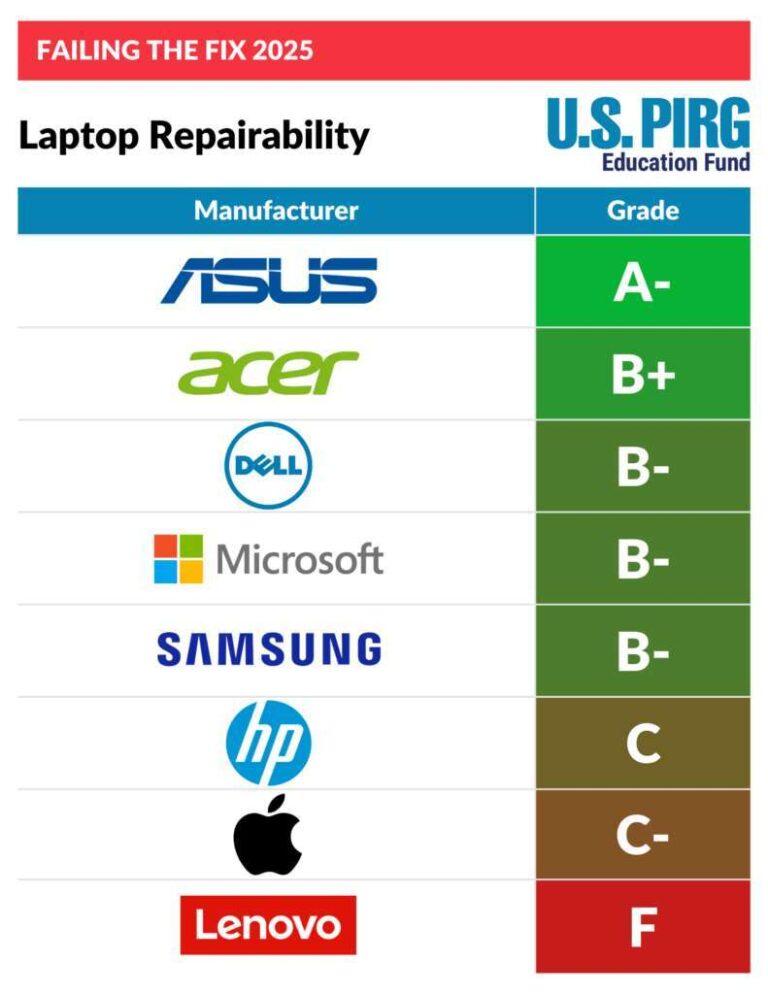
- Repair options: Ask whether the screen, battery, and hinge can be serviced.
- Operating system: Check support for your required apps.
- Warranty: Review coverage for the display, battery, and accidental damage.
If possible, test the laptop in person. Open a long document, type for several minutes, use touch in tablet mode, and hold it as you would at home or work.

Common Buying Mistakes to Avoid
Buying Touch Without a Real Use Case
Touch can sound appealing, but it may add cost without improving your daily work. List the tasks where you would use touch before paying extra.
Assuming Every Pen Works
Styluses are not universal. A pen made for one device may not provide pressure sensitivity or palm rejection on another device.
Ignoring Tablet Weight
A laptop that feels light on a desk may feel heavy when held like a tablet. Check the total weight, not just the screen size.
Focusing Only on Processor Speed
A fast processor does not fix a dim screen, poor hinge, weak keyboard, or short battery life. Compare the full design.
Expecting Touch to Replace a Mouse
Touch is less precise for some editing, design, and spreadsheet tasks. Keep a mouse or use the trackpad when that is more efficient.
Forgetting Cleaning and Care
Do not use harsh household cleaners unless the manufacturer allows them. Avoid spraying liquid directly on the screen.
Key Takeaways
- A touchscreen laptop adds direct finger and pen input.
- The strongest benefits are navigation, handwriting, drawing, markup, and flexible 2-in-1 modes.
- Touch is useful for maps, photos, media, education, and collaborative work.
- It may add cost, weight, glare, fingerprints, and possible repair expense.
- A touchscreen does not guarantee pen support.
- A touchscreen may not be the best choice for long typing sessions or precision work.
- Choose based on your main tasks, not on touch alone.
Frequently Asked Questions
Is a touchscreen laptop better than a regular laptop?
Neither is always better. A touchscreen laptop is better for direct control, drawing, handwritten notes, and tablet use. A regular laptop may be better for lower cost, lighter weight, reduced glare, or long keyboard-based work.
Can I use a touchscreen laptop without touching the screen?
Yes. You can use the keyboard, trackpad, or an external mouse. Touch is an additional input method.
Do touchscreen laptops come with a stylus?
Some do, but many do not. Check the product specifications carefully. Also confirm whether the laptop supports an active pen or only basic touch input.
Are touchscreen laptops good for students?
They can be useful for students who read digital textbooks, write notes by hand, annotate PDFs, or use tablet mode. A non-touch laptop may be better for students who mainly type and want the lowest cost or lightest design.
Is a touchscreen laptop good for gaming?
It depends on the game. Touch can work for casual games and touch-designed apps, but most PC games are built for a keyboard, mouse, or game controller. Touch hardware does not automatically improve gaming performance.
How do I clean a touchscreen laptop?
Turn off and unplug the laptop first. Use a clean, soft microfiber cloth and follow the manufacturer’s cleaning instructions. Do not spray liquid directly on the screen, and avoid abrasive cleaners.
Conclusion
The main advantage of a touchscreen laptop is choice. You can use your finger for quick actions, a pen for handwriting and drawing, and a keyboard or mouse for precise work.
Choose one if you will use those options often, especially in a 2-in-1 design. If you mainly type at a desk, compare the added price, weight, screen glare, battery results, and repair costs before deciding. The best touchscreen laptop is not simply the one with touch; it is the one whose screen, keyboard, pen support, weight, and software match your daily tasks.
Sources and Further Reading
- Microsoft: Touch gestures for Windows
- Microsoft Accessibility
- Google Chromebook Help: Use your Chromebook touchscreen
- Microsoft Surface support

Everett Ashford is a tech reviewer at mytechgrid.com specializing in SSDs, cameras, TVs, earbuds, headphones, and other consumer electronics. He provides honest, data-driven reviews based on hands-on testing and real-world performance analysis. Everett simplifies complex tech details to help readers make smart, confident buying decisions.