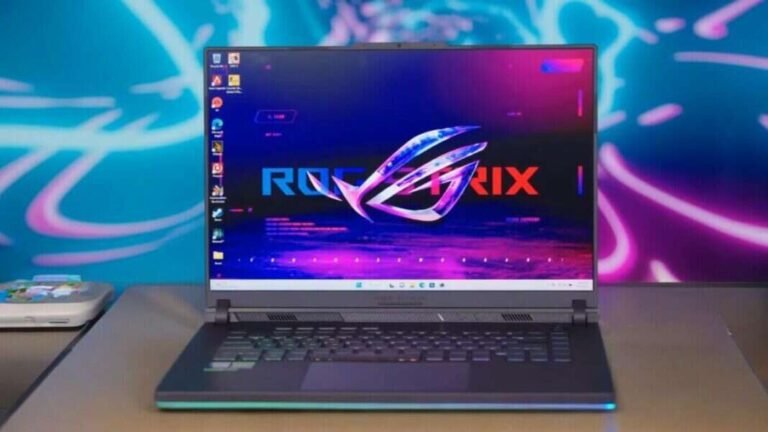
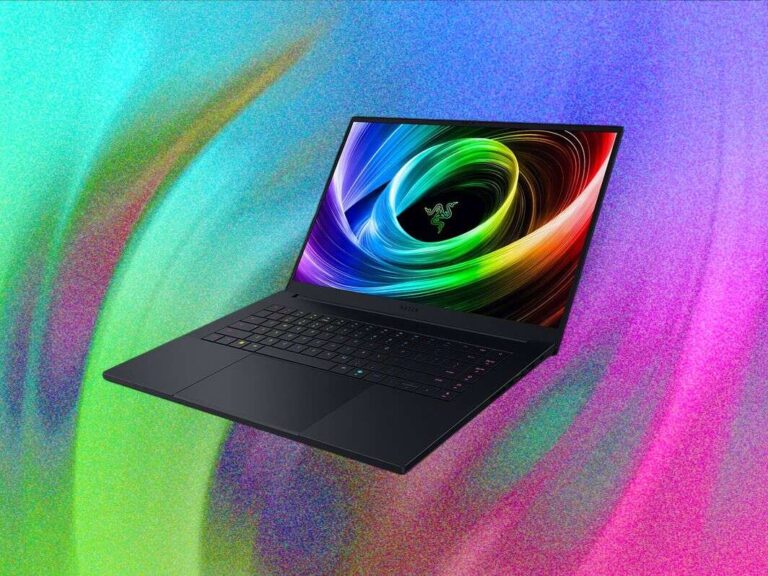
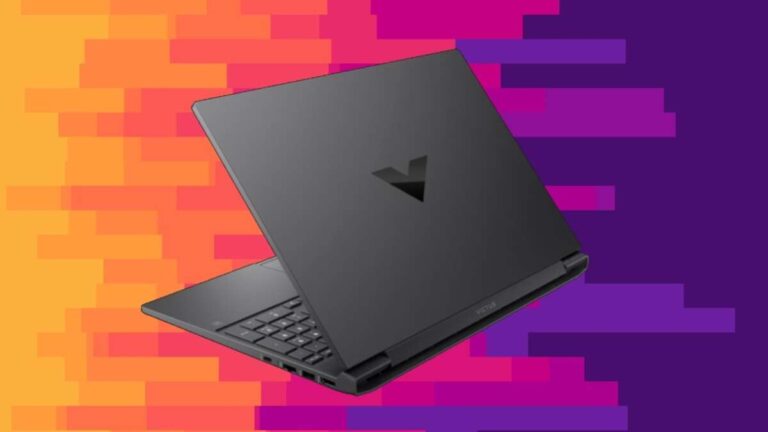
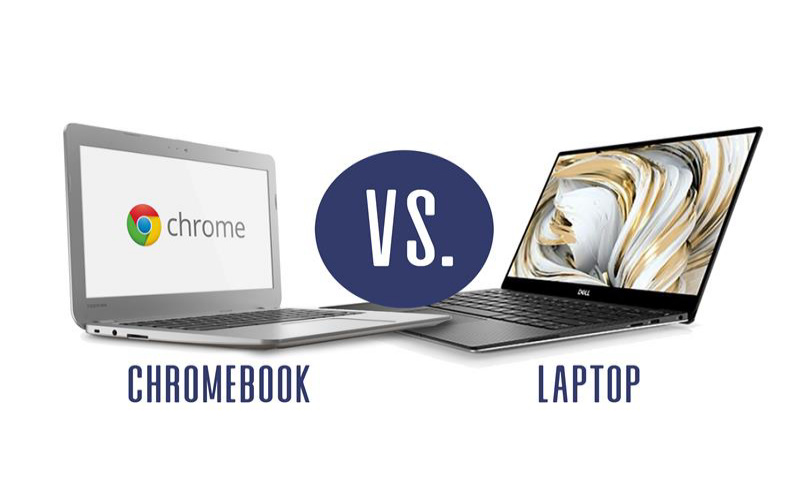
In the United States, “notebook” usually means a thin, portable laptop, while a Chromebook is a notebook computer that runs Google ChromeOS. The key difference is the operating system and the software it supports—not the screen size, shape, or keyboard.
A Windows notebook can run traditional desktop programs such as Microsoft Office, Adobe apps, and many business tools. A Chromebook focuses on web apps, Android apps, and cloud storage. It is often simpler to use and less costly, but it may not support every Windows or Mac program.
Introduction
The right choice depends on what you need to do. A Chromebook may be a strong fit for schoolwork, web browsing, email, video calls, and Google Workspace. A Windows notebook may be better for desktop software, advanced games, engineering tools, local file work, or specialized business apps.
This guide explains the difference between a notebook and a Chromebook for buyers in the United States. It covers speed, software, storage, battery life, offline use, security, gaming, schoolwork, and long-term value.

Notebook vs. Chromebook: The Short Answer
A notebook is a general name for a portable computer. It can run Windows, macOS, Linux, or another operating system.
A Chromebook is a specific type of notebook that runs ChromeOS, an operating system made by Google. Most Chromebooks are designed around the Chrome browser and online services.
| Feature | Notebook | Chromebook |
|---|---|---|
| Meaning | General term for a portable computer | A notebook that runs ChromeOS |
| Common operating systems | Windows, macOS, Linux | ChromeOS |
| Main software | Desktop apps and web apps | Web apps, Android apps, and some Linux apps |
| Storage style | Often more local storage | Often relies more on cloud storage |
| Offline use | Usually broad | Possible, but depends on the app |
| Windows programs | Usually supported on Windows notebooks | Usually not supported natively |
| Gaming | Wider support on Windows models | Mainly web, Android, and supported cloud games |
| Setup | May require more updates and settings | Usually simple and centrally managed |
| Typical buyer | Users with varied software needs | Users who mainly work online |
The term notebook is not the opposite of Chromebook. A Chromebook is one kind of notebook, just as a Windows laptop is another kind.

What Is a Notebook Computer?
A notebook computer is a portable personal computer with a built-in screen, keyboard, trackpad, battery, and processor. In the United States, the words notebook and laptop often mean the same thing.
Notebook computers come in many forms:
- Windows laptops
- MacBook computers
- Linux laptops
- 2-in-1 convertible computers
- Gaming laptops
- Business laptops
- Lightweight ultraportable computers
“Notebook” does not tell you which operating system the computer uses. It also does not tell you how powerful it is. A small notebook may be slower than a large one, but size alone does not determine performance.
When shopping, check the exact operating system. A Windows notebook and a MacBook may both be notebooks, but they support different programs and accessories.
What can a notebook do?
A notebook can support many types of work, depending on its hardware and operating system:
- Web browsing
- Email and video calls
- Microsoft 365
- Photo and video editing
- Coding
- Accounting software
- School applications
- PC games
- Local file storage
- External monitors and accessories
A Windows notebook usually gives you the broadest choice of desktop software. However, low-cost Windows notebooks may have limited memory, small storage drives, or entry-level processors. “Notebook” describes the form, not guaranteed performance.

What Is a Chromebook?
A Chromebook is a portable computer that runs ChromeOS. Google develops ChromeOS, and hardware companies such as Acer, ASUS, Dell, HP, Lenovo, and Samsung make Chromebook models.
ChromeOS uses the Chrome browser as a central part of the user experience. Many common tasks take place through websites and cloud services, including:
- Google Docs
- Google Sheets
- Gmail
- Google Drive
- Google Meet
- Microsoft 365 on the web
- Streaming services
- Online learning platforms
Many newer Chromebooks also support Android apps through the Google Play Store. Some models support Linux development tools. Support can vary by device, administrator settings, app version, and ChromeOS version.
A Chromebook is not simply a cheap Windows laptop. It uses a different operating system, so software made only for Windows may not install or run in the normal way.
Does a Chromebook need the internet?
No. A Chromebook can perform some tasks offline. For example, you may be able to edit files that were made available offline, write notes, view downloaded media, or use certain installed apps.
However, many Chromebook features work best with an internet connection. Cloud files, web apps, account syncing, online collaboration, and some school or work systems may require access to the internet.
Before buying one, check whether your main apps have an offline mode. Do not assume that every website or Android app will work without a connection.

Software Compatibility Is the Biggest Difference
The most important difference between a Chromebook and a Windows notebook is software compatibility.
A Windows notebook can install Windows desktop programs. A Chromebook generally cannot install standard Windows .exe programs directly. It uses web apps, Android apps, and, on supported devices, Linux apps instead.
Examples of software that may affect your choice
| Your task | Chromebook | Windows notebook |
|---|---|---|
| Google Docs and Gmail | Strong fit | Works in a browser or app |
| Microsoft Word online | Works | Works |
| Full Microsoft Office desktop apps | Limited or web-based | Broad support |
| Adobe Photoshop desktop | Not normally supported | Supported on compatible hardware |
| Video editing | Basic or web-based options | More software choices |
| PC gaming | Limited | Much wider support |
| Coding | Web tools and Linux options | Broad development support |
| School web portals | Usually works | Usually works |
| Specialized work software | May not work | More likely to work |
Microsoft provides web versions of several Office apps, but the web versions do not always include every feature found in the Windows desktop versions. The same principle applies to other software.
Check the software maker’s official system requirements before you buy. Search for the exact app name, operating system, and version. This one step can prevent a costly mistake.

Performance: Which One Is Faster?
Neither category is always faster. Performance depends on the processor, memory, storage, cooling system, and software.
A Chromebook with a modest processor can feel quick during web tasks because ChromeOS is designed for a focused set of uses. A powerful Windows notebook can handle demanding work that a basic Chromebook cannot.
For a fair comparison, check:
- Processor model
- RAM capacity
- Storage type and size
- Screen resolution
- Graphics hardware
- Battery rating
- Manufacturer support period
How much RAM do you need?
As a general buying guide:
- 4 GB: Basic use, but limited for many tabs and apps
- 8 GB: A better starting point for everyday work
- 16 GB or more: Useful for heavier multitasking, creative work, coding, and demanding apps
These are practical guidelines, not fixed rules. ChromeOS, Windows, and individual apps use memory in different ways. A device with 8 GB of RAM may still feel slow if it uses a weak processor or a slow storage drive.
What about storage?
Many Chromebooks use smaller internal storage because they expect users to keep files in the cloud. Some entry-level models include limited storage, which can fill quickly after downloading videos, photos, or Android apps.
A Windows notebook often includes more local storage. That is helpful for large programs, games, media files, and work documents.
Cloud storage is convenient, but it is not a complete backup plan. Keep important files in more than one place.
Battery Life and Portability
Chromebooks often provide good battery life for web browsing and document work, but battery results vary by model, screen brightness, processor, app use, and network activity.
A Windows notebook may also provide long battery life, especially if it uses an efficient processor and a moderate-resolution display. Gaming laptops and high-performance notebooks usually use more power.
When comparing battery claims, look for the testing method. A manufacturer’s estimate may not match your use. Video playback, video calls, gaming, high screen brightness, and many open browser tabs can reduce battery life.
For portability, compare:
- Weight
- Charger size
- Screen size
- Thickness
- Number of USB ports
- Webcam quality
- Keyboard comfort
- Build quality
A light computer is easier to carry, but very small models may have cramped keyboards or fewer ports.

Security and Updates
ChromeOS includes automatic updates and built-in security features. Google describes ChromeOS as using measures such as sandboxing, verified boot, and automatic updates. These features can reduce the amount of maintenance required from the user.
Windows also includes built-in security tools and automatic updates. Windows notebooks can be safe when they receive updates and when users install software carefully. Because Windows supports a very large range of programs, users also face a broader software environment.
The important question is not only, “Is this computer secure?” Ask these questions too:
- How long will the exact model receive updates?
- Can the device install current operating system versions?
- Does the manufacturer still provide support?
- Will the school or employer manage the device?
- Can you recover your files if the device fails?
Chromebooks have an Auto Update Expiration date for automatic ChromeOS and browser updates. Google lists this date by model on its official support pages. Check the exact model before purchase, especially when buying an older or refurbished Chromebook.

Gaming and Creative Work
A Windows notebook is usually the better choice for PC gaming and demanding creative work.
Windows supports a wider range of PC games, game stores, graphics drivers, accessories, and creative applications. A gaming notebook may include a dedicated graphics processor, which is a separate chip designed to handle demanding visual work.
A Chromebook can support browser games, Android games, some Linux games, and certain cloud gaming services. Results depend on the game, model, internet connection, controller, and service requirements.
For photo or video work, check the exact application. Basic editing in a browser may work well on a Chromebook. Professional workflows that rely on desktop Adobe software, specialized plug-ins, large project files, or advanced color tools usually need a compatible Windows or Mac computer.
Do not buy based only on processor names. Confirm that the software and games you use support the operating system.

School, Work, and Family Use
For many American students, a Chromebook works well because schools often use browser-based learning systems and Google Workspace. Schools can also manage large numbers of Chromebooks through administrative tools.
A Chromebook may fit a student who mainly needs:
- A web browser
- Google Classroom
- Google Docs and Slides
- Video meetings
- Online research
- Light note-taking
A Windows notebook may be safer for a student who needs desktop engineering software, advanced design tools, local programming tools, or Windows-only testing software.
For work, ask the IT department before buying. A company may require a virtual private network, security certificate, desktop app, device-management tool, or Windows-only program. A Chromebook may work with some business systems, but compatibility is not automatic.
For families, ChromeOS can be easier to manage for basic browsing and schoolwork. Still, parents should review account settings, app permissions, downloads, and web-filtering tools.
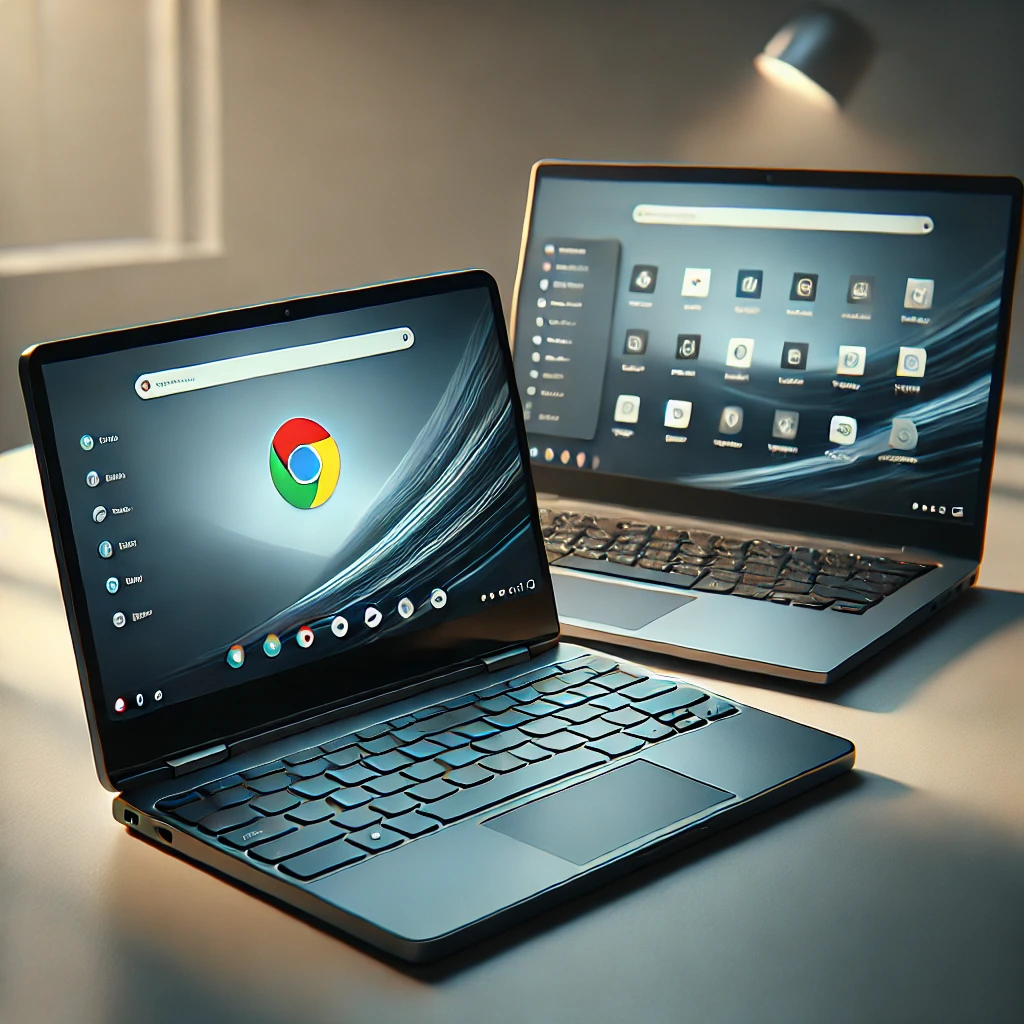
Which Should You Buy?
Choose a Chromebook if most of these statements are true:
- You mainly use a web browser.
- You use Google Workspace or web-based Microsoft 365.
- You want a simple computer for school or basic work.
- You do not need Windows-only software.
- You are comfortable storing some files online.
- You want low-maintenance updates.
- You have reliable internet access for many tasks.
Choose a Windows notebook if most of these statements are true:
- You need full desktop Microsoft Office.
- You use Adobe, accounting, engineering, or specialized software.
- You want broad PC game support.
- You store many files locally.
- You need advanced printer, scanner, or accessory support.
- You want more hardware choices and upgrade options.
- Your employer or school requires Windows.
A MacBook may be the better alternative if you specifically need macOS software or Apple’s ecosystem. It is also a notebook computer, but it is neither a Chromebook nor a Windows notebook.

Common Mistakes to Avoid
Mistake 1: Treating “notebook” as a separate operating system
Notebook is a broad hardware term. Always identify the operating system before comparing models.
Mistake 2: Assuming every Chromebook is the same
Chromebooks vary in screen quality, speed, ports, keyboard comfort, storage, and update support. Check the exact model number.
Mistake 3: Buying before checking software
Make a list of the programs you use. Confirm support for ChromeOS, Windows, macOS, or Linux before purchasing.
Mistake 4: Confusing cloud storage with a backup
Cloud files can still be deleted, locked, or affected by account problems. Keep a second copy of important documents and photos.
Mistake 5: Looking only at processor names
A processor is only one part of performance. RAM, storage, cooling, software, and screen resolution also affect daily use.
Mistake 6: Forgetting the update period
An older Chromebook may have a shorter remaining update period. Check Google’s Auto Update policy for the exact model.
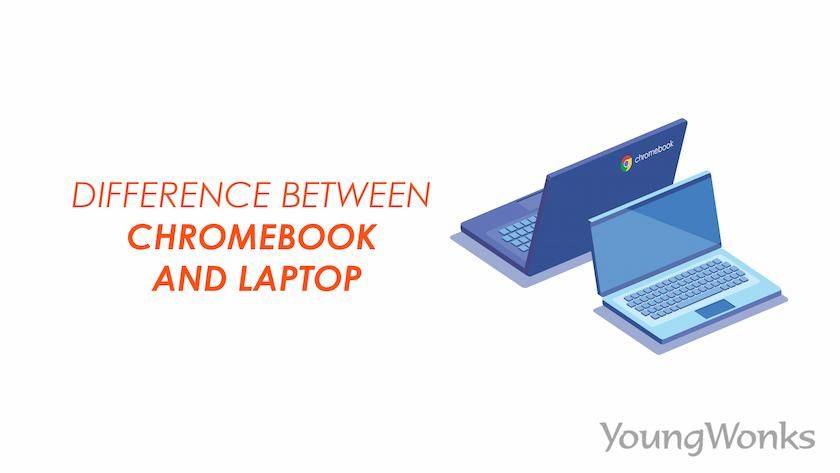
Key Takeaways
- A notebook is a general term for a portable computer.
- A Chromebook is a notebook that runs ChromeOS.
- The operating system creates the main difference.
- Chromebooks are strong for web apps, schoolwork, email, and simple cloud-based tasks.
- Windows notebooks support more desktop programs, games, and specialized tools.
- Check software compatibility before buying.
- Check the exact Chromebook model’s update expiration date.
- Neither type is always faster; hardware and software both matter.
Frequently Asked Questions
Is a Chromebook a notebook?
Yes. A Chromebook is a type of notebook computer. The word Chromebook identifies the ChromeOS operating system, while notebook describes the portable computer form.
Can a Chromebook run Microsoft Word?
A Chromebook can use Microsoft Word on the web and may support the Microsoft 365 Android app, depending on device and software support. The full Windows desktop version of Word does not normally install directly on ChromeOS.
Can I use a Chromebook without Wi-Fi?
Yes, for some tasks. Certain files and apps can work offline, but many cloud services need an internet connection. Set up offline access before you lose connectivity.
Is a Chromebook good for college?
It can be a good choice for college students who mainly use browser-based learning systems, documents, email, research, and video meetings. Check the requirements for your major before buying. Engineering, design, computer science, and media programs may require Windows or macOS software.
Can a Chromebook get viruses?
ChromeOS has built-in security features that help protect the system, but no computer is risk-free. Use strong account security, install apps from trusted sources, update the device, and avoid suspicious links and downloads.
Conclusion
The difference between a notebook and a Chromebook is mainly the operating system. A Chromebook is a notebook built around ChromeOS, web apps, cloud services, and simple device management. A Windows notebook offers broader desktop software support and is usually more flexible for demanding work, gaming, and specialized programs.
For a final check, list the apps you use, decide whether you need offline access, review your storage needs, and confirm the exact model’s update support. Then choose the device that fits your actual tasks—not just the one with the lowest price or the most familiar name.
Sources for further verification
- Google Chromebook Help
- Google Auto Update policy
- Google ChromeOS Flex and ChromeOS information
- Microsoft Windows support
- Microsoft 365 for the web
- Google Play Help for Chromebook apps

Everett Ashford is a tech reviewer at mytechgrid.com specializing in SSDs, cameras, TVs, earbuds, headphones, and other consumer electronics. He provides honest, data-driven reviews based on hands-on testing and real-world performance analysis. Everett simplifies complex tech details to help readers make smart, confident buying decisions.