Cloning copies your full Windows 10 hard drive to an SSD. It moves Windows, apps, files, settings, and boot data in one step. For most people in the United States, the safest plan is to back up important files, connect the SSD, clone the old drive, test the SSD, and keep the HDD untouched until the new drive works.
A clone is useful when you want a faster boot drive without reinstalling Windows 10. The process is different from copying files. A proper clone also copies system partitions and boot information.
Important: Cloning can erase the destination SSD. Check the source and destination drives several times before starting.


What You Need Before You Clone a Hard Drive
Prepare the hardware and software before you start. A short check can prevent lost files and failed boots.
You need:
- A Windows 10 computer with the old HDD installed
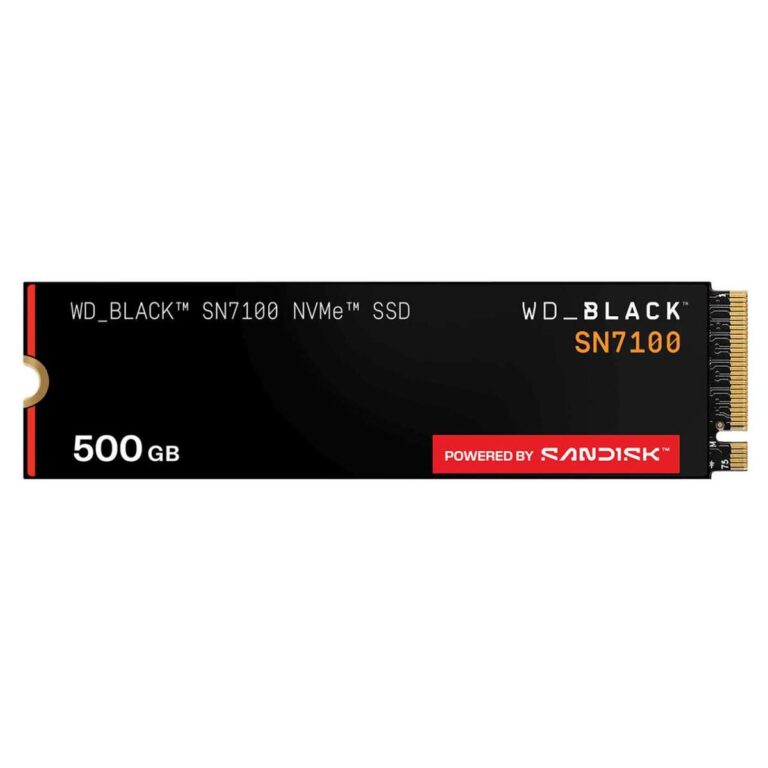
- A new SSD with enough usable space
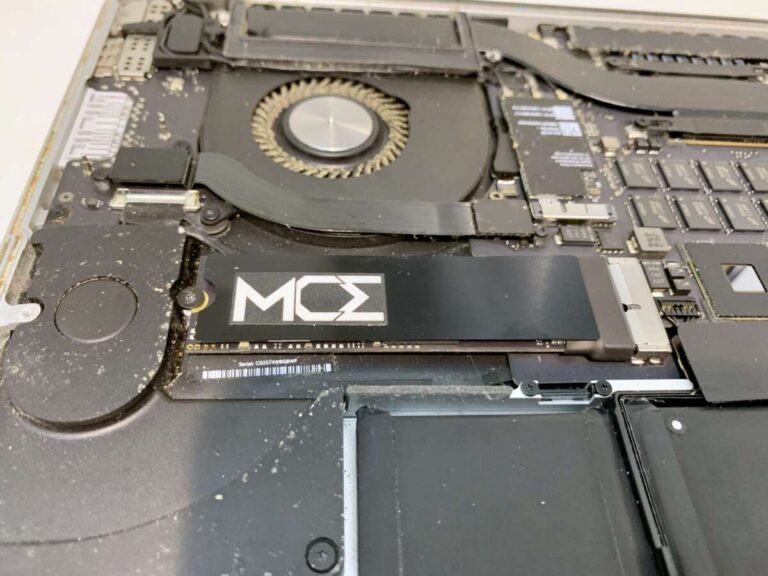
- A SATA-to-USB adapter, USB enclosure, or open drive bay
- Reliable cloning software
- A backup of important files
- The SSD's mounting hardware, if your computer needs it
- A power source for the computer during the clone
The SSD does not always need to match the HDD's full capacity. It must have enough free space for the data being copied.
For example, a 500 GB SSD may clone a 1 TB HDD if the HDD contains only 220 GB of data. The cloning tool must be able to copy used space rather than the entire disk layout without adjustment.
Check how much space you need
Open File Explorer, select This PC, and check the used space on the Windows drive.
You can also open:


Settings > System > Storage
Compare the used space with the SSD's available capacity. Leave extra room for Windows updates, temporary files, applications, and normal growth.
Check the connection
A USB 3 connection is usually much faster than USB 2 for a large clone. A direct internal SATA connection may also work well.
Do not disconnect the SSD during the process. If the connection drops, the clone may fail or leave the destination drive incomplete.
Back up important data
A clone is not a replacement for a backup. It copies the current condition of the HDD, including damaged files, unwanted software, and possible malware.
Save important documents and photos to another drive or a trusted cloud backup. If the files cannot be replaced, keep at least one separate copy.
Confirm the disk style
Windows computers commonly use either:
- GPT, used with modern UEFI firmware
- MBR, used with older Legacy BIOS systems
The source and destination do not always need the same layout during cloning, but the computer must boot in a compatible mode afterward.
To check the current layout:
- Right-click the Start button.
- Select Disk Management.
- Right-click the disk label, such as Disk 0.
- Select Properties.
- Open the Volumes tab.
- Check Partition style.
Microsoft explains the relationship between GPT, MBR, UEFI, and BIOS in its Windows deployment documentation. A mismatch can cause a cloned drive to appear healthy but fail to boot.
Choose Cloning Software for Windows 10
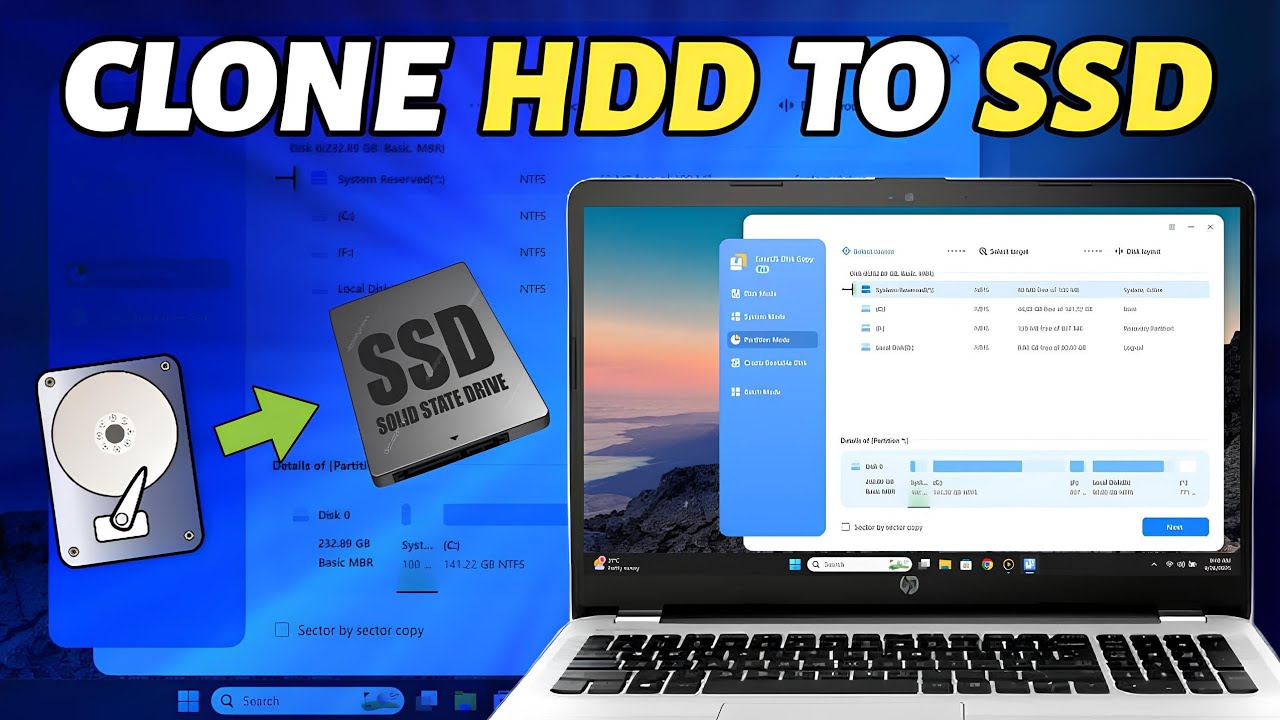
Windows 10 does not include a simple built-in tool that clones a complete boot drive to another disk. Use a disk-cloning program instead.
Common choices include:
| Option | Best for | Main trade-off |
|---|---|---|
| SSD maker migration tool | A new SSD from a supported brand | Often works only when the target SSD matches the maker |
| Rescuezilla | A guided graphical tool | Requires creating and booting from a USB drive |
| Clonezilla | Advanced users who want a free open-source tool | Its menus are less friendly |
| Commercial cloning software | Users who want more guided controls | Features and licensing can change |
A manufacturer tool may be the easiest choice. Samsung, Crucial, Western Digital, and other brands have offered migration tools for supported drives, but compatibility rules can change. Check the SSD maker's current support page before downloading software.
Rescuezilla is a graphical front end for disk recovery and cloning tasks. Clonezilla is a well-known open-source disk imaging and cloning tool. Both can run outside Windows, which helps avoid copying active system files.


Which method should you use?
Use a supported SSD migration tool if:
- The SSD brand provides one
- The software supports your Windows 10 setup
- You want a simple guided process
Use Rescuezilla if:
- You want a graphical interface
- You can create a bootable USB drive
- You do not need advanced scripting
Use Clonezilla if:
- You understand disk names and partitions
- You want a free tool with many options
- You are comfortable reading each screen carefully
Do not install several cloning tools and run them at the same time. Choose one method and follow its instructions.
How to Clone a HDD to an SSD in Windows 10
The steps below describe a typical clone. Names can differ slightly between programs, but the process is similar.
1. Connect the SSD
Connect the SSD to the computer before opening the cloning tool.
If the SSD is in a USB enclosure, plug it into a stable USB port. On a desktop computer, you can install it in an open SATA drive bay. On a laptop, you may need a SATA-to-USB adapter or a second drive bay.
Keep the old HDD connected. It is the source drive. The SSD is the destination drive.
2. Initialize the SSD only when required
Open Disk Management and look for the new SSD.
Windows may ask you to initialize the disk. If so, choose the same style used by the source drive when possible:
- Choose GPT for most UEFI-based Windows 10 computers.
- Choose MBR for older systems that use Legacy BIOS.
Do not create random partitions if the cloning program will copy the full disk. Some cloning tools manage the destination layout themselves.
If the SSD contains files, move them elsewhere first. A full-disk clone may delete all existing data on it.
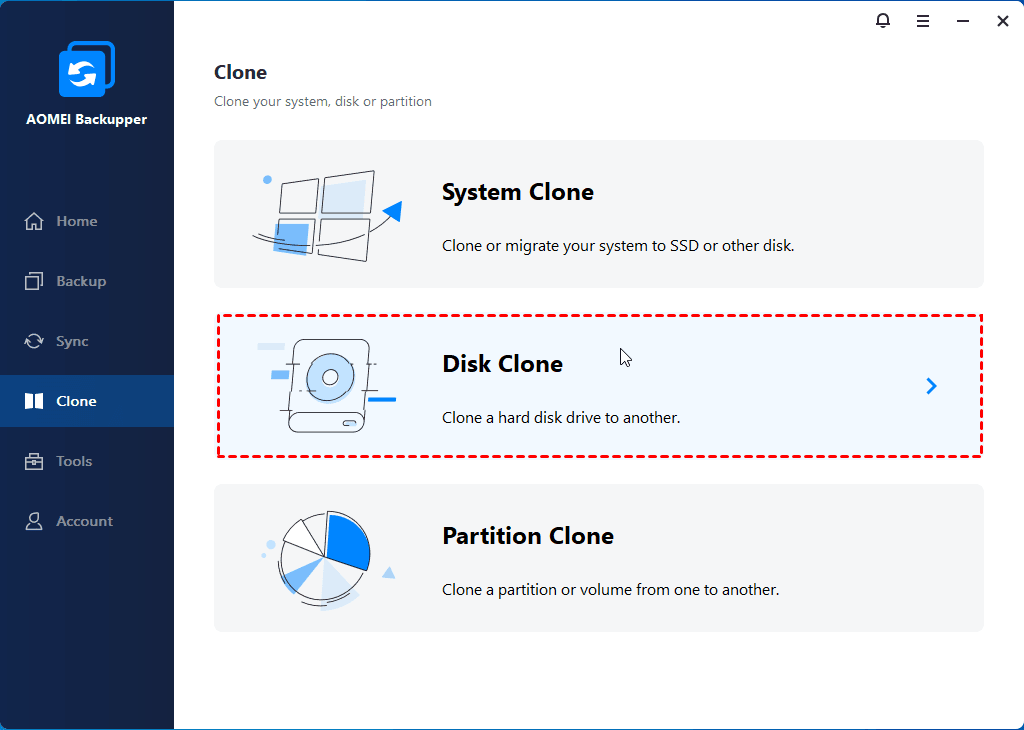
3. Start the cloning tool
Open the software as an administrator if required.
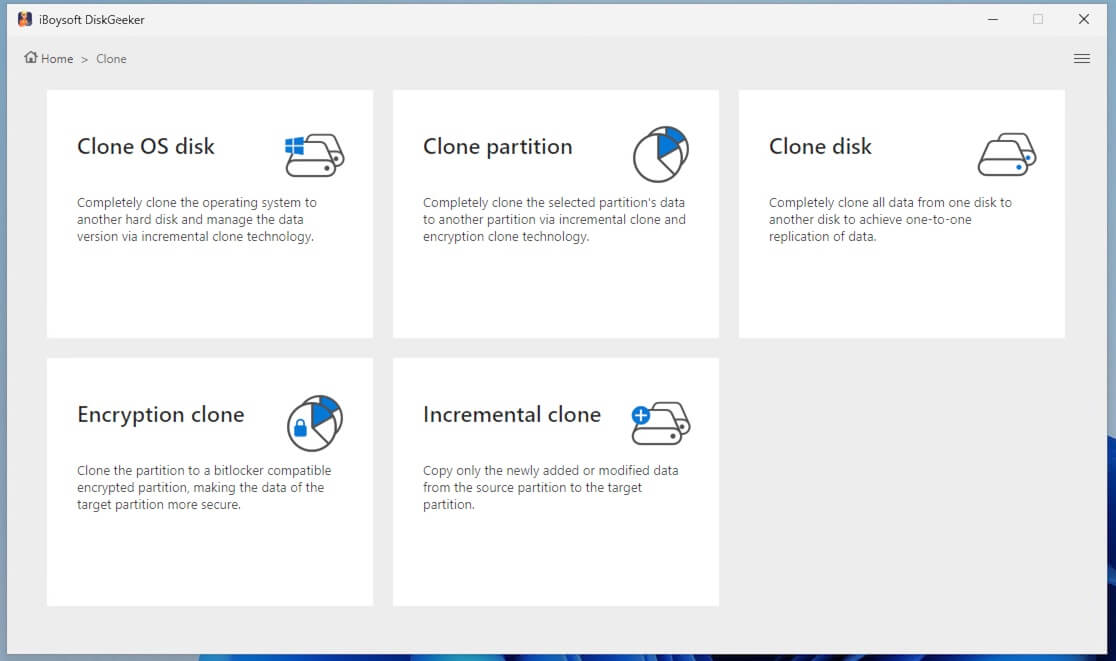
Select an option such as:


- Clone disk
- Migrate OS
- Disk copy
- Drive clone
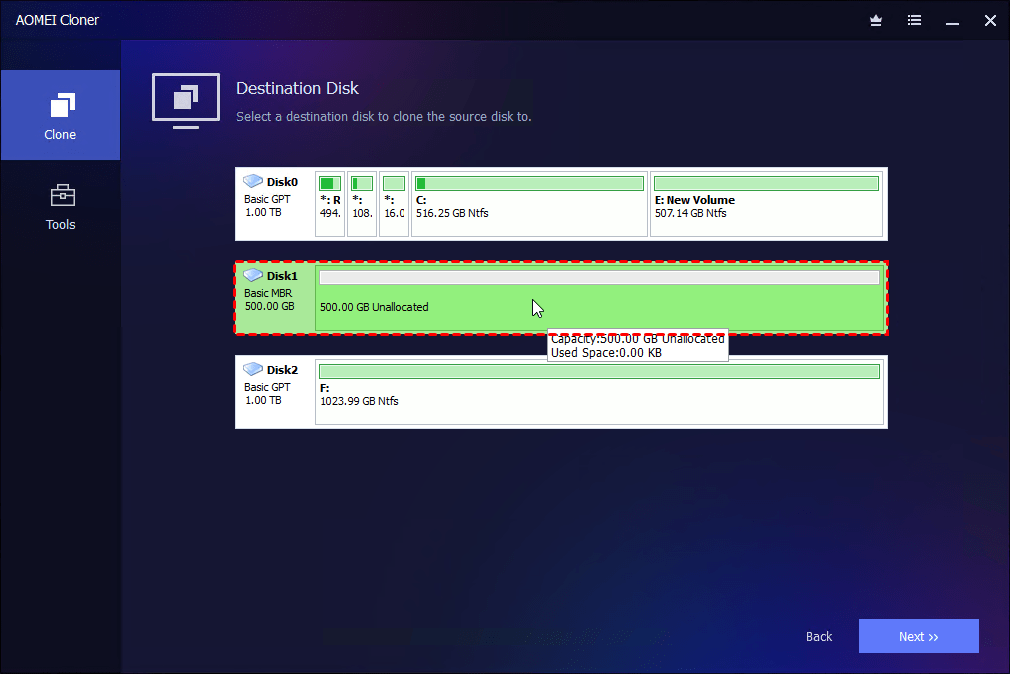
Choose the old HDD as the source. Then choose the new SSD as the destination.
Pause at this screen. Check the model, capacity, and connection type of both drives. Selecting the wrong destination can destroy the original Windows installation.
4. Copy all required partitions
A Windows 10 boot disk often contains more than the main C: drive. It may include:
- EFI System Partition
- Microsoft Reserved partition
- Windows partition
- Recovery partition
- Manufacturer recovery partition
For a normal system clone, copy all partitions from the source disk. Do not copy only the C: drive unless the software clearly documents that it can rebuild the boot files.
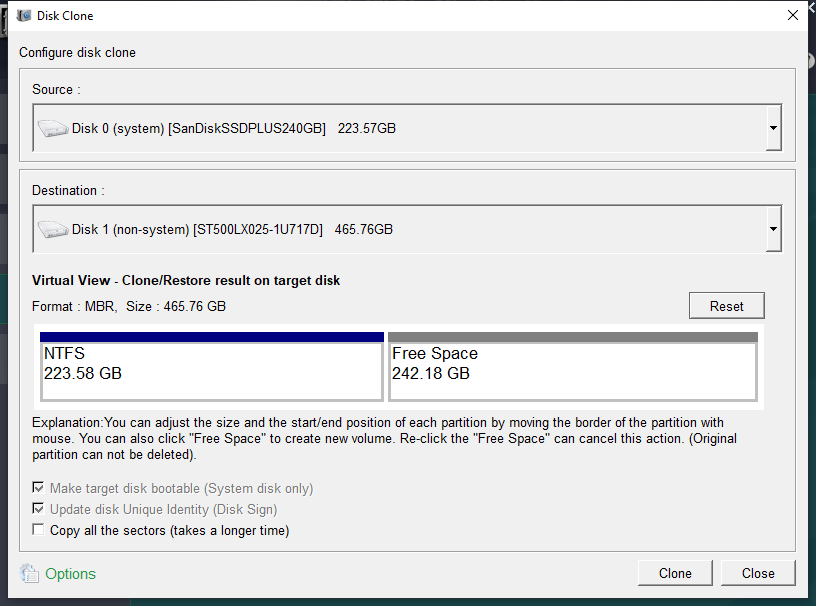
If the SSD is smaller than the HDD, select a setting such as:
- Fit partitions to entire disk
- Intelligent sector copy
- Resize partition
- Clone only used sectors
Make sure the Windows partition still has enough room after resizing. Do not shrink a partition below its used space.
5. Review the final operation
Before clicking Start, review:
- Source disk
- Destination disk
- Partitions selected
- Partition sizes
- Options that erase the destination
- Whether the tool will shut down or restart the computer
Close other programs. Stop large downloads. If the computer uses BitLocker or device encryption, confirm that you have the recovery key before continuing.
6. Run the clone
Start the clone and wait for it to finish. The time depends on the amount of data, drive speed, USB connection, and condition of the HDD.
Do not:
- Unplug the SSD
- Shut down the computer
- Force a restart
- Move the USB cable
- Use the source drive for other work
The computer may restart into a separate cloning environment. That is normal for some tools.
7. Shut down after completion
When the tool reports success, shut down the computer fully. Do not rely only on a restart.
At this point, the SSD should contain a copy of the HDD. You still need to make the computer boot from the SSD.
How to Make Windows 10 Boot From the New SSD
The most reliable test is to disconnect the old HDD for the first boot. This prevents the computer from loading Windows from the wrong drive.


Desktop computer
- Shut down the computer.
- Turn off the power and unplug it.
- Disconnect the old HDD's data cable.
- Leave the SSD connected.
- Start the computer.
Laptop computer
- Shut down the laptop.
- Disconnect the charger.
- Remove the old HDD.
- Install the cloned SSD in its place.
- Reassemble the laptop.
- Start Windows 10.
If the computer starts normally, open Disk Management and confirm that the SSD is now the active Windows drive.
You can also open Task Manager > Performance > Disk to identify the drive model. Check that the model shown is the SSD, not the old HDD.
If the computer opens the boot menu
Enter the firmware setup or boot menu. Common keys include F2, F12, Delete, and Esc, but the correct key depends on the manufacturer.
Set Windows Boot Manager on the SSD as the first boot option. On a UEFI computer, choose the entry that includes the SSD or its Windows Boot Manager entry.
Do not change UEFI to Legacy mode without a reason. Changing boot mode can make an otherwise good Windows installation fail to start.

How to Check That the SSD Clone Worked
A successful boot is only the first test. Check the system before erasing or reusing the HDD.
Confirm that:
- Windows 10 opens normally
- Your user profile loads
- Your files are present
- Important programs open
- Network and audio work
- The SSD has the expected capacity
- Windows shows no disk errors
- Your backup files are still available
Open several files. Start applications that you use for work. If you use encryption, check that the system recognizes the drive and that you have the recovery key.
You can compare the old and new drives by their model numbers. This matters because Windows may still contain the old drive's volume label, which can make the two drives look alike.
Use the SSD as the only connected Windows drive for at least one normal session. Restart it more than once. This helps confirm that the SSD has its own boot files.

What to Do If the Cloned SSD Will Not Boot
A failed boot does not always mean the clone is lost. First, identify the symptom.
| Symptom | Likely cause | Safe first check |
|---|---|---|
| “No boot device” message | Wrong boot entry or missing boot files | Select Windows Boot Manager for the SSD |
| Blank screen after cloning | Firmware mode or connection issue | Check cables and UEFI settings |
| Windows starts from the HDD | Old HDD is still first in boot order | Disconnect the HDD and test again |
| SSD is missing | Cable, enclosure, or power problem | Reseat the connection and check Disk Management |
| Automatic repair loop | Damaged boot files or incomplete clone | Recheck the source and repeat the clone |
| Windows asks for recovery | BitLocker or device encryption | Use the saved recovery key |
Repair the boot files
If the clone contains the correct partitions but will not start, Windows recovery tools may repair the boot configuration.
- Start from a Windows 10 installation USB.
- Select Repair your computer.
- Choose Troubleshoot.
- Select Advanced options.
- Try Startup Repair.
Startup Repair can fix some boot configuration problems. It cannot repair every damaged clone.
If Startup Repair fails, repeat the clone with all system partitions selected. Also check that the cloning program supports the source's GPT or MBR layout.
Check for a bad source drive
An aging HDD may contain read errors. Cloning software may stop, skip files, or report an incomplete copy.
Run a disk health check before trying again. Back up readable files first. If the HDD is clicking, disappearing, or becoming very slow, reduce use and consider professional data recovery rather than repeated clone attempts.
Check encryption
BitLocker can affect cloning and startup. Save the recovery key before changing drives. Microsoft provides instructions for finding a BitLocker recovery key through a Microsoft account, work account, or saved recovery location.
If the computer belongs to an employer or school, contact the administrator. The organization may control the recovery key.

Common Mistakes to Avoid
The most common mistake is choosing the HDD as the destination. Always identify each disk by model and capacity.
Other mistakes include:
- Cloning only the C: partition
- Forgetting to resize partitions for a smaller SSD
- Disconnecting the drive during the clone
- Testing with both drives connected and booting from the wrong one
- Wiping the HDD before testing the SSD
- Skipping a separate backup
- Losing the BitLocker recovery key
- Changing UEFI and Legacy BIOS settings without checking the original mode
- Assuming a clone removes malware or file corruption
- Using an SSD migration tool that does not support the drive
Do not erase the old HDD on the same day unless you have confirmed the SSD works. Keep the old drive unchanged for several days or until your important files and programs are verified.
After the new SSD works, you can format the HDD and use it for extra storage. Be certain that the HDD is no longer needed as the boot drive before formatting it.
Should You Clone or Perform a Clean Windows 10 Install?
Cloning is faster when the existing Windows installation works well. It keeps applications, settings, and user files.
A clean install is better when:
- Windows has persistent errors
- The system contains unwanted software
- You want to remove old programs
- The HDD has file-system damage
- You are changing major hardware
- You want a fresh partition layout
Cloning also carries over clutter and problems. A clean install takes more time because you must reinstall programs, restore files, and configure settings.
Windows 10 support from Microsoft ended on October 14, 2025. A cloned Windows 10 installation may continue to run, but standard security updates and technical support are no longer provided after that date. If the computer supports Windows 11, check Microsoft's hardware requirements before deciding whether to clone Windows 10 or upgrade.
Frequently Asked Questions
Can I clone a 1 TB HDD to a 500 GB SSD?
Yes, if the used data fits on the SSD and the cloning software can resize the partitions. The SSD must have enough space for Windows, apps, files, and required system partitions.
Will cloning Windows 10 transfer my product key?
Cloning copies the existing Windows installation and its activation state. Activation can change after major hardware changes. Keep your Microsoft account details and product key information if available.
Can I clone a hard drive without reinstalling Windows?
Yes. A complete disk clone can transfer Windows, programs, settings, files, and boot partitions without a normal reinstall.
Should I format the SSD before cloning?
Usually, no. Many cloning programs erase and partition the destination automatically. If the tool asks you to initialize an unused SSD, choose GPT or MBR based on the computer's current setup.
Why is the cloned SSD not faster?
The computer may still be booting from the HDD. Confirm the SSD is the only connected boot drive and that Windows identifies the SSD as the system disk. Also check whether the SSD is connected through a slow USB port or an older SATA interface.
Final Checklist
Before cloning:
- Back up important files.
- Check the SSD's usable capacity.
- Confirm the source and destination disks.
- Save the BitLocker recovery key.
- Check whether the system uses GPT or MBR.
During cloning:
- Copy all required system partitions.
- Do not interrupt the process.
- Review the destination twice before starting.
After cloning:
- Shut down the computer.
- Disconnect the old HDD for the first test.
- Boot from Windows Boot Manager on the SSD.
- Test files, apps, and restarts.
- Keep the old HDD until the SSD is proven reliable.
The safest next step is simple: connect the SSD, identify both drives by model and capacity, create a backup, and then run one complete clone without interrupting the computer.

Everett Ashford is a tech reviewer at mytechgrid.com specializing in SSDs, cameras, TVs, earbuds, headphones, and other consumer electronics. He provides honest, data-driven reviews based on hands-on testing and real-world performance analysis. Everett simplifies complex tech details to help readers make smart, confident buying decisions.