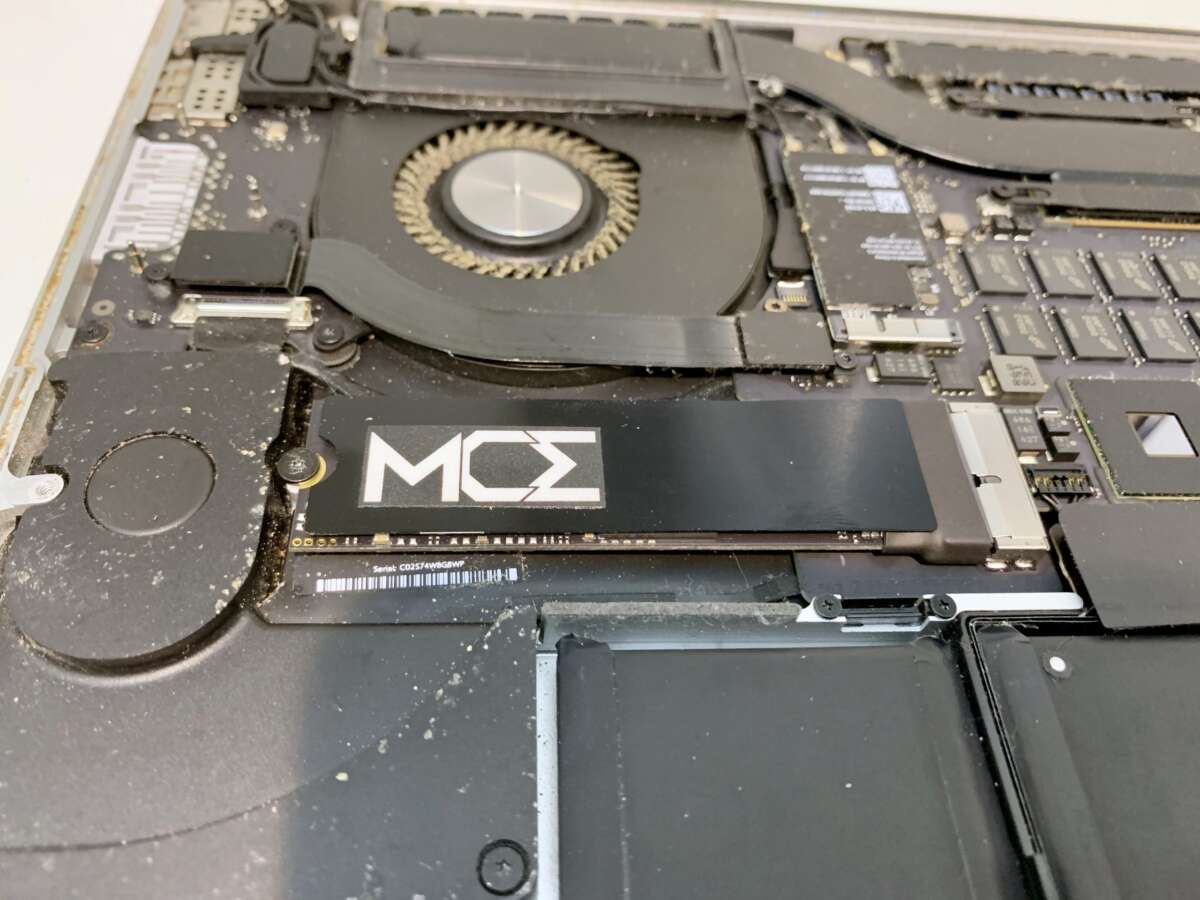
Yes, you can upgrade the SSD on some MacBook Pro models, but newer models have soldered storage.
Whether you can upgrade the SSD on a MacBook Pro depends almost entirely on its model year and design. Older non-Retina MacBook Pro models often use standard 2.5-inch SATA drives, while some Retina models use removable Apple-specific blade SSDs. Most MacBook Pro models from 2016 onward have storage soldered to the logic board, making a normal SSD upgrade impossible. This guide explains how to check your model, choose the right upgrade, avoid data loss, and decide when an external SSD is the better option.
Can You Upgrade the SSD on a MacBook Pro?
The short answer is: sometimes. Apple changed MacBook Pro storage several times, so the correct answer depends on the exact model, not just the screen size or year.
You can usually upgrade the internal SSD on these MacBook Pro models:
• MacBook Pro models from 2009 through mid-2012 with non-Retina displays
• Retina MacBook Pro models from 2012 through 2015 with removable blade SSDs
• Certain older models that use a standard 2.5-inch SATA hard drive or SSD
You generally cannot upgrade the internal SSD on these models:
• Most MacBook Pro models from 2016 through 2020
• Intel MacBook Pro models with soldered storage
• M1, M2, M3, and newer Apple silicon MacBook Pro models
• Models where the storage chips are permanently attached to the logic board
The key difference is the connection type. A replaceable SSD uses a connector that allows you to remove it. A soldered SSD is built directly onto the logic board, much like a sticker glued to a surface rather than a card placed in a slot.
MacBook Pro SSD Upgrade Compatibility by Model
Use the table below as a starting point. Always confirm the exact model identifier before buying an SSD.
| MacBook Pro generation | Internal SSD upgrade | Typical storage type |
|---|---|---|
| 2009 to mid-2012 non-Retina | Yes | 2.5-inch SATA drive |
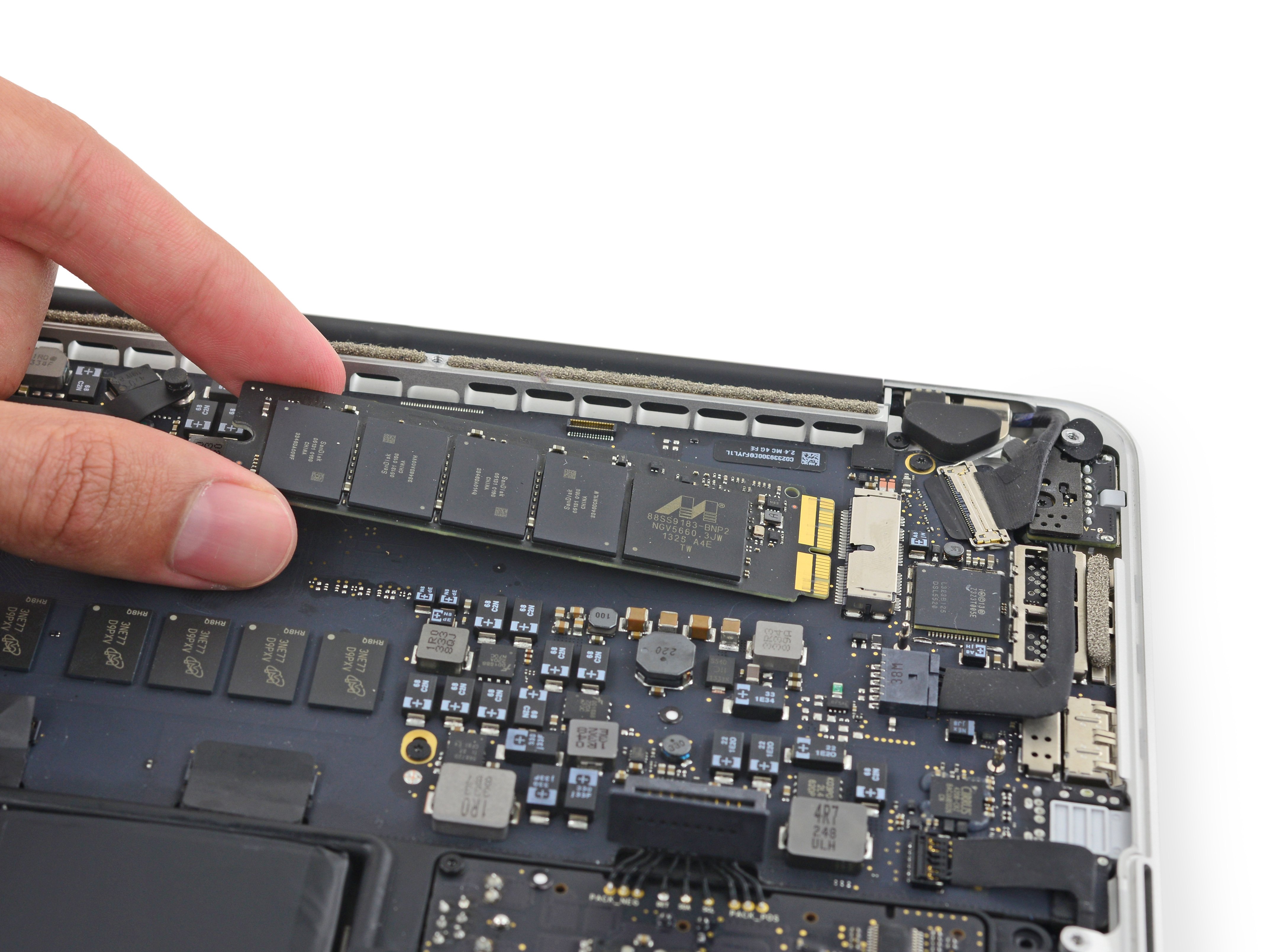
| 2012 to 2015 Retina | Usually yes | Proprietary removable blade SSD |
| 2016 to 2017 | No practical user upgrade | Soldered storage |
| 2018 to 2020 Intel | No practical user upgrade | Soldered storage |
| 2020 M1 | No | Soldered or integrated storage |
| 2021 and newer Apple silicon | No | Soldered or integrated storage |
The phrase “usually yes” matters for Retina models. These computers may have removable SSDs, but they do not use the same 2.5-inch SATA drives found in older non-Retina models. You need a compatible blade SSD made for that specific MacBook Pro generation.
A model such as the MacBook Pro 13-inch Early 2015 may accept a replacement blade SSD. A MacBook Pro 13-inch 2019 generally does not accept an internal storage upgrade because its storage is soldered to the logic board.
To identify your MacBook Pro, open the Apple menu, select About This Mac, and note the model year. For greater accuracy, click System Report and check the Model Identifier. You can also find the serial number on the bottom case and use Apple’s coverage or technical support tools to identify the device.
Why Newer MacBook Pro SSDs Cannot Be Upgraded
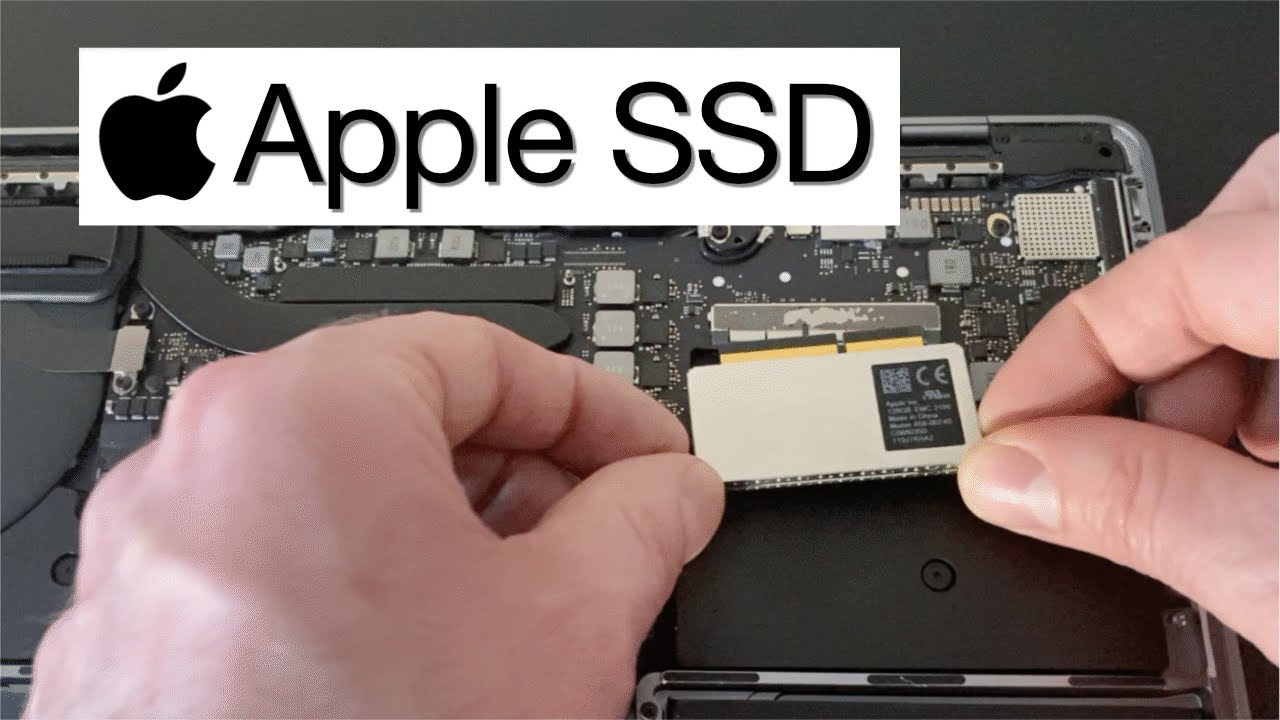
Apple began moving toward soldered storage to make MacBook Pro computers thinner, quieter, and more tightly integrated. This design can improve space efficiency, but it removes the simple upgrade path many users enjoyed with older laptops.
On newer MacBook Pro models, the flash memory chips and storage controller are part of the logic board assembly. There is no removable M.2 slot or standard SATA bay. Replacing the storage would require advanced board-level repair, specialized equipment, compatible chips, and a way to manage Apple’s security and firmware systems.
That is not the same as installing a larger drive. It is closer to replacing part of the computer’s main circuit board. Even skilled repair shops may decline this work because it is expensive, risky, and not always reliable.
Apple silicon models also use a unified architecture. Their storage works closely with the system, security hardware, and operating system. Although specialist technicians have explored board-level storage repairs, this is not a practical home upgrade for most owners.
If you have a 2018 or newer MacBook Pro, assume that you cannot upgrade the internal SSD unless a qualified technician confirms otherwise for your exact board revision.

How to Check Whether Your MacBook Pro Has a Replaceable SSD
Before ordering parts, confirm the model and storage layout. Guessing can leave you with an expensive SSD that does not fit.
Follow these steps:
- Open the Apple menu in the top-left corner.
- Choose About This Mac.
- Record the model name and year.
- Open System Report.
- Select Hardware and note the Model Identifier.
- Search for a replacement SSD using that exact identifier.
- Check the seller’s compatibility list before purchasing.
You can also inspect the computer physically, but opening a MacBook Pro is not always necessary. The bottom case may contain small screws, delicate cables, and parts that are easy to damage.
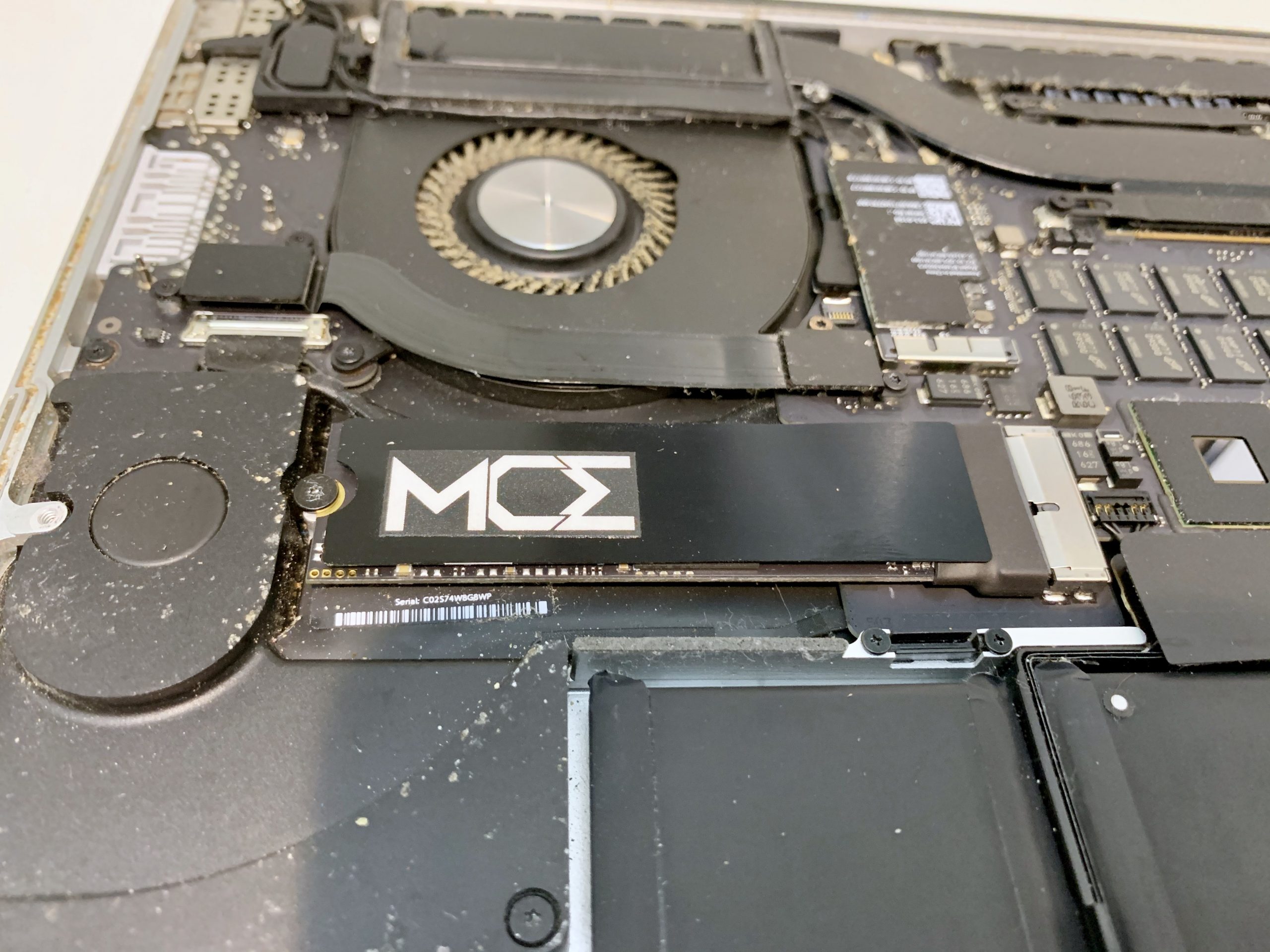
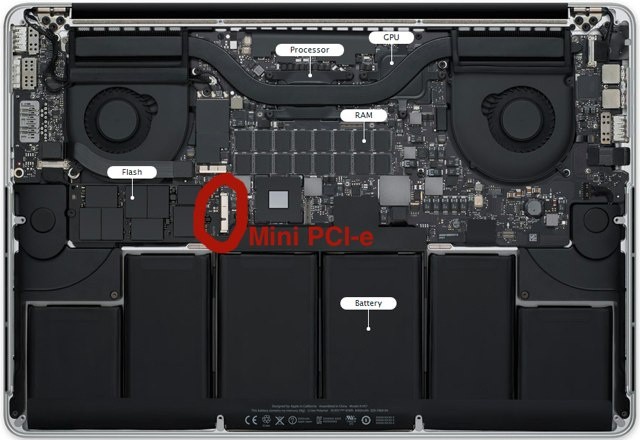
For older non-Retina models, the internal drive is normally a 2.5-inch SATA drive. For Retina models from 2012 through 2015, the drive looks more like a narrow circuit board than a traditional laptop drive.
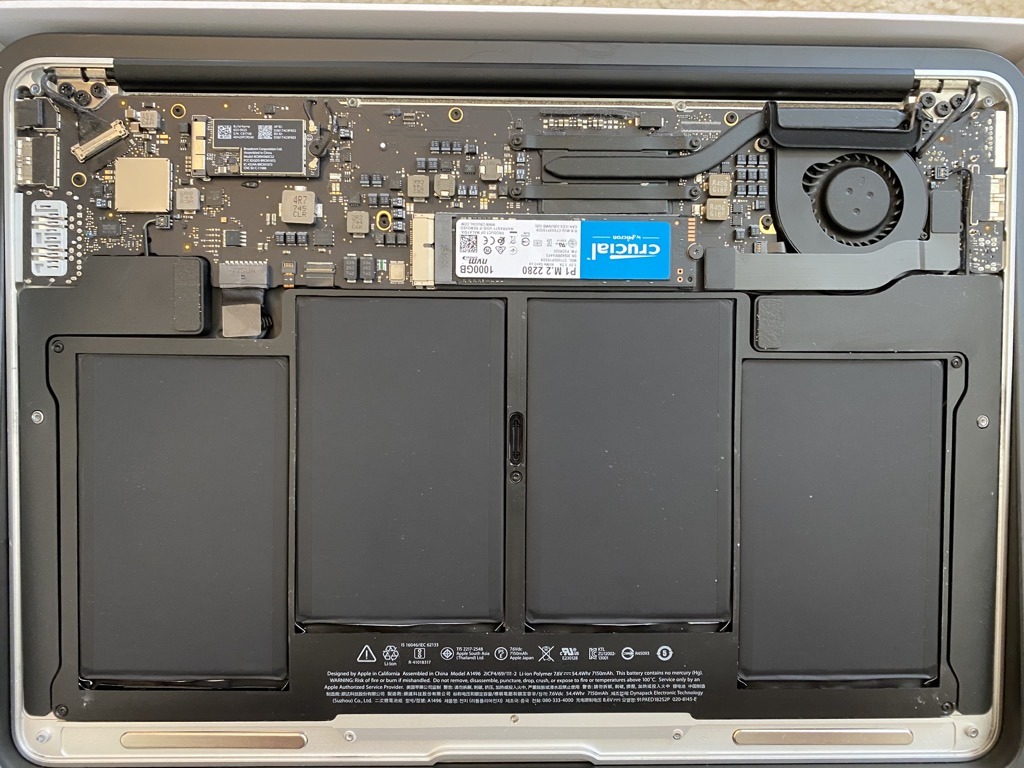
A common mistake is buying an M.2 NVMe SSD and assuming it will fit. An M.2 drive is not automatically compatible with a MacBook Pro. Some older Retina Macs can use NVMe blade drives with the correct adapter or firmware support, but compatibility varies by model and macOS version.
Which SSD Should You Buy?
The correct SSD depends on your MacBook Pro’s interface, firmware, physical space, and operating system.
SSDs for non-Retina MacBook Pro models
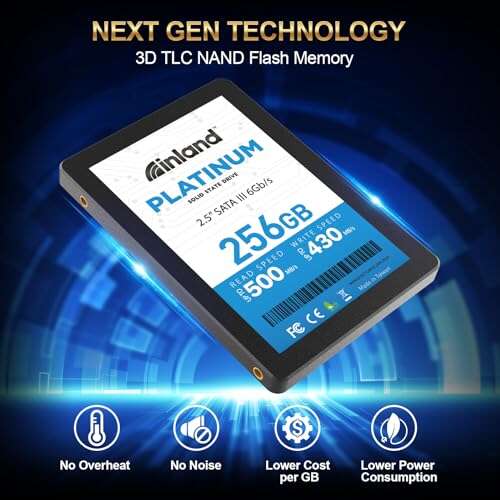
Older non-Retina models usually support a standard 2.5-inch SATA SSD. A SATA III SSD is a common choice, even if the Mac’s interface runs below the drive’s maximum speed.
Look for:
• A 2.5-inch form factor
• SATA compatibility
• At least 7 millimeters of thickness
• A reputable brand with a strong warranty
• Enough capacity for macOS, apps, and personal files
A 500GB or 1TB SSD is often a sensible upgrade. A 2TB model may work well for video, music, and photo libraries, but confirm that your Mac’s operating system and firmware support the intended setup.
SSDs for Retina MacBook Pro models
Retina models from 2012 through 2015 use removable blade-style storage. You need a drive designed for that Mac or a tested adapter and compatible NVMe SSD.
Before buying, check:
• The exact MacBook Pro model identifier
• Whether the SSD is SATA-based or PCIe-based
• Required macOS version
• Firmware requirements
• Sleep, hibernation, and power management support
• Whether an adapter is included
Cheap, untested adapters can cause boot problems, slow speeds, kernel panics, or battery drain. The lowest price is not always the lowest total cost.
In repair work, one lesson comes up again and again: compatibility is more important than advertised speed. A drive that works reliably at 1,000 MB/s is more useful than a faster drive that randomly fails to wake from sleep.
How to Upgrade the SSD in an Older MacBook Pro
The process varies by model, but the general workflow is similar. Back up your data first. A drive replacement is a hardware task, and even a small mistake can make your files inaccessible.
Before opening the MacBook Pro
Prepare the following:
• A complete Time Machine backup
• A second backup of important files if possible
• The correct replacement SSD
• A compatible screwdriver set
• A USB installer or external macOS drive
• An enclosure or adapter for cloning the old drive
• A clean, well-lit work area
Do not rely on a single backup. If the old drive fails during the upgrade, a second copy protects your photos, documents, passwords, and work files.
Installation steps for a non-Retina model
- Shut down the MacBook Pro completely.
- Disconnect the charger and all accessories.
- Remove the bottom case screws.
- Disconnect the battery if the design allows it.
- Remove the drive bracket.
- Disconnect the SATA drive.
- Transfer any mounting parts to the new SSD.
- Install the replacement drive.
- Reconnect the battery and bottom case.
- Start the Mac from macOS Recovery or a bootable installer.
- Use Disk Utility to erase and format the SSD.
- Install macOS or restore from your backup.
Apple’s modern file system, APFS, is normally the best choice for solid-state storage when supported by the macOS version you plan to install. Older systems may use Mac OS Extended, also called HFS+, depending on the operating system and hardware.
Installation steps for a Retina model
Retina MacBook Pro upgrades require more care because the blade SSD connector and screws are delicate.
- Shut down the Mac and disconnect the charger.
- Remove the bottom cover with the correct driver.
- Disconnect the battery where practical.
- Remove the SSD retaining screw.
- Lift the blade SSD gently from its connector.
- Insert the replacement SSD at the correct angle.
- Secure it without overtightening the screw.
- Reassemble the computer.
- Start macOS Recovery.
- Erase the drive and reinstall macOS.
- Restore your data.
Do not force the SSD into place. If the connector does not line up, stop and check the orientation. Small connectors can break, and a damaged logic board can cost more to repair than the MacBook Pro is worth.

Cloning or Reinstalling macOS
You have two main ways to move your data to the new SSD: cloning the old drive or creating a fresh macOS installation.
Cloning the old drive
Cloning copies the operating system, apps, settings, and files to the replacement SSD. It can save time because the new system looks much like the old one.
Cloning works best when:
• The old drive is healthy
• Both drives use compatible partition formats
• The cloning software supports your macOS version
• You want minimal downtime
Connect the new SSD with a suitable USB enclosure before installing it. Format the drive correctly, clone the old system, shut down the Mac, and install the new SSD.
Fresh macOS installation
A fresh installation gives you a cleaner start. It removes old system clutter and can solve software problems that a clone would copy to the new drive.
Choose a fresh installation when:
• The old system has errors
• The Mac has years of unused apps
• You suspect malware or corruption
• You want to reorganize your files
• You are passing the Mac to another person
Use macOS Recovery to erase the drive and install a supported macOS version. Then restore documents and settings from Time Machine or another backup.
A fresh install is like moving into a clean home. It takes more work at first, but you avoid carrying every old box into the new space.
How Much Does a MacBook Pro SSD Upgrade Cost?
The cost depends on the Mac model, SSD capacity, installation method, and whether you do the work yourself.
Typical cost areas include:
• SATA SSD for an older non-Retina MacBook Pro
• Compatible blade SSD for a Retina model
• Adapter or external enclosure
• Screwdriver and repair tools
• Professional installation labor
• Backup storage
A self-installation may cost less, but the risk is higher if you damage a connector or lose data. Professional installation costs more but may include testing, data transfer, and a limited warranty.
For newer MacBook Pro models with soldered storage, the realistic choices are different. You may need to keep the internal capacity you already have, use an external SSD, replace the logic board, or buy a Mac with more storage.
A logic board replacement is rarely an economical SSD upgrade. The board may contain the processor, memory, storage, and security components, so the repair can approach the price of another used or refurbished MacBook Pro.
External SSD Options for MacBook Pro Models That Cannot Be Upgraded
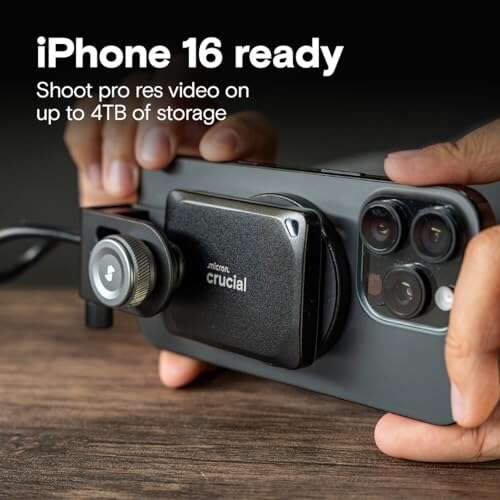
If you cannot upgrade the internal SSD, an external SSD is often the most practical answer. Modern USB-C and Thunderbolt drives can deliver excellent performance for daily work.
An external SSD works well for:
• Photos and video libraries
• Music and project files
• Backups
• Games that support external storage
• Virtual machines
• Large creative applications
• A secondary macOS startup disk on supported systems
Thunderbolt drives are usually faster than standard USB drives, but they also cost more. For documents, photos, and backups, a USB-C SSD is often fast enough.
Choose a portable SSD with:
• USB-C or Thunderbolt support
• A strong enclosure
• Good heat control
• A reliable warranty
• Enough capacity for your files
• A cable that supports the advertised speed
Keep in mind that an external drive can be lost, dropped, or disconnected. Use it with a backup plan rather than treating it as the only copy of important data.
Benefits and Drawbacks of an Internal SSD Upgrade
An internal SSD upgrade can transform an older MacBook Pro. It can reduce startup time, speed up app launches, and make the system feel much more responsive.
Main benefits
• Faster startup and wake times
• Quicker file transfers
• Better app performance
• Less noise because SSDs have no moving parts
• Lower power use than many older hard drives
• More usable space for files and applications
• Longer life for an older MacBook Pro
The biggest improvement is often the move from a mechanical hard drive to any good SSD. If your Mac still has a spinning hard disk, the change can feel like replacing a bicycle with a small electric scooter.
Main drawbacks
• Not every MacBook Pro supports an internal upgrade
• Compatible blade SSDs may be expensive
• Installation can damage delicate parts
• Older Macs may have limited processor or memory performance
• A larger SSD does not fix a failing battery
• Some adapters may have sleep or boot issues
• macOS support may limit the useful life of the computer
An SSD upgrade improves storage performance, but it cannot turn an old dual-core processor into a modern Apple silicon chip. Check the full condition of the Mac before spending money on upgrades.
Common Problems After an SSD Upgrade
Some problems appear after installation because of formatting, firmware, compatibility, or poor connections.
The Mac does not detect the SSD
Shut down the Mac and check the connection. If the SSD is still missing, verify that it is designed for your exact model and that the adapter is seated correctly.
The Mac shows a flashing folder
A flashing folder usually means the Mac cannot find a valid startup system. Start macOS Recovery, open Disk Utility, format the drive, and reinstall a supported version of macOS.
The Mac starts but runs slowly
Check whether the SSD is connected through a slower interface. Also confirm that the drive has free space and that the system is not indexing a large library after installation.
The Mac has sleep or wake problems
Some third-party NVMe upgrades in older Retina models may need specific firmware, adapters, or macOS versions. Update the system when possible, but confirm that the update supports your replacement drive first.
The computer loses files
Stop using the drive and avoid repeated recovery attempts if the data is important. Professional data recovery may be possible, but it becomes harder when new files overwrite deleted data.
Mistakes to Avoid When Upgrading a MacBook Pro SSD
The most expensive mistakes are usually avoidable.
• Do not buy an SSD before identifying the exact model.
• Do not assume every M.2 drive works in a MacBook Pro.
• Do not open the computer without a current backup.
• Do not use the wrong screwdriver. Stripped screws are difficult to remove.
• Do not touch exposed circuit contacts with your fingers.
• Do not force a connector or cable.
• Do not erase the old drive until the new system works.
• Do not ignore battery swelling. Stop using the Mac and seek professional help.
• Do not assume a larger drive will solve every performance problem.
• Do not skip post-installation testing.
After the upgrade, test Wi-Fi, sound, sleep, charging, battery health, external displays, and file transfers. A drive may appear to work while still having a connection or power-management problem.
Is It Worth Upgrading the SSD on an Older MacBook Pro?
An SSD upgrade can be worthwhile when the Mac has a replaceable drive, enough memory, and a healthy battery. It is especially useful for web browsing, office work, school tasks, light photo editing, and basic media use.
The upgrade may not be worthwhile when:
• The Mac has a damaged display or keyboard
• The battery is swollen or failing
• The logic board has faults
• The processor cannot run the software you need
• The computer no longer receives important security updates
• The total repair cost is close to a newer Mac
Think about the whole machine, not just the drive. A fast SSD can make an older Mac feel better, but it cannot solve every age-related limitation.
For a newer MacBook Pro with soldered storage, buying enough internal storage at the time of purchase is usually the safest approach. If you already own one, an external SSD offers the best balance of cost, speed, and convenience.
Frequently Asked Questions About Upgrading a MacBook Pro SSD
Can you upgrade the SSD on a MacBook Pro from 2015?
Usually, yes. Many 2015 Retina MacBook Pro models have removable blade SSDs, but the replacement must match the model’s connector and firmware requirements.
Can you upgrade the SSD on a MacBook Pro from 2017?
Usually, no. Most 2017 MacBook Pro models have storage soldered to the logic board, so a standard internal SSD replacement is not practical.
Can you upgrade the SSD on an M1 MacBook Pro?
No, not through a normal hardware upgrade. The storage is integrated into the computer’s board design, so use an external SSD or choose a higher-capacity Mac when buying.
Can you replace a MacBook Pro hard drive with an SSD?
Yes, if the MacBook Pro uses a removable 2.5-inch SATA drive. This applies mainly to non-Retina models from 2009 through mid-2012.
Will upgrading the SSD make a MacBook Pro faster?
It can make a major difference, especially when replacing a mechanical hard drive. An SSD improves startup, app loading, and file access, but it does not upgrade the processor or memory.
Do you need to reinstall macOS after replacing the SSD?
Usually, yes, unless you successfully clone the old drive. You can reinstall macOS through Recovery and then restore your files from a verified backup.
Is an external SSD as good as an internal MacBook Pro SSD?
An external SSD can be very fast, especially through Thunderbolt or USB-C. It may not be as convenient as internal storage, but it is the best option for MacBook Pro models with soldered SSDs.
Conclusion
You can upgrade the SSD on a MacBook Pro when the model has removable storage. Older non-Retina models commonly accept 2.5-inch SATA SSDs, while many Retina models from 2012 through 2015 use removable blade drives. Most MacBook Pro models from 2016 onward have soldered storage, making an external SSD the safer and more affordable choice.
Start by checking the exact model identifier, create at least one complete backup, and confirm drive compatibility before opening the computer. If you are unsure, compare the repair cost with the value of the Mac and consider professional installation. Explore reliable storage options, protect your data with regular backups, and share your MacBook Pro model in the comments if you need help choosing the right upgrade.

Everett Ashford is a tech reviewer at mytechgrid.com specializing in SSDs, cameras, TVs, earbuds, headphones, and other consumer electronics. He provides honest, data-driven reviews based on hands-on testing and real-world performance analysis. Everett simplifies complex tech details to help readers make smart, confident buying decisions.