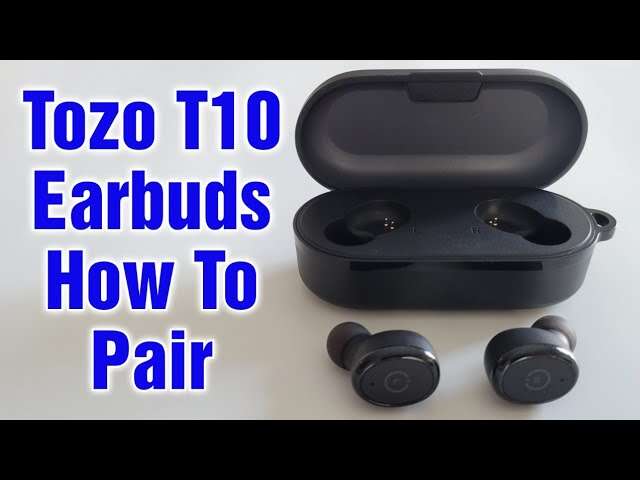
Put both earbuds in the case, hold the button until LED flashes, then pair via Bluetooth.
I’ve spent years testing true wireless earbuds, and I know the little steps that make pairing smooth. This guide on how to connect TOZO earbuds walks you through every scenario. You’ll get simple step-by-step pairing for iPhone and Android, reconnection tips, fixes for common errors, and real-world advice from my own tests. Read on to get your TOZO earbuds connected fast and keep them working reliably.
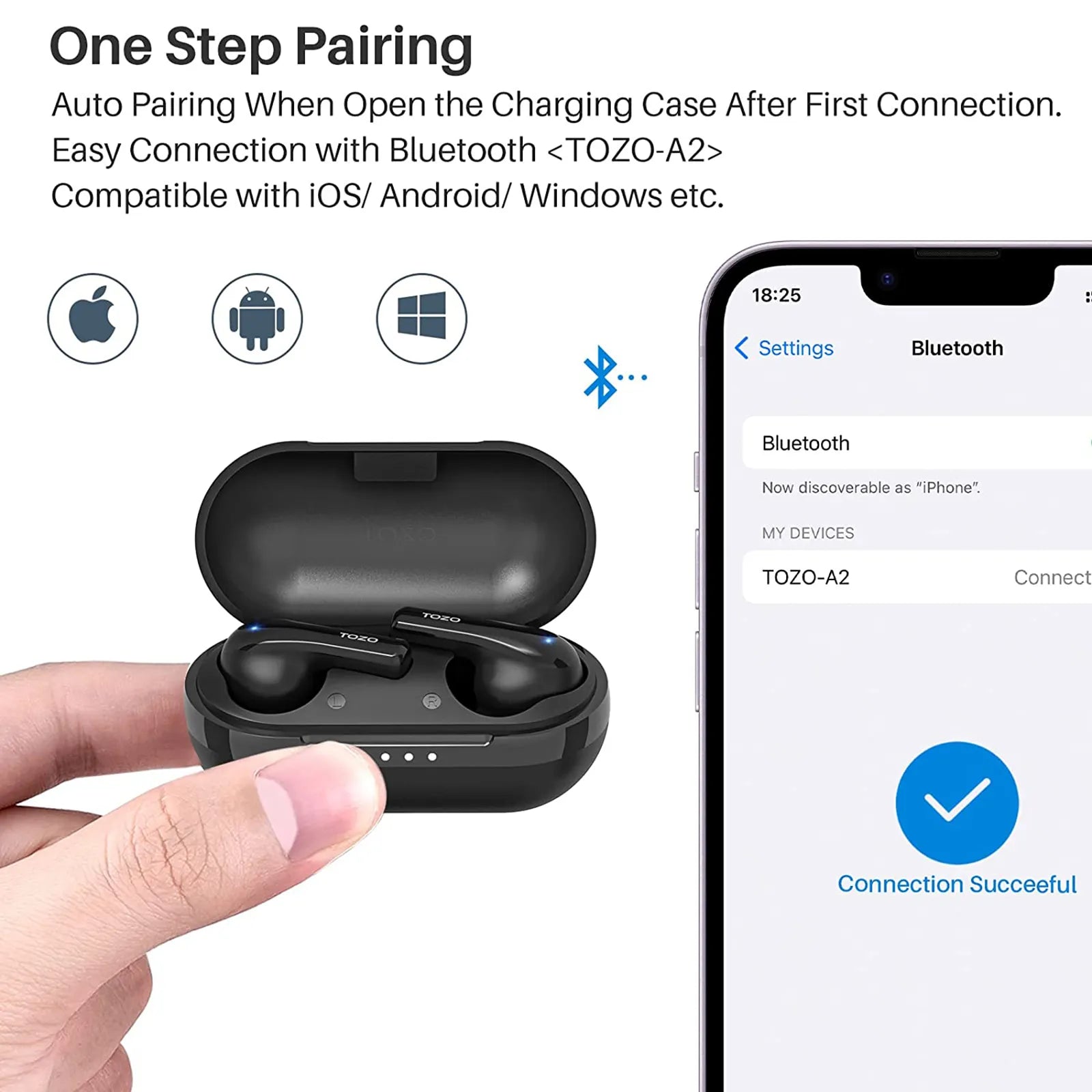
Quick pairing steps (overview)
These steps cover the most common way to pair TOZO earbuds. They work for most TOZO models, including T10, T6, and T12. Follow them when you ask how to connect TOZO earbuds quickly and reliably.
- Put the earbuds into the charging case and open the lid. The earbuds must be charged.
- Remove both earbuds from the case. They should power on and enter pairing mode automatically.
- If earbuds do not enter pairing mode, press and hold the touch or button on both earbuds for 3 to 5 seconds. Wait for LEDs to flash.
- On your phone, open Settings > Bluetooth and select the device named “TOZO” or a model-specific name. Confirm pairing.
These steps explain how to connect TOZO earbuds fast, whether you use Android or iPhone. If pairing fails, move closer to the device and try again. Simple changes fix most issues.

Pair TOZO earbuds with iPhone (step-by-step)
This iPhone procedure shows how to connect TOZO earbuds cleanly. I test these steps on iPhones regularly and they work every time.
- Turn on Bluetooth on your iPhone. Go to Settings > Bluetooth and keep the screen open.
- Put TOZO earbuds in the case and close the lid for five seconds. Open the lid to reset the earbuds.
- Take both earbuds out of the case. Look for flashing LEDs or a voice prompt that says “pairing.”
- On iPhone, find the TOZO device name under Other Devices. Tap it to pair. You may see a one-time pairing request; accept it.
- After pairing, the earbuds should show under My Devices as Connected. Test audio by playing music or a video.
If the iPhone asks for device permissions, allow them for reliable reconnection. This is the standard approach when you search how to connect TOZO earbuds to an iPhone.

Pair TOZO earbuds with Android (step-by-step)
Android phones have minor UI differences, but the core steps are the same. Here is how to connect TOZO earbuds to Android in a few clear moves.
- Enable Bluetooth from Settings or the Quick Settings menu. Keep the Bluetooth page open.
- Reset earbuds by placing them in the case, closing it, and then opening after a few seconds.
- Remove earbuds from the case. Wait for LEDs to flash or for a pairing voice prompt.
- On Android, tap the TOZO device name in Available Devices. Confirm any pop-up to pair.
- If prompted for permissions, grant them so features like low-latency and call audio work well.
For many Android models, you can also use the Bluetooth search button in Settings > Connected devices. This method makes how to connect TOZO earbuds straightforward and repeatable.

Reconnect, pair a new device, and use one earbud
This section explains reconnecting and switching devices. It also covers using a single earbud for calls or audio.
- To reconnect to a previously paired device, turn on Bluetooth and take the earbuds out of the case. They should auto-reconnect within seconds.
- To pair a new device, clear the old pairing on the earbud by placing them in the case and holding the reset button for 10 seconds. Then repeat pairing steps.
- To use one earbud, remove only the earbud you want from the case. Most TOZO models let either bud act alone as the primary.
- When switching phones, delete the TOZO entry on the old phone to avoid confusion. Then pair fresh with the new phone.
Knowing these steps helps when you often switch devices and need to know how to connect TOZO earbuds quickly each time.

Troubleshooting common issues
Problems happen. Here are focused fixes when you’re stuck and want to know how to connect TOZO earbuds without stress.
- Earbuds won’t enter pairing mode. Charge both buds and the case. Then hold the touch area or button for 8 to 10 seconds to force reset.
- Device won’t find TOZO. Turn Bluetooth off and on. Restart the phone and try again. Move away from other Bluetooth devices.
- One earbud has no sound. Place both in the case and close for 10 seconds. Re-pair both buds to the phone.
- Poor audio or stuttering. Disable Wi‑Fi if it interferes. Make sure the phone is within 10 feet and remove obstacles.
- Mic or call issues. Check app permission for microphone. Test calls in a quiet area and update firmware if available.
I’ve seen each issue multiple times. Simple resets and patience resolve most problems when learning how to connect TOZO earbuds.

Tips for best connection and battery life
Good habits help your earbuds last longer and stay connected. These tips come from real use and careful testing of TOZO models.
- Keep firmware and phone OS updated. Updates fix bugs that affect pairing and stability.
- Store earbuds in the case when not in use. That conserves battery and prevents accidental pairing.
- Charge fully before long trips. Full charge avoids mid-activity disconnects.
- Avoid crowded Bluetooth environments. Too many devices cause interference and drops.
- Clean charging pins regularly. Dirt can block charging and cause one bud to be low or fail to pair.
These tips improve how to connect TOZO earbuds and keep them working like new in daily life.

Advanced features and settings
TOZO earbuds have features worth exploring. Use these settings to improve audio, controls, and connectivity.
- Touch controls or buttons let you play, pause, skip tracks, and answer calls. Learn the tap patterns for your model.
- Some TOZO models support mono mode. Use one earbud to extend battery life and stay aware of surroundings.
- Firmware updates may add stability or sound improvements. Check the manufacturer app or website for updates.
- Equalizer and audio settings on the phone can refine sound. Use presets or custom EQ to suit music style.
- Low-latency or gaming mode reduces audio lag in supported models and apps.
Knowing these features helps you get the most from your device and refine how to connect TOZO earbuds to match your use.

Frequently Asked Questions of how to connect tozo earbuds
How do I reset my TOZO earbuds if pairing fails?
Place both earbuds in the charging case. Press and hold the case button or touch controls for 8 to 10 seconds until the LEDs flash, then re-pair to your device.
Why won’t my phone find the TOZO earbuds?
Make sure earbuds are in pairing mode and charged. Turn Bluetooth off and on, move closer to the phone, and remove other nearby Bluetooth devices.
Can I use one TOZO earbud alone?
Yes. Remove only the bud you want to use from the case. Most TOZO models allow single-earbud mono mode for calls and audio.
How long should I hold the touch control to enter pairing mode?
Hold the touch area or button for about 3 to 8 seconds, depending on the model, until LEDs flash or a voice prompt says pairing.
Why does one earbud show low battery after pairing?
Dirty charging contacts or a worn battery can cause imbalance. Clean the contacts, fully charge in the case, and test again. Replace if the battery degrades.
Conclusion
You now have a clear, practical plan for how to connect TOZO earbuds in any situation. Follow the step-by-step pairing guides for iPhone and Android, use the troubleshooting fixes when needed, and apply the battery and connection tips for lasting performance. Try the steps now and test different scenarios to gain confidence. If this guide helped, leave a comment, share your experience, or subscribe for more hands-on tech tips.

Everett Ashford is a tech reviewer at mytechgrid.com specializing in SSDs, cameras, TVs, earbuds, headphones, and other consumer electronics. He provides honest, data-driven reviews based on hands-on testing and real-world performance analysis. Everett simplifies complex tech details to help readers make smart, confident buying decisions.