Pair your Beats via Bluetooth: open the case or hold the power button and enable Bluetooth on your device.
I've connected and tested dozens of Beats models, so I'll walk you through exactly how to connect Beats wireless earbuds step by step. This guide covers iPhone, Android, Mac, and Windows pairing, model-specific quirks, troubleshooting, and real-world tips I learned from hands-on use. Read on to get a fast, reliable connection every time.

Why pairing matters and how Beats connect
Pairing links your earbuds and device so audio streams wirelessly. Most modern Beats earbuds use Bluetooth. Some models include Apple’s H1 or W1 chip to streamline pairing with Apple devices. Knowing the chip and pairing method helps when things go wrong.
Bluetooth handles audio, calls, and controls. The Beats app or device settings let you check battery and firmware. If you know how to connect Beats wireless earbuds, you save time and avoid common errors like low battery or interference.
How to connect Beats wireless earbuds — step-by-step
Below are clear steps you can follow for most Beats earbuds. I include special steps for phones, computers, and the most common Beats models.
General quick steps
- Make sure earbuds are charged and nearby.
- Turn on Bluetooth on your phone, tablet, or computer.
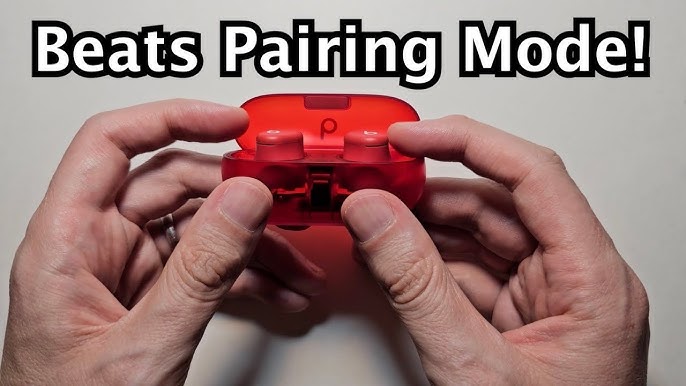
- Put the earbuds in pairing mode (open case or press power/pair button).
- Select your Beats from the Bluetooth list.
- Confirm connection and test audio.
How to connect Beats wireless earbuds to iPhone or iPad
- Unlock your iPhone and hold the earbuds case near it with the lid open. For true wireless models, a popup often appears automatically.
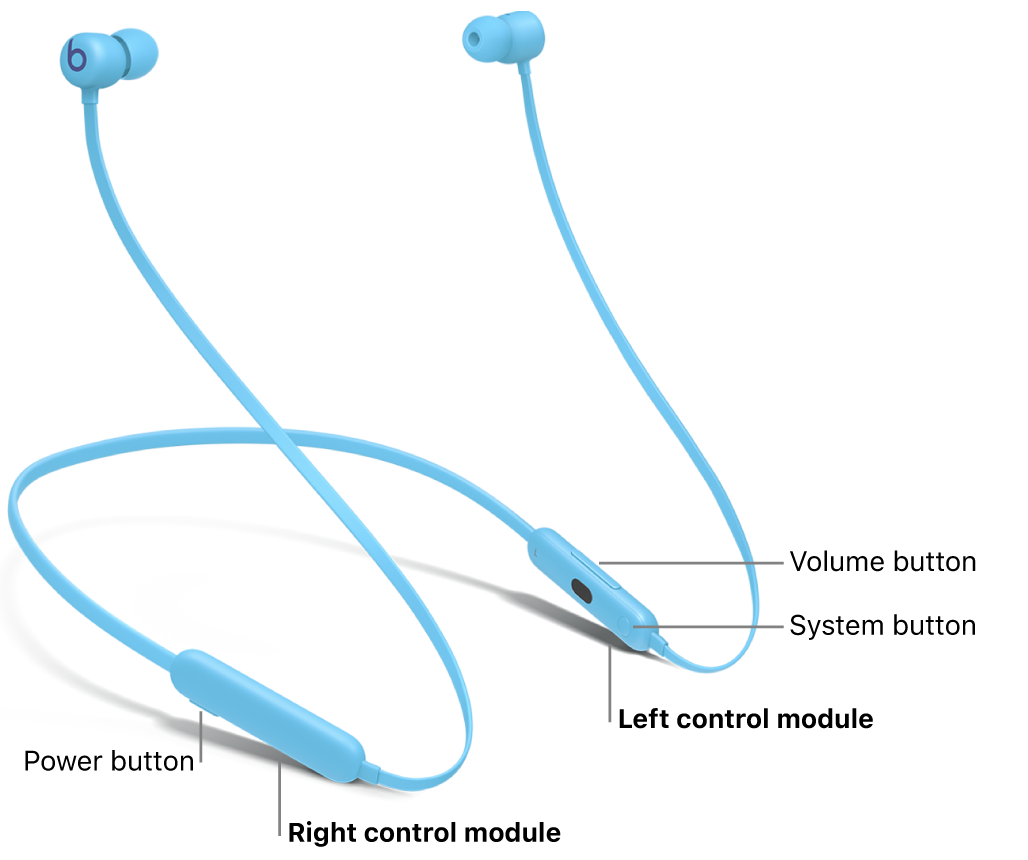
- If no popup appears, put the earbuds in pairing mode by pressing and holding the system button until the LED flashes.
- Tap Connect in the popup or choose the Beats name in Settings > Bluetooth.
- Check battery status in Control Center or the Bluetooth menu.
How to connect Beats wireless earbuds to Android
- Open Settings > Connections > Bluetooth and turn Bluetooth on.
- Put the earbuds in pairing mode: open the case or press the power/pair button until the LED blinks.
- Look for your Beats model under Available Devices and tap to pair.
- If prompted for a passcode, use 0000 or accept the pairing request.
How to connect Beats wireless earbuds to Mac
- Turn on Bluetooth on your Mac via System Settings > Bluetooth.
- Put the earbuds in pairing mode.
- Select the Beats entry in Bluetooth devices and click Connect.
- If audio does not route automatically, open Sound settings and choose Beats as output.
How to connect Beats wireless earbuds to Windows PC
- Open Settings > Bluetooth & devices and turn on Bluetooth.
- Put earbuds into pairing mode.
- Click Add device > Bluetooth and choose your Beats from the list.
- Set Beats as the audio output in Sound settings if needed.
Quick note on the phrase that matters
Whenever you search how to connect Beats wireless earbuds, follow the device-specific steps above first. They solve most pairing problems quickly.
Model-specific instructions and tips
Every Beats model can behave a bit differently. Here are common models and what to watch for.
Beats Studio Buds and Studio Pro
- Open case near your phone for instant pairing with iPhone or hold the system button for Android pairing.
- Studio Buds support fast pairing and often show battery levels on phones.
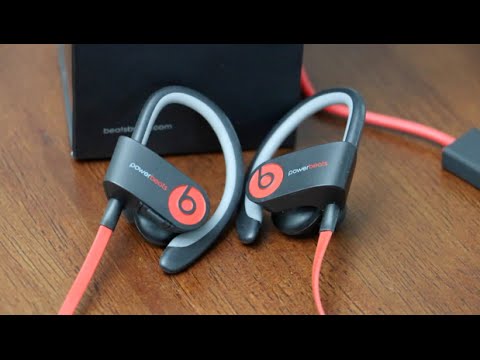
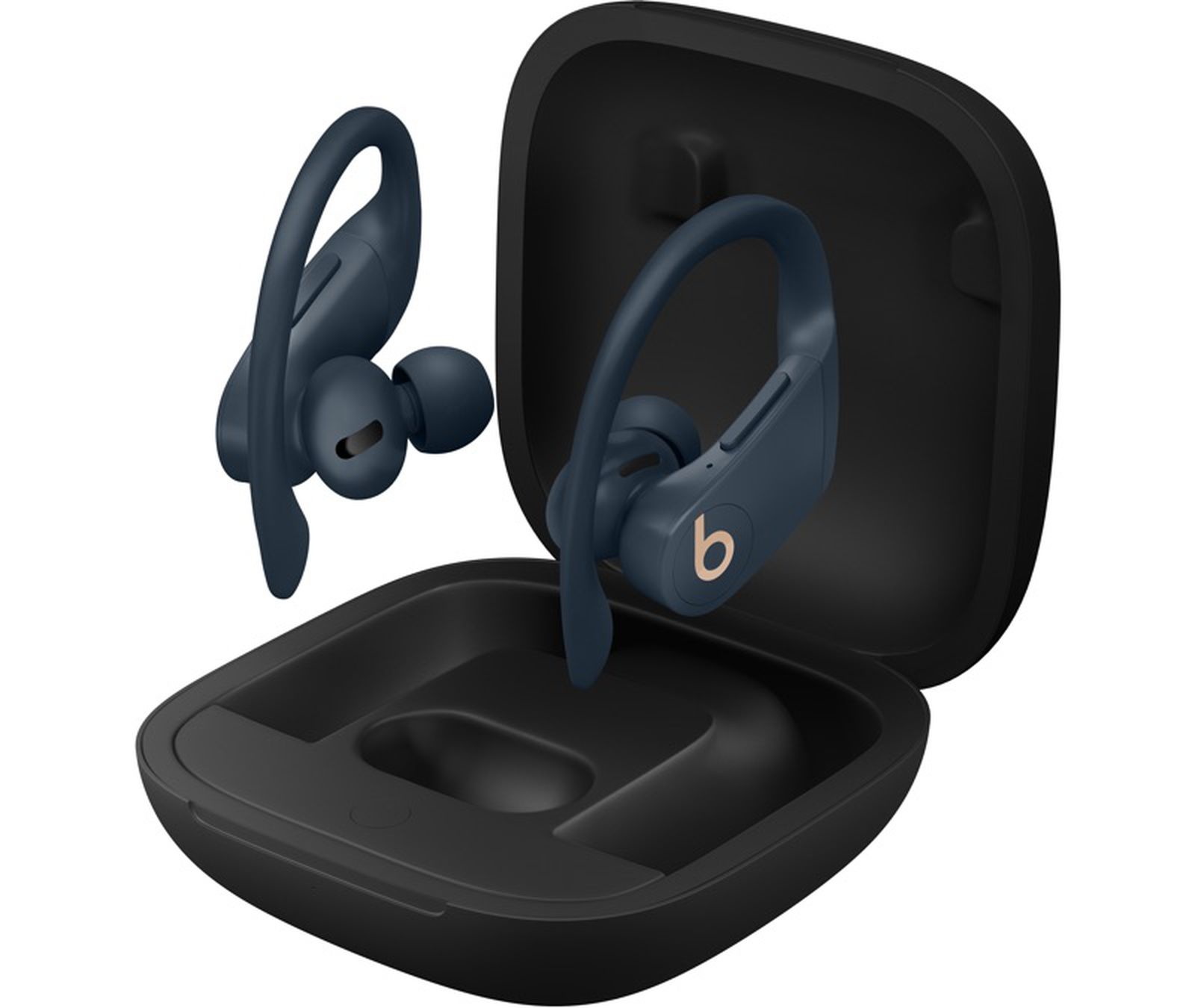
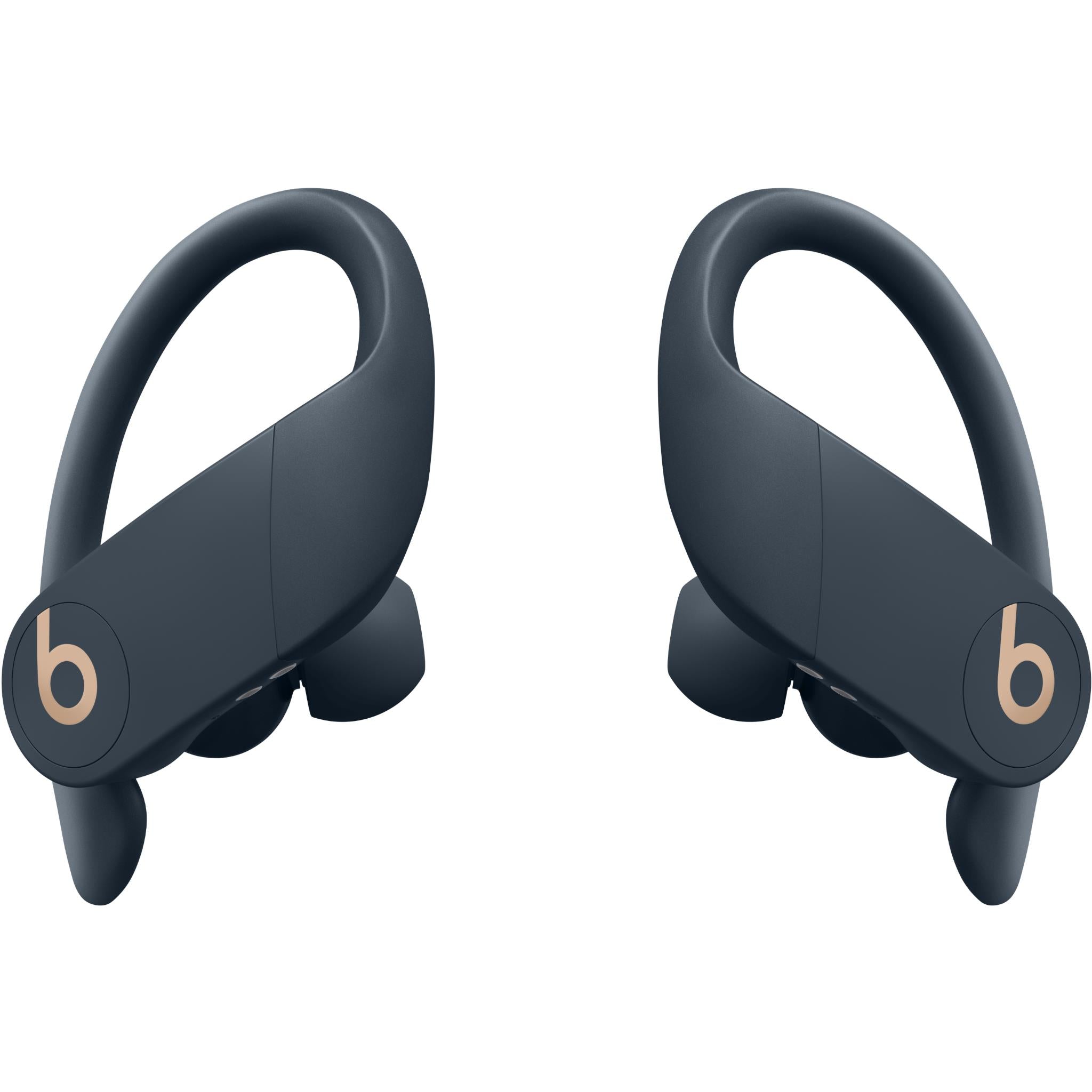
Powerbeats Pro
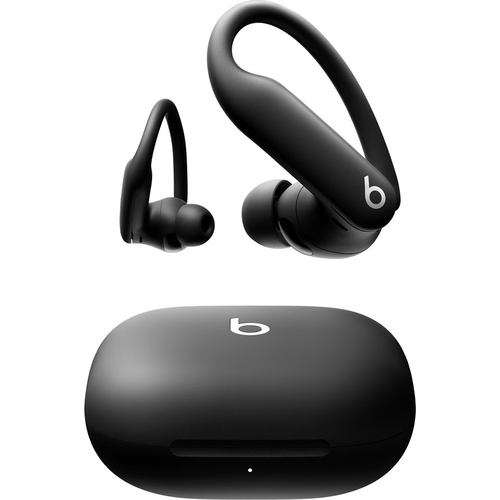
- Remove both earbuds from the case. They enter pairing automatically the first time.
- For one-ear use, place the other bud back in case. To reset, hold the button on both earbuds for 15 seconds.
Beats Flex and Beats Solo (Bluetooth headphones)
- Press and hold the power/pair button until the LED flashes to enter pairing mode.
- On first use with iPhone, you may get a setup popup.
Beats Fit Pro
- Like Studio Buds, they pair quickly with iPhone and offer Active Noise Cancellation. Use the Beats app for firmware updates and control.
BeatsX and older models
- Hold the power button until the LED flashes. Pair through device Bluetooth settings.
Multipoint and chip differences
- Some Beats support multipoint (connected to two devices). Check model specs. H1 chip devices reconnect faster to Apple hardware. If multipoint is important, verify support before buying.
Troubleshooting common pairing problems
If you struggle to pair your earbuds, try these steps in order. I use this sequence when testing Beats and it fixes most issues.
Reset and retry
- Put earbuds in case and close it for 10 seconds.
- Open the case and press the pairing button for 15–20 seconds until the LED flashes a reset pattern.
- Try pairing again.
Clear device Bluetooth list
- Remove or forget the Beats from your phone or computer Bluetooth list.
- Restart Bluetooth and re-pair.
Charge fully
- Low battery can block pairing. Charge both earbuds and case for at least 15–30 minutes.
Reduce interference
- Move away from Wi-Fi routers, microwaves, or other Bluetooth devices.
- Try pairing in a different room.
Update firmware and apps
- Use the Beats or manufacturer app to check for firmware updates. Updated firmware fixes compatibility and stability issues.
Check device compatibility
- Very old Bluetooth stacks may not support modern codecs or pairing methods. Update your device OS where possible.
Call and audio problems after pairing
– Set Beats as audio output in app or system sound settings.
- If calls use poor audio, switch the Bluetooth audio profile in settings or restart the phone.
If none of these work, contact Beats support or book a service visit. Share model and operating system details to speed help.
Tips for best connection and battery life
Small habits make a big difference. These are practical tips I’ve learned using Beats earbuds daily.
- Keep firmware updated to avoid bugs and improve battery life.
- Store earbuds in the case when not in use to preserve charge.
- Charge your case periodically; a drained case can prevent pairing.
- Avoid Bluetooth heavy zones like crowded public transit for best quality.
- When using only one earbud, store the other in the case to save battery and avoid reconnection issues.
- Use the Beats app for Android to check battery and enable features when available.
- If you need lower latency for gaming, use devices with low-latency Bluetooth or wired connection when possible.
PAA-style quick questions
How fast should pairing take?
- Most Beats pair within 5–15 seconds once in pairing mode. If it takes longer, check battery and Bluetooth status.
Will Beats connect to multiple devices at once?
- Some models support multipoint. Check the model’s specs. If your model doesn’t, disconnect one device before pairing another.
Can I use one earbud only?
- Yes. Many Beats let you use a single earbud. For best behavior, put the unused bud back in the case.
How to update Beats firmware?
- Use the Beats or device settings on a paired phone to check for updates. Follow on-screen prompts to install.
What if the earbuds won’t appear in Bluetooth list?
- Reset earbuds, forget them on the device, and try again. Charge the earbuds and move closer to the device.
Frequently Asked Questions of how to connect beats wireless earbuds
How do I put my Beats into pairing mode?
Press and hold the power or system button on the earbuds or open the case for models that auto-pair until the LED flashes.
Why won’t my device find my Beats?
Common causes are low battery, earbuds not in pairing mode, or device Bluetooth cache needs clearing. Try resetting and charging.
Do Beats automatically reconnect after first pairing?
Yes. Most Beats automatically reconnect to the last paired device when Bluetooth is on and the earbuds are near.
How do I reset my Beats earbuds?
Hold the power/pairing button for 15–20 seconds until the LED blinks or follows the model-specific reset pattern.
Can I pair Beats with two devices at the same time?
Some Beats models support multipoint. Check your model’s specs. If unsupported, you must disconnect one device before pairing another.
Why is the sound cutting out on one side?
This can be a low battery, loose earbud, or Bluetooth interference. Charge both buds, reinstall them properly, and move closer to the source device.
How do I update beats firmware without the Beats app?
Firmware updates typically require the Beats app or an iOS device. Check the manufacturer instructions for alternatives.
Conclusion
You now have the full playbook for how to connect Beats wireless earbuds across phones, computers, and different Beats models. Use the pairing steps, model tips, and troubleshooting order I shared and you’ll solve almost every connection issue quickly. Try the resets and firmware updates first, and keep your earbuds charged and close to your device for the best experience. If this guide helped you, leave a comment with your model and issue, or subscribe for more practical audio tips.

Everett Ashford is a tech reviewer at mytechgrid.com specializing in SSDs, cameras, TVs, earbuds, headphones, and other consumer electronics. He provides honest, data-driven reviews based on hands-on testing and real-world performance analysis. Everett simplifies complex tech details to help readers make smart, confident buying decisions.