You can use Bluetooth headphones on PS4 with a USB Bluetooth adapter or via Remote Play.
I’ve helped dozens of gamers set up wireless audio on PS4 systems. This guide explains exactly how to use Bluetooth headphones on PS4, why Sony limits direct pairing, the reliable workarounds, step-by-step setup, real-world tips, and how to avoid lag or chat issues. Read on for practical steps, troubleshooting, and buying advice so your next session sounds great.
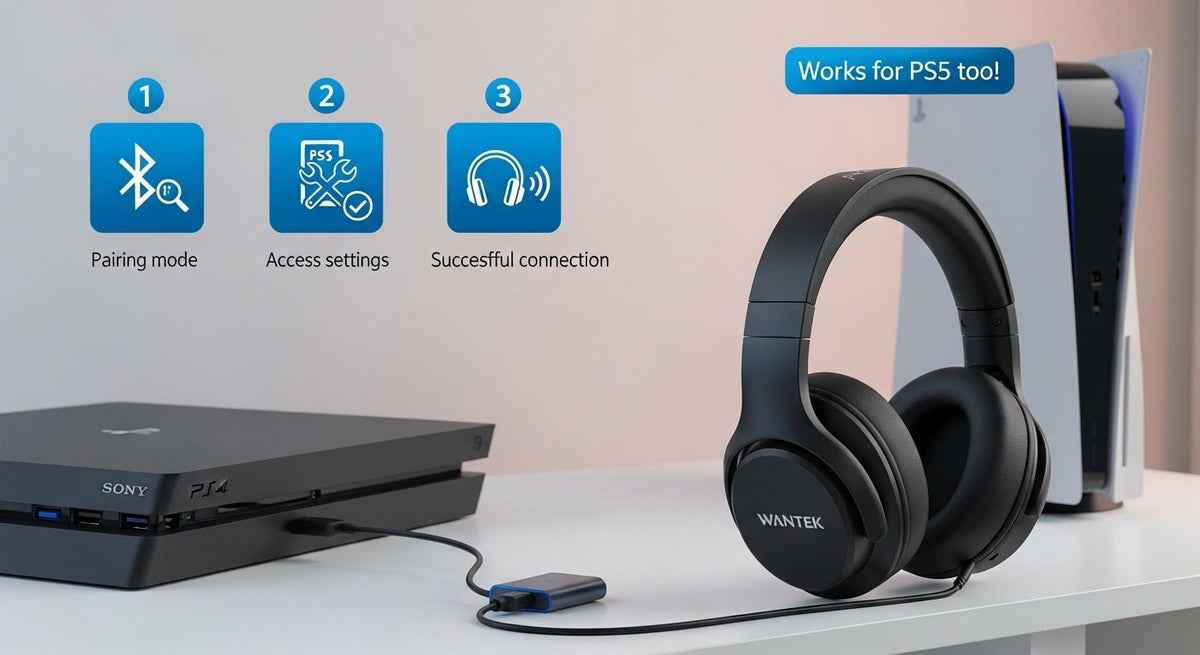
How Bluetooth works on PS4
Sony limits native Bluetooth support on PS4. The console only pairs with a few PlayStation-certified headsets and certain controllers. Most generic Bluetooth headphones will not pair directly with the PS4 via the console’s Bluetooth menu.
That means you will usually need a workaround to use standard Bluetooth headphones on PS4. Common methods include using a USB Bluetooth adapter, using Remote Play on a phone or PC, using wired output from the controller, or buying a PS4-compatible wireless headset.
These limits exist because Sony reserves Bluetooth bandwidth and profiles for controllers, microphones, and licensed headsets. Knowing this helps you pick the right method and gear.

Ways to use Bluetooth headphones on PS4
Below are the practical ways to use Bluetooth headphones on PS4. I list pros, cons, and when each method makes sense.
- USB Bluetooth adapter
- Pros: Low cost, easy setup, works with most headphones that support the adapter profile.
- Cons: Some adapters add lag; microphone/chat may not work unless adapter supports headset profile.
- Remote Play (PC, Mac, iOS, Android)
- Pros: Uses phone/PC audio and mic; no hardware purchase required.
- Cons: Requires network throughput and adds tiny latency. Not ideal for competitive play.
- Wired connection to DualShock 4
- Pros: Zero Bluetooth pairing. Works with any headphones that have a 3.5mm jack.
- Cons: Wired only; no Bluetooth freedom.
- Official PS4 wireless headsets
- Pros: Full support for chat and game audio, low latency.
- Cons: More costly than adapters.
Pick the method that suits your play style. I prefer a low-latency USB adapter for single-player gaming and Remote Play when I want chat on my phone.
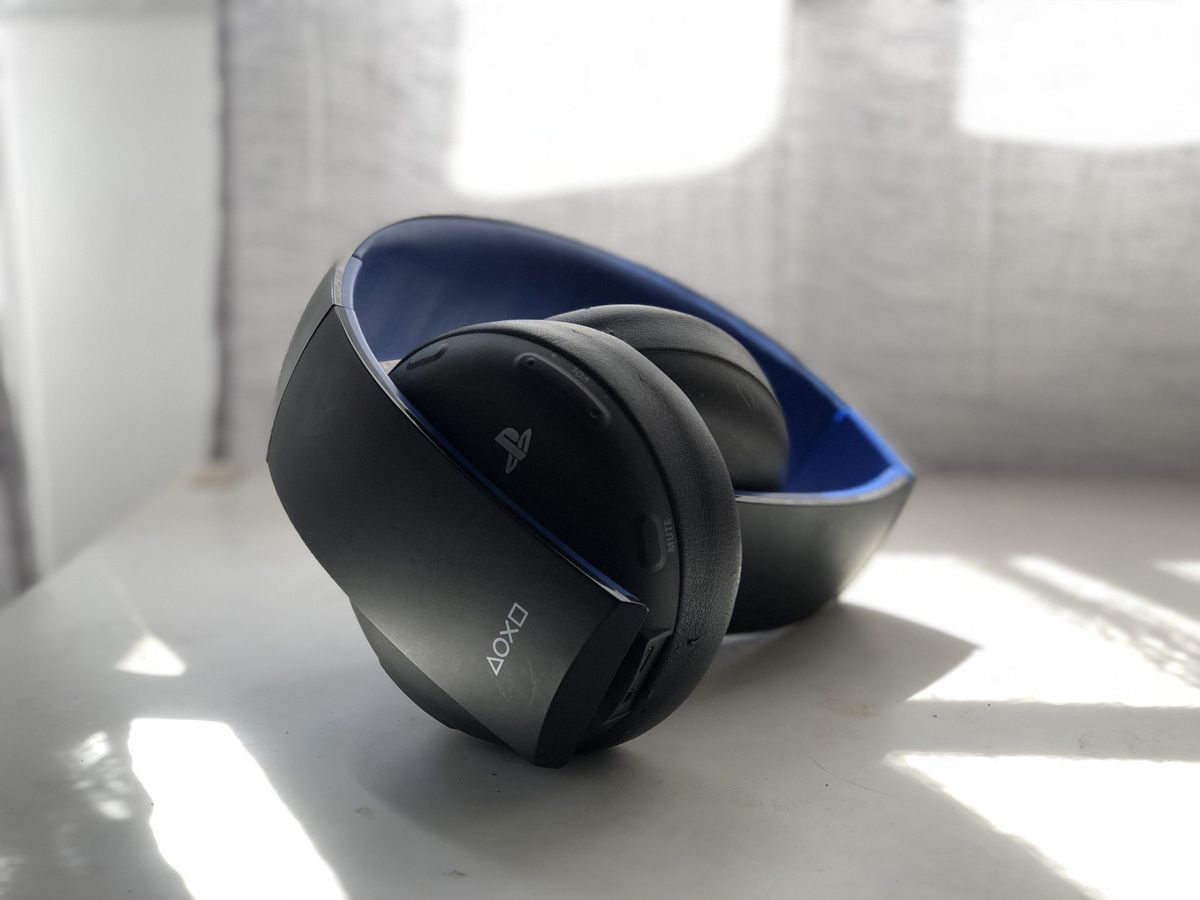
Step-by-step: Connect Bluetooth headphones to PS4 using a USB adapter
This is the most common and practical way to use Bluetooth headphones on PS4.
- Buy a compatible USB Bluetooth adapter that says it supports PS4 or supports Bluetooth audio/headset profiles (HSP/HFP/A2DP/AVRCP).
- Turn off your PS4 headphones and put them in pairing mode.
- Plug the USB Bluetooth adapter into a USB port on the PS4 (front or back).
- Power on the PS4. The adapter should auto-pair with your headphones or let you initiate pairing through the headphone’s method.
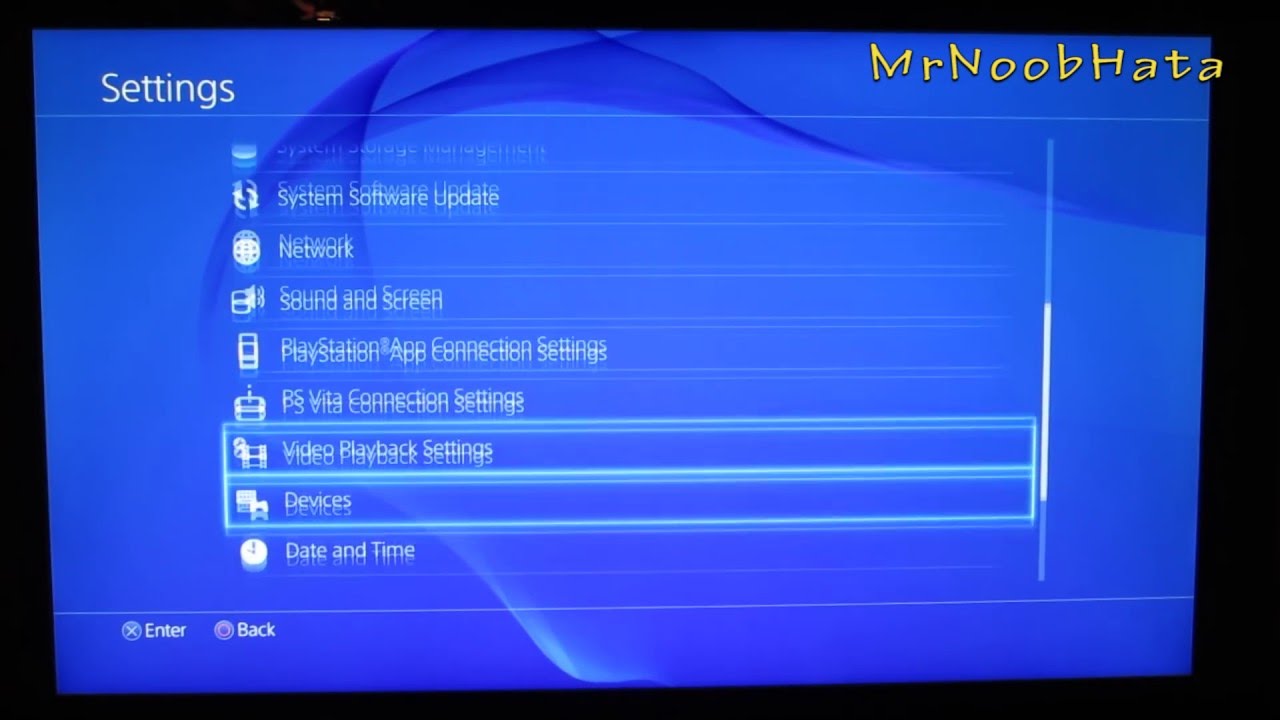
- Once paired, go to Settings > Devices > Audio Devices.
- Set Input Device and Output Device to the adapter if shown. Adjust volume and microphone level.
- Test sound with a game or media. If chat doesn't work, set "Output to Headphones" to "All Audio" or "Chat Audio" depending on the adapter.
If the adapter uses a dedicated dongle for its own wireless protocol (not standard Bluetooth), follow the adapter maker’s instructions. Those dongles often reduce lag and support microphone functions.

Using Remote Play to use Bluetooth headphones on PS4
Remote Play streams PS4 audio and video to a PC, Mac, or mobile device. This method lets you use Bluetooth headphones that pair with your phone or computer.
- Install Remote Play on your device and sign in with your PlayStation Network account.
- Connect your controller to the device or use on-screen controls.
- Pair your Bluetooth headphones with your device as normal.
- Launch Remote Play and start streaming. Audio and mic go through your device and headphones.
This is a great way to use Bluetooth headphones on PS4 without buying hardware. It can add a small delay based on your network. For local Wi‑Fi, delay is often negligible.
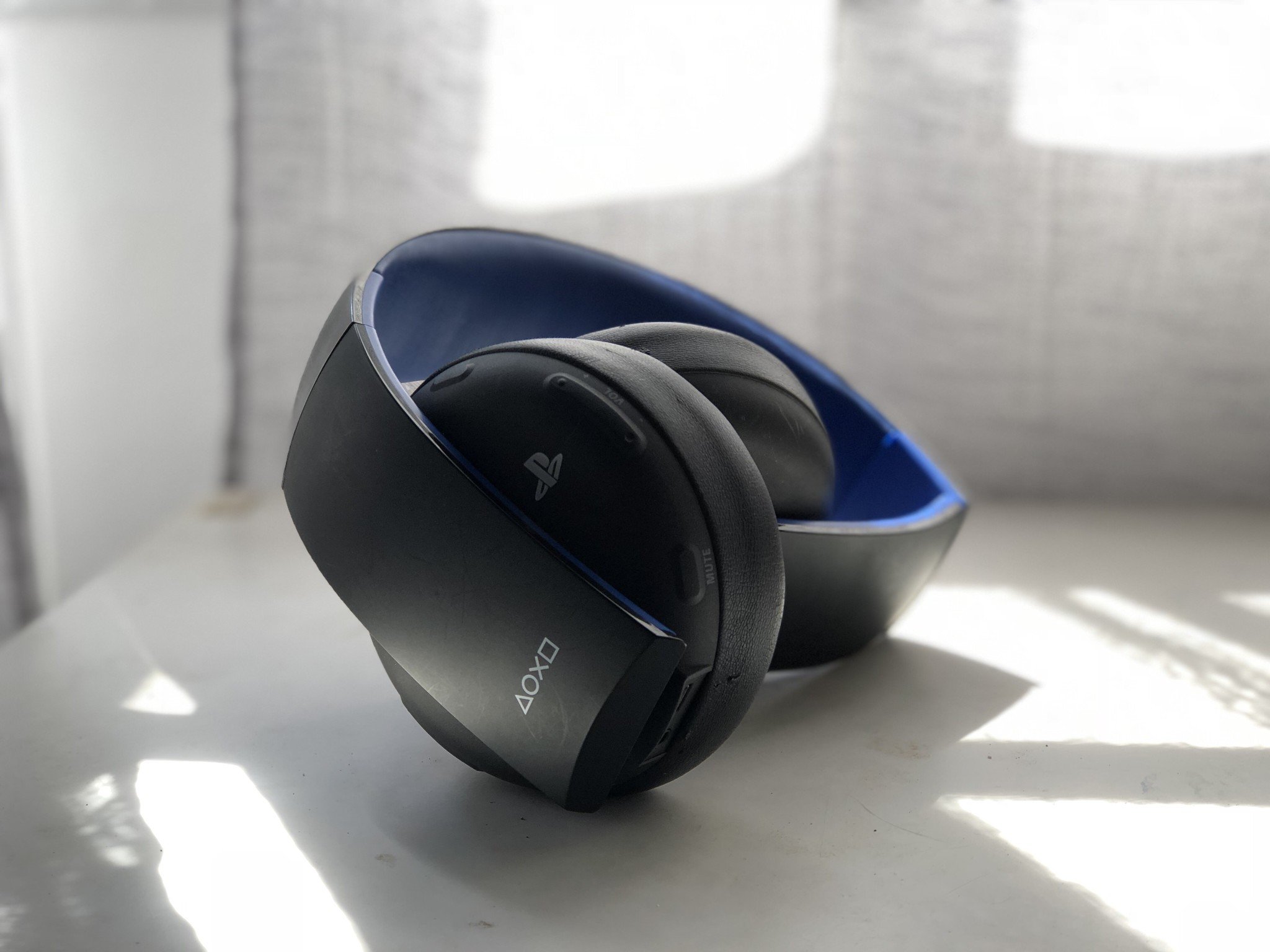
Wired alternative: use the DualShock 4 jack
If you want simple, lag-free audio, use a wired headset with the DualShock 4 controller.
- Plug a wired headset into the 3.5mm jack on the controller.
- Press the PS button and go to Settings > Devices > Audio Devices.
- Set Output to Headphones and adjust volume.
This method doesn’t answer the question of Bluetooth, but it’s reliable when low latency is essential.

Troubleshooting and tips
Short, practical fixes I use often.
- Headset not pairing with adapter
- Make sure headset is in pairing mode. Try resetting the headset and adapter.
- No chat audio
- Many adapters handle only stereo audio (A2DP). You need an adapter that supports microphone profiles (HFP/HSP) for chat.
- Audio lag
- Use a low-latency adapter (aptX Low Latency) or a proprietary dongle. Remote Play over wired LAN reduces lag.
- One side quiet or no audio
- Check balance in the PS4 audio settings. Test headset on phone to rule out hardware fault.
- Controller audio only
- If adapter is recognized as USB audio, set Output Device to it in Settings > Devices > Audio Devices.
I once bought a cheap adapter that only supported stereo. I couldn’t use voice chat until I swapped for a headset-profile adapter. Lesson: check headset profiles before buying.
Buying advice: what to look for
When buying gear to use Bluetooth headphones on PS4, focus on these points.
- Adapter support
- Look for USB adapters that list PS4 or headset profiles (HSP/HFP).
- Low latency
- Choose aptX Low Latency or a dongle with proprietary wireless for the best sync.
- Mic support
- If you need voice chat, confirm the adapter supports microphone input.
- Range and build
- Check range specs and user reviews for reliability.
- Official wireless headsets
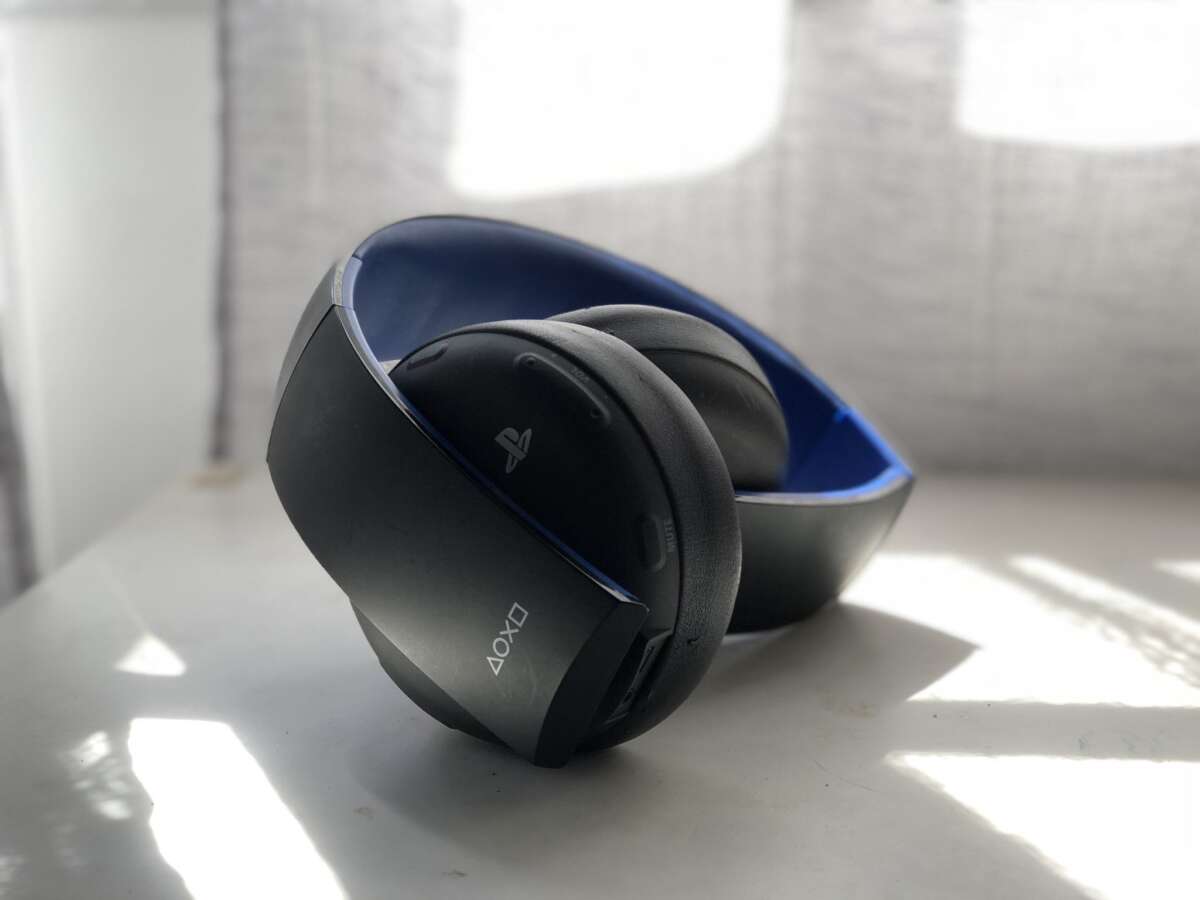
- Consider PS4-certified headsets if you want plug-and-play support.
I recommend paying a bit more for an adapter that explicitly lists headset and mic support. The small cost saves a lot of frustration.

People also ask
Here are quick answers to common PAA-style questions users search for.
- Can you pair any Bluetooth headphones with PS4?
- No. PS4 does not allow pairing of most generic Bluetooth headphones. Use an adapter, Remote Play, or a wired connection.
- Do USB Bluetooth adapters work with PS4?
- Many do. Choose one that supports headset profiles and is known to work with PS4.
- Will Bluetooth cause lag on PS4?
- Bluetooth can add latency. Low-latency adapters or proprietary dongles reduce this delay.
- Can I use my phone as a Bluetooth bridge for PS4 audio?
- Yes, via Remote Play. Your phone handles the Bluetooth pairing and audio.
- Is it better to buy a PS4 wireless headset?
- If you want guaranteed compatibility and low lag, a PS4-certified headset is often the easiest choice.
Frequently Asked Questions of how to use bluetooth headphones on ps4
How do I connect Bluetooth headphones to PS4 without an adapter?
You can use Remote Play on a PC or mobile device and pair your headphones to that device. Otherwise, PS4 won’t pair most Bluetooth headphones directly.
Will my PS4 controller work as a Bluetooth bridge for my headphones?
No. The DualShock 4 does not forward Bluetooth audio from the console to Bluetooth headphones. Use an adapter or Remote Play instead.
Can I use my Bluetooth headset’s mic for chat on PS4?
Only if the adapter or headset supports headset profiles (HSP/HFP). Many stereo-only adapters won’t carry microphone audio.
Is there a risk of audio delay with Bluetooth on PS4?
Yes. Standard Bluetooth can cause noticeable delay. Use aptX Low Latency adapters or official wireless headsets to minimize lag.
Are PS4 Bluetooth adapters plug-and-play?
Many are. Some require a short pairing process. Follow the adapter instructions for the best result.
Conclusion
You can use Bluetooth headphones on PS4, but not always directly. Use a USB Bluetooth adapter, Remote Play, or a PS4-certified wireless headset for the best results. For low latency and working mic, choose an adapter that supports headset profiles or invest in a compatible gaming headset. Try the steps here, test your setup, and tweak settings for optimal sound. If you found this useful, try an adapter or Remote Play and leave a comment about which method worked for you.

Everett Ashford is a tech reviewer at mytechgrid.com specializing in SSDs, cameras, TVs, earbuds, headphones, and other consumer electronics. He provides honest, data-driven reviews based on hands-on testing and real-world performance analysis. Everett simplifies complex tech details to help readers make smart, confident buying decisions.