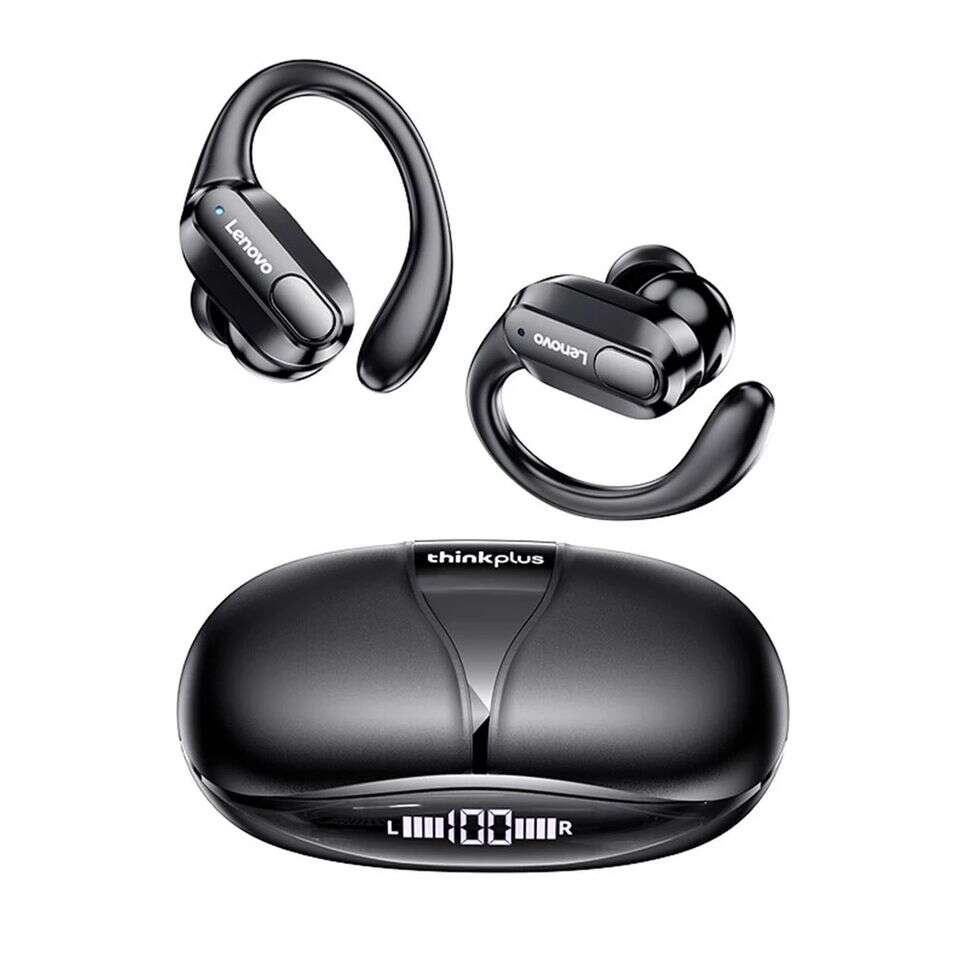
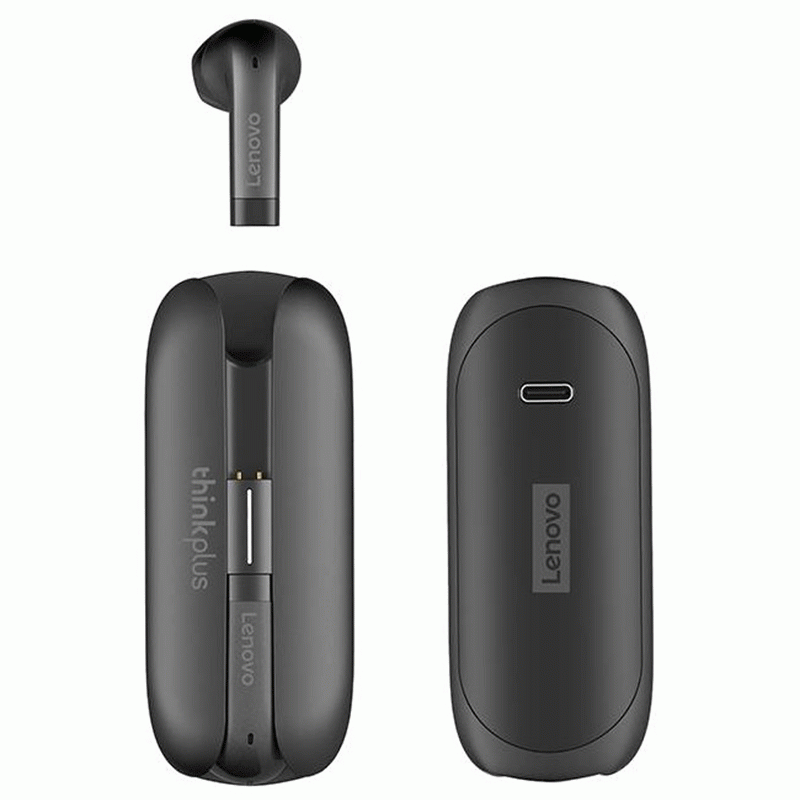
Turn on the ThinkPlus, enable Bluetooth on your device, then find and pair the Lenovo ThinkPlus in Settings.
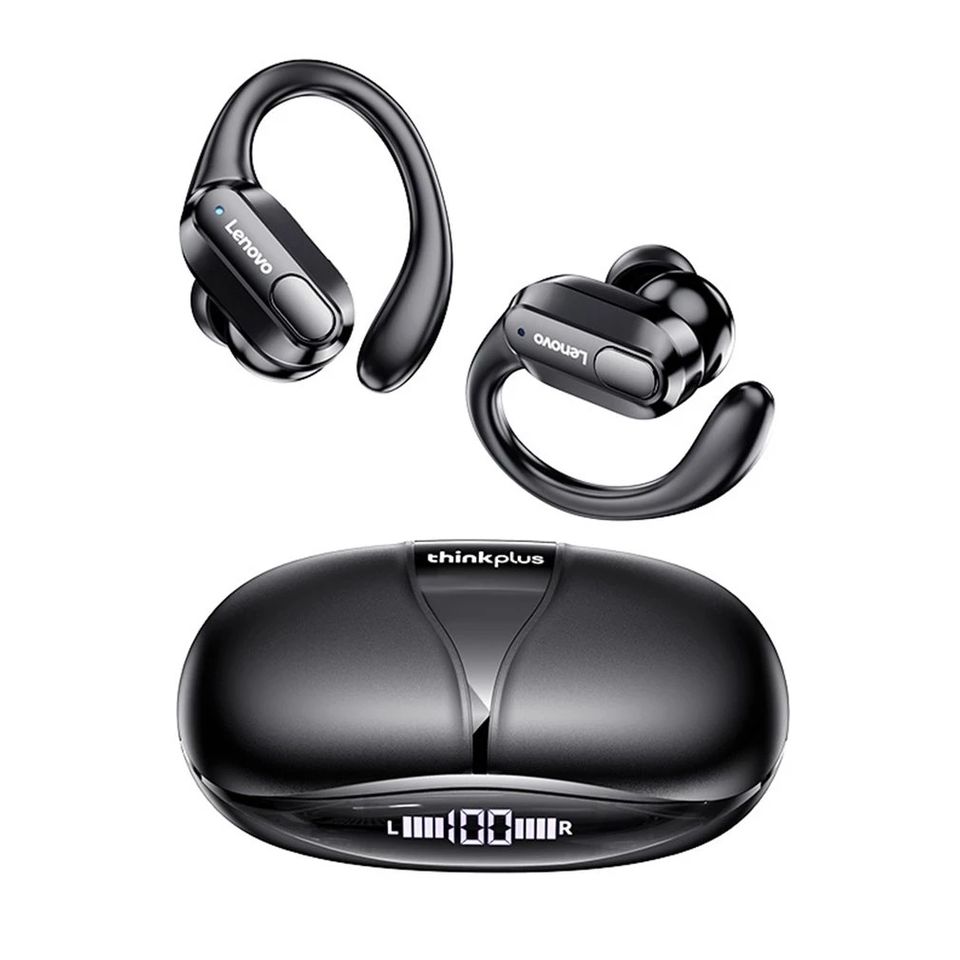
I’ve helped dozens of users set up Lenovo ThinkPlus headphones across phones, tablets, and laptops. This guide explains how to connect Lenovo ThinkPlus headphones step by step, with simple fixes, tips for better sound and battery life, and real-life notes from my testing. Read on to pair quickly and avoid common pitfalls.
Before you start: compatibility and quick checks
Lenovo ThinkPlus headphones support Bluetooth. Confirm your device has Bluetooth and that it runs a supported OS. Most modern phones, tablets, and computers work.
Check the battery level on the headphones. Low battery can stop pairing or cause unstable connections. Charge the headset for at least 15–30 minutes if needed.
Turn off other nearby Bluetooth devices to avoid interference. This helps when you first pair Lenovo ThinkPlus headphones.

How to connect Lenovo ThinkPlus headphones — step-by-step pairing
These steps work for Android, iPhone, Windows, and macOS. I’ll list device-specific steps after the core pairing flow.
Core pairing steps
- Turn on the Lenovo ThinkPlus headphones. Press and hold the power or pairing button until the LED flashes or you hear a voice prompt.
- Enable Bluetooth on your device. Open Settings > Bluetooth and set it to On.
- Put the headphones in pairing mode. If they don’t enter pairing automatically, press and hold the multifunction button until the LED alternates or you hear “pairing.”
- Look for “Lenovo ThinkPlus” in the Bluetooth list. Tap to connect.
- Confirm pairing if prompted. Accept any pairing requests or enter a passcode (often 0000 or 1234).
How to connect Lenovo ThinkPlus headphones to Android
- Open Settings > Connections > Bluetooth.
- Tap Scan or Pair new device.
- Select Lenovo ThinkPlus from the list.
- If audio doesn’t play after pairing, set the headset as the audio output in Bluetooth settings.
How to connect Lenovo ThinkPlus headphones to iPhone
- Open Settings > Bluetooth.
- Wait for “Lenovo ThinkPlus” to appear under Other Devices.
- Tap the name to connect. iOS shows a status once connected.
How to connect Lenovo ThinkPlus headphones to Windows 10/11
- Open Settings > Bluetooth & devices.
- Click Add device > Bluetooth.
- Select Lenovo ThinkPlus. Windows installs drivers automatically.
- Set the ThinkPlus as default playback device in Sound settings if needed.
How to connect Lenovo ThinkPlus headphones to macOS
- Open System Settings > Bluetooth.
- Select Lenovo ThinkPlus and click Connect.
- Choose the headset in Sound > Output to route audio.
Tip: If a device refuses to pair, remove or “forget” the Lenovo ThinkPlus from the device’s Bluetooth list and retry the steps above. I had to forget and re-pair once when switching from phone to laptop.

Wired connection and AUX options
Some Lenovo ThinkPlus models include a 3.5 mm jack or a USB-C audio cable. If your model supports wired audio, use these steps.
For 3.5 mm wired connection
- Plug one end of the audio cable into the headphone jack.
- Plug the other end into your phone, tablet, or PC.
- The device should detect wired output and mute Bluetooth.
For USB-C wired connection
- Connect the USB-C cable between the headset and device.
- Set the device audio output to the USB device if it does not switch automatically.
Wired mode helps when Bluetooth is blocked, for low-latency gaming, or when battery is dead. I regularly use wired mode for long flights to save battery.

Troubleshooting common pairing issues
Problem: Lenovo ThinkPlus not entering pairing mode
- Make sure headphones are charged. A low battery can stop pairing.
- Press and hold the correct button for 5–10 seconds. Consult the manual if unsure.
- Reset the headset if needed by holding power and volume buttons together (model-dependent).
Problem: Device does not see Lenovo ThinkPlus
- Turn Bluetooth off and on again on your device.
- Restart the device and the headphones.
- Move closer and away from wireless interference like routers.
Problem: Paired but no sound
- Check the device’s audio output and set Lenovo ThinkPlus as the active device.
- Reconnect the headset from Bluetooth settings.
- Test with another device to isolate the issue.
Problem: Drops and stutters
- Ensure no heavy Wi-Fi or microwave interference.
- Keep the headset and device within 30 feet and in direct line of sight when possible.
- Update device Bluetooth drivers or firmware on your PC.
If issues persist, check the Lenovo support guide or the user manual. I once resolved frequent dropouts by updating the phone’s Bluetooth drivers and moving away from a crowded Wi-Fi channel.
Battery, firmware, and maintenance tips
Battery care
- Fully charge before first use.
- Avoid full discharge. Charge when battery gets low.
- Store in a cool, dry place. Heat reduces battery life.
Firmware updates
- Check Lenovo’s support pages or companion app for firmware updates.
- Firmware can fix bugs that affect pairing and sound.
Cleaning and care
- Clean ear tips and mesh gently with a dry cloth.
- Avoid liquids and strong cleaners.
- Replace ear tips if worn for better seal and sound.
I recommend a weekly quick wipe and a monthly inspection. Good care keeps Bluetooth performance stable and sound clear.

Advanced tips: multi-device pairing and latency control
Pairing with multiple devices
- Many ThinkPlus models remember multiple pairings. Pair with phone, tablet, and laptop separately.
- To switch devices, disconnect one and select the other in Bluetooth settings.
- Some models support multipoint; check your manual to enable it.
Reducing latency
- For games or video calls, choose low-latency codec support if your device and headset support it.
- Wired connection removes latency for critical use.
Use these steps when using Lenovo ThinkPlus headphones for work calls, streaming, and gaming. I keep multipoint on for phone and laptop. It saves time but can cause audio confusion if both devices try to play sound at once.

Security and privacy notes
Bluetooth pairing is generally secure, but follow these rules
- Pair only in private places. Avoid public pairing windows.
- Unpair or forget devices you no longer use.
- Keep firmware updated to fix security issues.
If you share headphones, reset them before passing to another user. This clears pairing history and prevents accidental reconnections.

Frequently Asked Questions of how to connect lenovo thinkplus headphones
How long does it take to pair Lenovo ThinkPlus headphones?
Most pairings finish in 10 to 30 seconds. If pairing takes longer, restart both devices and retry.
What do I do if my device asks for a passcode?
Try common defaults such as 0000 or 1234. If those fail, check the Lenovo ThinkPlus manual for model-specific codes.
Can I connect Lenovo ThinkPlus headphones to two devices at once?
Some models support multipoint pairing. Check your model specs. If not supported, you must disconnect from one to use the other.
Why does audio cut out when receiving calls?
Incoming call handling depends on the device. Ensure the headset is set for call audio and the phone has priority for media. Update firmware if behavior is inconsistent.
How do I reset Lenovo ThinkPlus headphones?
Reset methods vary by model. Commonly, hold power and volume buttons together for 10 seconds. Refer to the manual if this does not work.
Conclusion
Pairing and using Lenovo ThinkPlus headphones is quick when you follow clear steps. Charge the headset, enable Bluetooth on your device, enter pairing mode, and select Lenovo ThinkPlus. If you run into problems, try simple fixes like forgetting the device, restarting, or updating firmware.
Take action now: try the pairing steps with your device. If you hit a snag, use the troubleshooting tips here. Leave a comment with your model and issue if you want personalized help or to share your experience.

Everett Ashford is a tech reviewer at mytechgrid.com specializing in SSDs, cameras, TVs, earbuds, headphones, and other consumer electronics. He provides honest, data-driven reviews based on hands-on testing and real-world performance analysis. Everett simplifies complex tech details to help readers make smart, confident buying decisions.