Yes, many Android phones can connect two Bluetooth headphones, but support depends on the phone and Android version.
If you want to share a movie, podcast, or playlist, learning whether you can connect 2 Bluetooth headphones to Android starts with your phone’s audio-sharing features. Some Samsung Galaxy phones support Dual Audio, while other Android devices need Bluetooth LE Audio, a compatible app, or a small external transmitter. This guide explains the options, setup steps, limits, and fixes in plain language.
Can you connect 2 Bluetooth headphones to Android?
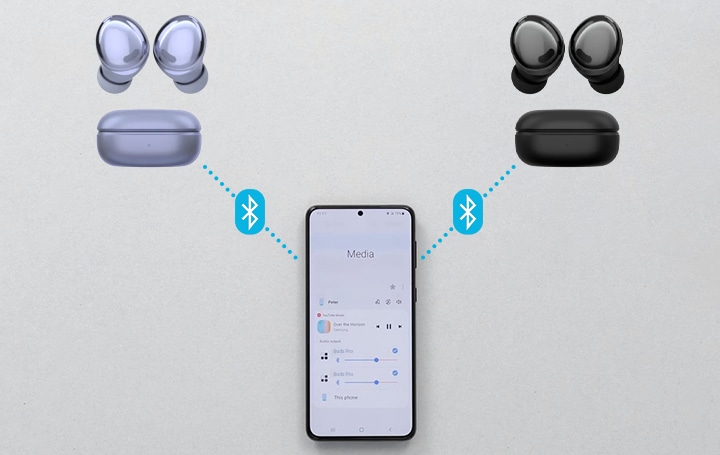
Yes, you can connect 2 Bluetooth headphones to Android on some phones. The key issue is not only Android itself. Your phone’s model, Bluetooth hardware, software version, and manufacturer features all matter.
A phone may pair with several Bluetooth devices but send music to only one pair of headphones. Pairing means the devices remember each other. Connecting means they are ready to communicate. Active audio playback is a separate step.
There are three common ways to connect two Bluetooth headphones to one Android phone:
- Use a built in feature such as Samsung Dual Audio.
- Use Bluetooth LE Audio and Auracast on supported devices.
- Use a Bluetooth audio transmitter connected to the phone.
The easiest option is a built in dual audio feature. If your phone does not offer one, a transmitter is often the most reliable solution.
What determines whether two headphones will work?
Several technical factors decide whether you can connect 2 Bluetooth headphones to Android. Checking these first can save you from repeated pairing attempts.
Phone model and Android version
Android supports Bluetooth audio, but manufacturers add their own features. Samsung, for example, includes Dual Audio on many Galaxy phones. Google Pixel phones may support newer Bluetooth features on certain models, but support can vary by generation and software update.
An older phone may have Bluetooth 5.0 yet still lack two headphone audio output. Bluetooth version alone does not guarantee dual audio. The phone must also have the right system software and audio profile support.
Bluetooth audio profiles
Most wireless headphones use the Advanced Audio Distribution Profile, or A2DP, for music and video. Traditional A2DP usually sends audio to one active output at a time unless the phone maker adds special support.
Newer devices may use Bluetooth LE Audio. This technology can improve power use and support broadcast audio through Auracast. Both the phone and headphones must support the same feature for it to work.
Headphone compatibility
Two different headphone models may connect, but they can produce different delays or sound levels. One pair may use a newer codec, while the other uses a basic codec such as SBC.
For the smoothest experience, use two similar pairs. Matching headphones often provide more consistent volume, timing, and battery life.
Manufacturer software
Android phones from Samsung, Xiaomi, OnePlus, Motorola, and other brands may handle Bluetooth audio in different ways. A setting found on one phone may not exist on another.
When I troubleshoot this setup, I check the phone model first rather than assuming every Android phone works the same way. That simple step prevents many false fixes.
How to connect 2 Bluetooth headphones on Samsung Galaxy
Samsung Dual Audio is one of the simplest ways to connect 2 Bluetooth headphones to Android. It is available on many Galaxy phones, though the exact menus can change with One UI updates.
Try these steps:
- Open Settings.
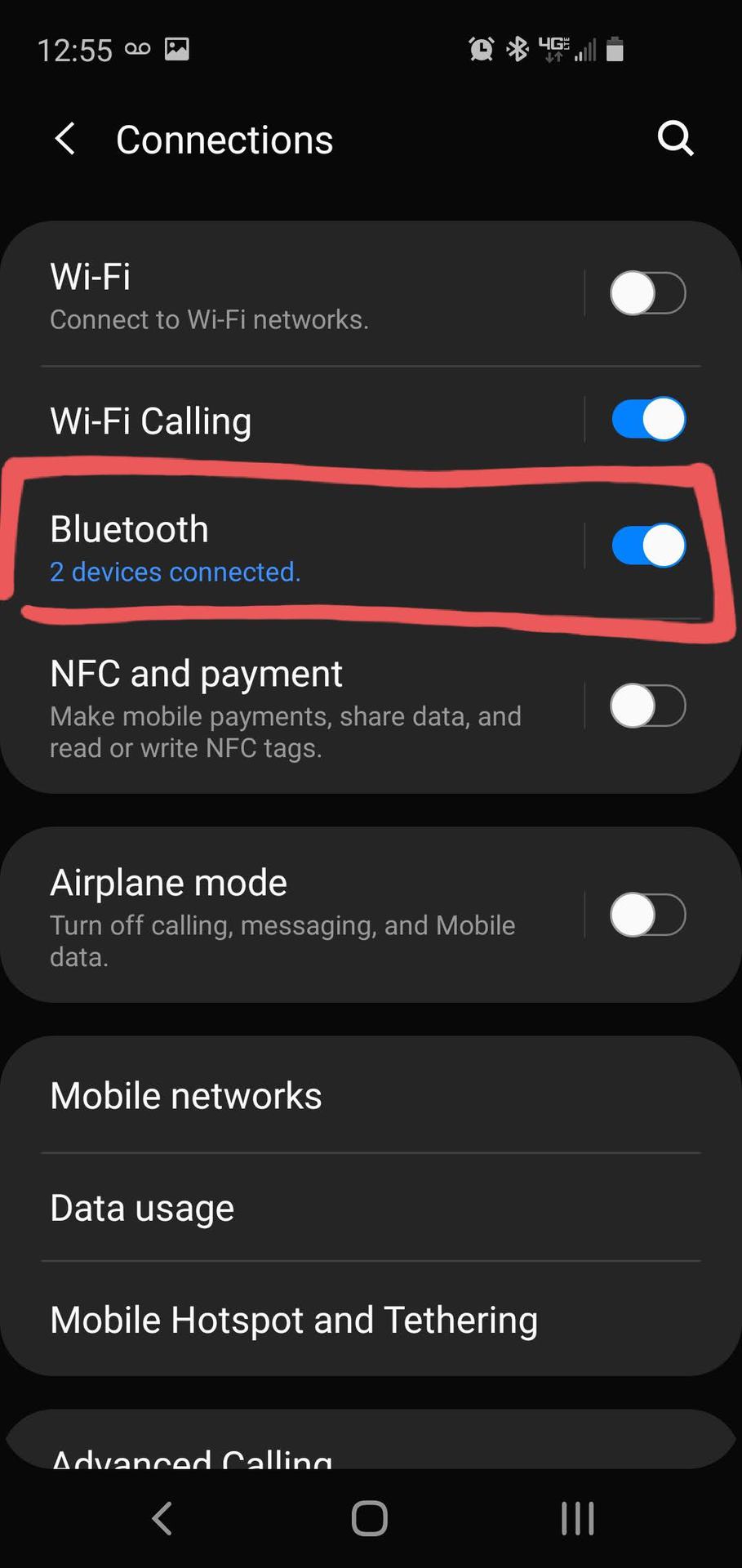
- Tap Connections.
- Tap Bluetooth.
- Turn Bluetooth on.
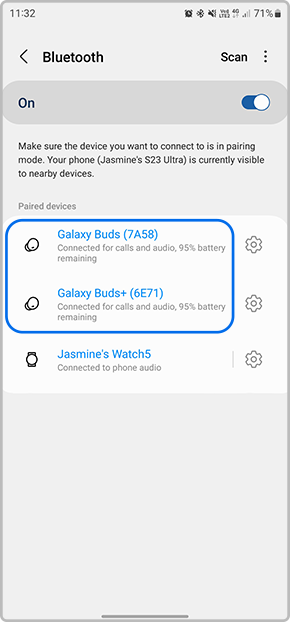
- Pair the first headphones.
- Put the second headphones into pairing mode.
- Select the second headphones from the available devices list.
- Tap the three dot menu in the Bluetooth screen.
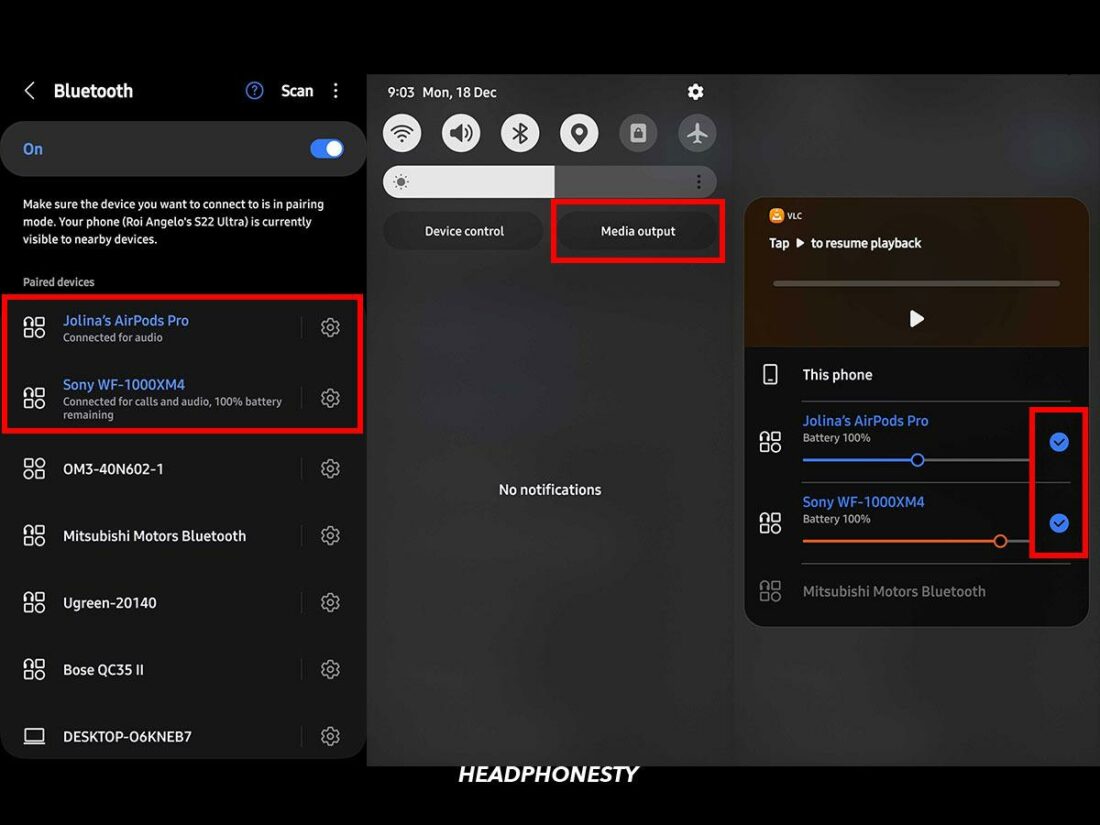
- Select Dual Audio.
- Turn on the option for two Bluetooth devices.
Now start playing music or a video. Both headphones should receive the same audio.
On some Galaxy models, you may need to open the Quick Settings panel after connecting both headphones. Tap Media output, then select both connected headphones. If only one device plays sound, confirm that both devices are selected in the media output panel.
Samsung’s feature may limit certain controls. For example, your phone may let you change the overall media volume but not control each pair independently. Some Galaxy models also show a small delay between the two headphones.

How to connect 2 Bluetooth headphones on other Android phones
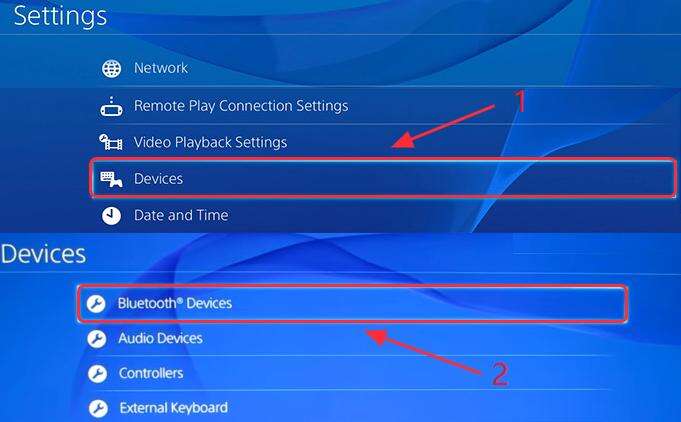
If your phone is not a Samsung Galaxy, the process depends on its software. Start by pairing both headphones one at a time.
- Open Settings and go to Connected devices or Bluetooth.
- Pair the first headphones.
- Turn the first headphones off temporarily.
- Put the second headphones into pairing mode.
- Pair the second headphones.
- Turn both headphones on.
- Open the media output or audio output menu.
- Look for an option to select both devices.
Some phones show a feature called Audio sharing, Media sharing, Dual audio, or Share audio. The name is not universal.
If the phone lists both headphones but lets you select only one, it likely does not support standard dual Bluetooth audio. Check the phone maker’s support page for your exact model. A system update may add support, but many phones cannot gain the feature through an ordinary app.
Be careful with apps that promise to unlock dual Bluetooth audio. Android apps usually cannot override the phone’s built in Bluetooth audio routing. Some apps can play sound through two devices in special ways, but results may vary and battery use may increase.
How to use Bluetooth LE Audio and Auracast
Bluetooth LE Audio is a newer method for sending sound. Auracast allows one source to broadcast audio to many compatible receivers. It works more like a radio station than a normal one to one Bluetooth connection.
To use it, you need:
• An Android phone with LE Audio or Auracast support
• Headphones or earbuds that support the same feature
• Updated phone software and headphone firmware
• An audio sharing option in the phone’s Bluetooth or accessibility settings
The setup may look different from traditional Bluetooth pairing. You might scan for an audio broadcast, enter a broadcast code, or select a nearby stream.
LE Audio is promising for travel, classrooms, gyms, and public announcements. However, support is still uneven. A phone may support LE Audio for calls but not support Auracast broadcasting. Similarly, headphones may support LE Audio but not receive a broadcast from every phone.
This is why ordinary Bluetooth pairing remains more common. Before buying new earbuds for this purpose, check the full feature list rather than looking only for the words “Bluetooth 5” or “LE Audio.”
How to connect 2 Bluetooth headphones with a transmitter
A Bluetooth transmitter is the best fallback when your Android phone cannot send audio to two headphones. Some transmitters connect through USB C, while others use a 3.5 millimeter headphone jack.
Look for a transmitter that clearly supports two Bluetooth headphones at the same time. A device that supports Bluetooth transmission does not always support two active connections.
Basic setup usually works like this:
- Plug the transmitter into the phone.
- Turn on both headphones.
- Put the transmitter into pairing mode.
- Put the first headphones into pairing mode.
- Wait for the first connection.
- Start the transmitter’s second pairing process.
- Pair the second headphones.
- Play audio and adjust the volume on each headset.
A USB C transmitter may need digital audio support from the phone. Some phones do not send audio through every USB C accessory. If the transmitter does not work, check whether the phone supports USB audio and whether the accessory needs a companion app.
A transmitter can add one more piece of hardware, but it often gives better results than trying random apps. It is useful on flights, during shared television viewing, or when two people want to listen quietly.

Common problems when connecting two Bluetooth headphones
Even when the phone supports dual audio, the experience may not be perfect. Bluetooth sends digital sound through radio signals, so small timing and connection issues can occur.
Only one pair plays sound
Open the phone’s media output controls and select both headphones. If the second pair is connected for calls only, disconnect it and pair it again as a media device.
You can also turn Bluetooth off and on, then restart both headphones. This clears many short term connection errors.