Yes, you can upgrade the SSD in some MacBook Air models, but newer models have soldered storage.
The answer depends on your MacBook Air’s model year and processor. Older Air models often use removable SSD modules, while Retina and Apple silicon models usually have storage soldered to the logic board. This guide explains how to identify your MacBook Air, what upgrade options exist, what risks to expect, and when an external SSD is the better choice.

Can you upgrade the SSD in a MacBook Air?
Yes, but not every MacBook Air supports an internal SSD upgrade. Apple changed the storage design several times, so the model year alone is not always enough. You should check the exact model number before buying any part.
In simple terms:
• MacBook Air models from roughly 2010 through 2017 usually have removable SSD modules.
• MacBook Air models from 2018 through 2020 with Intel processors usually have soldered storage.
• M1, M2, M3, and newer MacBook Air models have storage soldered to the logic board.
If you ask, “Can you upgrade SSD in MacBook Air?” the most useful answer is: check the model first. A compatible upgrade may be easy in an older Air but impossible as a normal DIY repair in a newer one.
Apple menu > About This Mac shows the model name and year. For even more detail, open System Information and select Hardware. You can also enter the serial number on Apple’s coverage page to identify the machine.
Which MacBook Air models support SSD upgrades?
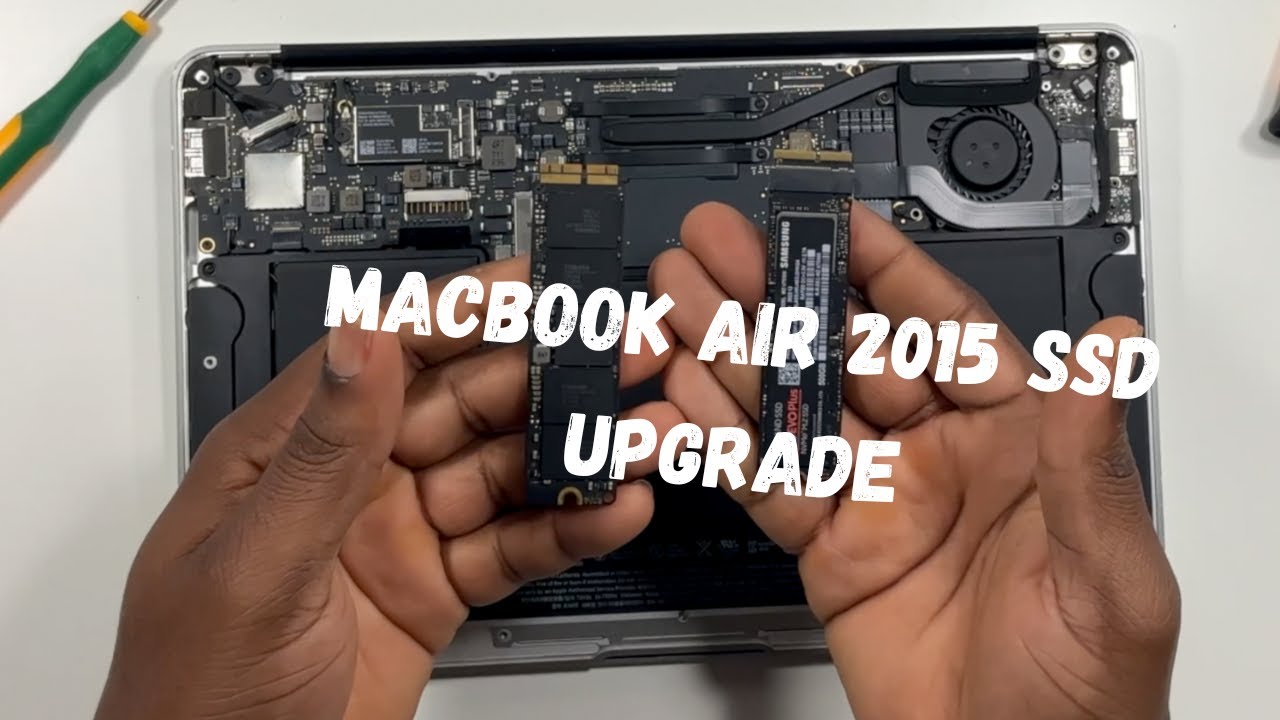
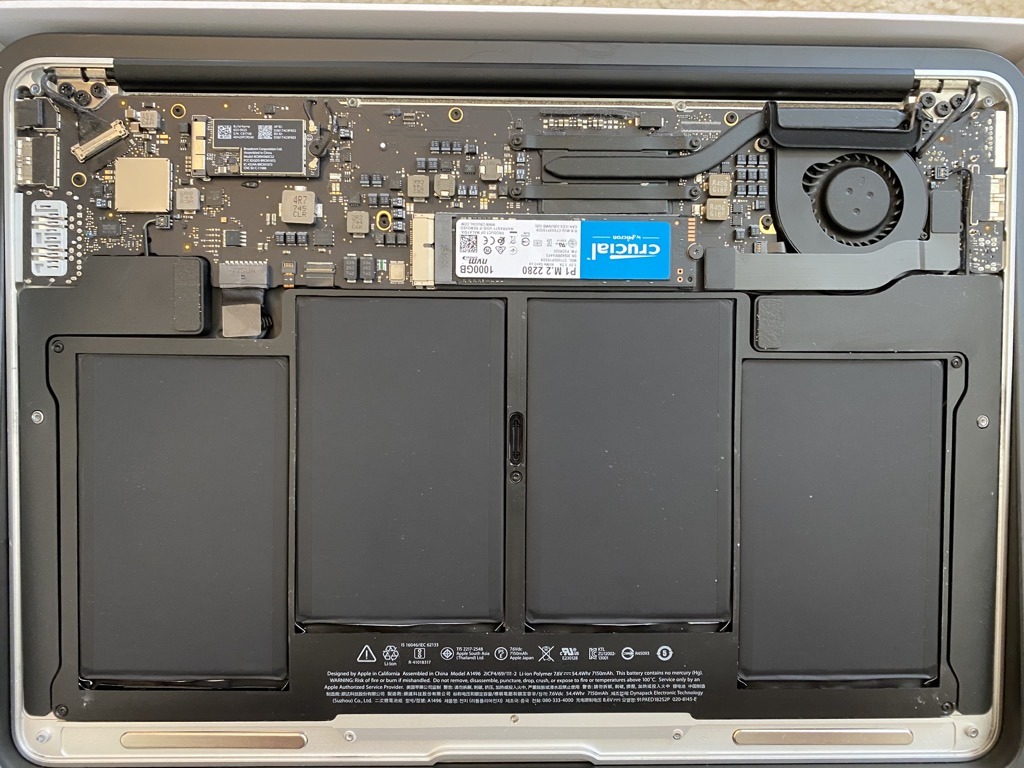
The easiest MacBook Air models to upgrade are the older non-Retina models. These include many versions released between 2010 and 2017. Their SSD is often a small blade-shaped module that connects to the logic board with a removable screw and connector.
Compatible upgrades are available from several specialist storage makers. However, the drive must match the MacBook Air generation. A module for a 2013 Air may not fit a 2011 model, even if both drives look similar.
Here is a general guide:
| MacBook Air generation | Internal SSD upgrade |
|---|---|
| 2008–2009 | Limited and model-specific |
| 2010–2012 | Usually possible with a compatible blade SSD |
| 2013–2017 | Usually possible with a compatible blade SSD |
| 2018–2020 Intel | Usually not possible; storage is soldered |
| M1 and newer | Not user-upgradable; storage is soldered |
This table is a guide, not a substitute for checking the exact model identifier. Apple released several revisions with different internal layouts.
If you are wondering, “Can you upgrade SSD in MacBook Air from 2015?” the answer is usually yes. A 2015 Air commonly accepts a model-specific replacement SSD, and the process is much easier than working on a 2018 or newer machine.

Why newer MacBook Air SSDs cannot be replaced
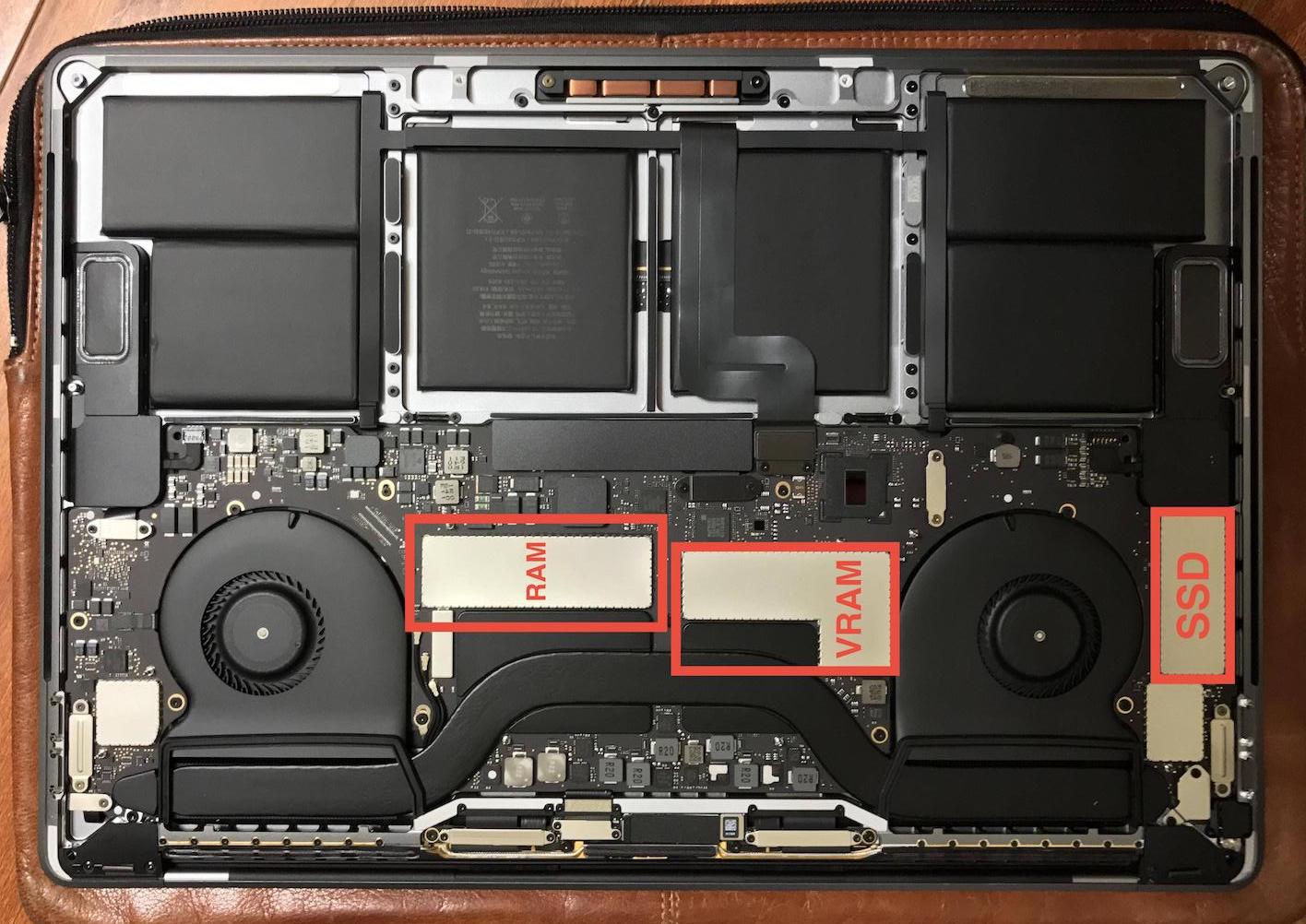
Newer MacBook Air computers use storage chips that are attached directly to the logic board. This design saves space and can improve power efficiency, but it removes the simple plug-and-play upgrade path found in older models.
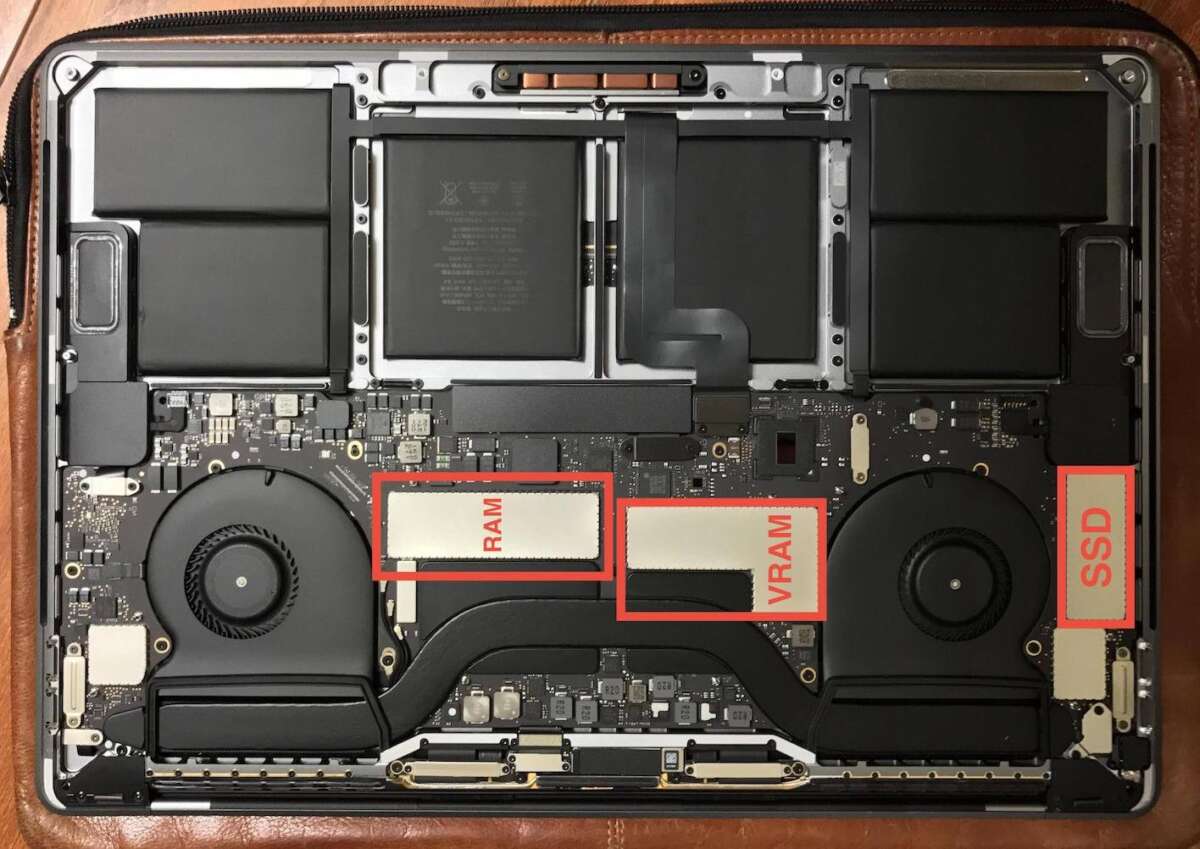
The storage is not a standard M.2 SSD. You cannot open the bottom case, remove a regular NVMe drive, and install a larger one. The connector, firmware, power system, and physical design are different.
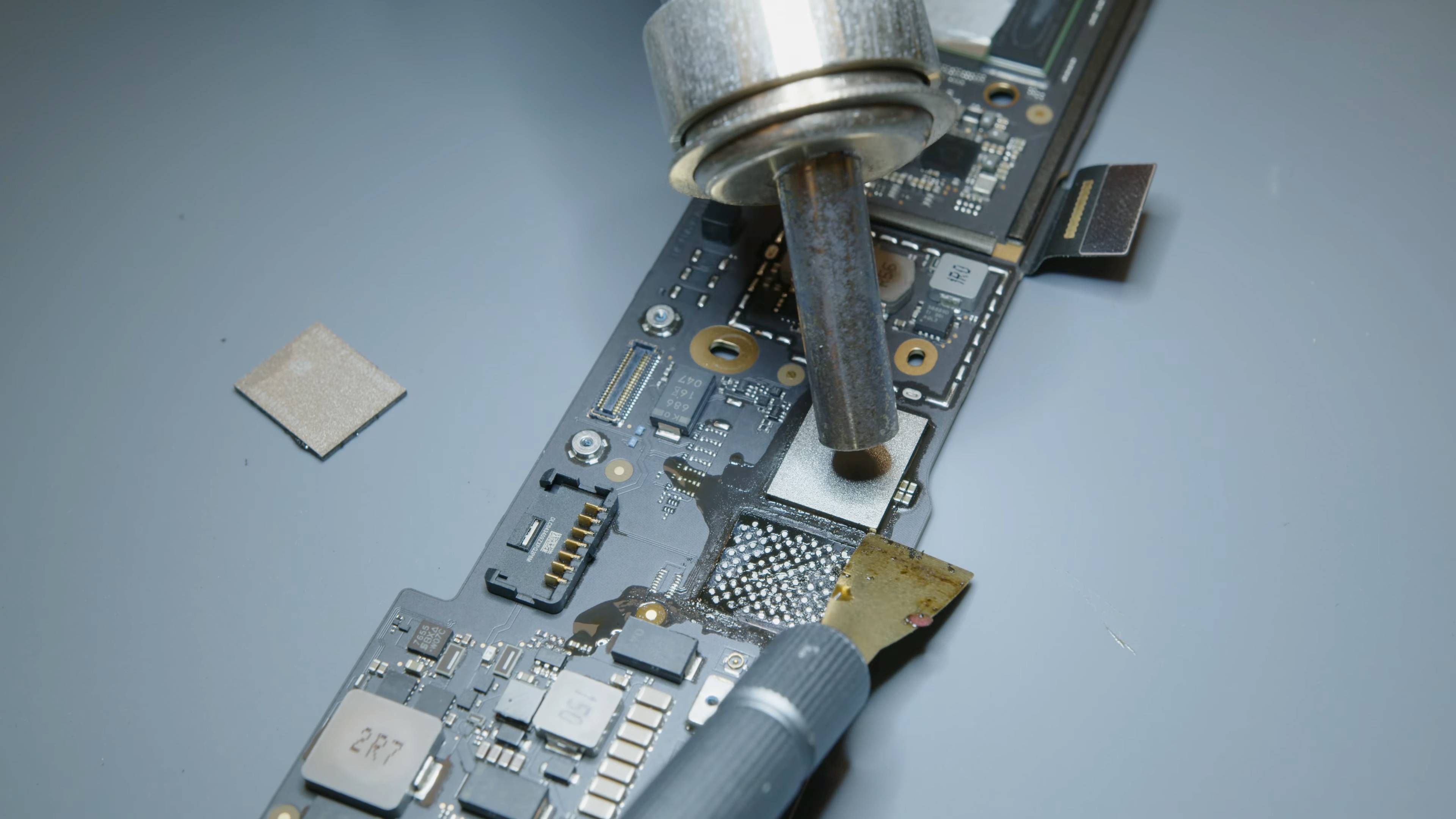
Apple silicon models also use a unified memory architecture. The storage system is closely tied to the logic board and secure boot system. Replacing the chips requires advanced microsoldering tools, specialized software, and a compatible donor board. It is not a practical home repair.
This is why the answer to “Can you upgrade SSD in MacBook Air M1?” is no for a normal user. A specialist may repair storage components at board level in rare cases, but that is very different from a safe, standard SSD upgrade.
The same limitation applies to most M2, M3, and newer MacBook Air models. You should choose enough internal storage when buying the computer because the capacity cannot normally be increased later.
How to check whether your MacBook Air SSD is upgradeable
Before ordering anything, identify three details:
• The MacBook Air model year
• The model identifier, such as MacBookAir7,2
• The current storage interface and SSD design
You can find the model identifier in System Information. Select the Apple menu, choose About This Mac, and open the System Report. Look under Hardware Overview.
You can also check the year and storage capacity in macOS. This helps narrow down your options, but the model identifier is more reliable when buying parts.
Search for a replacement using the full model name and identifier. Avoid generic searches such as “MacBook SSD upgrade” because they can show parts that look similar but do not work with your computer.
A useful checklist is:
-
Back up your files.
-
Confirm the exact model identifier.
-
Check the maximum tested capacity of the replacement SSD.
-
Confirm whether the drive includes an adapter.
-
Read current compatibility notes from the seller.
-
Check the return policy before opening the package.
One common mistake is buying an M.2 adapter for an older MacBook Air without checking the adapter’s firmware support. The physical fit is only one part of compatibility. The Mac must also recognize the drive and boot from it.
What SSD upgrade options are available?
For a compatible older MacBook Air, you usually have three choices.
Buy a replacement blade SSD
This is the cleanest option. The drive is designed for a specific MacBook Air generation and normally installs in the original slot.
Benefits include:
• Better physical fit
• Fewer adapter issues
• Simple installation
• Good support for macOS recovery
Prices vary based on brand, capacity, and speed. A 480 GB or 512 GB model is often a practical balance for everyday use.
Use an adapter with an M.2 SSD
Some older MacBook Air models can use an adapter that connects a standard M.2 NVMe SSD to the Mac’s proprietary slot. This can reduce the cost per gigabyte.
However, compatibility is more complex. You may need a specific adapter, a supported SSD length, and a macOS version that handles the drive correctly. Sleep, hibernation, battery life, and boot behavior may also vary.
This option is best for users who understand the limits and are willing to troubleshoot. It is not always the best choice for a work computer.
Replace the internal drive through a repair shop
If you do not have experience with delicate electronics, a repair shop can install and test the drive. This can also help when the Mac contains important work files or has a damaged screw.
A professional should give you a clear estimate before starting. Ask whether the price includes data migration, macOS installation, testing, and the old drive’s return.

How to upgrade the SSD in an older MacBook Air
The exact steps vary by model, but the general process is similar. Always use a repair guide made for your specific MacBook Air.
1. Back up your Mac
Use Time Machine, a separate external drive, or a trusted cloud backup. Do not rely on a single copy of important files.
If the old SSD still works, create a full backup before opening the computer. A backup protects you from mistakes, drive failure, and accidental damage.
2. Create a macOS installer or recovery plan
An older MacBook Air may support Internet Recovery. Still, it is wise to prepare a bootable installer or keep a second Mac available.
You may also clone the old drive to the new one. Some cloning tools work well, but modern macOS security features can make a clean installation more reliable.
3. Shut down and disconnect power
Turn off the Mac completely. Unplug the charger and hold the power button for a few seconds.
Use a clean table with good lighting. Keep screws in a small tray because Apple uses screws of different lengths.
4. Remove the bottom case
Use the correct pentalobe screwdriver. Do not force a screw if the driver does not fit well. Stripped screws can turn a simple SSD replacement into an expensive repair.
Once the case is open, disconnect the battery before touching the SSD. This reduces the chance of an electrical short.
5. Replace the SSD
Remove the retaining screw, lift the old module gently, and slide it out of the connector. Insert the new SSD at the correct angle, press it down, and reinstall the screw.
Never bend the module or touch its contacts more than necessary. Static electricity and rough handling can damage small components.
6. Install macOS and restore your data
Close the case, connect power, and start macOS Recovery. Use Disk Utility to format the drive in the correct format, then install macOS.
After installation, restore your files from the backup. Test Wi-Fi, sleep, sound, charging, and startup before relying on the Mac for work.

How much does a MacBook Air SSD upgrade cost?
The cost depends on the model, capacity, and installation method. An older MacBook Air upgrade may cost less than replacing the computer, especially if the battery and display are still in good condition.
Typical cost factors include:
• Replacement SSD
• Adapter, if needed
• Screwdriver kit
• Professional installation
• Data transfer or macOS setup
A small capacity upgrade may not offer good value if the SSD is expensive. Compare the total cost with the price of a used or refurbished MacBook Air that already has more storage.
For a newer MacBook Air, internal storage replacement is usually not an economical repair. Logic board replacement can cost close to, or more than, the value of the computer.
When someone asks, “Can you upgrade SSD in MacBook Air without replacing the logic board?” the answer is usually no for 2018 and newer models. Older models are the main exception.
What are the benefits of upgrading the internal SSD?
An internal SSD upgrade can extend the life of an older MacBook Air. It may give you more room for photos, apps, documents, and system updates.
The main benefits are:
• More storage space
• Faster performance if the old drive is failing
• Less dependence on external storage
• Better value than buying a new Mac
• Easier access to files while traveling
A larger SSD does not always make the Mac dramatically faster. If your old drive is already a fast SSD, the biggest improvement usually comes from capacity and reliability. A faster replacement may help with large file transfers, but the Mac’s processor and interface can limit the result.
An upgrade also cannot fix every slow Mac. Low memory, an aging battery, heat, or an old processor may still affect performance.

What are the risks and limitations?
SSD upgrades carry some risk, even on models designed for repair. The bottom case can be damaged, screws can strip, and a connector can break if handled roughly.
Other limitations include:
• Some replacement drives may not support macOS features perfectly.
• Very large capacities may have compatibility limits.
• Battery life can vary between SSD models.
• A failed upgrade can make the Mac unable to boot.
• Opening the computer may affect service options.
• A backup is still required because the old SSD may fail during removal.
A repair-bench lesson worth remembering is that compatibility matters more than a low price. A bargain SSD that causes sleep problems or random boot errors is not a bargain. For a computer used for school, work, or travel, stability is usually worth more than a small saving.
Check the seller’s return policy and read recent owner reports. Also confirm whether the drive supports the macOS version you plan to use.
Should you use an external SSD instead?
For a 2018 or newer MacBook Air, an external SSD is often the safest storage upgrade. It does not require opening the computer and works with models that have soldered internal storage.
A USB-C external SSD can store:
• Photos and video libraries
• Game files
• Project folders
• Backups
• Large media files
For the best results, use a fast USB-C or Thunderbolt enclosure that matches your MacBook Air’s ports. A basic portable SSD is usually enough for documents and photos. Video editors and professionals may benefit from a faster Thunderbolt drive.
There are a few tradeoffs. You must carry the drive, protect the cable, and eject it before disconnecting. Do not use an external drive as your only backup. A backup should be stored separately from the working files.
Cloud storage can also help with documents and photos, but it may require a subscription and a reliable internet connection. Many users get the best balance by keeping apps and current files on the Mac while storing large libraries externally.
Internal SSD upgrade versus buying a new MacBook Air
An older MacBook Air may be worth upgrading if it still meets your needs. More storage can make it useful for writing, web browsing, office work, and light media use.
A new MacBook Air may be a better choice if you need:
• Longer battery life
• More memory
• Better support for current macOS versions
• Faster video work
• A brighter display
• Modern ports and wireless standards
• Apple silicon performance
Do not spend heavily on storage if the battery is swollen, the screen is damaged, or the keyboard has major problems. The SSD is only one part of the computer.
Consider the total cost of ownership. Add the SSD, tools, labor, battery replacement, and expected software support. Then compare that number with a refurbished MacBook Air that has the storage and memory you need.
Mistakes to avoid during a MacBook Air SSD upgrade
The most common mistakes are easy to prevent.
• Buying the wrong SSD for the model year
• Forgetting to back up personal files
• Using the wrong screwdriver
• Leaving the battery connected during the repair
• Assuming every M.2 SSD will work
• Installing macOS before checking drive recognition
• Choosing capacity without considering future needs
• Ignoring seller reviews and return terms
Another mistake is confusing storage with memory. An SSD stores files, while RAM helps the Mac run apps. An SSD upgrade cannot turn a 4 GB MacBook Air into an 8 GB model.
If your Mac freezes because it runs out of memory, adding storage may not solve the issue. Close unused apps, reduce browser tabs, and check Activity Monitor before deciding which upgrade you need.
Frequently Asked Questions
Can you upgrade SSD in MacBook Air 2017?
Usually, yes. Many 2017 MacBook Air models use a removable blade SSD, but you must buy a drive made for the correct model identifier.
Can you upgrade SSD in MacBook Air 2018?
Usually, no. The 2018 MacBook Air uses soldered internal storage, so a normal SSD replacement is not available.
Can you upgrade SSD in MacBook Air M1?
No, not as a standard user upgrade. The storage chips are soldered to the logic board, so choose the capacity carefully when buying the computer.
Can an Apple Store upgrade the SSD in a MacBook Air?
Apple generally does not offer a simple internal SSD upgrade after purchase. Depending on the problem, Apple may recommend a logic board replacement or another service option.
Is an external SSD good for a MacBook Air?
Yes. An external USB-C SSD can provide fast extra storage without opening the Mac, and it is often the best solution for newer MacBook Air models.
Does upgrading the SSD make a MacBook Air faster?
It can improve performance if the original drive is failing or nearly full. However, it will not fix limits caused by low RAM, an old processor, overheating, or a weak battery.
Conclusion
Whether you can upgrade the SSD in a MacBook Air depends mainly on its design. Older models from around 2010 through 2017 often support removable SSD upgrades, while 2018 and newer models usually have soldered storage.
Check the exact model identifier before buying parts, create a full backup, and choose reliability over the lowest price. If your Mac has soldered storage, a quality external SSD is a safe and practical way to add space.
Take a few minutes to identify your MacBook Air and compare the upgrade cost with the value of the computer. Then choose the option that gives you enough storage, dependable performance, and peace of mind.

Everett Ashford is a tech reviewer at mytechgrid.com specializing in SSDs, cameras, TVs, earbuds, headphones, and other consumer electronics. He provides honest, data-driven reviews based on hands-on testing and real-world performance analysis. Everett simplifies complex tech details to help readers make smart, confident buying decisions.