If you use a Windows PC, Mac, Xbox, PlayStation, or external drive in the United States, you may wonder whether an SSD should make a sound. A normal SSD is silent during read and write activity because it has no spinning platters or moving heads.
Still, you may hear noise from the computer that seems to come from the SSD. The real source is often a cooling fan, power supply, vibration, an external drive enclosure, or electrical coil whine. A faint electronic sound can occur in some systems, but loud clicking, grinding, or repeated beeping usually points to another component or a hardware fault.

What Does an SSD Sound Like?
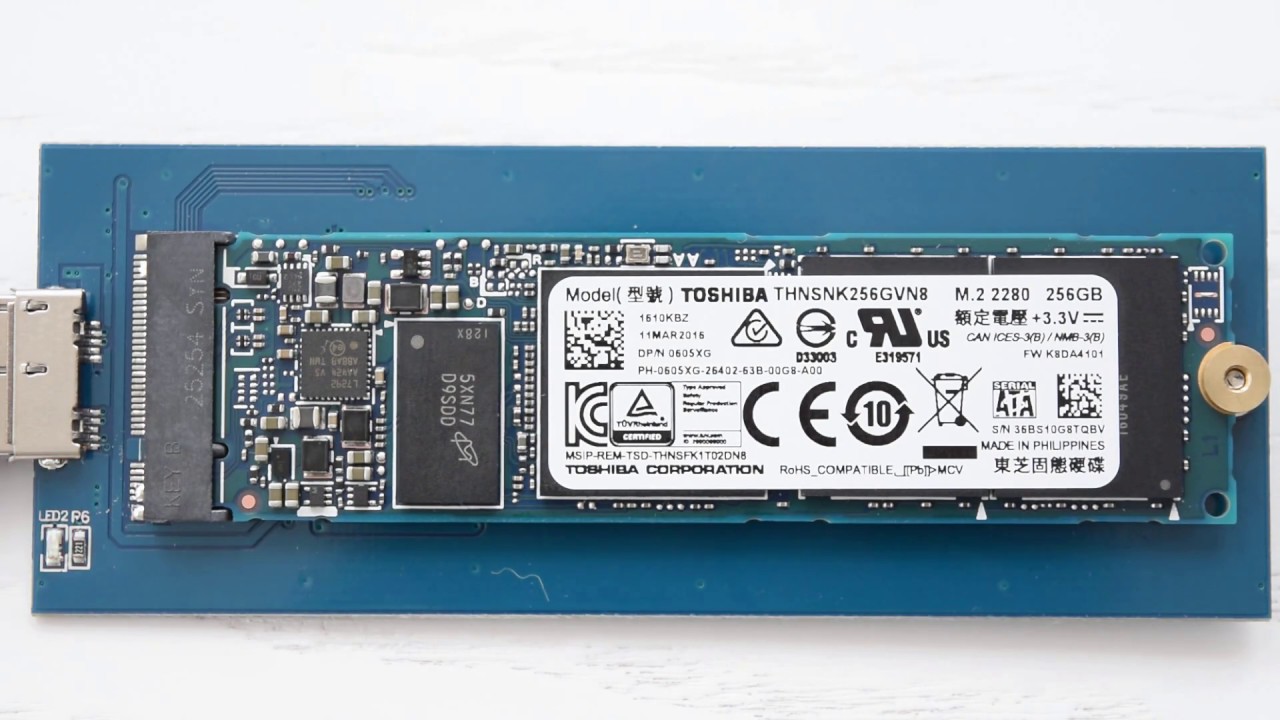
A properly working internal SSD usually makes no mechanical noise. It stores data on flash memory chips rather than on spinning magnetic disks.


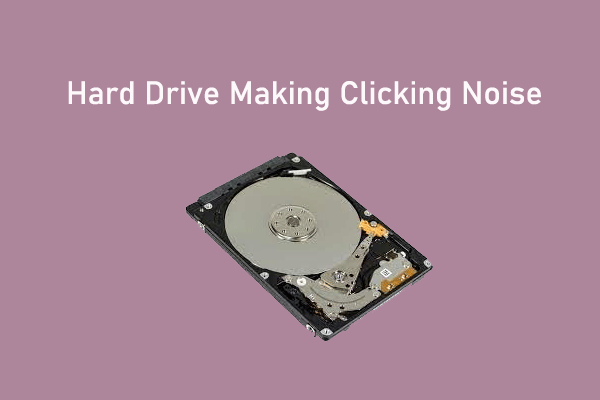
Traditional hard disk drives, or HDDs, use:
- Spinning platters
- A motor
- A moving read/write arm
- Bearings and other mechanical parts
An SSD has no comparable moving parts. This is why manufacturers such as Crucial and Kingston describe SSDs as quieter than hard drives.
Can an SSD make a faint sound?
An SSD itself can sometimes produce a very faint high-pitched sound. This is usually electrical noise from components on the drive or from the surrounding power circuit. People often call this coil whine.
Coil whine may sound like:
- A faint buzz
- A high-pitched squeal
- A soft chirp
- A changing electronic tone
This sound is not the normal sound of flash memory. It comes from power regulation parts. It may change when the computer loads a game, copies files, or changes power use.
A faint electrical sound does not always mean the SSD is failing. However, a new, loud, or rapidly worsening sound deserves attention.


What sounds should an SSD never make?
An SSD should not make mechanical sounds such as:
- Clicking
- Grinding
- Scraping
- Repeated knocking
- Spinning or seeking sounds
- A loud repeating beep from the drive itself
Those sounds usually come from a hard drive, fan, speaker, power supply, or another device. If the sound truly comes from an SSD, stop and check the system rather than assuming it is normal.

Why Does My Computer Sound Like the SSD Is Working?
The computer may sound busy while the SSD is active, but the SSD is often not the part making the noise. File transfers increase system activity, and that activity can cause other parts to become louder.
1. A cooling fan may speed up
A large file copy, game update, antivirus scan, or operating system update can raise CPU or motherboard activity. The computer then increases fan speed.
Fans can make:
- A steady rush of air
- A pulsing hum
- A rattling sound
- A worn bearing noise
- A clicking sound if a blade touches dust or a cable
This is the most common reason an SSD seems noisy during heavy storage use.
2. A hard drive may be in the same computer
Many desktop PCs and older laptops contain both an SSD and an HDD. The SSD may hold Windows or macOS, while the HDD stores photos, games, or backups.
When the HDD reads data, it can click or hum. Activity lights and on-screen file transfers may make it seem as if the SSD is responsible.
To test this safely, shut down the computer and disconnect power before opening a desktop case. Do not open a laptop unless you know how to do so without damaging the device or voiding its service coverage.
3. The power supply may produce coil whine
The power supply unit, graphics card, motherboard, or laptop charging circuit can produce a high-pitched tone. The sound may change when:
- A game runs
- The frame rate changes
- The computer starts
- The battery charges
- A file transfer begins
- The display brightness changes
This noise can be close to the SSD, especially in a compact laptop or small-form-factor PC. Location alone does not prove the source.
4. An external SSD enclosure may vibrate
An external SSD has no spinning disk, but its enclosure can still make noise. A loose USB-C connector, worn cable, plastic panel, or vibration from a nearby fan may create a buzz or rattle.
Some external storage products also contain an HDD even though the product name or enclosure design looks similar to an SSD. Check the exact model before diagnosing the sound.
5. Speakers or a monitor can create electronic noise
USB devices, monitors, and speakers can produce interference. A sound may become louder when an SSD enclosure is connected because the new device changes the electrical path between components.


Try headphones, a different USB port, or a different power outlet. These tests can help separate storage noise from audio interference.

How to Find the Source of the Noise
You can usually identify the source with a short, careful test. The goal is to change one thing at a time.
Step 1: Describe the sound
Listen for the sound’s character:
| Sound | More likely source |
|---|---|
| Click or scrape | HDD, fan, or loose part |
| Smooth air noise | Cooling fan |
| High-pitched electronic tone | Coil whine or power circuit |
| Buzz from speakers | Audio or USB interference |
| Repeated beep | System speaker, UPS, or hardware alert |
| No sound but slow performance | Possible storage or software issue |
This is not a final diagnosis. It is a way to choose the safest next check.
Step 2: Check whether the computer has an HDD
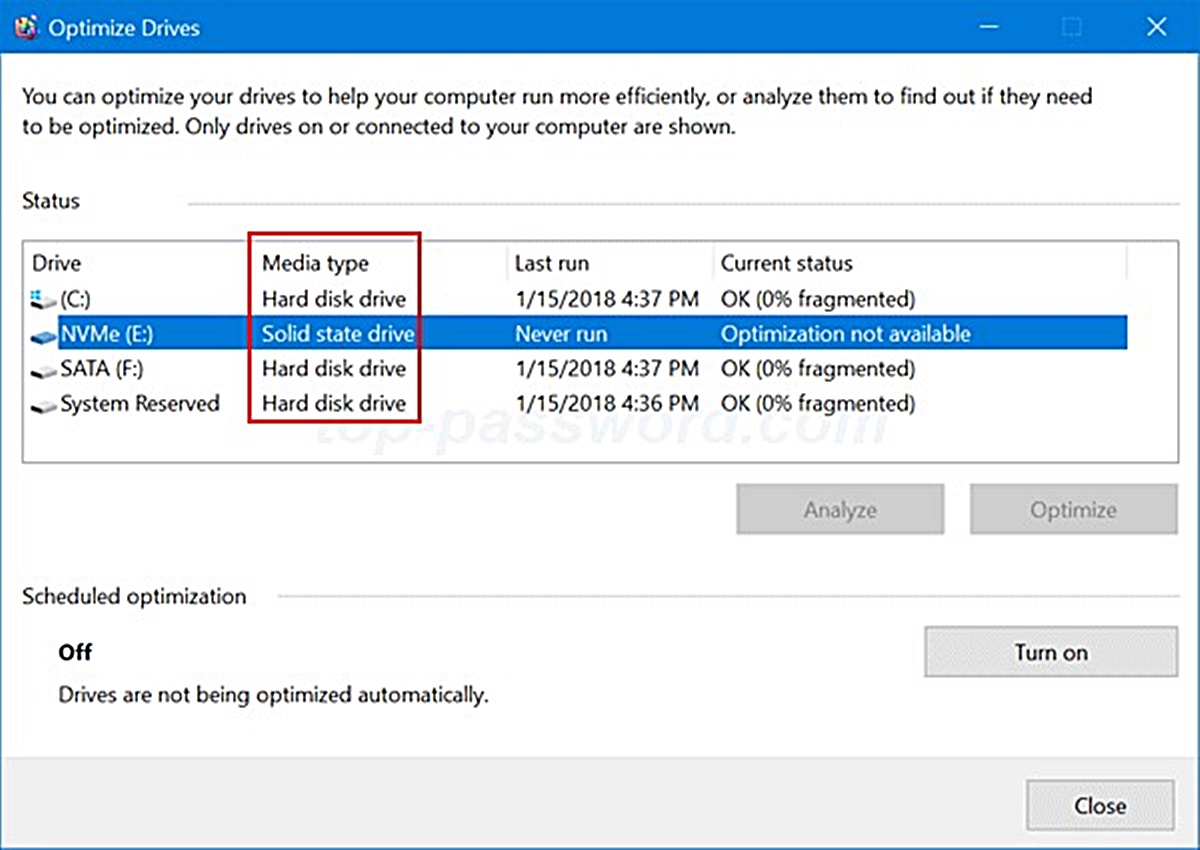
On Windows, open Task Manager, choose Performance, and select each disk. The model name may identify an HDD or SSD.
You can also:
- Press Windows key + X.
- Choose Disk Management.
- Note the number of physical drives.
- Look up each model on the manufacturer’s website.
On a Mac, open System Information, then select NVMExpress, SATA/SATA Express, or Storage, depending on the Mac model and macOS version.
If you find an HDD, it is a strong candidate for clicking or spinning sounds.
Step 3: Test the system at idle
Close games and apps. Wait several minutes.
If the noise stops when the system is idle, the sound may be linked to:
- CPU or GPU load
- A fan curve
- Background indexing
- An antivirus scan
- A backup process
- A hard drive waking up
If the sound continues at idle, inspect fans, power components, speakers, and external devices.
Step 4: Check the sound during a controlled file copy
Copy a large file from one location to another. Listen for changes.
A normal SSD may become warm and busy, but it should not create a mechanical sound. If a fan speeds up, the fan—not the SSD—is probably making the noise.
Do not use repeated large transfers as a stress test if the system is overheating, shutting down, or showing drive errors.


Step 5: Disconnect external devices
Shut down the computer before disconnecting external storage. Then test the system without:
- External SSDs
- USB hubs
- Docking stations
- External hard drives
- Speakers
- Printers
- Unneeded monitors
Reconnect one device at a time. If the sound returns after one device is connected, inspect that device, its cable, and its power adapter.
Step 6: Check drive health
Noise alone does not measure SSD health. Use a trusted tool that reads the drive’s health data, such as the SSD maker’s support utility or a reputable system tool.
Look for:
- Drive recognition
- Health status
- Reported errors
- Unsafe shutdown counts
- Temperature
- Remaining life estimates, when supported
Health readings vary by manufacturer. A “percentage remaining” value is an estimate, not a precise prediction of failure.
Back up important files before deeper testing. A backup protects your data; it does not repair a failing drive.
SSD Noise Compared With HDD Noise
The main difference is mechanical movement. An SSD uses flash memory, while an HDD uses a motor and moving arm.
| Feature | SSD | HDD |
|---|---|---|
| Storage method | Flash memory | Magnetic platters |
| Moving parts | None inside the storage media | Motor and read/write arm |
| Normal operating sound | Usually silent | Humming, clicking, or seeking |
| Vibration | Very low | Possible |
| Noise during file activity | Usually none | Often audible |
| Common warning sound | Not normally mechanical | Repeated clicks or grinding can be serious |
An HDD’s normal seek sound may be soft and brief. A sudden change in sound, repeated clicking, scraping, or failure to appear in the operating system is more concerning. Seagate’s support guidance also treats unusual hard-drive sounds as a reason to investigate promptly.
An SSD can fail without making noise. It may disappear from the BIOS or operating system, show read errors, freeze, or enter a read-only state. For this reason, silence does not prove that an SSD is healthy.
Can an SSD Make Noise When It Is Failing?
Usually, no. SSD failure is more likely to appear as a data or system problem than as a sound.
Possible warning signs include:
- The drive disappears from Windows, macOS, or the BIOS
- Files become corrupted
- Applications freeze while reading data
- The system shows repeated storage errors
- The drive becomes read-only
- Boot failures occur
- File transfers stop or become unusually slow
- A health tool reports critical warnings
- The SSD becomes abnormally hot
A failing SSD may also work normally for a while and then stop being detected. This is why regular backups matter.
What to do if you suspect failure
Follow this order:


- Back up important files immediately if the drive is still readable.
- Avoid repeated scans, benchmarks, and large file transfers.
- Record error messages and the drive’s model number.
- Check the cable, power connection, and slot if you can do so safely.
- Update firmware only after protecting your data.
- Contact the manufacturer or a qualified repair professional if the drive repeatedly disconnects or cannot be read.
Do not open an SSD. Opening the enclosure will not provide a useful repair path and may affect warranty service.

How to Reduce or Stop Unwanted Computer Noise
The fix depends on the actual source. Replacing the SSD will not stop a noisy fan or power supply.
If the sound is a fan
- Shut down the computer.
- Unplug it before cleaning.
- Remove dust with appropriate compressed air.
- Keep air vents clear.
- Check for cables touching fan blades.
- Monitor CPU and GPU temperatures.
- Replace a fan with a damaged or rough bearing.
Do not insert objects into a spinning fan. For a laptop, use the manufacturer’s service instructions or a qualified technician if cleaning requires internal disassembly.
If the sound is coil whine
Coil whine is usually an annoyance rather than a storage failure. Possible steps include:
- Try a different power outlet.
- Remove unnecessary USB devices.
- Check whether the sound changes with frame rate or graphics load.
- Use a different power adapter only if it matches the device’s required specifications.
- Contact the manufacturer if the sound is loud, new, or accompanied by heat or shutdowns.
Never use an unapproved laptop charger or power adapter. The wrong voltage or connector can damage the computer and create a safety risk.
If the sound is from an external SSD
Try:
- A different USB cable
- A different USB port
- A direct connection instead of a hub
- A different computer
- A replacement enclosure, if the internal drive is removable
If the drive disconnects during these tests, stop stressing it and copy important data first.
Common Mistakes When Diagnosing SSD Noise
The most common mistake is assuming that storage activity identifies the sound source. A file copy can make the CPU, fans, power supply, or HDD active at the same time.
Avoid these errors:
- Replacing a working SSD before locating the sound
- Treating every high-pitched tone as drive failure
- Opening a sealed drive enclosure
- Running many benchmarks on a drive that may be failing
- Ignoring a second HDD in the system
- Confusing an activity light with a sound source
- Assuming a silent SSD is automatically healthy
- Continuing to use a drive that repeatedly disconnects
- Using the wrong power adapter for an external drive
The safest rule is simple: locate the sound, protect the data, then troubleshoot the hardware.
Frequently Asked Questions
Are SSDs completely silent?
Internal SSDs are normally silent during normal operation because they have no moving storage parts. A faint electronic tone can come from power components, but mechanical clicking or grinding is not normal SSD behavior.
Can an NVMe SSD make a noise?
An NVMe SSD can be associated with a faint electrical sound from its power circuitry or the motherboard. The flash memory itself does not spin or move. Fans, coil whine, and nearby components are more common sources of audible noise.
Is a clicking sound from an SSD dangerous?
A clicking sound is not typical of an SSD. It may come from an HDD, fan, cable, or another component. If the drive is also disappearing, producing errors, or corrupting files, back up your data and stop unnecessary use until you identify the problem.
Do external SSDs make noise?
A normal external SSD is generally silent. A buzz or rattle may come from the USB cable, enclosure, power adapter, hub, fan, or electrical interference. Confirm that the product is an SSD and not an external HDD.
Can an SSD fail without making noise?
Yes. SSD failure is usually silent. The drive may become slow, disappear, report errors, or stop booting without producing any unusual sound. Keep more than one backup of files that cannot be replaced.
Final Answer: Should an SSD Make Noise?
A normal SSD should not make a noticeable mechanical noise. If you hear clicking, grinding, or spinning, check for an HDD or a fan first. If you hear a faint electronic buzz, investigate coil whine, power components, and external accessories.
Start by locating the sound, checking whether the computer has an HDD, testing at idle, and reviewing drive health. If the SSD is disconnecting or showing errors, back up your files before further testing and contact the drive maker or a qualified technician.

Everett Ashford is a tech reviewer at mytechgrid.com specializing in SSDs, cameras, TVs, earbuds, headphones, and other consumer electronics. He provides honest, data-driven reviews based on hands-on testing and real-world performance analysis. Everett simplifies complex tech details to help readers make smart, confident buying decisions.