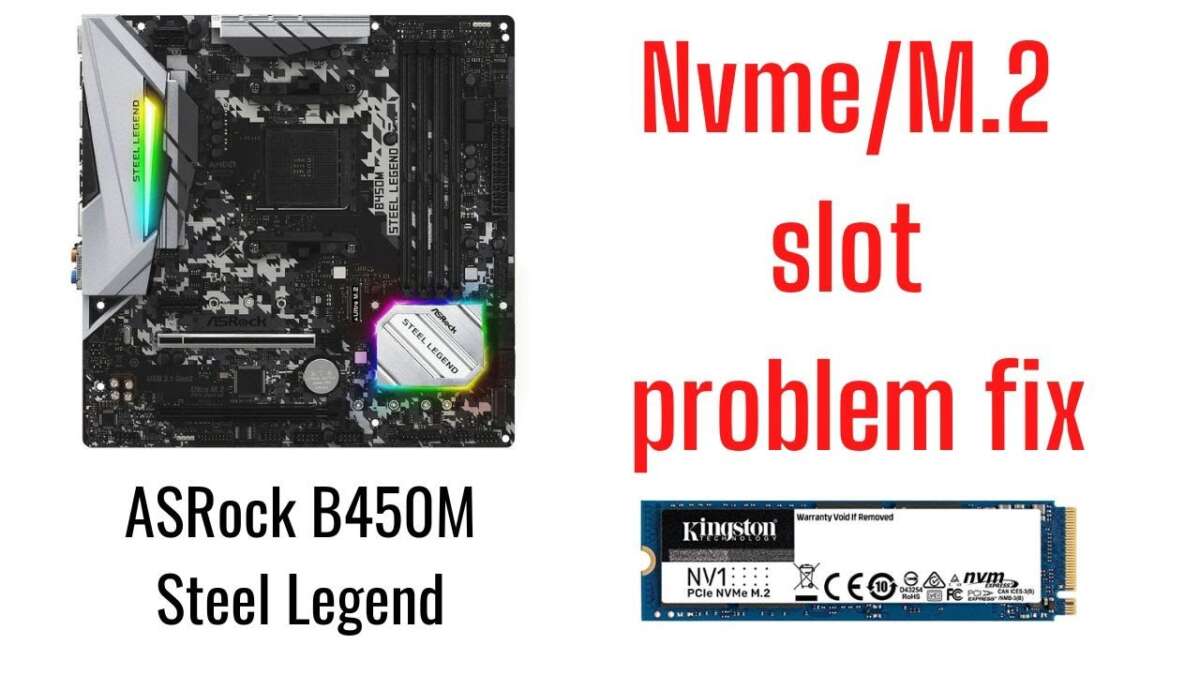
Yes — most B450 motherboards do support M.2 NVMe SSDs, though specifics vary by board.
I’ve built and tested multiple AM4 systems, and I’ll walk you through exactly how and when a B450 board supports M.2 NVMe SSDs. This guide explains compatibility, BIOS needs, performance limits, installation steps, and real-world tips so you can answer “does B450 support M.2 NVMe SSD” with full confidence and avoid common pitfalls.
How the B450 supports M.2 NVMe SSDs
Many B450 motherboards include one or more M.2 slots. Those slots can accept either SATA M.2 drives or PCIe NVMe M.2 drives, depending on the model. When you ask "does B450 support M.2 NVMe SSD," the short technical answer is yes — but with board-specific caveats about lane routing and BIOS support.
Most higher-end B450 models wire the primary M.2 slot to the CPU’s PCIe lanes and give full PCIe 3.0 x4 speeds. Some budget boards route an M.2 slot to the chipset, which can limit a drive to fewer lanes or PCIe 2.0 speeds. Always check the manual to know which slot uses CPU lanes and which uses chipset lanes.
M.2 slot types, keys, and standards you must know
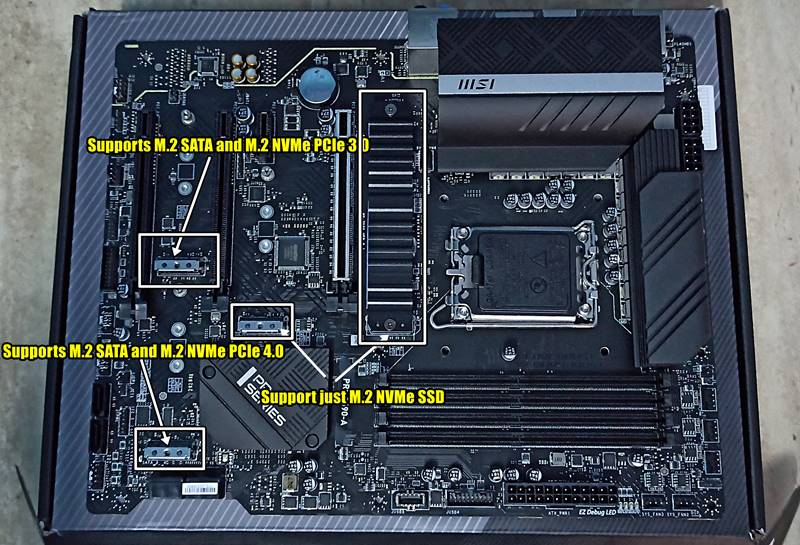
M.2 has physical keys and protocol types you need to match to your NVMe. M-key M.2 slots are used for PCIe NVMe drives. B-key and other variants are for SATA or other interface types.
Key points to check before buying:
- Confirm the slot key: ensure it’s M-key for NVMe PCIe drives.
- Confirm lane count: CPU-routed slots often provide PCIe 3.0 x4; chipset-routed slots might give fewer lanes.
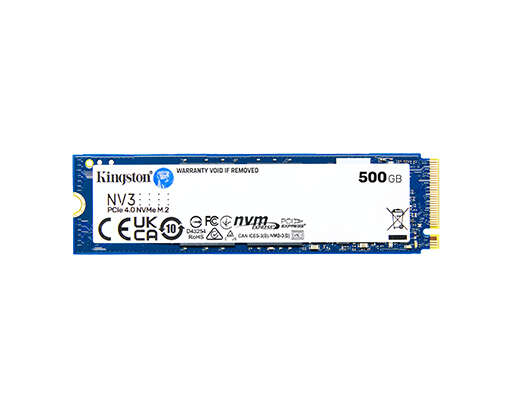
- Confirm physical size: most NVMe SSDs are 2280; ensure your board has the mounting standoff for that size.
This clears up confusion often asked by users searching “does B450 support M.2 NVMe SSD” and helps you match the right drive to the right slot without surprises.

Installing an NVMe SSD on a B450 motherboard — step by step
I’ll share a simple install routine I use on B450 systems. It’s short and safe.
Step 1: Read the manual to identify which M.2 slot supports NVMe and whether it shares lanes with SATA ports. Step 2: Update the motherboard BIOS to the latest version to get AGESA updates and improved NVMe boot support. Step 3: Power down, insert the M.2 NVMe (M-key) into the slot at an angle, push down and secure the screw, then boot into BIOS to confirm detection. Step 4: If you plan to boot, set the NVMe as boot drive in UEFI and install your OS using a UEFI installer.
If your system does not see the drive, try reseating it, try the other M.2 slot (if available), or check for a BIOS setting that disables certain slots. These steps answer practical parts of “does B450 support M.2 NVMe SSD” for real-world builds.
Performance considerations and real-world limits
Performance depends on how the M.2 slot is wired and which CPU you have. A CPU-routed M.2 slot on B450 typically gives PCIe 3.0 x4 speeds — usually up to about 3,500 MB/s for high-end NVMe drives. If a slot is wired to the chipset or limited to x2 lanes, real speeds can drop to half or worse.
Other limits and effects to consider:
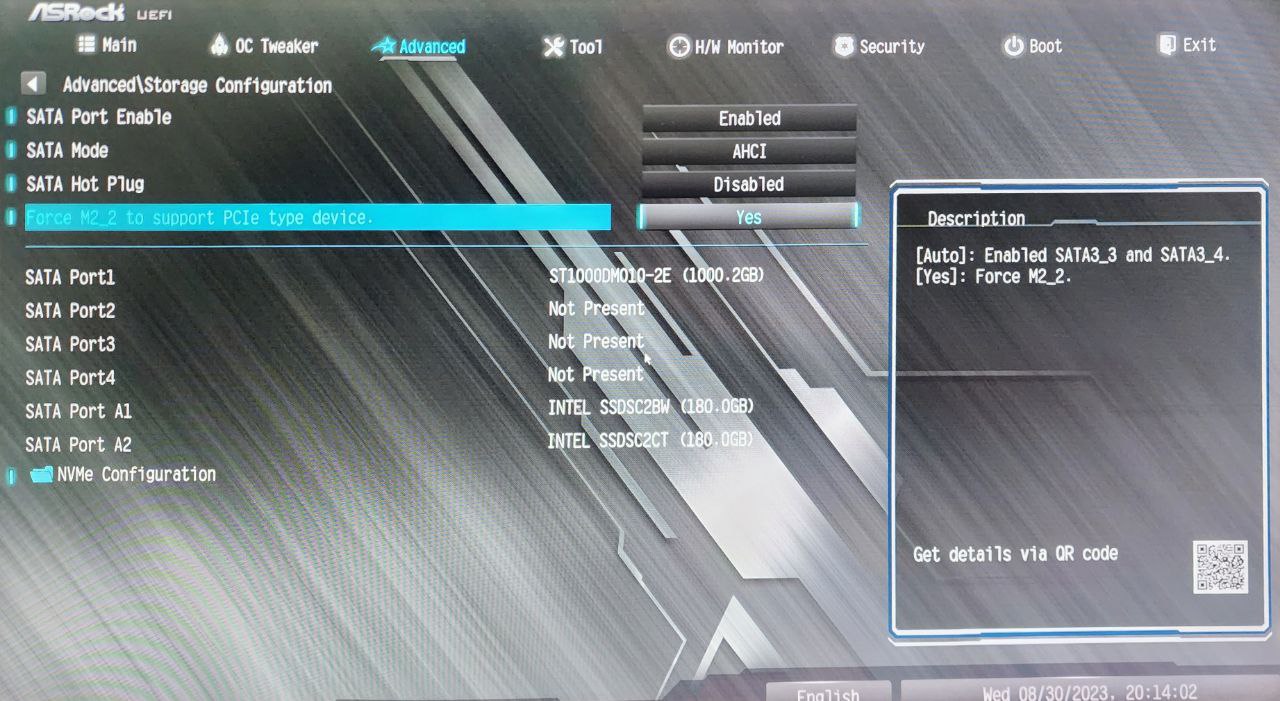
- Shared lanes: enabling one M.2 slot may disable certain SATA ports on some boards. Check the manual before installing.
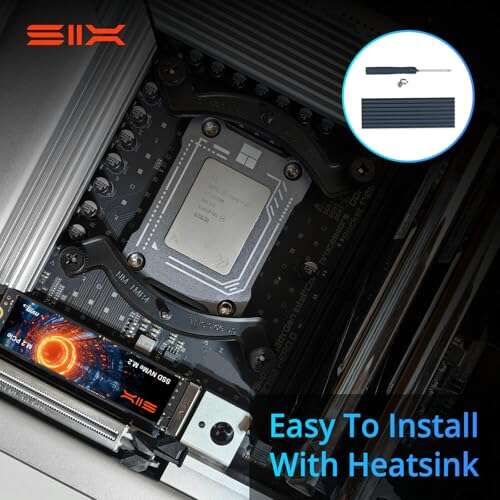
- Thermal throttling: NVMe drives can get hot under load; some B450 boards include heatsinks while others do not.
- Boot support: older BIOS versions may not boot from NVMe without updates. Modern BIOS updates on B450 generally fix this.
From my tests, a properly configured B450 with CPU-routed M.2 will deliver speedy NVMe performance nearly identical to what you get on X470 or X570 boards, but you must verify the slot wiring and update the BIOS.
Limitations, common pitfalls, and what to check first
B450 is very capable but not without limits. Asking “does B450 support M.2 NVMe SSD” is only half the question — you must ask which slot, how many lanes, and what the BIOS version is.
Checklist before buying or installing:
- Check the motherboard manual for M.2 slot wiring and SATA sharing notes.
- Confirm the slot key and length support your NVMe drive.
- Update BIOS to the latest version for NVMe boot and stability.
- Be aware that multiple NVMe drives may be constrained by CPU/chipset PCIe lane counts.
I once installed a second NVMe on a budget B450 and lost two SATA ports because of lane sharing. That taught me to always map lane sharing first to avoid surprises.
Troubleshooting and practical tips
If an NVMe drive is not detected or won’t boot, follow a quick checklist I use:
- Update the BIOS and enable UEFI mode. Many NVMe boot issues resolve with a BIOS update.
- Ensure the M.2 socket is the correct key and supports PCIe NVMe.
- Check for SATA port disablement rules in the manual; temporarily unplug SATA drives to isolate conflicts.
- Initialize the drive in Disk Management or use nvme-cli tools in Linux to confirm firmware and health.
Simple tweaks like enabling UEFI, updating AGESA microcode, or moving the drive to a CPU-routed slot solved most problems in my builds.
Common quick questions about B450 and NVMe (PAA-style)
Can B450 boot from an NVMe M.2 SSD?
Yes. Most B450 boards can boot from NVMe after a BIOS update and when using UEFI boot. Older BIOS revisions may need an update to enable NVMe boot support.
Does every M.2 slot on B450 support NVMe?
No. Some M.2 slots are SATA-only or chipset-limited, so check the motherboard manual for slot specs. The primary M.2 slot on many boards is the one that supports NVMe.
Will an NVMe SSD be faster than a SATA SSD on B450?
Yes. NVMe SSDs using PCIe 3.0 x4 are much faster than SATA M.2 or 2.5" SATA SSDs. Actual speed depends on the slot wiring and CPU lanes.
Do I need a heatsink for an NVMe on B450?
Not always, but it helps. NVMe drives run hot under load and may throttle; a heatsink or airflow improves sustained performance.
Will installing NVMe disable SATA ports on B450?
Sometimes. Many B450 boards share lanes between M.2 and SATA ports. Check the manual to see which ports are affected.
Frequently Asked Questions of does b450 support m.2 nvme ssd
What does "does B450 support M.2 NVMe SSD" mean in practice?
It means whether a specific B450 motherboard has an M.2 slot wired for PCIe NVMe drives and whether the BIOS supports NVMe boot. Support depends on the board model and BIOS version.
Do I need a BIOS update to use NVMe on a B450?
Often yes. Updating BIOS ensures NVMe drives are recognized and that boot support is present. BIOS updates also include AGESA fixes that improve compatibility.
Can I use NVMe for my Windows boot drive on B450?
Yes. After installing the NVMe and updating BIOS, install Windows in UEFI mode and select the NVMe as the boot device. Make sure to use GPT partitioning.
How do I know if my B450’s M.2 slot is PCIe 3.0 x4?
Check the motherboard manual or product page; it will list lane count and whether the slot uses CPU lanes or chipset lanes. Visual cues alone are not reliable.
Are there performance differences between B450 and newer chipsets for NVMe?
Minor differences exist. B450 with CPU-routed M.2 usually provides the same PCIe 3.0 x4 performance as newer chipsets, but newer boards may offer more lanes, better cooling, and PCIe 4.0 on newer platforms.
Will multiple NVMe drives work on a single B450 board?
Limited. B450 has limited PCIe lanes and many boards only have one full-speed NVMe slot. Running multiple NVMe drives may force reduced lanes or disabled SATA ports.
Is NVMe compatibility the same across all B450 manufacturers?
No. Each manufacturer and model can wire M.2 slots differently and add firmware features. Always check the exact model’s manual for details.
Conclusion
B450 motherboards generally do support M.2 NVMe SSDs, but the exact behavior depends on the specific board model, slot wiring, and BIOS version. Before buying or installing, check your manual, update your BIOS, and map any lane-sharing rules to avoid disabled SATA ports or reduced speeds. If you follow the steps and checks here, you’ll get strong NVMe performance from a well-chosen B450 board.
Take action now: check your motherboard manual, update the BIOS if needed, and try installing an NVMe drive. Have questions about a specific B450 model or drive? Leave a comment or share your board model and I’ll help you verify compatibility.

Everett Ashford is a tech reviewer at mytechgrid.com specializing in SSDs, cameras, TVs, earbuds, headphones, and other consumer electronics. He provides honest, data-driven reviews based on hands-on testing and real-world performance analysis. Everett simplifies complex tech details to help readers make smart, confident buying decisions.