Connect your Xbox One to a TV with one HDMI cable, select the right HDMI input, and power on both devices.
Learning how do I connect Xbox One to TV is simple once you know which ports and settings to use. This guide explains the full setup, including HDMI connections, display settings, sound problems, 4K support, and fixes for a blank screen. Whether you are setting up a console for the first time or replacing an old TV, these steps will help you get gaming quickly.
What You Need to Connect an Xbox One to a TV
Before learning how do I connect Xbox One to TV, gather the correct equipment. Most Xbox One consoles use a standard HDMI connection, so the setup is quick.
You will need:
• An Xbox One, Xbox One S, or Xbox One X console
• A TV with an available HDMI input
• A high-speed HDMI cable
• The Xbox power cable and power adapter, if your model uses one
• A working wall outlet or surge protector
The HDMI cable carries both video and audio. That means you usually do not need a separate audio cable, soundbar cable, or headset connection for basic TV sound.
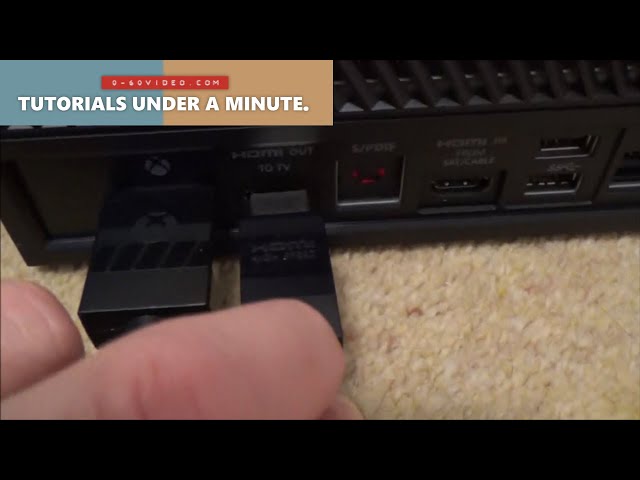
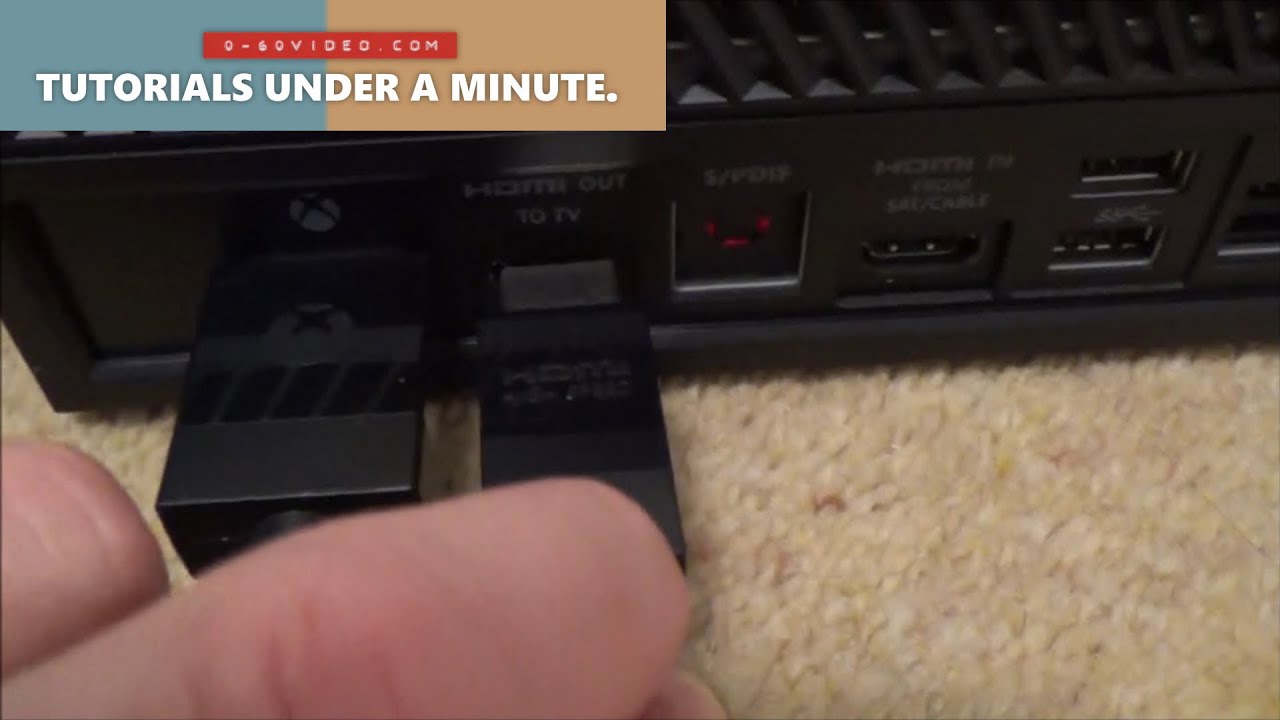
Check the back of the Xbox before connecting anything. The port labeled HDMI Out connects to the TV. The HDMI In port is for another device, such as a cable box, and does not connect the Xbox to the TV.
:max_bytes(150000):strip_icc()/Xbox-One-Optical-51b7c1d65eb14d9f8d09f00e6ebac7b9.jpg)
How Do I Connect Xbox One to TV?
Follow these steps to connect your Xbox One correctly:
-
Turn off the Xbox One and the TV.
-
Plug one end of the HDMI cable into the HDMI Out port on the Xbox.
-
Plug the other end into an open HDMI In port on the TV.
-
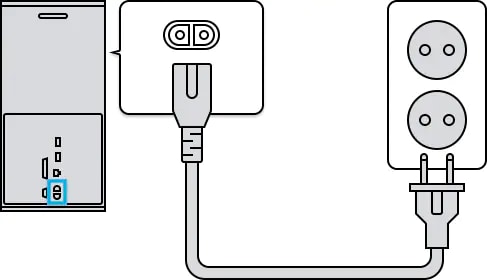
Connect the Xbox power cable to the console and a wall outlet.
-
Turn on the TV.
-
Press the Input, Source, or AV button on the TV remote.
-
Choose the HDMI input used by the Xbox.
-
Press the Xbox power button.
The Xbox startup screen should appear after a few seconds. If the TV displays “No Signal,” do not panic. The most common cause is choosing the wrong HDMI source.
For example, if the cable is connected to HDMI 2, your TV must be set to HDMI 2. Think of the HDMI input as a doorway. The Xbox can only appear through the doorway where the cable is plugged in.
Choosing the Correct HDMI Port
Most modern TVs have two or more HDMI ports. They may be placed on the back, side, or bottom of the TV.
When you connect Xbox One to TV, note the port number. A small label near the port may say HDMI 1, HDMI 2, HDMI 3, or eARC. Any standard HDMI input should work for the Xbox.
The HDMI port labeled eARC or ARC is mainly designed for soundbars and audio receivers. It can still display the Xbox picture, but another HDMI input may be more convenient if you use a soundbar.
Here are useful tips:
• Use HDMI 1 if you want the Xbox to be easy to find.
• Write down the port number if the TV has many inputs.
• Avoid plugging the Xbox into HDMI In on the console.
• Do not use the TV’s USB port for video.
• Make sure the cable is fully inserted on both ends.
A loose HDMI cable can cause flickering, missing sound, or a black screen. Push both ends firmly into place, but never force the connector.
How to Select the Xbox Input on Your TV
After you connect Xbox One to TV, the TV must display the correct source. This step is often missed because many TVs stay on the last input used.
Look for a button on the TV remote labeled Input, Source, HDMI, or AV. Press it once to open the input list, then select the HDMI port connected to the Xbox.
Some smart TVs let you rename inputs. You can rename the selected input “Xbox” so it is easier to find later. Other TVs may switch to the Xbox automatically when the console turns on, but this feature is not available on every model.
If the screen remains blank:
• Try another HDMI input on the TV.
• Select that new input with the remote.
• Restart the Xbox and TV.
• Test the cable with another device.
• Try a different HDMI cable if available.
This process helps identify whether the problem is the TV, cable, console, or selected input.
How to Set Up Xbox One Display Settings
Once the Xbox picture appears, open the console settings to check the display. Go to Settings, then General, and choose TV and display options.
The Xbox usually detects the TV’s supported resolution automatically. Common choices include:
• 720p for older HDTVs
• 1080p for most HD and Full HD TVs
• 1440p for some newer monitors and TVs
• 4K UHD for compatible 4K televisions
Do not choose a resolution your TV cannot display. If you select an unsupported setting and lose the picture, the Xbox One can reset its display settings.
To reset the display on an Xbox One:
-
Remove any disc from the console.
-
Turn off the Xbox completely.
-
Press and hold the Power and Eject buttons together.
-
Continue holding until you hear the second startup sound.
-
Release the buttons and wait for the Xbox to restart.
On an Xbox One S All-Digital Edition, use the Pair button instead of the Eject button. This starts the console in low-resolution mode so you can choose a supported display setting.
Can Xbox One Display 4K Video?
The Xbox One X supports 4K gaming and 4K video with compatible equipment. The Xbox One S can play 4K video from supported streaming services and 4K Blu-ray discs, but most Xbox One S games do not render in native 4K.
The original Xbox One is limited to lower resolutions and does not provide native 4K gaming. Your TV, HDMI cable, and console must all support the feature.
To check 4K support:
-
Open Xbox Settings.
-
Select General.
-
Choose TV and display options.
-
Select 4K TV details.
The Xbox will show which features your TV supports. These may include 4K UHD, HDR10, Dolby Vision, or a specific refresh rate.
For 4K and HDR, use a high-speed HDMI cable and connect the Xbox directly to the TV when possible. Some older soundbars, receivers, and HDMI switches may not pass a 4K HDR signal correctly.
How to Connect Xbox One to TV and Soundbar
If your TV has built-in speakers, the HDMI cable should provide sound automatically. If you use a soundbar or receiver, the wiring depends on your equipment.
The simplest setup is:
-
Connect the Xbox HDMI Out to the TV HDMI input.
-
Connect the TV’s HDMI ARC or eARC port to the soundbar’s ARC or eARC port.
-
Set the TV sound output to HDMI ARC, eARC, or external speakers.
This setup sends Xbox audio from the TV to the soundbar. You can also connect the Xbox directly to the soundbar if it has an HDMI input and supports the video signal.
If you have no sound, check these settings:
• Confirm the TV is not muted.
• Check the soundbar input.
• Select the correct TV audio output.
• Restart the Xbox after changing audio settings.
• Try Stereo uncompressed as a basic test.
Advanced formats may require compatible hardware. If a soundbar does not support a certain audio or video feature, connecting the Xbox directly to the TV is often the safer choice.
How to Connect Xbox One to an Older TV
Older TVs may not have HDMI ports. In that case, you need an active HDMI-to-AV converter or another powered adapter.
Do not use a simple passive cable that only changes the connector shape. HDMI sends a digital signal, while older composite AV inputs use an analog signal. The converter must change the signal type.
A typical setup uses:
• Xbox HDMI cable
• Powered HDMI-to-AV converter
• Red, white, and yellow AV cables
• TV composite or AV input
The picture quality will be lower than HDMI. Some converters also add a small amount of input delay. This may be noticeable in fast games.
If your older TV has a DVI port, an HDMI-to-DVI adapter may carry video, but DVI usually does not carry audio. You would need a separate audio solution.
How to Connect Xbox One to a TV Without HDMI
Connecting an Xbox One to a TV without HDMI is possible, but it requires an active converter. The converter must match the ports on your TV.
Common options include:
• HDMI to composite AV for red, white, and yellow inputs
• HDMI to component for red, green, and blue video inputs
• HDMI to DVI for compatible computer monitors
• HDMI to VGA for older monitors
Always check the converter’s supported resolution before buying it. A low-cost adapter may only support 720p or 1080p and may not carry sound.
Wireless casting is not a direct replacement for an HDMI connection. Xbox Remote Play can stream gameplay to a supported device, but it requires a network connection and may introduce delay. For the best picture and response time, use a direct HDMI connection.
Troubleshooting Xbox One TV Connection Problems
When you connect Xbox One to TV and see no picture, use a simple process. Change one thing at a time so you know what solved the problem.
The TV says “No Signal”
Check the following:
• Confirm the Xbox is turned on.
• Select the correct HDMI input.
• Reconnect both ends of the HDMI cable.
• Try another HDMI port.
• Try another HDMI cable.
• Restart both the Xbox and TV.
If another device works on the same TV port, the issue may involve the Xbox or its cable. If the Xbox works on another TV, your original TV input or settings may be the cause.
The picture flickers
Flickering often comes from a loose cable, damaged cable, unsupported resolution, or an HDMI switch. Connect the Xbox directly to the TV and test again.
You can also lower the resolution temporarily. If the picture becomes stable, the selected resolution or refresh rate may not match the TV.
The screen is black after changing settings
Reset the Xbox display settings using the Power and Eject button method. This returns the console to a basic video mode that most TVs can display.
The sound does not work
Check the TV volume, mute setting, and audio output. Then open the Xbox audio settings and choose Stereo uncompressed for testing.
The Xbox turns on but the TV stays blank
Make sure the cable is connected to HDMI Out on the Xbox. This is a frequent mistake because the console has both HDMI In and HDMI Out ports.
Tips for a Better Xbox One TV Setup
A good setup is more than simply getting a picture. A few small changes can improve image quality and reduce input delay.
Use these practical tips:
• Turn on Game Mode on the TV to reduce processing delay.
• Avoid routing the Xbox through an old receiver or HDMI switch.
• Use the TV’s native resolution when possible.
• Keep the console in an open space with good airflow.
• Do not place the Xbox inside a closed cabinet.
• Use a surge protector in areas with unstable power.
• Keep the Xbox system software updated.
• Label the HDMI cable if you have several gaming devices.
One common setup mistake is using a TV picture mode made for movies. Movie modes often add motion smoothing and other effects. Game Mode usually provides a faster response, which matters in racing, sports, and competitive games.
The Xbox should also have space around its vents. Heat buildup can cause shutdowns and may shorten the life of electronic parts.
Common Mistakes to Avoid
Most connection problems are easy to prevent. Keep these mistakes in mind when learning how do I connect Xbox One to TV.
• Plugging the cable into HDMI In instead of HDMI Out
• Selecting the wrong TV input
• Using a damaged or very old HDMI cable
• Choosing a resolution the TV cannot support
• Connecting through an incompatible HDMI switch
• Forgetting to turn on the soundbar
• Blocking the Xbox ventilation openings
• Using a passive adapter with an older analog TV
Another mistake is changing several settings at once. If the display stops working, it becomes difficult to know which change caused the issue. Make one adjustment, test it, and then continue.
How Do I Connect Xbox One to TV for the First Time?
For a first-time setup, connect the Xbox HDMI Out port to an HDMI input on the TV. Turn on both devices, select the matching HDMI source, and follow the on-screen Xbox setup instructions.
You may need to connect a controller with a USB cable during the initial setup. The Xbox may also ask you to choose a language, region, network, display settings, and account.
Can I connect an Xbox One to any TV?
You can connect it to most TVs with an HDMI input. TVs without HDMI require a powered converter, and the final picture quality may be lower.
Why does my Xbox One say there is no signal?
The wrong TV input, a loose HDMI cable, or a faulty HDMI port usually causes this message. Try the matching HDMI source, another cable, and another TV port.
Which HDMI port should I use on my TV?
Use any available HDMI input. If your TV has ARC or eARC, you can use that port, but a regular HDMI input also works for Xbox video and sound.
Do I need an HDMI cable for Xbox One?
Yes, HDMI is the standard way to send Xbox One video and audio to a TV. Use a compatible HDMI cable that fits the Xbox HDMI Out port and the TV HDMI input.
How do I get sound from my Xbox One?
Connect the Xbox to the TV with HDMI and make sure the TV is not muted. For a soundbar, use the TV’s ARC or eARC connection, or connect the Xbox directly to a compatible soundbar.
Can Xbox One connect to a 4K TV?
Yes, but the results depend on the Xbox model and the TV. The Xbox One X supports 4K gaming, while the Xbox One S supports 4K video and the original Xbox One does not provide native 4K output.
Conclusion
Connecting an Xbox One to a TV usually takes only one HDMI cable and a few minutes. Plug the cable into HDMI Out on the console, connect it to the TV, select the matching input, and check the display and audio settings.
If the screen is blank, test the HDMI source, cable, port, and display resolution in that order. Once the picture works, enable Game Mode and keep the console well ventilated for a smoother and safer gaming setup.
Try these steps now, then share your setup or troubleshooting result in the comments.

Everett Ashford is a tech reviewer at mytechgrid.com specializing in SSDs, cameras, TVs, earbuds, headphones, and other consumer electronics. He provides honest, data-driven reviews based on hands-on testing and real-world performance analysis. Everett simplifies complex tech details to help readers make smart, confident buying decisions.