To stream from iPad to TV, use AirPlay, an HDMI adapter, or a compatible streaming app.
Learning how to stream from iPad to TV is simple once you know which connection your TV supports. Apple devices work best with AirPlay, but an HDMI cable, Chromecast, Roku, Fire TV, or smart TV app can also mirror or play content reliably. This guide explains each method, its limits, and the best option for movies, photos, presentations, and games.
:max_bytes(150000):strip_icc()/001_mirror-ipad-to-apple-tv-4103739-d5f13aa3f9b444ad873d09cd68a32273.jpg)
Choose the best way to stream from iPad to TV
The right method depends on your TV, iPad model, Wi-Fi network, and the type of content you want to watch. wireless streaming is fast and convenient, while a wired connection is often more stable.
Here are the main options:
• AirPlay: Best for Apple TV, AirPlay-compatible smart TVs, and wireless screen mirroring.
• HDMI adapter: Best for a strong, stable connection without Wi-Fi.
• Chromecast: Best for apps that support Google Cast.
• Roku or Fire TV: Best when you use a streaming device with compatible apps.
• Direct TV apps: Best when you only want to watch services such as Netflix, YouTube, or Disney+.
If you want to stream from iPad to TV for a few photos or a short video, AirPlay is usually the quickest choice. For a long movie, business presentation, or gaming session, an HDMI adapter may provide a smoother experience.

How to stream from iPad to TV with AirPlay
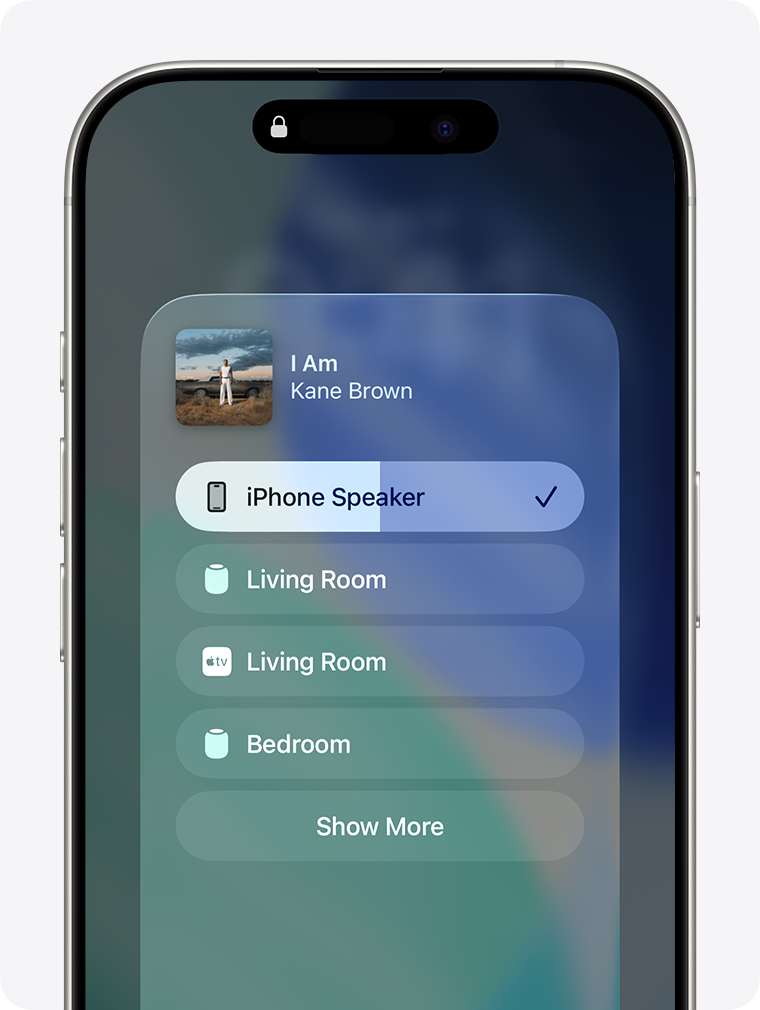
AirPlay is Apple’s built-in wireless streaming feature. It can send a video, photo, song, or your entire iPad screen to an Apple TV or a compatible smart TV.
Many newer TVs from brands such as Samsung, LG, Sony, Vizio, and others include AirPlay 2 support. Check your TV’s settings or the manufacturer’s specifications to confirm compatibility.
Before you begin
Make sure:
• Your iPad and TV are connected to the same Wi-Fi network.
• AirPlay is enabled on the TV.
• Your iPad and TV have current software updates.
• The TV is turned on and set to the correct input.
Your iPad and TV must be on the same network. If your iPad uses a guest network and your TV uses your main network, they may not see each other.
Stream a video or photo
Follow these steps to stream a specific item:
-
Open the video, photo, or music app on your iPad.
-
Start playing the content.
-
Tap the AirPlay icon. It looks like a rectangle with a triangle beneath it.
-
Select your Apple TV or AirPlay-compatible television.
-
Enter the code shown on the TV if prompted.
The content should appear on the television while your iPad acts as a remote control. You can pause, skip, change volume, or stop streaming from the iPad.
Mirror the full iPad screen
Screen mirroring shows everything on your iPad display, including menus and notifications.
-
Swipe down from the upper-right corner of the iPad screen to open Control Center.
-
Tap Screen Mirroring.
-
Choose your TV or Apple TV.
-
Enter the AirPlay passcode if one appears.
Screen mirroring works well for photos, web pages, classroom lessons, and presentations. It may not be ideal for fast games because wireless connections can add a small delay.
One common mistake is tapping Screen Mirroring when the app already supports AirPlay. Direct AirPlay streaming often gives better video quality and allows the iPad screen to remain available for other tasks.

How to stream from iPad to TV with an HDMI cable
An HDMI connection is the most dependable way to stream from iPad to TV. It does not depend on Wi-Fi, and it usually has less delay than wireless mirroring.
You need the correct adapter for your iPad:
• USB-C iPad: Use a USB-C to HDMI adapter or USB-C digital AV adapter.
• Lightning iPad: Use a Lightning Digital AV Adapter.
• HDMI cable: Connect the adapter to the TV.
Apple’s newer iPad models use USB-C, while many older models use a Lightning port. Check the port on the bottom edge of your iPad before buying an adapter.
Steps for a wired connection
-
Connect the adapter to your iPad.
-
Plug one end of the HDMI cable into the adapter.
-
Plug the other end into an open HDMI port on the TV.
-
Turn on the TV and select that HDMI input.
-
Unlock your iPad and wait for the display to appear.
The iPad screen should show on the TV within a few seconds. If it does not, confirm that the TV is on the correct HDMI source and that the adapter is fully connected.
Why use an HDMI adapter?
A wired connection is useful when:
• Your Wi-Fi is slow or unreliable.
• You are giving a work or school presentation.
• You want to reduce streaming delay.
• You are watching content during travel.
• Your TV does not support AirPlay.
Some protected video services may limit mirroring through certain adapters. A video may show a black screen if the app blocks external display output. In that case, use the service’s official TV app or a supported streaming device.
A practical tip is to use a certified adapter from Apple or a trusted accessory maker. Very cheap adapters may fail after an iPad update or may not support the needed video resolution.

How to stream from iPad to TV with Chromecast
Chromecast works differently from AirPlay. Instead of mirroring every iPad screen, Chromecast sends supported content from an app to a Google Cast device or compatible TV.
You can use Chromecast with apps such as YouTube, Netflix, Spotify, and other services that include the Cast button.
Steps to use Chromecast
-
Connect the Chromecast device or Google TV device to the television.
-
Set it up in the Google Home app.
-
Connect the iPad and Chromecast to the same Wi-Fi network.
-
Open a Cast-compatible app.
-
Tap the Cast icon.
-
Select your TV or Chromecast device.
-
Choose the content you want to watch.
Chromecast is a good option if your home already uses Google TV devices. However, it does not mirror every iPad app in the same simple way as AirPlay. The app must support Google Cast, or you may need a separate mirroring solution.
If the Cast icon does not appear, check the Wi-Fi connection first. Also make sure the app is updated and that local network access is allowed in the iPad’s privacy settings.

How to stream from iPad to Roku or Fire TV
Roku and Fire TV devices can stream content from an iPad, but the method depends on the device and app.
Many current Roku TVs and Roku players support AirPlay. To use this feature, open the Roku settings and look for Apple AirPlay and HomeKit. Turn AirPlay on, then connect the iPad and Roku device to the same Wi-Fi network.
Fire TV devices may support AirPlay through certain models or third-party apps. The exact features can vary by device version and software update. You should check the Fire TV settings and the current app store options before relying on it for screen mirroring.
For many streaming services, the easiest method is to install the same service directly on Roku or Fire TV. Then use the iPad as a remote or account controller rather than mirroring the screen.
This approach can improve picture quality and battery life. It also avoids problems caused by screen rotation, notifications, or wireless delay.

How to stream from iPad to a smart TV app
Sometimes the best answer to how do i stream from iPad to TV is not mirroring at all. Many smart TVs include apps for popular services, including Netflix, YouTube, Prime Video, Hulu, Disney+, and Max.
Using the built-in TV app can provide a cleaner experience because the television receives the video directly. Your iPad can still help you search for shows or control playback if the app supports it.
Try these steps:
-
Install the streaming service on your TV.
-
Sign in with the same account used on your iPad.
-
Open the app on both devices if needed.
-
Tap the connection or Cast button in the iPad app.
-
Select the television.
Some services require a paid subscription, and some content may not support AirPlay or screen mirroring because of licensing rules. This is not always a fault with your iPad, TV, or network.
Fix common problems when streaming from iPad to TV
Wireless streaming problems often look mysterious, but most have simple causes. I have found that checking the network and input source solves many connection failures before more advanced steps are needed.
The TV does not appear
Try the following:
• Confirm that both devices use the same Wi-Fi network.
• Turn AirPlay on in the TV settings.
• Disable any guest Wi-Fi connection.
• Restart the iPad and TV.
• Move the devices closer to the Wi-Fi router.
• Install available software updates.
A mesh network can sometimes place the iPad and TV on different network bands or access points. Most modern systems handle this well, but restarting the router can refresh the connection.
AirPlay keeps disconnecting
An unstable wireless signal is the most common cause. Pause large downloads, move the router to a more open location, or use an HDMI cable for important viewing.
Also check whether another person is using the network for video calls, cloud backups, or large downloads. Streaming quality depends on the whole network, not only the iPad.
The picture appears, but there is no sound
Check the volume on both the iPad and TV. Make sure the TV is not connected to a Bluetooth speaker or soundbar that is turned off.
With HDMI, remove and reconnect the adapter. With AirPlay, stop mirroring and reconnect from Control Center. A full restart can also clear an audio connection error.
The video is laggy
Lag may come from weak Wi-Fi, network traffic, an older TV, or an app that does not handle mirroring well. Direct AirPlay or a TV app usually performs better than full-screen mirroring.
For gaming, a wired HDMI connection is often the better choice. Even a small delay can make action games feel unresponsive.
Improve picture and sound quality
Once you know how to stream from iPad to TV, a few small settings can make the experience much better.
• Use a strong 5 GHz Wi-Fi connection when possible.
• Keep the iPad close to the router during wireless streaming.
• Turn off Low Power Mode if streaming stops or becomes unstable.
• Use landscape mode for movies and presentations.
• Match the TV’s picture mode to the content.
• Keep the iPad plugged in during long sessions.
• Close apps that are using large amounts of network data.
The iPad may change its screen orientation during mirroring. Lock the orientation if you are showing photos or slides and do not want the image to rotate.
For sound, use the TV’s speakers or a connected soundbar. If the audio seems delayed, a wired HDMI connection may reduce the problem. Bluetooth audio can introduce its own delay, especially when paired with wireless video.
Security and privacy tips for AirPlay
Streaming from iPad to TV is generally safe on a private home network, but public networks require more care. Do not connect to unknown TVs in hotels, offices, or shared spaces unless you recognize the device.
Use these safety steps:
• Set AirPlay access to require a password or code when available.
• Turn off AirPlay when you no longer need it.
• Avoid mirroring private messages or banking screens.
• Use your own Wi-Fi hotspot when the network is unfamiliar.
• Check the TV name before selecting it.
Screen mirroring shows everything on the iPad, including incoming alerts. Turn on Do Not Disturb or Focus mode before a presentation or movie night.
Frequently asked questions about how do i stream from ipad to tv
Can I stream from an iPad to any TV?
You can stream to most modern TVs with AirPlay support, a streaming device, or an HDMI adapter. If the TV has none of these options, an external Apple TV, Roku, Chromecast, Fire TV, or compatible adapter can add the needed connection.
Why can’t I see my TV in AirPlay?
Your iPad and TV may be connected to different Wi-Fi networks, or AirPlay may be disabled on the TV. Restart both devices, check the network name, update the software, and confirm that the television supports AirPlay.
Do I need Apple TV to stream from iPad to TV?
No. Apple TV is not required if your smart TV supports AirPlay or if you use an HDMI adapter. You can also use Chromecast, Roku, Fire TV, or the TV’s own streaming apps.
Can I stream Netflix from my iPad to my TV?
Yes, in most cases. Use the Netflix app’s AirPlay or Cast feature when available, or install Netflix directly on the TV; some content and devices may restrict screen mirroring.
How do I stream from iPad to TV without Wi-Fi?
Use a compatible USB-C or Lightning-to-HDMI adapter and an HDMI cable. This creates a direct connection, although the iPad and TV still need power and the correct input settings.
Can I stream games from iPad to TV?
Yes, but wireless mirroring may create a small delay. For faster games, use an HDMI adapter and a wired controller when possible.
Conclusion
Learning how to stream from iPad to TV gives you several flexible choices. AirPlay is the easiest wireless method, HDMI is the most stable, and Chromecast, Roku, Fire TV, and built-in TV apps work well when you already use those platforms.
Start by checking your TV’s wireless features and your iPad’s port. Use AirPlay for quick sharing, HDMI for dependable performance, and a direct TV app for long movie sessions. Try the method that fits your setup, then explore your TV and iPad settings for even smoother streaming.

Everett Ashford is a tech reviewer at mytechgrid.com specializing in SSDs, cameras, TVs, earbuds, headphones, and other consumer electronics. He provides honest, data-driven reviews based on hands-on testing and real-world performance analysis. Everett simplifies complex tech details to help readers make smart, confident buying decisions.