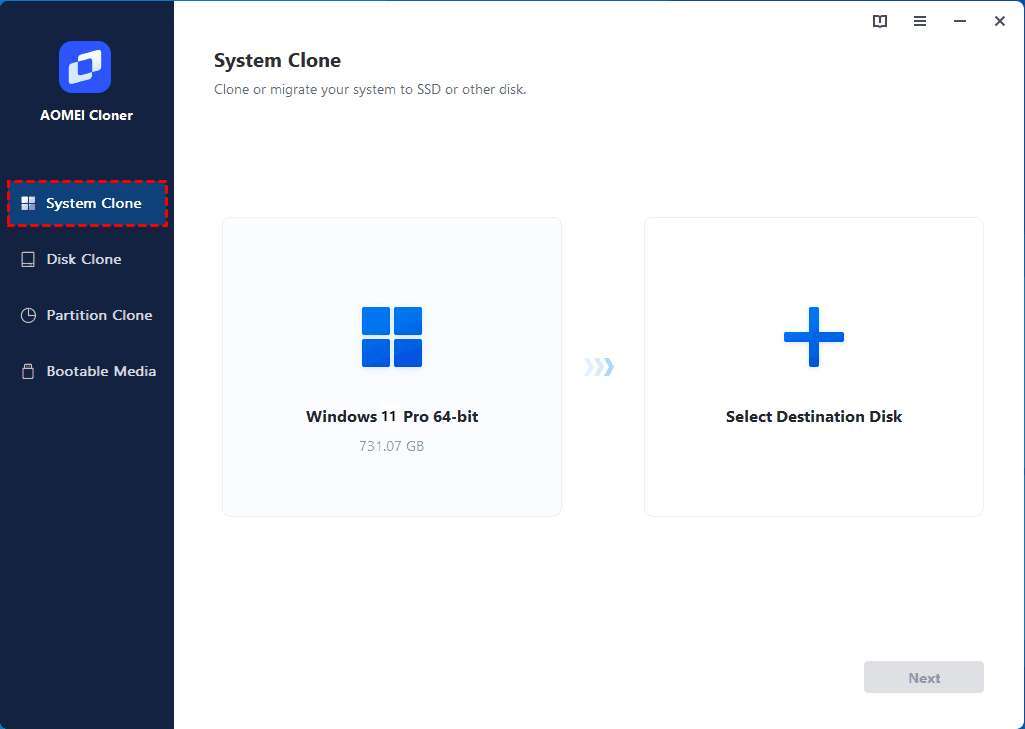
Windows 11 needs at least 64 GB, but a practical SSD target is 128 GB or more.
The official requirement is only the starting point. In real use, Windows 11 takes space for system files, updates, restore points, temporary data, the page file, and optional features. This guide explains how much space Windows 11 takes on an SSD, how much free space you should keep, and which SSD size makes sense for your PC.
How much space does Windows 11 take on an SSD?
Microsoft lists 64 GB as the minimum storage capacity for Windows 11. This means the computer must have a storage device with at least 64 GB of total capacity. It does not mean that 64 GB will give you a comfortable Windows experience.
A clean Windows 11 installation often uses about 20 GB to 30 GB soon after setup. The exact amount can change based on the Windows edition, version, language packs, drivers, optional features, recovery tools, and update files.
A simple way to understand the numbers is:
| Storage use | Typical space |
|---|---|
| Core Windows 11 installation | About 20 GB to 30 GB |
| Recovery and system files | About 5 GB to 15 GB |
| Updates and temporary files | About 5 GB to 20 GB or more |
| Page file and hibernation file | About 4 GB to 30 GB |
| Practical free space after setup | At least 30 GB to 50 GB |
The page file and hibernation file can vary widely. A computer with 16 GB of RAM may use a larger page file than a computer with 4 GB of RAM. If hibernation is enabled, Windows also reserves space for the hibernation file.
So, how much space does Windows 11 take on an SSD in daily use? Plan for roughly 35 GB to 60 GB before you install your apps and personal files. Large updates or several restore points can push that number higher.
Windows 11 storage requirements versus real-world use
The 64 GB requirement is a technical minimum, not a buying recommendation. It helps Windows meet its installation rule, but it leaves little room for normal computing.
Think of the SSD as a closet. The Windows installation is the furniture, while updates, apps, downloads, and personal files are everything you add later. A closet that barely fits the furniture will become difficult to use.
A 64 GB SSD may work for a basic installation, but it can become full quickly because:
• Windows updates need temporary working space.
• System Restore stores snapshots of important system files.
• The Windows component store keeps files used for repair and updates.
• Browsers save caches and offline data.
• User folders collect downloads, photos, videos, and documents.
• Applications may store large data files outside their main installation folder.
Microsoft can also require extra free space during a major feature update. Windows may download, unpack, install, and then remove update files. That process can need much more space than the final update size suggests.
This is why the answer to how much space does Windows 11 take on an SSD depends on whether you mean the basic operating system or a working Windows computer. The operating system may fit in around 30 GB, but a healthy system needs far more room.

How much SSD space should you reserve for Windows 11?
For most users, reserve at least 80 GB to 100 GB for Windows 11 and its system data. This space should remain available after installing your main apps.
A 128 GB SSD is the smallest practical choice for a Windows 11 computer. It can work for web browsing, office work, streaming, and light apps. Still, you will need to watch your storage and move large files to another drive or cloud storage.
A 256 GB SSD is a much better minimum for everyday use. It gives Windows room to update and leaves space for common programs, documents, and a few games.
A 512 GB SSD is the best balance for many people. It offers enough room for Windows 11, large applications, photos, work files, and several games without constant cleanup.
Consider these general recommendations:
• 64 GB: Meets the official minimum, but is not comfortable.
• 128 GB: Suitable for basic use with careful storage management.
• 256 GB: Recommended for general home, school, and office use.
• 512 GB: Better for games, creative work, and long-term use.
• 1 TB or more: Ideal for large game libraries, video editing, virtual machines, and many personal files.
The right choice also depends on whether the SSD holds only Windows or the entire computer. If the drive contains Windows, applications, photos, games, and downloads, choose at least 256 GB. If it is only a system drive, 128 GB may be enough.

What uses space after Windows 11 is installed?
Windows 11 does not store everything in one simple folder. Several system areas use storage, and some grow over time.
Windows system files
The main operating system files are stored in the Windows folder. This includes core services, built-in tools, drivers, fonts, and components needed to run the desktop.
The Windows folder can grow after updates. Older files may remain temporarily so Windows can repair an update or allow you to return to a previous version.
Component store and update files
The component store helps Windows enable features, repair damaged files, and install updates. It may look large in File Explorer, but some files are shared through hard links, so the displayed size can be misleading.
Update cleanup can remove files that are no longer needed. However, do not delete system folders manually. Use Windows Settings or the built-in Disk Cleanup tool.
Page file
The page file is stored as pagefile.sys. Windows uses it as extra virtual memory when physical RAM is busy. It also supports crash dumps and system stability.
Its size depends on your RAM, Windows settings, workload, and crash dump configuration. A computer with 8 GB of RAM may use several gigabytes for the page file, while a high-memory computer may still reserve a sizable file.
Hibernation file
The hibernation file is stored as hiberfil.sys. It lets Windows save the current session to storage before powering off.
Fast Startup also uses part of this file on many systems. If you never use hibernation, turning it off with the appropriate administrator command can recover space. This is optional, and it removes hibernation functionality.
Recovery environment
Windows Recovery Environment helps repair startup problems and reset the PC. Manufacturers may also add a recovery partition with factory drivers and software.
This space is useful during emergencies. Deleting a recovery partition may create more free space, but it can remove a convenient repair option. Create recovery media first and understand the risks.
Temporary files and caches
Temporary files come from updates, installers, browsers, crash reports, thumbnails, and app activity. Some are removed automatically, while others remain until Windows detects that they are safe to delete.
Storage Sense can remove selected temporary files on a schedule. Review the categories before deleting anything, especially the Downloads folder.

How much space does Windows 11 take after updates?
After several months of updates, Windows 11 may use more space than it did on the first day. The increase is normal, but it is not always permanent.
Monthly quality updates usually need temporary space during installation. Major feature updates may use more space because Windows keeps recovery data and installation files until the process is complete.
The final footprint varies because each computer has a different history. A new PC with few updates may use less space than an older PC that has received several feature upgrades.
You can check current usage by opening:
- Settings
- System
- Storage
Windows groups storage into categories such as Installed apps, Temporary files, System and reserved, Documents, Pictures, and Other. Select a category to see what is consuming space.
If Windows reports unusually high usage, check these areas:
• Temporary files
• Previous Windows installation
• Windows Update Cleanup
• System Restore points
• Large applications
• Downloads and videos
The Previous Windows installation folder can appear after an upgrade. It allows you to return to the earlier version for a limited time. Delete it only after you are sure the new version works properly.
How to check how much space Windows 11 uses
Windows provides several safe ways to measure the operating system footprint.
Use Windows Settings
Open Settings, select System, and then choose Storage. The System and reserved category shows space used by Windows system files, reserved storage, virtual memory, hibernation data, and related items.
This is the easiest method for most users. It gives a useful overview without asking you to inspect protected folders.
Check the Windows folder
Open File Explorer and browse to C:\Windows. Right-click the folder and choose Properties.
This number is only part of the answer. It does not include every Windows-related file, such as the page file, hibernation file, recovery partition, or some protected system data.
Use Disk Cleanup
Search for Disk Cleanup from the Start menu. Choose the system drive and then select Clean up system files.
Review each option carefully. Windows may list update cleanup, delivery optimization files, temporary installation files, and old Windows installations.
Check the drive capacity correctly
A drive sold as 256 GB may appear closer to 238 GB in Windows. Manufacturers use decimal units, while Windows often displays capacity using binary-based values.
This is normal and does not mean the SSD is faulty. Some space is also used for partitions, formatting, recovery tools, and overprovisioning.
Why a 64 GB SSD can feel full so quickly
A 64 GB SSD starts with a small usable capacity. After formatting and system partitions, the available space is lower than the advertised number.
Suppose a 64 GB drive provides around 59 GB of usable capacity. If Windows uses 35 GB, only about 24 GB remains. Add a few applications, browser data, updates, and personal files, and the drive can reach its limit fast.
A nearly full SSD can also make maintenance harder. Windows needs working room for updates and temporary files. Some SSDs may also show lower write performance when very little free space remains, though the exact effect depends on the model and workload.
The key lesson is that the official requirement is not a comfort target. When someone asks how much space does Windows 11 take on an SSD, the practical answer must include future growth.
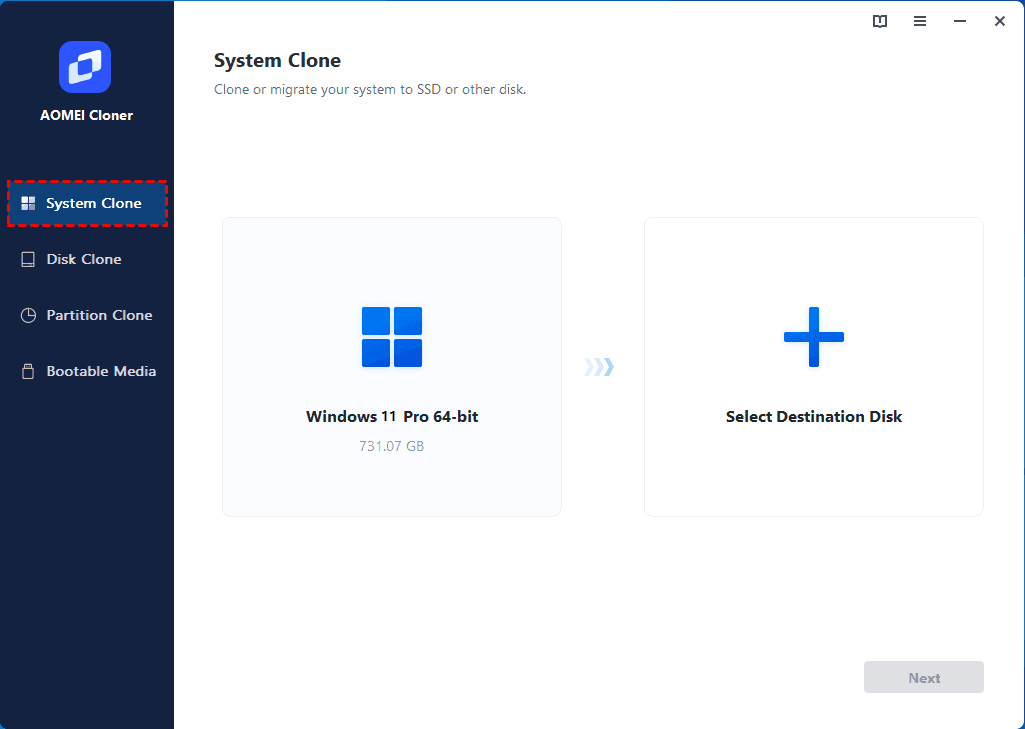
How to free up space safely in Windows 11
You can recover storage without deleting important system files. Start with built-in tools before using third-party cleaners.
Try these steps:
-
Open Settings, choose System, and select Storage.
-
Open Temporary files and review the categories.
-
Remove Windows Update Cleanup and temporary installation files when available.
-
Empty the Recycle Bin after checking its contents.
-
Uninstall apps you no longer use.
-
Move large videos, photos, and downloads to another drive.
-
Turn on Storage Sense and choose a cleanup schedule.
-
Use OneDrive or another trusted cloud service for files you do not need offline.
-
Check the Downloads folder for old installers and duplicate files.
-
Review System Restore settings if restore points use too much space.
Avoid these common mistakes:
• Do not delete the entire Windows folder.
• Do not remove files from WinSxS manually.
• Do not delete pagefile.sys without understanding the effect.
• Do not remove a recovery partition just to gain a small amount of space.
• Do not trust registry cleaners that promise huge storage gains.
In hands-on Windows setup work, the most common mistake is buying a drive based only on the 64 GB requirement. The PC may install correctly, but the owner soon sees warnings after updates or app installations. A modest 256 GB SSD avoids much of that stress.
SSD space tips for Windows 11 laptops
Laptop users often have fewer upgrade options, so storage planning matters more. Some thin laptops use an M.2 SSD that can be replaced, while others use soldered storage that cannot be upgraded.
Before buying a laptop, check whether the SSD is replaceable. Also check whether the device has a second M.2 slot or a 2.5-inch drive bay. These details can matter more than the initial Windows installation size.
If the laptop has a 128 GB SSD, use these habits:
• Store large media files on an external SSD.
• Keep only active projects on the internal drive.
• Use Storage Sense to remove safe temporary files.
• Avoid installing games on the system drive.
• Leave at least 20 GB to 30 GB free when possible.
A laptop with a 256 GB SSD is easier to manage, but heavy users may still need external storage. Video projects, modern games, and virtual machines can each consume tens or hundreds of gigabytes.

SSD space tips for gaming and creative work
Windows 11 itself is not usually the largest item on a modern gaming or creative PC. Games, video files, sample libraries, and project caches often use much more space.
A single modern game can require more than 100 GB. Video editing programs may create preview files and cache data that grow silently. Photo catalogs and raw camera files can also fill a drive faster than expected.
For these workloads, a 512 GB SSD is a sensible starting point. A 1 TB SSD gives much better comfort, especially when Windows, applications, and active projects share one drive.
Keep Windows and frequently used apps on a fast SSD. Store archives on a second SSD, external drive, or reliable cloud backup. Do not treat an external drive as a backup unless your files also exist in another location.
Does Windows 11 run better with more free space?
More free space does not automatically make Windows 11 faster. However, adequate space helps Windows complete updates, create temporary files, manage virtual memory, and recover from errors.
A drive that is nearly full can cause practical problems. Updates may fail, apps may not install, and Windows may repeatedly show storage warnings.
There is no universal percentage that guarantees peak performance for every SSD. A useful rule is to keep at least 15% to 20% of the drive free when possible. On a 256 GB SSD, that means roughly 38 GB to 51 GB of free space.
This is a planning guideline, not a strict Windows rule. Check your SSD manufacturer’s recommendations if you use a high-performance drive for demanding work.
Frequently Asked Questions About How Much Space Does Windows 11 Take on an SSD
Is 64 GB enough for Windows 11?
64 GB meets the official minimum storage requirement, but it is not ideal for long-term use. A 128 GB SSD is more practical for basic tasks, while 256 GB offers a much better experience.
How much space does Windows 11 take after installation?
A fresh installation commonly uses about 20 GB to 30 GB for core files, but system data, recovery tools, updates, and virtual memory can raise total use to roughly 35 GB to 60 GB. The exact amount depends on the Windows version and PC configuration.
Is 128 GB enough for Windows 11?
A 128 GB SSD can be enough for browsing, office work, and streaming. You will need to manage downloads and personal files carefully, especially after major updates.
Is 256 GB enough for Windows 11 and apps?
Yes, 256 GB is a good size for Windows 11 and common apps. It may feel tight if you install many large games, store videos, or use creative software with large project files.
How much free space should Windows 11 have?
Try to keep at least 20 GB to 30 GB free for normal updates and temporary work. Keeping 15% to 20% of the SSD free provides a more comfortable buffer.
Can I install Windows 11 on a 64 GB SSD?
You may be able to install Windows 11 on a 64 GB SSD if the hardware meets all other requirements. However, limited free space can cause update, app installation, and performance problems.
Does Windows 11 use more space over time?
It can use more space as updates, restore points, temporary files, apps, and personal data accumulate. Storage Sense, Disk Cleanup, and regular file management can control that growth.
Conclusion
Windows 11 has an official minimum of 64 GB, but the real answer is more practical: expect roughly 35 GB to 60 GB for Windows and related system data after setup and updates. Choose a 128 GB SSD only for basic use, 256 GB for most everyday PCs, and 512 GB or more for gaming and creative work.
Check Settings > System > Storage before deleting files, keep a healthy amount of free space, and avoid manual removal of protected Windows folders. If you are planning a new PC, choose more storage than the minimum and explore additional Windows 11 storage guides before making your final decision.

Everett Ashford is a tech reviewer at mytechgrid.com specializing in SSDs, cameras, TVs, earbuds, headphones, and other consumer electronics. He provides honest, data-driven reviews based on hands-on testing and real-world performance analysis. Everett simplifies complex tech details to help readers make smart, confident buying decisions.