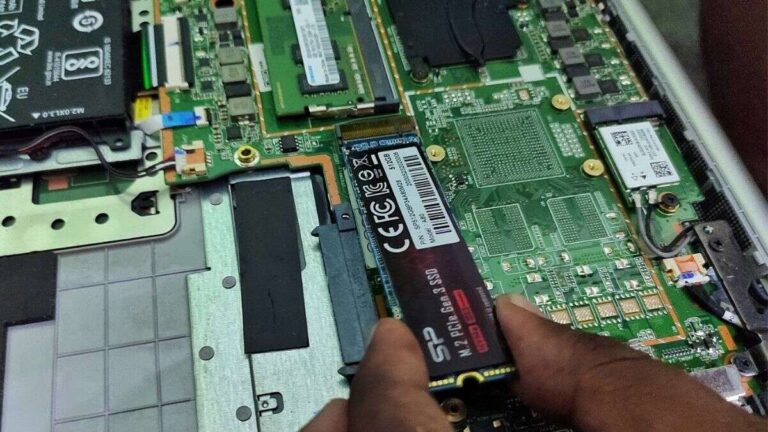
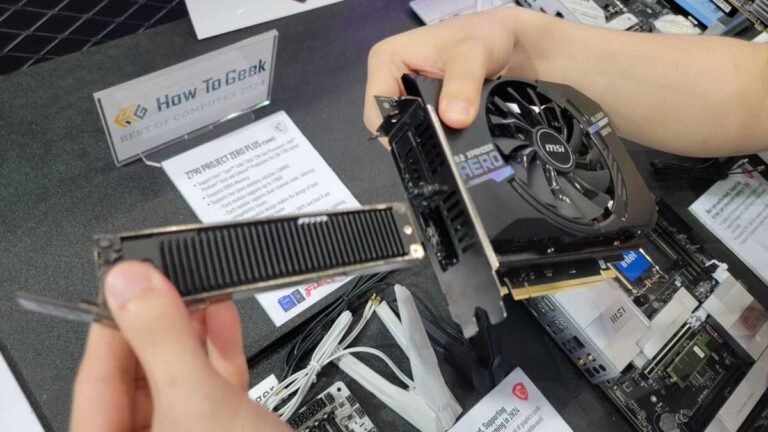
You will usually get about 90% of an SSD’s advertised capacity after formatting and system space.
Wondering how much SSD will I get after buying a 256GB, 512GB, or 1TB drive? The number shown on the box is not the exact space you will see in Windows or macOS. The difference comes from decimal storage units, formatting, recovery files, system data, and reserved space. This guide explains the math clearly so you can choose the right SSD without surprises.

Why Your SSD Shows Less Space Than Advertised
SSD makers use decimal measurements. Operating systems often show storage in binary units, even when they label them as GB. This makes a new drive appear smaller than the number printed on its package.
For example, manufacturers define:
• 1GB as 1,000,000,000 bytes
• 1TB as 1,000,000,000,000 bytes
Computers calculate storage more closely to:
• 1GiB as 1,073,741,824 bytes
• 1TiB as 1,099,511,627,776 bytes
That difference is normal. It does not mean the manufacturer removed storage from your SSD.
A 1TB SSD contains one trillion bytes. When Windows reports that capacity using binary-style measurements, it may show about 931GB. The drive still has one trillion bytes; the operating system is simply displaying the number in a different way.

How Much SSD Will I Get From Common Drive Sizes?
The exact usable space depends on the operating system, partition layout, recovery tools, and the SSD brand. Still, these estimates are useful for planning.
| Advertised SSD size | Approximate capacity shown before setup | Typical usable space after formatting |
|---|---|---|
| 128GB | About 119GB | About 110 to 115GB |
| 256GB | About 238GB | About 225 to 235GB |
| 500GB | About 466GB | About 450 to 465GB |
| 512GB | About 477GB | About 460 to 475GB |
| 1TB | About 931GB | About 900 to 925GB |
| 2TB | About 1,862GB | About 1.8 to 1.85TB |
| 4TB | About 3,725GB | About 3.6 to 3.7TB |
These figures are estimates, not guarantees. A Windows laptop may show less free space than a blank external SSD because it includes the operating system, recovery partitions, temporary files, and preinstalled apps.
If you are asking how much SSD will I get from a 512GB model, expect roughly 477GB before system files. After Windows, drivers, updates, and recovery data, the free space may fall closer to 430GB or 450GB.

How Much SSD Will I Get After Formatting?
Formatting prepares an SSD for use by creating a file system, such as NTFS, exFAT, or APFS. The file system uses a small amount of space for indexes, tables, permissions, and other management data.
Formatting does not normally remove a large part of the drive. The main reduction comes from the decimal-to-binary conversion. A newly formatted internal SSD often shows close to these amounts:
• A 256GB SSD may show about 238GB
• A 512GB SSD may show about 477GB
• A 1TB SSD may show about 931GB
• A 2TB SSD may show about 1.86TB
The space marked as “free” is different from the total capacity. A new Windows installation may use 25GB to 40GB or more after updates. macOS can also use significant space for system files, caches, and local snapshots.
In practical use, how much SSD will I get depends on whether you mean total detected capacity or free space available for your files. Always separate those two numbers when planning a purchase.

How Much SSD Will I Get on a Windows PC?
On a Windows computer, the SSD may contain several partitions. The main partition stores Windows, apps, documents, and downloads. Other partitions support boot files, recovery tools, or manufacturer diagnostics.
A new Windows laptop with a 512GB SSD may provide:
- About 477GB of total reported capacity
- About 20GB to 35GB used by Windows and built-in files
- About 5GB to 20GB used by recovery tools and reserved data
- Roughly 420GB to 450GB available for personal files
The result varies by laptop brand. A clean Windows installation usually leaves more space than a device filled with trial apps and vendor utilities.
To check your storage in Windows:
- Open File Explorer.
- Select “This PC.”
- Look at the drive under “Devices and drives.”
- Open Settings, then choose System and Storage for a detailed view.
Do not delete recovery partitions just to gain a few extra gigabytes unless you have a complete recovery plan. That small amount of space can help restore the computer after a serious system failure.

How Much SSD Will I Get on a Mac?
Mac computers also reserve storage for macOS, recovery tools, system data, and local snapshots. A Mac with a 1TB SSD may show about 994GB in Disk Utility before macOS and personal files take space. Finder may show a lower amount of available storage.
To check your Mac storage:
- Open the Apple menu.
- Select “System Settings.”
- Choose “General.”
- Select “Storage.”
Older versions of macOS use “About This Mac” and then “Storage.”
Mac storage can look confusing because “System Data” may change over time. This category can include caches, logs, virtual memory, iPhone backups, and local Time Machine snapshots. macOS may remove some temporary data when space becomes limited.
When asking how much SSD will I get in a Mac, check both the physical capacity and the available capacity. The model name describes the first one, while the Storage panel shows the second.

Where Does the Missing SSD Space Go?
The difference between advertised and usable capacity has several normal causes.
Decimal and binary measurement
This is usually the largest difference. A 1TB drive appears as about 931GB because 1TB and 1TiB are not the same measurement.
File system overhead
NTFS, APFS, exFAT, and other file systems need space to organize files. This overhead is usually modest but still reduces the available amount.
Operating system files
Windows, macOS, and Linux need storage for system files, updates, drivers, logs, and temporary data.
Recovery partitions
Many laptops include a recovery image. It can help reinstall the operating system, but it may use several gigabytes.
Reserved SSD space
Some SSDs keep a portion of their NAND flash unavailable to the user. This area supports garbage collection, wear leveling, and performance stability. It is often called overprovisioning.
Hidden or unallocated partitions
A drive can have space that is not assigned to the main volume. Disk Management or Disk Utility can reveal these areas, but changing partitions requires care.
Manufacturer software
Prebuilt computers may include antivirus trials, support tools, games, and backup utilities. These programs may use more space than expected.

How Much Free Space Should You Keep on an SSD?
You should not fill an SSD completely. Most drives work best when they have room for background tasks such as garbage collection and wear leveling.
A practical rule is to keep at least 10% to 20% of the drive free. For a 1TB SSD, that means leaving about 100GB to 200GB available. Heavy users, video editors, and gamers may benefit from keeping even more free space.
Keeping free space can help with:
• Sustained write performance
• Temporary files
• Operating system updates
• SSD maintenance
• Large software installations
• Virtual memory and hibernation
Modern SSDs can still operate when nearly full, but performance may drop. The effect depends on the controller, NAND type, workload, and amount of built-in overprovisioning.
From a practical standpoint, a 256GB SSD can feel cramped in a modern Windows laptop. A 512GB model is a better starting point for office work, school, and general use. A 1TB SSD is more comfortable for games, photos, creative work, and large software libraries.
How Much SSD Do You Need for Different Uses?
The right SSD size depends on your files and habits, not just your current needs.
Basic office and school work
A 256GB SSD may be enough for web browsing, email, documents, and cloud storage. However, it leaves less room for updates and offline files.
Everyday home use
A 512GB SSD is a strong choice for browsing, streaming, photos, office apps, and light gaming. It offers a useful balance between price and space.
Gaming
A 1TB SSD is a practical starting point for gaming. Modern games can use 50GB to more than 150GB each, so a 512GB drive may hold only a few large titles after Windows and other apps are installed.
Photo and video editing
Choose at least 1TB for regular editing. A 2TB or larger SSD is better if you work with 4K video, RAW photos, project caches, or large media libraries.
Professional workstations
Developers, engineers, content creators, and researchers may need 2TB to 4TB or more. Large virtual machines, source repositories, databases, and production files can consume space quickly.
A simple buying rule is to choose more capacity than you need today. SSD prices change, but replacing a full drive and moving your data is still inconvenient.
Internal SSD Versus External SSD Capacity
An external SSD usually has more usable space than an internal laptop SSD because it does not contain the operating system or recovery partitions. A formatted 1TB external SSD may show close to 931GB, with a small amount used by the file system.
An internal SSD may show the same total capacity but have much less free space after system files are installed. For example, a 1TB internal drive may offer about 850GB to 900GB for personal files, depending on the operating system and installed software.
External drives also use different file systems. exFAT works across Windows and macOS, while NTFS is common on Windows and APFS is common on Mac computers. Compatibility and file permissions can affect how you use the drive, but they do not change the basic decimal-to-binary capacity difference.
How to Calculate Your SSD’s Usable Capacity
You can estimate the reported capacity with a simple formula.
For decimal gigabytes:
Reported capacity ≈ advertised GB ÷ 1.0737
For example:
• 256GB ÷ 1.0737 ≈ 238GB
• 512GB ÷ 1.0737 ≈ 477GB
• 1,000GB ÷ 1.0737 ≈ 931GB
• 2,000GB ÷ 1.0737 ≈ 1,862GB
Then subtract the space used by the operating system, recovery partitions, applications, and personal files.
If you ask how much SSD will I get from a 1TB drive, the technical answer is about 931GB as displayed by many operating systems. The practical free space may be closer to 850GB or 900GB after setup.
This calculation is an estimate. Different operating systems may label GiB as GB, and storage tools may round numbers differently.
How to Check Your Actual SSD Capacity
Checking the drive directly is more accurate than relying on the box or product listing.
Windows
Use File Explorer to see free space. For more detail, open Disk Management by right-clicking the Start button and selecting “Disk Management.” It shows partitions, unallocated space, and the total disk layout.
PowerShell can also show drive information. Open PowerShell and use:
Get-PhysicalDisk
For partition details, you can use:
Get-Partition
macOS
Open Disk Utility to view the physical drive, containers, volumes, and partitions. The System Settings storage page shows how much space categories such as applications, documents, and system data use.
Linux
The lsblk command displays disks and partitions. The df -h command shows used and available space for mounted file systems.
Always identify the physical disk before changing partitions. Selecting the wrong drive during formatting or deletion can cause permanent data loss.
Common Mistakes When Buying an SSD
Several mistakes can make a new SSD seem smaller or less useful than expected.
• Buying a 256GB drive for a large game library
• Confusing 500GB with 512GB capacity
• Treating free space as total drive capacity
• Ignoring the space used by Windows or macOS
• Filling the drive to 99% capacity
• Removing recovery partitions without creating backup media
• Buying a drive that does not match the computer’s interface
• Forgetting that an M.2 slot may support SATA, NVMe, or only one of them
Interface compatibility matters. An M.2 NVMe SSD may not work in an M.2 SATA-only slot, even though both drives use a similar physical shape. Check your computer manual or motherboard specifications before buying.
My most useful practical lesson is simple: do not shop at the exact limit. If your current files need 350GB, a 512GB SSD may work, but a 1TB model gives you much more breathing room for updates, backups, and future growth.
SSD Capacity, Performance, and Drive Health
Capacity is only one part of SSD quality. The controller, NAND type, cache design, interface, endurance rating, and warranty also matter.
A larger SSD is often faster under sustained workloads because it may have more NAND channels and a larger cache. However, capacity alone does not guarantee better performance. A high-quality 1TB TLC SSD can outperform a low-cost 2TB QLC model in some workloads.
Look for these specifications:
• NVMe PCIe interface for modern high-speed storage
• TLC NAND for a strong balance of speed, endurance, and price
• A suitable endurance rating, often listed as TBW
• A reliable warranty and support policy
• Reviews that test sustained writes, not only short benchmark bursts
Consumer SSD endurance is usually sufficient for normal home use. Still, keep important files backed up because no SSD is immune to failure. An SSD can fail suddenly, and data recovery may be difficult or expensive.
How Much SSD Will I Get: Practical Examples
Imagine buying a laptop with a 512GB SSD. The drive may show about 477GB after the decimal-to-binary conversion. Windows, recovery files, drivers, and built-in apps may use another 35GB to 55GB.
That leaves around 420GB to 440GB before you install your own programs. A few modern games, a photo library, and large downloads can reduce that number quickly.
Now consider a desktop with a blank 1TB external SSD. It may show about 931GB after formatting. Because there is no operating system on it, nearly all of that space remains available for backups, videos, or project files.
These examples show why how much SSD will I get is not answered by the advertised number alone. The same drive size can provide very different free space depending on its role.
Frequently Asked Questions About How Much SSD Will I Get
How much space is actually available on a 256GB SSD?
A 256GB SSD usually appears as about 238GB before operating system files. After Windows, macOS, recovery data, and applications, you may have about 200GB to 225GB available.
How much space does a 512GB SSD really have?
A 512GB SSD commonly shows about 477GB in an operating system. After setup and system files, practical free space often falls between 420GB and 460GB.
Why does my 1TB SSD show only 931GB?
Manufacturers use decimal units, while many operating systems display the capacity using binary-style calculations. A 1TB drive contains one trillion bytes, which is reported as about 931GB by many systems.
Is a 256GB SSD enough for Windows?
It can be enough for basic work, browsing, and cloud storage, but it may feel tight over time. A 512GB SSD is a more comfortable choice for Windows, applications, updates, and personal files.
Should I leave free space on my SSD?
Yes. Keeping about 10% to 20% free can provide room for temporary files, updates, garbage collection, and sustained performance. The ideal amount depends on the drive and your workload.
Does formatting reduce SSD capacity?
Formatting uses a small amount of space for file system data. Most of the apparent difference comes from the way decimal and binary storage units are calculated.
Is a 1TB SSD better than a 512GB SSD?
A 1TB SSD gives you more room for games, media, applications, and future files. It may also maintain performance more easily during large workloads, but speed and quality still depend on the specific SSD model.
Conclusion
The answer to how much SSD will I get depends on the advertised size, the operating system, formatting, recovery partitions, and installed files. A 512GB SSD usually shows about 477GB, while a 1TB SSD commonly shows about 931GB before system data is counted.
For most people, 512GB is a sensible minimum, while 1TB offers much better long-term comfort. Keep at least 10% to 20% free, check interface compatibility, and back up important data before changing partitions. Use these estimates when comparing drives, then check your computer’s real storage screen after installation and share your experience or questions in the comments.

Everett Ashford is a tech reviewer at mytechgrid.com specializing in SSDs, cameras, TVs, earbuds, headphones, and other consumer electronics. He provides honest, data-driven reviews based on hands-on testing and real-world performance analysis. Everett simplifies complex tech details to help readers make smart, confident buying decisions.