Use a compact digital camera by charging it, choosing a mode, framing your subject, focusing, and pressing the shutter.
Learning how to use a compact digital camera is easier than it first seems. These small cameras handle many settings for you, yet they still give you more control than most phones. With the right grip, light, focus, and shooting habits, you can take sharper, brighter, and more natural-looking photos in daily life.

What Is a Compact Digital Camera?
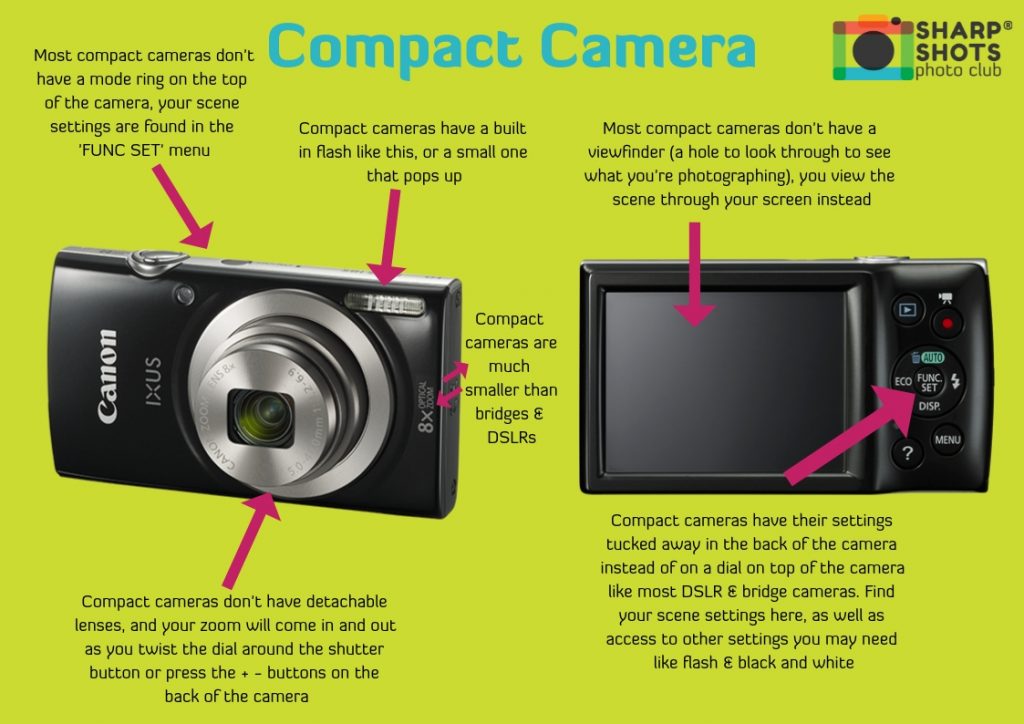
A compact digital camera is a small camera with a built-in lens. It is often called a point-and-shoot camera because it can choose many settings automatically. Most models include a screen, a flash, optical zoom, scene modes, and a rechargeable battery.
Some compact cameras are simple. Others include manual exposure, RAW image capture, a large sensor, or a long zoom lens. Before learning how to use a compact digital camera, check your camera manual for the location of its controls.
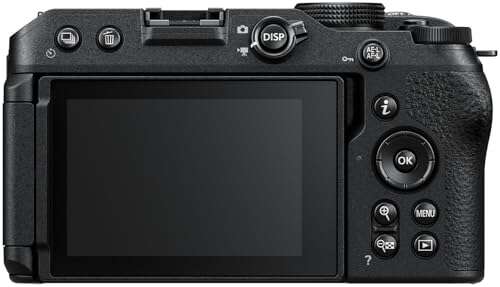
Common controls include:
• Power button: Turns the camera on and off.
• Shutter button: Takes a photo when pressed.
• Zoom control: Makes your subject look closer or farther away.
• Mode dial or mode button: Changes between automatic, portrait, sports, night, and manual modes.
• Playback button: Lets you view saved photos.
• Menu button: Opens camera settings.
• Navigation buttons: Help you move through menus and options.
A compact camera sits between a smartphone and a larger interchangeable lens camera. It is usually easier to carry than a DSLR or mirrorless camera. It may also offer better zoom and more stable handling than a phone.
Prepare Your Compact Camera
Good photos begin before you press the shutter. A few minutes of preparation can prevent common problems such as a dead battery, a full memory card, or blurry images.
Charge the Battery
Charge the battery fully before a long outing. If the camera uses removable batteries, carry a spare when possible. Cold weather can reduce battery life, so keep an extra battery in an inside pocket during winter trips.
Use the charger made for your camera when available. Avoid storing a loose battery with coins or keys. Metal objects can create a safety risk.
Insert a Memory Card
Place a compatible memory card in the camera. Check the camera manual for the correct card type and storage limit. Format the card inside the camera before its first use, but save any important photos first because formatting erases the card.
A 32 GB or 64 GB card is often enough for everyday photos. High resolution, RAW files, and video use more space.
Set the Date, Time, and File Quality
Set the correct date and time. This helps sort photos later. Choose the highest image quality that fits your needs.
Use JPEG for simple sharing and easy storage. Use RAW if your camera supports it and you plan to edit exposure, color, or shadows. RAW files offer more editing control, but they require special software and take more storage space.
Clean the Lens
Dust, fingerprints, and smudges can make every photo look soft. Use a clean microfiber cloth and wipe the lens gently. Do not use rough fabric or household cleaners.
In my own camera testing, a quick lens check often improved a photo more than changing a complex menu setting. A dirty lens can look like poor focus, even when the camera focuses correctly.

How to Use a Compact Digital Camera Step by Step
Once the camera is ready, follow a simple process. This method works for family photos, travel scenes, food, pets, and many other subjects.
1. Turn On the Camera
Open the lens cover or press the power button. Wait for the lens to extend fully. Do not force the lens or press it inward while the camera is starting.
Check the screen for warning icons. A flashing battery icon means the camera may soon shut down. A memory card warning means you should replace, insert, or format the card.
2. Select Automatic Mode
Automatic mode is the best place to start when learning how to use a compact digital camera. The camera chooses shutter speed, aperture, ISO, focus, and flash behavior for you.
Automatic mode works well in good light. It may struggle in dark rooms, fast action, or scenes with strong backlight. You can move to a scene mode when the automatic result does not look right.
3. Hold the Camera Correctly
Hold the camera with both hands. Keep your elbows close to your body. Press the camera gently against your face if it has a viewfinder.
Keep fingers away from the lens, flash, microphone, and focus lamp. This sounds simple, but blocked lenses and covered flashes are common causes of poor photos.
Think of your hands as a small tripod. A steady grip helps the camera keep the image sharp, especially indoors.
4. Frame the Subject
Look at the screen and decide what belongs in the photo. Leave a little space around people, pets, and moving subjects. Watch the edges of the frame for poles, bright spots, or unwanted objects.
Try not to place every subject in the exact center. The rule of thirds can make a photo feel more balanced. Imagine two vertical and two horizontal lines across the screen, then place the main subject near one of the crossing points.
5. Focus Before You Shoot
Place the focus area over your subject. Press the shutter button halfway. Wait for the focus confirmation, which may appear as a green box or a beep.
Keep holding the shutter halfway, adjust the frame if needed, and then press it all the way down. This two step action is one of the most useful parts of learning how to use a compact digital camera.
If the camera cannot focus, move closer to a well-lit subject or aim at an area with clear contrast. Plain walls and dark objects can be difficult for autofocus.
6. Press the Shutter Gently
Do not jab the shutter button. Use a smooth, light press. After taking the photo, keep the camera still for a moment.
This matters in low light. The camera may use a slower shutter speed, so even a small movement can cause blur.
7. Review the Photo
Press the playback button and inspect the image. Zoom in on the subject to check focus. Look for closed eyes, motion blur, or distracting objects.
Do not judge a photo only by its small screen preview. A photo may look sharp on the camera but soft on a computer. Still, careful review helps you learn from each shot.

Learn the Main Camera Modes
Camera modes change how the camera responds to a scene. The names differ by brand, but the basic purpose is usually similar.
Auto Mode
Auto mode lets the camera make most decisions. Use it for quick photos, travel snapshots, and changing scenes.
It is reliable, but it may turn on the flash when you would prefer natural light. If the results look too bright, too dark, or blurry, try another mode.
Portrait Mode
Portrait mode usually favors a wider aperture or a setting that separates the subject from the background. It may also adjust skin tones.
Place the subject several feet away from the background when possible. This gives the camera a better chance of creating a softer background.
Landscape Mode
Landscape mode often uses a smaller aperture and lower ISO. It aims to keep more of the scene in focus.
Use it for mountains, city views, buildings, and wide outdoor scenes. A tripod can help in low light.
Sports Mode
Sports mode uses a faster shutter speed to reduce motion blur. It works for children, pets, sports, and moving vehicles.
Use bright light when possible. Fast shutter speeds need more light, so the camera may raise ISO in a dark setting.
Night Mode
Night mode helps with dark scenes. Some cameras take several images and combine them, while others use a slower shutter speed.
Keep the camera steady. A wall, table, or small tripod can improve sharpness. Ask people to stay still if they appear in the frame.
Macro or Close Up Mode
Macro mode helps the camera focus on nearby subjects. Use it for flowers, small objects, food, and details.
Do not move too close unless the camera allows it. Many compact cameras have a minimum focus distance. If you move inside that distance, the subject may remain blurry.
Manual or Program Modes
Advanced compact cameras may include Program, Aperture Priority, Shutter Priority, or Manual mode. These modes let you control more of the exposure.
You do not need to use them at once. First learn how the camera behaves in Auto mode. Then change one setting at a time so you understand the result.

Use Light to Improve Your Photos
Light has a greater effect on image quality than many menu settings. Look at the direction, strength, and color of the light before you shoot.
Use Soft Natural Light
Window light, shade, and cloudy skies often create soft results. Place your subject near a window, but avoid strong direct sunlight on the face.
Morning and late afternoon light can add warmth and depth. Midday sun is harder and can create dark eye sockets and sharp shadows.
Watch the Background
A good subject can lose impact against a messy background. Move your camera, ask the subject to move, or zoom in to remove distractions.
Before taking the picture, look behind the subject’s head. A tree, lamp, or sign can appear to grow from the person.
Avoid Bright Backlight
If the sun or a bright window sits behind your subject, the subject may look dark. Turn the subject toward the light or use exposure compensation if your camera offers it.
You can also use fill flash outdoors. The flash adds light to the face while the camera records the brighter background.
Understand the Built In Flash
A built-in flash can help in a dark room, but it may create harsh shadows. It also has a short range. Flash cannot brighten a distant building or a large outdoor scene.
When possible, increase room light, move closer, or use a steady surface. If you must use flash, keep the subject within the camera’s stated flash range.
Use Exposure Compensation
Many compact cameras include exposure compensation, shown as a plus and minus scale. Move toward the plus side when the photo looks too dark. Move toward the minus side when it looks too bright.
This tool is useful for snow, beaches, dark clothing, and strong backlight. Make small changes, such as one third or two thirds of a stop, and review the result.

Improve Focus, Zoom, and Sharpness
Sharp photos come from good focus and steady technique. The camera cannot fix every movement or focusing error.
Use Optical Zoom
Optical zoom changes the lens position and keeps better image quality. Digital zoom enlarges the image through software and can reduce detail.
Use optical zoom first. If your camera has a long zoom range, support the camera with both hands and use a faster shutter speed in low light.
Do Not Zoom Too Far in Dark Places
A long zoom makes camera shake more visible. It can also reduce the amount of light reaching the sensor on some models.
In a dark room, move closer instead of using maximum zoom. This often gives a sharper and brighter photo.
Focus on the Most Important Detail
For a person, focus on the eyes. For a flower, focus on the center or the most detailed petal. For food, focus on the front edge of the main dish.
If the camera selects the wrong focus point, use a single focus area or focus lock. These controls may appear in the camera menu.
Reduce Camera Shake
Stand with your feet apart. Keep your arms close to your body. Exhale slowly as you press the shutter.
Use image stabilization when your camera has it. Stabilization helps reduce blur from hand movement, but it cannot freeze a moving person or animal.

Adjust ISO, Shutter Speed, and Aperture
These three controls shape exposure and motion. They are easier to understand when treated as parts of one system.
ISO
ISO controls how strongly the camera responds to light. A low ISO, such as ISO 100, usually gives cleaner detail. A high ISO helps in dim light but can add grain, also called noise.
Use low ISO outdoors. Allow the camera to raise ISO indoors if that prevents a blurry photo. A sharp image with some noise is often better than a clean but blurred image.
Shutter Speed
Shutter speed controls how long the sensor records light. A fast speed freezes movement. A slow speed gathers more light but increases the risk of blur.
For people who are standing still, a moderate shutter speed may work. For sports, pets, or children, choose Sports mode or a faster shutter speed when available.
Aperture
Aperture controls the opening inside the lens. A wide aperture lets in more light and can soften the background. A narrow aperture lets in less light but can keep more of the scene sharp.
Compact cameras often have small sensors. Because of this, they may not create the same background blur as a camera with a larger sensor. Good distance and careful framing still help.
How the Settings Work Together
If you change one setting, the camera may change another to keep the exposure balanced. For example, raising shutter speed may require a higher ISO.
When learning how to use a compact digital camera, change one setting at a time. Take a test photo, review it, and note what changed.
Take Better Photos in Common Situations
Different subjects need different approaches. These practical examples show how to use a compact digital camera in everyday scenes.
People and Family Photos
Use natural light when possible. Place people near a window or in open shade. Focus on the nearest eye and leave a little space in front of the person’s gaze.
Take several photos instead of relying on one frame. People blink, move, and change expression quickly.
Pets and Children
Use Sports mode or a faster shutter speed. Lower the camera to the subject’s eye level. Keep the background simple.
Turn on continuous shooting if your camera supports it. This can help capture a natural expression, but it also fills the memory card faster.
Travel Photos
Carry a spare battery and memory card. Use a wrist strap or neck strap in crowded places. Check your camera settings after leaving a dark room or indoor site.
Avoid photographing every scene from eye level. Kneel, step to the side, or find a higher viewpoint. Small changes can make familiar places look fresh.
Food Photos
Use soft window light. Turn off the flash if it creates a bright reflection. Fill the frame with the dish, but leave enough space to show shape and texture.
Wipe the lens before taking close photos. Food photos reveal smudges quickly.
Landscapes
Use a stable surface or tripod. Keep the horizon level. Look for a foreground detail, such as a rock, path, or plant, to add depth.
Watch bright skies. If the sky looks white, lower exposure slightly or use the camera’s HDR or landscape setting.
Indoor Photos
Turn on more lights when possible. Hold the camera steady and avoid maximum zoom. Ask people to pause for a moment if the room is dark.
If your camera has a high ISO limit, test it before an important event. Each model handles low light differently.
Record Video With a Compact Camera
Many compact cameras record HD or 4K video. Video needs a few extra habits.
Clean the lens and check the battery first. Hold the camera with both hands, or use a small tripod. Avoid fast zooming because it can make footage look unsteady.
Record short clips instead of one very long file. This makes editing and sharing easier. Keep the microphone clear and avoid covering it with your fingers.
Good sound matters. Move closer to the speaker when possible, since a small built-in microphone may not record distant voices clearly.
Transfer, Organize, and Protect Your Photos
Learning how to use a compact digital camera also includes managing your files. Good organization prevents lost memories.
Transfer photos to a computer, tablet, or phone regularly. Use a card reader, USB cable, or the camera’s wireless feature.
Create folders by date or event. For example, use names such as “2026-05 Family Picnic” or “2026-06 Chicago Trip.” Clear names make future searches much easier.
Keep at least two copies of important photos. One copy can stay on your computer, while another can go to an external drive or trusted cloud service.
Do not delete photos from the memory card until you confirm that the backup works. A file transfer can fail without making the problem obvious.
Common Mistakes to Avoid
Small mistakes can lower image quality even when the camera is good. These errors are easy to fix once you know what to watch for.
• Covering the lens or flash: Check your finger position before shooting.
• Using digital zoom too much: Move closer or use optical zoom.
• Forgetting the flash setting: Review the flash icon when moving between rooms.
• Holding the camera with one hand: Use both hands for better control.
• Ignoring the background: Scan the edges of the frame before pressing the shutter.
• Shooting with a dirty lens: Clean the lens with a microfiber cloth.
• Removing the memory card too soon: Wait until the camera finishes saving the image.
• Using the wrong date: Check the clock after long storage or battery changes.
• Taking only one photo: Shoot a few frames when the moment matters.
During my early compact camera tests, I often blamed the camera for soft indoor images. The real problem was a slow shutter speed and an unsteady grip. Once I learned to add light, reduce zoom, and brace the camera, the results improved at once.
Maintain Your Compact Digital Camera
Care helps a compact camera last longer. Store it in a dry place away from heat, dust, and direct sunlight.
Use a small case during travel. Keep the lens closed when the camera is not in use. Do not leave the camera in a hot car, because heat can damage the battery and electronics.
If the camera gets wet, turn it off at once. Remove the battery and memory card if it is safe to do so. Let the camera dry fully before trying to use it again. Water damage is not always covered by a standard warranty.
Update firmware only by following the camera maker’s instructions. A failed update can affect camera operation, so keep the battery charged during the process.
Frequently Asked Questions About How to Use a Compact Digital Camera
How do you use a compact digital camera for the first time?
Charge the battery, insert a memory card, set the date and time, and choose Auto mode. Hold the camera steady, frame the subject, press the shutter halfway to focus, and then press it fully.
What mode should a beginner use on a compact camera?
Auto mode is the easiest starting point because the camera selects most exposure settings. Use Portrait, Sports, Landscape, or Night mode when the scene clearly matches one of those choices.
How can I stop my compact camera photos from looking blurry?
Use more light, hold the camera with both hands, and reduce zoom in dark places. Sports mode or a faster shutter speed can help with moving subjects.
Should I use optical zoom or digital zoom?
Use optical zoom whenever possible because it changes the lens and preserves more detail. Digital zoom enlarges the image through software and may make it look softer.
How do I take better indoor photos with a compact camera?
Use window light or turn on more room lights. Keep the camera steady, avoid extreme zoom, and use a flash only when it improves the subject rather than creating harsh shadows.
What is the best image quality setting?
Choose the highest JPEG quality for easy sharing and storage. Choose RAW if your camera supports it and you plan to edit the photos with suitable software.
How do I transfer photos from a compact digital camera?
Connect the camera with a USB cable, remove the memory card and use a card reader, or use the camera’s wireless transfer feature. Always confirm that the files copied correctly before deleting them from the card.
Conclusion
Knowing how to use a compact digital camera comes down to a few strong habits: prepare the battery and card, use a steady grip, focus carefully, watch the light, and review your photos. Start with Auto mode, then explore scene modes and manual controls as your confidence grows.
Your camera does not need to be expensive to help you make meaningful images. Practice in different light, learn from missed shots, and take time to notice what works. Pick up your compact camera today, take ten photos with purpose, and share your best results or questions in the comments.

Everett Ashford is a tech reviewer at mytechgrid.com specializing in SSDs, cameras, TVs, earbuds, headphones, and other consumer electronics. He provides honest, data-driven reviews based on hands-on testing and real-world performance analysis. Everett simplifies complex tech details to help readers make smart, confident buying decisions.