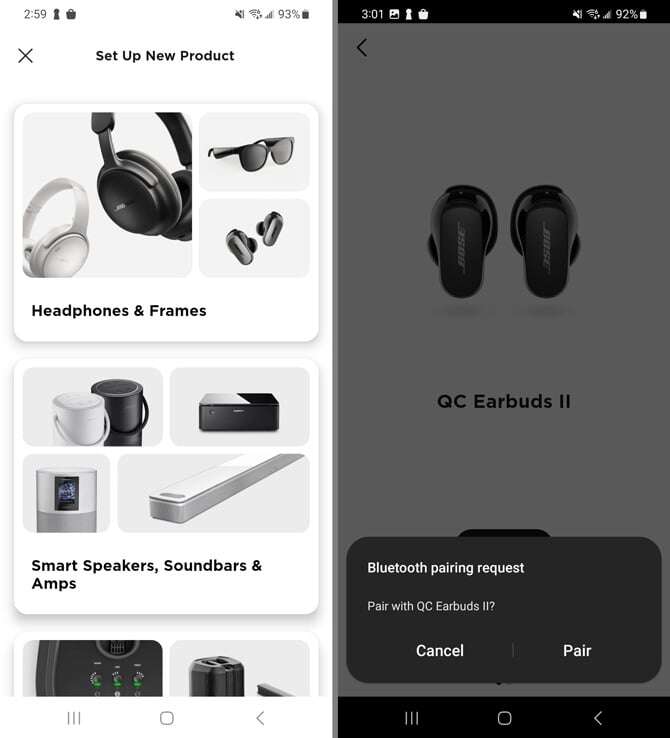
Pair Bose QuietComfort headphones to your Mac via Bluetooth: enable pairing mode and add in Bluetooth settings.
I’ve helped dozens of users pair Bose QuietComfort gear with Macs. This guide explains exactly how to connect Bose QuietComfort headphones to Mac. You’ll get step-by-step pairing, wired options, troubleshooting, settings tips, and real-world fixes I use daily. Read on to make your Mac and QuietComfort headphones work smoothly together.

Why connect Bose QuietComfort headphones to Mac?
Connecting Bose QuietComfort headphones to Mac gives you clear audio for work, calls, and media. These headphones offer active noise canceling, long battery life, and great comfort. When paired correctly, they deliver low-latency audio and use Mac audio controls for volume and input selection.
Benefits include better focus during calls, private listening, and a wireless setup without clutter. Knowing how to connect Bose QuietComfort headphones to Mac saves time and avoids common Bluetooth headaches.

Which Bose QuietComfort models support Mac?
Most modern QuietComfort models work with Mac via Bluetooth. Common models include:
- Bose QuietComfort 35 and QuietComfort 35 II
- Bose QuietComfort 45
- Bose QuietComfort Ultra (and newer QuietComfort variants)
- QuietComfort Earbuds (wireless earbuds)
- QuietComfort wired models (use a cable for Macs without Bluetooth)
These models use standard Bluetooth profiles like A2DP for audio and HFP/HSP for calls. macOS supports these profiles, so pairing is usually straightforward. If you run older macOS versions, update macOS for best compatibility.
Step-by-step: how to connect bose quietcomfort headphones to mac
Below are clear steps for Bluetooth pairing and wired use. Follow the set that matches your setup.
- Charge and power on
- Fully charge the headphones.
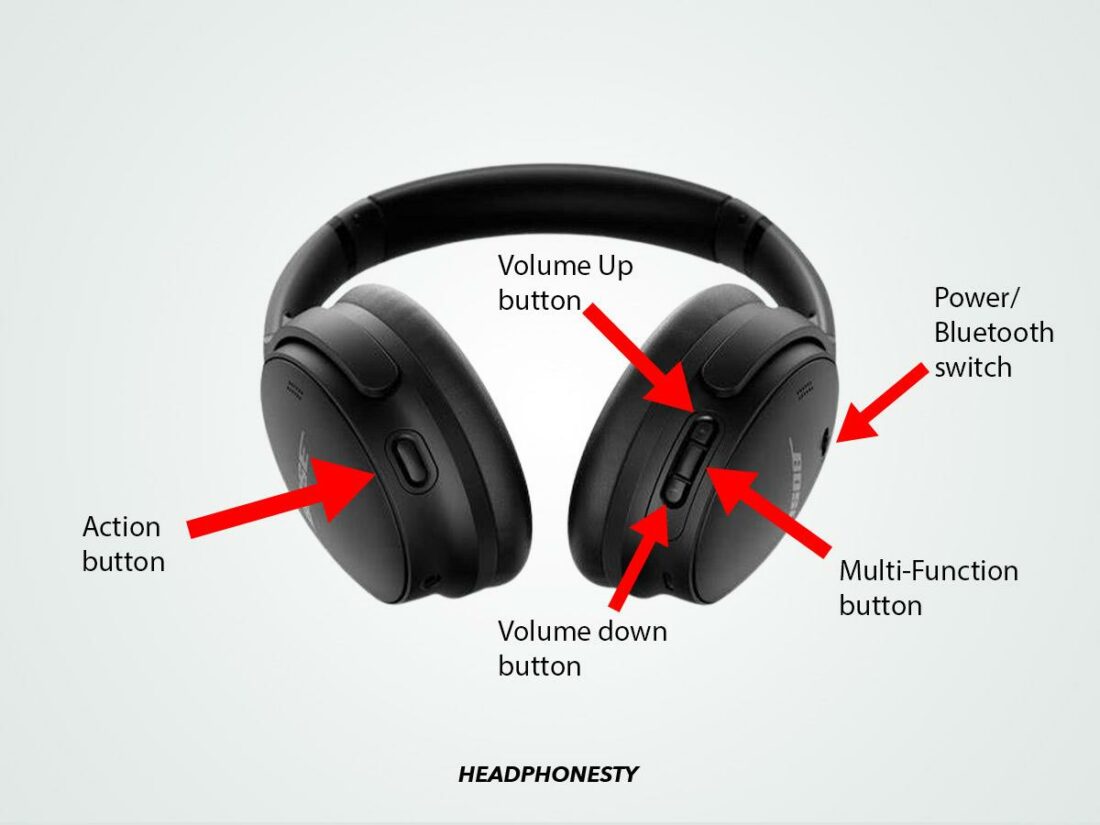
- Power them on using the power switch or button.
- Enter pairing mode
- For QC35 and QC45: press and hold the power/Bluetooth button until you hear “Ready to pair” or see a blinking blue light.
- For earbuds: open the case or hold the Bluetooth/pairing button until pairing mode starts.
- Open Bluetooth on your Mac
- On macOS Ventura and later: click the Control Center icon, then Bluetooth, and choose Bluetooth Settings.
- On older macOS: open System Preferences > Bluetooth.
- Find and connect
- In the Bluetooth list, locate “Bose QuietComfort XX” (model name).
- Click Connect. Wait a few seconds until Mac shows the device as Connected.
- Set audio input and output
- Open System Settings or System Preferences > Sound.
- Choose your Bose headphones as both the Output and Input device if you want to use the mic.
- Confirm and test
- Play audio to test sound.
- Make a quick call or voice memo to test the mic.
Wired connection (if Bluetooth is not available)
- Use the provided audio cable.
- Plug one end into the headphone jack.
- Plug the other end into the Mac headphone or line-in port.
- Select the wired device in Sound preferences if needed.
Tips:
- Keep the headphones within 30 feet and avoid heavy interference.
- If pairing fails, turn Bluetooth off and on again on your Mac and retry.

Troubleshooting common issues when connecting Bose QuietComfort headphones to Mac
Connected but no sound
- Check Sound preferences and ensure headphones are the selected Output.
- Try disconnecting and reconnecting in Bluetooth settings.
Mac cannot find the headphones
- Put the headphones back into pairing mode.
- Remove old pairings from the headphones or Mac and retry.
Poor audio quality or dropouts
- Move closer to the Mac and remove obstructions.
- Turn off other Bluetooth devices to reduce interference.
Microphone not working
- In Sound preferences, verify the headphones are chosen as the Input.
- Some Bose models use a different profile for calls; set the input manually.
Headphones won’t reconnect automatically
- Remove the device from Bluetooth list and pair again.
- Reset the headphones (steps vary by model; usually hold power for 10 seconds to factory reset).
Firmware and updates
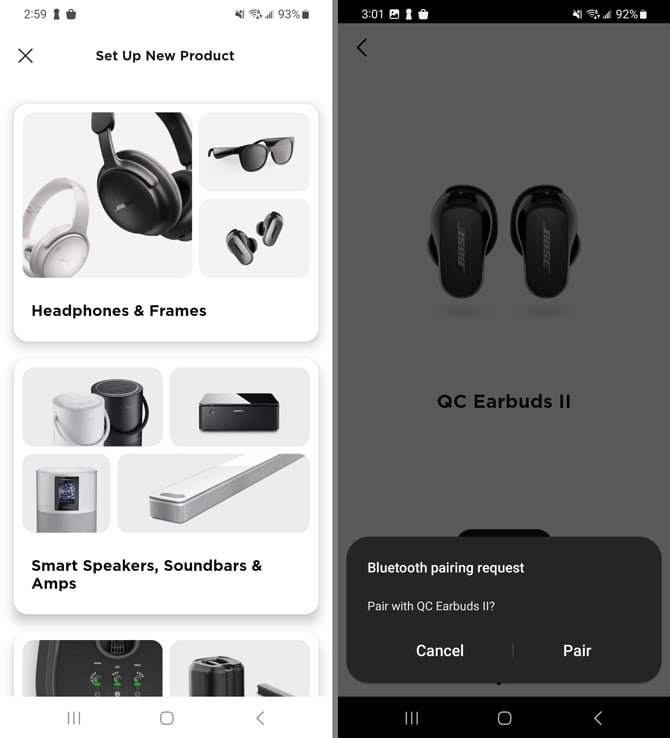
- Some firmware updates require the Bose Music app on a phone. Keep your phone handy to update firmware before pairing with Mac.
Advanced tips and settings
Choose the best codec
- Macs often use AAC or SBC depending on the headphone and macOS. AAC gives better audio on supported devices.
- There is no simple toggle for codec choice in macOS; it negotiates automatically.
Manage battery life
- Turn off noise cancellation modes when not needed to save power.
- Use wired mode for critical low-latency needs or when battery is dead.
Use sound control shortcuts
- Use the menu bar or Control Center to switch audio quickly between Mac speakers and your Bose QuietComfort headphones.
- Create keyboard shortcuts or use third-party apps to swap audio devices fast.
Resetting and re-pairing
- Reset headphones when they behave oddly.
- Remove from Bluetooth list on Mac, restart the Mac, then pair again.
Firmware updates
- Check the Bose app on iOS or Android for firmware updates. Some updates fix bugs that affect Mac pairing.

Personal experience and real-life tips
I pair Bose QuietComfort headphones with Macs every week. One thing I learned: firmware matters. I once spent an hour troubleshooting dropouts that stopped after a firmware update via my phone. I also recommend turning Bluetooth off on nearby phones if pairing stalls. Simple habits save time:
- Keep headphones charged.
- Update firmware before a big call.
- Restart the Mac’s Bluetooth when things get flaky.
My tip: pair for audio first, then test the mic. That way you isolate which profile is the issue. QuietComfort models are robust, but they shine when you maintain them.
Related concepts: Bluetooth profiles, latency, and limitations
Bluetooth profiles
- A2DP handles high-quality stereo audio.
- HFP or HSP handle calls and mic audio, but with lower quality. Macs switch between these automatically.
Latency and gaming
- Bluetooth has more delay than wired connections. For gaming or music production, wired is best. For calls and media, Bluetooth is fine.
Limitations
- The call mic may sound lo-fi compared to the internal Mac mic due to HFP limits.
- Firmware updates sometimes require a phone app, not a Mac app.

Frequently Asked Questions of how to connect bose quietcomfort headphones to mac
How do I pair Bose QuietComfort headphones to a Mac?
Turn on pairing mode on the headphones, open Bluetooth settings on your Mac, and select the QuietComfort model from the list. Wait for the Mac to show Connected and select the device in Sound preferences if needed.
Why does my Mac show connected but no sound?
Often the Mac didn’t switch output to the headphones. Open System Settings or Sound preferences and select the Bose headphones as Output. If that fails, disconnect and reconnect via Bluetooth.
Can I use the microphone on Bose QuietComfort with my Mac?
Yes, the mic works via Bluetooth using HFP/HSP. Select the headphones as the Input device in Sound preferences for calls or voice apps.
Why is my audio dropping or stuttering?
Dropouts usually stem from interference, distance, or low battery. Move closer to the Mac, charge the headphones, and disable other nearby Bluetooth devices to reduce interference.
How do I update firmware for my QuietComfort headphones?
Use the Bose Music or Bose Connect app on a phone to check and install firmware updates. Some updates are required for stable Mac pairing and cannot be applied directly from macOS.
Conclusion
Connecting your Bose QuietComfort headphones to a Mac is quick once you know the steps. Follow pairing mode, use macOS Bluetooth settings, and set the device in Sound preferences. Keep firmware up to date and try wired mode for low latency. Start by pairing today, test both audio and mic, and use the tips here to avoid common issues. If this helped, try updating firmware or share your experience in the comments — I’d love to hear which model you use and any hurdles you overcame.

Everett Ashford is a tech reviewer at mytechgrid.com specializing in SSDs, cameras, TVs, earbuds, headphones, and other consumer electronics. He provides honest, data-driven reviews based on hands-on testing and real-world performance analysis. Everett simplifies complex tech details to help readers make smart, confident buying decisions.