To set up a new SSD in Windows 11, install it, initialize it as GPT, format it, and assign a drive letter.
Learning how to set up new SSD Windows 11 correctly can improve storage, speed, and system organization. The process is simple for a secondary drive, but a boot drive needs extra steps, such as Windows installation or disk cloning. This guide explains both options, including safe installation, partitioning, BIOS checks, troubleshooting, and performance tips.
Before You Set Up a New SSD in Windows 11
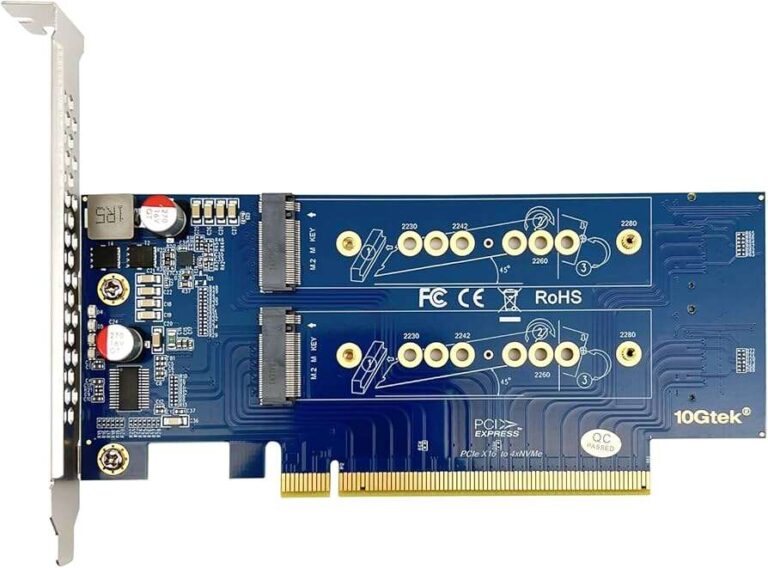
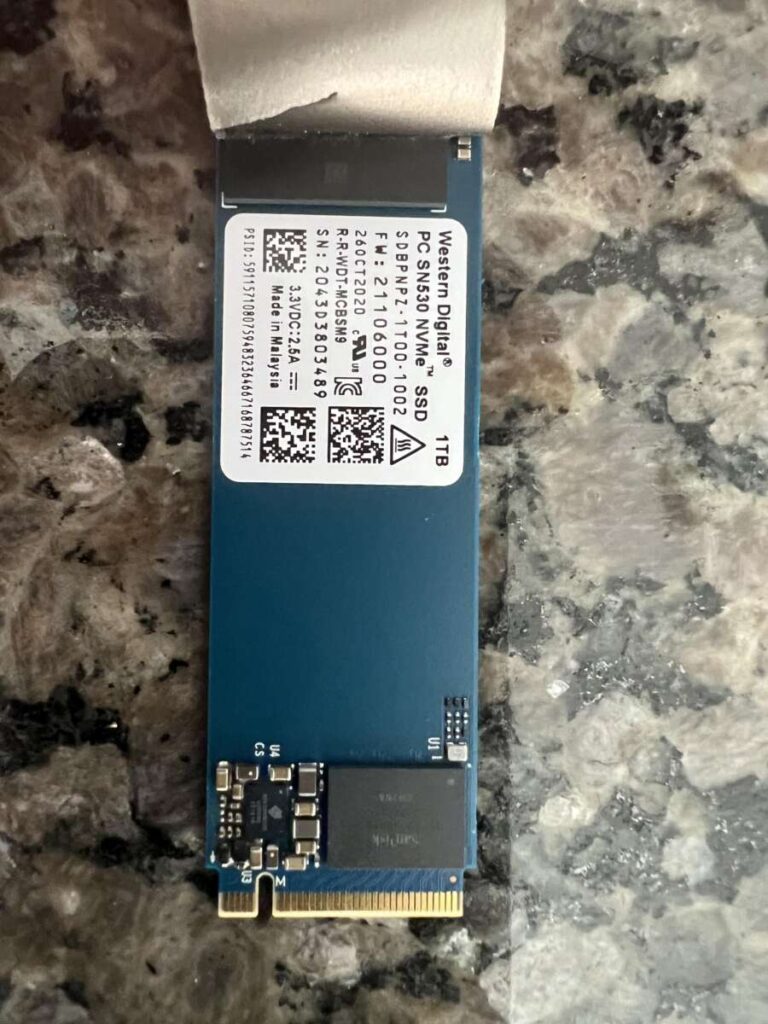
Before you learn how to set up new SSD Windows 11, confirm that your computer supports the drive. Most modern desktops and laptops use either a 2.5-inch SATA SSD or an M.2 NVMe SSD.
Check these points first:
- Confirm the SSD type. An M.2 SATA drive and an M.2 NVMe drive may look similar, but they use different interfaces.
- Check your motherboard or laptop manual for a free M.2 slot or SATA port.
- Make sure the correct mounting screw or bracket is available.
- Back up important files before opening the computer.
- Shut down Windows fully. Do not work inside a computer that is still in sleep mode.
- Disconnect the power cable from a desktop computer.
- Touch a metal part of the case to reduce static electricity.
An SSD does not need special drivers for basic Windows 11 use. Windows usually detects the storage controller and installs the required driver automatically. Some NVMe drives may also offer optional software for firmware updates and health checks.
In my experience, the most common mistake is buying the right capacity but the wrong format. A laptop may support only one M.2 key type, while a desktop may require a separate heatsink or mounting post. Checking compatibility first can save a great deal of time.

Install the New SSD Physically
The physical installation depends on whether your drive is SATA or M.2. Handle the SSD by its edges, and avoid touching the gold contacts.
Installing an M.2 NVMe or SATA SSD
Follow these steps:
- Shut down the computer and unplug it.
- Remove the case panel or laptop back cover.
- Find the M.2 slot on the motherboard.
- Remove the small mounting screw if one is already installed.
- Insert the SSD at a slight angle, usually around
30 degrees. - Press the drive down gently until it lies flat.
- Secure it with the correct screw.
- Reinstall any heatsink that came with the motherboard.
- Close the computer and reconnect power.
Do not force an M.2 drive into the slot. The notch on the connector must match the slot. If the drive does not slide in easily, remove it and check the alignment.
Installing a 2.5-inch SATA SSD
A SATA SSD needs both a data cable and a power connection.
- Mount the SSD in a 2.5-inch bay or adapter.
- Connect one end of a SATA data cable to the SSD.
- Connect the other end to a SATA port on the motherboard.
- Attach a SATA power cable from the power supply.
- Secure the drive and close the case.
A loose SATA cable can make a healthy SSD appear defective. If Windows does not detect the drive later, checking both cables should be one of your first steps.

Check Whether Windows 11 Detects the SSD
After the physical installation, start the computer and check whether Windows can see the drive. This step helps separate hardware problems from formatting problems.
Open File Explorer by pressing Windows key + E. Select This PC and look for the new drive. A new SSD may not appear here yet because it often has no partition or drive letter.
You can also check Device Manager:
- Right-click the Start button.
- Select Device Manager.
- Expand Disk drives.
- Look for the name or model of your new SSD.
If the SSD appears in Device Manager but not File Explorer, the drive likely needs to be initialized and formatted. If it does not appear in Device Manager, shut down the computer and check the connection, slot, BIOS settings, and hardware compatibility.
For a more detailed view, open PowerShell as an administrator and run:
Get-Disk
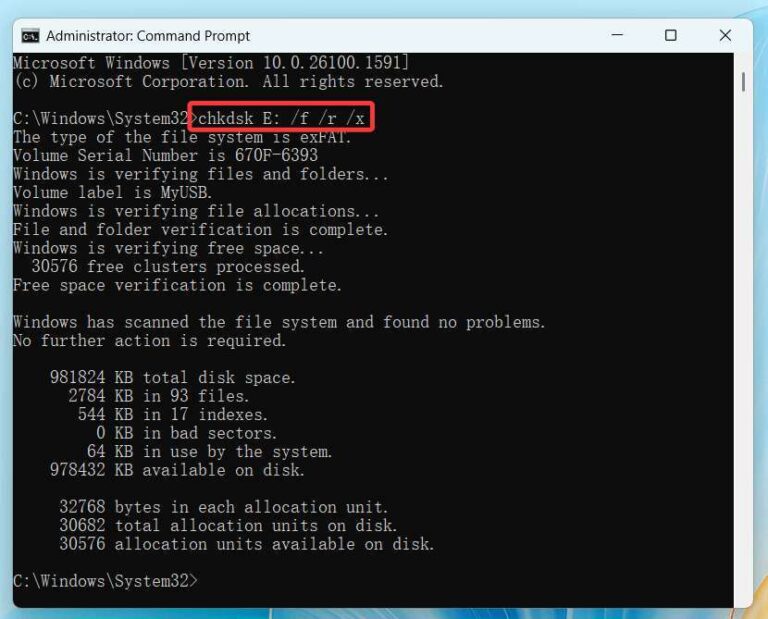
This command lists the storage devices connected to Windows. Be careful when using command-line tools because selecting the wrong disk can erase data.

Initialize the SSD in Disk Management
For most users, Disk Management is the easiest way to learn how to set up new SSD Windows 11. It lets you initialize the drive, create a partition, format it, and assign a drive letter.
Open it with these steps:
- Right-click the Start button.
- Select Disk Management.
- Find the disk labeled Unknown or Not Initialized.
- Confirm its capacity so you do not select your existing system disk.
- Right-click the disk name on the left.
- Select Initialize Disk.
Windows 11 normally offers two partition styles:
- GPT, or GUID Partition Table, is the modern choice for Windows 11 systems.
- MBR, or Master Boot Record, is an older format with more limitations.
Choose GPT unless you have a specific reason to use MBR. Windows 11 is designed around UEFI firmware, and GPT works with modern boot systems and large storage devices.
After initialization, the drive will show as Unallocated space. This means Windows recognizes the SSD, but no usable volume exists yet.
Create and Format a New SSD Partition
The next part of how to set up new SSD Windows 11 is creating a volume. A volume is the usable section of the drive that Windows displays with a letter, such as D: or E:.
Follow these steps:
- Right-click the Unallocated space.
- Select New Simple Volume.
- Select Next in the wizard.
- Use the full size unless you want several partitions.
- Choose a drive letter.
- Select NTFS as the file system.
- Keep the default allocation unit size.
- Enter a clear volume label, such as Games or Projects.
- Select Perform a quick format.
- Select Finish.
NTFS is the best general-purpose file system for an internal Windows 11 SSD. It supports Windows permissions, large files, and standard system features.
A quick format is normally enough for a new SSD. A full format takes much longer and writes across the drive. It is not usually needed for a new storage device.
When formatting is complete, open File Explorer. The new SSD should appear under This PC with the drive letter you selected.

Set Up the SSD as the Windows 11 Boot Drive
Setting up a secondary SSD is different from using the SSD as your main Windows 11 drive. If you want faster startup and app loading, you may want to move Windows to the new SSD.
You have two main choices:
- Perform a clean Windows 11 installation.
- Clone the existing system drive to the new SSD.
A clean installation gives you the best chance of avoiding old drivers, unused software, and hidden system issues. However, you must reinstall programs and restore your files.
Cloning is faster because it copies the existing Windows installation. It can also copy unwanted files, old recovery partitions, or errors. Make a full backup before cloning.
Option 1: Clean Install Windows 11
To perform a clean installation:
- Back up documents, photos, browser data, and application files.
- Create a Windows 11 installation USB using another working computer if needed.
- Insert the USB drive into the target computer.
- Restart and open the boot menu.
- Select the USB installation media.
- Choose the correct language and keyboard settings.
- Select Install Windows 11.
- Enter a product key or choose the activation option available to you.
- Select Custom installation.
- Choose the new SSD.
- Delete old partitions on the new SSD only, if necessary.
- Select the unallocated space and continue.
Windows will create the required EFI, recovery, and system partitions automatically. Do not delete partitions from the old drive unless you have confirmed that your backup works and you no longer need that installation.
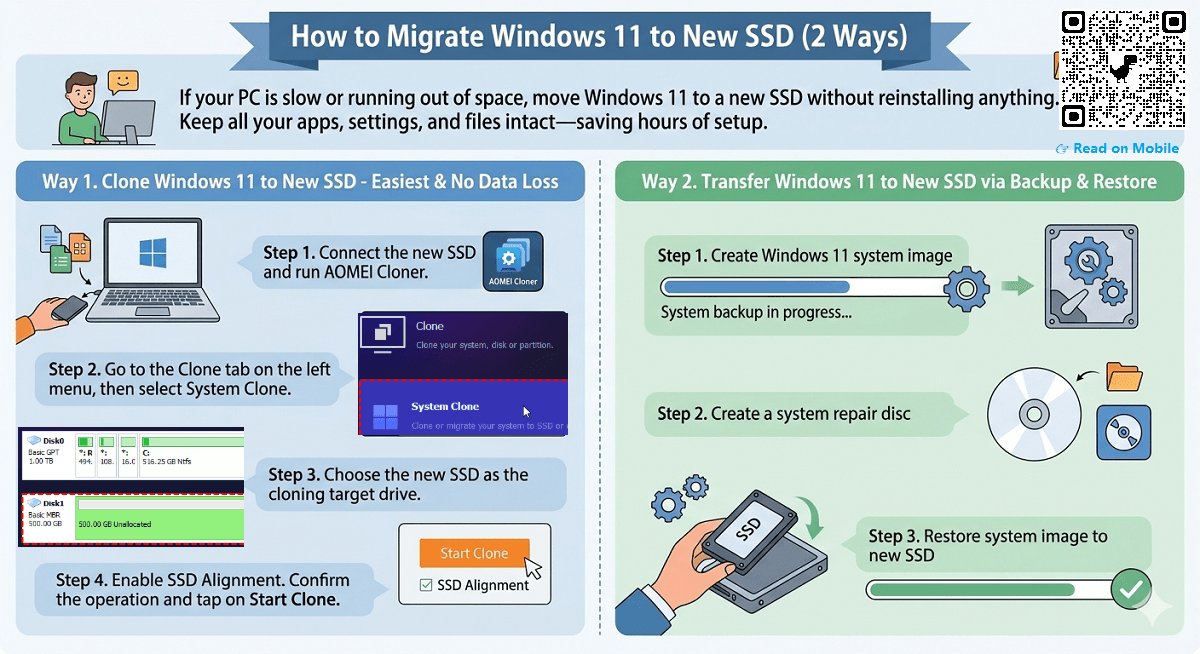
Option 2: Clone Windows to the SSD
Cloning software copies the old drive to the new one. The exact steps vary by software, but the general process is similar:
- Install reliable disk cloning software.
- Connect the new SSD.
- Select the current Windows drive as the source.
- Select the new SSD as the destination.
- Review the partition layout.
- Expand the Windows partition if the new SSD is larger.
- Start the clone.
- Shut down after the process finishes.
- Enter UEFI or BIOS settings.
- Set the new SSD as the first boot device.
- Start Windows and confirm that the new drive works.
Never reverse the source and destination disks. Choosing the wrong destination can erase your original Windows installation.
In my testing, cloning works well when the new SSD is equal to or larger than the used space on the old drive. Problems often occur when the destination drive is smaller than the old drive, even if the old drive has plenty of free space.
Configure UEFI and BIOS Settings
If you are using the SSD as a boot drive, check the computer’s UEFI settings. You can usually enter them by pressing a key such as Delete, F2, F10, or Esc during startup. The correct key depends on the computer maker.
Look for these settings:
- Boot order: Place the new Windows SSD before other boot devices.
- UEFI mode: Use UEFI instead of legacy BIOS when supported.
- Storage mode: Keep the current AHCI or vendor-recommended mode unless you know why it must change.
- NVMe information: Some firmware menus list detected M.2 drives separately.
- Secure Boot: Windows 11 generally works best with Secure Boot enabled after installation.
Do not change several firmware settings at once. If Windows stops booting after a change, return to the previous setting. A photo of the original settings can be useful before making adjustments.
If the SSD is detected in BIOS but Windows will not start, the boot files may be missing or the boot order may be wrong. If the SSD is not detected in BIOS, the issue is more likely related to installation, compatibility, or hardware.

Optimize the SSD After Setup
After you set up new SSD Windows 11, allow the operating system to manage routine maintenance. Windows uses TRIM to help the SSD prepare unused blocks for future writes.
To check optimization:
- Press the Windows key.
- Search for Defragment and Optimize Drives.
- Open the tool.
- Select the new SSD.
- Check its media type.
- Select Optimize if needed.
Windows does not treat an SSD like an old mechanical hard drive. The Optimize button sends the appropriate maintenance command for the drive. You do not need to run traditional disk defragmentation tools on your own.
Also consider these steps:
- Install important Windows updates.
- Check for SSD firmware updates from the drive maker.
- Keep at least some free space available.
- Use a surge protector with desktop computers.
- Monitor drive health with trusted manufacturer software.
- Avoid repeatedly filling the SSD to its maximum capacity.
The amount of free space needed varies by workload. A drive used for large video files may need more working room than a drive used for documents. Keeping reasonable free space can make file management and updates easier.

Move Files and Apps to the New SSD
A secondary SSD is useful for games, creative projects, photos, and large applications. You can move personal folders without changing the Windows installation.
To move a personal folder:
- Open File Explorer.
- Right-click Documents, Downloads, Pictures, or another folder.
- Select Properties.
- Open the Location tab.
- Select Move.
- Choose a folder on the new SSD.
- Confirm the change.
For Microsoft Store apps, open Settings, select Apps, then Installed apps. Select the three-dot menu beside a supported app and choose Move when the option is available.
Many desktop programs do not support a simple move. In that case, uninstall the program and reinstall it to the new SSD. For games, use the storage settings inside the game launcher when available.
Keep your backup plan separate from the SSD. A second internal drive is not a complete backup because it can fail in the same computer. Use an external drive or a trusted cloud backup for important files.
Troubleshoot Common SSD Setup Problems
Understanding common problems makes how to set up new SSD Windows 11 much less stressful.
The SSD does not appear in Disk Management
Try these checks:
- Shut down and reseat the M.2 drive.
- Test another M.2 slot if your motherboard has one.
- Check the SATA data and power cables.
- Confirm that the slot supports NVMe or SATA, as required.
- Check BIOS or UEFI detection.
- Install motherboard chipset and storage updates.
- Test the SSD in another compatible computer if possible.
Some M.2 slots share bandwidth with SATA ports. Installing an M.2 drive may disable one or more SATA ports on certain motherboards. Your motherboard manual should identify these shared connections.
The SSD appears as 0 bytes
A 0-byte display can indicate a connection problem, firmware issue, or failing drive. Try another port or computer before attempting advanced repair commands.
Do not use disk-cleaning commands until you have confirmed the correct disk. A command such as clean removes partition information and can make existing data inaccessible.
Windows says the disk is read-only
First, restart the computer and check whether the problem remains. Then review disk attributes in DiskPart only if you understand the disk number and have a backup.
Some SSDs enter a read-only state when the controller detects a serious hardware problem. If the drive remains read-only across different computers, contact the manufacturer rather than repeatedly formatting it.
The computer still boots from the old drive
Enter UEFI settings and change the boot order. If you cloned the drive, disconnecting the old drive temporarily can also show whether the new SSD has the correct boot files.
Once the new installation starts correctly, reconnect the old drive and format it only after confirming that all needed files have been copied.
Mistakes to Avoid When Setting Up an SSD
Many SSD problems come from rushed setup rather than defective hardware. Keep these lessons in mind:
- Do not initialize the wrong disk.
- Do not choose MBR when your Windows 11 system needs GPT.
- Do not delete the old Windows drive before testing the new one.
- Do not mix up the source and destination during cloning.
- Do not force an M.2 SSD into a slot.
- Do not skip backups.
- Do not install an M.2 heatsink with its protective film still attached.
- Do not rely on a drive letter as a backup strategy.
- Do not use random firmware files from unofficial websites.
One practical lesson I learned is to label every drive before making changes. In a system with several disks, capacity and model names can be easy to confuse. A quick photo of Disk Management can prevent an expensive mistake.
Another useful habit is to test the new SSD before moving large amounts of data. Copy a few files, restart the computer, check the files, and confirm that the drive remains stable under normal use.
Frequently Asked Questions About How to Set Up New SSD Windows 11
Does Windows 11 require GPT for a new SSD?
GPT is the recommended partition style for modern Windows 11 computers using UEFI firmware. An SSD used only for storage may work with other formats, but GPT provides better compatibility with current systems.
Should I format a new SSD before using it?
Yes, a new internal SSD usually needs initialization, a partition, formatting, and a drive letter. Disk Management can complete these steps through the New Simple Volume wizard.
Should I choose NTFS or exFAT for a Windows 11 SSD?
Choose NTFS for an internal SSD used mainly with Windows 11. Choose exFAT when you need to move the drive between Windows, macOS, and other devices.
Can I install Windows 11 directly on a new SSD?
Yes. Create Windows 11 installation media, boot from it, choose Custom installation, and select the new SSD. Confirm the disk capacity carefully before deleting or formatting any partition.
Is cloning better than a clean Windows 11 installation?
Cloning is faster and keeps your programs and settings, but it may copy old problems. A clean installation takes more time but usually provides a cleaner system and fewer compatibility issues.
Why is my new SSD not showing in File Explorer?
The SSD may be detected but still uninitialized, unformatted, or missing a drive letter. Open Disk Management and check whether it appears as Unknown, Unallocated, or Offline.
Do I need to defragment an SSD in Windows 11?
No. Windows 11 manages SSD maintenance with TRIM and its Optimize Drives tool. Do not use old-style third-party defragmentation tools on an SSD.
Conclusion
Setting up a new SSD in Windows 11 is usually a smooth process: install the drive, confirm detection, initialize it as GPT, create an NTFS volume, and assign a drive letter. If the SSD will hold Windows, choose between a clean installation and cloning, then verify the UEFI boot order.
Take your time with disk identification and backups. Those two habits prevent most serious mistakes. Once the drive is ready, move suitable files or apps, check for firmware updates, and use a separate backup for important data. If this guide helped, explore more Windows storage resources or share your SSD setup experience in the comments.

Everett Ashford is a tech reviewer at mytechgrid.com specializing in SSDs, cameras, TVs, earbuds, headphones, and other consumer electronics. He provides honest, data-driven reviews based on hands-on testing and real-world performance analysis. Everett simplifies complex tech details to help readers make smart, confident buying decisions.