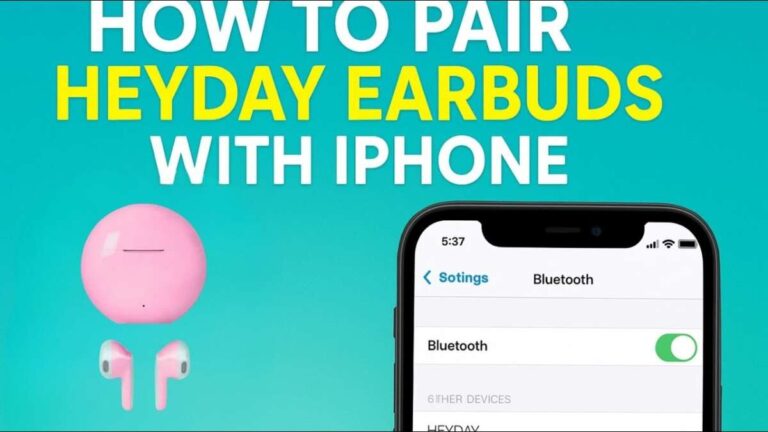
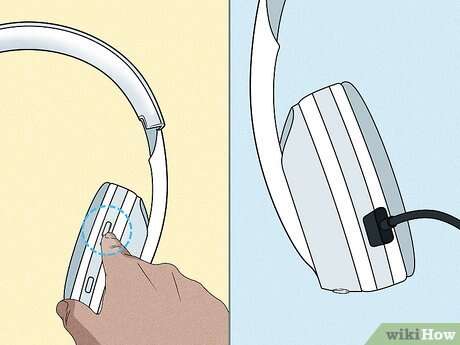
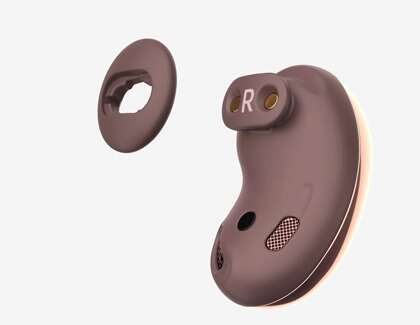
Connect earbuds to a Chromebook through Bluetooth by pairing them in Settings, then selecting them for audio.
Learning how to connect earbuds to a Chromebook is usually simple, but small details can cause trouble. Your earbuds must have enough battery, pairing mode must be active, and ChromeOS must detect the correct device. This guide explains Bluetooth, wired, USB-C, audio controls, common errors, and practical fixes so you can listen without guesswork.
How to connect Bluetooth earbuds to a Chromebook
Most wireless earbuds use Bluetooth. To connect earbuds to a Chromebook, place the earbuds in pairing mode and add them through the Chromebook’s Bluetooth settings.
Follow these steps:
- Charge your earbuds and place them near the Chromebook.
- Put the earbuds in their charging case.
- Open the case.
- Press and hold the pairing button on the case. Some earbuds use touch controls instead.
- Wait until the indicator light flashes. A flashing light usually means pairing mode is active.
- On your Chromebook, select the time in the lower-right corner.
- Select Bluetooth.
- Turn Bluetooth on if it is off.
- Select your earbuds from the list of available devices.
- Select Connect or Pair.
Your earbuds should connect within a few seconds. You may hear a tone or see a status message when the connection is ready.
If your earbuds do not appear, turn Bluetooth off and on again. Also, make sure they are not still connected to your phone, tablet, or another computer. Earbuds often connect to the last device they used, which can make them seem invisible to your Chromebook.

How to put earbuds in pairing mode
Pairing mode allows your Chromebook to find the earbuds. It is different from simply opening the charging case or turning the earbuds on.
The steps vary by brand, but these methods are common:
• Press and hold the button on the charging case for three to five seconds.
• Remove both earbuds, then press and hold both touch panels.
• Open the case near the Chromebook and hold the case button until the light flashes.
• Check the earbuds’ quick-start guide if no light appears.
A steady light often means the earbuds are already connected. A flashing blue, white, or red-and-blue light often indicates pairing mode. The exact colors differ by manufacturer, so treat the light as a clue rather than a universal rule.
In hands-on setup tests, the most common mistake is searching for earbuds before putting them in pairing mode. The Chromebook cannot connect to a device that is only powered on but not available for pairing.

How to connect earbuds to a Chromebook from Settings
You can also manage Bluetooth from the full ChromeOS Settings app. This method gives you more control and helps when the quick settings panel does not show the earbuds.
- Select the time in the lower-right corner.
- Select the Settings gear.
- Select Bluetooth in the left menu.
- Turn Bluetooth on.
- Select Pair new device.
- Wait for your earbuds to appear.
- Select the earbuds’ name.
- Confirm the pairing request if one appears.
After pairing, the earbuds should appear under previously connected devices. The Chromebook may connect to them automatically the next time you open the case.
If the earbuds show as saved but do not connect, select their name and choose Connect. You can also select the gear or three-dot menu beside the device and choose Forget, then pair the earbuds again.
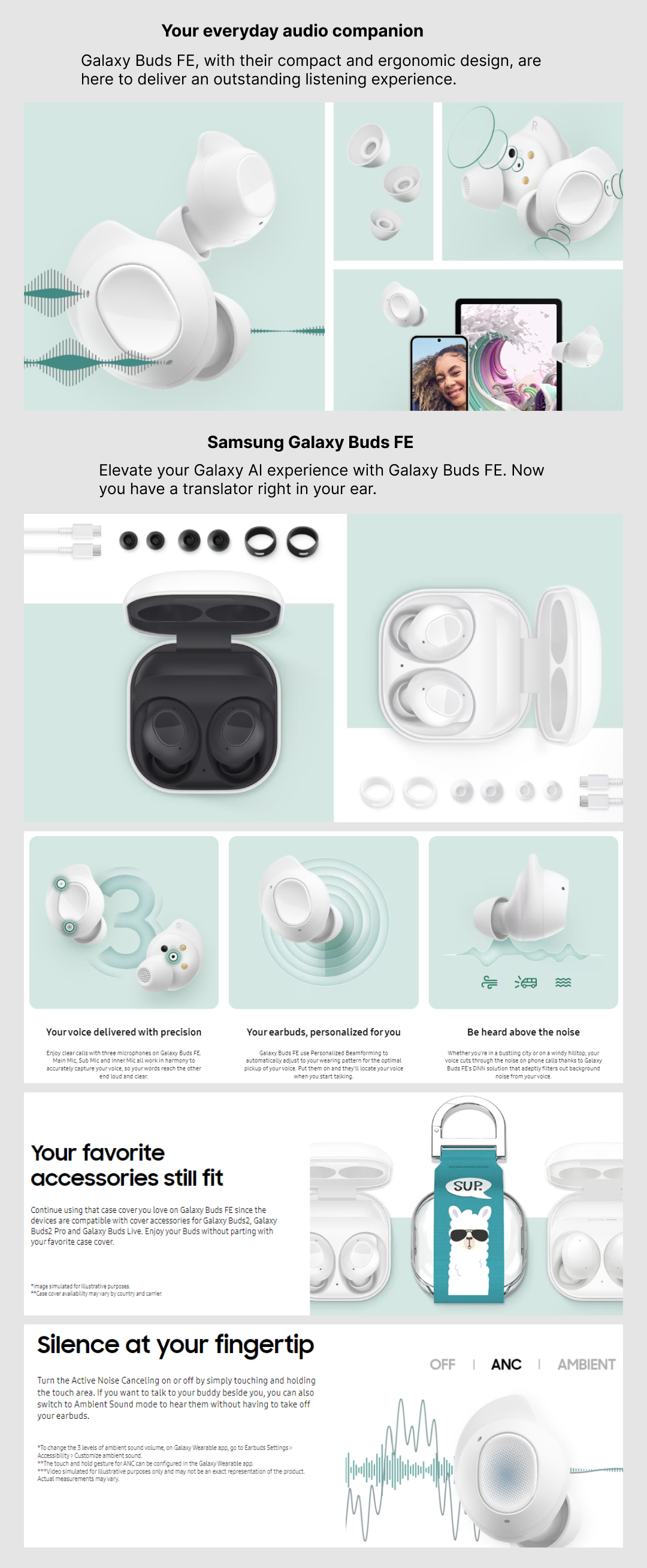
How to connect wired earbuds to a Chromebook
Wired earbuds do not need Bluetooth pairing. They use a headphone jack or USB-C port.
For earbuds with a 3.5-millimeter plug:
- Find the headphone jack on the Chromebook.
- Insert the plug fully.
- Play audio and check the sound output.
For USB-C earbuds:
- Insert the USB-C plug into a compatible USB-C port.
- Wait a moment for ChromeOS to detect the earbuds.
- Play audio and adjust the volume.
Some newer Chromebooks do not include a headphone jack. In that case, you may need USB-C earbuds or a USB-C audio adapter. Choose an adapter that supports audio output, not one designed only for charging.
Wired earbuds usually have less delay than Bluetooth earbuds. They also avoid battery problems and wireless interference. The tradeoff is less freedom of movement and the need to manage a cable.

How to choose earbuds as the Chromebook audio output
Sometimes the earbuds connect, but sound still comes from the Chromebook speakers. This means the connection worked, but ChromeOS has not selected the earbuds as the active output.
To change the output:
- Select the time in the lower-right corner.
- Select the audio or speaker control.
- Find the output device list.
- Select your earbuds.
You can also open Settings, select Device, and choose Audio. Under Output, select the connected earbuds.
If you use a video call app, check its audio settings too. Google Meet, Zoom, Microsoft Teams, and browser-based call tools may have their own microphone and speaker controls. Select the earbuds for both speaker and microphone if you want to use their built-in mic.
A useful test is to play a short video after selecting the earbuds. If you hear sound in the earbuds, the output is correct. If the video is silent, check the Chromebook volume, the app volume, and the earbud volume.

How to connect earbuds to a Chromebook during a video call
You can connect earbuds before or during a video call. Connecting them before the call is usually easier because the app has time to detect the new microphone and speaker.
Use this process:
- Connect earbuds to a Chromebook through Bluetooth or a cable.
- Open the video call app.
- Open the app’s audio settings.
- Select the earbuds as the speaker.
- Select the earbuds as the microphone.
- Run the app’s test if one is available.
Bluetooth earbuds can show separate choices for headphones and headset audio. The headset option usually activates the microphone, but it may reduce sound quality slightly. This is normal because Bluetooth manages music and two-way voice in different ways.
Before an important meeting, make a short test call. Check whether others can hear you and whether your voice sounds clear. A quiet room also helps the earbud microphone perform better.

How to fix Chromebook earbuds that will not connect
When earbuds fail to connect, the cause is often simple. Work through these steps in order.
Check the earbud battery
Low battery can prevent pairing or cause repeated disconnections. Charge both earbuds and the case for at least a few minutes before trying again.
Disconnect other devices
Turn off Bluetooth on your phone or tablet for a moment. If the earbuds connect to another device first, your Chromebook may not find them.
Restart Bluetooth
Turn Bluetooth off on the Chromebook. Wait about 10 seconds, then turn it on again. Search for the earbuds after placing them back in pairing mode.
Restart the Chromebook
Select the time, open the power menu, and choose Restart. A restart can clear a temporary Bluetooth service problem.
Forget and pair the earbuds again
Open Bluetooth settings and select the earbuds. Choose Forget or Remove, then place the earbuds in pairing mode and connect them again.
Move closer to the Chromebook
Keep the earbuds within a few feet of the Chromebook during setup. Walls, metal objects, and crowded wireless areas can weaken the signal.
Update ChromeOS
Open Settings, select About ChromeOS, and check for updates. Updates can improve compatibility, security, and device support. Restart the Chromebook after an update if requested.
Reset the earbuds
If nothing works, reset the earbuds using the manufacturer’s instructions. A reset removes old pairing data and gives the earbuds a clean start.

How to fix connected earbuds with no sound
A Chromebook may show that earbuds are connected even when no sound plays through them. This is usually an output selection issue.
Try these fixes:
• Select the time and choose your earbuds under audio output.
• Raise the Chromebook volume.
• Raise the volume on the earbuds if they have separate controls.
• Check whether the video or music app is muted.
• Close and reopen the browser tab or app.
• Disconnect and reconnect the earbuds.
• Test another website or audio file.
If only one earbud works, place both earbuds in the case, close the lid, wait several seconds, and try again. Clean the charging contacts if one earbud is not charging. Dirt or moisture can prevent one side from powering on.
If the earbuds connect but the sound cuts out, reduce the distance between the earbuds and Chromebook. Also move away from busy wireless areas, such as crowded classrooms or airports. Bluetooth is reliable, but it is not immune to interference.

How to fix Chromebook earbuds that keep disconnecting
Frequent disconnections can come from distance, low battery, outdated software, or a weak earbud connection.
Use these steps:
- Charge the earbuds and case fully.
- Keep the Chromebook and earbuds close.
- Remove unused Bluetooth devices from the Chromebook.
- Forget and reconnect the earbuds.
- Update ChromeOS.
- Reset the earbuds if the problem continues.
- Test the earbuds with another device.
If the earbuds disconnect only during video calls, the microphone may be causing the problem. Test the call with the Chromebook’s built-in microphone or a wired headset. This helps identify whether the issue involves the earbuds’ Bluetooth audio profile.
Older Chromebook models may also have weaker wireless hardware. In that case, wired earbuds can offer a more stable option, especially for exams, work calls, or long lessons.

How to improve Bluetooth earbud sound on a Chromebook
Bluetooth sound quality depends on the earbuds, Chromebook, software, and audio source. A Chromebook cannot improve the limits of low-quality audio or damaged earbuds, but a few steps can help.
• Keep the earbuds within a short range.
• Use a strong Wi-Fi connection when streaming audio.
• Close unused apps and browser tabs.
• Keep the earbuds’ firmware updated through the brand’s mobile app when possible.
• Clean the earbud speakers carefully.
• Check the Chromebook’s volume and accessibility settings.
• Avoid using a damaged or loose USB-C adapter.
Bluetooth earbuds may also have a small audio delay. This is most noticeable when watching video or playing games. Many streaming services automatically correct minor delay, but some games and live tools may not. Wired earbuds usually perform better when timing matters.
How to disconnect or remove earbuds from a Chromebook
Disconnecting earbuds temporarily is different from removing them completely.
To disconnect them:
- Select the time in the lower-right corner.
- Select Bluetooth.
- Select the connected earbuds.
- Choose Disconnect if the option appears.
To remove them:
- Open Settings.
- Select Bluetooth.
- Find the earbuds under saved devices.
- Select the settings icon beside the earbuds.
- Choose Forget or Remove.
Disconnect the earbuds when you want to use the Chromebook speakers for a short time. Forget them only when you plan to stop using them or when a fresh pairing may solve a connection problem.
Chromebook Bluetooth limitations to know
Bluetooth earbuds work well for music, videos, and many calls, but they have limits.
The first limit is battery life. Wireless earbuds need regular charging, and the case can run out at the worst time. Keep a charging cable nearby if you use them for school or work.
The second limit is microphone quality. Earbud microphones are convenient, but they may sound less clear than a dedicated USB microphone. Background noise, wind, and room echo can affect the call.
The third limit is device management. School or work administrators may restrict Bluetooth on managed Chromebooks. If Bluetooth settings are locked, contact the administrator rather than trying to bypass the policy.
The fourth limit is compatibility. Most modern earbuds use standard Bluetooth audio, but older earbuds may not work well with every Chromebook. ChromeOS updates often improve support, but hardware differences still matter.
Practical tips for a smoother earbud setup
A few habits can make learning how to connect earbuds to a Chromebook much easier.
• Pair the earbuds in a quiet place the first time.
• Keep the charging case nearby during setup.
• Give the earbuds a clear name if the brand’s app allows it.
• Turn off Bluetooth on nearby devices during pairing.
• Test both audio playback and the microphone.
• Keep ChromeOS updated.
• Carry wired earbuds as a backup for important calls.
• Do not repeatedly press random buttons if the earbuds are not pairing. Follow the exact reset steps for the model.
One mistake I often see in real-world Chromebook setups is pairing only one earbud. Some models enter pairing mode only when both earbuds sit in the case. Resetting the pair and starting with both earbuds together often solves this issue.
Think of pairing like introducing two people. The earbuds must be ready to meet, and the Chromebook must be looking for them at the same time. If either side is busy with another device, the introduction fails.
Frequently Asked Questions of how to connect earbuds to a Chromebook
Can I connect any Bluetooth earbuds to a Chromebook?
Most Bluetooth earbuds that support standard audio profiles can connect to a Chromebook. Very old models or earbuds that depend on a special phone app may have limited features.
Why are my earbuds not showing on my Chromebook?
Your earbuds may not be in pairing mode, or they may be connected to another device. Charge them, disconnect nearby devices, reset pairing mode, and search again in Chromebook Bluetooth settings.
How do I connect AirPods to a Chromebook?
Open the AirPods case, press and hold the case button until the light flashes white, then open Bluetooth settings on the Chromebook. Select the AirPods from the available device list.
Can I connect wired earbuds to a Chromebook?
Yes. Insert the 3.5-millimeter plug into the headphone jack or connect USB-C earbuds to a compatible USB-C port. Wired earbuds do not require Bluetooth pairing.
Why are my earbuds connected but playing no sound?
The Chromebook may still be using its built-in speakers. Open the audio controls by selecting the time, then choose your earbuds as the output device.
Can I use earbuds as a Chromebook microphone?
Yes. Many Bluetooth and wired earbuds include a microphone. Select the earbuds as the microphone in the Chromebook or video call app’s audio settings.
Do earbuds work with a Chromebook in a video call?
Yes. Connect the earbuds before joining the call, then choose them as both the speaker and microphone. Make a quick test call to confirm that the audio works.
Conclusion
Learning how to connect earbuds to a Chromebook takes only a few steps: charge the earbuds, activate pairing mode, open Bluetooth settings, select the earbuds, and choose them as the audio output. If the connection fails, restart Bluetooth, forget the device, check other nearby devices, and pair again.
For the best result, test both sound and microphone before an important call. Keep ChromeOS updated and carry a wired backup when reliability matters. Try the steps above today, then share your Chromebook earbud tips or questions in the comments.

Everett Ashford is a tech reviewer at mytechgrid.com specializing in SSDs, cameras, TVs, earbuds, headphones, and other consumer electronics. He provides honest, data-driven reviews based on hands-on testing and real-world performance analysis. Everett simplifies complex tech details to help readers make smart, confident buying decisions.