Connect earbuds by turning on PC Bluetooth, putting earbuds in pairing mode, and selecting them in Settings.
I’ve spent years helping friends and clients fix audio glitches, so this guide on how to connect bluetooth earbuds to pc walks you through every step, common problems, and useful tweaks. Read on and you’ll be able to pair, hear, and optimize your earbuds on Windows with confidence.
Why connecting Bluetooth earbuds to your PC matters
Bluetooth earbuds free you from wires. They let you move, take calls, and enjoy media without staying tied to your desk. Knowing how to connect bluetooth earbuds to pc saves time and avoids frustration when a meeting starts or a playlist begins.
Bluetooth audio works well for most uses. But PC setups vary. Small steps make the process smooth and reliable. This article covers requirements, step-by-step pairing, troubleshooting, and advanced tips so you get consistent sound every time.

What you need before pairing
Prepare these items so pairing goes fast.
- A PC with built-in Bluetooth or a USB Bluetooth dongle. Older PCs often lack Bluetooth.
- Charged earbuds and knowledge of how to put them in pairing mode. Check earbud manual if unsure.
- Windows 10 or Windows 11, or a supported Bluetooth stack for other OSes.
- Up-to-date Bluetooth drivers for your PC. Drivers fix bugs and improve compatibility.
Quick checks before starting: make sure airplane mode is off, Bluetooth is turned on, and the earbuds are near the PC. If you use a USB dongle, plug it into a powered USB port and wait for the system to recognize it.
Step-by-step: How to connect Bluetooth earbuds to PC (Windows 10 and Windows 11)
Follow this clear sequence to pair most earbuds.
- Turn on Bluetooth on your PC
- Windows 10: Open Settings > Devices > Bluetooth & other devices, then toggle Bluetooth on.
- Windows 11: Open Settings > Bluetooth & devices, then toggle Bluetooth on.
- Put your earbuds in pairing mode
- Most earbuds enter pairing when you press and hold the main button until a light flashes. Check the manual for exact steps.
- Some single-bud models require removing both buds from the case or touching both sensors.
- Add the earbuds to Windows
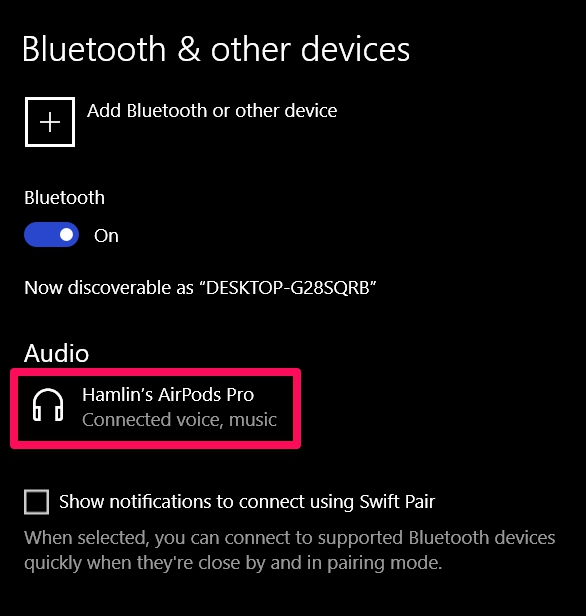
- Click Add Bluetooth or other device > Bluetooth.
- Select your earbuds from the list that appears.
- Wait for the “Connected” message.
- Set earbuds as the default audio device
- Click the speaker icon in the taskbar, then select your earbuds.
- Or open Sound settings and choose the earbuds for output and input if they support a microphone.
- Test audio and microphone
- Play a short video or use the Voice Recorder app to confirm both sound and mic work.
- If the mic is low quality, try switching audio modes in Sound settings.
Why this works: Windows uses Bluetooth profiles. Pairing registers the earbuds. Choosing the earbuds in audio settings routes sound correctly. Repeat these steps when you add new earbuds or switch dongles.

Troubleshooting common pairing and sound issues
If pairing fails, try these fixes.
-
Earbuds not visible
- Turn Bluetooth off and on again on the PC. Restart earbuds and try pairing mode again.
- Remove the earbuds from other nearby devices they may auto-connect to.
-
Connected but no sound
- Check that the earbuds are selected as the output device in Sound settings.
- Make sure app volume is not muted and the system volume is up.
-
Poor microphone quality
- Many earbuds use a lower-quality audio profile for calls. Switch to the “Hands-Free” or “Stereo” profile in Sound settings to test quality.
- Update Bluetooth drivers to get better profile support.
-
Dropped audio or lag
- Move closer to the PC and remove obstacles. Bluetooth range falls off with distance and interference.
- Close other Bluetooth devices that may cause interference.
- If using a USB Bluetooth dongle, try a different USB port or a USB extension to clear interference.
PAA-style quick answers
- Why won’t my earbuds pair with my PC?
- Often the earbuds are still connected to another phone or need a reset. Turn off other devices, reset the earbuds, and retry pairing.
- How do I make my earbuds the default audio device?
- Open Sound settings, choose your earbuds under Output, and set them as default. Some apps must be restarted to detect the change.
Advanced tips: codecs, dual audio, and USB dongles
Understand the tech to get better sound and fewer issues.
- Audio codecs
- Codecs like SBC, AAC, aptX, and LDAC affect quality and latency. Windows may prefer SBC by default. Some third-party apps and drivers allow support for higher-quality codecs.
- Low latency for gaming
- If audio lag bothers you, enable a low-latency mode on earbuds if available or use a certified low-latency dongle.
- Dual connections and multipoint
- Many earbuds support multipoint to connect to two devices. Multipoint can sometimes confuse a PC. Disconnect other devices while pairing to the PC.
- USB Bluetooth dongles
- A modern dongle can improve range, stability, and codec support. Choose one with Bluetooth 5.x and Windows driver support.
Small experiments I use often
- If video sync lags, switch the earbuds to a wired connection or use a low-latency dongle.
- For consistent mic quality in meetings, test the mic before the call and have a backup USB headset ready.

Security, privacy, and limitations
Bluetooth is convenient but has limits.
-
Security tips
- Avoid pairing in public places. Use earbud pairing only when you trust the environment.
- Unpair devices you no longer use to reduce attack surface.
-
Privacy notes
- Some earbuds transmit metadata like device name. Use neutral device names if privacy matters.
- Be aware that Bluetooth profiles can expose device capabilities to the host.
-
Limitations to expect
- Latency can be noticeable for fast-paced gaming.
- Call quality may be lower than wired headsets due to Bluetooth profiles.
- Older PCs may not support newer codecs or stable connections.

Personal experience and lessons learned
I once spent an hour trying to pair a new pair of earbuds that never showed up on my laptop. The fix was simple: the earbuds were connected to my phone in the pocket. A full reset of the earbuds and turning off phone Bluetooth solved it.
Practical rules I follow
- Always charge the earbuds before pairing. Low battery can block pairing mode.
- If pairing fails, reboot the PC and reinsert the dongle. Simple restarts often fix driver hiccups.
- Keep a small, cheap USB Bluetooth dongle handy. It saves time on older laptops.
Common mistakes to avoid
- Forgetting to remove prior pairings. Devices often auto-connect to known hosts.
- Ignoring driver updates. A current driver can make the difference between choppy sound and smooth playback.
Frequently Asked Questions of how to connect bluetooth earbuds to pc
How do I put my earbuds in pairing mode?
Most earbuds enter pairing when you press and hold a button or touch both buds until a light flashes. Check your earbud manual for the exact sequence if unsure.
My PC shows the earbuds but won’t pair — what now?
Turn off Bluetooth on other nearby devices, reset the earbuds, and restart Bluetooth on your PC. If it still fails, update or reinstall your Bluetooth drivers.
Can I use both earbuds and a microphone at the same time?
Yes, but some earbuds switch to a lower-quality hands-free profile for mic use. That can reduce audio fidelity during calls.
Do I need a USB dongle to connect earbuds to my PC?
Not if your PC has built-in Bluetooth. Use a USB dongle if your PC lacks Bluetooth or you want better range and codec support.
Why is there audio lag when watching videos?
Bluetooth latency and codec choice often cause lag. Try switching to a low-latency mode, using a dongle that supports aptX Low Latency, or use a wired connection.
Conclusion
You can connect Bluetooth earbuds to your PC quickly by enabling Bluetooth, putting the earbuds in pairing mode, and selecting them in Windows settings. With a little prep — charged earbuds, current drivers, and the right dongle if needed — pairing becomes routine. Test audio and mic before important calls, and use the troubleshooting tips here if things go wrong.
Take action now: try pairing your earbuds using the steps above, note any issues you hit, and come back to adjust settings or try the fixes. If this guide helped, subscribe or leave a comment sharing your setup or a pairing tip that worked for you.

Jamie Lee is a seasoned tech analyst and writer at MyTechGrid.com, known for making the rapidly evolving world of technology accessible to all. Jamie’s work focuses on emerging technologies, product deep-dives, and industry trends—translating complex concepts into engaging, easy-to-understand content. When not researching the latest breakthroughs, Jamie enjoys exploring new tools, testing gadgets, and helping readers navigate the digital world with confidence.