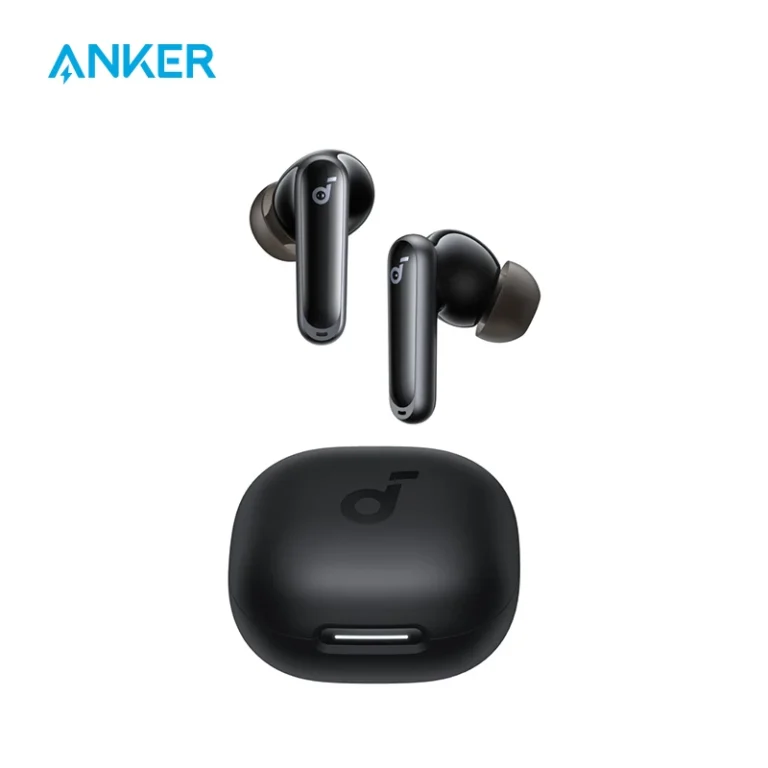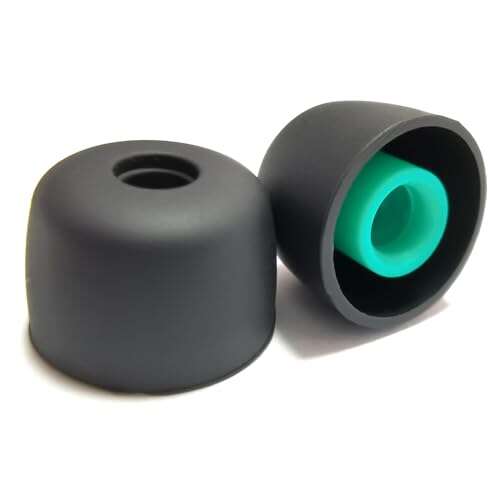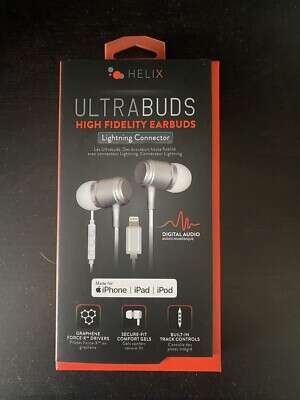
To connect Helix earbuds to iPhone, turn on Bluetooth, open the case, and select Helix from the device list.
Learning how to connect Helix earbuds to iPhone is usually simple, but small details matter. Pairing mode, battery level, and old Bluetooth links can all affect the result. This guide explains the full process, common mistakes, sound checks, and reliable fixes in clear steps.
Before you connect Helix earbuds to iPhone
Before you connect Helix earbuds to iPhone, prepare both devices. This takes less than a minute and prevents most pairing problems.
Check these points first:
• Charge the earbuds and charging case.
• Keep the earbuds within a few feet of your iPhone.
• Make sure your iPhone has Bluetooth turned on.
• Remove the earbuds from another nearby phone, tablet, or laptop.
• Keep both earbuds inside the case until you are ready to pair them.
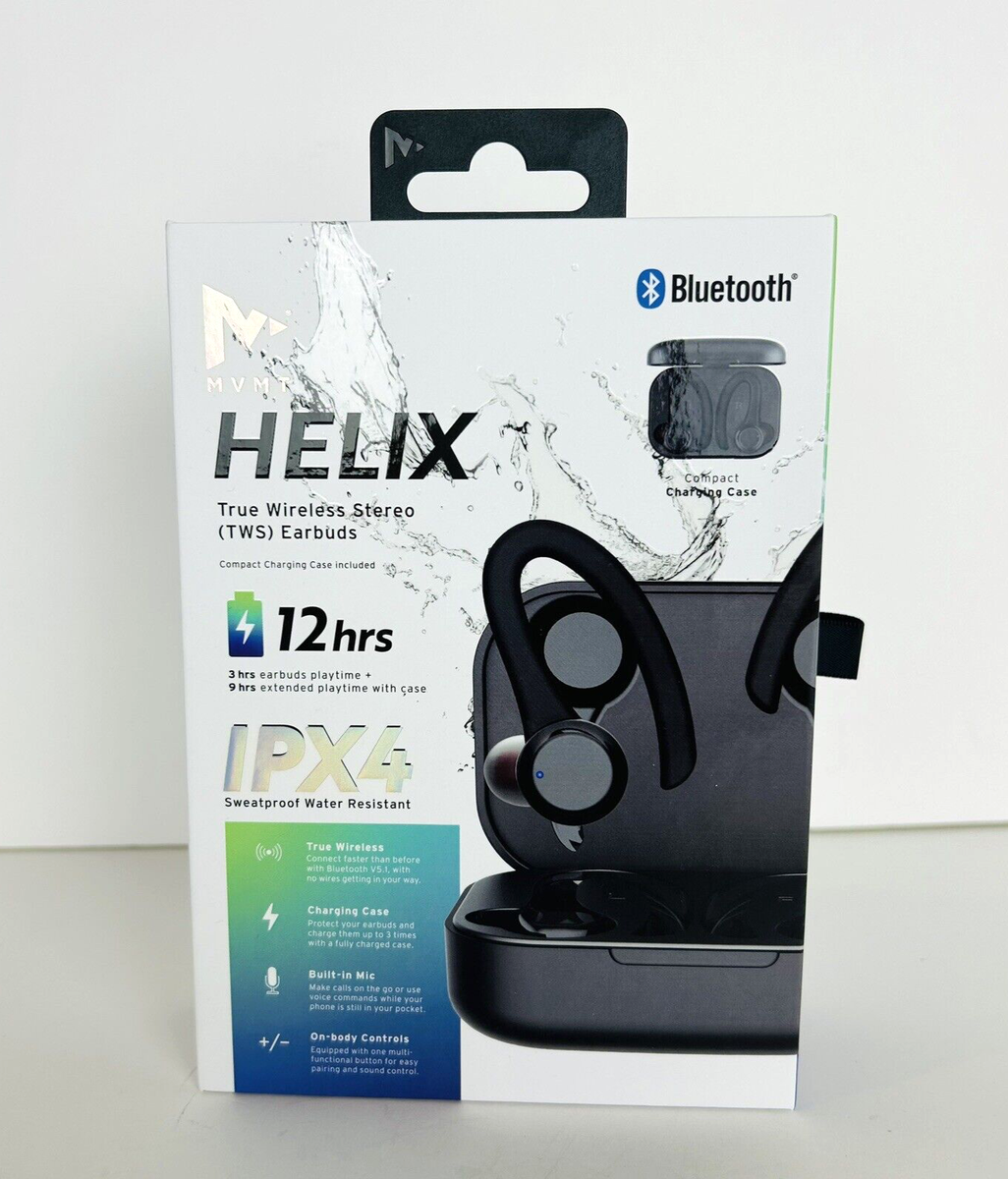
Most wireless Helix models use standard Bluetooth. They do not need a special iPhone app for basic listening. Some models may offer an app for extra controls, battery details, or firmware updates, but the first connection usually happens in iPhone Settings.
If the earbuds were paired with another device before, they may connect to that device first. In my experience helping people set up wireless earbuds, this is one of the most common causes of confusion. Turning off Bluetooth on the old device for a moment often solves the issue.
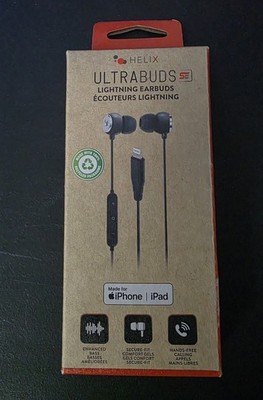
How to connect Helix earbuds to iPhone
The steps below work for most Helix true wireless earbuds. The exact button or touch action may vary by model, so check the included manual if your earbuds behave differently.
-
Unlock your iPhone.
-
Open the Settings app.
-
Tap Bluetooth.
-
Turn on the Bluetooth switch if it is off.
-
Place both Helix earbuds in the charging case.
-
Open the case lid.
-
Put the earbuds into pairing mode.
-
Look under Other Devices on your iPhone.
-
Tap the name that includes Helix.
-
Wait for the status to change to Connected.
To connect Helix earbuds to iPhone, the earbuds must be discoverable. Many models enter pairing mode as soon as you open the case for the first time. A flashing white, blue, or red and blue light often confirms pairing mode.
If the Helix earbuds do not appear, press and hold the case button for several seconds. On some models, you must remove both earbuds and touch their controls at the same time. The goal is to make the indicator light flash in a pairing pattern.
Once connected, play a song or video. You should hear sound through the earbuds. You can also open Control Center by swiping down from the top right of the iPhone screen and check the audio output button.
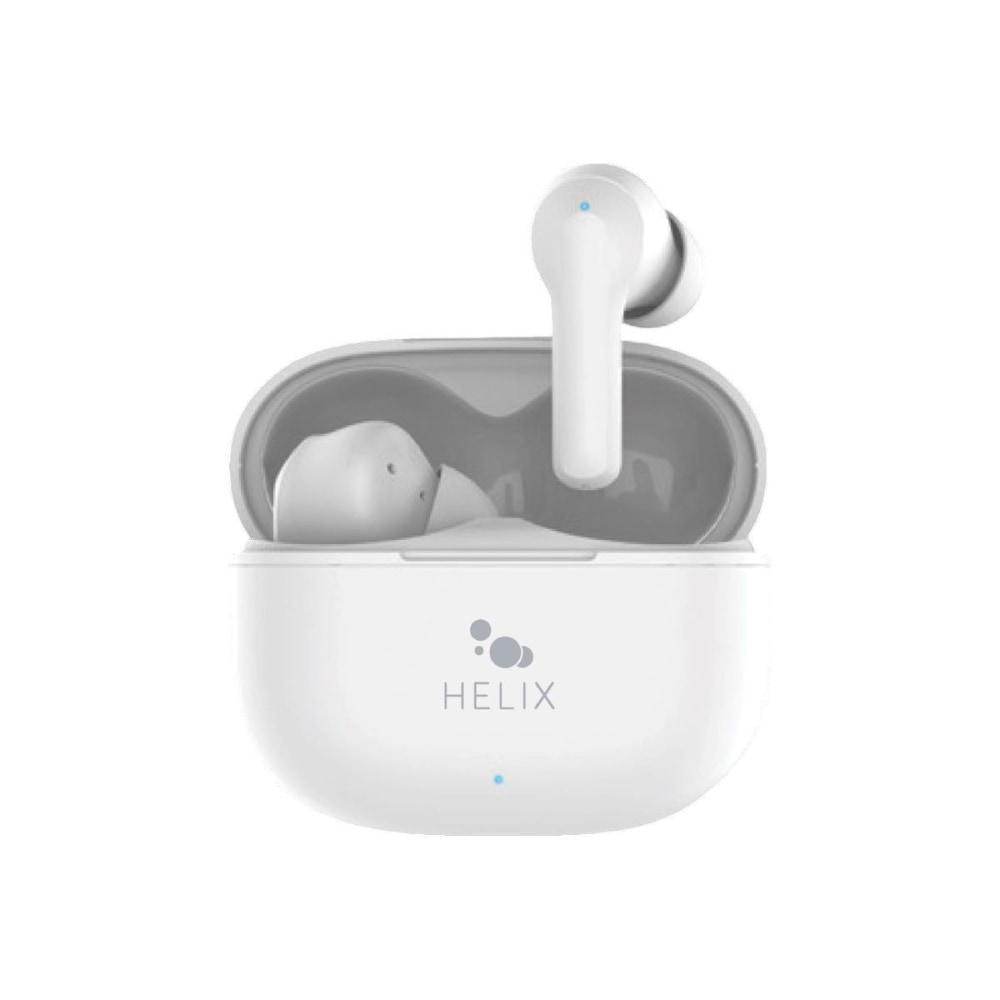
How to put Helix earbuds in pairing mode
Pairing mode allows your iPhone to find the earbuds. Think of it as making the earbuds raise their hand in a crowded room.
Try these methods:
• Open the charging case with both earbuds inside.
• Remove both earbuds and hold their touch controls for three to five seconds.
• Press and hold the case button until the LED begins to flash.
• Return the earbuds to the case, close the lid, wait ten seconds, and open it again.
The light color depends on the Helix model. A flashing light often means the earbuds are ready to pair. A steady light may mean they are charging or already connected.
If one earbud flashes while the other stays dark, place both earbuds in the case. Confirm that each one touches the charging pins. A dirty contact or low battery can stop one earbud from entering pairing mode.
Do not hold the touch controls for too long unless the manual says to reset them. A long press may turn the earbuds off or activate a factory reset. When I troubleshoot earbuds, I start with a short pairing press before trying any reset method.
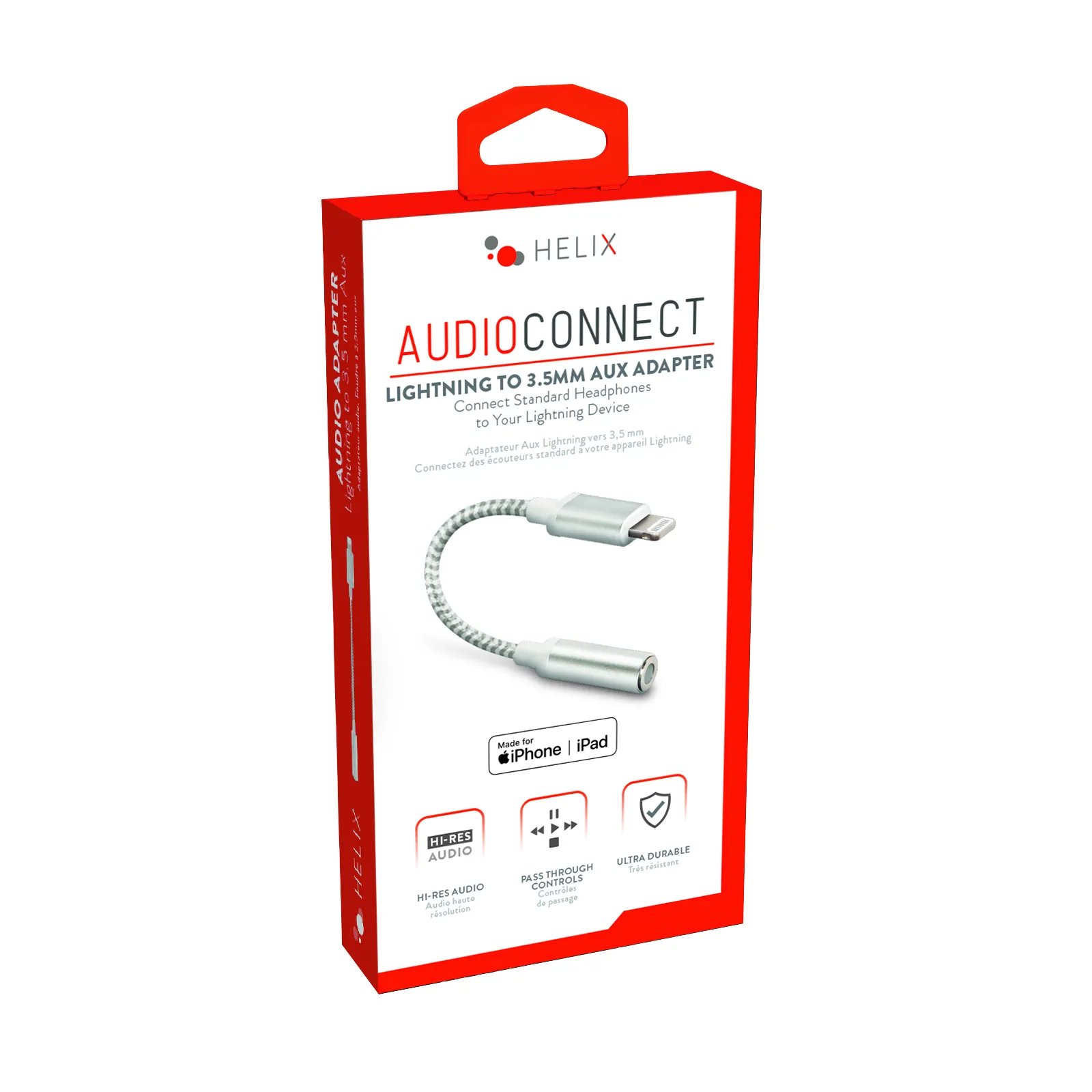
Pair Helix earbuds with iPhone after the first setup
After you connect Helix earbuds to iPhone once, future connections should happen automatically. Remove the earbuds from the case, and keep Bluetooth enabled on the iPhone.
Your iPhone may connect to the last device used. If it does not, open Settings, tap Bluetooth, and select the Helix earbuds under My Devices.
You can also manage the connection from Control Center:
-
Swipe down from the top right corner of the iPhone.
-
Press and hold the audio control panel.
-
Tap the AirPlay or audio output icon.
-
Select your Helix earbuds.
If the earbuds show as connected but sound comes from the iPhone speaker, the audio output is set incorrectly. Selecting the Helix earbuds from the audio menu usually fixes this within seconds.
Keep in mind that automatic connection is not guaranteed when the earbuds are connected to another device. Bluetooth earbuds often connect to the last available device first, especially if that device is nearby.
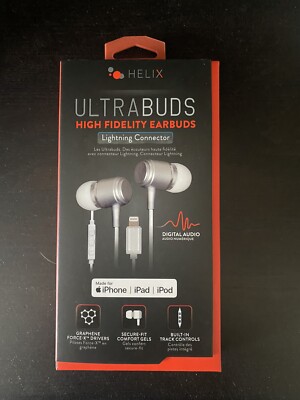
What to do when Helix earbuds do not appear
If you cannot connect Helix earbuds to iPhone, do not repeat the same pairing step again and again. Use a simple troubleshooting order.
Check Bluetooth and battery
Open Settings and confirm that Bluetooth is on. Then charge the case and earbuds for at least 15 minutes.
A low battery can make the earbuds disappear from the Bluetooth list. It can also cause one earbud to connect while the other remains silent.
Move away from other devices
Turn off Bluetooth on nearby phones, tablets, computers, and smart TVs. If the Helix earbuds remember one of those devices, they may connect there instead of appearing on your iPhone.
Forget the old Bluetooth record
If Helix appears under My Devices but will not connect, remove the old record:
-
Open Settings.
-
Tap Bluetooth.
-
Tap the information icon next to the Helix earbuds.
-
Choose Forget This Device.
-
Confirm the action.
Then place the earbuds into pairing mode and select them under Other Devices. This creates a fresh Bluetooth connection.
Restart both devices
Turn the iPhone off and on again. Place the earbuds in their case, close the lid, wait a few seconds, and open it again.
This basic step clears temporary Bluetooth errors. It sounds simple, but it solves many connection problems without changing any settings.
Reset the earbuds
Use a factory reset only if the earlier steps fail. Many Helix models reset when you hold the case button for about 10 to 15 seconds, but the exact method can differ.
A reset removes stored pairing information. After the reset, you must connect Helix earbuds to iPhone as if they were new.
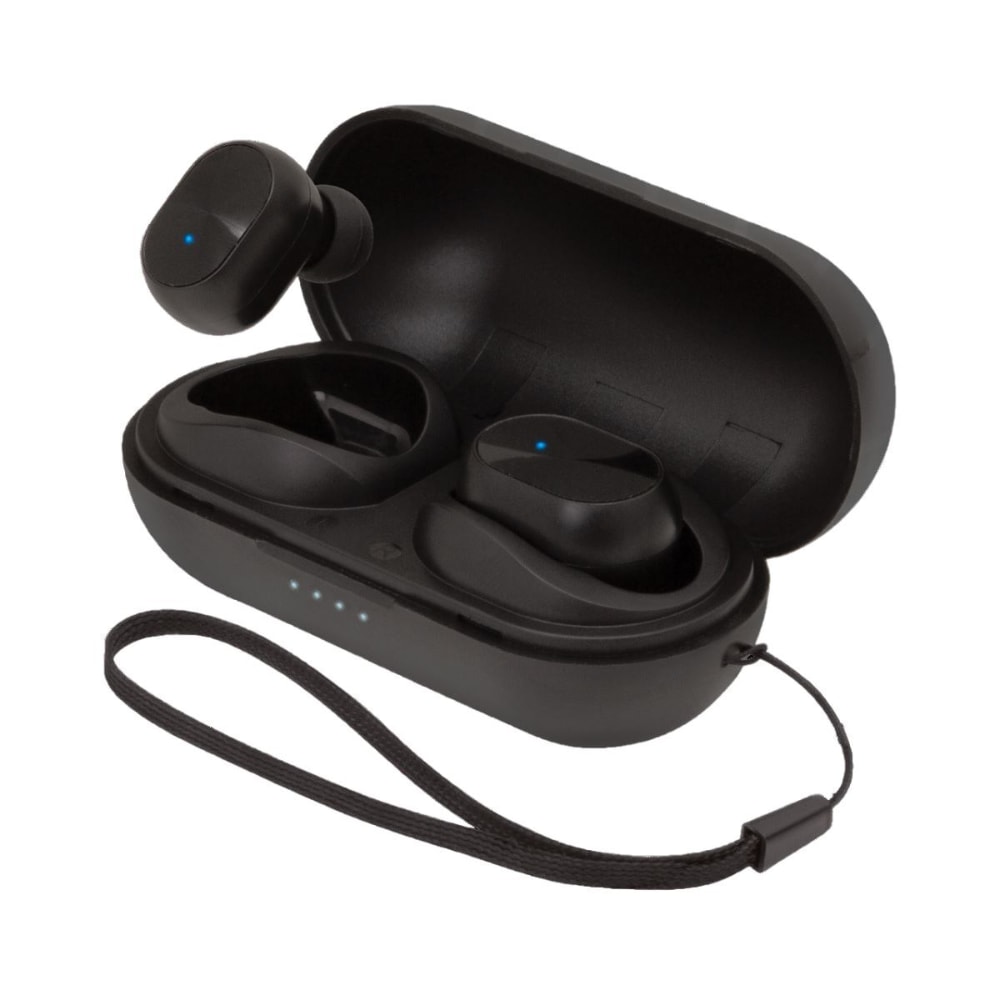
Fix sound, microphone, and connection problems
Pairing is only the first part of a good listening experience. You may still need to adjust the audio route, fit, or microphone settings.
If sound comes from one earbud, return both earbuds to the case. Make sure they charge, then remove them together. This often restores the left and right connection.
If the sound is quiet, check the volume buttons and the volume slider in Control Center. Also inspect the speaker mesh for dust or earwax. Clean it gently with a dry, soft brush. Do not push liquid or sharp objects into the earbuds.
If the microphone does not work during calls, check the active audio route:
-
Start or answer a call.
-
Tap the audio button on the call screen.
-
Select the Helix earbuds.
You can also check microphone access under Settings, Privacy & Security, and Microphone. If a specific app lacks permission, the earbuds may play music normally but fail during calls.
Bluetooth range can also affect performance. Walls, metal objects, and crowded wireless areas may cause drops. Keep the iPhone nearby, especially during calls or while walking through busy public spaces.
How to improve the connection
A stable connection depends on more than the initial pairing. These habits can help:
• Keep iOS updated.
• Charge the earbuds before long trips.
• Keep the charging contacts clean and dry.
• Avoid storing the case beside strong heat or moisture.
• Disconnect unused Bluetooth devices when troubleshooting.
• Keep the iPhone and earbuds within a reasonable range.
• Use the correct ear tip size if your model includes several options.
Bluetooth is designed for convenience, not unlimited distance. You may notice a delay in games or video on some earbuds. Music and calls usually work well, but latency can vary by model, app, and iPhone software.
If your Helix earbuds support a companion app, use it only from a trusted source. An app may provide firmware updates or extra controls, but it is not required for standard Bluetooth pairing unless the manufacturer says otherwise.
Privacy also matters. Only pair with a device name you recognize. Avoid accepting unexpected pairing requests in public places.
Disconnect or remove Helix earbuds from iPhone
You can temporarily disconnect the earbuds without deleting their saved connection.
-
Open Settings.
-
Tap Bluetooth.
-
Tap the information icon beside the Helix earbuds.
-
Tap Disconnect if the option appears.
Another option is to open Control Center, press and hold the wireless controls, and tap Bluetooth. This may disconnect accessories while leaving Bluetooth available for other functions.
To permanently remove the pairing, choose Forget This Device. Use this option when you plan to give the earbuds to someone else or when the saved connection is damaged.
After forgetting the device, place the earbuds into pairing mode again. Then connect Helix earbuds to iPhone as a new accessory.
When to reset iPhone network settings
Resetting network settings should be a last resort. It can fix stubborn Bluetooth issues, but it also removes saved Wi-Fi networks, VPN settings, and other network information.
Before using it, try these simpler options:
• Forget the Helix earbuds.
• Restart the iPhone.
• Reset the earbuds.
• Update iOS.
• Test the earbuds with another phone.
If Bluetooth accessories still fail, go to Settings, General, Transfer or Reset iPhone, Reset, and Reset Network Settings. Follow the prompts carefully.
This step does not erase your photos, apps, or personal files. However, you will need to reconnect to Wi-Fi networks afterward. Apple’s Bluetooth troubleshooting guidance also recommends checking power, range, and device settings before using more advanced resets.
Common mistakes to avoid
Many pairing problems come from small mistakes rather than faulty hardware.
• Searching while the earbuds are still inside a closed case.
• Selecting a similarly named Bluetooth device.
• Leaving the earbuds connected to an old phone.
• Forgetting to charge the case.
• Resetting the iPhone before trying a simple restart.
• Holding touch controls too long.
• Assuming “Connected” means the earbuds are the active audio output.
The safest approach is to change one thing at a time. For example, first check the battery. Then check pairing mode. Then remove the old Bluetooth record. This makes it easier to find the real cause.
I have found that rushing the setup creates more trouble. A calm, two-minute check usually works better than tapping every setting at once.
Frequently Asked Questions about how to connect Helix earbuds to iPhone
Why are my Helix earbuds not showing on my iPhone?
The earbuds may not be in pairing mode, or they may be connected to another nearby device. Charge them, turn off Bluetooth on other devices, and hold the case button until the indicator flashes.
Do Helix earbuds work with every iPhone?
Most Helix Bluetooth earbuds work with iPhones that support Bluetooth audio. Older iPhone models may have different software features, but basic music and call functions are usually available.
How do I reset Helix earbuds before pairing?
The reset method depends on the model. Common steps include placing both earbuds in the case and holding the case button for 10 to 15 seconds, but you should confirm the timing in your model’s manual.
Why do my Helix earbuds connect but have no sound?
Your iPhone may still be using its built-in speaker as the audio output. Open Control Center, tap the audio output icon, and select the Helix earbuds.
Can I connect Helix earbuds to an iPhone without an app?
Yes, most models support basic pairing through Settings and Bluetooth. A companion app may add features, but it is usually not needed for music or calls.
Why does only one Helix earbud work?
One earbud may not be charged, or the two earbuds may have lost their link. Place both in the case, clean the charging contacts, and pair them again after a reset if needed.
Conclusion
To connect Helix earbuds to iPhone, turn on Bluetooth, place the earbuds in pairing mode, and select Helix from the available devices. If the connection fails, check the battery, remove old Bluetooth records, restart both devices, and reset the earbuds only as a final step.
Once paired, choose the earbuds as the active audio output and keep them charged for reliable use. Try these steps now, and share your experience or explore more iPhone audio guides for extra setup tips.

Everett Ashford is a tech reviewer at mytechgrid.com specializing in SSDs, cameras, TVs, earbuds, headphones, and other consumer electronics. He provides honest, data-driven reviews based on hands-on testing and real-world performance analysis. Everett simplifies complex tech details to help readers make smart, confident buying decisions.