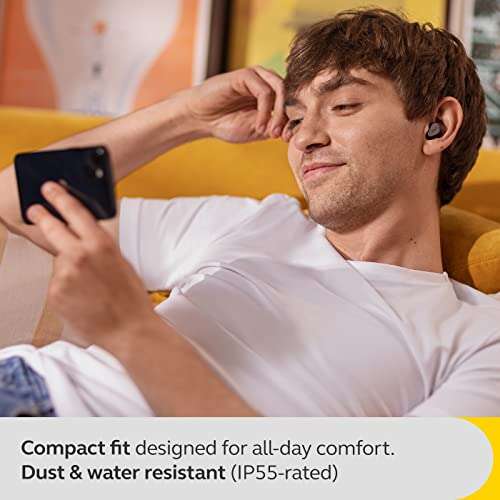
Connect PULSE Explore earbuds to your PS5 with the included PlayStation Link USB adapter, then pair them in seconds.
Learning how to connect PULSE earbuds to PS5 is simple once you know one key detail: PULSE Explore earbuds use PlayStation Link for the best PS5 connection. They do not connect to the console like regular Bluetooth earbuds. This guide explains the setup, pairing steps, sound controls, common fixes, and useful tips for stable game audio and chat.

What You Need Before Connecting PULSE Earbuds to PS5
Before you start learning how to connect PULSE earbuds to PS5, check that you have the right equipment. The steps below apply mainly to the PlayStation PULSE Explore wireless earbuds.
You should have:
• A PS5 console with the latest system software
• PULSE Explore wireless earbuds
• The PlayStation Link USB adapter included with the earbuds
• The charging case
• A free USB port on your PS5
• A USB cable for charging, if the earbuds or case need power
The PlayStation Link adapter is the bridge between the earbuds and the console. Think of it as a small translator that lets the PS5 and earbuds communicate with low delay.
PULSE Explore earbuds can also connect to some devices through Bluetooth. However, the PS5 does not support standard Bluetooth audio in the same way a phone does. For that reason, trying to pair the earbuds directly from the PS5 Bluetooth settings usually will not work.

How to Connect PULSE Earbuds to PS5
The easiest way to connect PULSE Explore earbuds to PS5 is to use the PlayStation Link USB adapter. Follow these steps in order.
1. Charge the earbuds
Place both earbuds in the charging case. Make sure the case has enough power to complete the setup.
A low battery can make pairing seem broken. It can also cause the earbuds to disconnect during a game. Charging them first removes one common cause of trouble.
2. Turn on your PS5
Start the console and wait until the home screen appears. You can use either the PS5 or PS5 Digital Edition.
The console should be connected to the internet if it needs a system update. Updated software improves compatibility and can fix connection problems.
3. Insert the PlayStation Link adapter
Plug the PlayStation Link USB adapter into an available USB port on the PS5.
You can use a front or rear USB port. If the adapter feels loose or does not light up, try another port. Avoid connecting it through an unpowered USB hub during the first setup.
4. Remove the earbuds from the case
Open the charging case and take out both earbuds. They should enter pairing mode automatically when they are new or not connected to another PlayStation Link device.
If they do not pair automatically, press and hold the PlayStation Link button on the earbuds or case according to the instructions supplied with your model. The indicator light should begin to flash.
5. Wait for the connection
The USB adapter and earbuds should pair within a short time. When the connection is ready, you should hear the PS5 audio through the earbuds.
If the PS5 asks you to confirm the audio device, select the PULSE Explore earbuds. This completes the main process for how to connect PULSE earbuds to PS5.
6. Test game audio and the microphone
Open a game or play a menu sound. Then speak into the built-in microphone or join a party chat.
You can adjust the audio balance, microphone level, and output settings from the PS5 control center. Press the PS button, select Sound, and review the available options.

How to Set PULSE Earbuds as the PS5 Audio Output
After you connect PULSE earbuds to PS5, the console may select them automatically. If game sound still comes from your television, change the output device manually.
-
Press the PS button on your controller.
-
Select Sound from the control center.
-
Open Output Device.
-
Choose the PULSE Explore earbuds or PlayStation Link device.
-
Adjust the volume to a comfortable level.
You can also open Settings, then Sound, and select Audio Output. Confirm that the output device is set to the connected PlayStation Link earbuds.
The PS5 may remember the adapter after the first setup. This means future connections should be nearly automatic when you insert the adapter and remove the earbuds from their case.
If you use a television, soundbar, or monitor at different times, check the output device whenever the audio seems to disappear. The console may switch back to HDMI output after the earbuds are placed in the case.
How to Connect PULSE Earbuds to PS5 for Voice Chat
PULSE Explore earbuds include microphones for game chat and party chat. After learning how to connect PULSE earbuds to PS5, you should also confirm that the microphone is active.
To check your microphone:
• Press the PS button on the controller.
• Select Mic.
• Choose the microphone input connected through PlayStation Link.
• Speak and watch the input level.
If other players cannot hear you, make sure the microphone is not muted. Also check the mute button on your controller. A small mute indicator can be easy to miss during a busy game.
You can change the microphone volume in the PS5 sound settings. Keep the level high enough for clear speech, but avoid setting it so high that your voice becomes harsh or distorted.
For party chat, open Game Base and join or create a party. Ask another player if your voice sounds clear. This real-world test is more useful than relying on the settings menu alone.

How to Adjust Game and Chat Audio
The PULSE Explore earbuds support separate game and chat audio controls. This helps you hear teammates without losing important game sounds.
Use the PS5 control center to adjust the overall volume. If your earbuds support a game and chat balance control, move it toward game audio or chat audio as needed.
For example:
• Move the balance toward chat when teammates are giving key callouts.
• Move it toward game audio during story scenes or competitive matches.
• Lower the volume if explosions or sharp sound effects feel uncomfortable.
A good audio mix should feel clear, not loud. Excessive volume can cause fatigue and may harm hearing over time. Take short breaks during long gaming sessions.
Some games include their own voice chat settings. If party chat works but in-game chat does not, open the game’s audio menu and confirm that voice chat is enabled.

How to Connect PULSE Earbuds to PS5 and a Phone
PULSE Explore earbuds can use PlayStation Link and Bluetooth features, which makes it possible to use them with more than one device. The PlayStation Link connection handles PS5 game audio, while Bluetooth can connect to a compatible phone or another supported device.
To connect a phone:
-
Open Bluetooth settings on the phone.
-
Put the earbuds into Bluetooth pairing mode.
-
Select the PULSE earbuds from the device list.
-
Confirm the pairing request.
The exact behavior of simultaneous connections can depend on the firmware and device setup. If the phone takes control of the audio, disconnect Bluetooth temporarily when you want the most reliable PS5 session.
For the cleanest setup, connect the earbuds to the PS5 first. Then add the phone connection after the PlayStation Link connection is working.

Common Problems When Connecting PULSE Earbuds to PS5
Even when you follow the correct steps, how to connect PULSE earbuds to PS5 can be confusing if the adapter or earbuds are not ready. Most problems have a simple cause.
The PS5 does not detect the earbuds
Check the following:
• Confirm that the PlayStation Link USB adapter is fully inserted.
• Try another USB port on the PS5.
• Remove and reinsert the adapter.
• Restart the PS5.
• Place the earbuds in the case, close the lid, and try again.
• Install available PS5 and earbud firmware updates.
Do not assume the earbuds are defective until you test another USB port. Loose connections and power-saving behavior can make a working adapter appear inactive.
The earbuds connect but produce no sound
Open the PS5 control center and check Output Device. The console may still be using HDMI audio through the TV or monitor.
Also raise the earbud volume and confirm that the game itself is not muted. If you use a monitor with built-in speakers, the PS5 may switch between the monitor and PlayStation Link device.
Only one earbud works
Return both earbuds to the charging case. Make sure each earbud sits correctly on its charging contacts.
Remove them again after a few seconds. If one earbud remains silent, clean the charging contacts with a dry, soft cloth and check its battery level.
The microphone does not work
Check the selected input device in the PS5 sound settings. Then confirm that the controller mute function is off.
Move away from loud speakers or a fan during testing. Background noise can make voice chat seem unclear even when the microphone is working correctly.
The connection drops during play
Keep the PlayStation Link adapter in a clear USB port. Avoid placing it behind a metal object, inside a crowded hub, or near several wireless devices.
Update the PS5 and earbuds, then restart both devices. If the problem continues, reset and pair the earbuds again by following the product instructions.

How to Reset and Re-Pair PULSE Earbuds
Resetting the earbuds can help when the normal pairing process fails. It clears an old connection and gives the PS5 a fresh start.
A safe re-pairing process is:
-
Turn off the PS5.
-
Place both earbuds in the charging case.
-
Disconnect the PlayStation Link USB adapter.
-
Wait several seconds.
-
Reconnect the adapter.
-
Turn on the PS5.
-
Remove the earbuds from the case.
-
Follow the pairing instructions for the earbuds.
The exact reset button process can vary by product version and firmware. Use the instructions that came with your PULSE Explore earbuds rather than holding random buttons for a long period.
One practical lesson from troubleshooting wireless accessories is to change only one thing at a time. If you replace the USB port, reset the earbuds, and change the audio settings at once, you may not know which step solved the problem.
PULSE Explore Earbuds Versus PULSE 3D Headset
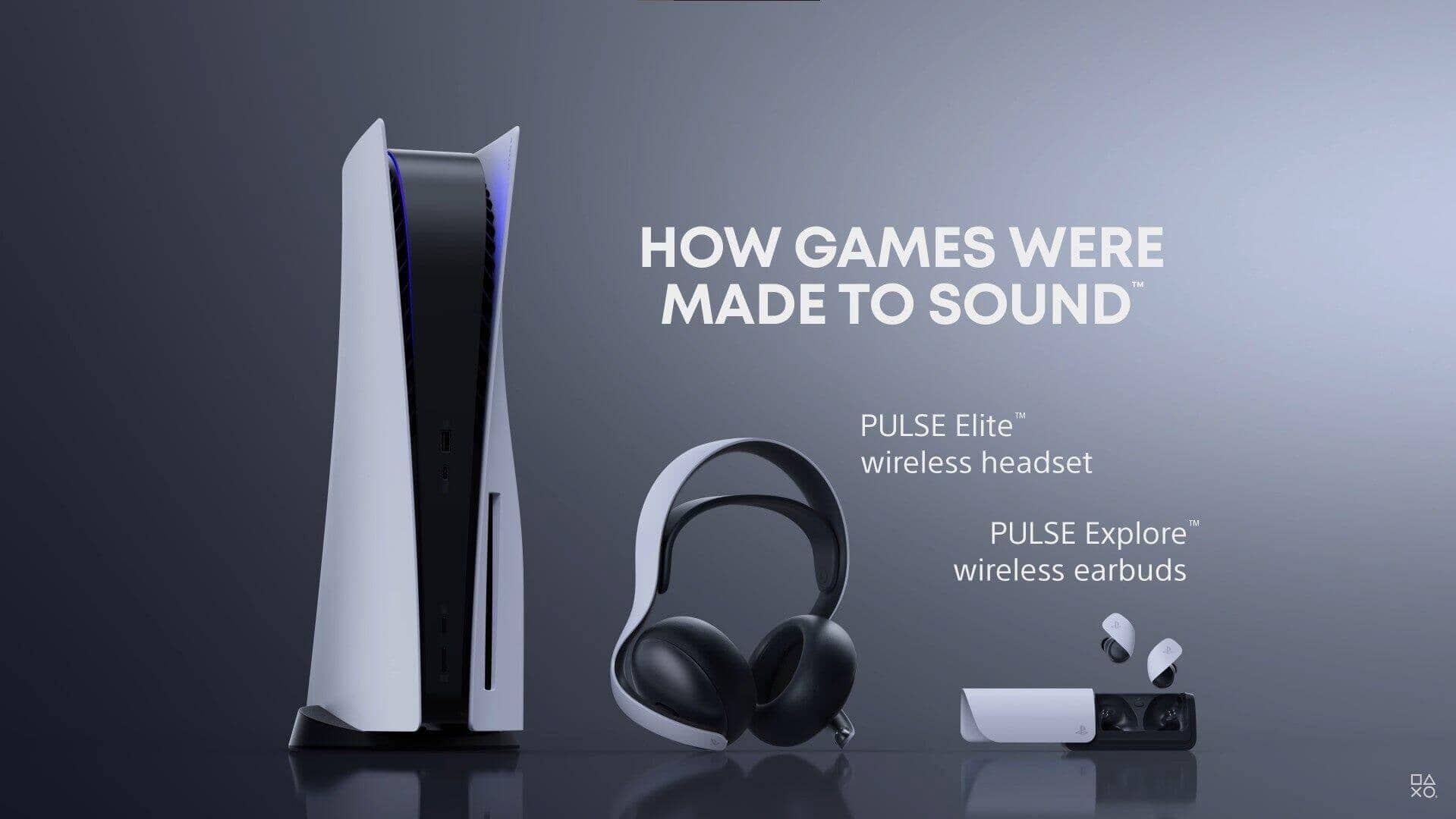
The name PULSE can refer to more than one PlayStation audio product. PULSE Explore earbuds are true wireless earbuds. The PULSE 3D is an over-ear wireless headset.
Both products can use PlayStation Link when paired with the proper adapter or compatible PlayStation device. However, their controls, charging methods, microphone placement, and fit are different.
If you own a PULSE 3D headset, do not follow every earbud step. Use its wireless adapter and headset controls instead. If you are unsure which model you have, check the product name printed on the case, headset, packaging, or device settings.
Knowing the exact model is the first step in how to connect PULSE earbuds to PS5 correctly. Many failed setups happen because users follow instructions for PULSE Explore while using a different PULSE product.
Tips for Better PS5 Wireless Audio
Once you know how to connect PULSE earbuds to PS5, a few habits can make the experience more stable.
• Keep the earbuds charged before a long session.
• Store the earbuds in the case when you are not using them.
• Keep the PlayStation Link adapter away from blocked or crowded USB areas.
• Update the PS5 and earbuds when updates are available.
• Test voice chat before joining a competitive match.
• Use a moderate volume level.
• Disconnect unused Bluetooth devices if switching causes confusion.
• Keep the earbud charging contacts clean and dry.
Wireless audio works best when the signal has a clear path. You do not need to place the earbuds next to the console, but avoid covering the adapter or hiding it behind dense objects.
Fit also matters. If an earbud seal is loose, game audio may sound thin, especially during low bass effects. Try the included ear tip sizes and choose the pair that feels secure without pressure.
Frequently Asked Questions About How to Connect PULSE Earbuds to PS5
Can PULSE Explore earbuds connect directly to a PS5 through Bluetooth?
No. The PS5 does not generally support standard Bluetooth audio earbuds directly. Use the included PlayStation Link USB adapter for the intended wireless connection.
Do I need the PlayStation Link USB adapter to connect PULSE earbuds to PS5?
Yes, the adapter is the normal connection method for PULSE Explore earbuds on PS5. Without it, the console may not detect the earbuds as an audio device.
Why are my PULSE earbuds connected but silent?
Open the PS5 control center, select Sound, and choose the PULSE or PlayStation Link device as the output. Also check the earbud volume, game audio settings, and HDMI audio selection.
Can I use PULSE Explore earbuds for PS5 party chat?
Yes. The earbuds have built-in microphones for supported game and party chat features. Check the PS5 input device and make sure the controller mute function is disabled.
How do I fix PULSE earbuds that keep disconnecting from PS5?
Restart the console, reconnect the PlayStation Link adapter, and update the PS5 and earbuds. You should also try another USB port and keep the adapter away from blocked or crowded areas.
Can I connect PULSE Explore earbuds to a phone and PS5?
Yes, the earbuds support PlayStation Link and Bluetooth connections. The exact simultaneous-use behavior can vary, so disconnect the phone if it interrupts PS5 audio.
Conclusion
Learning how to connect PULSE earbuds to PS5 mainly involves using the PlayStation Link USB adapter, pairing the earbuds, and selecting the correct audio output. Once connected, you can enjoy game audio, voice chat, and adjustable sound without a traditional headset cable.
If pairing fails, check the adapter, USB port, battery level, output device, microphone settings, and firmware before assuming there is a hardware problem. Set up the earbuds now, test them in a short party chat, and share your experience or questions in the comments.

Everett Ashford is a tech reviewer at mytechgrid.com specializing in SSDs, cameras, TVs, earbuds, headphones, and other consumer electronics. He provides honest, data-driven reviews based on hands-on testing and real-world performance analysis. Everett simplifies complex tech details to help readers make smart, confident buying decisions.