Pair your JBL earbuds to Mac via Bluetooth in macOS Bluetooth settings in minutes.
I’m an audio enthusiast and tech writer who has paired many headphones and earbuds with Macs. This guide explains exactly how to connect JBL earbuds to Mac. You’ll get clear, step-by-step setup, troubleshooting tips, codec and battery notes, and real-world advice I learned while testing JBL buds across macOS versions. Read on to pair confidently and solve common hiccups fast.

What you need before pairing
Before you try how to connect JBL earbuds to Mac, gather a few basics.
Make sure your Mac has Bluetooth turned on. Most Macs do, but older machines may need a software update. Keep your earbuds charged. A low battery can block pairing.
Check your macOS version. Newer macOS versions handle Bluetooth better. Still, the pairing steps below work across macOS Big Sur, Monterey, Ventura, and later with small UI differences. If your JBL model has a case or a pairing button, know where it is. That helps speed things up.
If you use another Bluetooth device with your Mac, close or disconnect it. That reduces conflicts. Also, put your earbuds in pairing mode before starting. Each JBL model uses a slightly different method to enter pairing mode. Have the manual handy if unsure.
How to connect JBL earbuds to Mac — step-by-step
This section shows multiple methods depending on your JBL model. Follow the method that matches your earbuds.
Steps for most true wireless JBL earbuds (with charging case)
- Charge both earbuds and the case.
- Open the case near your Mac. If the earbuds don’t auto-enter pairing mode, press and hold the case button until the LED flashes.
- On Mac, click the Apple menu and open System Settings or System Preferences.
- Select Bluetooth. Wait for your JBL earbuds to appear in the device list.
- Click Connect next to your JBL earbuds. If prompted, confirm pairing.
Steps for JBL earbuds with a dedicated pairing button
- Power off the earbuds.
- Press and hold the pairing button until the LED flashes rapidly. This activates pairing mode.
- On Mac, open Bluetooth in System Settings.
- Select your JBL earbuds from the list and click Connect.
Alternative quick method (menu bar Bluetooth)
- Click the Bluetooth icon in the menu bar.
- Choose your JBL earbuds from the dropdown list.
- Select Connect.
What to expect after pairing
- The Mac will usually show the earbuds as “Connected” and route audio to them.
- You may need to open Sound settings to select the JBL earbuds as output and input.
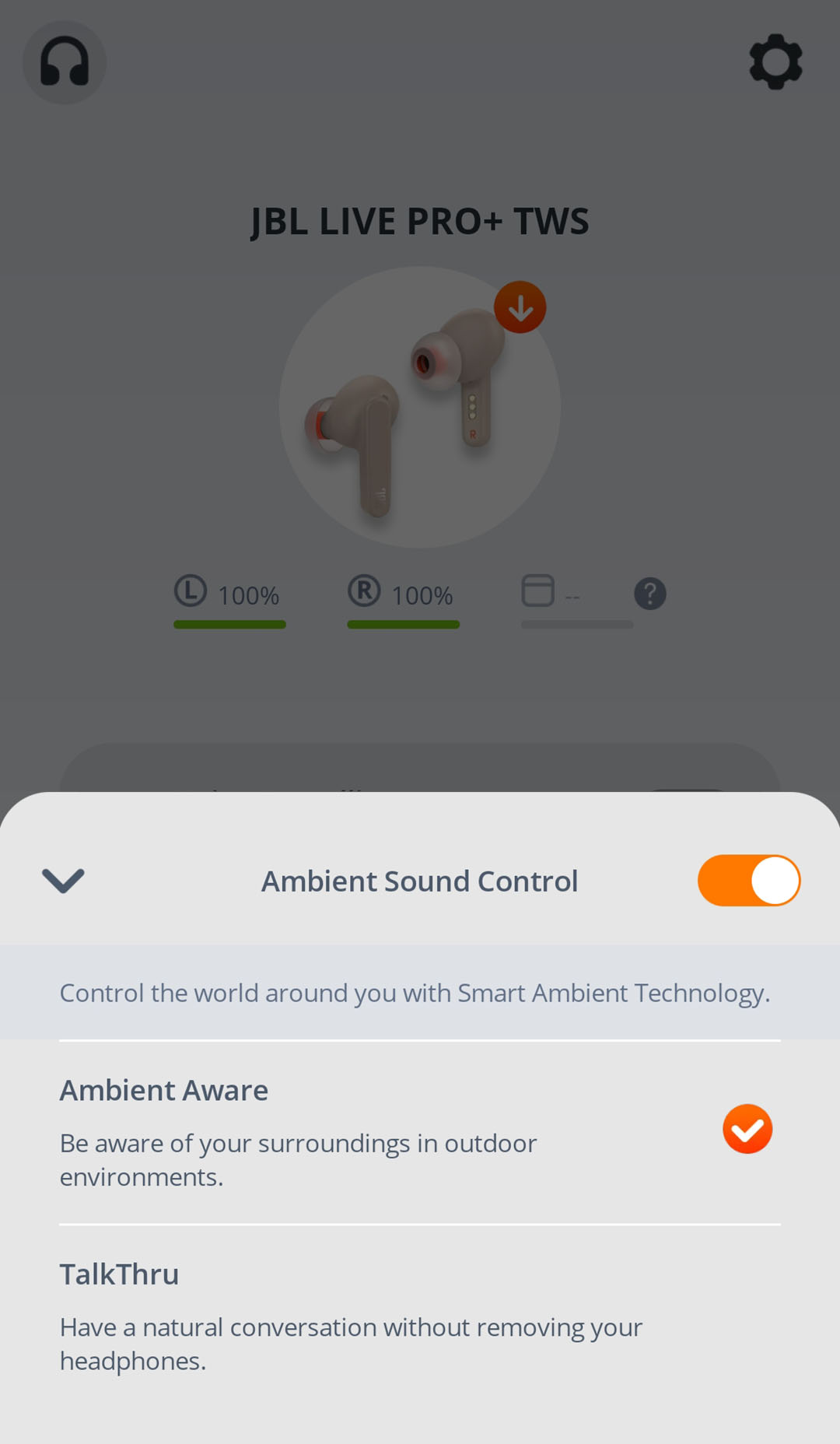
- Some JBL earbud features like multipoint or app-based EQ require the JBL app on a phone, not the Mac.
If pairing fails, try repeating the steps after restarting both devices. Keep reading for troubleshooting and resets.

Troubleshooting common pairing problems
Problem: Earbuds don’t show in Bluetooth list
- Make sure earbuds are in pairing mode.
- Turn Bluetooth off and on again on your Mac.
- Restart your Mac if necessary.
Problem: Earbuds connect but no sound
- Open System Settings > Sound and choose the JBL earbuds as the output device.
- Check volume on both Mac and earbuds. Some earbuds use their own volume level.
Problem: Frequent disconnects or audio dropouts
- Move closer to the Mac. Bluetooth range is about 30 feet but walls and interference cut range down.
- Turn off other Bluetooth devices nearby. Wi-Fi on 2.4 GHz can interfere. Try switching your router to 5 GHz if possible.
Problem: Mono sound or one earbud only plays
- Reset the earbuds (see reset section).
- Remove the device from Mac Bluetooth list and pair again. Sometimes one earbud failed to pair correctly.
When to update macOS or earbud firmware
- If you see persistent bugs, update macOS.
- Check if JBL provides firmware updates through their mobile app. Firmware updates fix stability and audio issues.
Tips to improve audio quality and connection stability
Set output format and sample rate
- Go to Audio MIDI Setup on Mac to confirm sample rates. Use 44.1 kHz or 48 kHz for best compatibility.
Use the right codec
- Macs prefer AAC over SBC when available. Some JBL earbuds support AAC. If your earbuds support AAC, you may hear better audio with lower latency. Remember macOS may drop to SBC for call audio.
Close unused apps
- Apps that use audio or the mic can interfere. Quit apps that use Bluetooth audio when not needed.
Avoid crowded wireless environments
- Move away from microwave ovens, cordless phones, and dense Wi-Fi networks that operate at 2.4 GHz.
Keep earbuds and Mac updated
- Firmware updates to earbuds can improve pairing and sound. macOS updates often include Bluetooth fixes.
Resetting JBL earbuds and removing them from Mac
When pairing problems persist, reset the earbuds and remove them from macOS Bluetooth.
How to forget JBL earbuds on Mac
- Open System Settings > Bluetooth.
- Find your JBL earbuds.
- Click the three-dot menu or right-click and select Forget or Remove.
- Confirm removal.
General reset for JBL true wireless earbuds
- Place both earbuds in the case and close the lid. Wait 10 seconds.
- With the lid open, press and hold the case button until LEDs flash. This varies by model. Check your manual.
Reset using earbuds only
- Power off the earbuds. Press and hold the buttons on both earbuds for about 10–15 seconds until lights flash. Release and re-enter pairing mode.
After reset
- Reboot your Mac and try pairing again. This clears stuck pairings and often resolves weird issues.

Technical notes: codecs, latency, battery, and range
Codecs and what they mean
- SBC: universal, basic quality, higher latency.
- AAC: better quality on Apple devices and often lower latency. Preferred when how to connect JBL earbuds to Mac is for music.
- aptX family: not supported by macOS natively. If your JBL earbuds rely on aptX, expect to use SBC or AAC on Mac.
Latency and calls
- Bluetooth introduces latency. For video calls, some lag may be noticeable. Use wired headphones for zero latency when precise sync matters.
Battery and charging tips
- Charge fully before pairing for stable setup. Carry the case if you travel. Watch battery reporting on macOS; some earbuds show battery in the Bluetooth menu.
Range and obstacles
- Bluetooth range is typically 30 feet in open space. Walls and pockets reduce range. Keep the Mac and earbuds in the same room for best results.

Personal experience, lessons learned, and mistakes to avoid
I’ve paired several JBL models with multiple Macs. Here are real lessons from testing.
What worked best
- Putting earbuds in pairing mode first saved time.
- Removing old Bluetooth devices from my Mac cut conflict issues.
- Updating earbud firmware fixed one model’s frequent disconnects.
Common mistakes to avoid
- Trying to pair when earbuds have very low battery. That often stops the process.
- Forgetting to choose the earbuds as the output device in Sound settings. The Mac may keep using internal speakers.
- Expecting phone apps to control Mac audio features. Many JBL app features are phone-only.
Quick tip from experience
- If your earbuds repeatedly fail to pair, toggle Wi-Fi on your Mac off for a moment. I found this helped once when interference was the culprit.
PAA-style questions (short answers)
What do I do if my Mac won’t find my JBL earbuds?
- Make sure the earbuds are in pairing mode and close to the Mac. Turn Bluetooth off and on. Restart the Mac if needed.
Can I use JBL earbuds for calls on Mac?
- Yes. Most JBL earbuds work for calls, but mic quality varies. For best results, test audio in a quick call before important meetings.
Do I need the JBL app to connect to a Mac?
- No. The JBL app is optional and primarily for firmware updates and EQ on phones. Pairing to Mac is done in macOS Bluetooth settings.
Will my JBL earbuds show battery level on Mac?
- Many models show battery in the Bluetooth menu. If not, use the JBL app on a phone or check earbuds LEDs.
How do I switch audio back to Mac speakers?
- Click the volume icon or open Sound settings. Choose Internal Speakers or whichever device you prefer.
Frequently Asked Questions of how to connect jbl earbuds to mac
How do I put my JBL earbuds into pairing mode?
Put the earbuds in pairing mode by pressing and holding the earbud buttons or the case button until LEDs flash. Exact steps vary by model, so check your manual for model-specific instructions.
Why won’t my JBL earbuds connect after pairing?
They may need a reset or a software update. Remove the device from Mac Bluetooth, reset the earbuds, then pair again. Also ensure the earbuds are charged.
Can multiple devices connect to JBL earbuds at once?
Some JBL models support multipoint, but many do not. Check your model specs. If multipoint is not supported, connect to one device at a time for best stability.
How can I improve call quality on JBL earbuds with Mac?
Reduce background noise and move closer to the Mac. Close other Bluetooth devices and apps that use the mic. If problems persist, try using the Mac’s internal mic or a dedicated headset.
Do JBL earbuds work with all macOS versions?
Most JBL earbuds work with modern macOS versions. Older macOS releases may have Bluetooth bugs, so update macOS if you encounter issues.
Conclusion
Pairing your JBL earbuds to Mac is usually quick when you follow a clear process. Start by putting the earbuds in pairing mode, use macOS Bluetooth settings to connect, and tweak sound output if needed. If problems appear, reset the earbuds, remove old pairings, update firmware, and limit wireless interference. Try these steps and you’ll be listening in no time.
Take action now: pick your JBL model, follow the steps above, and test a short audio clip or call. If you run into trouble, revisit the reset and troubleshooting sections, then leave a comment with your model and macOS version so others can help.

Everett Ashford is a tech reviewer at mytechgrid.com specializing in SSDs, cameras, TVs, earbuds, headphones, and other consumer electronics. He provides honest, data-driven reviews based on hands-on testing and real-world performance analysis. Everett simplifies complex tech details to help readers make smart, confident buying decisions.