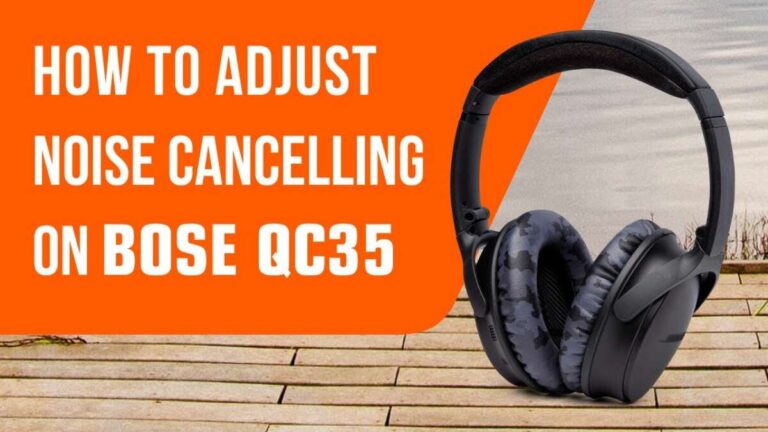
Disable a headphone's built-in mic quickly via device settings, a mute switch, or a hardware adapter.
I’ve spent years fixing audio setups and protecting user privacy. This guide on how to disable built in mic on headphones walks you through safe, simple steps for Windows, macOS, Android, and iPhone. Read on to learn device steps, hardware fixes, testing tips, and real-world advice that I use daily.

Why you might want to disable built in mic on headphones
People disable mics for privacy, to stop accidental recordings, or to use a separate mic. Some apps auto-enable the headphone mic. Others want cleaner audio by forcing the system to use a different input.
Disabling the mic can prevent background noise from being picked up. It also reduces the chance of apps listening without your knowledge. Below you will find clear steps on how to disable built in mic on headphones for most devices.

Quick methods to disable built in mic on headphones
Here are the fastest ways people use to turn off a headphone mic. Choose one based on your device and comfort.
- Use system settings to disable the input device.
- Switch to a headset profile that lacks a mic.
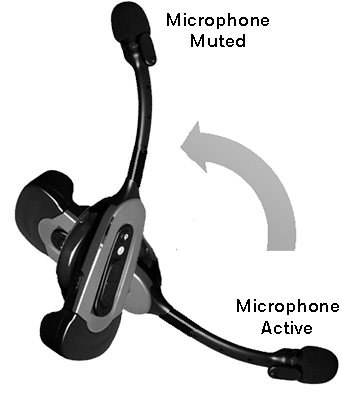
- Use a physical mute switch on the cable or earcup.
- Use a TRRS to TRS adapter that removes the mic connection.
- Use a USB audio adapter and choose a different input in software.
Each method has trade-offs. Later sections show step-by-step instructions. This helps you decide which method suits your setup.
How to disable built in mic on headphones on Windows
Follow these steps to disable a headphone mic on Windows 10 or 11.
- Right-click the speaker icon in the taskbar.
- Select Sound settings.
- Click Input device and choose the headphone mic.
- Click Device properties.
- Toggle Disable under Device usage or choose Disable device in the Device Manager.
Alternate path using Device Manager:
- Press Windows+X and open Device Manager.
- Expand Audio inputs and outputs.
- Right-click the headset mic and select Disable device.
After disabling, test audio input in Sound settings to confirm. If an app still uses the mic, check that app’s permission settings. This is a reliable way to control how to disable built in mic on headphones in Windows.
How to disable built in mic on headphones on macOS
On a Mac, you manage input from System Settings or System Preferences.
- Open System Settings (or System Preferences).
- Go to Sound, then Input.
- Select a different input like Internal Microphone or none.
- Lower Input volume to zero if you cannot fully disable the device.
You can also revoke microphone access per app in System Settings > Privacy & Security > Microphone. This will stop apps from using the headphone mic even if it’s active. These steps make it clear how to disable built in mic on headphones for macOS users.

How to disable built in mic on headphones on Android
Android models vary, but the core steps are similar.
- Open Settings.
- Tap Privacy or Apps and notifications.
- Find App permissions and tap Microphone.
- Revoke microphone access for specific apps or for all apps as needed.
For a hardware-style solution, plug in a mic-less adapter to the headphone jack or use Bluetooth headphones without a mic. These choices show easy ways to manage how to disable built in mic on headphones on Android devices.

How to disable built in mic on headphones on iPhone
iOS offers app-level control but limited system-level disablement.
- Go to Settings > Privacy & Security > Microphone.
- Turn off microphone access for apps you don’t trust.
- For calls, switch to speaker or to a Bluetooth device without a mic.
If you use wired headphones, try a no-mic adapter. That physically removes the mic contact and forces the iPhone to use another input if available. This helps when you want clear instructions on how to disable built in mic on headphones for iPhone users.
Hardware solutions to disable built in mic on headphones
Hardware methods are simple and often reversible.
- Use a TRRS-to-TRS adapter that removes the mic ring. This stops mic signals while leaving audio.
- Use a dedicated inline mute switch or a remote that mutes the mic.
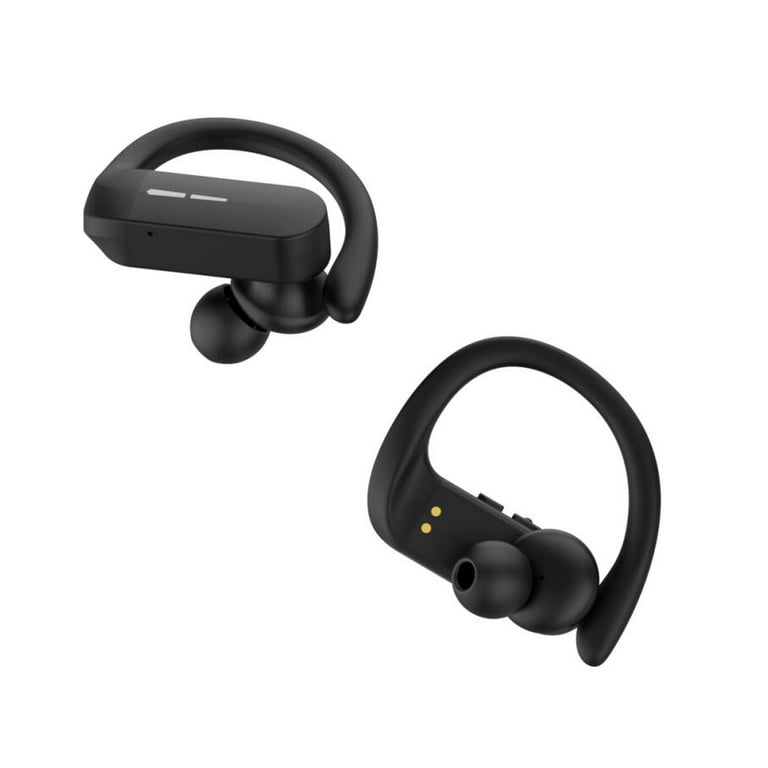
- Use Bluetooth headphones that have a mic toggle in their app.
- As a last resort, tape over the mic hole or unplug the in-line mic module if it’s removable.
Avoid cutting wires unless you accept permanent changes. Adapters and switches are safer and reversible. These hardware options give you physical control of how to disable built in mic on headphones.

Test and verify that the mic is disabled
Always test after making changes.
- On Windows, use the Sound settings Test mic feature.
- On macOS, open Voice Memos or use Sound Input levels.
- On phones, record a short voice memo or use a mic-check app.
- Use online mic test sites if you prefer a quick browser check.
If you still see input activity, double-check app permissions and audio routing. Verifying prevents surprises and proves your method for how to disable built in mic on headphones actually worked.
Benefits, limitations, and privacy notes
Benefits
- Improved privacy and control.
- Less accidental recording.
- Forced use of higher-quality external mics if available.
Limitations
- Some apps may ignore device-level changes.
- Physical adapters can affect audio quality.
- Disabling the mic removes voice features like voice commands.
Privacy notes
- Revoke app permissions in addition to disabling hardware.
- Understand that some malware can re-enable devices, so keep systems updated.
- Hardware solutions add an extra layer of assurance when privacy is a top concern.
These points give a balanced view of how to disable built in mic on headphones.
Personal experience and practical tips
I once helped a small podcast studio where a guest’s headset kept leaking audio into recordings. We disabled the headset mic in the OS and then used a TRRS-to-TRS adapter. That solved the problem instantly.
Lessons I learned
- Always test before an event.
- Keep a spare adapter for quick fixes.
- Label devices in Sound settings so you know which mic you disabled.
Common mistakes to avoid
- Relying only on app permission changes without checking OS settings.
- Cutting cables without a backup.
- Forgetting to check Bluetooth profiles that may re-enable the mic.
These practical tips reflect real fixes I use and explain how to disable built in mic on headphones in day-to-day work.
Frequently Asked Questions of how to disable built in mic on headphones
Can I permanently disable the mic on my wired headphones?
Yes, but permanent methods like cutting wires are irreversible. Use adapters or removable solutions first to keep options open.
Will disabling the headphone mic stop apps from recording?
Disabling the device and revoking app permissions together usually stops most apps from recording. Some malicious software may bypass settings, so keep your device secure.
Does a TRRS-to-TRS adapter stop the mic entirely?
Yes, a TRRS-to-TRS adapter removes the mic contact and prevents the mic signal from reaching the device. Audio playback usually remains unaffected.
Can I disable the mic on Bluetooth headphones?
You can disable mic access per app on your device. Some Bluetooth headphone apps also offer a mic mute or profile that turns off the mic.
Is it safe to tape over the mic hole?
Taping is safe and reversible and can reduce mic pickup. It may not fully block sound and can affect sound quality slightly.
Conclusion
You now have clear, practical ways to control and disable a headphone mic. Use system settings for quick changes, adapters for hardware control, and app permissions to lock down access. Test after every change and keep backups like spare adapters or alternates.
Try one method today and verify it with a quick recording. If this guide helped, subscribe for more audio and privacy tips, or leave a comment with your device and problem for a tailored suggestion.

Jamie Lee is a seasoned tech analyst and writer at MyTechGrid.com, known for making the rapidly evolving world of technology accessible to all. Jamie’s work focuses on emerging technologies, product deep-dives, and industry trends—translating complex concepts into engaging, easy-to-understand content. When not researching the latest breakthroughs, Jamie enjoys exploring new tools, testing gadgets, and helping readers navigate the digital world with confidence.