Set your OBS canvas and source to the same resolution, then crop or transform the camera source to remove black edges.
I’ve fixed black camera edges in OBS dozens of times for streamers, teachers, and podcasters. I’ll show you clear, tested steps for how to fix black edges on my camera on OBS, why those edges appear, and what to do to prevent them. Read on for simple fixes, advanced tips, and a compact troubleshooting checklist you can use right now.
Why black edges appear in OBS (and what they mean)
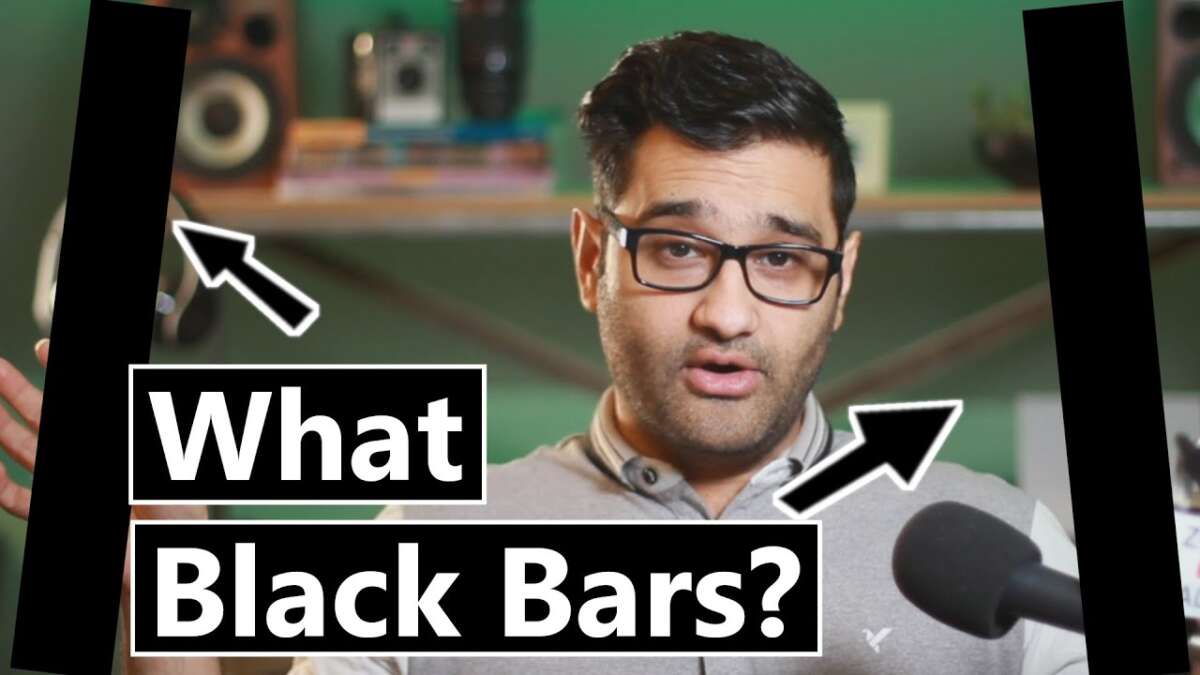
Black edges show up when your camera output and OBS canvas don’t match. Sometimes cameras send a different aspect ratio or resolution than OBS expects. Other times OBS scales the source and adds black bars to preserve aspect ratio.
Typical causes include mismatched resolution, letterboxing from webcam software, incorrect transform settings in OBS, and driver or virtual camera issues. Understanding which cause applies helps you fix black edges fast.

Quick fixes to remove black edges right now
- Match canvas and output resolution in OBS. Set both to the same numbers.
- Right-click the camera source, choose Transform → Fit to screen. That often removes edges.
- Crop manually: Hold Alt and drag a source edge in the preview to crop black bars.
- Change the camera’s resolution in Source Properties to a native option without letterboxing.
- Disable any webcam app overlays or virtual camera layers that add black borders.
These quick steps solve most cases of how to fix black edges on my camera on OBS within minutes. Try them in the order listed for fastest results.
Step-by-step: how to fix black edges on my camera on OBS
-
Verify OBS canvas and output
- Open Settings → Video.
- Set Base (Canvas) Resolution and Output (Scaled) Resolution to the same value.
- Use a common value like 1920×1080 or 1280×720. Mismatch here often causes black edges.
-
Check the Video Capture Device source
- Right-click the camera source → Properties.
- Select the correct device and choose a resolution that matches your canvas.
- If resolution list shows several options, pick the camera’s native resolution.
-
Transform and crop properly
- In the preview, right-click source → Transform → Fit to screen to scale uniformly.
- To remove thin black borders, hold Alt and drag edges to crop them.
- Use Transform → Edit Transform for precise numeric cropping.
-
Disable letterboxing or aspect correction
- Some webcams or apps add letterbox bars. Open your webcam software and turn off any “letterbox,” “fit,” or “preserve aspect” options.
- If using a virtual camera or capture card, check its software for forced aspect ratios.
-
Match frame rate and color settings
- In Source Properties, ensure FPS matches your OBS settings (common: 30 or 60).
- Color space mismatches rarely cause black edges but can affect capture quality. Set color space to default unless you know otherwise.
-
Test and lock settings
- Start Preview or a test recording. Look for edges.
- If fixed, right-click the scene or source and lock it to prevent accidental changes.
Following these steps handles most scenarios of how to fix black edges on my camera on OBS with clear, repeatable actions.
Common quick questions (PAA-style)
Q: Why do black bars appear only on one side?
A: That usually means the source is slightly off-center or cropped. Use Alt-drag to crop or edit transform to center the image.
Q: Can scaling cause black edges?
A: Yes. If “Maintain aspect ratio” is on, OBS may add bars to avoid stretching. Fit to screen or crop fixes this.
Advanced fixes: drivers, virtual cams, and GPU settings
- Update camera drivers and firmware. Old drivers can force odd resolutions.
- Disable conflicting virtual camera software. Virtual cams sometimes add padding or change aspect ratios.
- Check GPU scaling: On some systems, GPU scaling settings in the graphics control panel can alter output. Disable GPU overrides for OBS.
- On macOS, verify camera permissions and remove any third-party camera filters that add borders.
- On Linux, check V4L2 settings for format conversion that inserts black padding.
If the basic fixes don’t work, these advanced checks solve trickier cases of how to fix black edges on my camera on OBS that stem from system-level behavior.

Best practices to prevent black edges in the future
- Always set Base and Output resolutions to match before adding sources.
- Use your camera’s native resolution to avoid automatic scaling.
- Standardize on common aspect ratios (16:9) for all gear.
- Keep webcam software and OBS updated. Updates fix capture bugs that cause edges.
- Save working scene collections and profiles so you can revert if settings change.
These habits reduce the chance you’ll need to troubleshoot how to fix black edges on my camera on OBS again.

Real-life examples and a troubleshooting checklist
Real case 1: A streamer had black bars after switching to a capture card. Fix: Matched OBS canvas to capture card resolution and disabled letterboxing in the capture device software. Fixed in 3 minutes.
Real case 2: A teacher saw thin black borders after a Zoom virtual camera update. Fix: Disabled the virtual camera, used the hardware webcam directly, and selected the correct resolution in OBS.
Troubleshooting checklist (quick)
- Check Canvas and Output resolution.
- Set camera source to native resolution.
- Transform → Fit to screen.
- Alt-drag to crop any remaining edges.
- Disable virtual cams and camera overlays.
- Update drivers and OBS.
I’ve used this checklist in live streams and class recordings. It saved me time and prevented awkward black borders on broadcasts. Use it step by step.
Frequently Asked Questions of how to fix black edges on my camera on obs
Why does my webcam show black edges in OBS after an update?
Updates can change default resolution or enable virtual drivers. Recheck camera source properties, update drivers, and match OBS canvas to the camera resolution.
Can OBS automatically remove black bars for me?
OBS can scale and crop, but it won’t automatically change your camera’s resolution. Use Transform → Fit to screen, or manually crop. Manual checks prevent unwanted stretching.
Does changing output resolution harm stream quality?
Scaling can affect CPU/GPU load. Use resolutions your hardware can handle to avoid frame drops. Match camera and canvas first to avoid borders without extra scaling.
Will a capture card cause black edges?
Only if the card outputs a different resolution or adds letterboxing. Check the capture card settings and match OBS to that device’s output.
Is it better to crop or to change resolution?
If your camera supports the right resolution, change it. Cropping works fine for minor adjustments, but native resolution keeps best quality.
Conclusion
Fixing black edges in OBS is usually quick. Match canvas and camera resolution, use Transform → Fit to screen, and crop with Alt when needed. For tougher cases, check drivers, virtual cameras, and GPU scaling. Start with the checklist and apply the step-by-step guide above to solve how to fix black edges on my camera on OBS today.
Take action now: open OBS, match your resolutions, and try the Fit to screen plus Alt-crop combo. If it still shows edges, run the checklist and update drivers. Share your experience or ask a question below — I’ll help troubleshoot the exact setup.

Jamie Lee is a seasoned tech analyst and writer at MyTechGrid.com, known for making the rapidly evolving world of technology accessible to all. Jamie’s work focuses on emerging technologies, product deep-dives, and industry trends—translating complex concepts into engaging, easy-to-understand content. When not researching the latest breakthroughs, Jamie enjoys exploring new tools, testing gadgets, and helping readers navigate the digital world with confidence.