Use casting, AirPlay, an HDMI adapter, or a streaming device to display your phone on a TV.
Learning how to hook up a phone to the TV is easier than it sounds. The best method depends on your phone, TV, Wi-Fi network, and the apps you want to use. This guide explains each reliable option, including wireless casting, screen mirroring, wired connections, setup tips, common errors, and ways to protect your privacy.

Choose the Best Way to Connect Your Phone to the TV
Before learning how to hook up a phone to the TV, check what your devices support. Most modern phones and smart TVs work together through Wi-Fi, but the exact steps differ between iPhone and Android.
Here are the main connection methods:
• Wireless casting lets you send a video, song, or photo from your phone to the TV.
• Screen mirroring shows your entire phone screen on the TV.
• AirPlay connects an iPhone to an Apple TV or an AirPlay-compatible smart TV.
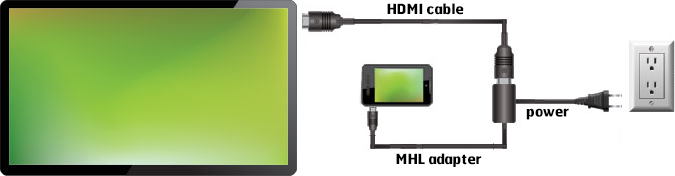
• An HDMI adapter creates a direct wired connection.
• A streaming device, such as a Chromecast or Roku, adds smart features to a regular TV.
Wireless methods are best for casual viewing. A cable is often better for games, presentations, travel, or places with weak Wi-Fi. Think of wireless casting as sending a postcard through the air, while HDMI is like using a direct phone line.
Before you begin, confirm these points:
• Your TV is turned on and set to the correct HDMI input if you use a cable or streaming stick.
• Your phone and TV use the same Wi-Fi network for most wireless methods.
• Your phone, TV, and apps have current software.
• The streaming app supports casting or AirPlay.
• Your phone has enough battery for the activity.
How to Hook Up an iPhone to the TV Wirelessly
The simplest way to learn how to hook up a phone to the TV with an iPhone is to use AirPlay. AirPlay is built into iOS and works with Apple TV devices and many compatible smart TVs.
Use AirPlay for videos, photos, and music
-
Connect your iPhone and TV to the same Wi-Fi network.
-
Open a supported app, such as Photos, Apple TV, or a video streaming app.
-
Start playing the content.
-
Tap the AirPlay icon. It looks like a rectangle with a triangle below it.
-
Select your TV from the device list.
-
Enter the code shown on the TV if prompted.
The content should appear on the TV within a few seconds. Your iPhone acts like a remote, so you can pause, skip, or adjust playback from the phone.
Mirror the entire iPhone screen
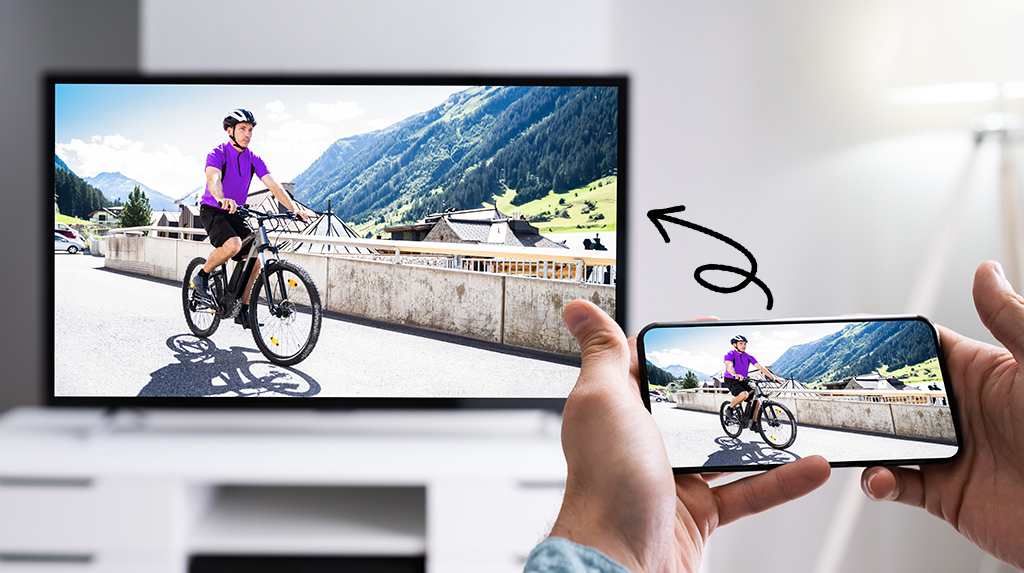
Screen mirroring is useful for websites, presentations, photos, and apps without a built-in AirPlay button.
-
Open Control Center by swiping down from the top right on newer iPhones.
-
Tap Screen Mirroring.
-
Choose your Apple TV or compatible smart TV.
-
Enter the on-screen passcode if needed.
To stop mirroring, open Control Center again, tap Screen Mirroring, and choose Stop Mirroring. Keep in mind that some apps block screen mirroring because of licensing rules. A black screen does not always mean the connection failed.
If your TV does not support AirPlay
You can add an Apple TV device, use a supported streaming player, or connect the iPhone with an HDMI adapter. For newer iPhones with a USB-C port, you may need a USB-C-to-HDMI adapter. Older iPhones usually require a Lightning Digital AV Adapter.
Use a quality adapter that supports the video resolution you need. Some low-cost adapters may not work with protected video, may overheat, or may show an unstable picture.
How to Hook Up an Android Phone to the TV
Android phones use different names for screen sharing. Depending on the brand, you may see Cast, Screen Cast, Smart View, Wireless Display, or a similar option.
The general process for how to hook up a phone to the TV with Android is as follows:
-
Connect the phone and TV to the same Wi-Fi network.
-
Open Quick Settings by swiping down from the top of the screen.
-
Look for Cast, Screen Cast, Smart View, or Wireless Display.
-
Tap the option and select your TV.
-
Accept the connection request on the TV if one appears.
-
Follow any instructions shown on the phone.
The names and menus can vary. Samsung phones often use Smart View, while other Android phones may use Google Cast or a built-in screen sharing tool.
Cast from an Android app
Casting from inside an app can provide better quality than mirroring the whole screen.
-
Open a supported app.
-
Start a video or song.
-
Tap the Cast icon.
-
Choose your TV or streaming device.
-
Use your phone to control playback.
When you cast from an app, the TV may stream the content directly from the internet. This can save phone battery and create smoother playback.
Use Google TV or Chromecast
If your TV includes Google TV or Chromecast built in, make sure the phone and TV use the same Wi-Fi network. Open a compatible app, tap the Cast icon, and choose the TV.
If you use a separate Chromecast device, plug it into an HDMI port and complete setup in the Google Home app. The exact menu names may change as software updates roll out, but the same basic process remains.
How to Connect a Phone to the TV With an HDMI Cable
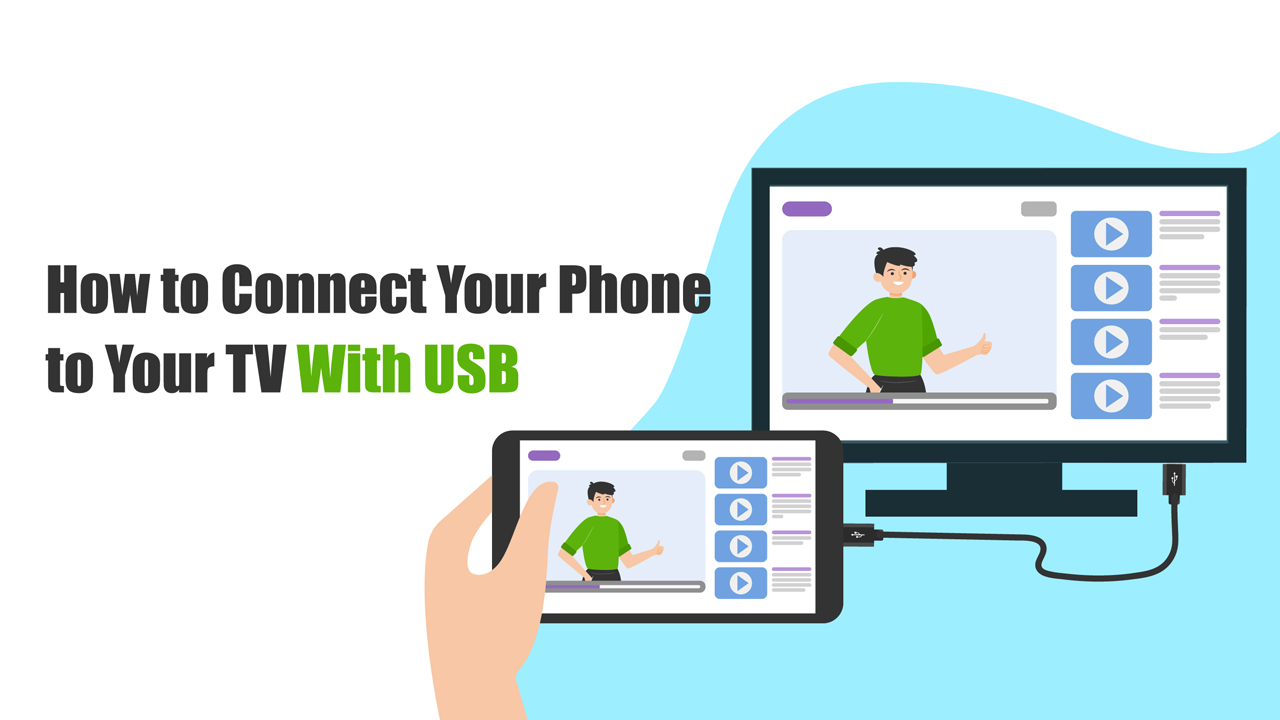
A wired connection is one of the most dependable answers to how to hook up a phone to the TV. It does not rely on Wi-Fi, so it can work in hotels, classrooms, offices, and homes with poor wireless service.
You need three things:
• A phone-compatible video adapter
• An HDMI cable
• An open HDMI port on the TV
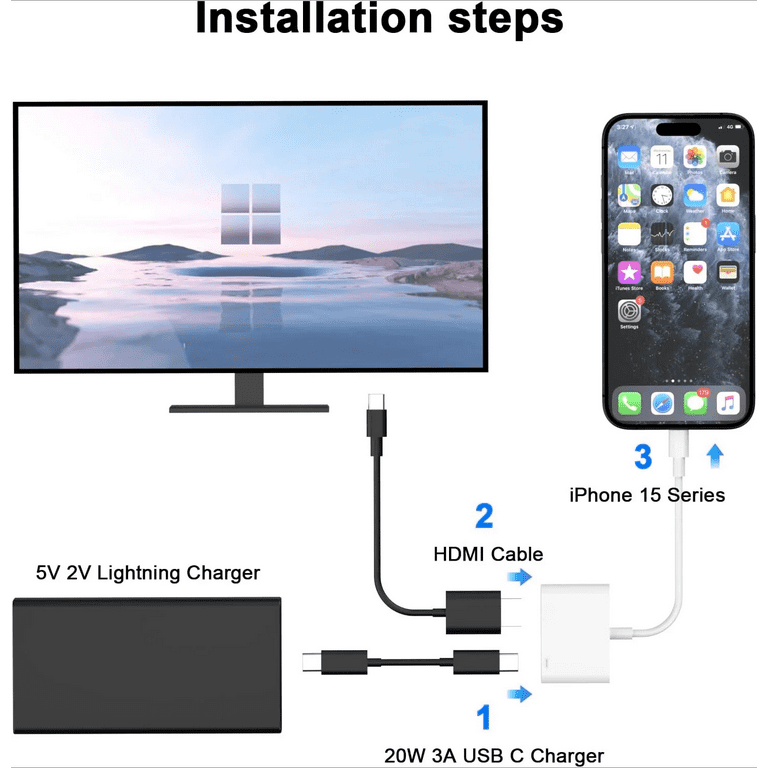
Connect an iPhone with HDMI
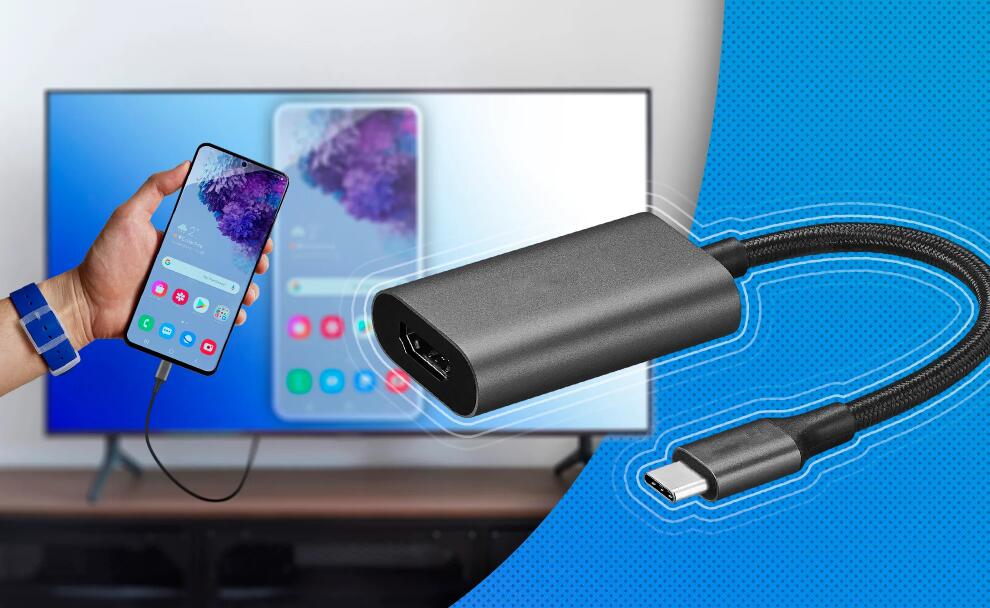
For an iPhone with a Lightning port, use a Lightning-to-HDMI adapter. For an iPhone with USB-C, use a USB-C-to-HDMI adapter that supports video output.
-
Plug the adapter into the phone.
-
Connect the HDMI cable to the adapter.
-
Plug the other end into the TV.
-
Turn on the TV and select the matching HDMI input.
-
Unlock the phone and wait for the image to appear.
Some adapters have a charging port. Connecting a charger can help during long movies or presentations because video output uses extra power.
Connect an Android phone with HDMI
Android support varies by model. Some phones support video output through USB-C, while others only support charging and file transfers.
Check the phone maker’s specifications before buying an adapter. A USB-C port does not automatically guarantee HDMI video output.
If the phone supports it:
-
Plug a compatible USB-C-to-HDMI adapter into the phone.
-
Connect an HDMI cable from the adapter to the TV.
-
Select the correct HDMI input.
-
Approve any connection message on the phone.
A wired connection may show the entire phone screen, but some phones offer a desktop mode. This can turn the TV into a larger workspace with apps, windows, and a keyboard.
How to Connect a Phone to a Non-Smart TV
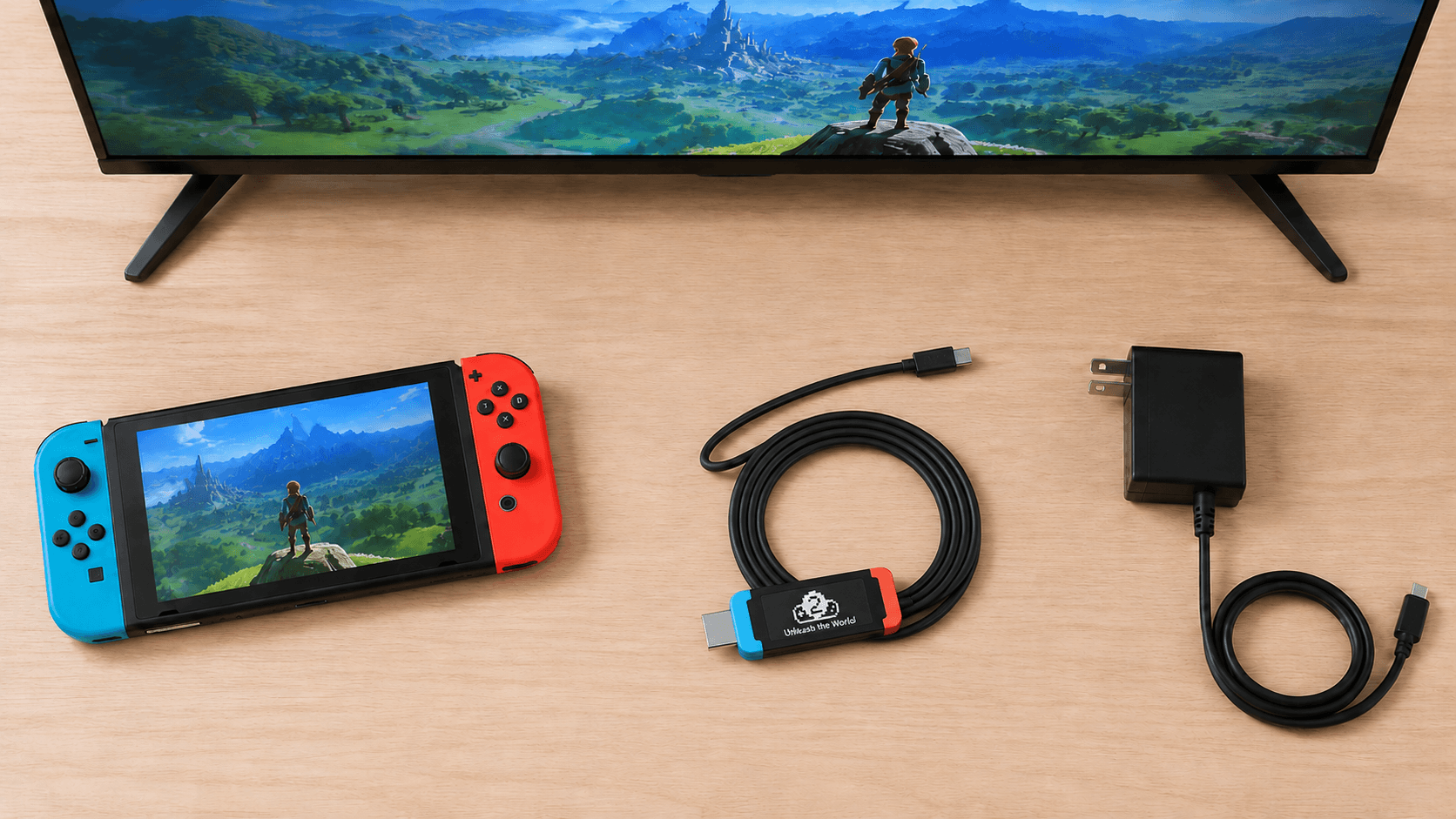
A non-smart TV can still display phone content. The TV does not need built-in Wi-Fi if you add a device or use a cable.
Your main options include:
• A Chromecast or Google TV device
• A Roku streaming player
• An Apple TV device
• An Amazon Fire TV device
• An iPhone or Android HDMI adapter
Plug the streaming device into the TV’s HDMI port. Then connect it to Wi-Fi and follow the setup instructions on the screen.
If the TV only has older red, white, and yellow composite ports, modern phone connections become more difficult. You may need an HDMI-to-composite converter, but picture quality will be lower. In most cases, replacing the TV or using a newer monitor is simpler.
A streaming device is often the most flexible choice. It can provide apps, voice search, casting, and software updates without replacing the TV.
How to Cast Netflix, YouTube, Photos, and Other Content
Knowing how to hook up a phone to the TV is only part of the process. You also need to understand the difference between casting and mirroring.
Casting sends selected content to the TV. The phone usually works as a remote control.
Screen mirroring copies the full phone display. Everything visible on the phone may appear on the TV, including alerts and private messages.
To cast a video
-
Open the streaming app.
-
Start the video.
-
Tap the Cast or AirPlay icon.
-
Select the TV.
-
Control playback from the phone or TV remote.
To show photos
On an iPhone, open the Photos app, select an image, tap Share or AirPlay, and choose the TV. On Android, open Google Photos or the phone’s gallery app and look for Cast, Share, or Smart View.
Large photos may take a moment to load. A strong Wi-Fi signal helps, especially when displaying high-resolution images.
To play music
Open a music app, choose a song, and select the Cast or AirPlay button. The TV speakers will play the music if the TV supports audio casting.
For better sound, connect the TV to a soundbar or receiver. The phone can still control volume and playback.
Some streaming services restrict casting or mirroring in certain situations. This is usually due to content rights, not a problem with your phone.
Troubleshooting Phone-to-TV Connections
Even when you know how to hook up a phone to the TV, the first attempt may not work. Most connection problems come from Wi-Fi settings, unsupported hardware, or the wrong input.
Try these fixes in order:
-
Confirm that both devices use the same Wi-Fi network.
-
Turn Wi-Fi off and on again on the phone.
-
Restart the phone, TV, and streaming device.
-
Check that the TV uses the correct HDMI input.
-
Move the phone and router closer together.
-
Install pending phone, TV, and app updates.
-
Turn off a VPN temporarily.
-
Check whether the app supports casting or AirPlay.
-
Remove and reconnect the HDMI cable.
-
Try another HDMI port or cable.
If the TV appears but refuses to connect, look for a permission request on the TV. Some TVs also have a setting named AirPlay, Screen Mirroring, Device Connect, or Network Discovery. This setting must be enabled before the TV can accept a connection.
If you see sound but no picture, check the adapter, HDMI cable, display resolution, and protected-content support. If you see a picture but no sound, check the TV volume, phone volume, Bluetooth connections, and audio output settings.
A common mistake I have seen during device testing is assuming that every USB-C cable carries video. Many USB-C cables support charging only. Check both the phone and the adapter before buying a replacement.

Improve Picture Quality and Connection Speed
A good connection should feel nearly instant, but Wi-Fi conditions can change that. Crowded networks, thick walls, and distance from the router may cause buffering or delay.
Use these tips to improve performance:
• Place the phone and TV on the same strong Wi-Fi network.
• Use a 5 GHz Wi-Fi band when the devices are close to the router.
• Use a 2.4 GHz band when distance and walls cause weak signal strength.
• Pause large downloads while streaming.
• Keep the phone near the router or TV.
• Use a wired HDMI connection for games and live presentations.
• Close apps that use heavy background data.
• Keep the TV and phone software updated.
Wireless mirroring often has more delay than casting. That delay may not matter for a movie, but it can make fast games feel sluggish. For competitive gaming, a direct cable is usually the better choice.
Video quality also depends on the original content, app limits, TV resolution, adapter quality, and internet speed. Connecting a phone to a 4K TV does not automatically make every video 4K.
Protect Your Privacy When Mirroring a Phone
Screen mirroring displays more than the content you intend to share. Text messages, passwords, email alerts, and private photos may appear on the TV.
Before you mirror:
• Turn on Do Not Disturb.
• Close private apps.
• Disable message previews on the lock screen.
• Check the TV name before connecting.
• Stop mirroring when you finish.
• Avoid accepting connection requests on unfamiliar public TVs.
If you connect at a hotel, school, or office, remove the device from the TV’s saved connections when possible. This helps prevent someone else from reconnecting later.
Wireless connections also depend on network security. Use a trusted home network rather than an open public hotspot when sharing sensitive information.
Common Mistakes to Avoid
The most frequent error in how to hook up a phone to the TV is buying the wrong adapter. Confirm the phone port first. Then confirm whether that port supports video output.
Other mistakes include:
• Using different Wi-Fi networks for the phone and TV
• Selecting the wrong HDMI input
• Expecting every app to support screen mirroring
• Forgetting to enable AirPlay or wireless display on the TV
• Using an old HDMI cable with a high-resolution setup
• Ignoring a connection code shown on the TV
• Leaving a VPN active during setup
• Assuming a weak Wi-Fi signal will handle high-quality video
I also recommend testing the setup before an important presentation or family event. A two-minute test can reveal a missing adapter, dead cable, or software issue before everyone is waiting.
How to Hook Up a Phone to the TV for Presentations and Gaming
For presentations, an HDMI connection is often the safest option. It avoids wireless discovery problems and reduces delay. Bring a backup cable or adapter if the presentation matters.
For gaming, choose a wired connection when possible. Wireless mirroring can add input lag, especially on busy networks. Some newer phones and TVs support low-latency game modes, but results vary by model.
For family photos or casual streaming, wireless casting is more convenient. You can keep using the phone while the TV plays the selected video or slideshow.
For travel, a compact HDMI adapter is useful, but hotel networks may block device discovery. A streaming device or direct cable can work better, depending on the TV.
Frequently Asked Questions About How to Hook Up a Phone to the TV
Can I connect my phone to the TV without Wi-Fi?
Yes. Use a compatible HDMI adapter and cable for a direct connection. Some phones can also connect through a special wireless accessory, but standard screen mirroring usually needs Wi-Fi.
Why is my phone not finding my smart TV?
Make sure both devices use the same Wi-Fi network and that casting or AirPlay is enabled on the TV. Restarting both devices and disabling a VPN often solves discovery problems.
Can I hook up an iPhone to an Android TV?
Yes. Many Android TVs support AirPlay, and you can also use a compatible streaming app or HDMI adapter. If AirPlay is not built in, an Apple TV or wired adapter can provide a dependable connection.
Can I connect an Android phone to a TV with a USB cable?
A basic USB cable usually charges the phone or transfers files, but it does not always send video. For video, the phone must support USB-C display output and may need a USB-C-to-HDMI adapter.
Why does my TV show a black screen when I mirror my phone?
Some apps block mirroring because of copyright protection. A black screen can also result from an unsupported adapter, incorrect HDMI input, or a phone that does not support video output.
Does connecting my phone to the TV use mobile data?
It can use mobile data if the phone creates a hotspot or if the TV streams through the phone’s connection. On a normal home Wi-Fi network, the phone usually uses Wi-Fi instead.
Can I charge my phone while it is connected to the TV?
Yes, if the adapter includes a charging port. Wireless casting also lets you charge the phone, although the phone may still lose battery during long sessions.
Conclusion
Learning how to hook up a phone to the TV gives you several useful choices. Use AirPlay for iPhone connections, Cast or Smart View for Android, HDMI for reliability, and a streaming device for older TVs.
Start by checking your phone port, TV features, Wi-Fi network, and app support. Then test the setup with a short video before you need it for a movie night, presentation, or game. Try the method that fits your devices, and share your experience or questions in the comments.

Everett Ashford is a tech reviewer at mytechgrid.com specializing in SSDs, cameras, TVs, earbuds, headphones, and other consumer electronics. He provides honest, data-driven reviews based on hands-on testing and real-world performance analysis. Everett simplifies complex tech details to help readers make smart, confident buying decisions.