Connect the DVD player to your Vizio TV with HDMI, composite, or component cables, then choose the matching input.
Learning how to hook up a DVD player to a Vizio TV is simple once you match the cable to the ports on both devices. This guide covers modern HDMI connections, older red-white-yellow cables, picture and sound settings, and the fixes that solve most “no signal” problems.
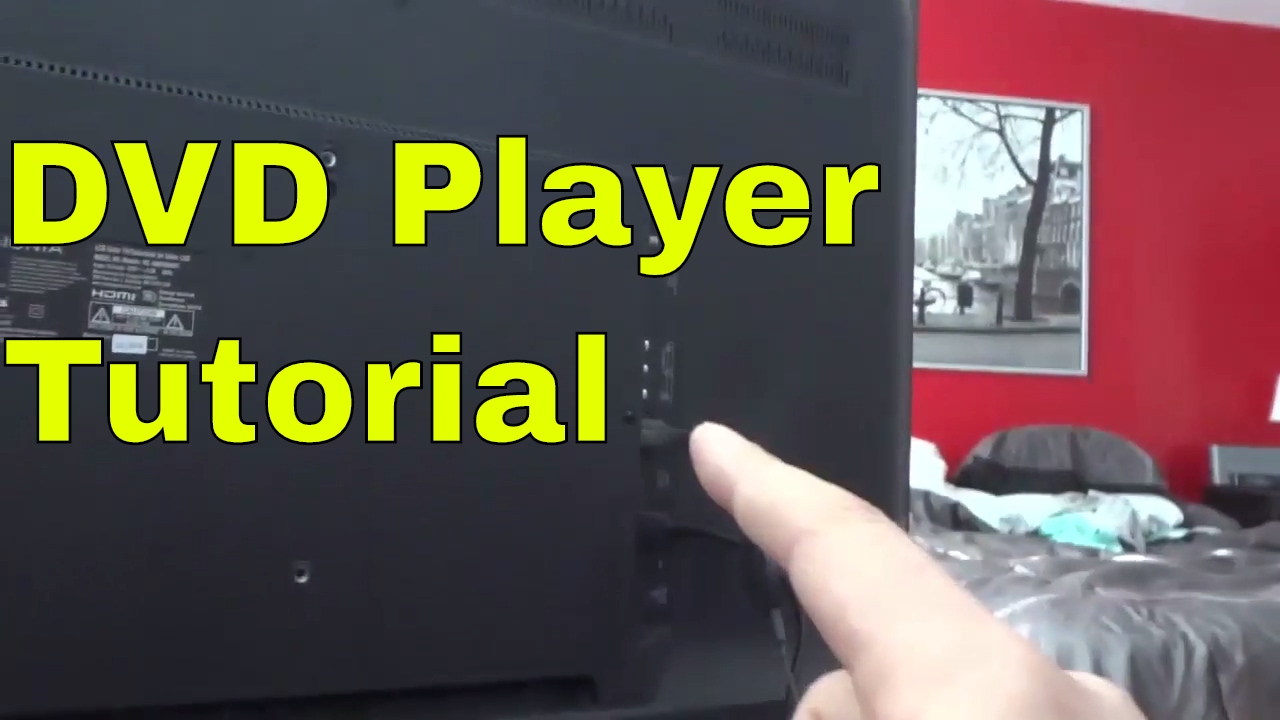
Check the Ports on Your DVD Player and Vizio TV
Before learning how to hook up a DVD player to a Vizio TV, look at the ports on both devices. The best connection depends on the ports available, not only on the age of the equipment.
Turn off both devices before connecting cables. This reduces the chance of selecting the wrong input and makes the setup easier to manage.
Look for these common ports:
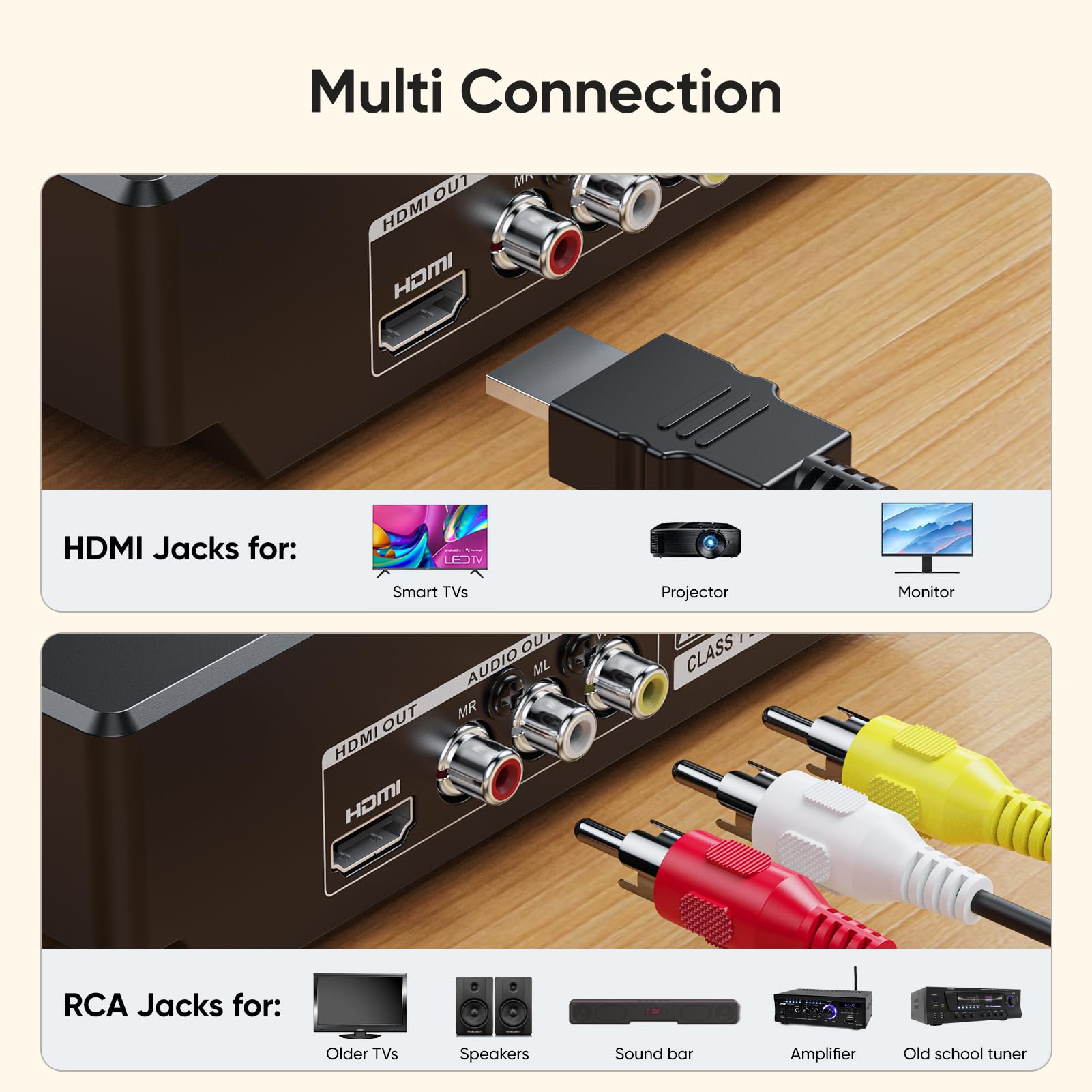
• HDMI: A thin, wide port that carries both high-definition video and digital audio.
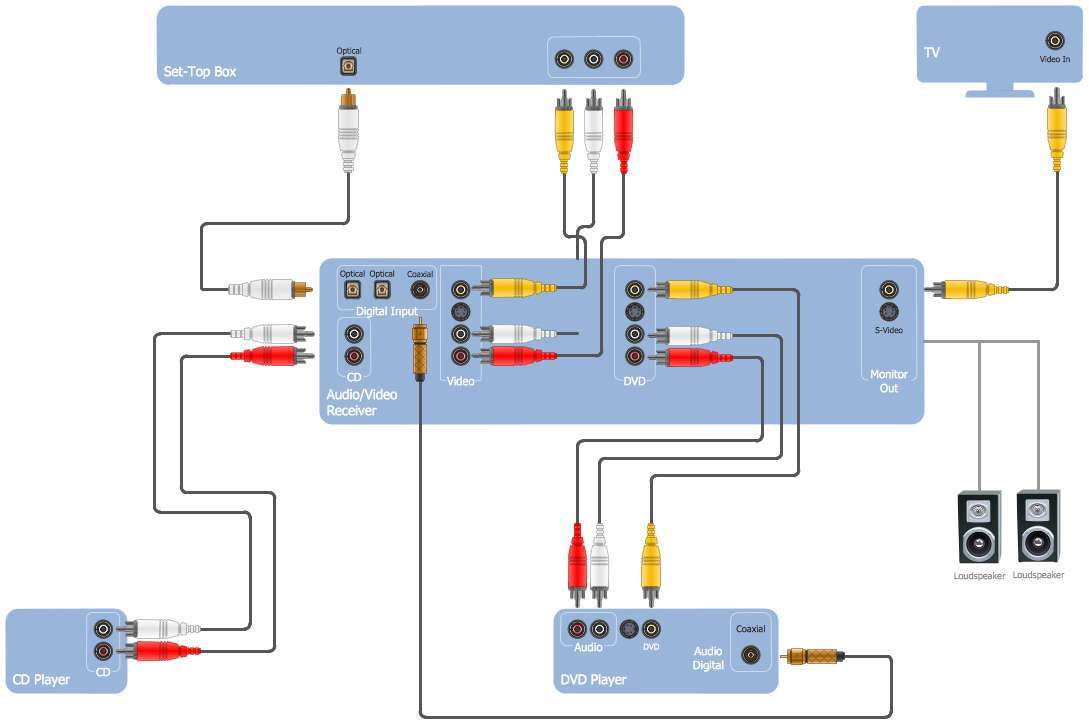
• Composite AV: Three round ports, often colored yellow, white, and red. Yellow carries video. White and red carry left and right audio.
• Component video: Three video ports labeled Y, Pb, and Pr. These usually use green, blue, and red plugs. You also need separate red and white audio cables.
• Coaxial audio: A single digital audio port. Some DVD players and sound systems use this for audio.
• Optical audio: A square-shaped digital audio port. This is less common on basic DVD players.
Most Vizio TVs made in recent years include at least one HDMI port. Some models also include composite input through a shared adapter port. Older Vizio TVs may have several red, white, and yellow ports.
Check the labels near the ports. A port labeled “HDMI 1” requires the TV input called HDMI 1. A port labeled “AV” or “Composite” usually requires the TV input called AV.

How to Hook Up a DVD Player to a Vizio TV With HDMI
HDMI is the easiest and cleanest way to connect compatible devices. One HDMI cable carries the DVD picture and sound through the same connection.
Follow these steps:
-
Turn off the DVD player and Vizio TV.
-
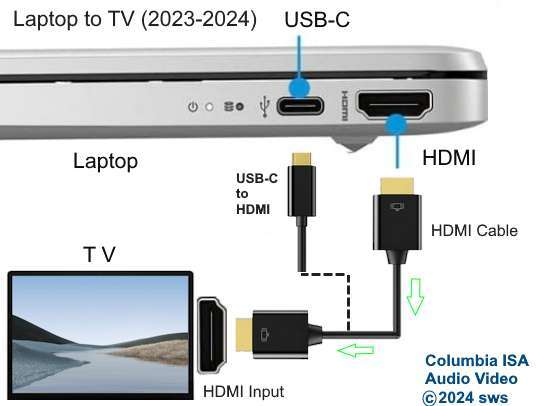
Plug one end of the HDMI cable into the HDMI OUT port on the DVD player.
-
Plug the other end into an HDMI IN port on the Vizio TV.
-
Turn on the TV and DVD player.
-
Press the Input or Source button on the Vizio remote.
-
Select the HDMI port used for the connection.
-
Insert a DVD and press Play.
The HDMI port on the DVD player must say “HDMI OUT.” Do not use a port marked “HDMI IN,” if the player has one. The TV must receive the signal through an HDMI input.
If the screen stays black, select each HDMI input one at a time. Many Vizio remotes show input names such as HDMI 1, HDMI 2, and HDMI 3. The correct choice matches the number printed beside the cable.
Some DVD players offer an HDMI resolution setting. If the TV shows an unsupported signal, press the player’s resolution button or use its setup menu. Choose 480p, 720p, or 1080p, depending on the options available.
A standard DVD has much less detail than a Blu-ray disc. Even when the player upscales the image, it cannot add the full detail of a true high-definition source. This is normal and does not mean the Vizio TV is faulty.
How to Hook Up a DVD Player to a Vizio TV With Red, White, and Yellow Cables
Composite cables are common on older DVD players. They are also called RCA or AV cables. This connection works well for standard-definition DVDs, though the picture will not be as sharp as an HDMI picture.
Use this method when the DVD player has no HDMI output.
-
Find the yellow, white, and red ports on the DVD player.
-
Connect the yellow plug to the DVD player’s yellow Video Out port.
-
Connect the white plug to the white or left audio output.
-
Connect the red plug to the red or right audio output.
-
Connect the other ends to the matching ports on the Vizio TV.
-
Turn on both devices.
-
Press Input or Source on the Vizio remote.
-
Choose AV, Composite, or Video.
The colors matter. Yellow is for video only. Red and white are for sound. If you connect the yellow cable to a red or white port, the TV may show no picture or produce no useful sound.
Some Vizio TVs do not have three separate AV ports. Instead, they use a single 3.5-millimeter AV input. This port looks like a small headphone jack but needs a Vizio-compatible AV adapter.
Do not assume that any headphone-style cable will work. The wiring order can differ between brands. Use the adapter listed for your specific Vizio TV model or the adapter supplied with the TV.
If the DVD player has a yellow output but the Vizio TV has no yellow input, an HDMI converter may help. The converter must change composite video to HDMI. A simple cable with a yellow plug on one end and an HDMI plug on the other usually will not work.

How to Hook Up a DVD Player to a Vizio TV With Component Cables
Component video can provide a better picture than composite video. It uses three video cables and two audio cables, for five connections in total.
This option is useful when the DVD player has component output and the Vizio TV has matching component input.
Connect the cables as follows:
• Green cable to Y
• Blue cable to Pb
• Red video cable to Pr
• White audio cable to left audio
• Red audio cable to right audio
The red component cable and the red audio cable can look identical. Follow the labels rather than relying only on color. A wrong connection can create strange colors or produce no picture.
After connecting the cables, choose Component or YPbPr from the Vizio TV’s input menu. If the TV uses a shared input, the on-screen menu may call it “Component/AV.”
Component video does not carry sound. You must connect the separate red and white audio cables. This is one of the most common mistakes when people learn how to hook up a DVD player to a Vizio TV with older equipment.
Component connections may support progressive scan. If the DVD player has a button marked “Progressive,” try enabling it only after confirming that the TV supports the signal. If the screen goes blank, press the button again or reset the player’s video output.
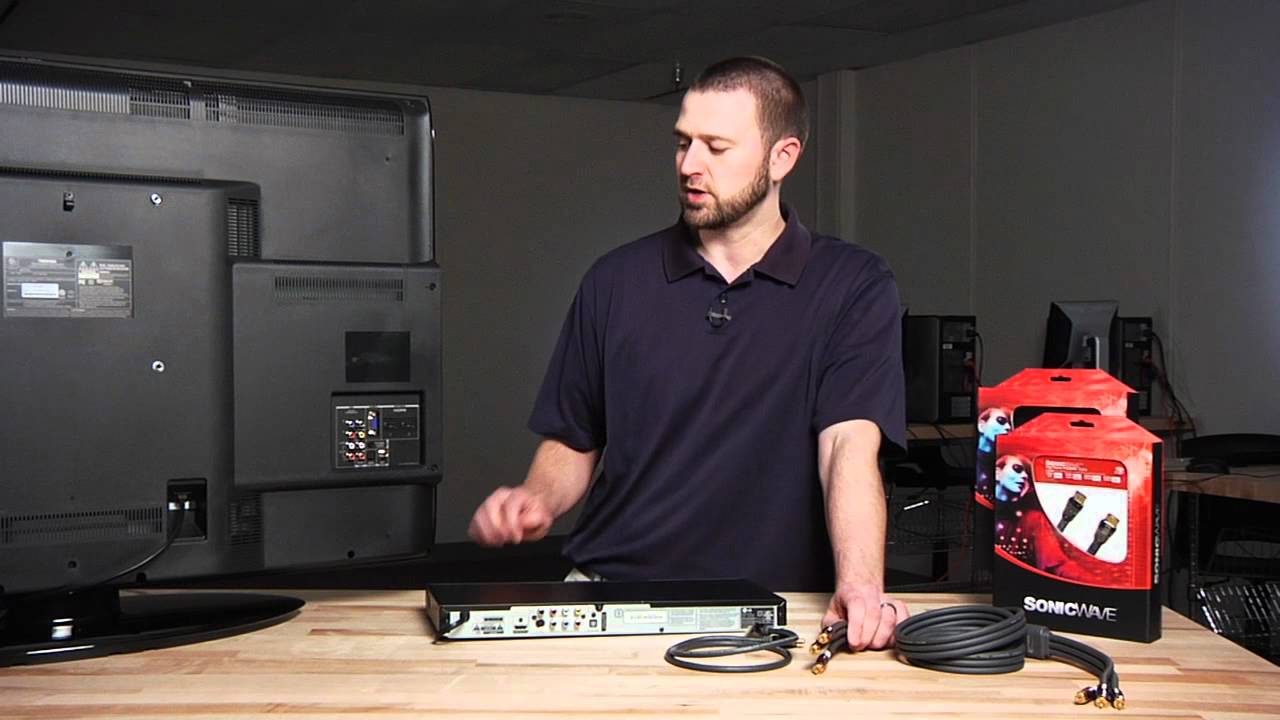
Set the Correct Vizio TV Input and DVD Player Settings
The cable connection is only half the setup. The Vizio TV must be set to the input that receives the DVD signal.
Press the Input, Source, or V button on the Vizio remote. The exact button name varies by remote model. Select the input that matches the cable:
• HDMI 1, HDMI 2, or another HDMI label for an HDMI connection
• AV, Video, or Composite for yellow, red, and white cables
• Component or YPbPr for component cables
Wait several seconds after changing the input. Some DVD players need a short time to send a video signal.
If the DVD menu appears but the movie does not play, check the disc. Look for scratches, fingerprints, or a regional code issue. Clean the disc from the center outward with a soft, lint-free cloth.
For reliable playback, check these DVD settings:
• Set the video output to the connection in use.
• Choose the correct screen shape, such as 16:9 for most modern TVs.
• Set audio output to PCM if a connected sound system does not support the selected digital format.
• Turn off parental controls if they block the disc.
• Confirm that the DVD player is set to the correct television standard for your region.
Most US Vizio TVs use the NTSC standard. A DVD imported from another region may not play because of region restrictions or video-format differences. A cable cannot remove those limits.
In hands-on setups, the most common mistake is not a bad cable. It is choosing HDMI 2 while the cable is plugged into HDMI 1. Always match the physical port number with the input shown on the screen.
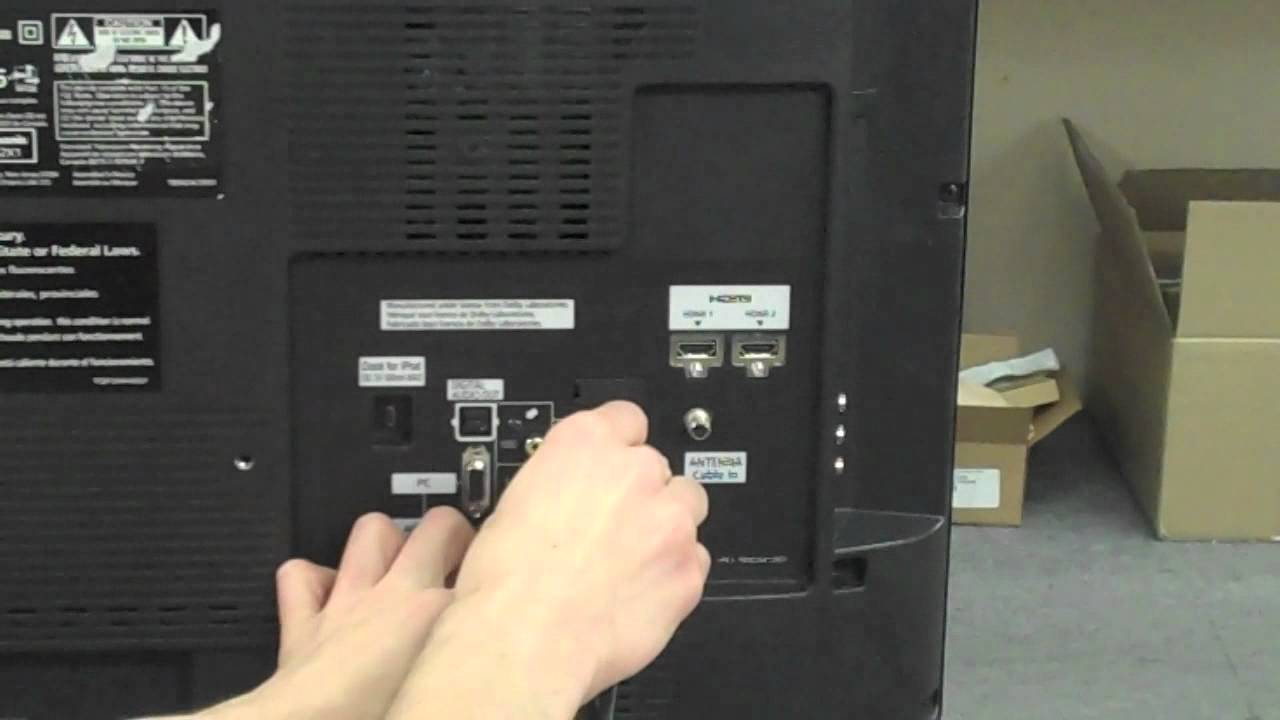
Troubleshoot a DVD Player Connected to a Vizio TV
When learning how to hook up a DVD player to a Vizio TV, a few simple checks solve most problems. Start with the signal path and move one step at a time.
The Vizio TV says “No Signal”
Try these steps:
-
Confirm that the DVD player is powered on.
-
Press Play with a DVD inside the player.
-
Select the correct TV input.
-
Unplug and reconnect both ends of the cable.
-
Try another HDMI port or AV input.
-
Test the cable with another compatible device.
-
Restart the TV and DVD player.
If an HDMI connection fails, use a short, certified High Speed HDMI cable when possible. Very long or damaged cables can cause intermittent picture loss, though HDMI cables do not improve DVD image quality by themselves.
The picture appears but there is no sound
Check the audio cables first. HDMI carries both picture and sound, but composite and component video cables do not carry audio by themselves.
For component video, make sure the red and white audio cables connect to the audio input paired with the component input. On some Vizio models, the correct audio ports are labeled “Audio In” or share an input group.
Also check the TV volume, mute setting, and audio output mode. If the TV sends sound to a soundbar or Bluetooth device, the audio may not come from the TV speakers.
The sound works but there is no picture
Check the yellow cable for composite connections. For component connections, confirm that the green, blue, and red video cables are connected to Y, Pb, and Pr in the correct order.
If the player uses HDMI, try another HDMI input. Then restart both devices. A resolution mismatch can also cause a black screen, so reset the DVD player’s video output if its manual provides that option.
The picture is black and white
This often means the cables are connected to the wrong ports or the input type is incorrect. Confirm that yellow is connected to composite video, not to a component port.
A PAL disc or an incompatible regional format may also create display problems on a US television. Check the DVD label and the player’s specifications.
The DVD player tray will not open
This is not a Vizio TV connection problem. Make sure the DVD player has power, press Eject, and check for a stuck disc. Never force the tray, since that can damage the drive.

Tips for a Better DVD and Vizio TV Setup
A few small choices make the setup cleaner and more dependable.
• Use HDMI when both devices support it.
• Label the cable at the TV end if several devices use HDMI.
• Keep the DVD player in a well-ventilated space.
• Avoid bending AV cables sharply near the plugs.
• Use the TV remote for input and volume, and the DVD remote for disc controls.
• Keep the DVD player’s manual nearby for video-reset instructions.
• Do not buy an expensive HDMI cable expecting a sharper DVD picture.
• Use a powered converter when changing composite video to HDMI.
• Connect a surge protector if the equipment is in an area with unstable power.
A converter can solve a port mismatch, but it cannot turn a standard DVD into a 4K source. It also adds another power supply and another possible failure point. If a direct HDMI connection is available, it is usually the better choice.
For a basic living room setup, HDMI from the DVD player to HDMI 1 on the Vizio TV is the simplest path. For an older setup, yellow, white, and red cables remain practical. The key is to match the cable type, TV input, and DVD output.
Frequently Asked Questions About How to Hook Up a DVD Player to a Vizio TV
Can I connect a DVD player to a Vizio TV with HDMI?
Yes. Connect the DVD player’s HDMI OUT port to a Vizio TV HDMI IN port, then select the matching HDMI input on the TV. HDMI carries both video and audio through one cable.
What if my Vizio TV does not have red, white, and yellow inputs?
Some Vizio TVs use a special AV adapter instead of separate RCA ports. Use the adapter made for your TV model, or use an active composite-to-HDMI converter.
Why does my Vizio TV say “No Signal” after I connect the DVD player?
The TV may be set to the wrong input, or the cable may be loose. Select the exact HDMI, AV, or Component input used by the DVD player, then restart both devices.
Do component cables carry sound from a DVD player?
No. Component cables carry video only. You must also connect the red and white audio cables to the matching audio input on the Vizio TV.
Can I use a USB cable to connect a DVD player to a Vizio TV?
Usually not. A TV USB port is generally designed for media playback, power, or service functions, not for receiving live video from a DVD player.
Will a DVD player work with a 4K Vizio TV?
Yes, in most cases. The TV can display the DVD player’s lower-resolution signal, but it cannot create the same detail as a native 4K or Blu-ray source.
Do I need a receiver or soundbar to watch DVDs?
No. You can send sound directly to the Vizio TV through HDMI or the red and white audio cables. A receiver or soundbar is optional.
Conclusion
Learning how to hook up a DVD player to a Vizio TV mainly comes down to three steps: identify the ports, connect the matching cable, and select the correct TV input. HDMI is the simplest option, while composite and component cables work well with older equipment.
If the screen shows no signal, check the input number, cable placement, power, and DVD player resolution before replacing anything. Set up your connection today, test it with a disc, and explore more home theater guides for an even smoother viewing experience.

Everett Ashford is a tech reviewer at mytechgrid.com specializing in SSDs, cameras, TVs, earbuds, headphones, and other consumer electronics. He provides honest, data-driven reviews based on hands-on testing and real-world performance analysis. Everett simplifies complex tech details to help readers make smart, confident buying decisions.