Yes, you can upgrade some MacBook Air SSDs, but most newer models have storage soldered to the logic board.
The answer depends on your MacBook Air model, year, and processor. Older Intel models often accept a replacement SSD, while Retina and Apple silicon models usually require external storage or a professional board-level repair. This guide explains how to check your model, understand your options, avoid data loss, and choose the safest upgrade path.

Can You Upgrade a MacBook Air SSD?
You can upgrade the SSD in some MacBook Air models, but not all of them. Apple changed the internal storage design over time, so the model year alone does not always tell the full story.
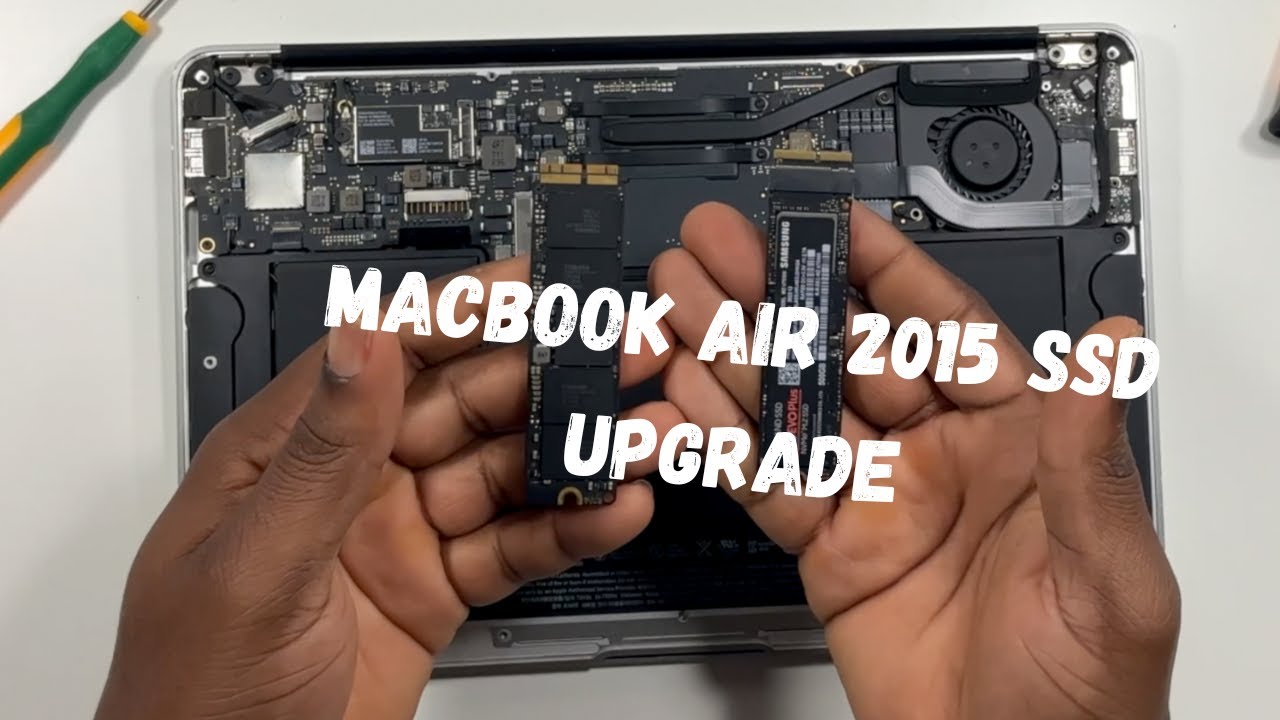
Older MacBook Air computers used removable storage modules. These modules look like slim circuit boards and can often be replaced with a larger compatible SSD. Newer MacBook Air models use storage chips soldered directly to the logic board.
When storage is soldered, you cannot remove it like a standard drive. A repair shop may be able to replace the chips with specialized equipment, but this is not a normal home upgrade. It can also cost more than the computer is worth.
The main factors are:
• MacBook Air model and year
• Intel or Apple silicon processor
• Whether the SSD is removable or soldered
• The connector and protocol used by the original drive
• Your comfort with opening the computer
• The value of the MacBook compared with a newer model
The safest first step is to identify the exact model before buying any part.
Which MacBook Air Models Support an SSD Upgrade?
The most upgrade-friendly MacBook Air models are older Intel versions with removable SSD modules. These include many models released before the Retina redesign.
MacBook Air models with removable storage
Many of these models can accept a larger replacement drive:
• MacBook Air models from 2010 through 2012
• MacBook Air models from 2013 through 2017
• Certain 11-inch and 13-inch Intel configurations
The exact SSD type differs by model. A 2010–2012 MacBook Air may use a different connector from a 2013–2017 model. Never order a drive based only on the words “MacBook Air SSD upgrade.”
Instead, check the model identifier, such as MacBookAir6,2 or MacBookAir7,2. You can find it by selecting Apple menu > About This Mac > System Report > Hardware.
MacBook Air models with soldered storage
These models usually do not support a normal SSD replacement:
• MacBook Air models from 2018 through 2020 with Intel processors
• M1 MacBook Air
• M2 MacBook Air
• M3 MacBook Air
• M4 MacBook Air
The 2018 and newer Retina MacBook Air models use storage that is attached to the logic board. Apple silicon models also use soldered storage chips.
This means a 256GB MacBook Air cannot usually be changed to a 1TB internal drive with a simple part swap. The best solution is often an external SSD, cloud storage, or replacing the computer with a model that has more internal storage.

How to Check Whether Your MacBook Air SSD Is Upgradeable
Before opening the case, check your model through macOS. This takes less than a minute and prevents many costly mistakes.
Follow these steps:
- Open the Apple menu.
- Select About This Mac.
- Note the model name and year.
- Open System Report.
- Select Hardware in the left menu.
- Record the Model Identifier.
- Check the storage capacity and macOS version.
You can also enter the serial number on Apple’s official coverage page. This can confirm the model family, but the model identifier is often more useful when selecting an SSD.
A physical inspection can provide more detail, but it is not always needed. If the MacBook Air has a Retina display, Touch ID, or an Apple silicon chip, assume that the internal storage is not user-upgradeable unless a specialist confirms otherwise.
A useful rule is simple:
• Removable blade SSD: A replacement may be possible
• Soldered storage chips: A normal SSD upgrade is not possible
• Uncertain model: Do not buy a drive until compatibility is confirmed
This basic check is one of the most important steps in any MacBook Air SSD upgrade.
How to Upgrade the SSD in an Older MacBook Air
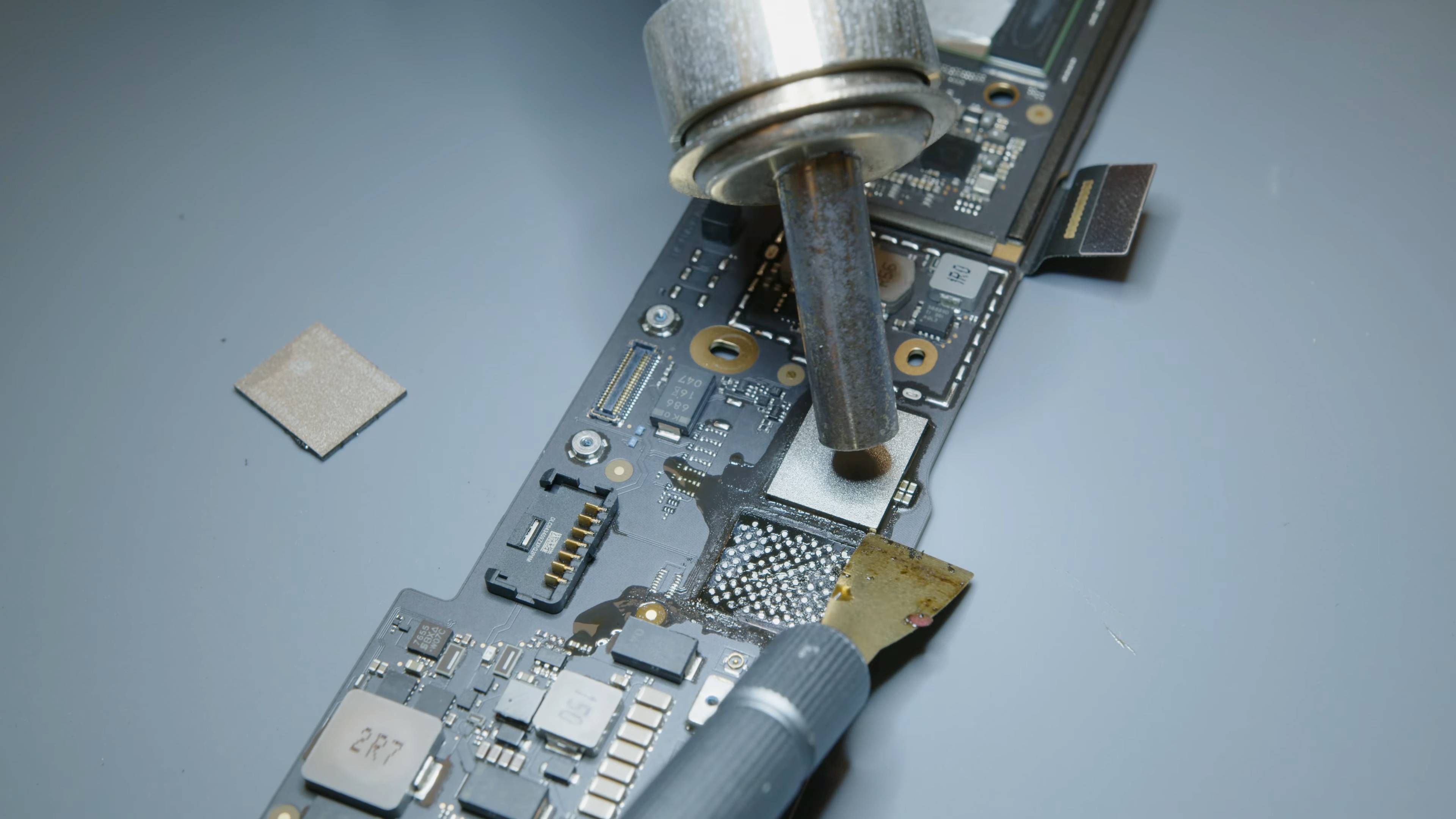
If your MacBook Air has a removable SSD, the process is possible for a careful home user. You need a compatible replacement drive, the correct screwdriver set, a backup, and a way to reinstall macOS.
What you need
Prepare these items before starting:
• Compatible replacement SSD
• Pentalobe screwdriver for the bottom case
• Torx screwdriver for the SSD screw, if required
• USB flash drive or external drive
• Time Machine backup
• macOS installer or internet recovery
• Anti-static precautions
The SSD must match the connector and protocol in your MacBook Air. Some drives use a proprietary Apple connector, while others need a model-specific adapter. A standard 2.5-inch SATA drive usually will not fit inside a MacBook Air.
Basic replacement process
- Back up your MacBook Air with Time Machine.
- Confirm that the backup can be opened.
- Shut down the computer.
- Disconnect the charger and accessories.
- Remove the bottom case screws.
- Disconnect the battery if the repair guide recommends it.
- Remove the retaining screw from the SSD.
- Slide the old SSD out at a slight angle.
- Insert the new SSD without forcing it.
- Secure the retaining screw.
- Reconnect the battery.
- Replace the bottom case.
- Start macOS Recovery.
- Erase and format the new drive.
- Reinstall macOS or restore your backup.
Use slow, gentle movements. The connector is small, and a damaged socket can turn a simple upgrade into a board repair.
Choosing the right format
For a modern macOS installation, Disk Utility normally uses:
• APFS for the file system
• GUID Partition Map for the partition scheme
If you plan to install an older version of macOS, check its requirements first. Some older operating systems may use Mac OS Extended in specific situations, but APFS is the usual choice for newer macOS versions.
A common mistake is formatting the drive incorrectly and then assuming the SSD is defective. In most cases, the issue is the partition scheme or an incomplete installation process.

How Much Storage Should You Add?
The right capacity depends on how you use your MacBook Air. More storage is helpful, but buying the largest drive is not always the best value.
Recommended capacity by user type
• 256GB: Light browsing, email, documents, and streaming
• 512GB: School, office work, photos, and everyday use
• 1TB: Large photo libraries, music, video, and creative work
• 2TB: Professional media work or large local archives
A 512GB SSD is often the best balance for an older MacBook Air. It gives you room for macOS, applications, documents, and temporary files without making the upgrade too expensive.
Leave free space after the upgrade. macOS needs working space for updates, temporary files, swap data, and app caches. A nearly full drive can make the computer feel slow, even when the SSD itself is fast.
As a practical guide, try to keep at least 15% to 20% of the drive free. The exact amount varies by workload, but a full drive is rarely a healthy drive.

Is an SSD Upgrade Worth It?
A MacBook Air SSD upgrade can be worthwhile when the computer still meets your needs. More storage can extend its useful life and reduce the need to delete files every week.
An upgrade is often worthwhile when:
• The MacBook Air runs well but has limited space
• The battery still provides acceptable use
• The display, keyboard, and trackpad are in good shape
• You mainly browse, write, study, or manage photos
• The upgrade costs much less than a replacement Mac
An upgrade may not be worthwhile when:
• The battery is badly worn
• The computer cannot run the software you need
• The logic board has other faults
• The display or keyboard also needs replacement
• The price of the SSD and labor approaches the value of the MacBook
Storage does not improve every part of performance. A larger SSD may provide more room, but it will not turn an old dual-core processor into a modern chip. If the MacBook feels slow because of limited memory or an old processor, an SSD upgrade may only provide a partial improvement.
In repair work, one lesson appears again and again: diagnose the real problem before buying parts. A full drive and a slow computer can feel similar, but they need different solutions.
What to Do If Your MacBook Air SSD Is Soldered
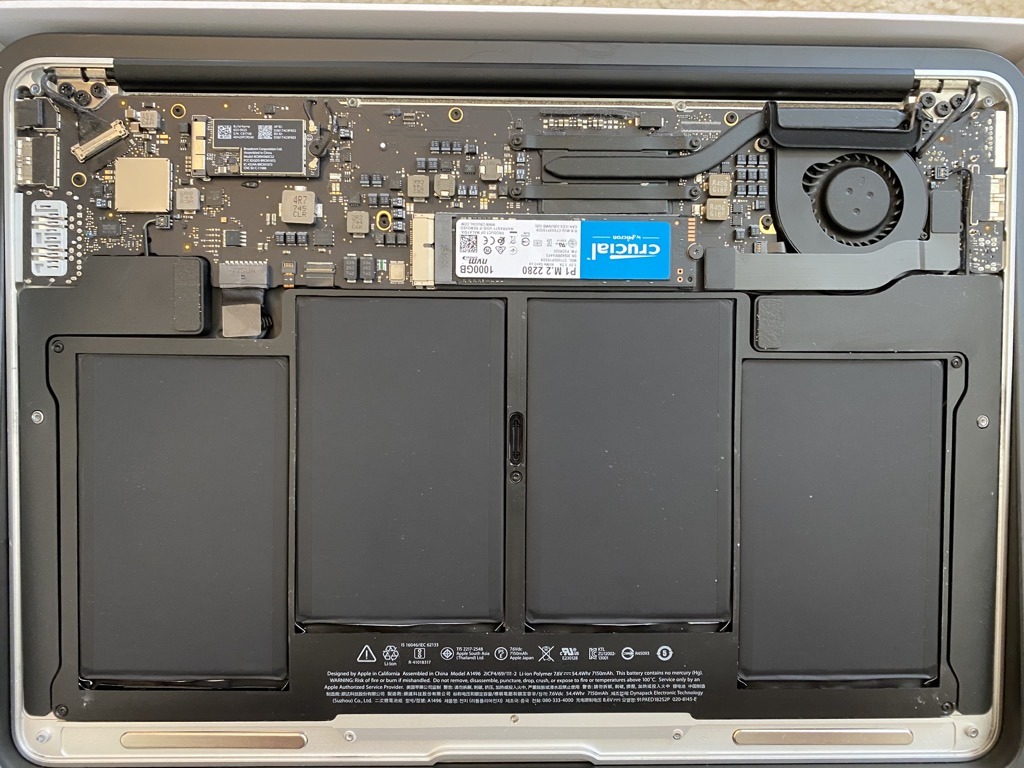
If your MacBook Air has soldered storage, do not try to remove the chips with household tools. The board uses tiny components, and excessive heat can destroy nearby circuits.
You have several safer choices.
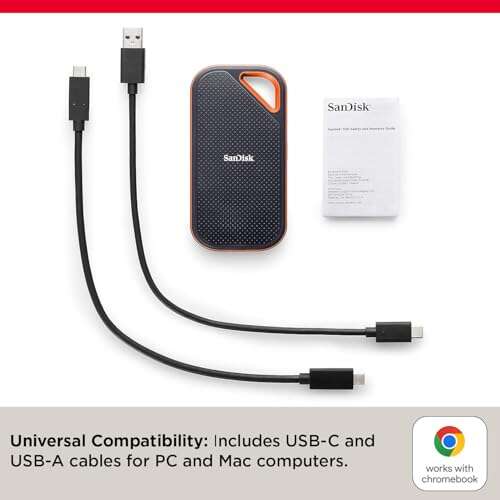
Use an external SSD
An external USB-C or Thunderbolt SSD can provide fast extra space. You can store photos, videos, games, virtual machines, and project files on it.
For the best results:
• Choose a reputable SSD brand
• Use a USB 3.2, USB4, or Thunderbolt enclosure
• Format it as APFS for Mac-only use
• Use exFAT when sharing files with Windows
• Keep a second backup of important files
• Eject the drive before disconnecting it
An external SSD is often the best answer for an M1, M2, M3, or M4 MacBook Air. It is cheaper and safer than attempting board-level storage work.
Use cloud storage
iCloud Drive, OneDrive, Google Drive, and Dropbox can move documents and photos away from the internal drive. Cloud storage is convenient, but it should not be your only backup.
Cloud files can be deleted, synced incorrectly, or made unavailable when you have no internet connection. Keep a local backup of important photos, tax files, school work, and business documents.
Use a professional board repair service
Some specialists can upgrade soldered NAND storage. This may involve replacing storage chips and programming the board with specialized tools.
This service has limits:
• It may void remaining warranty coverage
• It can be expensive
• There is a risk of logic board damage
• Data may be lost during the repair
• Not every model or storage configuration is supported
Ask for a written price, warranty terms, and a clear explanation of data handling before approving the work.

Can You Upgrade MacBook Air SSD Without Losing Data?
Yes, but only if you create and verify a backup first. Replacing an internal SSD usually requires erasing the new drive before installing macOS.
Time Machine is the simplest option for most users. Connect an external drive, open System Settings, select General > Time Machine, and create a backup. After installing macOS, use Migration Assistant to move your files, accounts, and settings.
You can also clone a drive with compatible backup software. However, bootable cloning has become more complex on newer Macs because of encryption, secure boot, and system volume changes.
Before starting, check that:
• Your documents open from the backup
• Your photos are stored or synced correctly
• Your browser passwords are available
• You know your Apple Account password
• You have recovery keys or authentication codes
• You have a second copy of irreplaceable files
Do not treat iCloud synchronization as a complete backup. Syncing mirrors changes. If a file is deleted on one device, that deletion may spread to other devices.
Common MacBook Air SSD Upgrade Mistakes
A few mistakes can damage the computer or waste money. Most are easy to avoid with careful planning.
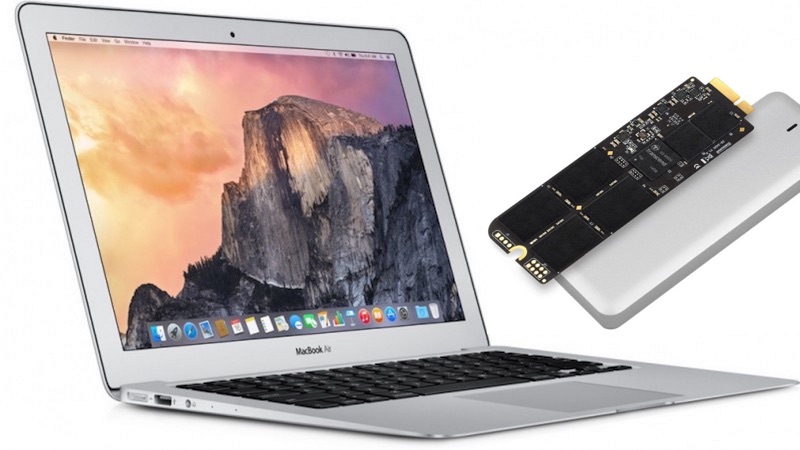
• Buying a generic M.2 SSD without checking the connector
• Confusing a MacBook Air year with its model identifier
• Opening the case without making a backup
• Touching the board with static electricity
• Pulling the SSD straight out instead of lifting it correctly
• Over-tightening small screws
• Forgetting to disconnect the battery
• Installing an unsupported macOS version
• Formatting the drive with the wrong partition map
• Assuming a larger SSD will fix every speed problem
• Storing the only backup on the new drive
• Using a low-quality adapter with poor sleep support
Some older MacBook Air models also need firmware support for certain third-party SSDs. Sleep, hibernation, battery reporting, and startup behavior can vary by drive and macOS version.
Check recent compatibility reports for your exact model before purchasing. A drive that works well in one MacBook Air may not behave the same way in another.
MacBook Air SSD Upgrade vs. Buying a New Mac
The choice depends on cost, age, performance, and your daily needs.
An older MacBook Air with a removable SSD may be worth upgrading if the rest of the machine remains reliable. A modest storage upgrade can give it several more useful years for basic work.
A newer MacBook Air with soldered storage is different. If you need more internal space, buying the correct capacity at the time of purchase is usually the practical route. Apple silicon MacBook Air models are fast and efficient, but their internal storage is not designed for later replacement.
Compare these costs:
• Replacement SSD
• Tools or installation labor
• External backup drive
• Possible battery replacement
• Value of the current MacBook
• Cost of a newer MacBook with enough storage
If the total repair cost is close to the price difference between your current computer and a newer model, replacement may make more sense. If the MacBook is otherwise healthy, external storage can delay that expense.
Think of storage as the size of your desk. A larger desk helps you organize more work, but it does not make the person using it faster. The SSD solves space limits, not every performance issue.
Frequently Asked Questions About Can You Upgrade MacBook Air SSD
Can you upgrade the SSD in a 2017 MacBook Air?
Yes, many 2017 MacBook Air models have removable SSD modules. You must buy a drive designed for the correct model and connector.
Can you upgrade the SSD in an M1 MacBook Air?
No, the M1 MacBook Air does not support a normal internal SSD replacement. Its storage is soldered to the logic board, so an external SSD is the safer upgrade option.
Can you upgrade MacBook Air SSD from 256GB to 1TB?
You can do this on some older Intel models with removable storage. On newer Retina and Apple silicon models, the internal storage usually cannot be changed through a standard repair.
Will upgrading the SSD make a MacBook Air faster?
It may improve storage space and can improve performance if the original drive is failing or very slow. It will not significantly improve processor speed, graphics performance, or memory capacity.
Does replacing the MacBook Air SSD erase everything?
The replacement process normally requires formatting the new drive, which erases its contents. Restore your files with Time Machine or Migration Assistant after installing macOS.
Can Apple upgrade my MacBook Air storage?
Apple generally does not offer a normal post-purchase internal storage upgrade for MacBook Air models with soldered storage. An Apple Store or authorized provider can confirm service options for your exact model.
Is an external SSD good for a MacBook Air?
Yes, an external SSD is a strong option for newer MacBook Air models. It can provide fast extra space for photos, videos, documents, and large projects without opening the computer.
Conclusion
You can upgrade a MacBook Air SSD if you own an older model with a removable storage module. Most 2018 and newer models, including M1, M2, M3, and M4 MacBook Air computers, use soldered storage and do not support a simple internal upgrade.
Identify the exact model before buying parts, create a verified backup, and choose a compatible SSD. If the storage is soldered, use a fast external SSD or consider buying a MacBook with more capacity from the start. Check your model identifier today, compare the total cost, and make the upgrade choice that protects both your files and your budget.

Everett Ashford is a tech reviewer at mytechgrid.com specializing in SSDs, cameras, TVs, earbuds, headphones, and other consumer electronics. He provides honest, data-driven reviews based on hands-on testing and real-world performance analysis. Everett simplifies complex tech details to help readers make smart, confident buying decisions.