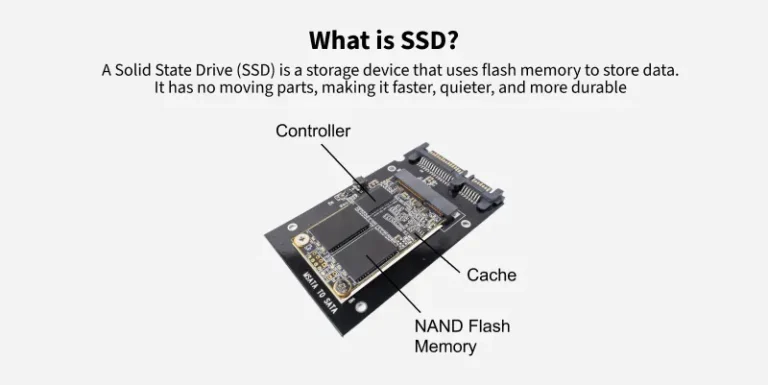
Unified memory is fast, shared working space, while SSD storage is permanent space for files, apps, and the operating system.
Understanding what is the difference between unified memory and SSD storage helps you choose the right computer, tablet, or phone. The two can both affect speed, but they do very different jobs. Unified memory helps your device work with data right now, while SSD storage keeps that data safe when the device is turned off.
What Is Unified Memory?
Unified memory is a shared pool of high-speed memory used by several parts of a device. On systems such as Apple silicon Macs, the CPU, GPU, and other processors can access the same memory pool. This design reduces the need to copy data between separate memory areas.
Think of unified memory as your desk. It holds the papers, tools, and notes you are using at this moment. The larger and faster the desk, the more tasks you can handle without stopping to clear space.
Unified memory usually refers to RAM. RAM is temporary memory, so its contents disappear when the device shuts down. It supports active tasks such as:
• Running apps and games
• Editing photos and videos
• Loading browser tabs
• Processing large files
• Rendering graphics
• Managing background services
Unified memory is not the same as SSD storage, even when both are measured in gigabytes. A device with 16 GB of unified memory does not have 16 GB of file storage. It has 16 GB of fast working space shared by the system and its processors.

What Is SSD Storage?
SSD storage is a form of permanent storage that saves your files and software. SSD stands for solid-state drive. Unlike older hard disk drives, SSDs use flash memory and have no moving disks or mechanical read heads.
An SSD stores information even after you turn off your device. It holds:
• The operating system
• Applications and games
• Photos and videos
• Documents and downloads
• Music and project files
• System recovery data
An SSD is more like a filing cabinet than a desk. It keeps your information for later, but it is not designed to provide the same quick working space as RAM.
SSD capacity is often listed as 256 GB, 512 GB, 1 TB, or more. A larger SSD lets you keep more files and install more applications. However, adding more SSD storage does not directly give your computer more unified memory.

What Is the Difference Between Unified Memory and SSD Storage?
The main difference between unified memory and SSD storage is their purpose. Unified memory supports active processing, while SSD storage saves data for long-term use.
Here is a simple comparison:
| Feature | Unified memory | SSD storage |
|---|---|---|
| Main purpose | Holds data used by active tasks | Stores files and software |
| Common name | RAM | Solid-state drive |
| Data retention | Temporary | Permanent |
| Speed | Extremely fast | Fast, but slower than RAM |
| Used by | CPU, GPU, and system processors | Operating system and user files |
| Effect of low capacity | Slower multitasking and possible app reloads | Less room for files and apps |
| Typical measurement | 8 GB, 16 GB, 32 GB | 256 GB, 512 GB, 1 TB |
| Upgrade options | Often limited or impossible | Sometimes upgradeable |
In practical terms, unified memory affects how many demanding tasks your device can handle at once. SSD storage affects how much data you can keep on the device.
This explains why a computer with 8 GB of unified memory and a 1 TB SSD may have plenty of file space but struggle with heavy video editing. A computer with 32 GB of unified memory and a 256 GB SSD may handle demanding apps well but run out of room for projects.

How Unified Memory Works
Unified memory gives different processors access to one shared memory pool. In a traditional computer, the CPU may use system RAM while the GPU uses separate video memory. A unified design allows both processors to work with the same data without making extra copies.
This can improve efficiency. For example, when you edit a high-resolution video, the CPU may handle software instructions while the GPU processes visual effects. With shared memory, both can access the project data more directly.
The benefits of unified memory include:
• Less data duplication
• Lower communication delays between processors
• Better power efficiency
• Strong graphics performance in supported workloads
• More efficient use of available memory
However, unified memory is shared. If the GPU uses a large amount for graphics, less remains for apps and the operating system. This matters when you use large external displays, complex 3D scenes, or high-resolution video.
Unified memory also cannot solve every performance problem. A slow app, weak processor, poor cooling, or badly optimized software can still limit performance.

How SSD Storage Works
An SSD stores data in flash memory cells. When you open an app, the operating system reads the required data from the SSD and places it into unified memory. The processor then works with that data at much higher speed.
This process shows how unified memory and SSD storage cooperate:
- You install an app on the SSD.
- The operating system reads the app’s data.
- The data moves into unified memory.
- The CPU and GPU process the data.
- Changes may be written back to the SSD.
SSD storage is much faster than a traditional hard drive. It can reduce startup times, speed up app launches, and make file transfers feel smoother. Still, even a fast SSD is not a direct replacement for RAM.
When unified memory becomes full, some systems use part of the SSD as virtual memory. This process is called swapping or paging. It can prevent a crash, but SSD storage is slower than actual unified memory, so heavy swapping may cause stutters and delays.
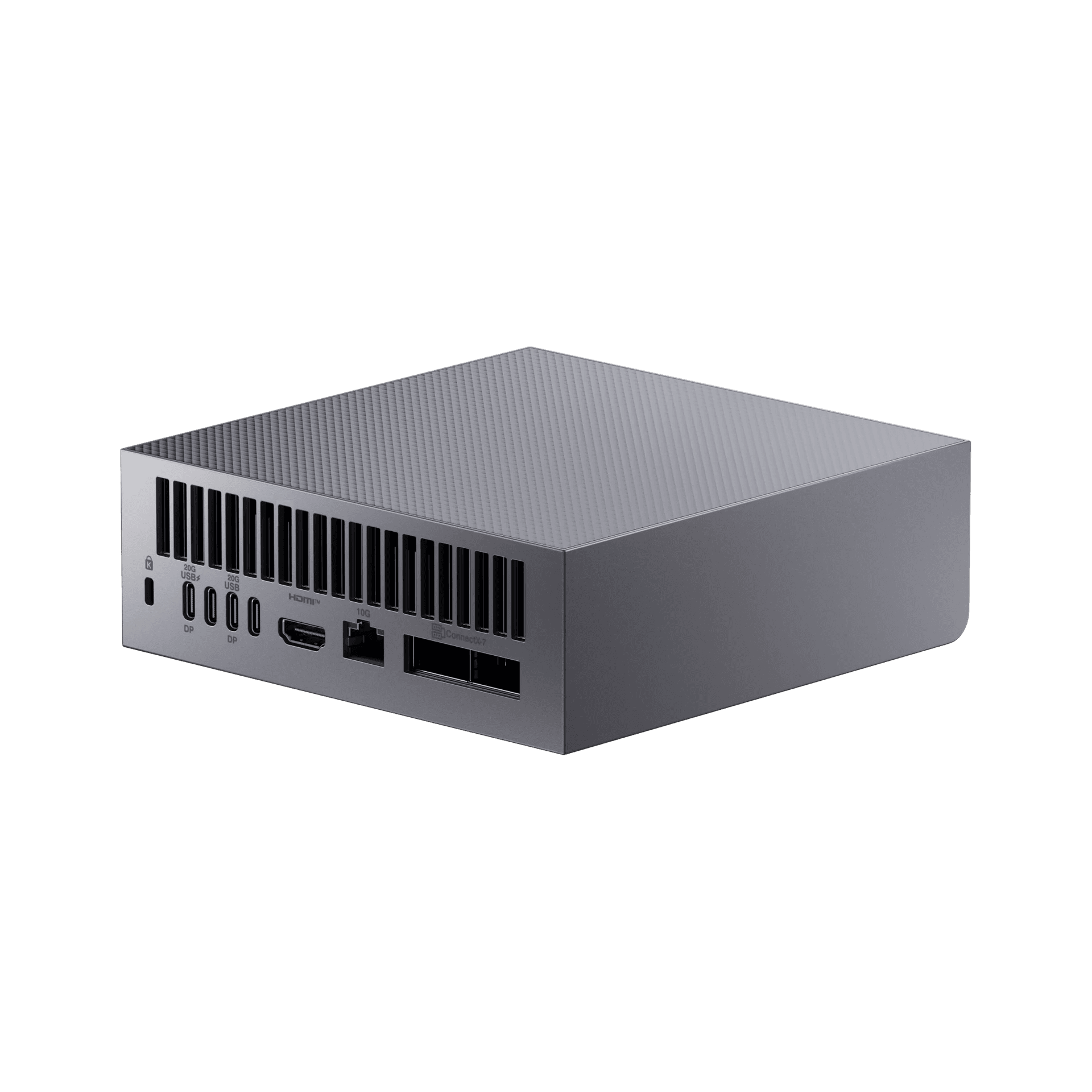
Unified Memory vs. SSD Storage for Everyday Tasks
For everyday use, both types of memory matter, but they affect different experiences.
A web browser with many tabs mainly uses unified memory. If you open dozens of tabs, switch between large apps, and run background services, more unified memory can help prevent reloads and slowdowns.
SSD storage matters when you install apps, save photos, download games, or store work files. If your SSD is nearly full, the device may have trouble installing updates and managing temporary files.
For common tasks:
• Web browsing: Unified memory affects tab management; SSD storage holds the browser and cache.
• Office work: Unified memory supports active documents; SSD storage saves those documents.
• Gaming: Unified memory may support game data and graphics; SSD storage holds the game installation.
• Photo editing: Unified memory helps process images; SSD storage stores original and exported files.
• Video editing: Unified memory supports previews and effects; SSD storage stores large media files.
• Programming: Unified memory supports code tools and virtual machines; SSD storage holds projects and development tools.
A balanced system is usually better than one with a large amount of only one type.

Which Matters More: Unified Memory or SSD Storage?
The answer depends on how you use your device. There is no universal winner in the unified memory versus SSD storage debate.
Choose more unified memory if you:
• Edit 4K or 8K video
• Use professional photo or music software
• Run virtual machines
• Work with large data sets
• Keep many apps and browser tabs open
• Use advanced 3D design or engineering tools
Choose more SSD storage if you:
• Store many photos and videos
• Install large games
• Work with large creative projects
• Keep local backups
• Download movies, music, or maps
• Need several operating systems or development environments
For many users, 16 GB of unified memory offers a comfortable starting point for general work. Creative professionals and technical users may benefit from 24 GB, 32 GB, or more. These figures are general guidance, not a guarantee, because software needs vary.
For storage, 512 GB can work for basic use, while 1 TB or more is often better for gaming, photography, and video production. Always check the actual storage available because the operating system and recovery files use part of the advertised capacity.

Does More SSD Storage Make a Computer Faster?
More SSD storage does not automatically make a computer faster. A larger drive mainly gives you more room for files and applications.
However, storage capacity can affect performance when the drive is nearly full. Operating systems need free space for updates, temporary files, caches, and virtual memory. Keeping a reasonable amount of free space can help your device work more reliably.
SSD speed also varies. Important specifications include:
• Sequential read speed
• Sequential write speed
• Random read and write performance
• Drive interface, such as SATA or NVMe
• Controller quality
• Thermal management
• Sustained performance under heavy workloads
For normal web use, the difference between several modern SSDs may be hard to notice. During large file transfers, video editing, or software development, faster storage can make a clearer difference.
My practical advice is simple: do not buy a larger SSD solely because you expect it to improve multitasking. If multitasking is the problem, unified memory is usually the more relevant specification.

Does More Unified Memory Make a Computer Faster?
More unified memory can improve performance when your current memory is not enough. It gives apps more room to remain active and reduces the need to move data to the SSD.
More memory does not always make a light task run faster. If you only browse the web, write documents, and stream video, extra capacity may provide little visible benefit after you reach a comfortable level.
You may need more unified memory if you notice:
• Apps reload when you switch between them
• Video previews pause or become less smooth
• Large files take longer to process
• The system uses virtual memory often
• Games stutter when many programs are open
• Your workflow slows when multitasking
Memory pressure tools can help you check this. On macOS, Activity Monitor shows memory pressure and swap usage. On Windows, Task Manager shows memory use, although Windows PCs typically use separate system RAM and graphics memory rather than Apple’s unified memory design.

Common Mistakes When Comparing Unified Memory and SSD Storage
Many buyers compare gigabytes without asking what those gigabytes represent. This creates confusion because 16 GB of memory and 1 TB of storage are not interchangeable.
Avoid these mistakes:
-
Assuming a 1 TB SSD can replace 16 GB of memory
An SSD can support virtual memory, but it cannot match the speed of physical RAM. -
Buying the largest SSD while ignoring memory needs
A large drive will not fix slow multitasking or memory pressure. -
Buying excessive memory with too little storage
Professional apps may run well, but large projects can quickly fill a small drive. -
Forgetting that unified memory may not be upgradeable
Many modern laptops place memory directly on the main board. Choose enough capacity at purchase. -
Treating benchmark results as real-world guarantees
Tests may use workloads that do not match your daily tasks. Check reviews that reflect your software and files. -
Ignoring external storage options
A fast external SSD can expand file capacity, but it may be less convenient than internal storage for apps and active projects.
How to Choose the Right Balance
Start with your real workflow, not the most impressive specification sheet. List the apps you use, the size of your projects, and how long you expect to keep the device.
Use these steps:
-
Identify your main tasks.
Separate basic work from demanding work such as video editing, software development, or 3D design. -
Check your current device.
Look for memory pressure, swap use, storage capacity, and free space. -
Estimate future needs.
A computer that feels sufficient today may feel limited after several years of software updates. -
Prioritize non-upgradeable parts.
If unified memory cannot be upgraded, select enough at the beginning. -
Leave room for growth.
Extra SSD capacity is useful for photos, games, backups, and creative projects. -
Consider external storage.
External SSDs can hold archives and media libraries, but keep active files on the fastest practical drive.
A basic user may be comfortable with 8 GB or 16 GB of unified memory and 256 GB or 512 GB of SSD storage. A creative professional may need 32 GB or more of unified memory and at least 1 TB of SSD storage.
A Practical Example
Imagine two laptops with the same processor.
The first has 16 GB of unified memory and a 512 GB SSD. It should handle office work, web browsing, coding, and moderate creative work well. The second has 8 GB of unified memory and a 1 TB SSD. It stores more files, but it may struggle sooner when running large apps together.
Now reverse the situation. A laptop with 32 GB of unified memory and a 256 GB SSD may be excellent for demanding software but frustrating for a photographer who stores thousands of RAW images. The user may need an external SSD almost immediately.
This example shows why the difference between unified memory and SSD storage is not just technical. It affects how comfortably a device fits your daily habits.
Frequently Asked Questions About What Is the Difference Between Unified Memory and SSD Storage
Is unified memory the same as RAM?
Unified memory is a form of shared RAM used by the CPU, GPU, and other system components. It performs the working-memory role of RAM, but its shared design differs from systems with separate CPU and graphics memory.
Is SSD storage the same as memory?
No. SSD storage keeps files and apps when the device is turned off, while unified memory temporarily holds data used by active tasks. SSD storage has greater capacity, but unified memory is much faster for ongoing processing.
Can an SSD replace unified memory?
An SSD cannot fully replace unified memory. A computer may use SSD space as virtual memory when RAM is full, but this is slower and can reduce performance.
Is 16 GB of unified memory enough?
For web browsing, office work, streaming, and many everyday tasks, 16 GB is often enough. Video editors, developers, designers, and users who run virtual machines may benefit from more.
Is 512 GB of SSD storage enough?
512 GB can suit many users who stream media and store files in the cloud. Gamers, photographers, and video editors may need 1 TB or more because modern apps and media files can be very large.
Does unified memory improve graphics performance?
It can improve efficiency because the CPU and GPU share data without unnecessary copies. Actual graphics performance also depends on the processor, GPU design, software optimization, cooling, and workload.
Can I upgrade unified memory later?
On many modern laptops and compact computers, unified memory is built into the system and cannot be upgraded. Check the manufacturer’s specifications before buying.
Should I upgrade memory or storage first?
Upgrade unified memory first if your device struggles with multitasking, large apps, or memory pressure. Upgrade SSD storage first if you mainly need more space for files, games, or applications.
Conclusion
Unified memory and SSD storage serve different roles. Unified memory is fast, temporary workspace for the CPU, GPU, and active apps. SSD storage is long-term space for the operating system, applications, and personal files.
The best choice depends on your workload. Prioritize unified memory for heavy multitasking and creative software, and prioritize SSD capacity for large files, games, photos, and video projects. Check your current usage before buying, and choose extra capacity when the device cannot be upgraded later.
Use this guide to compare your next computer with confidence, then explore detailed product reviews and share your own storage and memory experience in the comments.

Everett Ashford is a tech reviewer at mytechgrid.com specializing in SSDs, cameras, TVs, earbuds, headphones, and other consumer electronics. He provides honest, data-driven reviews based on hands-on testing and real-world performance analysis. Everett simplifies complex tech details to help readers make smart, confident buying decisions.