Raise Skullcandy headphone volume by checking device limits, cleaning the drivers, adjusting EQ, and fixing connection issues.
If your Skullcandy headphones sound quiet, the problem may not be the headphones themselves. Phone settings, Bluetooth volume sync, dirty ear cushions, a weak connection, or a built-in hearing safety limit can all reduce loudness. I have found that a few simple checks often make a bigger difference than changing the equalizer.
This guide explains how to make Skullcandy headphones louder without damaging the drivers or your hearing. You will learn safe volume steps, model-specific tips, troubleshooting methods, and the mistakes that can make sound seem weaker.
Check the Volume on Your Device
The first step in learning how to make Skullcandy headphones louder is to check every volume control. Your headphones, phone, computer, and media app may each have their own level.
Raise the volume slowly while music or a video is playing. On many Skullcandy Bluetooth models, the plus button on the earcup increases volume. Your phone’s volume buttons should also show a matching increase.
Try these steps:
- Play a familiar song.
- Press the volume-up button on the Skullcandy headphones.
- Raise the volume on your phone or computer.
- Check the volume slider inside the music or video app.
- Test another app to see whether the problem is app-specific.
Some phones use separate volume levels for media, calls, alarms, and notifications. Make sure you are changing media volume, not ringtone volume.
If the sound is still soft, lower the device volume once, disconnect the headphones, and reconnect them. This can refresh the Bluetooth volume link.

Turn Off Volume Limits and Hearing Safety Controls
A volume limit is one of the most common reasons people search for how to make Skullcandy headphones louder. Phones and computers may reduce headphone output to protect hearing.
On an iPhone, check the following area:
• Open Settings.
• Tap Sounds & Haptics.
• Choose Headphone Safety.
• Review Reduce Loud Audio and related alerts.
On Android, the names vary by brand. Look under Sound, Volume, Media, Hearing Protection, or Digital Wellbeing. Some phones show a warning after high volume use and may lower output automatically.
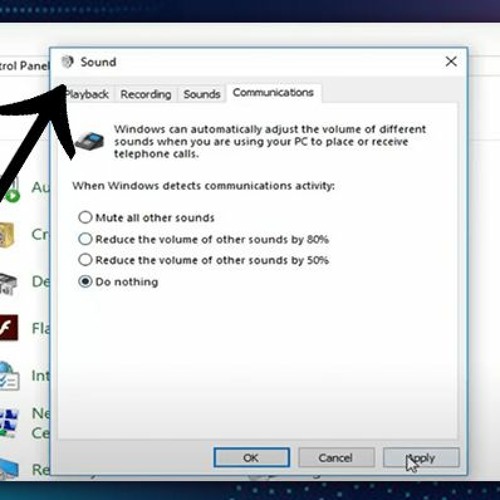
Windows may also reduce sound through its volume mixer or communications settings. Right-click the speaker icon, open the volume mixer, and make sure the app playing audio is not set too low.
Do not disable a safety limit without thinking about your listening habits. Hearing experts commonly recommend keeping personal audio at a moderate level and taking breaks. A louder setting may feel better for a short test, but long exposure can lead to ringing, muffled hearing, or permanent damage.

Clean the Earbuds or Headphone Drivers
Dirt can block sound. Earwax, dust, skin oil, and pocket lint may cover the small mesh over Skullcandy earbuds. This is especially common with models such as Dime, Sesh, Indy, and other in-ear designs.
Cleaning the headphones is often the simplest answer to how to make Skullcandy headphones louder. It can restore clarity without increasing the electrical volume.
Use this safe method:
• Turn off the headphones and remove the ear tips.
• Wipe the ear tips with a soft, slightly damp cloth.
• Use a dry, soft brush to remove dust from the speaker mesh.
• Keep liquid away from the driver, charging port, buttons, and microphones.
• Let every part dry fully before reassembly.
Do not push a pin, needle, or sharp tool into the mesh. That can damage the driver or push debris farther inside. Avoid pouring alcohol or water directly onto the headphones.
For over-ear models, inspect the ear cushions. Flattened or loose cushions can create gaps around your ears. These gaps let sound escape and make bass seem weak. Replacing worn cushions may improve the listening experience more than raising the volume.

Improve the Fit and Seal
A poor fit can make Skullcandy headphones sound quiet, especially earbuds. The seal around the ear canal helps block outside noise and gives bass a stronger foundation.
Try each included ear tip size. A small tip may feel comfortable but fail to seal. A larger tip may block more noise and make music sound fuller at the same volume.
For earbuds, gently twist them into place instead of pushing them straight in. For over-ear headphones, adjust the headband so the earcups sit evenly around both ears.
A good fit should feel secure but not painful. If you need to keep increasing the volume because traffic, fans, or office noise drown out your music, the issue may be isolation rather than low output.
This is an important lesson when learning how to make Skullcandy headphones louder: louder is not always the real goal. Better fit and better isolation can make the same volume feel clearer.

Adjust the Equalizer Carefully
An equalizer changes the balance of bass, mids, and treble. It does not always increase the maximum volume, but it can make speech, vocals, or instruments easier to hear.
Skullcandy models may work with the Skullcandy app, depending on the product. The app can provide sound modes or EQ controls on supported headphones. Your music app may also include its own equalizer.
Try a small adjustment:
• Increase the mids if voices sound buried.
• Add a little treble if the sound lacks detail.
• Reduce heavy bass if it makes the mix seem muddy.
• Use a balanced or neutral preset as a starting point.
Avoid boosting every frequency to the highest level. This can create distortion and may cause the app to reduce output to prevent clipping. A loud, distorted track is not better than a clear, balanced one.
When testing how to make Skullcandy headphones louder with EQ, use a song you know well. Compare the default setting with one small change at a time. This makes it easier to identify what actually helps.

Check Bluetooth Volume Sync
Bluetooth volume controls do not work the same way on every phone. Some devices use one shared volume control. Others separate the phone volume from the headphone volume.
If your Skullcandy headphones connect but sound unusually quiet, try this process:
- Start playing audio.
- Set the phone volume near the middle.
- Raise the headphone volume with the earcup or touch control.
- Raise the phone volume again.
- Pause and resume the track.
On some Android phones, the Developer Options menu includes Disable absolute volume. This setting may help when phone and headphone volume levels do not sync correctly. However, menu names and results vary by device, so change one setting at a time.
Do not change advanced Bluetooth settings at random. If the sound becomes distorted or the controls stop working, return the setting to its original position.

Forget and Re-Pair the Headphones
A damaged Bluetooth pairing record can cause low volume, sound dropouts, or one-sided audio. Re-pairing gives the headphones and device a clean connection.
Follow these steps:
• Open your phone’s Bluetooth settings.
• Select your Skullcandy headphones.
• Tap Forget, Remove, or Unpair.
• Turn Bluetooth off for a few seconds.
• Turn the headphones off and back on.
• Put the headphones into pairing mode.
• Pair them again.
Test the headphones with another phone or computer. If they sound normal on the second device, your original device likely has a setting or software issue.
If you are still trying to find out how to make Skullcandy headphones louder after re-pairing, update the phone and the Skullcandy app. Firmware updates can correct connection and control problems, although they cannot fix a damaged speaker.
Reset Your Skullcandy Headphones
A reset can fix unusual volume behavior, failed pairing, or controls that stop responding. The exact reset method depends on the model.
Many Skullcandy earbuds reset through the case and touch controls. Some headphones use a power button or a combination of buttons. Check the guide for your exact model before starting, because the process may erase saved pairings.
A general reset process often includes:
- Remove the headphones from the Bluetooth list.
- Turn off the headphones.
- Hold the required button or buttons for several seconds.
- Wait for the indicator light or voice prompt.
- Charge the headphones if needed.
- Pair them again.
Do not assume every Skullcandy model uses the same button combination. Using the wrong process may simply fail or activate another function.
Resetting is useful, but it will not make a weak battery, blocked driver, or damaged speaker louder. It is a software troubleshooting step, not a repair.

Check the Battery and Audio Source
A low battery can affect performance on some wireless headphones. Charge the headphones and case fully before judging their maximum volume.
Also check the audio source. A low-quality recording, quiet podcast, or video with poor mastering may sound softer than another track. Streaming apps can use loudness normalization, which makes songs play at more similar levels.
Test with:
• A downloaded song.
• A different streaming service.
• A podcast and a music track.
• Another phone or laptop.
• A wired connection, if your model supports one.
If only one app sounds quiet, adjust that app’s volume or normalization settings. If every source sounds quiet on every device, the headphones may need service.
One mistake I often see is blaming the headphones after testing only one video. Audio levels vary widely between creators, recordings, and streaming platforms.

Use the Skullcandy App When Supported
Some Skullcandy headphones work with the official Skullcandy mobile app. Supported features may include EQ presets, firmware updates, device controls, and personalized sound settings.
Install the app only from the official app store. Then:
• Add your headphones.
• Check for a firmware update.
• Review EQ or sound modes.
• Confirm that volume controls respond correctly.
• Test the default sound profile before making changes.
The app cannot unlock unlimited loudness. Hardware limits, battery condition, device settings, and hearing safety controls still apply. Still, it can help you find a clearer sound profile and fix some control issues.
This is another practical part of how to make Skullcandy headphones louder: improve clarity first, then adjust volume only as much as needed.
Avoid Apps That Claim to Boost Volume
Many volume booster apps promise extreme loudness. Some simply raise software gain, while others push the audio signal beyond a clean level. The result can be clipping, harsh sound, or damage to the headphones.
Be cautious with apps that:
• Ask for unnecessary permissions.
• Promise unlimited volume.
• Include aggressive ads or unknown downloads.
• Require changes to advanced system settings.
• Do not explain how they process audio.
A small gain increase may be useful in some cases, but it cannot overcome a blocked driver or weak Bluetooth connection. It may also make sudden sounds dangerously loud.
Never test a new booster at maximum volume. If music becomes crackly, reduce the level at once and remove the app.
Know When the Headphones Need Repair
If one side is much quieter than the other, the issue may be a blocked mesh, damaged cable, failing battery, or defective driver. Test both sides with another device before deciding.
Look for these warning signs:
• Sound cuts out when the earcup moves.
• One earbud stays quiet after cleaning.
• The headphones crackle at normal volume.
• The battery drains unusually fast.
• The charging case does not charge one earbud.
• The headphones were exposed to water or heavy impact.
If the product is still under warranty, contact Skullcandy support or the retailer. Opening the headphones can void coverage and may create a safety risk.
Do not keep raising the volume to compensate for a hardware fault. That can expose your ears to excessive sound while leaving the real problem unsolved.
Safe Listening Tips
Learning how to make Skullcandy headphones louder should always include hearing protection. The goal is clear, comfortable audio, not the highest possible number on the volume slider.
Use these habits:
• Keep the volume as low as needed.
• Take regular breaks during long listening sessions.
• Avoid maximum volume in quiet rooms.
• Use good-fitting ear tips to reduce outside noise.
• Give your ears time to recover after loud events.
• Stop listening if you notice ringing, pain, pressure, or muffled hearing.
A common safety guide uses the 60/60 approach: listen at about 60 percent volume for no more than 60 minutes, then take a break. This is only a simple starting point, not a guarantee of safety. Actual risk depends on loudness, listening time, fit, and the specific device.
If ringing or muffled hearing continues after listening, speak with a qualified health professional.
Common Mistakes to Avoid
Some fixes appear to work but create new problems. Avoid these common mistakes when trying to make Skullcandy headphones louder:
• Cleaning the driver with sharp objects.
• Pouring liquid into the earbud mesh.
• Boosting every EQ slider at once.
• Using unknown volume booster apps.
• Ignoring a low battery.
• Testing only one song or app.
• Wearing earbuds with a poor seal.
• Disabling every hearing safety warning.
• Assuming all Skullcandy models reset the same way.
The safest method is gradual. Check the source, fit, settings, connection, and cleanliness in that order. This approach finds the real cause instead of covering it up with extra gain.
Frequently Asked Questions About How to Make Skullcandy Headphones Louder
Why are my Skullcandy headphones so quiet?
Low volume may come from a phone limit, poor Bluetooth syncing, a weak battery, dirty speaker mesh, or a poor earbud seal. Test the headphones with another device to narrow down the cause.
How do I make Skullcandy earbuds louder on an iPhone?
Raise the media volume, check Headphone Safety settings, clean the earbud mesh, and try a better-fitting ear tip. Forgetting and re-pairing the earbuds can also fix Bluetooth volume problems.
How do I make Skullcandy headphones louder on Android?
Check media volume, sound settings, hearing protection limits, and Bluetooth volume behavior. On some Android phones, changing the absolute volume setting may help, but the option and result vary by device.
Can the Skullcandy app increase headphone volume?
The app may offer EQ presets, sound modes, and firmware updates on supported models. It can improve clarity, but it cannot safely remove hardware or hearing protection limits.
Why is one Skullcandy earbud quieter than the other?
The quieter earbud may have blocked mesh, an incorrect fit, a charging issue, or a connection fault. Clean it carefully, charge both earbuds, reset them, and test them with another device.
Is it safe to use a volume booster app?
Volume booster apps can cause distortion and may expose your ears to unsafe sound levels. Use built-in device controls and EQ settings first, and avoid apps that promise unlimited volume.
Do Skullcandy headphones get louder when fully charged?
A full charge can restore normal performance if the battery was very low. However, charging will not fix blocked drivers, a damaged speaker, or an active device volume limit.
Conclusion
The best way to make Skullcandy headphones louder is to find the real cause first. Check your device volume, remove safety limits carefully, improve the fit, clean the speaker mesh, adjust EQ, refresh Bluetooth pairing, and update the headphones when possible.
Do not rely on extreme volume booster apps or maximum output. Clear sound at a safe level is better for both your music and your hearing. Try the steps in order, test one change at a time, and share your model and results in the comments.

Everett Ashford is a tech reviewer at mytechgrid.com specializing in SSDs, cameras, TVs, earbuds, headphones, and other consumer electronics. He provides honest, data-driven reviews based on hands-on testing and real-world performance analysis. Everett simplifies complex tech details to help readers make smart, confident buying decisions.