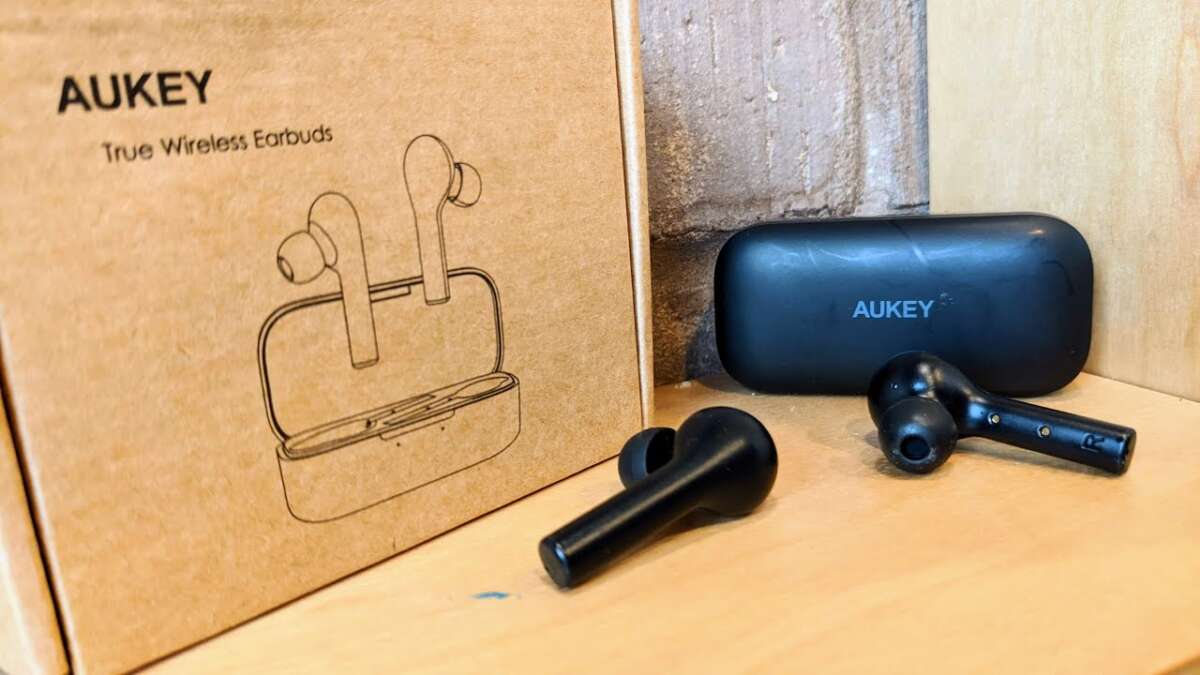
To pair AUKEY earbuds, charge them, open the case, enter pairing mode, and select AUKEY in Bluetooth settings.
Learning how to pair AUKEY earbuds is usually simple, but the exact steps can vary by model. Older AUKEY earbuds may use a physical button, while newer models often use touch controls. This guide explains the pairing process for iPhone, Android, Windows, and Mac, plus fixes for common connection problems.
Before you pair AUKEY earbuds
A good pairing starts with a few basic checks. Bluetooth pairing can fail when the earbuds have low power, remain connected to another device, or sit too far from your phone.
Check these points first:
• Charge both earbuds and the charging case for at least 10 minutes.
• Remove any plastic film covering the charging contacts.
• Keep the earbuds within about 3 feet of your phone or computer.
• Turn off Bluetooth on devices that may connect to the earbuds first.
• Make sure both earbuds sit correctly in the charging case.
AUKEY has released several earbud lines, including models in the EP-T21, EP-T25, EP-T28, and similar families. Their buttons and LED colors may differ, so treat the model’s user guide as the final reference if a step looks different.
In my experience helping people with wireless earbuds, the most common mistake is opening Bluetooth settings too late. Put the earbuds into pairing mode first, then look for them in the device list. This gives the connection process a clear path.

How to pair AUKEY earbuds for the first time
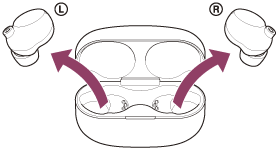
Most AUKEY earbuds enter pairing mode automatically when you remove them from the charging case. If your model has no case, press and hold the power or multifunction button instead.
Follow these steps:
- Place both earbuds inside the charging case.
- Open the lid.
- Remove both earbuds at the same time.
- Wait for the indicator lights to flash.
- Open Bluetooth settings on your phone.
- Find the AUKEY name in the available devices list.
- Tap the name to connect.
- Accept any pairing request that appears.
The device name may show as AUKEY EP-T21, AUKEY EP-T25, AUKEY T28, or a similar model number. Select the name that matches your earbuds. Do not choose a nearby device with a similar name unless you know it belongs to your earbuds.
If the earbuds do not appear, return them to the case. Close the lid for about 10 seconds, open it, and remove them again. This often restarts the pairing sequence.
Some AUKEY earbuds use one earbud as the main connection point. The left and right earbuds first connect to each other, then one earbud connects to your phone. This short internal link is normal and does not mean one earbud is broken.

How to pair AUKEY earbuds with an iPhone
The iPhone pairing process uses the standard iOS Bluetooth menu. You do not need a special AUKEY app for basic audio pairing.
- Open Settings on your iPhone.
- Tap Bluetooth.
- Turn Bluetooth on.
- Remove the AUKEY earbuds from their case.
- Wait for the AUKEY model name to appear under Other Devices.
- Tap the model name.
- Wait until it moves to My Devices and shows Connected.
Play a short song after pairing. Test both earbuds and adjust the volume with the iPhone controls. If only one earbud works, place both earbuds back in the case and repeat the process.
If your iPhone asks for a PIN, try 0000 or 1234 only if the model guide recommends it. Most modern Bluetooth earbuds pair without a code. Avoid entering random codes, since repeated failed attempts can make troubleshooting harder.
When you pair AUKEY earbuds with an iPhone, the phone may remember them even after the earbuds are placed in the case. This is normal. The connection usually ends when the earbuds power down or move out of range.
How to pair AUKEY earbuds with an Android phone
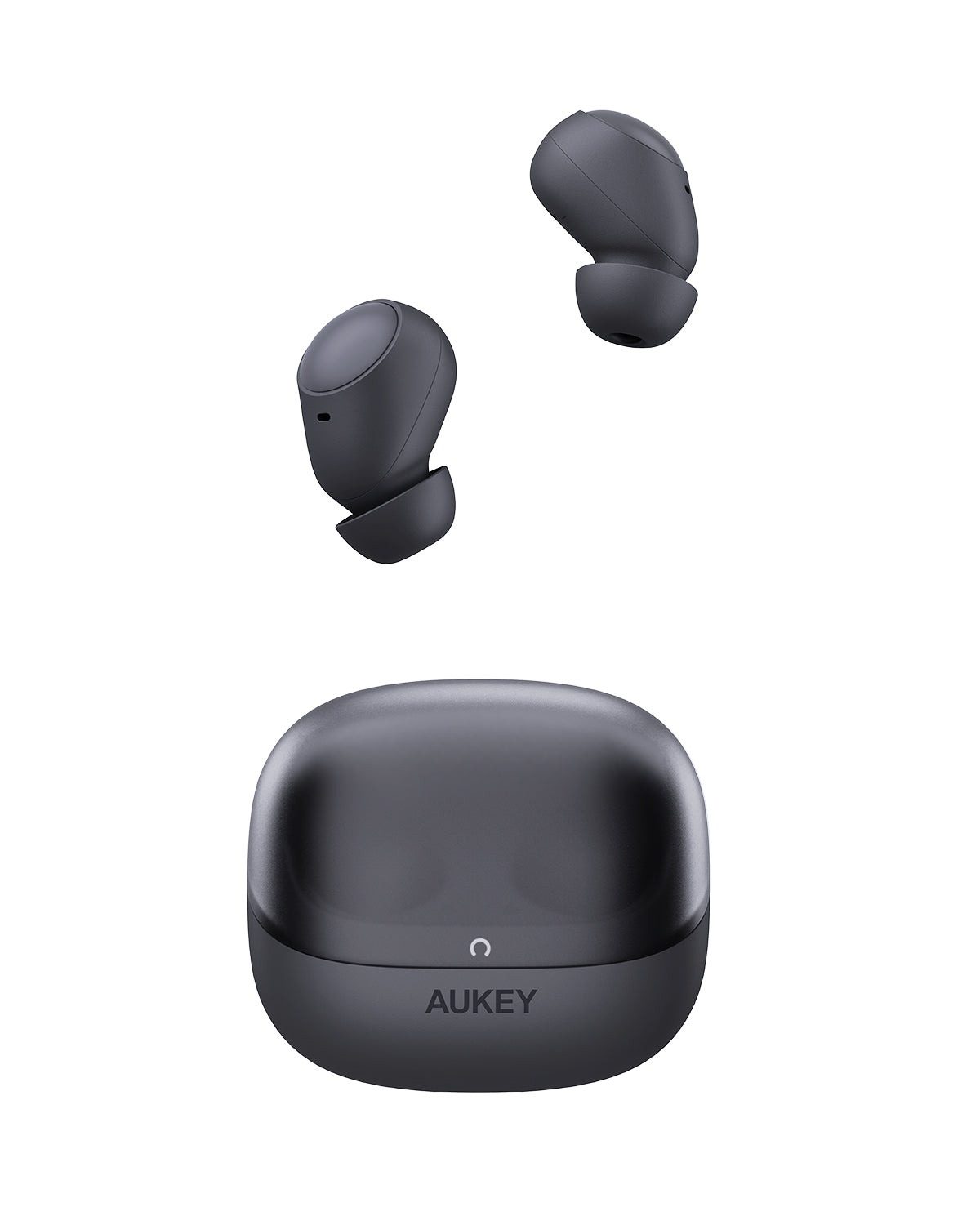
Android menus can look different across Samsung, Google Pixel, Motorola, and other phones. The Bluetooth controls remain similar.
- Open Settings.
- Tap Connected devices, Connections, or Bluetooth.
- Select Pair new device if needed.
- Remove both AUKEY earbuds from the charging case.
- Wait for the earbuds to enter pairing mode.
- Tap the AUKEY model name.
- Choose Pair or Connect.
On some Android phones, you can open the quick settings panel and hold the Bluetooth icon. This takes you directly to the list of nearby devices.
If the AUKEY name does not appear, tap Scan, Refresh, or Pair new device. Keep the case open while you search. Some models stop advertising their Bluetooth signal when the earbuds return to the case.
Android phones may display separate entries for the left and right earbuds if the earbuds lost their internal connection. Do not pair both entries unless the manual specifically tells you to do so. The correct option is normally one combined AUKEY name.

How to pair AUKEY earbuds with a Windows PC
You can use AUKEY earbuds with a Windows laptop or desktop that supports Bluetooth. They work well for music, calls, and video, although microphone quality depends on the earbud model and the computer’s Bluetooth hardware.
On Windows 11:
- Open Settings.
- Select Bluetooth & devices.
- Turn Bluetooth on.
- Click Add device.
- Choose Bluetooth.
- Remove the AUKEY earbuds from the case.
- Select the AUKEY model from the list.
- Click Done after the connection completes.
On Windows 10, open Settings, choose Devices, select Bluetooth & other devices, and click Add Bluetooth or other device. Then choose Bluetooth and select the AUKEY earbuds.
After pairing, click the speaker icon in the Windows taskbar. Select the AUKEY earbuds as the audio output. For calls, also check the microphone setting inside the meeting app. Programs such as Zoom or Microsoft Teams may use a different input device than Windows.
Windows can save more than one audio profile for Bluetooth earbuds. If sound quality drops during a call, the computer may have switched to a hands-free profile. That profile supports the microphone but often lowers music quality. This is a Bluetooth limitation, not always an AUKEY fault.

How to pair AUKEY earbuds with a Mac
Pairing AUKEY earbuds with a Mac takes only a few steps.
- Click the Apple menu.
- Open System Settings or System Preferences.
- Select Bluetooth.
- Turn Bluetooth on.
- Remove the earbuds from the charging case.
- Wait for the AUKEY model name to appear.
- Click Connect.
On older versions of macOS, the Bluetooth menu may appear under System Preferences. Once connected, open the Sound settings and choose the AUKEY earbuds for output.
If you use the earbuds for video calls, select them as both the speaker and microphone in the call app. Test the microphone before an important meeting. A short test can prevent the familiar “Can you hear me?” problem.
A Mac may reconnect to AUKEY earbuds automatically when you open the case. If it connects to another audio device instead, click the Control Center icon, open Sound, and select the earbuds manually.

How to put AUKEY earbuds into pairing mode manually
Automatic pairing does not work on every attempt. You may need to enter pairing mode manually when the earbuds were paired with another phone or when the saved connection becomes confused.
Try this general method:
- Turn off Bluetooth on nearby phones, tablets, and computers.
- Place both earbuds in the charging case.
- Remove them from the case.
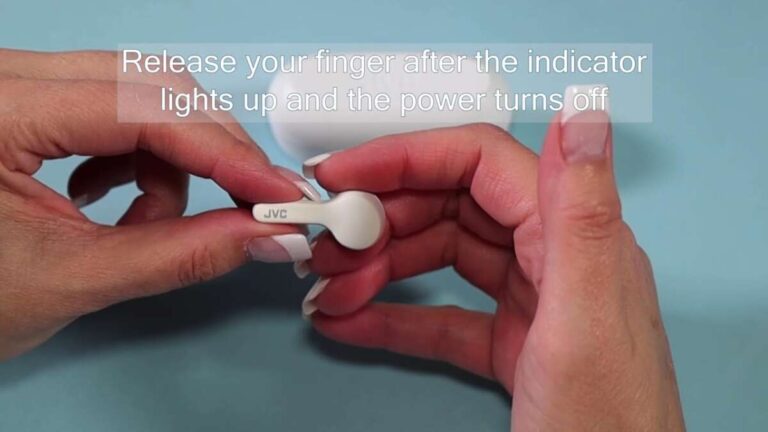
- Press and hold the multifunction button or touch area.
- Continue holding for several seconds.
- Release the controls when the LED begins flashing.
- Search for the AUKEY name in Bluetooth settings.
The light pattern can differ by model. A flashing blue, red, or white light often signals pairing mode, but you should confirm the meaning in the model guide.
For models with a physical button, press the button on the earbud rather than the case unless the guide says otherwise. For touch models, keep your finger on the touch panel without tapping repeatedly. Rapid taps may play or pause audio instead of starting pairing mode.
When I troubleshoot this issue, I first move every other Bluetooth device away from the earbuds. This simple step prevents a nearby phone from silently reconnecting before the new device can find AUKEY.
How to reset AUKEY earbuds and fix pairing problems
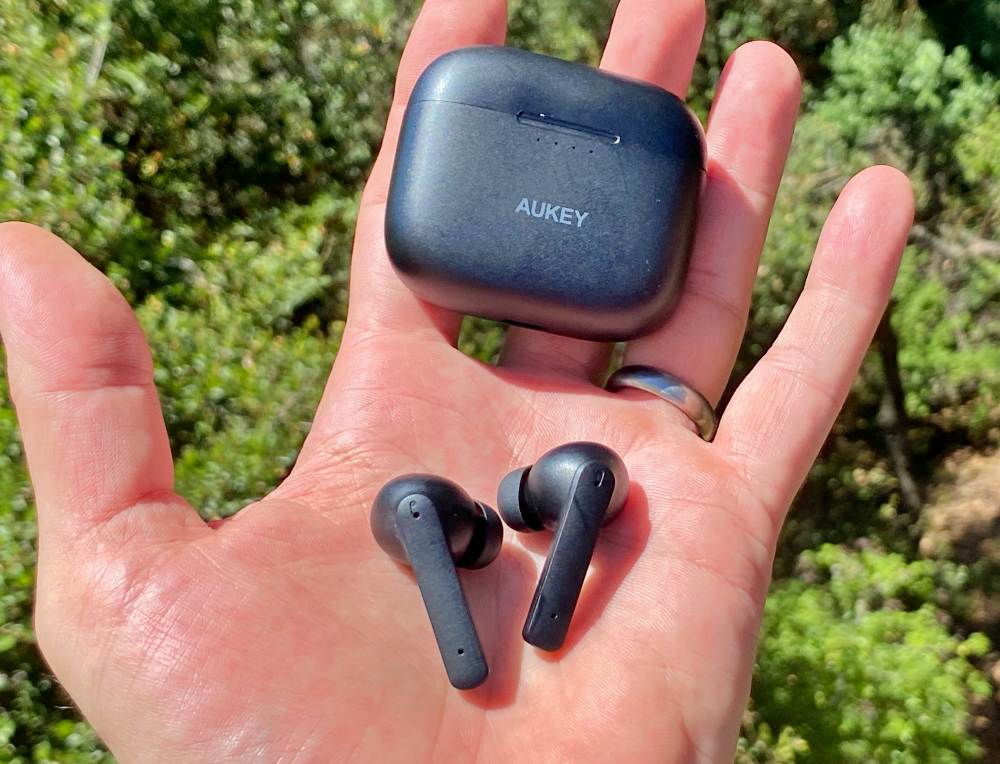
A reset removes old pairing information and often solves connection issues. It is useful when only one earbud works, the earbuds connect but produce no sound, or the earbuds appear as separate devices.
A common reset process is:
- Forget or remove the AUKEY earbuds from your phone or computer.
- Turn off Bluetooth on that device.
- Put both earbuds in the charging case.
- Leave the lid open if the model requires it.
- Press and hold the case button or both earbud controls.
- Continue for about 10 to 15 seconds.
- Wait for the LEDs to flash or change color.
- Close the case, wait a few seconds, and open it again.
- Turn Bluetooth back on.
- Pair the earbuds as a new device.
The reset method is not identical across all AUKEY models. Some models require tapping each earbud several times. Others use a case button. If the common method fails, use the instructions for your exact model.
Try these additional fixes:
• Charge the case and earbuds fully.
• Clean the metal charging contacts with a dry cotton swab.
• Restart your phone or computer.
• Remove old AUKEY entries from the Bluetooth list.
• Keep Wi-Fi routers and other wireless devices a short distance away during testing.
• Update your phone or computer if it has pending system updates.
• Test the earbuds with a second phone.
If the earbuds pair with another device, the original phone or computer is likely the source of the problem. If they fail everywhere after a reset, the issue may involve the battery, charging case, Bluetooth radio, or internal hardware.

How to pair only one AUKEY earbud
Many AUKEY models support single-earbud use. This can help when you need to hear traffic, talk with someone, or save battery.
To use one earbud:
- Place the unused earbud in the charging case.
- Remove the earbud you want to use.
- Open Bluetooth settings.
- Select the saved AUKEY connection.
- Wait for the connection to complete.
Some models let either earbud work alone. Other models assign one side as the primary earbud. If the left earbud works alone but the right one does not, the model may not support independent use on both sides.
If one earbud refuses to connect, reset both earbuds rather than pairing only the working side again and again. Repeated one-sided pairing can leave the earbuds out of sync.
Single-earbud use may also change stereo sound to mono or send only one audio channel to the active side. This behavior depends on the phone and AUKEY model.
How to switch AUKEY earbuds between devices
Most basic AUKEY earbuds do not support true multipoint Bluetooth. That means they may remember several devices but actively connect to only one at a time.
To switch devices:
- Disconnect the earbuds from the current device.
- Turn off Bluetooth on that device if it reconnects automatically.
- Open Bluetooth settings on the second device.
- Select the AUKEY earbuds.
- Wait for the new connection.
If the second device cannot find the earbuds, place them in pairing mode again. Saved pairing and active pairing are different. A device can remember the earbuds without allowing another device to connect immediately.
For smooth switching between a phone and laptop, disconnect from one before opening the lid near the other. This is faster than deleting and re-adding the earbuds each time.
Common mistakes when pairing AUKEY earbuds
Small errors can make a simple Bluetooth setup feel much harder. These are the mistakes I see most often when people ask how to pair AUKEY earbuds.
• Leaving the earbuds connected to an old phone: Turn Bluetooth off on the old phone before pairing a new device.
• Pairing one earbud at a time: Remove both earbuds together unless you want single-earbud use.
• Ignoring the charging contacts: Dirty contacts can stop one earbud from charging or waking up.
• Searching too far away: Keep the earbuds close to the device during setup.
• Selecting the wrong Bluetooth entry: Choose the AUKEY model name, not a random nearby device.
• Forgetting to remove an old connection: Delete the saved AUKEY entry before trying a full reset.
• Assuming every LED means the same thing: Light patterns vary across AUKEY models.
• Testing only one app: Check music, a phone call, and system audio before deciding the pairing failed.
Bluetooth has a practical range limit. Walls, metal objects, crowded wireless spaces, and older Bluetooth hardware can reduce stability. Pairing works best when the earbuds and source device have a clear, short path between them.
How to improve AUKEY Bluetooth connection quality
Once you know how to pair AUKEY earbuds, a few habits can make the connection more stable.
Keep the earbuds and phone on the same side of your body when walking. Your body can block radio signals, especially when the phone sits in a back pocket. Avoid placing the phone under heavy clothing or inside a bag surrounded by metal objects.
Keep the charging contacts clean and dry. Sweat, dust, and skin oil can affect charging. A dry, soft cloth is safer than water, alcohol, or sharp tools.
Use the latest operating system available for your phone or computer. Updates can improve Bluetooth compatibility, but they cannot repair damaged earbud hardware. Also, avoid using the earbuds while the case battery is nearly empty.
If audio cuts out only in one location, wireless interference may be involved. Try another room and compare the result. If the problem follows the earbuds everywhere, reset them and test another source device.
Frequently Asked Questions about how to pair AUKEY earbuds
Why are my AUKEY earbuds not showing in Bluetooth?
Place both earbuds in the case, close the lid, and reopen it before removing them together. If they still do not appear, turn off Bluetooth on nearby devices and reset the earbuds.
How do I reset AUKEY earbuds?
The reset method depends on the model, but many AUKEY earbuds reset when you hold the case button or both earbud controls for about 10 to 15 seconds. First remove the old AUKEY entry from your device, then pair the earbuds again.
Can I pair AUKEY earbuds with an iPhone?
Yes. Open Settings, tap Bluetooth, remove the earbuds from their case, and select the AUKEY model name. Most models pair without an app or special code.
Can I connect AUKEY earbuds to two devices at once?
Many standard AUKEY models do not support multipoint connections. You usually need to disconnect from the first device before connecting to a second one.
Why does only one AUKEY earbud work?
The earbuds may have lost their internal connection, or one side may not be charging. Place both earbuds in the case, clean the charging contacts, reset them, and pair them again as a set.
How do I pair one AUKEY earbud?
Leave one earbud in the charging case and remove the other. Then select the saved AUKEY connection in your phone’s Bluetooth settings, provided your model supports single-earbud use.
Do AUKEY earbuds work with Windows computers?
Yes. Open Windows Bluetooth settings, choose Add device, select Bluetooth, and click the AUKEY model name. After pairing, choose the earbuds as the audio output and microphone when needed.
Conclusion
Learning how to pair AUKEY earbuds usually takes less than a minute: charge them, remove both earbuds from the case, enter pairing mode, and select the correct AUKEY name in Bluetooth settings. If the connection fails, forget the old pairing, reset the earbuds, and try again near the source device.
The key lesson is to match the steps to your exact AUKEY model. Use the model guide for LED meanings and reset controls, then test both earbuds before relying on them for calls or travel. Try the process now, and share this guide with anyone struggling to connect their AUKEY earbuds.

Everett Ashford is a tech reviewer at mytechgrid.com specializing in SSDs, cameras, TVs, earbuds, headphones, and other consumer electronics. He provides honest, data-driven reviews based on hands-on testing and real-world performance analysis. Everett simplifies complex tech details to help readers make smart, confident buying decisions.