Turn on Bluetooth, put both Raycon earbuds into pairing mode, then choose them in iPhone Settings > Bluetooth.
I’ve paired Raycon earbuds with many iPhones and helped friends fix tricky Bluetooth hiccups. This guide walks you through exactly how to connect Raycon earbuds to iPhone, step by step. You’ll get clear pairing steps, simple troubleshooting, and practical tips I learned from real-world use so you can get listening fast.

How to connect Raycon earbuds to iPhone — Step-by-step guide
Follow these short steps to pair quickly. This section shows how to connect raycon earbuds to iphone in plain terms. Read each step, and try them in order.
- Turn on Bluetooth on your iPhone
- Open Settings. Tap Bluetooth. Switch Bluetooth on and leave the screen open.
- Put Raycon earbuds into pairing mode
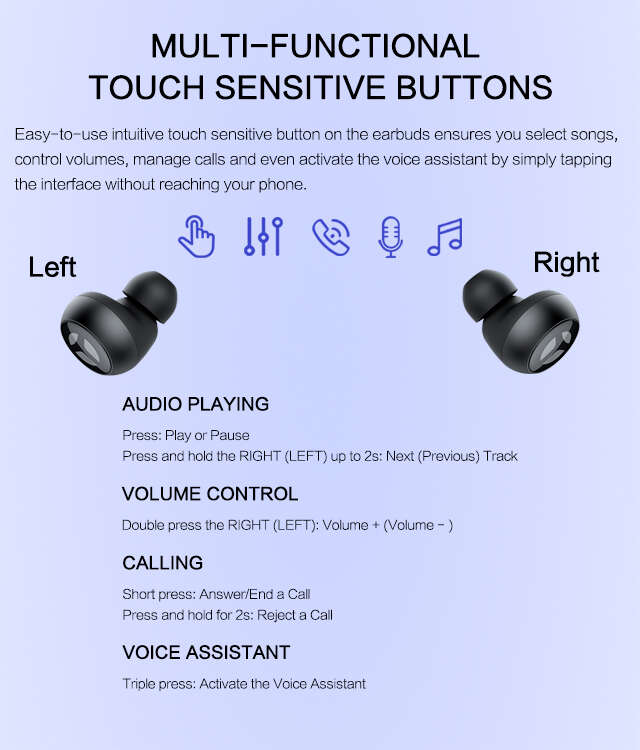
- Remove both earbuds from the case and hold the touch area for 5–8 seconds until LED flashes or you hear a voice prompt. That is pairing mode.
- Find the Raycon name on iPhone
- In Settings > Bluetooth, look for the Raycon device name (often “Raycon” or a model name). Tap it to pair.
- Confirm connection and test audio
- Once paired, you’ll see “Connected” next to the Raycon device. Play music or a video to confirm sound comes through both earbuds.
- Reconnect automatically next time
- Raycon earbuds usually reconnect automatically when Bluetooth is on and the earbuds are in range. If not, open Bluetooth and tap the Raycon device again.
Key tips while pairing:
- Keep earbuds and iPhone close, within 3 feet.
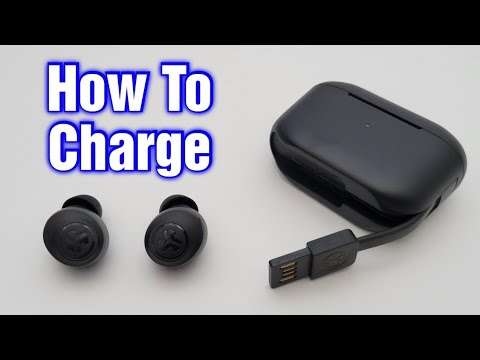
- Charge both earbuds before pairing to avoid interruptions.
- Turn off other nearby Bluetooth devices during first pairing.

Troubleshooting common issues when connecting Raycon earbuds to iPhone
If pairing fails, try these fixes. Each item addresses a specific reason why you might not be able to connect Raycon earbuds to iPhone.
- Earbuds not in pairing mode
- Reset the earbuds by placing them in the case, then holding the touch area until the LED cycles. Try pairing again.
- iPhone won’t show the Raycon name
- Toggle Bluetooth off and on. Restart the iPhone if the device still doesn’t appear.
- Only one earbud connects or audio is uneven
- Place both earbuds in the case, take them out together, and re-pair. This forces master/slave resync.
- Connection drops often
- Check for wireless interference. Move away from Wi‑Fi routers, microwave ovens, or crowded Bluetooth environments.
- iOS compatibility issues
- Update iOS to the latest version. Sometimes newer Bluetooth profiles fix stability problems.
Personal note: I once spent 20 minutes trying to pair until I realized the earbuds were low on charge. A quick charge solved the issue. Always start with battery and simple resets.
Advanced tips, settings, and maintenance for the best experience
These tips help you get the most from Raycon earbuds and your iPhone. Use them after you learn how to connect raycon earbuds to iphone.
- Use Control Center for quick audio routing
- Swipe down (or up on older iPhones) to open Control Center. Long-press the audio widget to confirm Raycon is selected.
- Adjust audio and call settings
- Go to Settings > Accessibility > Audio/Visual to tweak balance if one ear sounds louder. For call routing, check Settings > Accessibility > Touch > Call Audio Routing.
- Update firmware when available
- Check Raycon’s app (if your model supports it) for firmware updates. Firmware can fix bugs and improve connection stability.
- Clean and care for earbuds
- Wipe ear tips and charging pins with a dry cloth. Poor contact can prevent charging and cause connection issues.
- Reset procedure
- If things go wrong, perform a factory reset on the earbuds. Hold the touch areas with earbuds out of the case for a prolonged 10–12 seconds until LED patterns indicate reset, then re-pair to your iPhone.
Battery and power advice:
- Fully charge the case and earbuds before long trips.
- Turn off automatic pairing in other devices to prevent accidental connections.
Compatibility and iOS considerations
Raycon earbuds work with most iPhones that support Bluetooth. Here’s what to check before pairing.
- Supported iPhones
- iPhone 6s and later generally pair fine. Any iPhone with iOS that supports Bluetooth 4.0+ should work.
- iOS version
- Keep your iPhone updated for best compatibility and bug fixes. Newer iOS versions may improve Bluetooth reliability.
- Multiple devices
- Raycon earbuds remember one device at a time in some models. If your earbuds connect to another phone first, disconnect that phone before pairing with iPhone.

My experience and practical lessons learned
I’ve paired different Raycon models with several iPhones over time. These are the lessons I’ve learned.
- Always charge first: Low battery is the most common cause of pairing failure.
- Reset often: A quick reset fixes many odd issues and restores normal behavior.
- Keep Bluetooth list tidy: Removing old or unused Bluetooth devices from the iPhone helped pairing speed and stability.
- Try the Raycon app: When supported, the app can simplify firmware updates and advanced settings.
- Patience helps: Pairing can sometimes require two attempts. If it fails, wait 10 seconds and try again.
These tips reflect hands-on experience and common patterns I’ve seen with Bluetooth earbuds.
 iphone”
style=”max-width: 100%; height: auto; border: 2px solid black; border-radius: 10px; display: block; margin: 0 auto;”
loading=”lazy”
/>
Frequently Asked Questions of how to connect raycon earbuds to iphone
### Why won’t my iPhone find my Raycon earbuds?
Try turning Bluetooth off and on, reset the earbuds into pairing mode, and ensure the earbuds are charged. Keep the iPhone close and remove other nearby Bluetooth devices to avoid interference.
How do I reset Raycon earbuds for a fresh pairing?
Place both earbuds in the case, take them out, then press and hold the touch areas for about 10–12 seconds until LED lights flash. After reset, repeat the pairing steps on your iPhone.
Will Raycon earbuds work with all iPhones?
Most iPhones with Bluetooth 4.0 or newer will work, including recent iPhone models. Updating to the latest iOS improves compatibility and performance.
Can I update Raycon firmware using my iPhone?
Some Raycon models support firmware updates through the Raycon app on iPhone. Check the app for update options and follow on-screen instructions.
Why does only one earbud connect to my iPhone?
This often happens when the earbuds lose master/slave sync. Place both earbuds in the case, then take them out together to force re-sync. If problems persist, reset and re-pair.
Conclusion
You now have clear steps and practical strategies to connect Raycon earbuds to iPhone and keep them working well. Start with the basics: charge, enable pairing mode, and select Raycon in Settings > Bluetooth. If you hit a snag, use the reset, update, and interference tips above to fix most problems. Try these steps now, and get back to enjoying your music or calls. If this guide helped, leave a comment or subscribe for more easy tech tips.

Everett Ashford is a tech reviewer at mytechgrid.com specializing in SSDs, cameras, TVs, earbuds, headphones, and other consumer electronics. He provides honest, data-driven reviews based on hands-on testing and real-world performance analysis. Everett simplifies complex tech details to help readers make smart, confident buying decisions.