Pair Galaxy Buds quickly via Bluetooth or the Samsung Wearable app in seconds.
I’ve paired dozens of Galaxy Buds across phones, tablets, and laptops. In this guide I explain exactly how to pair Galaxy Buds, step by step, with clear tips, common fixes, and real-world tricks I learned from hands-on use. Read on to master pairing on Samsung phones, other Android devices, iPhones, Windows, and macOS.
Why pairing your Galaxy Buds correctly matters
Pairing sets the link between your Galaxy Buds and your device. A correct pairing gives stable audio, reliable calls, and full access to features like touch controls and firmware updates. Poor pairing causes dropouts, missing stereo, or one earbud staying silent. Learning how to pair Galaxy Buds properly saves time and frustration and helps you get the best sound and battery life from the earbuds.
What you need before pairing
- Charged earbuds and case. Make sure the case and both earbuds have enough battery.
- A compatible device with Bluetooth on. Most modern phones, tablets, and computers work.
- Samsung Wearable app for full features. The app unlocks EQ, firmware updates, and advanced controls.
- A clear pairing area. Remove interference from other Bluetooth devices if possible.
- Know your model. Steps are similar for Galaxy Buds, Buds+, Buds Live, Buds Pro, Buds2, and Buds2 Pro, but small differences exist.
Step-by-step: how to pair galaxy earbuds with a Samsung phone
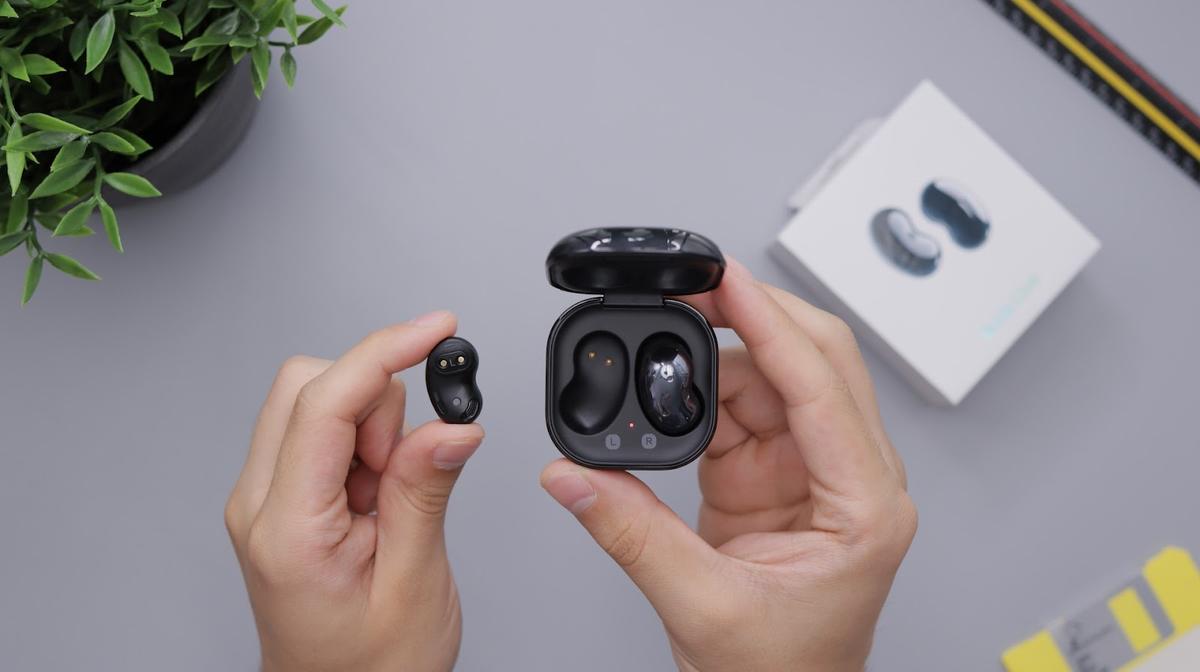
- Open the case near your Samsung phone. The earbuds wake and enter pairing mode automatically the first time.
- Watch for the pop-up. A Samsung pop-up should appear on the phone screen. Tap Connect.
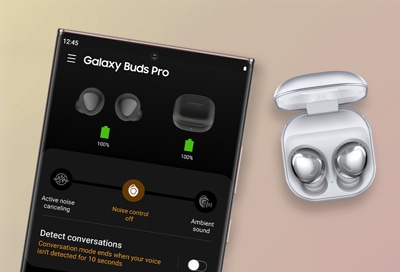
- Install or open the Samsung Wearable app if prompted. The app helps configure settings and install firmware.
- Confirm pairing and follow any on-screen setup steps. Test audio and controls to confirm both earbuds work.
- If no pop-up appears, open Bluetooth settings, tap Scan, and select your Galaxy Buds from the list.
How this helps: using the Wearable app ensures firmware stays current and touch controls respond correctly. Practically, I always update firmware first; that fixed a microphone glitch I had on one pair.
How to pair Galaxy Buds with other Android phones
- Open Bluetooth on your Android device. Go to Settings > Connections > Bluetooth.
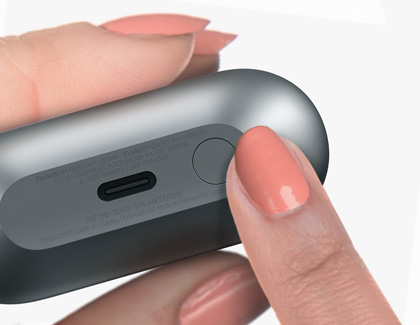
- With the earbuds in the case, open the case near the phone to trigger pairing mode. If nothing happens, press and hold the touchpads or the case button to enter pairing.
- Tap the Galaxy Buds name when it appears in the Bluetooth list. Pair and accept any prompts.
- For full features, install the Samsung Wearable app from the Play Store. The app may offer limited support on non-Samsung phones, but it often still works.
Tip: If your Android phone doesn’t show the earbuds, make sure the earbuds are reset and not connected to another device.
How to pair Galaxy Buds with iPhone
- Open Bluetooth in iPhone Settings. Keep the iPhone close to the earbuds.
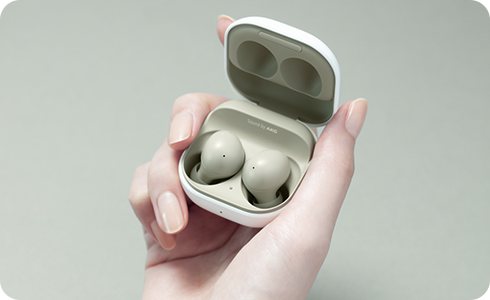
- Place the earbuds in the charging case and open the lid. If they don’t show up, take both buds out to enter pairing mode.
- Look for your Galaxy Buds under Other Devices and tap to pair. Accept any pairing prompts.
- Install the Galaxy Buds app (or Samsung Wearable) from the App Store if available for your model. Some features may be limited on iOS.
Note: I use an iPhone daily with Galaxy Buds and find basic audio and calls work well, but features like automatic device switching and full equalizer settings are limited on iOS.
How to pair Galaxy Buds with Windows and macOS
Windows
- Enable Bluetooth in Settings > Devices > Bluetooth & other devices.
- Open the case near the PC or put the buds into pairing mode.
- Click Add Bluetooth or other device and choose Bluetooth. Select your Galaxy Buds to pair.
macOS
- Open System Settings > Bluetooth.
- With the case open, put the earbuds into pairing mode.
- Select the Galaxy Buds in the device list and click Connect.
Real-world note: On Windows laptops I sometimes need to remove the earbuds and add them again if the laptop remembers them but won’t connect. A simple remove-and-re-pair usually fixes it.

Resetting and troubleshooting pairing issues
Common problems and fixes
- One earbud not connecting: Place both buds in the case, close it for 10 seconds, then reopen and try again. If that fails, reset the earbuds.
- No pop-up on Samsung phone: Turn Bluetooth off and on, restart the phone, or force close the Wearable app and try again.
- Earbuds stuck in another device: Turn Bluetooth off on the old device or forgot the earbuds on that device before pairing anew.
- Poor sound or dropouts: Move closer to the source, clear obstacles, update firmware, or check for Bluetooth interference from other devices.
- Pairing mode not active: For most models, long-press touchpads or press the case button while the lid is open to force pairing mode.
How to reset Galaxy Buds (general)
- Put both earbuds in the charging case.
- Close the lid and wait 10–15 seconds.
- Open the lid and press and hold the touchpads (or case button) for about 10 seconds until LEDs flash or you hear a chime.
- Re-pair the earbuds to your device.
Tips, best practices, and real-life insights
- Keep firmware up to date. Firmware updates fix bugs and improve connectivity. I update as soon as an update is available.
- Use the Samsung Wearable app for calibration. It helps with equalizer settings and customizing touch controls.
- Avoid common mistakes. Don’t try to pair when the earbuds are connected to another device. Disable other Bluetooth devices during initial pairing.
- Battery habits matter. Fully charge the case occasionally to help maintain battery health and stable pairing.
- Multi-device switching: Some Galaxy Buds support auto-switching between Samsung devices. Test this with your devices, and if it misbehaves, turn off Auto Switch in settings.
Personal insight: I once spent an hour troubleshooting skips on a call. Updating firmware and resetting the buds solved the problem. Small maintenance steps save time.

Frequently Asked Questions of how to pair galaxy earbuds
How do I enter pairing mode on Galaxy Buds?
Open the charging case near your device to enter pairing mode automatically. If that fails, take both earbuds out and press and hold the touchpads or case button until pairing indicators appear.
Why won’t my Galaxy Buds show up in Bluetooth?
They may be connected to another device or out of pairing mode. Turn Bluetooth off on other devices, reset the earbuds, and retry scanning on your target device.
Can I pair Galaxy Buds with multiple devices at once?
Galaxy Buds can remember multiple devices but usually maintain one active connection at a time. Some newer Galaxy Buds support seamless switching between Samsung devices when enabled.
How do I update Galaxy Buds firmware?
Use the Samsung Wearable app on your phone to check for and install firmware updates. Keep the earbuds in the case and near the phone during updates.
What if only one earbud pairs?
Place both earbuds in the case, close the lid for 10–15 seconds, and then reopen. If the problem persists, reset the earbuds and re-pair them to your device.
Conclusion
Pairing Galaxy Buds is quick once you know the steps. Follow the simple routines: charge the buds, use the Wearable app when possible, reset if problems appear, and keep firmware current. Try the steps in this guide the next time you pair and you’ll save time and avoid headaches. If this guide helped, leave a comment with your model and pairing experience, or subscribe for more practical tech tips.

Everett Ashford is a tech reviewer at mytechgrid.com specializing in SSDs, cameras, TVs, earbuds, headphones, and other consumer electronics. He provides honest, data-driven reviews based on hands-on testing and real-world performance analysis. Everett simplifies complex tech details to help readers make smart, confident buying decisions.