Yes, you can change the SSD in some MacBook Pro models, but many newer models have storage soldered to the logic board.
The answer depends on your MacBook Pro’s year, screen size, processor, and storage design. Older models may accept a replacement SSD, while most Touch Bar, T2, and Apple silicon models require board-level repair or an external drive. This guide explains how to check your model, choose the right upgrade, protect your data, and avoid an expensive mistake.
Can you change the SSD in a MacBook Pro?
Yes, but not in every MacBook Pro. Apple has used several storage designs over the years, so the upgrade path changes by model.
Older MacBook Pro computers often have a removable 2.5-inch SATA drive or a replaceable proprietary blade SSD. Newer models commonly use storage chips soldered directly to the logic board. In those machines, changing the SSD is not a simple DIY repair.
When people ask, “Can you change SSD in MacBook Pro?” they usually need to know three things:
• Is the SSD removable?
• What type of replacement drive will fit?
• Can macOS start from the new drive after installation?
A model number is more useful than the purchase date. To find it, choose Apple menu > About This Mac, or enter the serial number on Apple’s coverage page. You can also open System Information and select Hardware.
MacBook Pro models with upgradeable storage
The easiest MacBook Pro SSD upgrades are found in older machines.
MacBook Pro with a 2.5-inch SATA drive
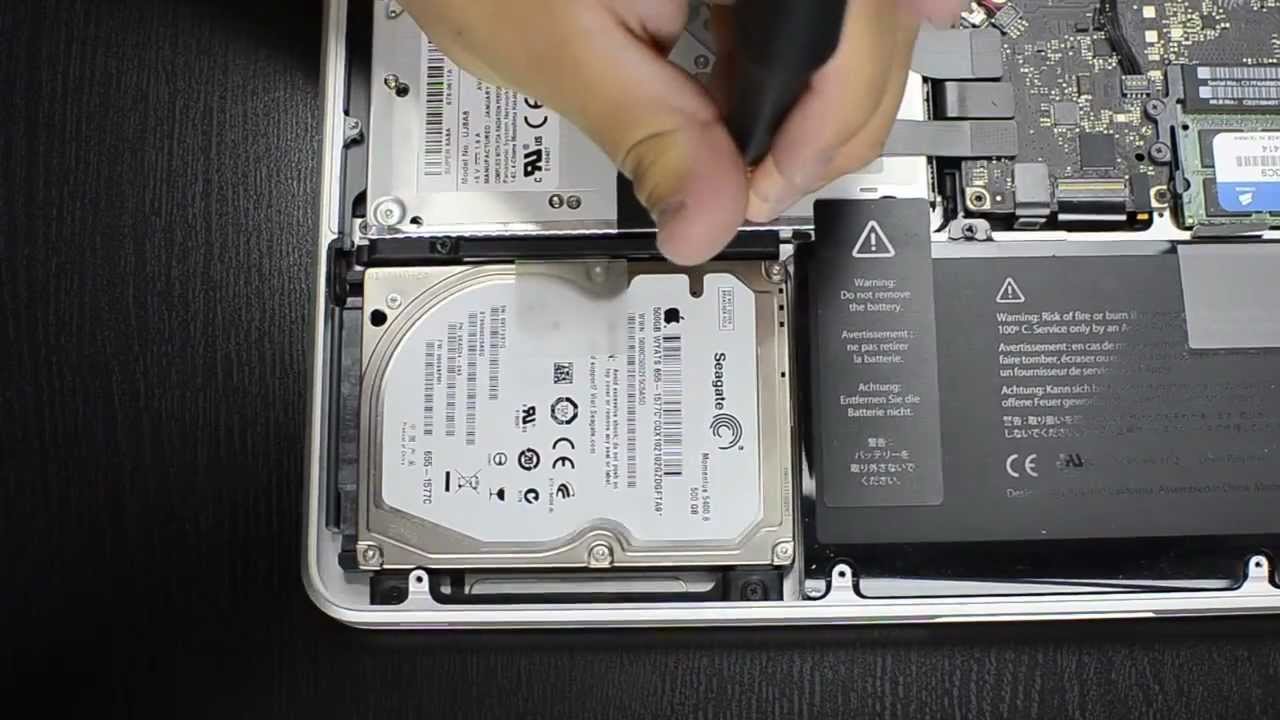
Many non-Retina MacBook Pro models use a standard 2.5-inch SATA hard drive. These include several 13-inch, 15-inch, and 17-inch models from the late 2000s through 2012.
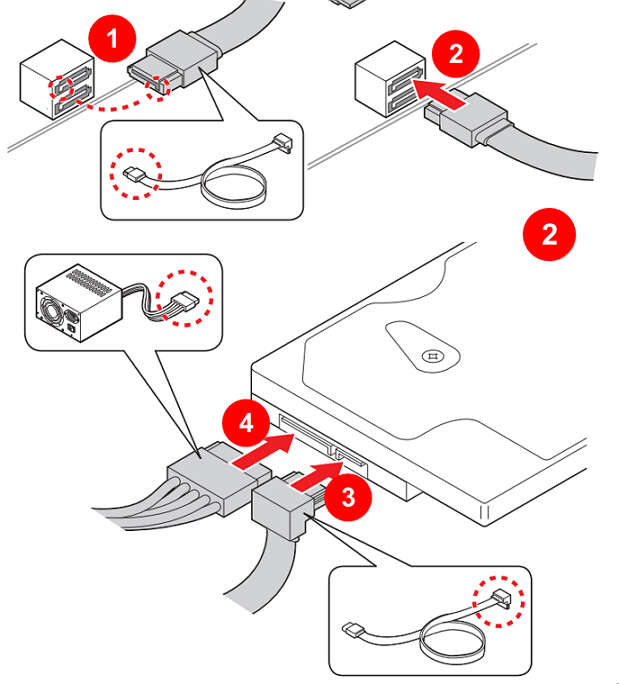
You can usually replace the old hard drive with a 2.5-inch SATA SSD. This is one of the simplest upgrades because the SSD uses the same physical size and connection.
A SATA SSD can make an older Mac feel much faster. Startup times improve, apps open sooner, and the system feels more responsive. The processor does not change, but the storage bottleneck becomes much smaller.
Retina MacBook Pro from 2012 through 2015
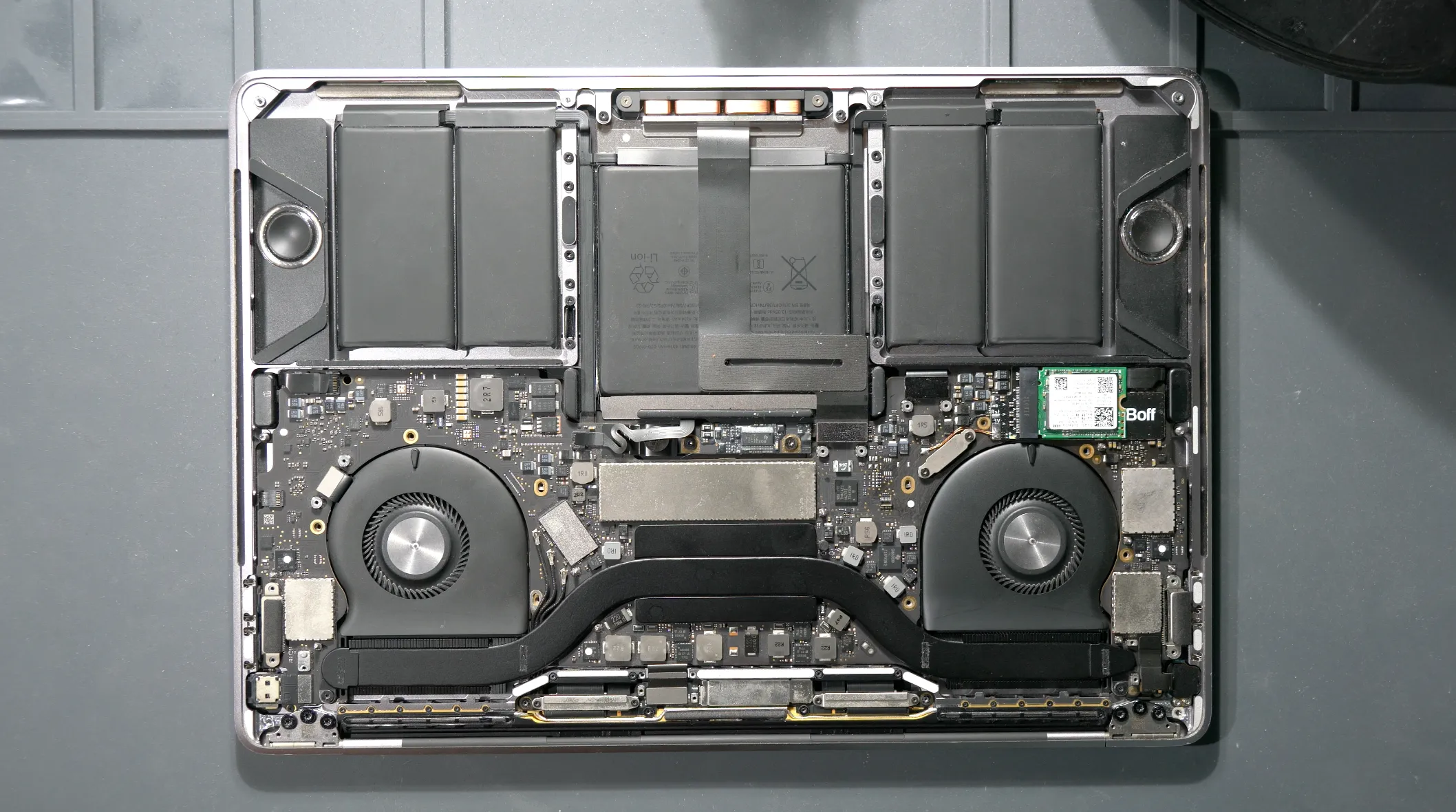
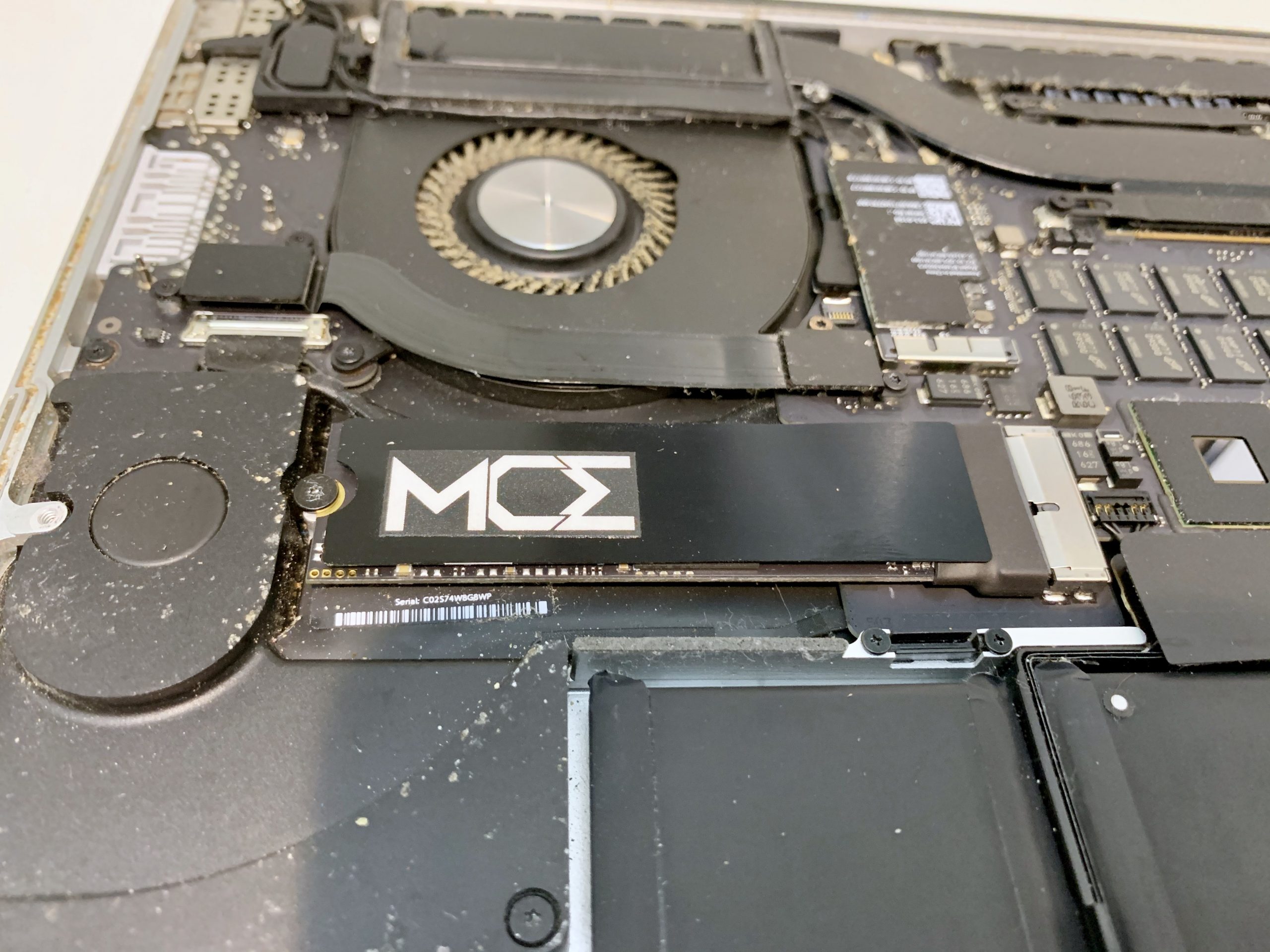
Some Retina MacBook Pro models from 2012 through 2015 use a removable Apple-specific blade SSD. These drives do not use a normal M.2 connector.
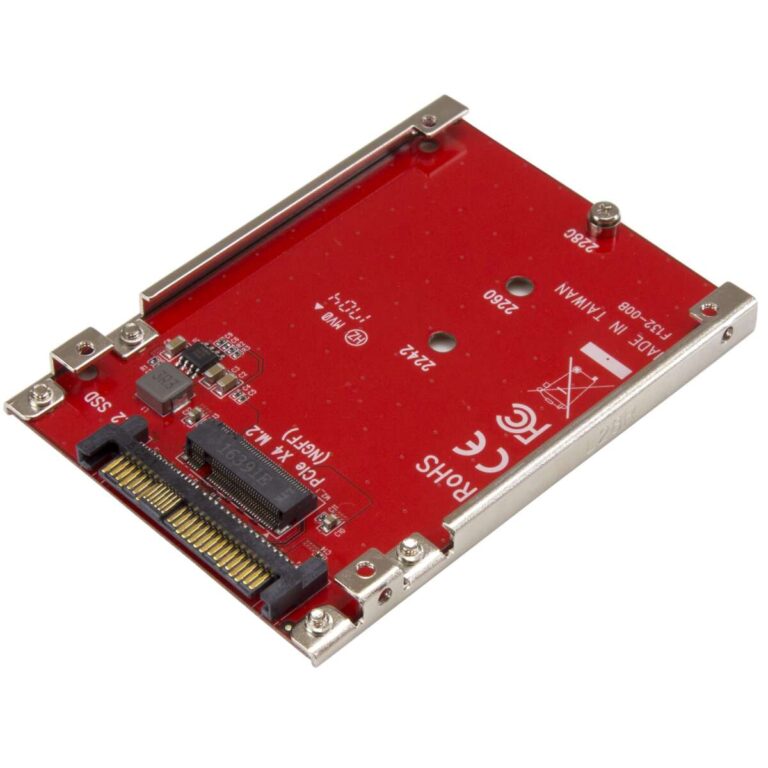
You need a replacement made for the correct MacBook Pro generation. A generic desktop NVMe drive will not fit without a special adapter, and some adapters may have compatibility limits.
The 2015 13-inch MacBook Pro is often considered one of the more practical Mac laptops to upgrade. Replacement SSDs are available, and some users install an adapter with a compatible NVMe drive. However, sleep, hibernation, firmware, and power behavior can vary by drive.
Models with limited or no user-replaceable SSD
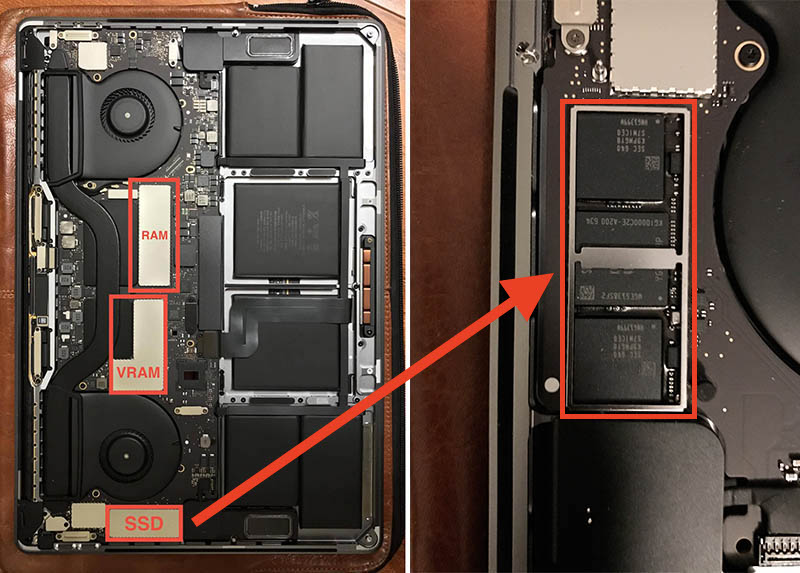
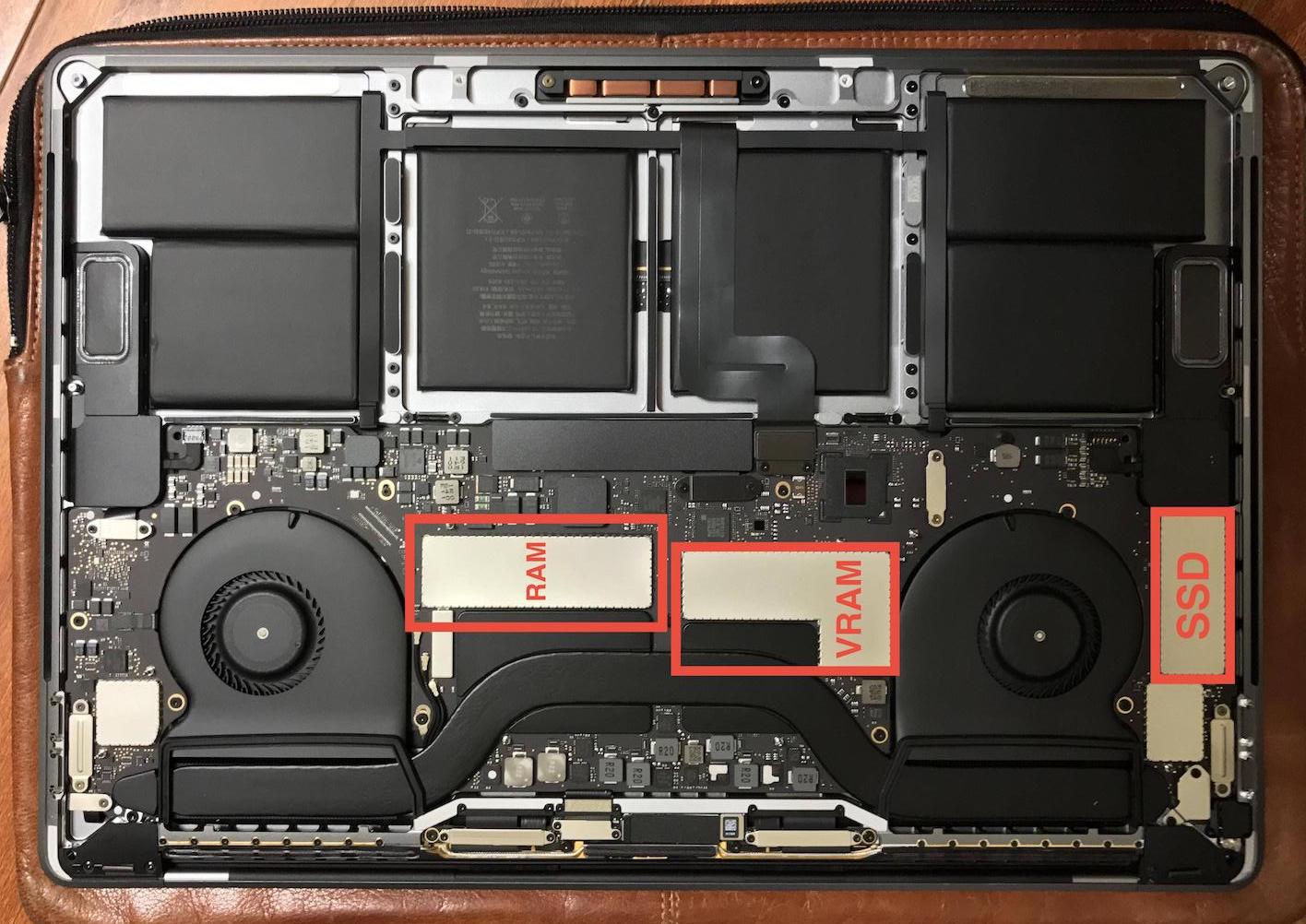
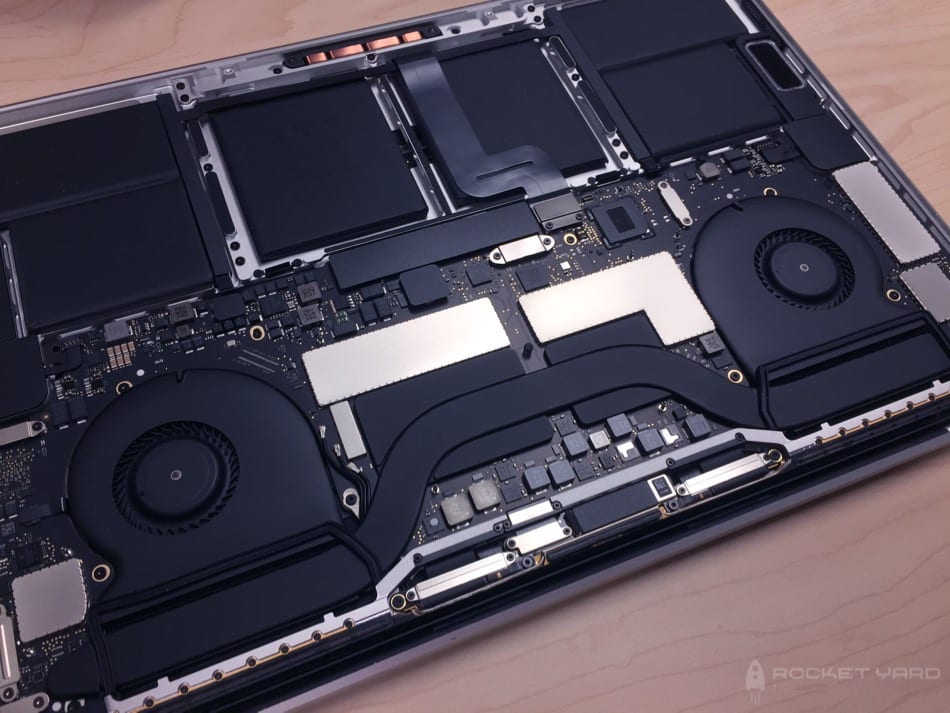
Most MacBook Pro models from 2016 onward have storage soldered to the logic board. This includes many Touch Bar models and nearly all Apple silicon models.
That means you generally cannot remove the SSD like a desktop drive. A repair shop may be able to replace storage chips or the full logic board, but this is specialized work. It is not a normal home upgrade.
MacBook Pro SSD compatibility by generation
The following table gives a practical overview. Always confirm the exact model before buying parts.
| MacBook Pro generation | Typical storage design | SSD replacement difficulty |
|---|---|---|
| 2009 to 2012 non-Retina | 2.5-inch SATA drive | Easy to moderate |
| 2012 to 2015 Retina | Proprietary removable blade SSD | Moderate |
| 2016 to 2017 | Soldered storage on many models | Not a normal DIY upgrade |
| 2018 to 2020 Intel | Soldered storage, often with T2 security | Not normally replaceable |
| 2020 Apple silicon | Soldered storage | Not user-upgradeable |
| 2021 and newer Apple silicon | Soldered storage | Not user-upgradeable |
This table is a guide, not a substitute for checking the exact identifier. Apple sometimes released several configurations within the same year.
For example, two MacBook Pro models with the same screen size may have different internal layouts. One may use a removable blade SSD, while another has storage chips soldered to the board.
How to check whether your SSD is replaceable
Before opening the MacBook Pro, identify the exact model.
Follow these steps:
- Open the Apple menu.
- Select About This Mac.
- Note the model name and year.
- Open System Information.
- Select Hardware and record the model identifier.
- Check a reliable repair database for the internal storage type.
- Confirm the SSD connector before ordering a part.
You can also inspect the storage information in Disk Utility, but Disk Utility usually will not tell you whether the drive is physically removable.
Do not rely only on phrases such as “MacBook Pro 13-inch.” Apple released several versions of that computer. The model identifier, such as MacBookPro12,1 or MacBookPro15,1, provides much better information.
If the MacBook has Apple silicon, such as an M1, M2, M3, or M4 chip, assume the internal storage is not replaceable unless a qualified repair specialist confirms otherwise.
What SSD should you buy?
The correct SSD depends on the MacBook Pro’s connector and firmware.
For older non-Retina MacBook Pro models
Buy a 2.5-inch SATA SSD. Look for:
• SATA III support
• 7 mm thickness
• A capacity that fits your budget
• A reputable brand with a good warranty
Most 2.5-inch SATA SSDs work well in these Macs. The computer may not reach the full advertised speed of a modern NVMe drive, but it can still feel far faster than an old hard disk.
For Retina MacBook Pro models
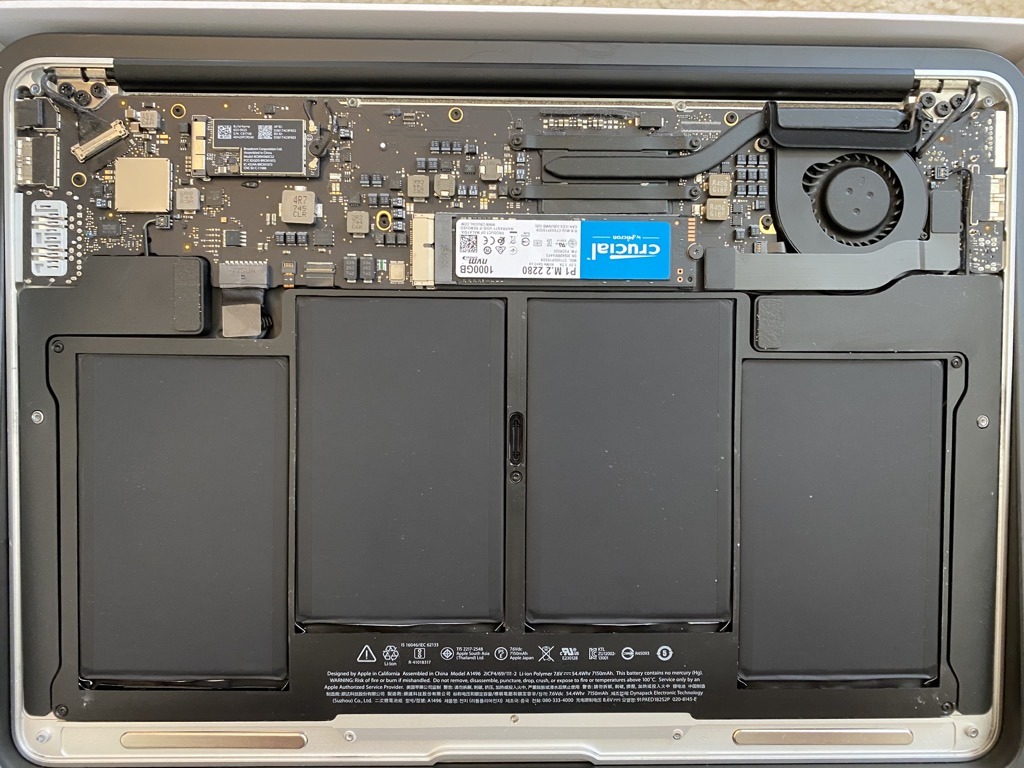
You may need a proprietary blade SSD made for your exact model. Some upgrade kits include a small adapter that allows a compatible M.2 NVMe drive to work in a MacBook.
Check the following before buying:
• MacBook Pro model identifier
• SSD key type
• Adapter compatibility
• macOS support
• Sleep and hibernation behavior
• Firmware requirements
Cheap adapters can create problems. A Mac may fail to boot, lose sleep support, or show unstable storage behavior. A slightly more expensive, well-tested kit is often the safer choice.
For newer MacBook Pro models
Do not buy an internal SSD expecting a simple installation. On most 2016 and newer MacBook Pro computers, the storage is soldered to the logic board.
For these machines, an external SSD is usually the best upgrade. A Thunderbolt SSD offers much higher performance than a basic USB drive, while a USB-C SSD can provide excellent value for backups, media libraries, and large files.
How to replace the SSD in an older MacBook Pro
The process varies, but the general method is straightforward for compatible models.
1. Back up your Mac
Create at least one complete backup before opening the computer. Time Machine is a simple option, but a second backup is wise if the data is important.
For extra safety, copy essential files to another drive or cloud storage. An SSD upgrade is usually safe, but one mistake can damage a connector or make the original drive unreadable.
2. Shut down and disconnect power
Turn off the MacBook completely. Disconnect the charger and all accessories.
Work on a clean table with good lighting. Avoid carpet, static, drinks, and loose metal objects.
3. Remove the bottom case
Older MacBook Pro models usually require a small Phillips or pentalobe screwdriver. Keep each screw in order because screw lengths may differ.
A long screw placed in the wrong hole can damage internal parts. This is a common repair mistake and an easy one to avoid.
4. Disconnect the battery
Disconnecting the battery reduces the risk of short circuits while you work. Do not pull on the wires. Use a plastic tool and work slowly.
5. Remove the old drive
For a 2.5-inch SATA model, remove the drive bracket, lift the drive, and disconnect the SATA cable.
For a Retina model, remove the retaining screw and slide the blade SSD out of its connector. Never force the card upward or twist it.
6. Install the new SSD
Transfer any mounting parts that the new drive needs. Make sure the connector lines up before applying pressure.
The drive should sit flat and secure. If it does not fit naturally, stop and check the model and adapter.
7. Reassemble and install macOS
Reconnect the battery, replace the bottom case, and start the Mac in macOS Recovery.
You can then erase and format the new drive in Disk Utility. For most modern macOS installations, APFS is the correct format. Older systems may use Mac OS Extended, depending on the macOS version and hardware.
Use macOS Recovery or a bootable installer to install the operating system. On some older Macs, internet recovery may require a stable network connection and compatible Apple servers.

Can you change the SSD in a MacBook Pro with Apple silicon?
In most cases, no. Apple silicon MacBook Pro models use storage chips integrated with the logic board.
The storage is not a removable module like a desktop SSD. It is part of a tightly integrated system that includes the logic board, memory, security features, and firmware.
A specialized microsoldering technician may repair or replace storage components in some situations. However, this is not the same as buying a larger SSD and installing it at home. The work requires advanced tools, board diagrams, data recovery skills, and careful firmware handling.
For an Apple silicon MacBook Pro, consider these options instead:
• Use a fast external USB-C or Thunderbolt SSD.
• Move photo, video, and project files to external storage.
• Use optimized cloud storage for documents.
• Replace the computer with a larger-storage model.
• Ask a qualified repair shop about data recovery if the internal storage has failed.
If you are buying a new MacBook Pro, choose enough internal storage at checkout. The storage cannot normally be upgraded later.
Can you change the SSD in a MacBook Pro with a T2 chip?
Most T2-equipped MacBook Pro models do not support a normal SSD replacement. The T2 chip manages security, storage encryption, and parts of the boot process.
Even if a storage component appears removable, replacing it may require special configuration and system restoration. A replacement drive may not work correctly without the right firmware process.
T2 MacBook Pro models include many computers from 2018 through 2020. They usually have soldered storage, so an external SSD is the practical upgrade path.
Before repair, use macOS Recovery to erase the Mac properly if you plan to sell it. Simply deleting files does not always provide the same result as securely erasing the system through Apple’s supported process.
How much does a MacBook Pro SSD upgrade cost?
The cost depends on the MacBook Pro model and the type of SSD.
A basic 2.5-inch SATA SSD is often affordable. You may also need a screwdriver kit, mounting bracket, or SATA cable. A proprietary Retina SSD or adapter can cost more.
Professional labor adds to the price. A repair shop may charge for diagnosis, installation, data transfer, and macOS setup. Board-level storage repair costs much more and may not be economical on an older computer.
Compare the total cost with the Mac’s age and condition. If the battery is weak, the keyboard is damaged, and the display has problems, an SSD upgrade may only delay a larger repair bill.
A useful rule is simple: upgrade an older Mac when the rest of the machine still meets your needs. Replace it when several major parts are failing at once.

SSD upgrade mistakes to avoid
An SSD upgrade is not difficult on a compatible Mac, but small mistakes can cause major trouble.
Avoid these common errors:
• Buying an M.2 NVMe drive for a Mac that needs a proprietary blade SSD
• Forgetting to check the exact model identifier
• Opening the case without a backup
• Mixing screw lengths
• Pulling cables instead of connectors
• Touching the logic board with a metal tool
• Installing an SSD that the Mac’s firmware does not support
• Assuming a larger drive will fix a failing logic board
• Using an unreliable adapter
• Ignoring battery swelling
If the battery looks swollen, stop the repair. A swollen battery can damage the trackpad, bottom case, and logic board. It can also create a safety risk.
A practical lesson from many Mac repairs is that preparation saves more time than speed. Confirm the part, back up the data, and read the repair steps before removing the first screw.
SSD upgrade benefits and limitations
A compatible SSD can extend the useful life of an older MacBook Pro.
Benefits
• Faster startup
• Quicker app launches
• Better file search performance
• Less noise than a hard disk
• Lower power use in many cases
• More reliable operation than an aging mechanical drive
• Extra storage for photos, documents, and creative work
Limitations
• An SSD cannot upgrade the processor
• Older Macs may not support the latest macOS
• Battery life may still be poor
• SATA interfaces are slower than modern Thunderbolt storage
• Some adapters may have sleep or firmware limits
• A failed logic board can still make the Mac unusable
Think of an SSD as replacing a narrow road with a wider one. Traffic moves better, but the road does not change the engine, brakes, or destination.
Internal SSD versus external SSD
If the internal drive cannot be replaced, an external SSD is often the best solution.
A USB-C SSD is suitable for documents, backups, photos, and general storage. A Thunderbolt SSD costs more but can deliver performance closer to an internal drive, especially for video editing and large project files.
Choose an external SSD based on your use:
• Basic storage: USB 3.1 or USB 3.2 SSD
• Photo and video work: USB-C SSD with sustained write performance
• Professional editing: Thunderbolt SSD
• Backup use: Durable portable SSD with enough capacity
Keep your external drive connected securely. Accidental cable removal during a file transfer can corrupt data. For important work, maintain a second backup in another location.
An external SSD does not make the internal drive larger, but it can give an older or non-upgradeable Mac many more useful years.
How to migrate data to a new SSD
After installing a compatible SSD, you have several ways to move your data.
Time Machine restore
Start macOS Recovery and restore from a Time Machine backup. This is convenient because it can bring back files, settings, and supported applications.
Migration Assistant
Install macOS first, then use Migration Assistant to transfer data from the old drive or backup. This method works well when the old system still starts normally.
Disk cloning
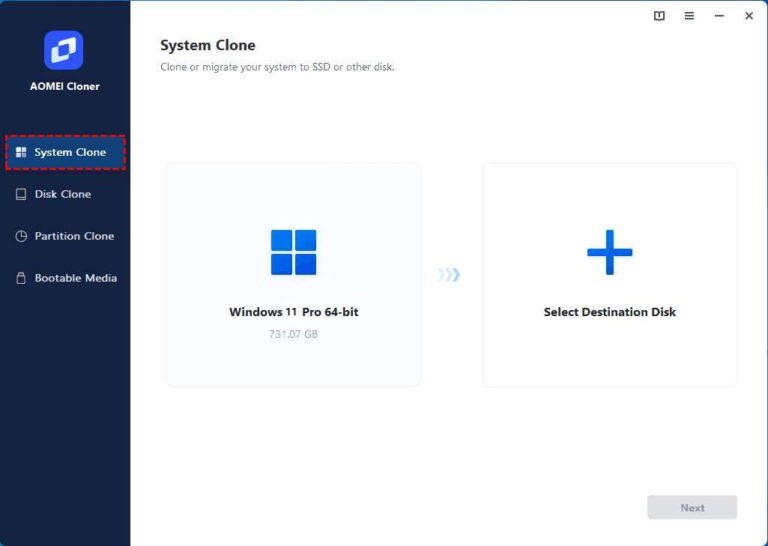
Cloning copies the old drive to the new one. It can be useful, but compatibility varies by macOS version, encryption settings, and recovery partitions.
Before migration, check that:
• The backup opens correctly
• Your important files are present
• You know your Apple Account password
• You have software license details
• You can access two-factor authentication
Do not erase the old drive until the new system works and your files are confirmed. Keep it untouched for several days if possible.
When should you use a repair professional?
Choose a professional when the MacBook Pro has soldered storage, a T2 chip, liquid damage, or a swollen battery.
Professional help is also sensible if you need to recover important data. Opening a damaged Mac repeatedly can reduce the chance of successful recovery.
Ask the repair shop these questions:
• Is the SSD actually replaceable on this model?
• Will the repair preserve my data?
• Is the replacement part new or used?
• Does the work include macOS installation?
• What warranty covers the repair?
• What happens if the logic board is damaged?
A trustworthy technician should explain the limits before taking the machine apart. Be cautious when someone promises a simple storage upgrade for a recent Apple silicon MacBook Pro.
Frequently Asked Questions
Can you change the SSD in a MacBook Pro from 2015?
Yes, many 2015 MacBook Pro models have removable blade SSDs. You must buy a drive or adapter designed for the exact model.
Can you change the SSD in a MacBook Pro from 2018?
Usually, no. Most 2018 MacBook Pro models have soldered storage and a T2 chip, so they do not support a normal internal SSD replacement.
Can you change the SSD in a MacBook Pro with an M1 chip?
No, not as a standard DIY upgrade. M1 MacBook Pro storage is integrated into the logic board, so use an external SSD or choose a higher-capacity Mac when buying.
Will changing the SSD erase everything?
Yes, installing a new SSD gives you an empty drive unless you restore or clone your data. Always make and test a backup before starting.
Does upgrading the SSD make a MacBook Pro faster?
It can make an older Mac much faster, especially when replacing a mechanical hard drive. It will not provide the same benefit if the Mac already has a fast internal SSD.
Can I use any NVMe SSD in a MacBook Pro?
No. Compatibility depends on the MacBook model, adapter, firmware, power behavior, and macOS version. Check all of these before purchasing an NVMe drive.
Is an external SSD worth using with a MacBook Pro?
Yes. A good USB-C or Thunderbolt SSD can add storage and provide strong performance, especially when the internal SSD is soldered and cannot be upgraded.
Conclusion
So, can you change the SSD in a MacBook Pro? You can upgrade many older models, especially those with a 2.5-inch SATA drive or removable blade SSD. Most newer Intel and Apple silicon MacBook Pro models use soldered storage, making an external SSD the safer and more practical choice.
Start by checking the exact model identifier. Back up your data, confirm the connector, and compare the total repair cost with the Mac’s age. If you are unsure, ask a qualified technician before buying parts, and explore trusted Mac repair and storage resources before taking the next step.

Everett Ashford is a tech reviewer at mytechgrid.com specializing in SSDs, cameras, TVs, earbuds, headphones, and other consumer electronics. He provides honest, data-driven reviews based on hands-on testing and real-world performance analysis. Everett simplifies complex tech details to help readers make smart, confident buying decisions.