Put your Razer headset into pairing mode, then connect it to Bluetooth or the Razer wireless dongle.
I’ve paired dozens of Razer headsets across phones, PCs, and consoles. This guide walks you through exactly how to pair Razer headphones step by step, explains differences between Bluetooth and 2.4 GHz models, and gives real-world tips that save time. You’ll learn how to pair Razer headphones the right way, troubleshoot common issues, and keep firmware current for best performance. Read on and you’ll pair confidently in minutes.
Understanding Razer headphone types
Razer sells several models with different connection methods. Knowing which type you own makes pairing fast and predictable.
- Bluetooth models: Portable earbuds and headsets that pair like any Bluetooth device. These include Razer Hammerhead and some Kraken variants.
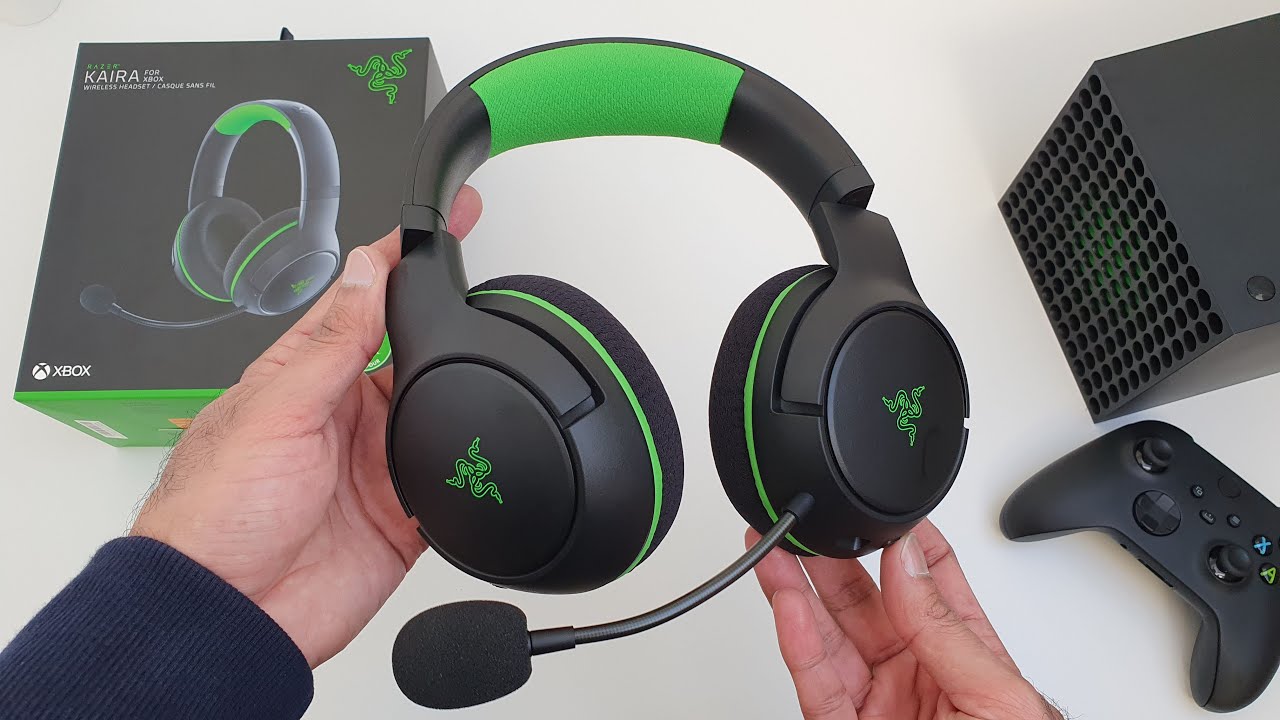
- 2.4 GHz wireless models: Headsets that use a USB wireless dongle. These include many gaming-focused Razer headsets and require a pairing button or auto-pair via the dongle.
- Wired/USB models: Plug-and-play headsets that don’t need pairing but may need drivers or software for mic and sound settings.
Knowing your model helps when you search for how to pair Razer headphones. Check the box or model name if unsure. Manufacturer documentation lists the wireless type.

How to pair Razer headphones — step-by-step
Below are clear, short steps for the main pairing methods. Follow the section that matches your model.
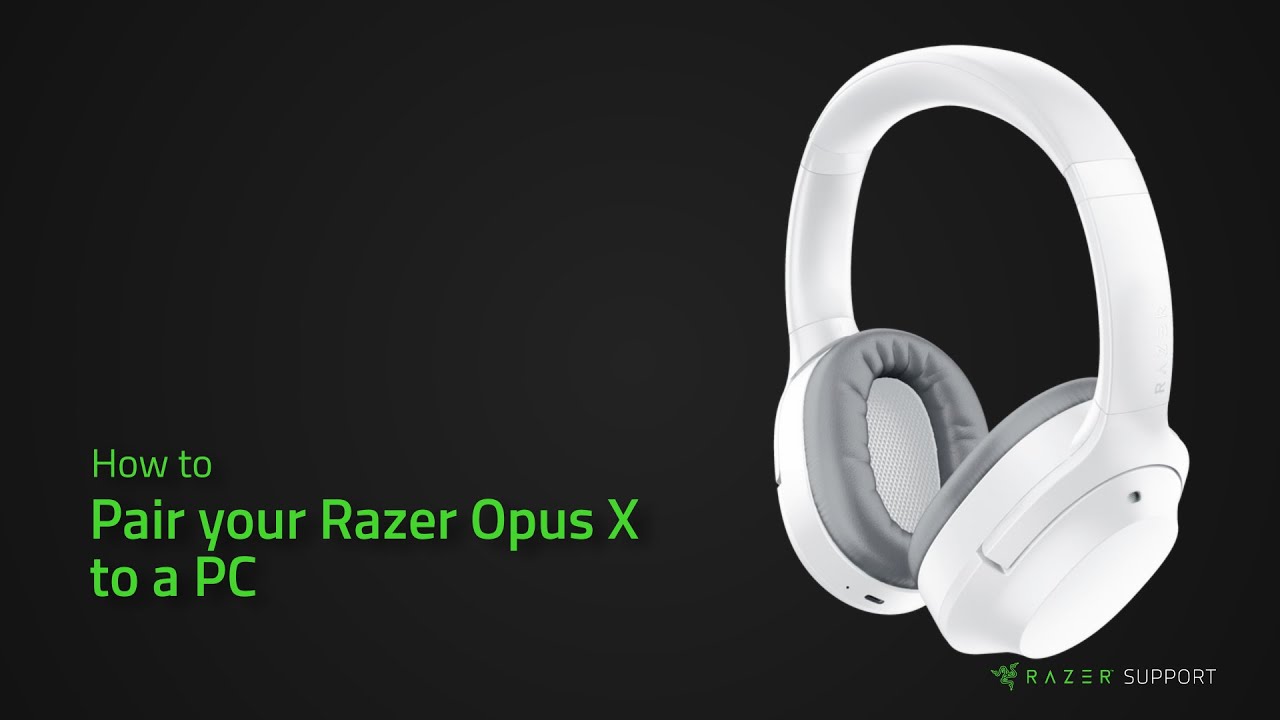
Bluetooth pairing (phones, tablets, Windows PCs, macOS)
- Turn on your Razer headphones and put them into Bluetooth pairing mode.
- Usually hold the power button for 3–7 seconds until an LED flashes or voice says “pairing.”
- Open Bluetooth settings on your phone or computer.
- Select your Razer model from the device list.
- Confirm pairing prompts if shown.
- Test audio and mic in a call or by playing a video.
Notes:
- On Windows, open Settings > Bluetooth & devices > Add device if the headset doesn’t appear.
- macOS may prompt for a pairing code. Try 0000 or 1234 if asked.
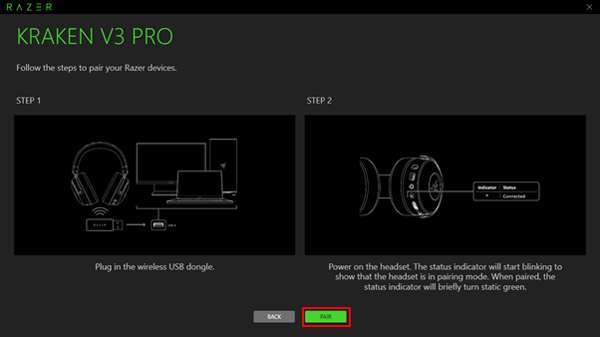
Wireless dongle (2.4 GHz) pairing
- Plug the Razer USB dongle into an available USB port. Use a USB extension if range is an issue.
- Turn on your headset. Most Razer 2.4 GHz headsets auto-pair when the dongle detects the headset.
- If auto-pair fails, look for a pairing button on the dongle and the headset. Press both per the model’s pairing sequence.
- Wait for steady LED or “connected” voice prompt.
- Set the USB audio device as default in sound settings on your PC.
Tip: If you move the dongle between ports, re-pairing is usually not necessary, but updating drivers or Razer Synapse can help.
Wired and USB-C headsets
- Plug into the headphone jack or USB-C port.
- Allow the system to install drivers automatically.
- Open sound settings to set the headset as the default playback and recording device.
- If using USB audio, enable the correct sample rate in advanced settings for best audio.
This method doesn’t involve pairing but can require driver or firmware checks to make the mic work properly.
Using Razer Synapse and firmware updates
Razer Synapse or Razer Central improves stability and lets you update firmware. This can fix pairing bugs and improve range.
- Install Razer Synapse/Bluetooth utility on Windows or compatible software on macOS.
- Open the software with your headset connected. The app will detect the device and show firmware status.
- Follow the on-screen prompts to update firmware. Don’t interrupt power during updates.
- Use Synapse to manage device profiles, equalizer settings, and mic monitoring after pairing.
Personal note: I once couldn’t keep a headset paired until a firmware update resolved a reconnect bug. Updating fixed it quickly.

Troubleshooting pairing issues
If you struggle to pair, try these quick fixes. They cover most scenarios for how to pair Razer headphones.
- Power and battery: Charge the headset fully. Low battery often blocks pairing.
- Turn Bluetooth off/on: Toggle Bluetooth on your device and restart the headset.
- Move closer: Keep the headset within 3–10 feet of the device during pairing. Wireless dongles can work more reliably when in direct line of sight.
- Forget and re-pair: Remove the headset from your device’s Bluetooth list and attempt a fresh pair.
- Check interference: Turn off nearby Bluetooth devices or wireless gear that can conflict.
- Try another device: Pair your headset with a phone to isolate whether the problem is the headset or the original device.
- Reinstall drivers: On Windows, update or reinstall USB/Bluetooth drivers and Razer Synapse.
If issues persist, reset the headset to factory settings. Consult your model’s manual for the reset sequence. If that still fails, contact support or consider warranty repair.

Tips, common mistakes, and best practices
I’ve paired many headsets and seen the same mistakes. Here are best practices that save time.
- Read the quick start sheet: Small instructions often list the exact pairing button combo.
- Use a direct USB port: Avoid hubs for initial wireless dongle pairing.
- Keep firmware current: Regular updates prevent odd disconnects and latency spikes.
- Label paired devices: Rename your headset in Bluetooth settings to avoid confusion with other Razer devices.
- Avoid multi-device confusion: If your headset supports multipoint, ensure your devices are set up for it; otherwise remove extra pairings.
Real-life tip: When I switch between PC and phone daily, I keep the dongle in the PC and use Bluetooth for the phone. This avoids frequent unpairing and keeps both devices ready.

Frequently Asked Questions of how to pair razer headphones
How do I enter pairing mode on my Razer headphones?
Most Razer headphones enter Bluetooth pairing mode by holding the power button for 3–7 seconds until an LED flashes or a voice says “pairing.” Check your specific model manual for exact timing.
My Razer headset won’t show up on Bluetooth. What should I try?
Charge the headset, restart both devices, and toggle Bluetooth on and off. If that fails, forget the device entry on your phone or PC and try pairing again.
How do I pair a Razer headset with a USB wireless dongle?
Plug the dongle into a USB port, power on the headset, and allow it to auto-pair. If needed, press the pairing buttons on the dongle and headset per the manual.
Can I use Razer Synapse to pair headphones?
Razer Synapse manages settings and firmware but pairing is still done in your device’s Bluetooth menu or via the wireless dongle. Use Synapse mainly for updates and audio tuning.
Why does my headset connect but audio is low quality or mic fails?
Select the correct audio profile in your device’s sound settings. Update drivers and Synapse firmware. For Bluetooth, ensure the headset uses the A2DP profile for media and HFP/HSP for calls.
Will Razer headphones pair with consoles like PS5 or Xbox?
Razer Bluetooth headsets usually pair with Bluetooth-capable devices, but many consoles do not support generic Bluetooth audio. Use the Razer wireless dongle or a console-supported model for best compatibility.
Conclusion
Pairing Razer headphones is simple once you know the connection type and steps. Identify whether your headset uses Bluetooth, a 2.4 GHz dongle, or a wired connection. Follow the step-by-step instructions, keep firmware and drivers up to date, and use the troubleshooting checklist if pairing fails. Try these tips and you’ll save time and frustration.
Take action now: check your model, update firmware, and pair using the steps above. If this guide helped, leave a comment with your model and pairing experience or subscribe for more practical audio tips.

Everett Ashford is a tech reviewer at mytechgrid.com specializing in SSDs, cameras, TVs, earbuds, headphones, and other consumer electronics. He provides honest, data-driven reviews based on hands-on testing and real-world performance analysis. Everett simplifies complex tech details to help readers make smart, confident buying decisions.