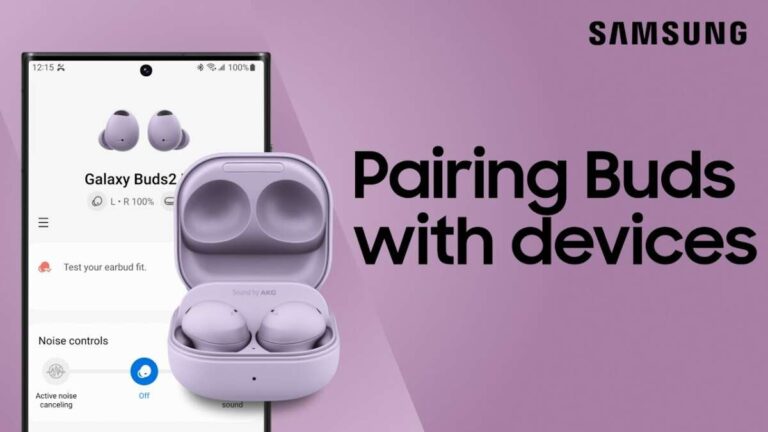
To pair ROHS earbuds, turn on Bluetooth, open the case, select the earbuds, and confirm the connection.
Learning how to pair ROHS earbuds is usually simple, but the exact steps can vary by model, phone, and earbud reset method. This guide explains the full process, fixes common connection problems, and shares practical tips for getting stable sound without wasting time.
What ROHS Means for Your Earbuds
ROHS usually refers to a safety standard called Restriction of Hazardous Substances. It limits certain materials in electronic products, such as lead, mercury, and other restricted substances.
ROHS does not describe the Bluetooth pairing system. It also does not always identify a specific earbud brand. Some products display “RoHS” as a compliance mark, while others may use ROHS as part of a model or brand name.
For pairing, the important details are the earbuds’ Bluetooth version, charging case, control buttons, and user manual. Most wireless earbuds follow a similar pairing process.

How to Pair ROHS Earbuds for the First Time
Before you begin, charge both earbuds and the case. Low battery power can make earbuds enter pairing mode but disconnect soon after.
Follow these steps for how to pair ROHS earbuds with most phones, tablets, and computers:
- Place both earbuds inside the charging case.
- Open the case lid.
- Remove any small protective film from the charging contacts.
- Press and hold the case button for about three to five seconds, if your case has one.
- Watch for a flashing white, blue, or red-and-blue light.
- Open Bluetooth settings on your device.
- Turn Bluetooth on.
- Wait for the earbud name to appear under available devices.
- Tap the earbud name.
- Select Pair, Connect, or OK if your device asks for confirmation.
- Play audio to test the connection.
Some ROHS earbuds enter pairing mode as soon as you open the case. Others require you to touch both earbuds or hold a button on the case. If no light appears, charge the case for at least 15 minutes and try again.
How to Pair ROHS Earbuds With an Android Phone
Android phones may use different menu names, but the basic process remains the same.
Open Settings, then select Connected devices, Connections, or Bluetooth. Turn Bluetooth on and wait for your earbuds to appear in the list of available devices.
Tap the name of your earbuds. It may appear as “ROHS,” “TWS,” “Wireless Earbuds,” or a model number. After the status changes to Connected, open a music app and test both earbuds.
If the earbuds do not appear, close the charging case for a few seconds. Then open it again while holding the case button until the indicator light flashes.
For a smoother setup, keep your phone within three feet of the earbuds. Bluetooth pairing can fail when the devices are too far apart or when many nearby devices are also searching.

How to Pair ROHS Earbuds With an iPhone
To learn how to pair ROHS earbuds with an iPhone, open Settings and tap Bluetooth. Make sure the Bluetooth switch is green.
Keep the earbuds in or near their open charging case. Put them into pairing mode, then look under Other Devices. Tap the earbud name when it appears.
The earbuds should move to My Devices and show a Connected status. If your iPhone asks for a code, try 0000 or 1234, although most newer earbuds do not require a code.
If the earbuds were connected to another phone, turn Bluetooth off on that phone. Many earbuds automatically connect to the last device they used, which can prevent your iPhone from finding them.

How to Pair ROHS Earbuds With a Windows PC
Pairing with a Windows computer is useful for video calls, music, and online classes. First, place the earbuds in pairing mode.
On Windows 11, open Settings, select Bluetooth & devices, and turn Bluetooth on. Click Add device, choose Bluetooth, and select your earbuds from the list.
On Windows 10, open Settings, choose Devices, select Bluetooth & other devices, and click Add Bluetooth or other device. Select Bluetooth, then choose the earbud name.
After pairing, click the speaker icon in the taskbar. Choose the earbuds as the sound output device. For calls, also check the microphone input setting and select the earbuds if needed.
A computer may connect to the earbuds but still use its built-in speakers. Checking the sound output is an important part of how to pair ROHS earbuds correctly.
How to Pair ROHS Earbuds With a Mac
Put the earbuds into pairing mode before opening the Mac settings. Then click the Apple menu and select System Settings.
Choose Bluetooth and look under Nearby Devices. Find the earbud name and click Connect.
If your Mac connects but produces no sound, open System Settings, select Sound, and choose the earbuds under Output. Select them under Input as well if you plan to use the earbud microphone.
Older Macs may show Bluetooth settings under System Preferences instead of System Settings. The labels differ, but the pairing process is nearly identical.

How to Pair ROHS Earbuds With Each Other
Sometimes one earbud works while the other remains silent. This often means the earbuds lost their left-and-right connection, not that your phone has a Bluetooth problem.
Try this process:
- Put both earbuds into the case.
- Forget the earbuds from your phone’s Bluetooth menu.
- Turn off Bluetooth on nearby phones and tablets.
- Remove both earbuds from the case at the same time.
- Wait several seconds for them to connect to each other.
- Look for one earbud light to flash while the other becomes steady.
- Open Bluetooth settings and pair the earbuds again.
The exact reset process varies by model. Some earbuds require you to tap both touch panels five times. Others require a long press of 10 to 15 seconds.
If one side still does not work, clean the charging contacts with a dry cotton swab. An earbud that did not charge may not turn on, even if the other side works normally.

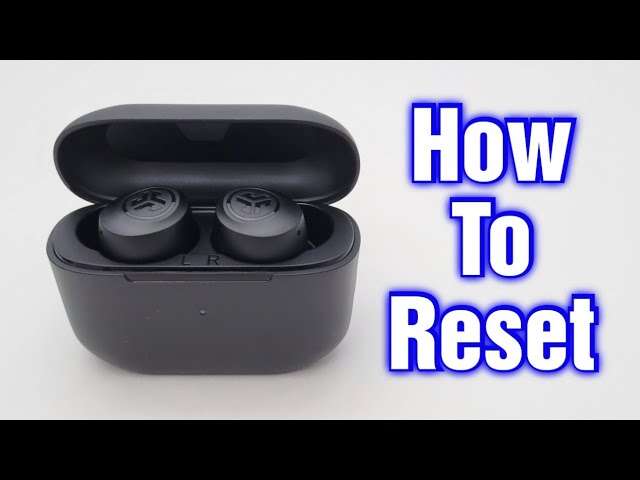
How to Reset ROHS Earbuds Before Pairing Again
A reset removes old pairing data and gives the earbuds a fresh start. It is often the best solution when how to pair ROHS earbuds instructions do not work after several attempts.
Use this general reset method:
- Forget the earbuds from every nearby device.
- Turn Bluetooth off on those devices.
- Place both earbuds in the case.
- Leave the case open.
- Press and hold the case button for 10 to 15 seconds.
- Release the button when the light changes or flashes several times.
- Close the case for 10 seconds.
- Open it and try pairing again.
Some models reset when you press both earbuds at the same time. Because reset controls differ, check the printed manual or label inside the case when possible.
A reset does not repair physical damage, a dead battery, or a faulty charging case. It only clears connection settings.
Common Pairing Problems and Practical Fixes
Even when you follow how to pair ROHS earbuds correctly, connection problems can still occur. The cause is often simple and easy to fix.
The earbuds do not appear in Bluetooth settings
Make sure the earbuds are in pairing mode. A steady light often means they are already connected, while a flashing light usually means they are ready to pair.
Also check that the case and earbuds have enough power. Keep the earbuds close to the phone and turn Bluetooth off and on again.
The earbuds appear but will not connect
Tap the gear or information icon beside the earbud name and choose Forget or Unpair. Then reset the earbuds and search again.
Another device may already control the earbuds. Turn off Bluetooth on nearby devices, including old phones, tablets, laptops, and smart TVs.
Only one earbud produces sound
Place both earbuds in the case and make sure each one is charging. Clean the metal contacts and repeat the reset process.
Check your device’s audio balance settings. On an iPhone, go to Accessibility and Audio & Visual. On Android, look for Accessibility or Hearing settings.
The audio keeps cutting out
Bluetooth works best with a clear path between the phone and earbuds. Keep the phone nearby and avoid placing it inside a bag or on the opposite side of your body.
Wi-Fi routers, crowded public spaces, and other wireless devices can sometimes add interference. Moving a few feet away may improve the signal.
The earbuds connect but have no sound
Check the volume on both the phone and the earbuds. Then confirm that the earbuds are selected as the audio output.
For calls, your device may use the earbuds for the microphone but not for media audio. Open the Bluetooth device settings and enable Media Audio or similar options.

Tips for a More Reliable Bluetooth Connection
Good pairing habits can prevent most problems. These small steps are especially helpful when using earbuds with several devices.
- Pair the earbuds with one device at a time during setup.
- Charge the case before troubleshooting.
- Keep the earbuds within a few feet of the device.
- Close other apps that may control audio.
- Update your phone, tablet, or computer when updates are available.
- Forget old earbud entries that no longer work.
- Store both earbuds in the case after use.
- Keep the charging contacts clean and dry.
- Avoid pairing in a crowded wireless area when possible.
One common mistake is tapping the earbud name many times while it is still trying to connect. This can create several failed entries. Wait a few seconds, then remove the old entry and start again.
Another mistake is assuming the earbuds are broken when only one side works. In many cases, the two earbuds simply need to be reset and synchronized.
Battery, Safety, and Compatibility Notes
Bluetooth earbuds need power in three places: the left earbud, the right earbud, and the charging case. If one part is empty, pairing may fail or the connection may drop.
Use the charging cable and power adapter recommended by the manufacturer when possible. Stop using the case if it becomes unusually hot, swells, smells strange, or shows visible damage.
Most modern ROHS earbuds work with Android, iPhone, Windows, and Mac devices. However, some features may not transfer across platforms. For example, touch controls, battery indicators, voice assistants, and companion apps may work differently.
Bluetooth compatibility also has limits. A newer phone can usually connect to older earbuds, but advanced features may require support from both devices. RoHS compliance itself does not guarantee sound quality, battery life, or Bluetooth performance.
A Simple Pairing Checklist
Use this checklist when you need a quick reminder of how to pair ROHS earbuds:
- Charge the earbuds and case.
- Forget the old Bluetooth connection.
- Turn off Bluetooth on other nearby devices.
- Put both earbuds into the case.
- Open the lid and enter pairing mode.
- Search for the earbuds on your phone or computer.
- Tap the correct device name.
- Test music, calls, and both earbuds.
- Reset the earbuds if pairing still fails.
In my experience troubleshooting wireless audio, the most overlooked step is forgetting the old Bluetooth profile. People often repeat the same pairing attempt without clearing the damaged connection record. Removing that record and resetting the earbuds solves many problems in just a few minutes.
Frequently Asked Questions About How to Pair ROHS Earbuds
How do I put ROHS earbuds into pairing mode?
Place both earbuds in the charging case, open the lid, and hold the case button until the indicator light flashes. If there is no case button, remove both earbuds and press their touch controls according to the manual.
Why are my ROHS earbuds not showing up on Bluetooth?
They may not be in pairing mode, or they may already be connected to another device. Charge them, turn off Bluetooth on nearby devices, reset the earbuds, and search again.
How do I pair ROHS earbuds with a new phone?
Forget the earbuds on the old phone first, then turn off Bluetooth on that phone. Reset the earbuds if needed, place them in pairing mode, and select them from the new phone’s Bluetooth menu.
Why does only one ROHS earbud work?
One earbud may not be charged, or the two earbuds may have lost their internal connection. Charge both sides, clean the contacts, forget the Bluetooth entry, and reset the earbuds before pairing again.
Can ROHS earbuds connect to a laptop?
Yes, most Bluetooth ROHS earbuds can connect to Windows and Mac laptops. Put the earbuds in pairing mode, open the laptop’s Bluetooth settings, and select the earbuds from the available device list.
Do ROHS earbuds work with an iPhone?
Most Bluetooth earbuds work with an iPhone for basic audio and calls. Some extra features, such as battery widgets or touch-control settings, may require a model-specific app.
Conclusion
Learning how to pair ROHS earbuds usually takes only a few steps: charge the earbuds, enter pairing mode, select them in Bluetooth settings, and test the audio. When the connection fails, forgetting the old device entry, turning off nearby Bluetooth devices, and resetting the earbuds are the most useful fixes.
Keep the earbuds charged, store them in the case, and clean the charging contacts from time to time. Try these steps with your earbuds today, and share your model or pairing experience in the comments for more troubleshooting help.

Everett Ashford is a tech reviewer at mytechgrid.com specializing in SSDs, cameras, TVs, earbuds, headphones, and other consumer electronics. He provides honest, data-driven reviews based on hands-on testing and real-world performance analysis. Everett simplifies complex tech details to help readers make smart, confident buying decisions.