Turn on Bluetooth, put Beats in pairing mode, and select them from your phone’s Bluetooth list.
I’ve paired dozens of Beats headphones across phones, helped friends debug connectivity, and worked in consumer tech support. This guide walks you through how to pair Beats headphones to phone step by step. You’ll get clear instructions for iPhone and Android, model-specific notes, troubleshooting, and practical tips I learned the hard way. Read on to pair quickly and keep your Beats connected with confidence.
Why pairing your Beats headphones to your phone matters
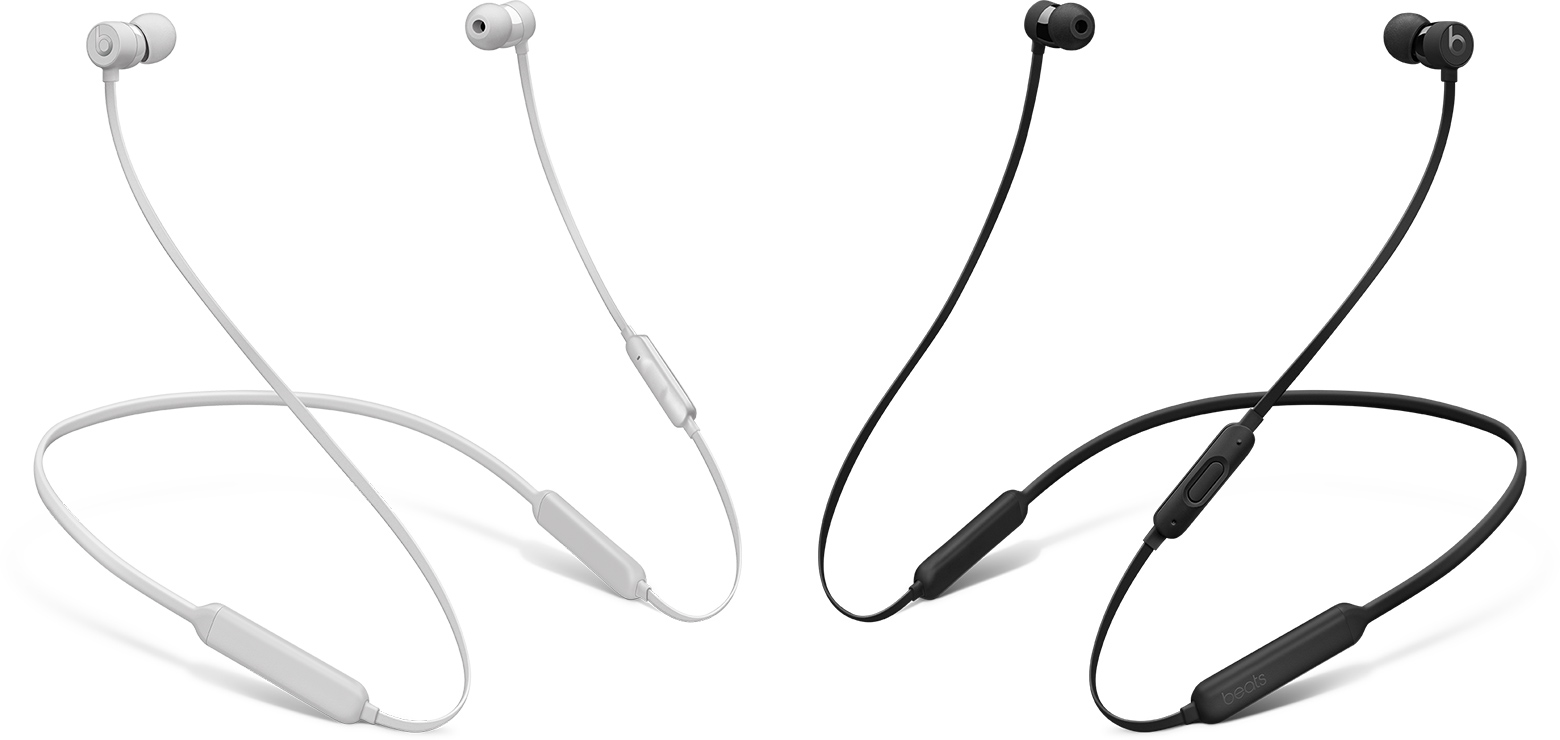
Pairing makes your Beats headphones communicate with your phone. A correct pairing gives you audio, controls, and battery status. When you understand how to pair Beats headphones to phone, you avoid stuttering audio, failed connections, and wasted time. This knowledge also helps when moving between devices or troubleshooting.
Which Beats models support easy pairing
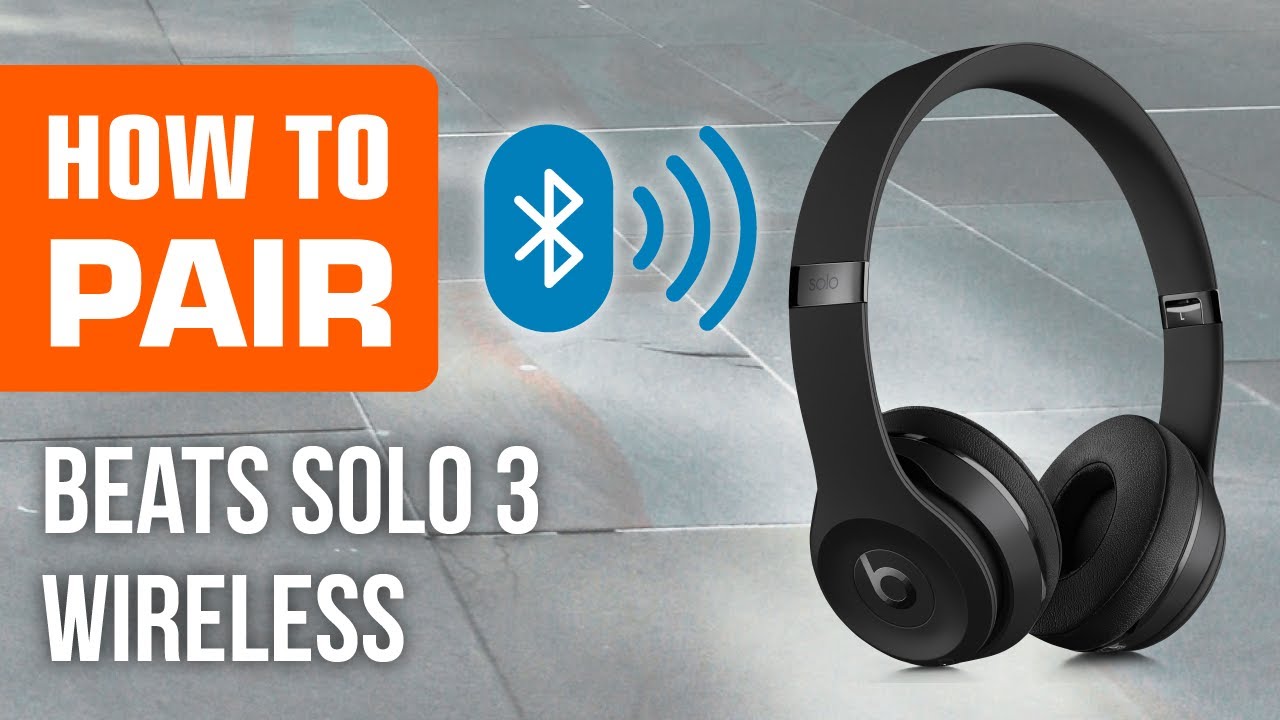
Most modern Beats headphones use Bluetooth and follow similar pairing steps. These include over-ear, on-ear, and true wireless models. Examples include Beats Solo, Studio, Flex, Powerbeats, Powerbeats Pro, and Beats Fit Pro. Some models add Apple’s quick-pair features that simplify setup with iPhone. Knowing your model helps pick the right pairing method and troubleshoot faster.

Prepare your phone and Beats: quick checklist
- Charge both devices so low battery doesn’t interrupt pairing.
- Turn on Bluetooth on your phone.
- Make sure your Beats are powered on or in case with true wireless models.
- Move close to the phone and away from other active Bluetooth devices.
- If switching devices, unpair or forget the Beats from the old phone first.
These simple steps solve many pairing problems before they start. I always check battery and distance first.
Step-by-step: how to pair Beats headphones to phone — iPhone (iOS)
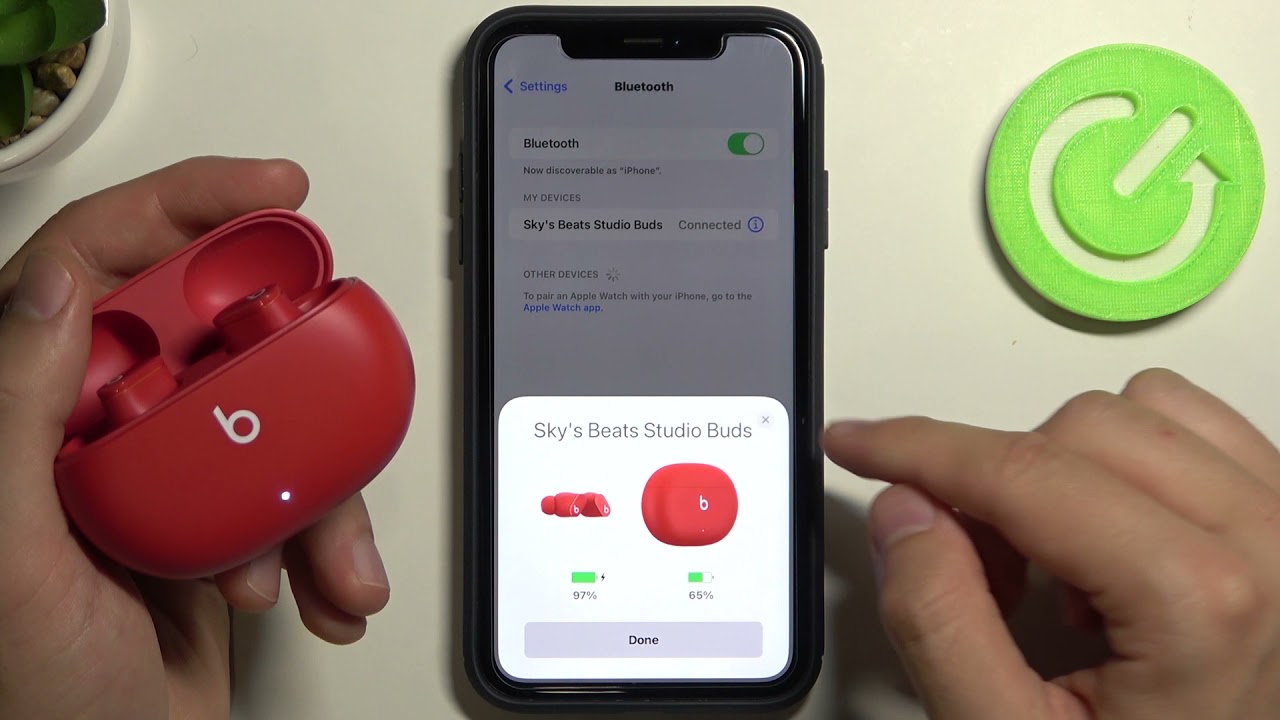
- Open Settings and tap Bluetooth to turn it on.
- Power on your Beats. For many models, hold the power button for a few seconds until the LED flashes.
- If you have modern Beats and an unlocked iPhone nearby, a setup card may pop up automatically. Tap Connect and follow on-screen prompts.
- If no card appears, look under Available Devices in Settings > Bluetooth. Tap your Beats name to pair.
- Wait for the pairing confirmation. The Beats should show Connected and, on compatible models, show battery level.
If your iPhone prompts for permissions, accept them to enable full functionality. Using an iPhone with software up to date makes pairing smoother. I’ve found automatic setup works most of the time with newer models.

Step-by-step: how to pair Beats headphones to phone — Android
- Open Settings, then Network & Internet or Connected devices, and enable Bluetooth.
- Power on your Beats and put them in pairing mode. For many models, press and hold the power or pairing button until the LED flashes.
- On Android, tap Pair new device (or Scan). Wait for your Beats to appear in the list.
- Tap the Beats entry to connect. If prompted, accept pairing or enter a PIN (usually 0000).
- Confirm the connection. Android may show media and call audio as connected.
Android phones vary slightly by brand and version. If you don’t see your Beats, refresh the Bluetooth list after toggling Bluetooth. I recommend closing other apps that use Bluetooth while pairing to reduce interference.
Troubleshooting common pairing issues
-
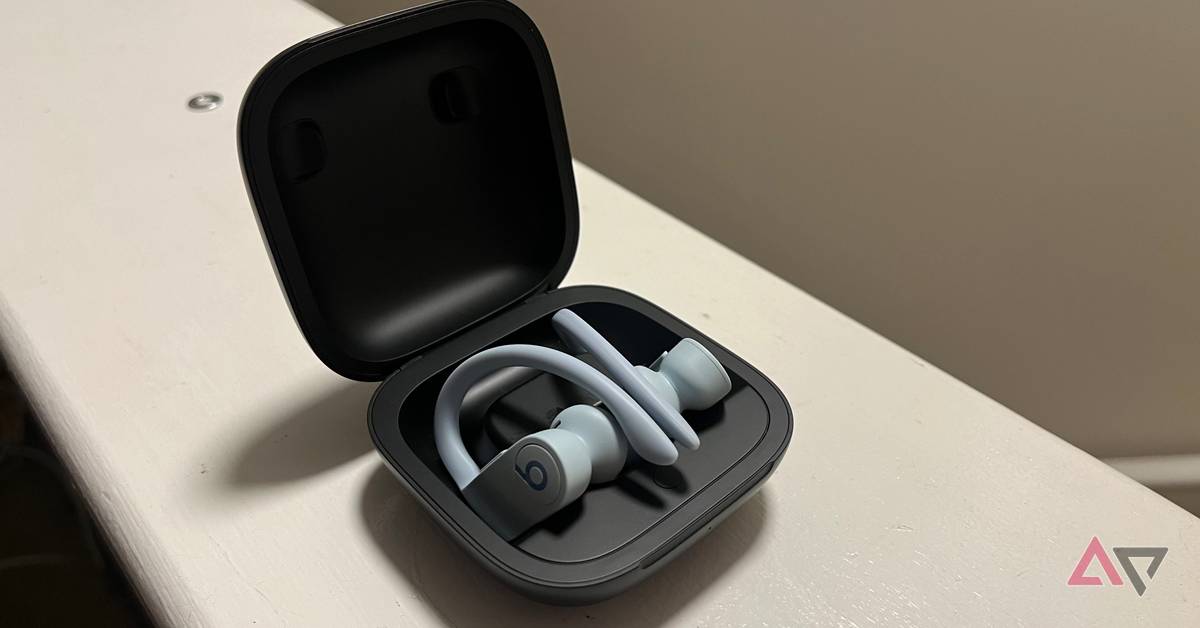
Problem: Beats won’t enter pairing mode.
- Fix: Fully power off, then restart the Beats and try the pairing button sequence again. Check the user manual for model-specific pairing steps.
-
Problem: Phone won’t find Beats in Bluetooth list.
- Fix: Toggle Bluetooth off and on, move devices closer, and remove other active Bluetooth connections.
-
Problem: Paired but audio is choppy or drops.
- Fix: Check distance and obstacles. Close background apps, update phone OS and Beats firmware, and avoid crowded 2.4 GHz networks.
-
Problem: Beats connect but show no battery info.
- Fix: Some phones don’t show battery for all Beats models. Use the Beats companion app or check on a compatible device.
-
Problem: Previously paired device blocks connection.
- Fix: On the old device, forget the Beats or turn off Bluetooth. On the Beats, perform a factory reset and re-pair.
I once had a pair of Beats keep reconnecting to an old laptop. Forgetting the device fixed it instantly. Use resets as a last resort when nothing else works.

Tips, tricks, and best practices
- Keep software updated: Phone OS and Beats firmware updates improve pairing and stability.
- Reset when stuck: A factory reset often clears stubborn pairing errors. Check model instructions for reset steps.
- Use single-device pairing for testing: If pairing fails, power off other Bluetooth devices to narrow the problem.
- Manage multi-device use: Some Beats support fast switching. Know how your model handles multiple connections.
- Preserve battery and privacy: Turn off Bluetooth when not in use and disconnect unknown devices.
- Store properly: For true wireless Beats, keep both earbuds in the case to ensure consistent pairing.
Quick PAA-style questions
-
How long does it take to pair Beats headphones to phone?
- Usually under a minute for modern models when both devices are ready and in range.
-
Can I pair my Beats to two phones at the same time?
- Some Beats models support multi-device connections, but behavior varies. Check your model’s specifications.
-
Will updating my phone break the Bluetooth pairing?
- Updates can temporarily disrupt pairing, but reconnecting or re-pairing normally restores function.

Frequently Asked Questions of how to pair beats headphones to phone
How do I put my Beats in pairing mode?
Press and hold the power or pairing button until the LED flashes. Each model may use a slightly different button sequence, so consult the manual if needed.
Why won’t my phone find my Beats?
Common causes are Bluetooth off, low battery, distance, or active pairing with another device. Toggle Bluetooth and try again close to the phone.
How do I reset my Beats before pairing?
Reset steps vary by model but usually involve holding power and specific buttons together for several seconds. Resetting clears previous connections so you can pair fresh.
Do I need an app to pair Beats with my phone?
No. Pairing works via Bluetooth without an app, though companion apps can add firmware updates and extra features for some models.
What if I hear audio lag after pairing?
Audio lag often comes from interference, software mismatches, or old firmware. Update both phone and Beats, and move closer to the phone.
Conclusion
Pairing your Beats headphones to phone is usually quick when you follow clear steps: charge devices, enter pairing mode, scan from the phone, and connect. Keep firmware and OS updated, manage other Bluetooth devices, and use resets only when needed. Try these steps and tips to save time and enjoy reliable audio. If you found this guide helpful, leave a comment, subscribe for more tech how-tos, or share your pairing story so others can learn from your experience.

Everett Ashford is a tech reviewer at mytechgrid.com specializing in SSDs, cameras, TVs, earbuds, headphones, and other consumer electronics. He provides honest, data-driven reviews based on hands-on testing and real-world performance analysis. Everett simplifies complex tech details to help readers make smart, confident buying decisions.