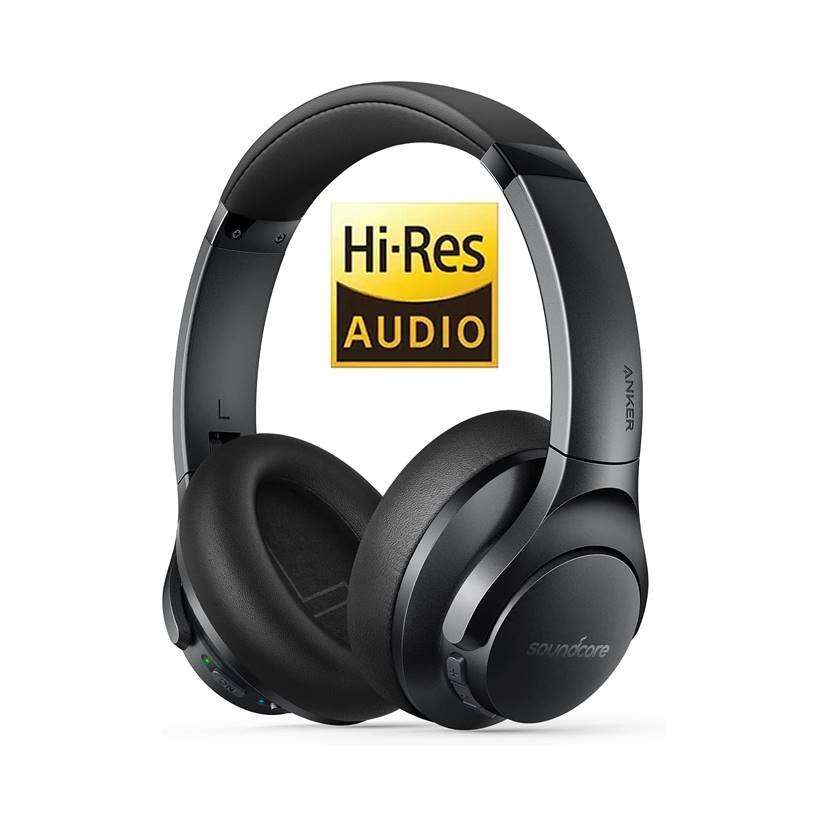
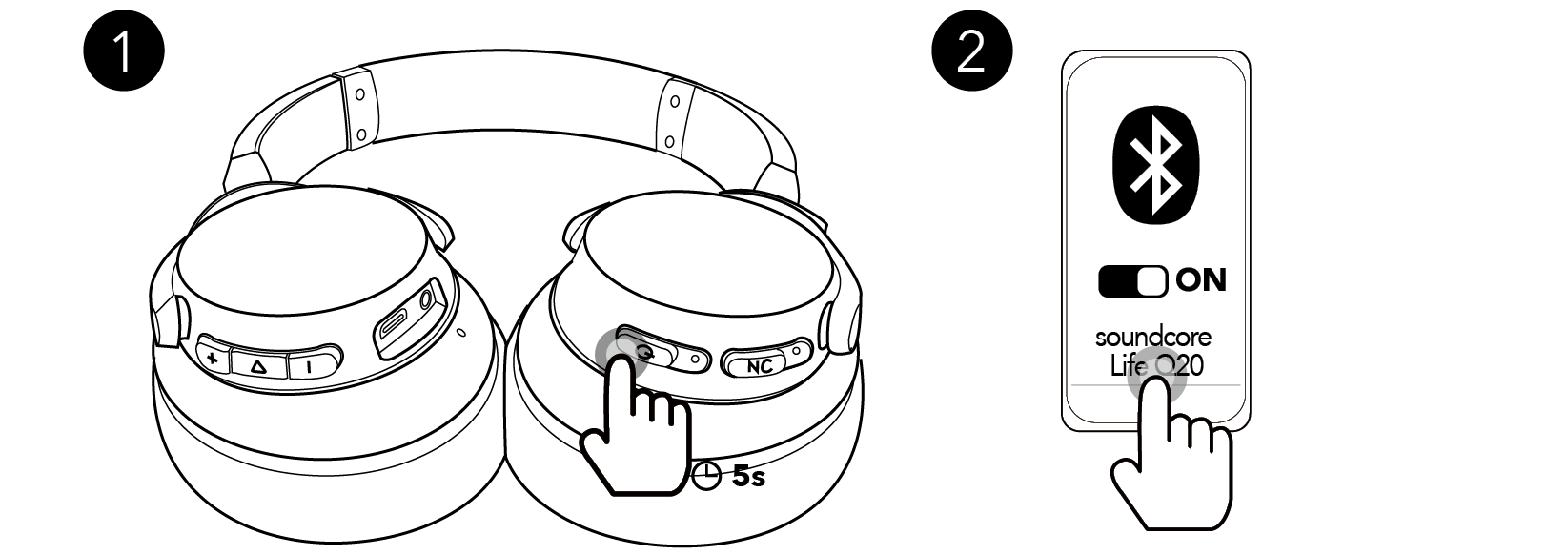
Turn on your Soundcore Life Q20, hold the power button until pairing mode starts, then select it in Bluetooth settings.
Learning how to pair Soundcore Life Q20 headphones is simple once you know what the flashing blue light means and where to find the correct Bluetooth menu. This guide covers phones, tablets, Windows PCs, and Macs, plus fixes for pairing problems, connection drops, and failed reconnections.
How to pair Soundcore Life Q20 headphones for the first time
The Soundcore Life Q20 uses Bluetooth to connect to phones, tablets, laptops, and other compatible devices. During first-time setup, the headphones usually enter pairing mode automatically after you turn them on.
Follow these steps:
- Take the headphones out of the box and charge them first.
- Press and hold the power button for about 3 seconds.
- Watch for the Bluetooth indicator to flash blue.
- Open the Bluetooth settings on your phone, tablet, or computer.
- Turn Bluetooth on.
- Select Soundcore Life Q20 from the list of available devices.
- Wait for the connected message or confirmation sound.
If your device asks for a PIN, try 0000. Most modern phones will not ask for one, but some older computers and Bluetooth adapters may.
When learning how to pair Soundcore Life Q20 headphones, keep the headphones close to the device. A distance of less than 3 feet is best during the first setup. Think of pairing like introducing two people in a quiet room: the closer and clearer the first meeting, the smoother the connection.
How to pair Soundcore Life Q20 headphones with Android
Android phones may use slightly different menu names. The steps are still much the same across Samsung Galaxy, Google Pixel, Motorola, OnePlus, and other Android devices.
- Open the Settings app.
- Tap Connected devices, Connections, or Bluetooth.
- Choose Pair new device if that option appears.
- Turn on Bluetooth.
- Press and hold the Life Q20 power button for about 3 seconds.
- Tap Soundcore Life Q20 when it appears.
- Approve the pairing request.
After pairing, the headphones should appear under Saved devices or Paired devices. The next time you turn them on, they should reconnect to the same Android phone if Bluetooth is active.
If Soundcore Life Q20 does not appear, turn Bluetooth off and on again. Also, make sure the headphones are not already connected to another nearby device, such as a tablet or laptop.
How to pair Soundcore Life Q20 headphones with an iPhone or iPad
Apple devices use a clear Bluetooth menu, so the process is quick.
- Open Settings on your iPhone or iPad.
- Tap Bluetooth.
- Turn Bluetooth on.
- Put the Soundcore Life Q20 into pairing mode.
- Tap Soundcore Life Q20 under Other Devices.
- Wait until the status changes to Connected.
If the headphones were paired before, they may appear under My Devices instead. Tap the information icon next to the headphones, then choose Forget This Device if you want to start over.
For reliable setup, keep other Bluetooth headphones turned off. Your iPhone may reconnect to a different audio device if several saved devices are nearby.
This is one of the easiest ways to pair Soundcore Life Q20 headphones because iOS clearly shows whether the connection is pending, active, or unsuccessful.

How to pair Soundcore Life Q20 headphones with a Windows PC
Windows computers can connect to the headphones for music, video calls, and games. The exact menu depends on whether your PC uses Windows 10 or Windows 11.
Windows 11
- Open Start and select Settings.
- Choose Bluetooth & devices.
- Turn Bluetooth on.
- Click Add device.
- Select Bluetooth.
- Put the Life Q20 into pairing mode.
- Choose Soundcore Life Q20 from the list.
Windows 10
- Open Start and select Settings.
- Choose Devices.
- Click Bluetooth & other devices.
- Turn Bluetooth on.
- Select Add Bluetooth or other device.
- Choose Bluetooth.
- Select Soundcore Life Q20.
Once connected, click the speaker icon in the taskbar and choose Soundcore Life Q20 as the sound output. This step matters because Windows may pair the headphones but continue playing sound through the built-in speakers.
For video calls, check the microphone setting inside the meeting app as well. Zoom, Microsoft Teams, and Google Meet can use a different input device than Windows.
How to pair Soundcore Life Q20 headphones with a Mac
Pairing with a Mac takes only a few steps.
- Select the Apple menu.
- Open System Settings or System Preferences.
- Click Bluetooth.
- Turn Bluetooth on.
- Put the headphones into pairing mode.
- Find Soundcore Life Q20 in the device list.
- Click Connect.
On newer versions of macOS, you can also select the headphones from the Control Center in the menu bar. After connection, open Sound Settings and confirm that Soundcore Life Q20 is selected for audio output.
If the Mac shows the headphones as connected but no sound plays, select the headphones again under the sound output list. This refreshes the audio route without requiring a full restart.

How to reconnect Soundcore Life Q20 headphones
After the first successful setup, reconnecting should be automatic. Turn on the headphones, keep Bluetooth active on the source device, and wait a few seconds.
If automatic reconnection fails, open the Bluetooth menu and tap or click Soundcore Life Q20 manually. You may also need to pause audio on another device that previously used the headphones.
The Life Q20 can remember paired devices, but Bluetooth behavior depends on the model, firmware, and connection history. It may not switch between devices as smoothly as newer headphones with advanced multipoint support.
When helping someone with how to pair Soundcore Life Q20 headphones, I usually check the last connected device first. Many “pairing” problems are really automatic reconnection attempts to an old phone, tablet, or computer.
How to pair Soundcore Life Q20 headphones with a second device
You can pair the headphones with more than one device over time. However, pairing is not always the same as actively using two devices at once.
To connect a second device:
- Disconnect the headphones from the first device.
- Turn on the Life Q20.
- Hold the power button for about 3 seconds to enter pairing mode.
- Open Bluetooth settings on the second device.
- Select Soundcore Life Q20.
- Confirm the connection.
If the second device cannot find the headphones, temporarily turn off Bluetooth on the first device. This prevents the first device from taking control of the connection.
For example, turn off Bluetooth on your phone before pairing with a work laptop. Afterward, you can turn Bluetooth back on and manually choose which device should connect.
What the Life Q20 Bluetooth light means
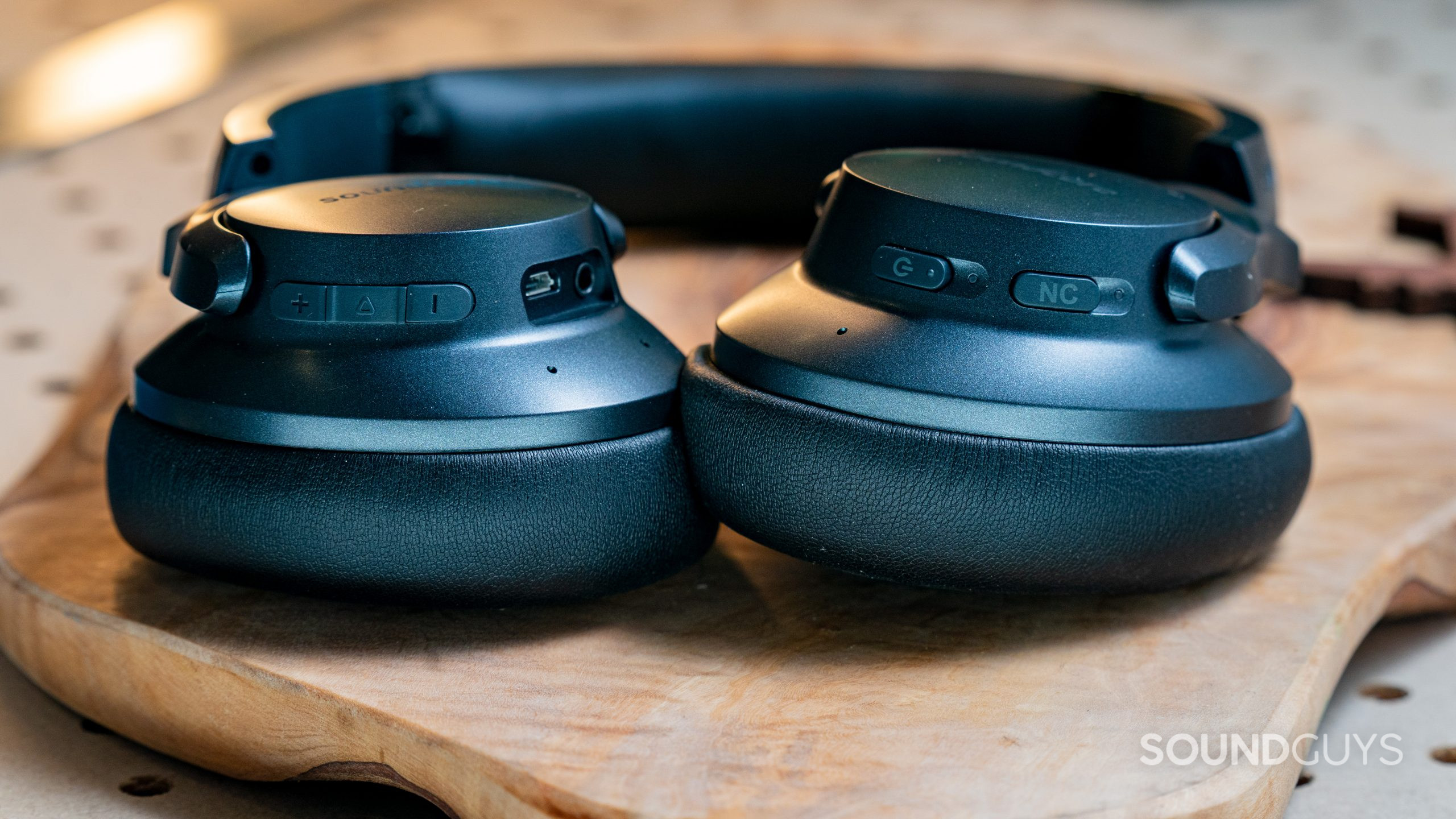
The indicator light gives useful information during setup.
• Flashing blue usually means the headphones are ready to pair.
• A steady blue light often means the headphones are connected.
• No light may mean the headphones are turned off or the battery is empty.
• A red light commonly indicates charging or a low battery, depending on the operating state.
Light behavior can vary slightly by production version and manual wording. The most reliable test is to check whether Soundcore Life Q20 appears in your device’s Bluetooth list.
Do not confuse Bluetooth pairing with charging. The headphones can charge through USB and connect wirelessly at the same time, but charging does not automatically place them into pairing mode.
How to fix Soundcore Life Q20 pairing problems
If pairing fails, work through these fixes in order. Start with the simple steps before resetting anything.
Check the battery
Charge the headphones for a while before trying again. A very low battery can prevent startup, pairing, or stable connection.
Use a suitable USB cable and check that the charging indicator responds. If there is no light, try another cable or power source.
Move closer to the device
Keep the headphones within a few feet of the phone or computer. Walls, metal objects, Wi-Fi equipment, and crowded Bluetooth areas can interfere with the first connection.
Avoid pairing beside a wireless router, USB 3.0 hub, or many active wireless devices. Interference is not always visible, but it can make the device list behave strangely.
Remove the old Bluetooth entry
On your phone or computer, find Soundcore Life Q20 in the saved Bluetooth list. Choose Forget, Remove device, or Unpair.
Then restart Bluetooth and repeat the setup. This clears an old connection record that may contain outdated pairing information.
Turn off nearby Bluetooth devices
A nearby tablet, phone, or laptop may connect before your preferred device does. Turn Bluetooth off on those devices for a moment.
This is one of the most common lessons in how to pair Soundcore Life Q20 headphones. The headphones may be working correctly; another device may simply be claiming them first.
Reset the headphones
If normal steps fail, reset the headphones:
- Turn on the Life Q20.
- Press and hold the power button and volume up button together.
- Continue holding for about 5 seconds.
- Release the buttons.
- Remove the old Bluetooth entry from your device.
- Try pairing again.
A reset clears stored pairing information. You will need to reconnect the headphones to your phone, tablet, or computer afterward.

Common mistakes to avoid when pairing
Small mistakes can make a simple setup feel much harder.
• Do not select a similarly named Bluetooth device. Choose Soundcore Life Q20 exactly.
• Do not press the power button briefly if you need pairing mode. Hold it for about 3 seconds.
• Do not keep the headphones connected to a charger and assume they are automatically discoverable.
• Do not test the headphones from another room during setup.
• Do not reset the headphones before trying forget-and-pair again.
• Do not assume a successful Bluetooth connection means the computer selected the headphones for sound output.
Bluetooth pairing creates a link. Audio settings decide where the sound goes. Keeping those two steps separate makes troubleshooting much easier.
Tips for a better Bluetooth connection
Once you know how to pair Soundcore Life Q20 headphones, a few habits can improve daily use.
Keep the headphones updated through the official Soundcore app when your model and phone support the app. Firmware updates may improve compatibility, stability, or control behavior, although updates cannot fix every hardware or radio issue.
Keep your phone or computer reasonably close. Bluetooth range depends on obstacles, radio interference, and the antennas in both devices. Manufacturer range claims are measured in controlled conditions, so real homes and offices may produce different results.
Charge the headphones before long trips. The Life Q20 is known for long battery life, but actual time changes with volume, noise cancellation, codec behavior, and age.
Clean the ear cup controls with a dry, soft cloth. Moisture and debris around buttons can make presses unreliable. Never place liquid inside the charging port or headphone controls.

Does noise cancellation affect pairing?
Active noise cancellation does not normally change the Bluetooth pairing process. You can pair the headphones first, then turn noise cancellation on or off with the control button.
Noise cancellation affects what you hear from the outside world. It does not replace Bluetooth, improve the pairing signal, or repair a failed connection.
If music plays but outside noise still seems loud, check the fit of the ear cups. A good seal helps passive isolation and makes noise cancellation feel more effective.
Can the Life Q20 connect without Bluetooth?
The Life Q20 can also work with a wired audio connection when you use the correct audio cable and a compatible source. Wired use does not require Bluetooth pairing.
This is useful on airplanes, with some gaming systems, or when a computer has Bluetooth problems. Noise cancellation behavior may depend on whether the headphones are powered on and how the cable is connected.
How to pair Soundcore Life Q20 headphones faster
The fastest reliable method is simple:
- Charge the headphones.
- Turn off Bluetooth on old nearby devices.
- Hold the power button for about 3 seconds.
- Open Bluetooth settings on the device you want to use.
- Select Soundcore Life Q20.
- Confirm the audio output.
I recommend this order because it removes the most common source of confusion: an old device connecting first. It also confirms that the headphones have enough power before you spend time changing settings.
Frequently Asked Questions about how to pair Soundcore Life Q20 headphones
Why are my Soundcore Life Q20 headphones not showing up?
Make sure the headphones are on and in pairing mode, shown by the flashing Bluetooth light. If they still do not appear, turn off Bluetooth on nearby devices, remove the old pairing record, and reset the headphones if needed.
How do I put Soundcore Life Q20 into pairing mode?
Press and hold the power button for about 3 seconds. The Bluetooth indicator should flash blue, which means the headphones are ready to appear in your device’s Bluetooth list.
Can I pair Soundcore Life Q20 headphones with an iPhone?
Yes. Open Settings, tap Bluetooth, turn it on, and select Soundcore Life Q20 from the available devices. Keep the headphones close to the iPhone during setup.
Can I connect Soundcore Life Q20 headphones to a laptop?
Yes. Windows and Mac computers can connect through their Bluetooth settings. After pairing, select Soundcore Life Q20 as the computer’s audio output if sound continues through the built-in speakers.
How do I reset Soundcore Life Q20 headphones?
Turn on the headphones, then hold the power and volume up buttons together for about 5 seconds. After resetting, remove the old Bluetooth entry from your device and pair the headphones again.
Why do my headphones connect but have no sound?
Your device may be connected to the headphones but still using another output. Open the sound settings and choose Soundcore Life Q20 as the speaker or output device.
Do I need the Soundcore app to pair the headphones?
No. You can pair the Life Q20 through the regular Bluetooth settings on your phone or computer. The app may offer extra controls or updates on supported devices, but it is not required for basic pairing.
Conclusion
The basic process for how to pair Soundcore Life Q20 headphones is quick: turn them on, enter pairing mode, open Bluetooth settings, and select Soundcore Life Q20. If the headphones do not appear, charge them, move closer, disconnect old devices, forget the saved entry, or perform a reset.
Start with your phone or computer nearby and keep other Bluetooth devices quiet during setup. Once connected, select the headphones as your audio output and enjoy your music, calls, and videos. If this guide helped, share it with someone having Bluetooth trouble or explore more headphone setup tips.

Everett Ashford is a tech reviewer at mytechgrid.com specializing in SSDs, cameras, TVs, earbuds, headphones, and other consumer electronics. He provides honest, data-driven reviews based on hands-on testing and real-world performance analysis. Everett simplifies complex tech details to help readers make smart, confident buying decisions.